

Security Shield is a rogue security software which will display fake security alerts,reporting that malware has been detected on your computer.This alerts are professional looking pop-ups and when you click on them, you are advised to buy Security Shield in order to remove the detected threats.
In reality, none of the reported issues are real, and are only used to scare you into buying Security Shield and stealing your personal financial information.
In addition,this malicious program is also causing browser redirects,system slowdowns and has hijacked your PC functions to block certain programs from running (eg: Task Manager,Registry Editor,Run command etc.).
If your computer is infected with Security Shield,then you are seeing this images:
![[Image: Security Shield virus]](http://malwaretips.com/blogs/wp-content/uploads/2012/06/Security-Shield.png "Security Shield")
![[Image: Security Shield Alert]](http://malwaretips.com/blogs/wp-content/uploads/2012/06/Security-Shield-2.png "Security Shield fake alert")
![[Image: Security Shield warning]](http://malwaretips.com/blogs/wp-content/uploads/2012/06/Security-Shield-3.png "Security Shield fake update request")
We strongly advise you to follow our Security Shield removal guide and ignore any alerts that this malicious software might generate.
Under no circumstance should you buy this rogue security software as this could lead to identity theft,and if you have, you should contact your credit card company and dispute the charge stating that the program is a scam and a computer virus.
Registration codes for Security Shield
As an optional step,you can use the following license key to register Security Shield and stop the fake alerts.
64C665BE-4DE7-423B-A6B6-BC0172B25DF2
Please keep in mind that entering the above registration code will NOT remove Security Shield from your computer , instead it will just stop the fake alerts so that you’ll be able to complete our removal guide more easily.
How to remove Security Shield (Uninstall Guide)
STEP 1: Remove Security Shield malicious files with Malwarebytes Anti-Malware
Malwarebytes Chameleon technologies will allow us to install and run a Malwarebytes Anti-Malware scan without being blocked by Security Shield.
- Download Malwarebytes Chameleon from the below link, and extract it to a folder in a convenient location.
Download Malwarebytes ChameleonOpens the download page in a new tab.
![[Image: Extract Malwarebytes Chameleon utility]](//malwaretips.com/blogs/wp-content/uploads/2013/02/malwarebytes-chameleon-zip.jpg "Extract Malwarebytes Chameleon utility")
- Make certain that your infected computer is connected to the internet and then open the Malwarebytes Chameleon folder, and double-click on the svchost.exe file.
![[Image: Double click on svchost.exe]](//malwaretips.com/blogs/wp-content/uploads/2013/02/malwarebytes-chameleon-svchost.jpg "Double click on svchost.exe")
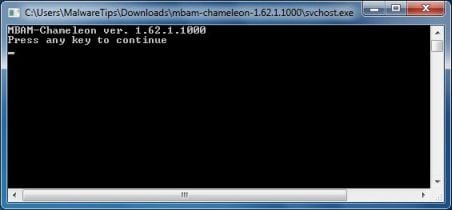
IF Malwarebytes Anti-Malware will not start, double-click on the other renamed files until you find one will work, which will be indicated by a black DOS/command prompt window. - Follow the onscreen instructions to press a key to continue and Chameleon will proceed to download and install Malwarebytes Anti-Malware for you.
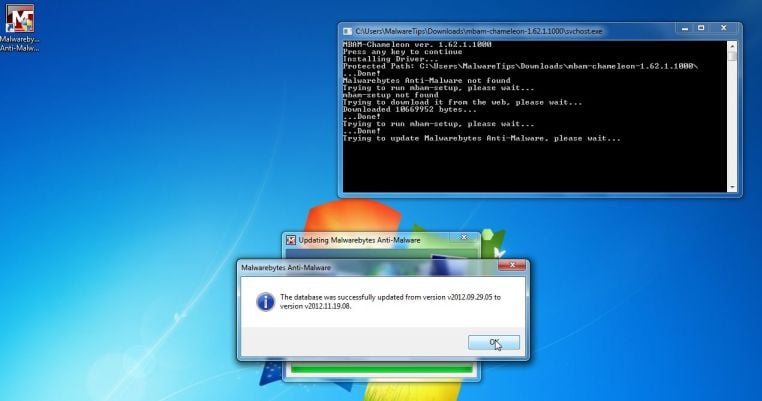
- Once it has done this, it will update Malwarebytes Anti-Malware, and you’ll need to click OK when it says that the database was updated successfully.
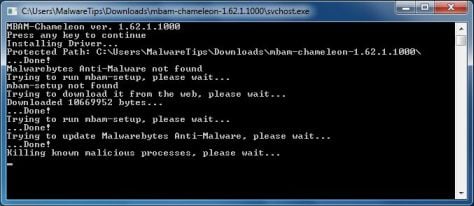
- Malwarebytes Anti-Malware will now attempt to kill all the malicious process associated with Security Shield.Please keep in mind that this process can take up to 10 minutes, so please be patient.
- Next, Malwarebytes Anti-Malware will automatically open and perform a Quick scan for Security Shield malicious files as shown below.
![[Image: Malwarebytes Anti-Malware scanning for Security Shield]](//malwaretips.com/blogs/wp-content/uploads/2013/01/malwarebytes-scan.jpg "Malwarebytes Anti-Malware scanning for Security Shield")
- Upon completion of the scan, click on Show Result
![[Image: Malwarebytes Anti-Malware scan results]](//malwaretips.com/blogs/wp-content/uploads/2013/01/malwarebytes-scan-results.jpg "Malwarebytes when the system scan has completed")
- You will now be presented with a screen showing you the malware infections that Malwarebytes Anti-Malware has detected.
Make sure that everything is Checked (ticked),then click on the Remove Selected button.
![[Image:Malwarebytes removing virus]](//malwaretips.com/blogs/wp-content/uploads/2013/01/malwarebytes-virus-removal.jpg "Click on Remove Selected to get rid of Security Shield")
- After your computer restarts, open Malwarebytes Anti-Malware and perform a Full System scan to verify that there are no remaining threats
![[Image: Extract Malwarebytes Chameleon utility]](http://malwaretips.com/blogs/wp-content/uploads/2013/02/malwarebytes-chameleon-zip.jpg "Extract Malwarebytes Chameleon utility")
![[Image: Double click on svchost.exe]](http://malwaretips.com/blogs/wp-content/uploads/2013/02/malwarebytes-chameleon-svchost.jpg "Double click on svchost.exe")
![[Image: Malwarebytes Anti-Malware scanning for Security Shield]](http://malwaretips.com/blogs/wp-content/uploads/2013/01/malwarebytes-scan.jpg "Malwarebytes Anti-Malware scanning for Security Shield")
![[Image: Malwarebytes Anti-Malware scan results]](http://malwaretips.com/blogs/wp-content/uploads/2013/01/malwarebytes-scan-results.jpg "Malwarebytes when the system scan has completed")
![[Image:Malwarebytes removing virus]](http://malwaretips.com/blogs/wp-content/uploads/2013/01/malwarebytes-virus-removal.jpg "Click on Remove Selected to get rid of Security Shield")
STEP 2: Remove Security Shield rootkit with HitmanPro
In some cases,Security Shield will also install a rootkit on victims computer.To remove this rootkit we will use HitmanPro.
- Download HitmanPro from the below link,then double-click on it to start this program.
Download HitmanProOfficial Sophos download. Free scan, free 30-day trial to remove threats.
IF you are experiencing problems while trying to start HitmanPro, you can use the Force Breach mode.To start HitmanPro in Force Breach mode, hold down the left CTRL key when you start HitmanPro and all non-essential processes are terminated, including the malware process. (How to start HitmanPro in Force Breach mode – Video) - HitmanPro will start and you’ll need to follow the prompts (by clicking on the Next button) to start a system scan with this program.
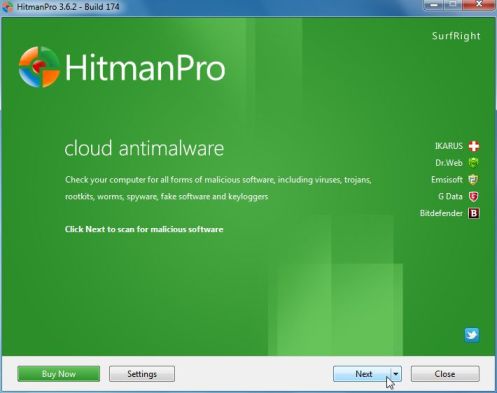
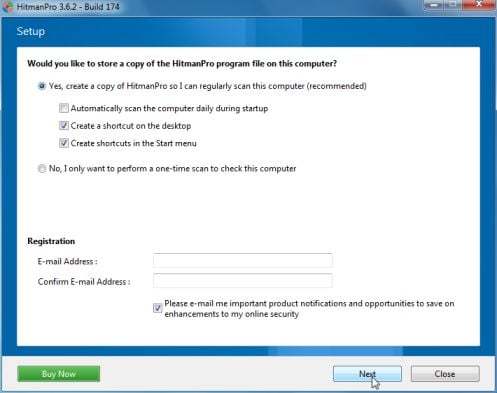
- HitmanPro will start scanning your computer for Security Shield malicious files as seen in the image below.
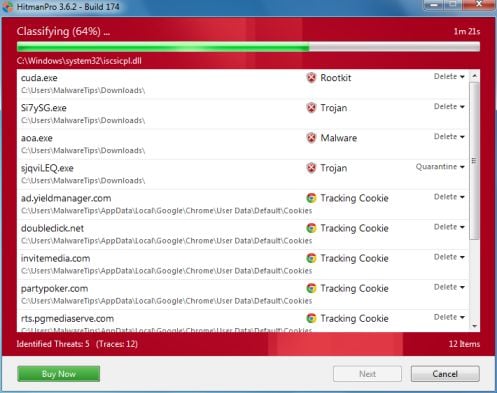
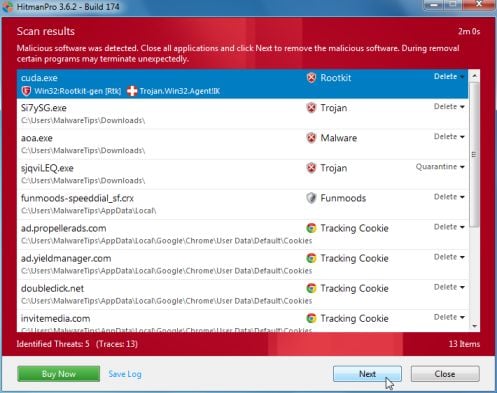
- Once the scan is complete,you’ll see a screen which will display all the infected files that this utility has detected, and you’ll need to click on Next to remove this malicious files.
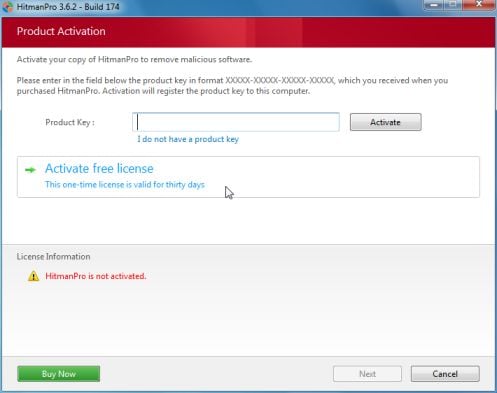
- Click Activate free license to start the free 30 days trial and remove all the malicious files from your computer.
STEP 3: Double check for any left over infections with Emsisoft Emergency Kit
- You can download Emsisoft Emergency Kit from the below link,then extract it to a folder in a convenient location.
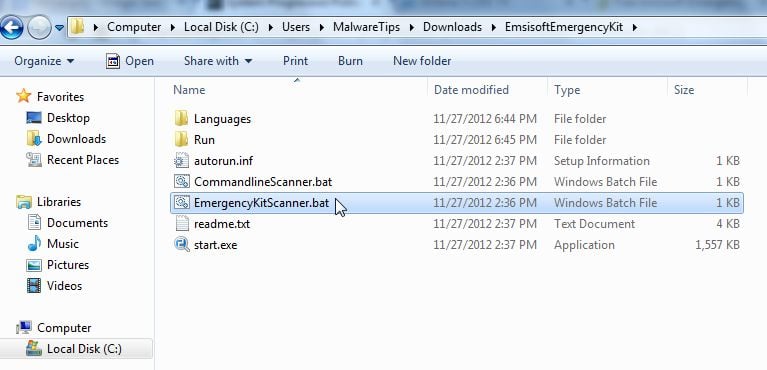
Download Emsisoft Emergency KitOpens the download page in a new tab. - Open the Emsisoft Emergency Kit folder and double click EmergencyKitScanner.bat, then allow this program to update itself.
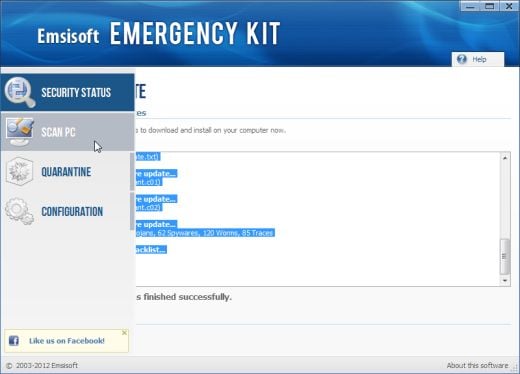
- After the Emsisoft Emergency Kit has update has completed,click on the Menu tab,then select Scan PC.
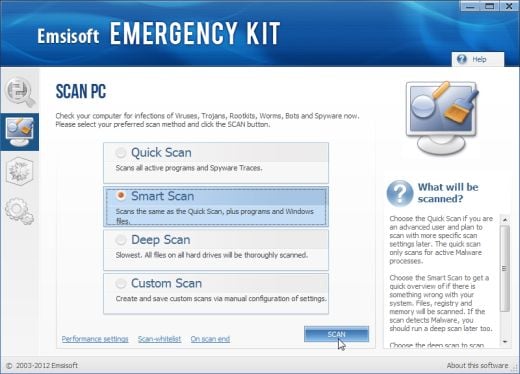
- Select Smart scan and click on the SCAN button to search for Security Shield malicious files.
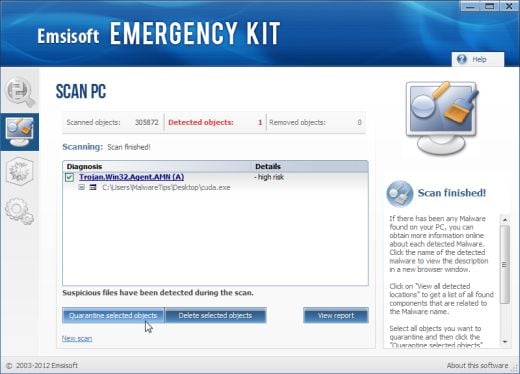
- When the scan will be completed,you will be presented with a screen reporting which malicious files has Emsisoft detected on your computer, and you’ll need to click on Quarantine selected objects to remove them.









thank you for the guide. I successfully got rid of that malware shitty program. My mother downloaded something from some website and I just had to clean up the mess. Thank you again for your awesome job, Stelian.
thank you so much for this site. bravo!!!
I run McAff anti-virus. Is there any one type of security software that would have caught the Security Shield malware. McAfee let it through and it infected my wife’s laptop. She does visit a lot of websites and plays a lot of games. Thanks for your support. Richard
Hello,
McAfee is not ‘our choice’ , mainly because it fails to prevent zero day malware……
Below you can find some quick suggestions on what products you can use:
Free – Avast Antivirus 7 Free version or COMODO Internet Security
Paid : Norton Internet Security 2012,Avast Internet Security 7,G-DATA Internet Security 2012 or ESET Smart Security 5.
Anyway ,you should really start a thread in our Security Configuration forum as you need to build a layered security config: http://malwaretips.com/Forum-Security-Configuration-Wizard
Also it would very good if you took the time and read this article that I’ve wrote: http://malwaretips.com/blogs/how-to-easily-avoid-pc-infections/ .. If you follow it,then we’ll never meet again in this conditions:)
Hi,
I’ve done all the steps in normal mode several times to ensure that everything has been removed, and all the scans come up clear except HitmanPro always comes up with a “Boot Configuration Data (BCD) allows loading of non-signed drivers” where the only option is to repair it but when I click “Next”, it always says “Repair failed” so I can’t get rid of it. Is it something I should be concerned about or can I just ignore it?
Thanks for all you help!
Hello Amanda,
We need to fix this issue….Can you please run a scan with Combofix,RogueKiller and ESET online scanner and post the logs here :
STEP 1 : Run a scan with Combofix
Download ComboFix from one of the following locations:
COMBOFIX DOWNLOAD LINK #1 (This link will automatically download Combofix on your computer)
COMBOFIX DOWNLOAD LINK #2 (This link will automatically download Combofix on your computer)
VERY IMPORTANT !!! Save as Combo-Fix.exe during the download. ComboFix must be renamed before you download to your Desktop
———————————————————–
———————————————————–
———————————————————–
Notes:
STEP 2: Run a scan with RogueKiller
RogueKiller Download Link (This link will automatically download RogueKiller on your computer)
STEP 3: Run a scan with ESET Online Scanner:
ESET Online Scanner Download Link (This link will automatically download ESET Online Scanner on your computer.)
Next,please run HitmanPro and Malwarebytes as seen on the guide.
Waiting for your reply to tell me if your machine is ok and the logs from this utilities.
Hi, I have the Security Shield virus and am trying to follow your steps. However at Step 3 when I select Safe Mode with networking in runs a few scripts and comes back to the same position ie the computer will not start up in safe mode. It does start if I select Start window normally. Thanks
Hello Barry,
Lets work in Normal Mode.Please follow this steps:
STEP 1: Run a scan with Malwarebytes Anti-Malware in Chameleon Mode in Norman mode:
STEP 2: Run a scan with RogueKiller
RogueKiller Download Link (This link will automatically download RogueKiller on your computer)
STEP 3 Please perform a scan with HitmanPro as seen on the guide.
If you are having problems starting this program please use the ForceBreach mode as described in the guide.
STEP 4: Run a scan with ESET Online Scanner:
ESET Online Scanner Download Link (This link will automatically download ESET Online Scanner on your computer.)
Waiting for your reply to tell me how everything is running!
Good luck…
Thanks man it actually worked! Overall took several hours to successfully remove Security Shield, but well worth it! Great tutorial!
Thanks so much for the help. Only took me about 3 hours yesterday to find your site and fix part of the problem. I’m doing the last couple steps this morning, but I was so thankful when I could actually use my computer last night. Every time I run maleware bytes it finds a infected file, so I downloaded hitman and running it now. Hoping between the two it will knock out all the infected files and my wonderful computer will be back to wonderful. Thanks again for taking the time to show people how to do this.
Hi,
When I was running step 3 for RKill then in withing a minute I have received a message stating that “Your Computer encountered a serious problem and need to be restarted, please save your work. It will restart in 1 minute” and there was no cancel button, so I could not stop it. But few seconds before restart I noticed that RKILL process was finished by giving a log text file on console. Then after auto reboot I checked the log file and found following :
**************************Rkill.txt Starts ******************************
Rkill 2.0.3 by Lawrence Abrams (Grinler)
http://www.bleepingcomputer.com/
Please let me know if everything is fine on my computer and no need to worry.
I can still see 3 unknown shortcuts on my desktop:
1. Security Shield –> C:\Users\manish\AppData\Local\ybaomptquw.exe (file not exist)
2. Uninstall Security Shield –> C:\Users\manish\AppData\Local\ybaomptquw.exe -delete (file does not exists)
3. Security Shield Support –> http://onlinecscenter.com (I did not open this link).
Please let me know what needs to do with these shortcuts?
Many thanks in advance.
Hello Manish,
You can delete those shorcuts…..
Next,please run a scan with Combofix and ESET online scanner and post the logs here :
STEP 1 : Run a scan with Combofix
Download ComboFix from one of the following locations:
COMBOFIX DOWNLOAD LINK #1 (This link will automatically download Combofix on your computer)
COMBOFIX DOWNLOAD LINK #2 (This link will automatically download Combofix on your computer)
VERY IMPORTANT !!! Save as Combo-Fix.exe during the download. ComboFix must be renamed before you download to your Desktop
———————————————————–
———————————————————–
———————————————————–
Notes:
STEP 2: Run a scan with ESET Online Scanner:
ESET Online Scanner Download Link (This link will automatically download ESET Online Scanner on your computer.)
Next,please run HitmanPro and Malwarebytes as seen on the guide.
Waiting for your reply to tell me if your machine is ok and the logs from this utilities.
Hello,
I ran the programs as suggested and now all seems to be good. D & E Drives are having “$RECYCLE.BIN” folder. Can you please confirm if there is nothing to worry about this.
You can see logs at below shared location:
Many thanks for your help in this.
Logs look good.. If you don’t have any other problems then we can uninstall Combofix:
Ok,now lets uninstall Combofix:
Delete the following folders: (If they exist)
C:\ComboFix
C:\Qoobox
You should really start a thread in our Security Configuration forum as you need to build a layerd security config: http://malwaretips.com/Forum-Security-Configuration-Wizard
Also it would very good if you took the time and read this article that I’ve wrote: http://malwaretips.com/blogs/how-to-easily-avoid-pc-infections/ .. If you follow this tips,then we’ll never meet again in this conditions.
Stay safe!
Removed the Combo-Fix successfully.
Please let me know about the following folders:
– D & E Drives are having “$RECYCLE.BIN” (Empty) folder.
– D drive is having a empty folder “Recovery”
Please let me why I am seeing these folders whereas these were not there before the virus.
Please suggest. Waiting for your reply.
Anyways, This is great it works very well I just wanted to say thank you for helping I was scared that my PC was done. I will tell everyone about this website. My ratings for you guys are 5stars.
Thanks a lot again.
You can delete those files…. They were there before however,they were hidden… running the removal tools has unhide them…. :)
Stelian,
Thank you so much for writing this forum. These were the easiest instructions to follow even thought it took concentration and patience. As siad above that this is great it works very well I just wanted to say thank you for helping I was scared that my PC was done. I will tell everyone about this website. My ratings for you guys are 5stars.
Thanks a lot again.
I am a computer idiot, for me it’s like splitting an atom – thanks for the help. I had trouble after Step 3, my computer kept rebooting automatically but I was able to keep moving to the next step. I think it’s gone!
Words can not express my full appreciation to you for this detailed removal guide for the Security Shield virus…I must admit that I tried another information source first and had to give up because theirs wasn’t working as stated…while the removal process takes some serious time, your guide is very detailed and accurate…the removal proceeded as you described and I have subsequently retested my system to make certain that nothing was overlooked by me as I followed all of your steps. Thank you, BK
Thank you so much for this in-depth guide. I cannot express to you how much of a relief it was to be able to fix this on my own. Everything here is very well organized and the steps occurred exactly as you described. Thanks again!
Awesome step-by-step instructions, very clear and complete. Thanks!!
I ran Malwarebytes but it didnt find any Malware, not sure what this means yet for my Secutity Shield issues.
Hello Tom,
You most likely have a very new version of this virus,please perform the following steps:
Step 1: Run a scan with RogueKiller
[b]RogueKiller Download Link[/b] (This link will automatically download RogueKiller on your computer)
The report has been created on the desktop.In your next reply please post:
[b]All RKreport.txt [/b] text files located on your desktop.
2.Run a scan with Kaspersky Virus Removal Tool
Click here to download the Kaspersky Virus Removal Tool.
3.Run a scan with Eset Online Scanner.
ESET Online Scanner Download Link (This link will automatically download ESET Online Scanner on your computer.)
Next,please run a scan with HitmanPro and report back here to tell me how everything is working.
This seems to have worked great. Took a little while to go through but otherwise fixed a nasty problem! Thanks for the great step-by-step
Very helpful guide.
Great help. Am advising all to download Rkill & Malwarebytes to keep handy. Unhide.exe is also a good file restorer for Houdini effects.
Does any one know or have an idea who made this piece of nasty software?
I want track them down!
Trying to get rid of this, has taken up a load of my time, and I’m going to have to wipe the drive and reinstall, is going to take up even more of my time.
I would like to sue them, or if they live in some monkey state, just have them sorted out in some way.
This Trojan is right out of order. Its completely messed up my machine. My system keeps automatically shutting down and restarting after being logged in for a min and a half.
Excellent step-by-step guide.
I was a bit skeptical about downloading and installing software. However, I did whatever was recommended and it worked.
Thanks a ton, Stelian.
when i tried downloading microsoft fix it, a sign popped up saying “the system adminstrator has set policies to prevent this installation”. What do I do?
Download this utility : http://www.tweaking.com/content/page/repair_hosts_file.html : and run it instead those 2 files in step 6. :)
thanks!
Thanks