

If you are using a Windows PC, and you are seeing a “Your Browser Has Been Blocked Up” notification within Internet Explorer, Firefox or Chrome, then you have redirected to a web page that contains a malicious javascript code. The “Your Browser Has Been Blocked Up” message is basically just a web page containing a malicious javascript that does not allow you to close the browser window or switch to a different web page.
![[Image: Your Browser Has Been Blocked Up malware]](http://malwaretips.com/blogs/wp-content/uploads/2014/01/your-browser-has-been-blocked-malware.jpg "Your Browser Has Been Blocked Up malware")
![[Image: Your Browser Has Been Blocked Up scam]](http://malwaretips.com/blogs/wp-content/uploads/2014/01/your-browser-has-been-blocked-scam.jpg "Your Browser Has Been Blocked Up Scam")
The “Your Browser Has Been Blocked Up” virus will display a bogus notification that pretends to be from your local law enforcement agency (Examples: FBI, Department of Justice, Royal Canadian Mounted Police, Australian Federal Police, Police Central e-crime Unit) and states that your computer has been blocked due to it being involved with the distribution of pornographic material, spam and copyrighted content.
It goes on to say that you need to pay a ransom of $300 in order to get access to your files and computer again. In order to pay this ransom you need purchase a MoneyPak voucher and submit it in the web browser. The malware’s authors prefer these payment services because transactions made through them cannot be reversed and are hard to trace.
If your computer is infected with the “Your Browser Has Been Blocked Up” browser hijacker, this infection will display a localized webpage that covers the entire web browser of the infected computer and demands payment for the supposed possession of illicit material. The message displayed by this ransomware infection can be localized depending on the user’s location, with text written in the appropriate language.
![[Image: Your Browser Has Been Blocked Up browser virus]](http://malwaretips.com/blogs/wp-content/uploads/2014/01/your-browser-has-been-blocked-virus.jpg "Your Browser Has Been Blocked Up browser virus")
The text of the popup that is displayed when you try to close the browser window is:
Are you sure you want to leave this page?
Message from webpage:
YOUR BROWSER HAS BEEN BLOCKED UP FOR SAFETY REASONS.
ALL PC DATA WILL BE DETAINED.
ALL YOUR FILES ARE ENCRYPTED.YOUR BROWSER HAS BEEN BLOCKED UP. Leave this page or Stay on this page.
Cyber criminals often updated the design of this lock screen, however you should always keep in mind that no law enforcement agency (eg: FBI, Department of Justice, Royal Canadian Mounted Police or Police Central e-crime Unit) will never lock down your computer or monitor your online activities.
Cyber criminals often updated the design of this lock screen, however you should always keep in mind that no law enforcement agency (eg: FBI, Department of Justice, Royal Canadian Mounted Police or Police Central e-crime Unit) will never lock down your computer or monitor your online activities.
The “Your Browser Has Been Blocked Up” browser blocker is a scam, and you should ignore any alerts that this malicious software might generate.
Under no circumstance should you send a MoneyPak, Ukash or Paysafecard voucher to these cyber criminals, and if you have, you can should request a refund, stating that you are the victim of a computer virus and scam.
How to remove the “Your Browser Has Been Blocked Up” browser virus (Removal Guide)
This page is a comprehensive guide, which will remove the “Your Browser Has Been Blocked Up” infection from your your computer. Please perform all the steps in the correct order. If you have any questions or doubt at any point, STOP and ask for our assistance.
STEP 1: Remove “Your Browser Has Been Blocked Up” browser hijacker from Internet Explorer, Firefox and Chrome
STEP 2: Remove “Your Browser Has Been Blocked Up” virus with Malwarebytes Anti-Malware Free
STEP 3: Double-check for the “Your Browser Has Been Blocked Up” infection with HitmanPro
STEP 1: Remove “Your Browser Has Been Blocked Up” browser hijacker from Internet Explorer, Firefox and Chrome
- Open Task Manager by right-clicking the taskbar, and then clicking Start Task Manager. Alternatively to start the Windows Task Mager, you can press Ctrl+Alt+Del and click on Task Manager or simply press on Ctrl+Shift+Esc.
![[Image: Start Windows Task Manager]](data:image/svg+xml,%3Csvg%20xmlns='http://www.w3.org/2000/svg'%20viewBox='0%200%20503%20368'%3E%3C/svg%3E "Start Windows Task Manager")
- Click the Processes tab to see a list of all the processes that are currently running under your user account and a description of each process.
![[Image: Select the Process tab]](data:image/svg+xml,%3Csvg%20xmlns='http://www.w3.org/2000/svg'%20viewBox='0%200%20592%20492'%3E%3C/svg%3E "Select the Process tab")
To view all of the processes currently running on the computer, click Show processes from all users. - Scroll through the list till you see your web browser’s process and left-click on it once so it becomes highlighted. Once you have selected the browser’s process, click on the End Process button as show in the picture below.
If you are using this browser: End this process: Internet Explorer iexplore.exe Chrome chrome.exe Safari Safari.exe SeaMonkey seamonkey.exe Opera opera.exe Firefox firefox.exe - When you click on the End Process button, Task Manager will ask you to confirm if you are sure you want to terminate it as shown in the image below.
![[Image: Kill the malicious process in Windows PC]](data:image/svg+xml,%3Csvg%20xmlns='http://www.w3.org/2000/svg'%20viewBox='0%200%20593%20493'%3E%3C/svg%3E "Kill the malicious process in Windows PC")
At this point you should press the Yes button in order to kill the process. - Your browser window should now be closed. The next time you open your browser, do not allow the browser to open the last opened page.
![[Image: Start Windows Task Manager]](http://malwaretips.com/blogs/wp-content/uploads/2013/11/start-task-manager-windows-pc.jpg "Start Windows Task Manager")
![[Image: Select the Process tab]](http://malwaretips.com/blogs/wp-content/uploads/2013/11/show-processes-from-all-users-task-manager.jpg "Select the Process tab")
![[Image: Search for iexplorer.exe, firefox.exe or chrome.exe]](http://malwaretips.com/blogs/wp-content/uploads/2013/11/kill-malicious-process.jpg "Search for iexplorer.exe, firefox.exe or chrome.exe")
![[Image: Kill the malicious process in Windows PC]](http://malwaretips.com/blogs/wp-content/uploads/2013/11/end-malicious-process.jpg "Kill the malicious process in Windows PC")
STEP 2: Remove “Your Browser Has Been Blocked Up” virus with Malwarebytes Anti-Malware Free
Malwarebytes Anti-Malware Free utilizes Malwarebytes powerful technology to detect and remove all traces of malware including worms, trojans, rootkits, rogues, dialers, spyware and more.
- You can download Malwarebytes Anti-Malware Free from the below link, then double-click on the icon named mbam-setup.exe to install this program. MALWAREBYTES ANTI-MALWARE DOWNLOAD LINK(This link will open a download page in a new window from where you can download Malwarebytes Anti-Malware Free)
- When the installation begins, keep following the prompts in order to continue with the setup process, then at the last screen click on the Finish button.
![[Image: Malwarebytes Anti-Malware final installation screen]](data:image/svg+xml,%3Csvg%20xmlns='http://www.w3.org/2000/svg'%20viewBox='0%200%20402%20310'%3E%3C/svg%3E "Malwarebytes Anti-Malware installation screen")
- On the Scanner tab, select Perform quick scan, and then click on the Scan button to start searching for “Your Browser Has Been Blocked Up” malicious files.
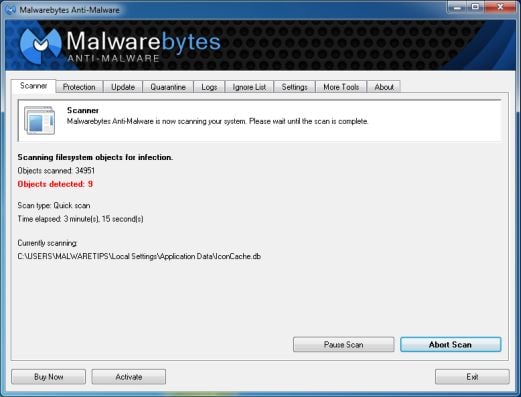
![[Image: Malwarebytes Anti-Malware Quick Scan]](data:image/svg+xml,%3Csvg%20xmlns='http://www.w3.org/2000/svg'%20viewBox='0%200%20521%20397'%3E%3C/svg%3E "Run a Quick Scan with Malwarebytes Anti-Malware")
- Malwarebytes’ Anti-Malware will now start scanning your computer for “Your Browser Has Been Blocked Up” virus as shown below.
- When the Malwarebytes Anti-Malware scan has finished, click on the Show Results button.
- You will now be presented with a screen showing you the computer infections that Malwarebytes Anti-Malware has detected. Make sure that everything is Checked (ticked), then click on the Remove Selected button.
![[Image: Malwarebytes Anti-Malware final installation screen]](http://malwaretips.com/blogs/wp-content/uploads/2013/01/malwarebytes-installation.jpg "Malwarebytes Anti-Malware installation screen")
![[Image: Malwarebytes Anti-Malware Quick Scan]](http://malwaretips.com/blogs/wp-content/uploads/2013/01/malwarebytes-quick-scan.jpg "Run a Quick Scan with Malwarebytes Anti-Malware")
![[Image: Malwarebytes Anti-Malware scan results]](http://malwaretips.com/blogs/wp-content/uploads/2013/01/malwarebytes-scan-results.jpg "Malwarebytes when the system scan has completed")
![[Image: Malwarebytes Anti-Malwar removing Your Browser Has Been Blocked Up virus]](http://malwaretips.com/blogs/wp-content/uploads/2013/01/malwarebytes-virus-removal.jpg "Malwarebytes Anti-Malwar removing Your Browser Has Been Blocked Up virus")
STEP 3: Double-check for the “Your Browser Has Been Blocked Up” infection with HitmanPro
HitmanPro is a second opinion scanner, designed to rescue your computer from malware (viruses, trojans, rootkits, etc.) that have infected your computer despite all the security measures you have taken (such as anti virus software, firewalls, etc.).
- You can download HitmanPro from the below link: HITMANPRO DOWNLOAD LINK (This link will open a web page from where you can download HitmanPro)
- Double-click on the file named HitmanPro.exe (for 32-bit versions of Windows) or HitmanPro_x64.exe (for 64-bit versions of Windows). When the program starts you will be presented with the start screen as shown below.
 Click on the Next button, to install HitmanPro on your computer.
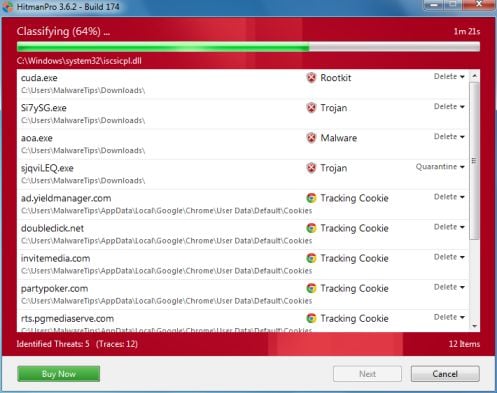
- HitmanPro will now begin to scan your computer for “Your Browser Has Been Blocked Up” malicious files.
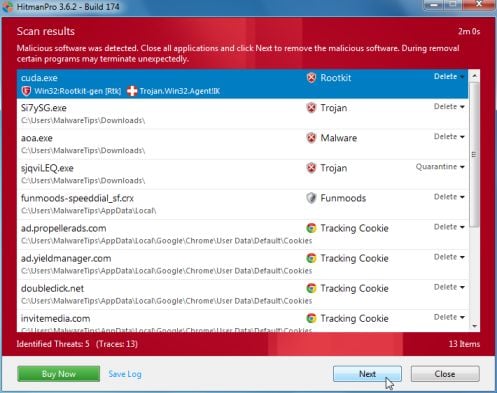
- When it has finished it will display a list of all the malware that the program found as shown in the image below. Click on the Next button, to remove the “Your Browser Has Been Blocked Up” virus.
- Click on the Activate free license button to begin the free 30 days trial, and remove all the malicious files from your computer.
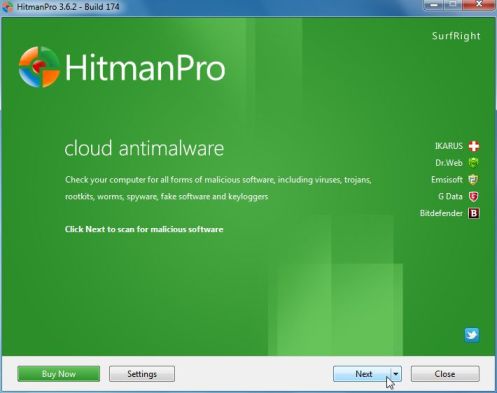 Click on the Next button, to install HitmanPro on your computer.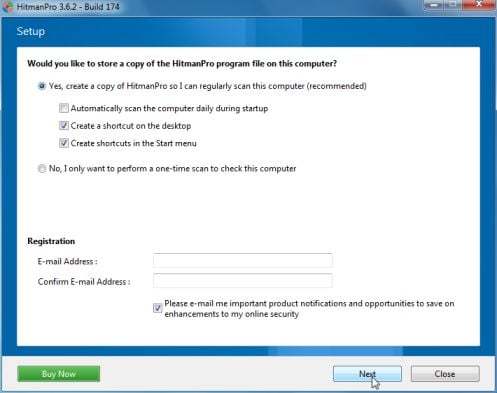
![[Image: HitmanPro 30 days activation button]](http://malwaretips.com/blogs/wp-content/uploads/2012/11/hitmanpro-activation.jpg "HitmanPro free 30 days trial")
Your computer should now be free of “Your Browser Has Been Blocked Up”infection. If your current anti-virus solution let this infection through, you may want to consider purchasing the PRO version of Malwarebytes Anti-Malware to protect against these types of threats in the future, and perform regular computer scans with HitmanPro.
If you are still experiencing problems while trying to remove “Your Browser Has Been Blocked Up” Ukash virus from your machine, please start a new thread in our Malware Removal Assistance forum.









Thank you.Thank you.Thank you.Thank you.Thank you.Thank you.Thank you.Thank you.
After my mom saw the “your browse has been blocked” post, she thought I was watching porn ! Am finally free.
thank you man :)
thanks alot of help