

The USPS package tracking scam has been deceiving unsuspecting victims with fake shipping notifications. A new variation uses the fraudulent tracking number 9300120111410471678569 to execute this phishing con. This in-depth article provides a detailed exposé on how this scam works, how to avoid becoming a victim, and what to do if you fall prey.
9300120111410471678569 USPS Scam Overview
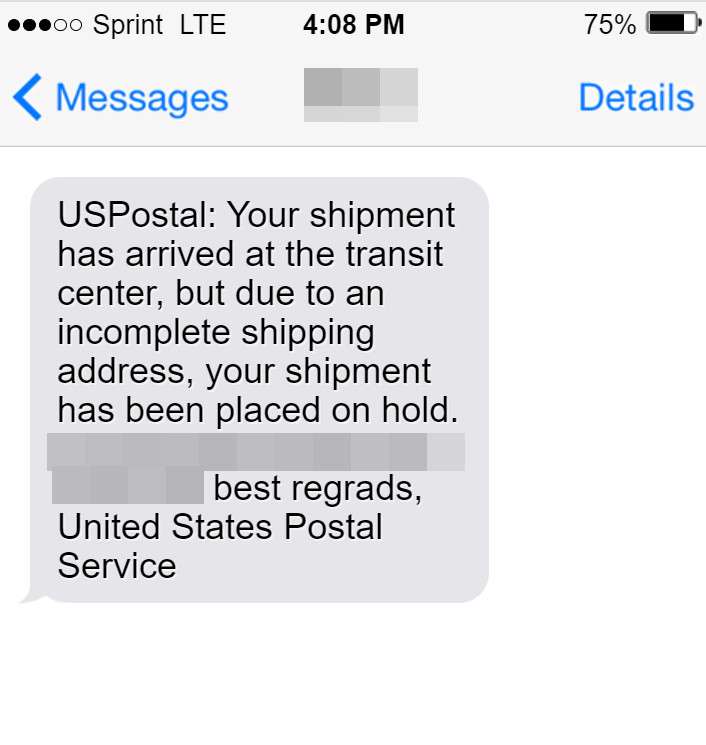
The 9300120111410471678569 USPS scam typically begins when a target receives a text, email, or robocall claiming to be from USPS. The message states a package couldn’t be delivered due to an address issue. A fake but realistic-looking USPS tracking number is provided – 9300120111410471678569.
The notification urges the recipient to click on a link to resolve the delivery problem. However, the link directs to a sophisticated phishing website impersonating the USPS. If the individual enters any personal data, the scammers steal it to commit identity theft or sell it on the black market.
This expansive scam has already deceived thousands, resulting in compromised identities, emptied bank accounts, and ruined credit scores. Keep reading to learn how to detect this scam and avoid becoming the next victim.
Is 9300120111410471678569 a Fake USPS Tracking Number?
Yes, 9300120111410471678569 is a fake USPS tracking number, similar to other fraudulent tracking numbers (9300120111410471367725, US9524901144737, 9300120111410471677883, …) used in phishing and scam attempts. Scammers often utilize such bogus tracking numbers to send deceptive messages and emails, impersonating legitimate organizations like USPS, FedEx, or other courier services.
Typical Scam Format
A typical scam message with a fake USPS tracking number 9300120111410471678569 reads as follows:
“Your USPS package has arrived at our warehouse but cannot be delivered due to incomplete address information. Please confirm your address by clicking on the link below:
[malicious link]“
Warning Signs of a Fake Tracking Number
Here are some clear warning signs that indicate 9300120111410471678569 is a fraudulent tracking number:
- Unsolicited Messages: Scammers often send unsolicited messages or emails claiming there’s an issue with a package delivery and provide a bogus tracking number like 9300120111410471678569.
- Suspicious URLs: The messages contain links to fake websites designed to mimic legitimate courier service sites and trick users into providing personal information or downloading malware.
- Sense of Urgency: Scammers create urgency, pushing recipients to take immediate action like clicking on a link to supposedly “resolve” the fake delivery issue.
- Spelling/Grammar Errors: Scam messages frequently contain spelling and grammatical mistakes, which can signify a scam.
- Requests for Personal Information: Legitimate delivery services do not typically request sensitive personal or financial data through unsolicited communications.
How the 9300120111410471678569 USPS Scam Works
Scammers execute this scam by strategically misleading and pressuring victims. Here are the key stages:
1. Crafting Fraudulent Notifications
The first step is creating email, text, and robocall scripts modeled after legitimate USPS alerts. The messages claim a package couldn’t be delivered and provide the fake tracking number 9300120111410471678569.
The texts and calls feature a robotic voice or urgent prerecorded message. Email subjects state things like: “USPS Failed Delivery Attempt,” “Important Delivery Update,” or “Confirm Your Shipping Address.”
These notifications leverage pressure, confusion, and a sense of urgency to get recipients to act without thinking first.
2. Including Fake Tracking Numbers
A key element of this scam is the inclusion of a fraudulent USPS tracking number. For this scheme, the number is 9300120111410471678569.
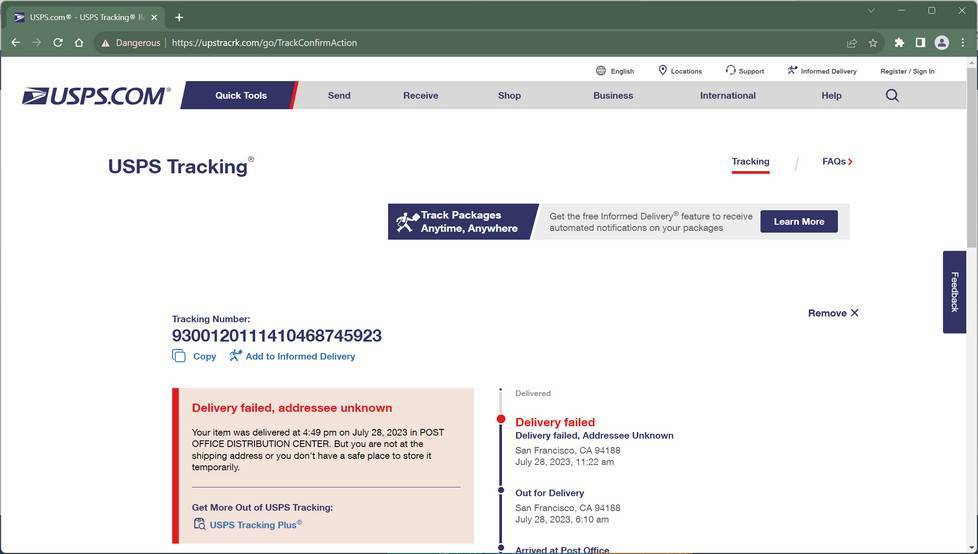
The fake number adds legitimacy to the alert. Recipients can enter it on the USPS website where it will appear as a real package. This convinces targets the notification is genuine so they feel safe clicking the provided link.
Of course, the number doesn’t actually track an actual package. But it fools recipients into thinking it does.
3. Directing to Highly Convincing Phishing Sites
The notifications all direct recipients to click on a link in order to resolve the ‘delivery issue.’ However, the link actually leads to elaborately designed phishing websites that closely mimic the look and feel of the official USPS site.
These fraudulent sites display USPS branding, fonts, colors, graphics and messaging used on the real USPS.com. But they are rigged to steal entered data.
Once on the phishing site, users see forms prompting them to enter information to allegedly fix the address error and have their package delivered. Details requested include full name, street address, date of birth, social security number, credit card number, driver’s license details, online account credentials, and more.
4. Stealing and Exploiting User Data
If an individual falls for the scam and enters any of their personal information, the data is harvested by the scammers behind the site. They use this identity data to engage in financial fraud.
Scammers may do things like:
- Drain the victim’s bank accounts
- Make purchases with stolen credit cards
- Open fraudulent lines of credit cards
- Access and wipe out retirement and investment accounts
- File for unemployment or tax refunds in the victim’s name
- Sell the stolen data bundles on the dark web
The scammers can also use the stolen info to commit further crimes while impersonating the victim’s identity. This leaves the person with a shattered credit score, drained finances, and a nightmarish mess to clean up.
5. Spreading Malware
Some deceptive USPS phishing sites also contain embedded malware. This allows scammers to infect the device of anyone who clicks on the site.
The malware may then spy on the target by tracking keystrokes, stealing files, monitoring webcams, or recording logins and passwords entered on the infected device. This grants scammers yet another avenue for identity theft.
6. Perpetuating Additional Scams
Once scammers infiltrate a victim’s identity and finances, they often pursue additional scams against the person.
For example, they may reach out posing as tech support offering to fix the ‘hacked’ devices or accounts for a fee. Of course they never provide any actual solutions.
Or they call pretending to be from the victim’s bank fraud department. They offer to recover the stolen money for an advance fee which they pocket without rendering services.
These secondary scams prolong the victim’s nightmare and cause even more financial harm.
What to Do If You’re a Victim
If you entered any personal data, account credentials, or sensitive details into a phishing site, here are crucial next steps:
Contact Banks and Credit Bureaus Immediately
Call your bank and credit/debit card companies to inform them your identity has been compromised. Request that they freeze your accounts and flag them for suspicious activity. Doing this ASAP can prevent funds from being withdrawn.
Ask your bank to reverse any fraudulent transactions if found and issue you new account and card numbers. Call all three major credit bureaus to place a fraud alert on your credit file. This helps halt thieves from opening any new lines of credit in your name.
Change All Passwords
Assume your passwords and security answers are compromised. Update the credentials for all of your financial accounts, email, social media, and other online logins.
Make the new passwords completely random and unique for each account. Enable two-factor authentication wherever possible for an added layer of security.
Monitor Statements and Credit Reports
Carefully scrutinize all bank and credit card statements as soon as issued to spot any unfamiliar activity. Report any transactions you don’t recognize to your institution’s fraud department right away.
Likewise order copies of your credit reports from Equifax, Experian and Transunion every few months. Report any fraudulent new accounts or address changes to rectify identity theft.
File Reports With USPS, FTC, and BBB
File a scam report with the real USPS by forwarding the phishing message to spam@uspis.gov. File a complaint with the Federal Trade Commission (FTC) and Better Business Bureau (BBB) to aid investigations.
Beware of Recovery Scams
Be vigilant for any calls or emails offering assistance with reversing the financial damage. Whether posing as security experts, bank reps, lawyers or investigators, their only goal is scamming you again. Avoid engaging or providing payment.
Stay patient and work directly with legitimate institutions only to fix accounts and credit. The recovery process takes perseverance, but being proactive can limit the damage.
Spotting This Scam
While this scam can look extremely convincing, these tips can help avoid being deceived:
Analyze Email and Text Details
Inspect any shipping notifications closely before reacting:
- Scrutinize the sender’s address – Fake addresses often have typos, extra numbers/letters or don’t match official USPS domains.
- Watch for poor spelling and grammar – Phishing messages often contain mistakes a real USPS alert would not.
- Note generic greetings – Real notifications address you by name, unlike scams using “Dear customer.”
- Assess the tone – Fraudulent notices use urgent wording and threats of consequences to override common sense.
- Verify URLs before clicking – Don’t click directly on any provided links. Hover to preview the actual URL for inconsistencies.
Assess Tracking Numbers
Double check any provided USPS tracking numbers:
- Enter the tracking number on USPS.com – Fake numbers seem to track at first but do not actually match real packages or details.
- Cross-reference number with alert details – Confirm if the tracking location, status, delivery date, and other specifics correspond accurately.
- Note number patterns – Fake numbers often follow patterns (starting with same digits) real USPS tracking numbers don’t.
Analyze Websites Carefully
Pay attention when entering shipping sites:
- Verify the URL – Fake sites have incorrect spelling or domains. Look for “HTTPS” sites.
- Compare designs – Phishing sites recreate but don’t exactly match the real USPS site design. Look for missing logos/graphics or spacing differences.
- Note page flow differences – Real account pages involve login prompts first before collecting details, unlike scam pages.
- Assess professionalism – Phony pages have grammar errors, broken links, or inconsistencies a bonafide business would lack.
- Check for mismatched details – Fraudulent sites use wrong phone numbers, addresses, disclaimers, copyright dates, etc.
- See if you can access actual account – Phishing sites only show forms, not real account dashboards.
Avoiding This Scam
Here are key ways to avoid falling victim to the fake USPS tracking number scam:
Never Act Quickly
Discard any shipping notifications insisting you must act now or face legal action or closed accounts. Slow down and verify an issue exists directly with USPS before providing data.
Never Supply Data Via Email/Text
Remember USPS will never request personal details over text or email to fix account issues. Data should only be entered on official USPS.com accounts you access securely and directly.
Confirm Urgencies Through Official Channels
Do not contact any numbers provided on suspicious texts/emails. Look up official USPS contact info independently to verify supposed issues before acting.
Search Online First
Before responding to any questionable shipping alerts, search online for phrases including “USPS scam” or “fake USPS delivery text/email.” Results will expose widespread scams in action.
Keep Software Updated
Maintain real-time antivirus software on all devices used to access emails and websites. Enable auto-updates so phishing sites have reduced chances to infect your system.
Think Twice Before Clicking
Hover over email links to preview their actual destination and sniff out mismatched domains. Even legit links can redirect to phishing sites if hacked after an email sends. Play it safe.
Is Your Device Infected? Run a Free Malware Scan
Slow performance, constant pop-ups, or strange behavior? These are classic signs of a malware infection. The fastest way to find out is to scan your device with Malwarebytes Free — one of the most trusted malware removal tools available.
The free version detects and removes the most common threats, including:
- Adware — the cause of those annoying pop-ups
- Browser hijackers — unwanted redirects and changed homepages
- Trojans and spyware — hidden programs stealing your data
- Potentially unwanted programs (PUPs) — software you never asked for
👉 Select your device below — Windows, Mac, or Android — then follow the simple steps to download Malwarebytes, scan your system, and remove any threats it finds. The scan usually takes 5 to 20 minutes.
Run a Malware Scan with Malwarebytes for Windows
Malwarebytes is one of the most popular and trusted anti-malware tools for Windows — and it’s completely free for removing infections. It catches threats that many antivirus programs miss, including adware, browser hijackers, and trojans. Follow the steps below to scan and clean your PC in just a few minutes.
Download Malwarebytes
Click the button below to download the latest version of Malwarebytes for Windows from the official source. The free version is all you need — it will scan your computer and remove adware, browser hijackers, and other malicious software at no cost.
Download MalwarebytesOfficial installer for Windows 11 and 10. Your download starts right away.Want real-time protection? See Malwarebytes Premium Malwarebytes Free for WindowsScans and removes malware at no cost
-
Install Malwarebytes
When the download finishes, open your Downloads folder and double-click the MBSetup file. If Windows shows a User Account Control pop-up, click “Yes” to allow the installation.

Follow the On-Screen Prompts to Install Malwarebytes
The setup wizard will walk you through a few quick screens:
-
Choose where you’re installing the program — “Personal Computer” or “Work Computer” — then click Next.

-
Malwarebytes will now install on your device. This usually takes under a minute.

-
When installation is complete, the “Welcome to Malwarebytes” screen will open automatically.

-
On the final screen, click Open Malwarebytes to launch the program.

-
Enable “Scan for Rootkits”
Before scanning, turn on rootkit detection so Malwarebytes can find even the most hidden threats. Click the Settings gear icon on the left side of the screen.

In the settings menu, find “Scan for rootkits” and click the toggle so it turns blue.

Done? Click “Dashboard” in the left pane to return to the main screen.
Start the Scan
Click the blue Scan button. Malwarebytes will automatically update its virus database and start checking your computer for malware.

-
Wait for the Scan to Finish
The scan checks your entire system for browser hijackers and other malicious programs, so it can take 5 to 20 minutes depending on your computer. Feel free to do something else — just check back occasionally to see the progress.

-
Quarantine the Detected Threats
When the scan is done, you’ll see a list of everything Malwarebytes found — malware, adware, and potentially unwanted programs. Click the “Quarantine” button to remove all of them at once.

Malwarebytes will now remove the malicious files and registry entries and move them safely into quarantine.

-
Restart Your Computer
Some threats can only be fully removed after a reboot. If Malwarebytes asks you to restart, click Yes. Once you’re logged back in, Malwarebytes has finished removing the threats it found.

That’s it — your Windows PC is now clean of trojans, adware, and other malware, and should be back to running smoothly.
If you are still having problems with your computer after completing these instructions, then please follow one of the steps:
- Run a computer scan with ESET Online Scanner
- Ask for help in our Windows Malware Removal Help & Support forum.
Run a Malware Scan with Malwarebytes for Mac
Malwarebytes for Mac is a free on-demand scanner that removes the malware other security software tends to miss — adware, browser hijackers, and unwanted programs included. Cleaning an infected Mac with Malwarebytes has always been completely free, and it’s our go-to recommendation. Follow the steps below to scan and clean your Mac in just a few minutes.
-
Download Malwarebytes for Mac
Click the button below to download the latest version of Malwarebytes for Mac.
Download MalwarebytesOfficial installer for macOS. Your download starts right away.Want real-time protection? See Malwarebytes PremiumMalwarebytes Free for MacScans and removes malware at no cost -
Open the Malwarebytes setup file
When the download finishes, open your Downloads folder and double-click the setup file to begin the installation.

-
Follow the On-Screen Prompts to Install Malwarebytes
The Malwarebytes for Mac Installer will guide you through a few quick screens. Click “Continue” and keep following the prompts until the installation completes.



When the installation is complete, Malwarebytes opens to the Welcome to Malwarebytes screen. Click “Get started“.
-
Select “Personal Computer” or “Work Computer”
Malwarebytes will ask what type of computer you’re installing it on. Click either Personal Computer or Work Computer, whichever applies.

-
Start the Scan
Click the “Scan” button. Malwarebytes will automatically update its detection database and begin checking your Mac for malware.

-
Wait for the Scan to Finish
Malwarebytes will scan your Mac for adware, browser hijackers, and other malicious programs. This can take a few minutes, so feel free to do something else — just check back occasionally to see the progress.

-
Quarantine the Detected Threats
When the scan is done, you’ll see a list of everything Malwarebytes found. Click the “Quarantine” button to remove all the threats at once.

-
Restart Your Mac
Malwarebytes will now remove all the malicious files it found. Some threats can only be fully removed after a reboot — if Malwarebytes asks you to restart, allow it. Once you’re logged back in, your Mac is clean.

That’s it — your Mac is now free of adware, rogue browser extensions, and other potentially harmful software.
If you are still experiencing problems while trying to remove a malicious program from your computer, please ask for help in our Mac Malware Removal Help & Support forum.
Run a Malware Scan with Malwarebytes for Android
Malwarebytes for Android automatically detects and removes dangerous threats like malware and ransomware so you don’t have to worry about your most-used device being compromised. Aggressive detection of adware and potentially unwanted programs keeps your Android phone or tablet running smooth.
-
Download Malwarebytes for Android.
You can download Malwarebytes for Android by clicking the link below.
Get Malwarebytes for AndroidOpens Google Play in a new tab.Want real-time protection? See Malwarebytes Premium for AndroidMalwarebytes for AndroidScans your phone and removes malware at no cost -
Install Malwarebytes for Android on your phone.
In the Google Play Store, tap “Install” to install Malwarebytes for Android on your device.

When the installation process has finished, tap “Open” to begin using Malwarebytes for Android. You can also open Malwarebytes by tapping on its icon in your phone menu or home screen.

-
Follow the on-screen prompts to complete the setup process
When Malwarebytes will open, you will see the Malwarebytes Setup Wizard which will guide you through a series of permissions and other setup options.
This is the first of two screens that explain the difference between the Premium and Free versions. Swipe this screen to continue.
Tap on “Got it” to proceed to the next step.
Malwarebytes for Android will now ask for a set of permissions that are required to scan your device and protect it from malware. Tap on “Give permission” to continue.
Tap on “Allow” to permit Malwarebytes to access the files on your phone.
-
Update database and run a scan with Malwarebytes for Android
You will now be prompted to update the Malwarebytes database and run a full system scan.

Click on “Update database” to update the Malwarebytes for Android definitions to the latest version, then click on “Run full scan” to perform a system scan.

-
Wait for the Malwarebytes scan to complete.
Malwarebytes will now start scanning your phone for adware and other malicious apps. This process can take a few minutes, so we suggest you do something else and periodically check on the status of the scan to see when it is finished.

-
Click on “Remove Selected”.
When the scan has been completed, you will be presented with a screen showing the malware infections that Malwarebytes for Android has detected. To remove the malicious apps that Malwarebytes has found, tap on the “Remove Selected” button.

-
Restart your phone.
Malwarebytes for Android will now remove all the malicious apps that it has found. To complete the malware removal process, Malwarebytes may ask you to restart your device.
That’s it — your Android phone is now clean — no more malicious apps, adware, or browser redirects.
If you are still having problems with your phone after completing these instructions, then please follow one of the steps:
- Restore your phone to factory settings by going to Settings > General management > Reset > Factory data reset.
- Ask for help in our Mobile Malware Removal Help & Support forum.
Stay Protected: Block Ads and Malicious Sites
Now that your device is clean, keep it that way. Most infections start with a malicious ad or a fake download button — so blocking them at the source is your best defense.
We recommend AdGuard, which blocks malicious ads, phishing pages, and dangerous redirects before they can reach you.
👉 Download AdGuard and browse safely
FAQ about the Fake USPS Tracking Number 9300120111410471678569 Scam
What is the 9300120111410471678569 USPS scam?
This scam involves receiving unsolicited emails or text messages stating there is an issue delivering your USPS package. The messages contain the fake tracking number 9300120111410471678569 and a link to resolve the delivery problem. This is a phishing scam aiming to steal personal information.
How can I identify the 9300120111410471678569 tracking number is fake?
Indicators that 9300120111410471678569 is a fake USPS tracking number:
- You did not order a package or give your address to anyone.
- The message is unsolicited and pressures you to click on a link.
- The link goes to a suspicious domain instead of usps.com.
- There are spelling/grammar errors.
- It asks for sensitive personal or financial details.
What should I do if I get a message with this tracking number?
If you receive a suspicious message with 9300120111410471678569:
- Do not click on any links or provide information.
- Report it as spam/phishing to your email provider.
- Forward phishing emails to spam@uspis.gov.
- Run a malware scan if you clicked any links.
How can I avoid this 9300120111410471678569 USPS scam?
To protect yourself from this scam:
- Be wary of unsolicited messages urging you to click links.
- Verify any dubious tracking numbers directly on usps.com.
- Use antivirus and enable spam filters.
- Never give personal or financial details.
What should I do if I gave information to this scam?
If you entered any sensitive data on a phishing site with this tracking number:
- Immediately change passwords on compromised accounts.
- Contact your bank if you submitted financial information.
- Place fraud alerts and check your credit reports.
- File an FTC identity theft report at IdentityTheft.gov.
In Conclusion
The 9300120111410471678569 USPS scam exploits a familiarity with package tracking and delivery urgencies to mislead victims into compromising their personal data and identities. However, understanding common tricks these scammers use makes it simpler to recognize and evade.
Remaining vigilant against phone, email, and text scams purporting to be from the USPS is key. If anytime a message insists you must provide sensitive information urgently, slow down and confirm directly with USPS via official channels. The few minutes spent verifying could save you from a prolonged nightmare of identity theft and financial fraud.

Join the discussion
0 commentsShare your experience or ask a question about this article.
Discussion
Start the conversation
Have a question or something useful to share? Add the first comment.