


A troubling new spin on sextortion email scams has emerged – the Remote Administration Tool or RAT scam. This involves emails pretending your device was infected with RAT malware that recorded compromising videos through your webcam.
The scam email threatens to leak the fake videos publicly unless you pay a ransom in Bitcoin. This type of digital extortion uses fear tactics to manipulate victims.
This article will provide an in-depth look at how the RAT email scam operates, psychological tricks it uses, and most importantly, how to protect yourself. With vigilance and education, we can identify and shut down these scams.
Overview of the RAT Email Scam
The RAT email scam starts with a message claiming your device was previously infected with a Remote Administration Tool or RAT. This is spyware allowing remote access and control.
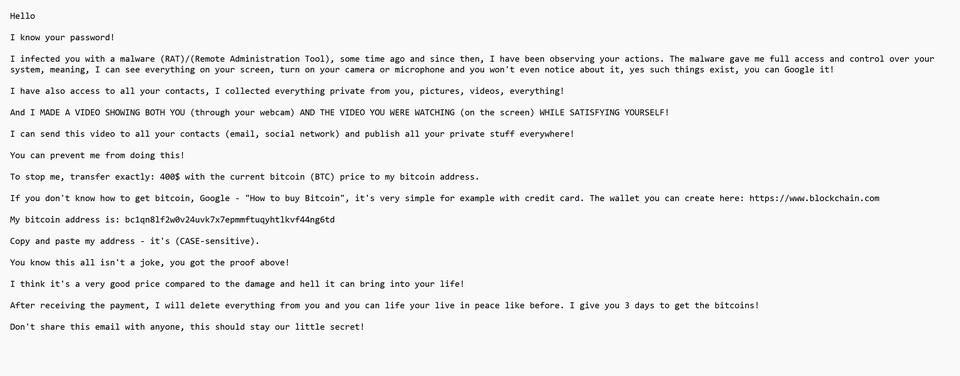
This is the text of the Remote Administration Tool blackmail email scam, including the grammatical and spelling errors:
From: Got You quickbooks@notification.intuit.com
Hello
I know your password!
I infected you with a malware (RAT)/(Remote Administration Tool), some time ago and since then, I have been observing your actions. The malware gave me full access and control over your system, meaning, I can see everything on your screen, turn on your camera or microphone and you won’t even notice about it, yes such things exist, you can Google it!
I have also access to all your contacts, I collected everything private from you, pictures, videos, everything!
And I MADE A VIDEO SHOWING BOTH YOU (through your webcam) AND THE VIDEO YOU WERE WATCHING (on the screen) WHILE SATISFYING YOURSELF!
I can send this video to all your contacts (email, social network) and publish all your private stuff everywhere!
You can prevent me from doing this!
To stop me, transfer exactly: 400$ with the current bitcoin (BTC) price to my bitcoin address.
If you don’t know how to get bitcoin, Google – “How to buy Bitcoin”, it’s very simple for example with credit card. The wallet you can create here: https://www.blockchain.com
My bitcoin address is: bc1qn8lf2w0v24uvk7x7epmmftuqyhtlkvf44ng6td
Copy and paste my address – it’s (CASE-sensitive).
You know this all isn’t a joke, you got the proof above!
I think it’s a very good price compared to the damage and hell it can bring into your life!
After receiving the payment, I will delete everything from you and you can life your live in peace like before. I give you 3 days to get the bitcoins!
Don’t share this email with anyone, this should stay our little secret!
Here are the key characteristics of this scam email:
1. Subject Line Creates Urgent Tone
A subject line stating “Warning, you are hacked” or similar sets an urgent and threatening tone even before opening the email.
2. Claims Webcam Was Remotely Accessed
The email states that the fictional RAT malware enabled remote access to your webcam, files, and other information.
3. Accuses Recipient of Visiting Porn Sites
To inspire shame and fear, the email alleges compromising videos were captured of you visiting adult websites and performing sexual acts.
4. Threatens To Leak Footage Publicly
The scam email threatens to share the fake adult videos with all your contacts to force compliance with the ransom demand.
5. Demands Untraceable Ransom Payment
Payment in Bitcoin is demanded within a short timeframe. Bitcoin makes tracking the scammers nearly impossible.
6. Warns Against Involving Law Enforcement
The email warns recipients not to contact authorities, or the videos will be leaked immediately. This aims to enable the scam.
The RAT email scam exploits fear and embarrassment to extort money. But knowledge of its strategies allows one to detect the deception.
How the RAT Email Scam Works
To fully grasp this scam, we need to analyze the social engineering and psychological manipulation tactics used in the email:
Step 1. Establishing Credibility as a Hacker
The email wants to first establish credibility as an elite hacker. Talking about infecting your device with RAT malware and remotely spying aims to sound technically legitimate.
Step 2. Inspiring Fear of Total Device Compromise
By claiming full access to your files, camera and accounts, the email wants to make you feel totally compromised and powerless. This scares recipients.
Step 3. Weaponizing Shame and Embarrassment
Allegations of visiting adult sites and recording inappropriate videos aim to make the victim feel deeply ashamed and humiliated. This clouds judgement.
Step 4. Threatening Devastating Reputational Harm
Threatening to spread fake videos to all of someone’s contacts inspires tremendous fear of reputational ruin and public embarrassment.
Step 5. Establishing an Illusion of Inescapability
Claiming they can see if you read the email makes the situation appear inescapable. This scares recipients into complying with demands.
Step 6. Demanding Anonymous and Irreversible Ransom Payment
Demanding bitcoin makes tracking or reversing the payment nearly impossible. This enables the scam while protecting the criminal.
By studying the psychological tricks and deceptions, we can recognize RAT extortion emails as malicious scams rather than assuming they are legitimate.
How to Spot and Avoid This Scam
Here are some tips to identify and protect yourself from the RAT malware extortion scam email:
- Be suspicious of any emails demanding quick payment in bitcoin or other cryptocurrencies. This is a sign of ransomware scams.
- Watch for urgent threats to release fabricated embarrassing or compromising videos or information about you if payment is not made.
- Look for technical cybersecurity terms like “RAT”, “trojan”, “malware”, etc used in threatening context in an attempt to sound more legitimate.
- Never open attachments or click links within unsolicited scam emails, as they may contain viruses.
- Check the email address of the sender. Scam emails typically come from nonsensical or unfamiliar addresses.
- Look for poor grammar, spelling mistakes, and urgent tones which reveal non-native English speakers often behind scams.
- Verify email claims by contacting supposed senders directly through known contact channels rather than replying to suspicious messages.
- Educate yourself on the latest online extortion and ransomware scam tactics so you can recognize them immediately.
- Ensure your computer and internet security are up to date, using strong antivirus and malware protection.
- Never communicate with scammers or pay their ransom demands, as this only enables them and funds criminal activities.
- Report all extortion emails as phishing/spam to your email provider to block them. Delete the messages immediately.
Staying informed, cautious, and vigilant when viewing unsolicited emails helps avoid falling victim to ransom scams like the fake RAT malware extortion email threat.
What to Do If You Receive This Email
If a RAT extortion email lands in your inbox, stay calm and take these steps:
1. Do Not Reply to the Email
Replying verifies your email address is active. Instead, delete the email immediately without responding.
2. Ignore Payment Demands
No matter how threatening the email seems, never pay the ransom. The scammers do not actually have compromising footage.
3. Scan Devices for Malware
Run complete malware scans just in case there is a real virus. Use reliable antivirus and anti-spyware software.
4. Change Online Account Passwords
Reset passwords on your email, banking, and other online accounts as a precaution. Enable two-factor authentication also.
5. Watch for Related Extortion Attempts
Scammers may send further emails with more threats if you don’t pay. Ignore these completely.
6. Report the Email as Phishing
Forward the scam email to your email provider’s phishing or abuse department so they can block the sender.
7. Educate Yourself on Similar Scams
Learn about related sextortion, spyware, and malware scams so you can recognize and avoid them in the future.
8. Warn Contacts About the Scam
Kindly alert friends and family to ignore if they receive a RAT extortion email too. This prevents the scam from spreading.
Rest assured, the scammers do not actually have illicit videos of you. With vigilance, we can shut down these scams and watch out for each other.
Is Your Device Infected? Run a Free Malware Scan
Slow performance, constant pop-ups, or strange behavior? These are classic signs of a malware infection. A quick way to check is to scan your device with Malwarebytes Free, one of the most trusted malware removal tools available. If you only visited a scam page and didn’t download or install anything, this scan is optional.
The free version detects and removes the most common threats, including:
- Adware — the cause of those annoying pop-ups
- Browser hijackers — unwanted redirects and changed homepages
- Trojans and spyware — hidden programs stealing your data
- Potentially unwanted programs (PUPs) — software you never asked for
👉 Select your device below — Windows, Mac, or Android — then follow the simple steps to download Malwarebytes, scan your system, and remove any threats it finds. The scan usually takes 5 to 20 minutes.
Run a Malware Scan with Malwarebytes for Windows
Malwarebytes is one of the most popular and trusted anti-malware tools for Windows — and it’s completely free for removing infections. It catches threats that many antivirus programs miss, including adware, browser hijackers, and trojans. Follow the steps below to scan your PC and remove what Malwarebytes finds.
Download Malwarebytes
Click the button below to download the latest version of Malwarebytes for Windows from the official source. The free version is all you need — it will scan your computer and remove adware, browser hijackers, and other malicious software at no cost.
Download MalwarebytesOfficial installer for Windows 11 and 10. Your download starts right away.Want real-time protection? See Malwarebytes Premium Malwarebytes Free for WindowsScans and removes malware at no cost
-
Install Malwarebytes
When the download finishes, open your Downloads folder and double-click the MBSetup file. If Windows shows a User Account Control pop-up, click “Yes” to allow the installation.
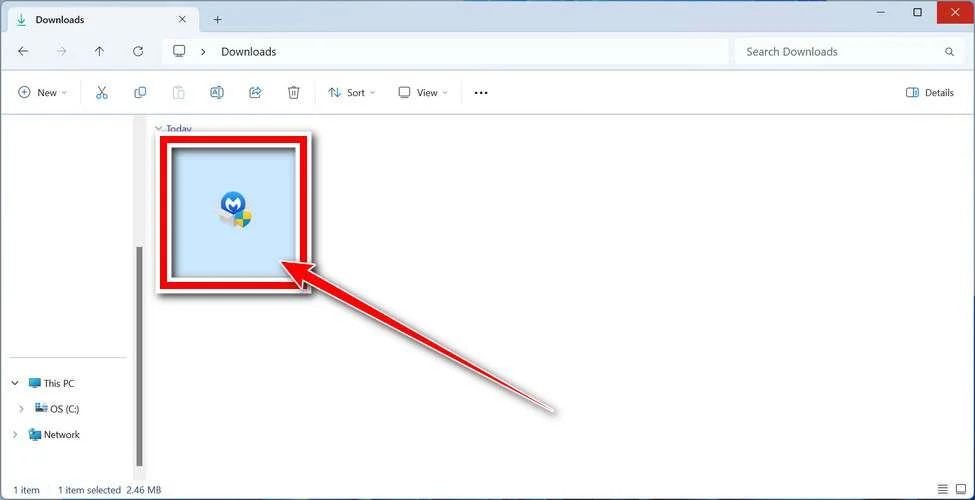
Follow the On-Screen Prompts to Install Malwarebytes
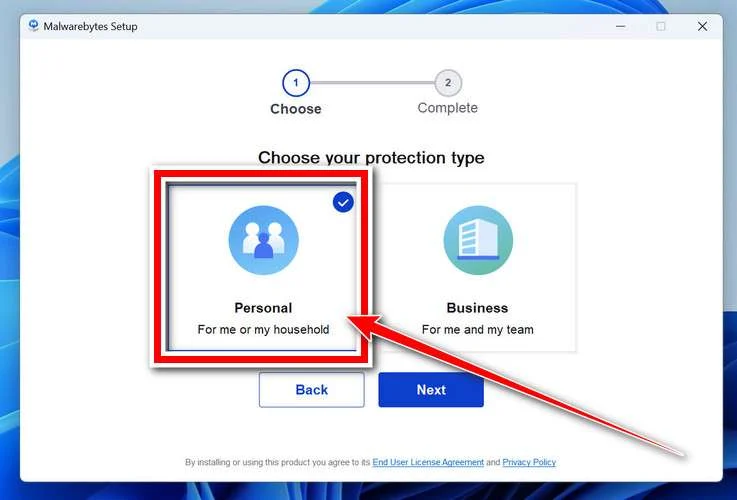
The setup wizard will walk you through a few quick screens:
-
Choose where you’re installing the program — “Personal Computer” or “Work Computer” — then click Next.
-
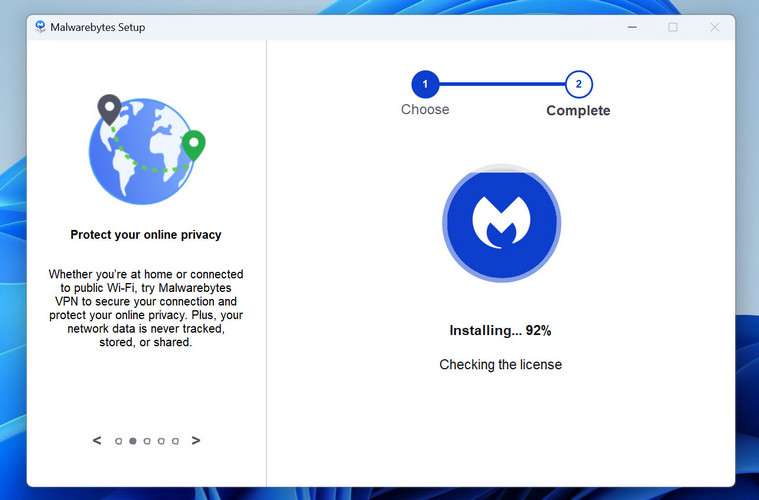
Malwarebytes will now install on your device. This usually takes under a minute.
-
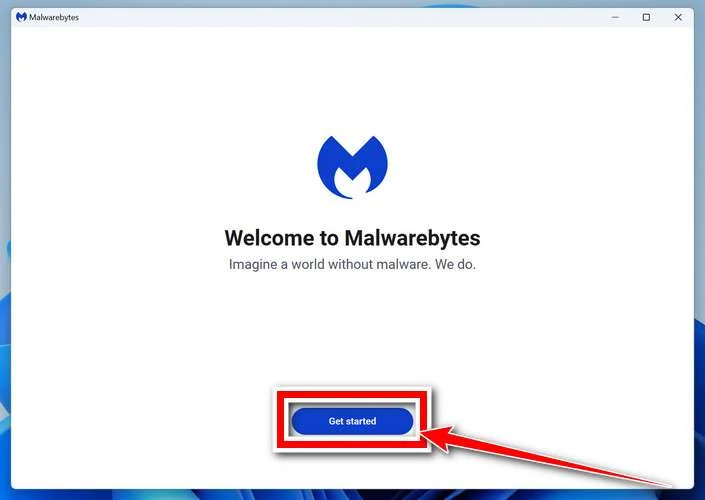
When installation is complete, the “Welcome to Malwarebytes” screen will open automatically.
-
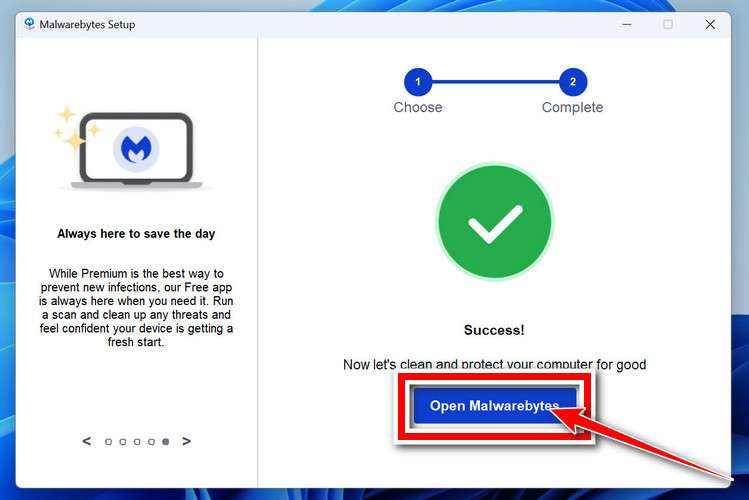
On the final screen, click Open Malwarebytes to launch the program.
-
Optional: Check for rootkits with a Custom Scan
You don’t need to change any settings for a normal scan. The standard Threat Scan in the next step is enough for most problems, so you can go straight to it.
If you also want to check for rootkits, use a Custom Scan. In current versions of Malwarebytes, rootkit scanning is only available there:
- On the Scanner tile, click the three-dot menu and select Advanced Scan.
- Choose Custom Scan. In its options, check Scan for rootkits.
- Select your system drive (usually C:\) as the location to scan, then start the scan. It takes longer than a Threat Scan.
- When it finishes, review and quarantine the results as described in the steps below.
Rootkit scanning isn’t available on Windows devices with ARM processors.
Start the Scan
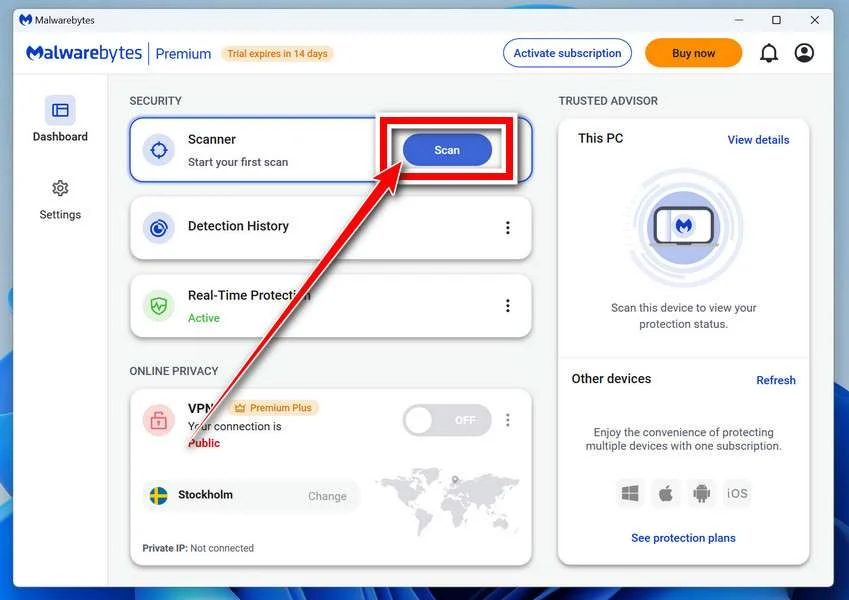
Click the blue Scan button. Malwarebytes will automatically update its virus database and start checking your computer for malware.
-
Wait for the Scan to Finish
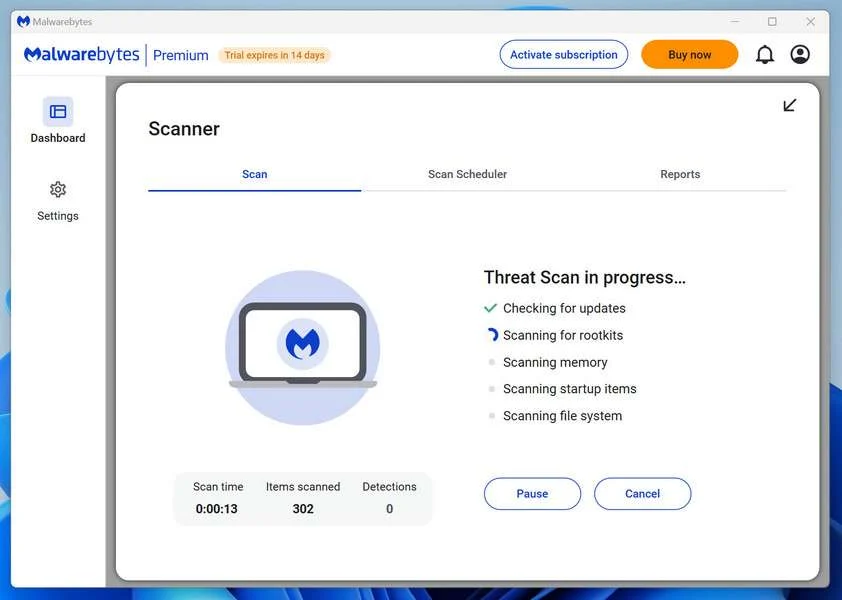
The scan checks your entire system for browser hijackers and other malicious programs, so it can take 5 to 20 minutes depending on your computer. Feel free to do something else — just check back occasionally to see the progress.
-
Quarantine the Detected Threats
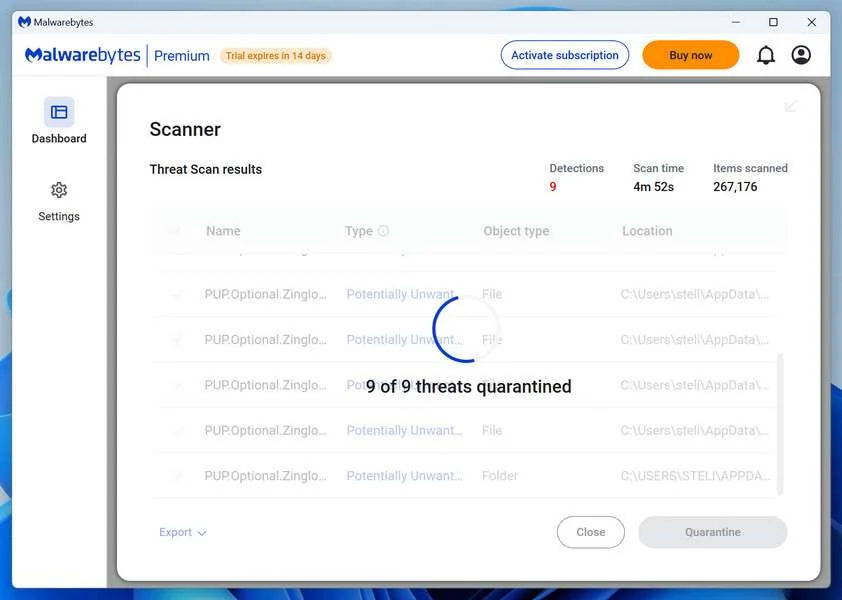
When the scan is done, you’ll see a list of everything Malwarebytes found — malware, adware, and potentially unwanted programs. Click the “Quarantine” button to remove all of them at once.
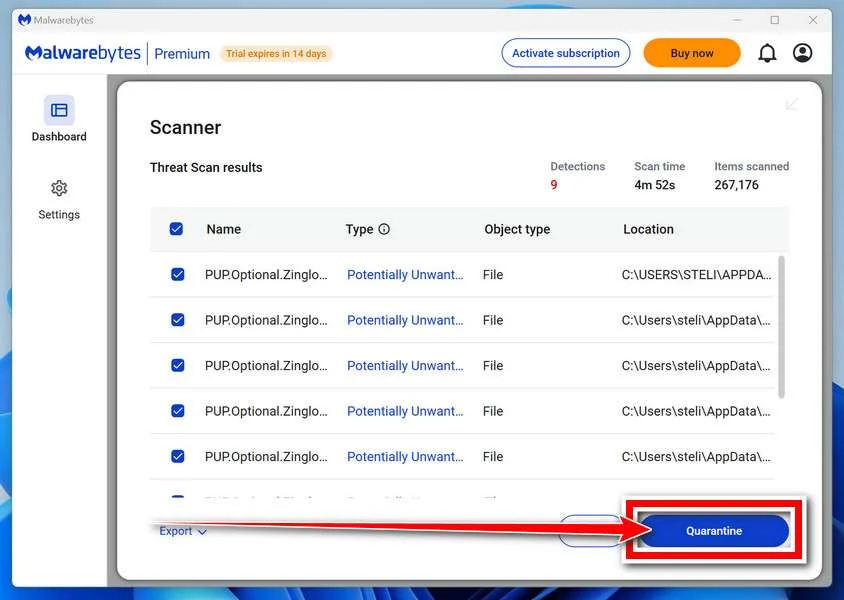
Malwarebytes will now remove the malicious files and registry entries and move them safely into quarantine.
-
Restart Your Computer
Some threats can only be fully removed after a reboot. If Malwarebytes asks you to restart, click Yes. Once you’re logged back in, Malwarebytes has finished removing the threats it found.
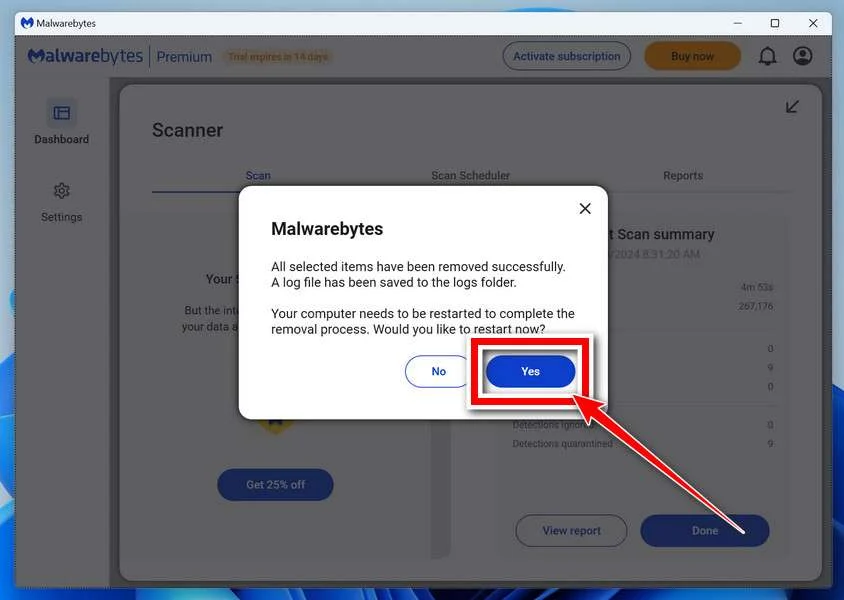
When the scan is done, check whether the problems you noticed have stopped. If they continue, see the options below.
If you are still having problems with your computer after completing these instructions, then please follow one of the steps:
- Run a computer scan with ESET Online Scanner
- Ask for help in our Windows Malware Removal Help & Support forum.
Run a Malware Scan with Malwarebytes for Mac
Malwarebytes for Mac is a free on-demand scanner that removes the malware other security software tends to miss — adware, browser hijackers, and unwanted programs included. Cleaning an infected Mac with Malwarebytes has always been completely free, and it’s our go-to recommendation. Follow the steps below to scan your Mac and remove what Malwarebytes finds.
-
Download Malwarebytes for Mac
Click the button below to download the latest version of Malwarebytes for Mac.
Download MalwarebytesOfficial installer for macOS. Your download starts right away.Want real-time protection? See Malwarebytes PremiumMalwarebytes Free for MacScans and removes malware at no cost -
Open the Malwarebytes setup file
When the download finishes, open your Downloads folder and double-click the setup file to begin the installation.
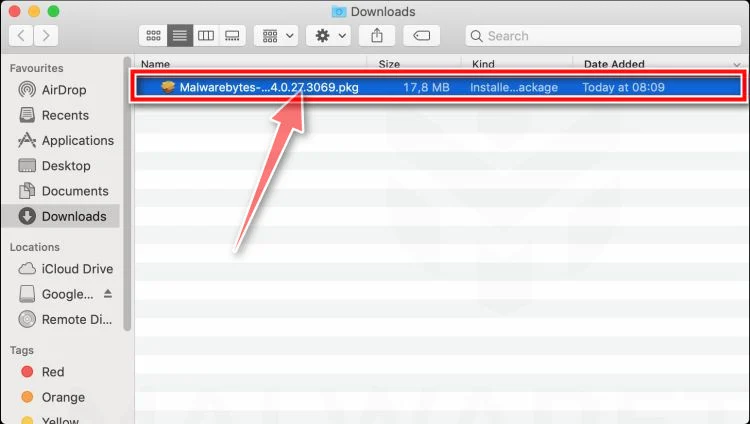
-
Follow the On-Screen Prompts to Install Malwarebytes
The Malwarebytes for Mac Installer will guide you through a few quick screens. Click “Continue” and keep following the prompts until the installation completes.
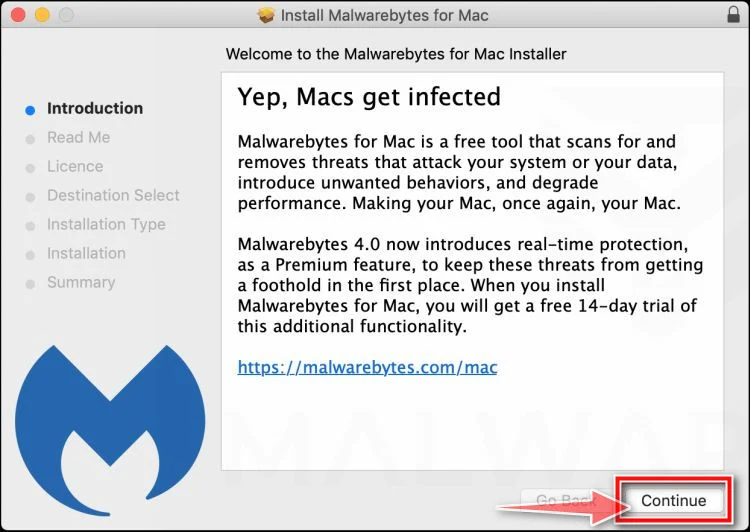
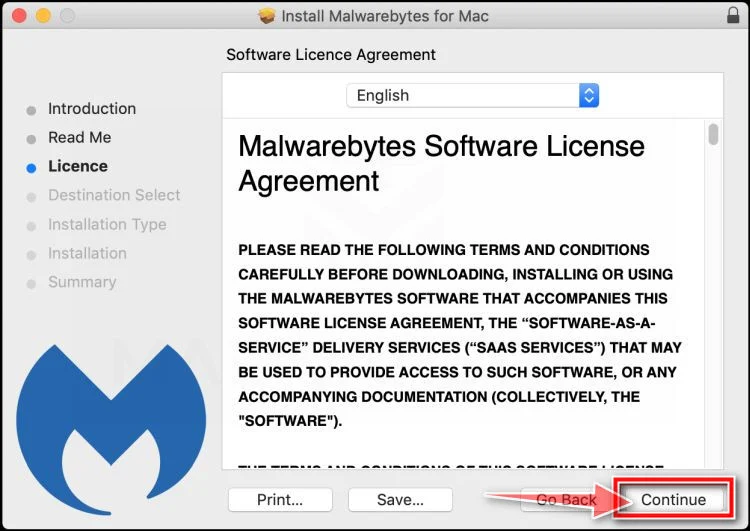
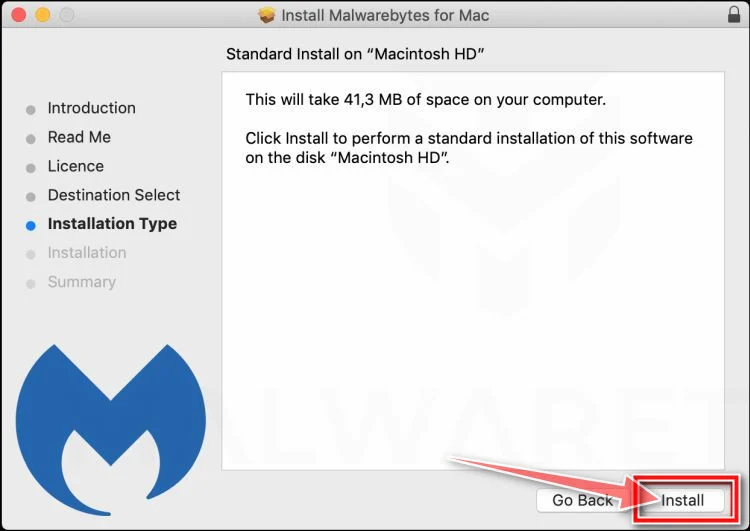
When the installation is complete, Malwarebytes opens to the Welcome to Malwarebytes screen. Click “Get started“.
Malwarebytes needs Full Disk Access to check your whole Mac. When it asks, open System Settings > Privacy & Security > Full Disk Access, turn on Malwarebytes (it may be listed as Malwarebytes Protection), and confirm with your password or Touch ID. Then return to Malwarebytes. On macOS Monterey and earlier, this setting is in System Preferences > Security & Privacy > Privacy.
-
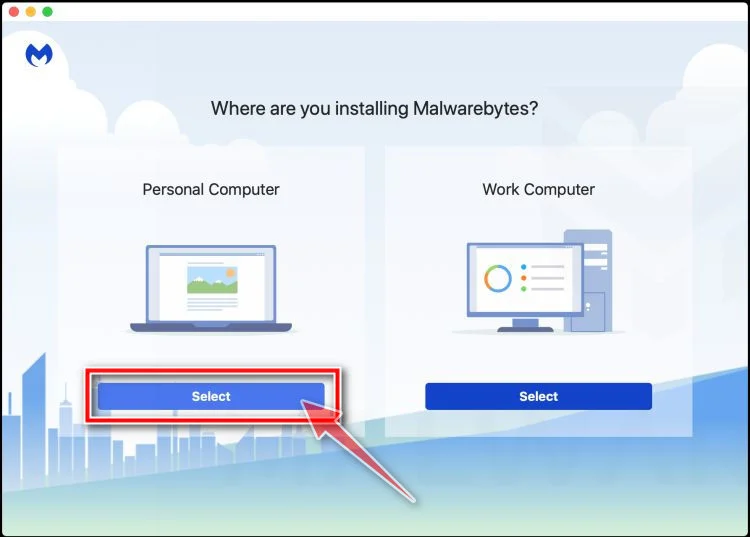
Select “Personal Computer” or “Work Computer”
Malwarebytes will ask what type of computer you’re installing it on. Click either Personal Computer or Work Computer, whichever applies.
-
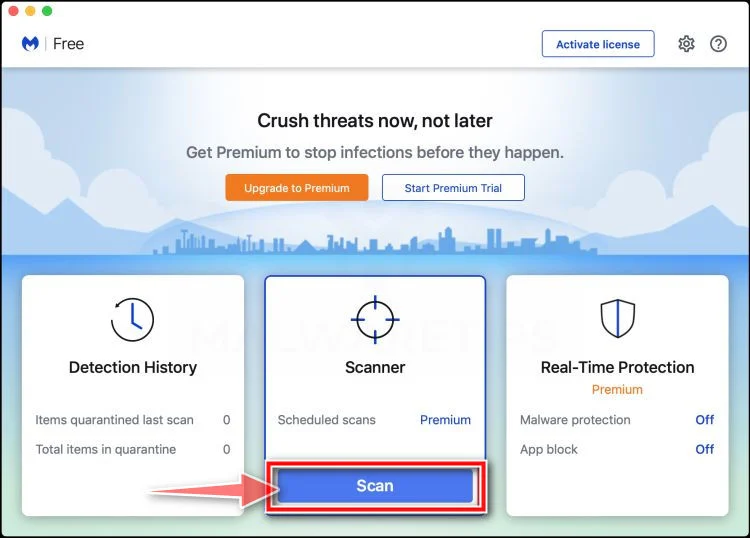
Start the Scan
Click the “Scan” button. Malwarebytes will automatically update its detection database and begin checking your Mac for malware.
-
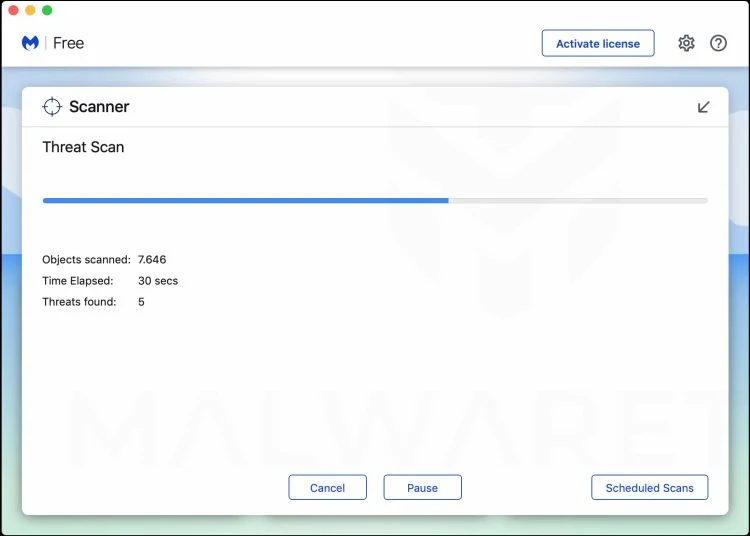
Wait for the Scan to Finish
Malwarebytes will scan your Mac for adware, browser hijackers, and other malicious programs. This can take a few minutes, so feel free to do something else — just check back occasionally to see the progress.
-
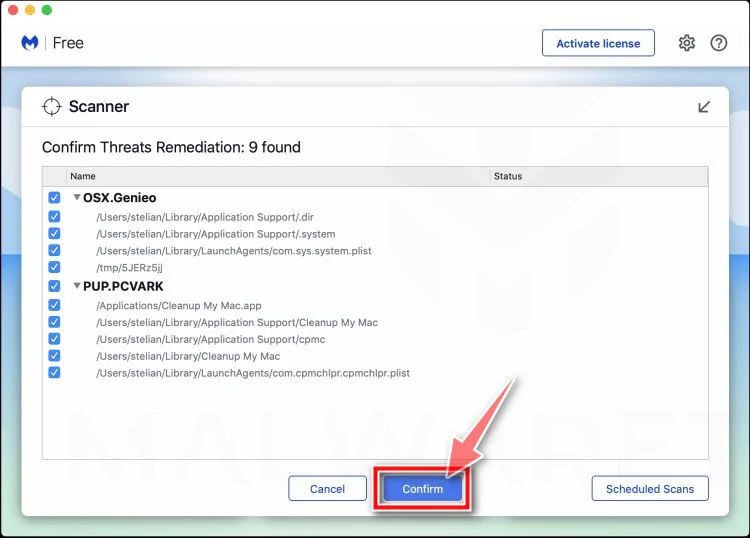
Quarantine the Detected Threats
When the scan is done, you’ll see a list of everything Malwarebytes found. Click the “Quarantine” button to remove all the threats at once.
-
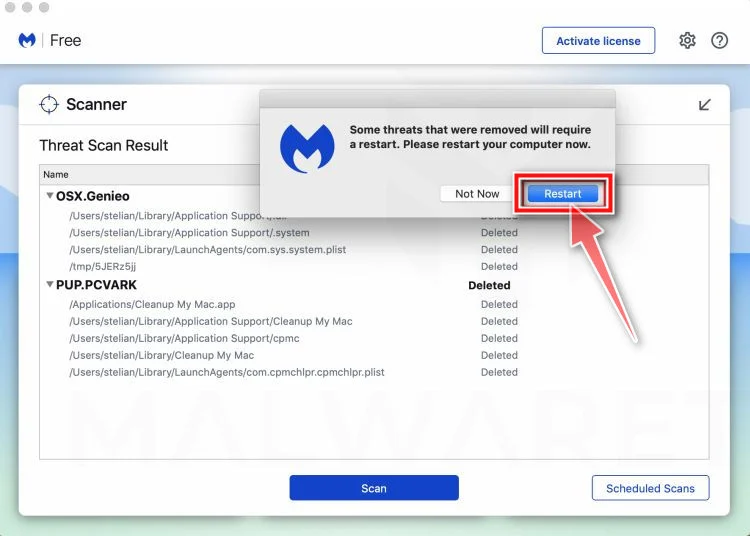
Restart Your Mac
Malwarebytes will now remove all the malicious files it found. Some threats can only be fully removed after a reboot — if Malwarebytes asks you to restart, allow it. Once you’re logged back in, check whether the problems you noticed have stopped. If they come back, save the scan report and ask for help in our forum.
If the problems you noticed continue after the scan, see the options below.
If you are still experiencing problems while trying to remove a malicious program from your computer, please ask for help in our Mac Malware Removal Help & Support forum.
Run a Malware Scan with Malwarebytes for Android
Malwarebytes for Android scans your phone or tablet for malware, adware, and potentially unwanted apps. The free version scans only when you start a scan. Real-time protection, which checks apps automatically, is part of the paid Premium version.
-
Download Malwarebytes for Android.
You can download Malwarebytes for Android by clicking the link below.
Get Malwarebytes for AndroidOpens Google Play in a new tab.Want real-time protection? See Malwarebytes Premium for AndroidMalwarebytes for AndroidScans your phone and removes malware at no cost -
Install Malwarebytes for Android on your phone.
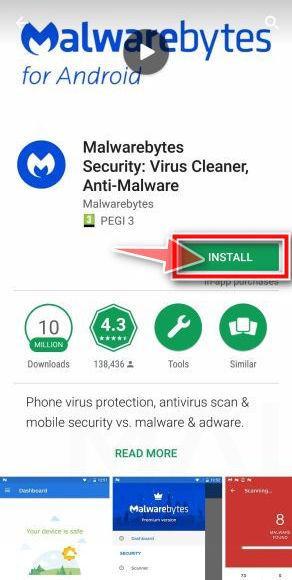
In the Google Play Store, tap “Install” to install Malwarebytes for Android on your device.
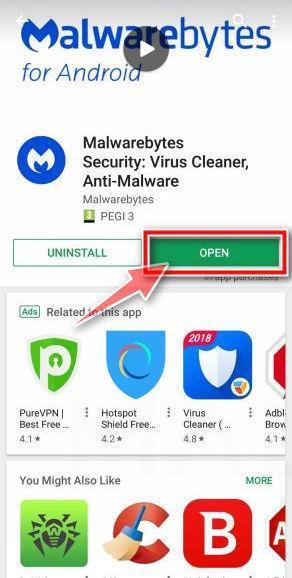
When the installation process has finished, tap “Open” to begin using Malwarebytes for Android. You can also open Malwarebytes by tapping on its icon in your phone menu or home screen.
-
Follow the on-screen prompts to complete the setup process
When Malwarebytes opens, it walks you through a short setup. Tap Get started and follow the prompts. If you see an offer for a trial or a paid plan, read it before you accept. You can skip it and keep using the free scanner.
Malwarebytes will ask for permission to access the files on your phone so it can scan them. Tap Allow, or turn on the permission in the Android screen that opens, then return to Malwarebytes.
-
Run a scan with Malwarebytes for Android
On the main screen, tap Scan now. In some versions, you open the menu, tap Scanner, and then tap Run a scan.
-
Wait for the Malwarebytes scan to complete.
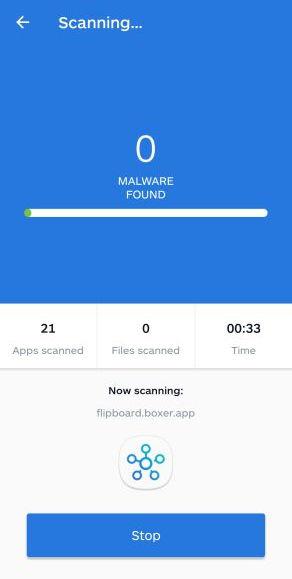
Malwarebytes will now start scanning your phone for adware and other malicious apps. This process can take a few minutes, so we suggest you do something else and periodically check on the status of the scan to see when it is finished.
-
Remove the detected apps.
When the scan has been completed, you will see a list of the threats that Malwarebytes for Android has detected. Next to each detected item, tap the menu icon (three dots), then choose to uninstall the app or delete the file. Android then asks you to confirm. Tap OK or Uninstall to remove the app.
-
Restart your phone.
When the detected apps are removed, restart your phone if Malwarebytes asks you to. Then check whether the problems you noticed have stopped.
If the problems you noticed continue after the scan, see the options below.
If you are still having problems with your phone after completing these instructions, then please follow one of the steps:
- Ask for help in our Mobile Malware Removal Help & Support forum.
- Only as a last resort, reset your phone to factory settings. Read the warning below first.
- Back up your photos, videos, files, and messages, for example to your Google account or a computer.
- Make sure you know your Google account email and password. The phone asks for them after the reset. If you changed the password recently, Google recommends waiting 24 hours before you reset.
- On a Samsung phone, also make sure you know your Samsung account password.
- If you use an authenticator app for two-step verification, move your accounts to another device or save your backup codes first.
Stay Protected: Block Ads and Malicious Sites
No scan can prove a device is completely clean, so it helps to block threats before they reach you. Most infections start with a malicious ad or a fake download button — so blocking them at the source is your best defense.
We recommend AdGuard, which blocks malicious ads, phishing pages, and dangerous redirects before they can reach you.
👉 Download AdGuard and browse safely
Frequently Asked Questions
What is the RAT email extortion scam?
This scam sends emails claiming to have infected your device with RAT malware that recorded embarrassing videos of you through your webcam. The email threatens to leak the videos publicly unless a ransom is paid.
What is RAT malware?
RAT stands for Remote Administration Tool. It is real malware that allows remote control over a target device. But in this scam, claims of infecting you with RAT are fabricated.
Can the scammers actually leak videos of me? No, the scammers do not really have any private videos of you. The threats are completely empty, meant to manipulate you into paying ransom.
Should I pay the ransom amount demanded?
No, you should never pay the ransom demand. The threats are fake and you will lose your money in this scam.
Why do they want payment in bitcoin?
Bitcoin offers anonymity to scammers, making it impossible for victims to trace them. It also attracts less scrutiny for money laundering purposes.
What precautions should I take after getting this email?
Scan your devices for malware, reset passwords on accounts, monitor financial statements, report the email as phishing, and learn to identify similar scams.
Can I track down the scammers behind this email?
It is very difficult to trace cyber extortion scammers since they mask their digital footprints. But you can report them to the FBI’s Internet Crime Complaint Center.
How can I spot similar scam emails in the future?
Look for emails demanding quick untraceable payment in bitcoin, threats of leaking fabricated videos, and warnings not to tell others.
Who should I contact if I have other concerns?
Reach out to your email provider or local law enforcement if you have any additional questions. The FBI’s IC3 also accepts scam reports from victims.
The Bottom Line
The RAT email scam uses devious psychological tactics to trick recipients with threats of leaking fictional videos from your webcam. By demanding quick ransom payments, the scammers aim to extort money through fear.
Remember that any supposed hacker threatening you via email is almost certainly bluffing. Do not respond or open attachments to unsolicited messages. Take smart precautions like scanning devices and resetting passwords.
Most crucially, insightful awareness of the social engineering methods used in this scam allows one to detect the deception. Stay calm and do not give in to threats or ransom demands. Together, we can guard against evolving extortion scams by sharing information and resources.

Join the discussion
0 commentsShare your experience or ask a question about this article.
Discussion
Start the conversation
Have a question or something useful to share? Add the first comment.