Vuksy.com Free Brawl Stars Gems Scam – What You Need To Know
Written by: Thomas Orsolya
Published on:
Have you seen ads promising free Brawl Stars gems and other in-game rewards? Vuksy.com is one of many websites using deceptive promises of free gems to lure Brawl Stars players into shady affiliate marketing schemes.
This in-depth article will uncover how the Vuksy.com scam works, harm it causes, and most importantly, how to protect yourself.
An Overview of the Vuksy.com Brawl Stars Scam
Vuksy.com promotes itself through spam emails, social media posts, Telegram and Discord messages advertising “free Brawl Stars gems.” Victims are enticed to enter their username and complete tasks to earn the rewards.
In reality, Vuksy.com tricks users into clicking affiliate links and signing up for subscriptions, surveys, and downloads benefiting the scammers through sketchy affiliate marketing programs. There are no free gems or rewards – only schemes to profit from unsuspecting Brawl Stars players.
This scam is especially devious because it targets younger gamers who don’t realize they are being manipulated. The promise of free in-game currency is powerfully tempting, leading players to make unwise decisions.
While Vuksy.com is currently one of the most prolific Brawl Stars scams, many others operate using the same principles. Understanding how Vuksy works provides the knowledge to avoid all similar gaming scams.
How the Vuksy.com Scam Operates
The Vuksy.com scam is a textbook example of deceptive affiliate marketing built on empty promises. Here is an in-depth explanation of how the scam works:
Step 1: False Advertising Spreads the Bait
The first step is spreading awareness of Vuksy.com through aggressive advertising campaigns:
Spam emails sent en masse direct players to the Vuksy site. Subject lines promise free gems, cards, coins, and other in-game rewards.
Social media posts on sites like Instagram and Facebook also provide links to Vuksy.com with promising captions.
Private messages on platforms like Telegram and Discord directly target Brawl Stars communities.
This aggressive outreach casts a wide net to reach as many Brawl Stars players as possible. The ads are intentionally deceptive, never mentioning the Vuksy site’s true intent.
Step 2: The Vuksy.com Site Makes Bold Claims
Players who click the links in ads arrive at Vuksy.com. The site’s singular purpose is convincing visitors to click affiliate links:
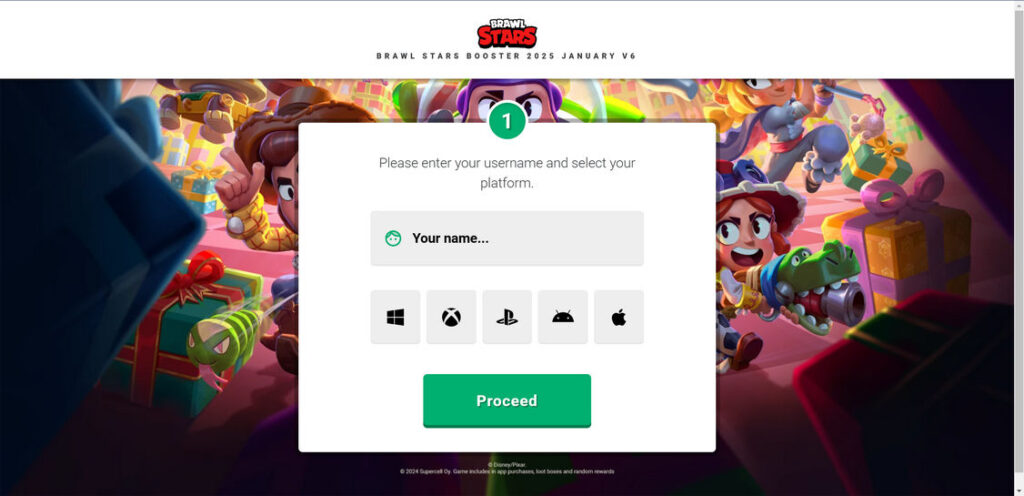
The Vuksy.com homepage features images of Brawl Stars rewards with claims like “Generate unlimited gems and coins!”
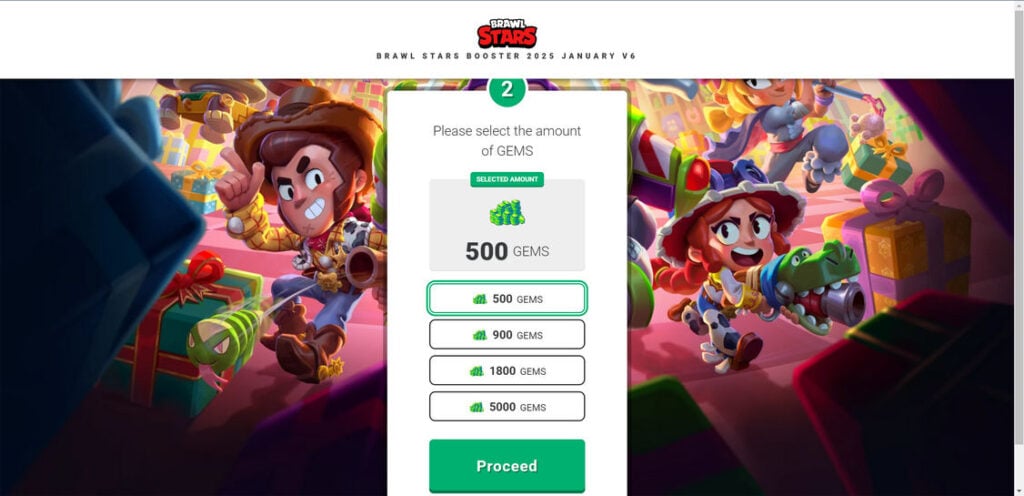
Instructions direct players to enter their username to “verify their account” and choose how many gems to add.
A countdown timer pressures players to act fast before “this exclusive offer ends.”
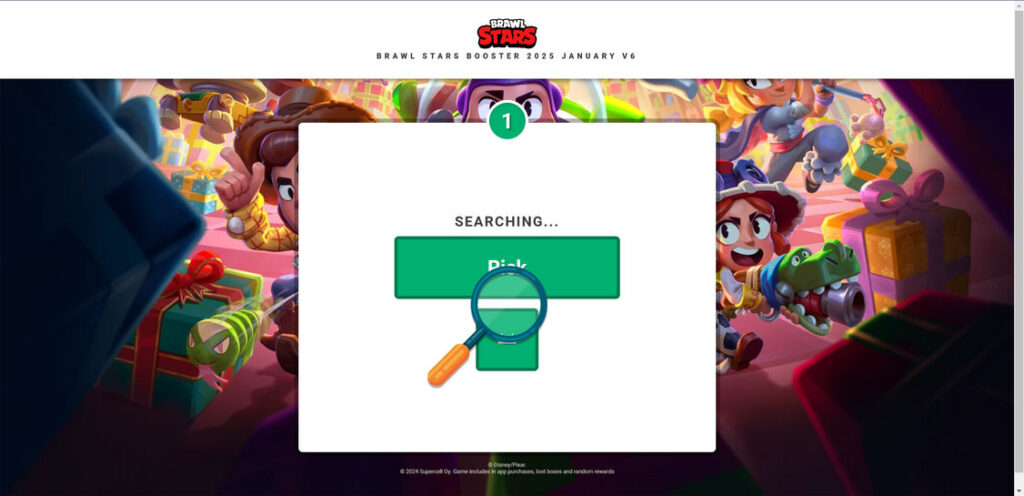
No real verification occurs. Usernames entered simply allow tracking who clicks affiliate links.
All graphics and text promote urgency to earn the “unlimited” rewards before time runs out.
This page is extremely deceptive, making bold claims while providing no actual rewards. The true purpose is tricking players into the next step.
Step 3: Click Affiliate Links Disguised as “Human Verification”
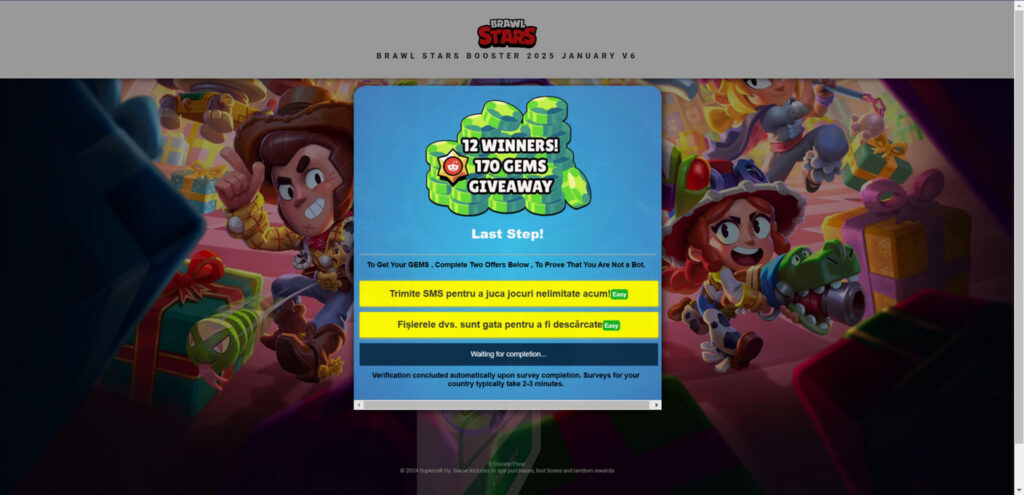
After entering a username and choosing rewards, users are directed to a “human verification” page. This is the key step where scammers get payoffs through affiliate links:
The page claims human verification is required to “prevent bots” from claiming all the rewards.
Instructions prompt users to download apps, complete surveys, subscribe to services, or share the offer on social media.
Each button is an affiliate link that pays the scammers if users complete the action.
Downloads and subscriptions may sign up victims for unwanted paid services without their consent.
Despite claiming to be a human verification process, the real purpose is getting users to click affiliate links earning the scammers money.
Step 4: Redirect Users Back to the Vuksy.com Site
After clicking 1-2 affiliate links, users are redirected back to Vuksy.com. The purpose is to continue the scam cycle:
The homepage now displays again, still advertising free rewards.
New instructions claim the user didn’t complete enough offers to unlock the full amount of gems.
Another around of “human verification” is required, linking to more affiliate offers.
This cycle continues indefinitely until the user gives up or realizes it’s a scam. The longer victims stay trapped, the more affiliate profits the scammers earn.
Step 5: Never Receive the Promised Rewards
After hours of clicking affiliate links, users never receive any of the promised Brawl Stars rewards:
Vuksy.com has no actual mechanism for generating gems, coins, skins, or any other in-game content.
The offers are completely fake – users only complete actions earning affiliate commissions.
Even if users complete hundreds of downloads, surveys, and subscriptions, the rewards never materialize.
At most, shady third-party apps may drop a few cents of virtual currency in accounts – nothing close to advertised.
The reality is Vuksy.com is only a platform for getting users to click high-paying affiliate links. No free Brawl Stars content actually exists.
This leaves victims drained of time, scammed out of personal information, and potentially signed up for high-cost subscriptions without consent. Meanwhile, scammers profit handily from each person who falls for the bait.
What to Do if You Have Fallen Victim to the Vuksy.com Scam
If you already encountered Vuksy.com and completed offers, don’t panic. Here are actionable steps to fix the damage and avoid further harm:
Cancel Any Subscriptions or Services Signed Up For
The first priority is identifying and canceling any paid subscriptions, apps, or services activated without your understanding.
Check bank and credit card statements closely for any unusual charges by third parties.
If you used an app store account for downloads, check your purchase history for unwanted apps. Cancel subscriptions or request refunds.
Contact support for any service to cancel accounts and payments if you did not intend to sign up.
Canceling quickly is vital to avoid being charged for services you don’t want. Unfortunately, many third-party offers on scam sites enroll users in subscriptions without adequate consent.
Run Antivirus Software to Check for Malware
High-risk download offers frequently contain malware payloads to further profit from victims. Run a full system scan using updated antivirus software to check for infections.
If your device appears compromised, disconnect it from other shared networks immediately to avoid spreading malware. Wipe the system fully and reinstall the operating system if necessary.
Change Passwords on All Services Using the Same Credentials
Since entering your username is required, the scammers may attempt to access integrated Supercell accounts and other linked services.
To be safe, change the passwords on your Brawl Stars account, Google Play account, or App Store account if used. Also update passwords anywhere else you reuse the same credentials.
Enable two-factor authentication wherever possible for additional protection on high-value accounts. Doing so secures your accounts against potential identity theft and unauthorized access.
Inform Your Bank or Credit Card Provider of Potential Fraud
Contact your financial provider, especially if you discover unfamiliar charges from third parties. Reporting fraud early increases the likelihood charges can be reversed.
Your provider may also offer steps like changing account numbers, disputing charges, or setting up new cards if necessary to protect your finances. Taking advantage of fraud protections now can save major headaches later.
Reset Advertising ID and Opt Out of Tracking
Scammers aim to track activity across sites by using your advertising ID associated with app downloads and account usage.
To break this tracking, reset your advertising ID on each device used by following your system instructions. Also opt out of personalized ads and disable tracking options whenever possible.
Doing so will disrupt their ability to profile your behaviors going forward through cross-site monitoring.
Warn Friends and Family Who Play Brawl Stars
Since the scam spreads through communities, chances are you are not the only target. Kindly warn any friends, family, or fellow players you think may encounter Vuksy.com or similar offers.
Letting your personal networks know about the scam will prevent them from falling for the same traps. Peer advocacy helps interrupt these operations by decreasing victim participation.
By taking these steps, you can minimize damages, protect yourself from further harm, and stop participation in the scam. While it may not reverse any initial losses, cutting ties fully keeps them from profiting further from your information or activity.
Is Your Device Infected? Run a Free Malware Scan
Slow performance, constant pop-ups, or strange behavior? These are classic signs of a malware infection. The fastest way to find out is to scan your device with Malwarebytes Anti-Malware Free — one of the most trusted malware removal tools available.
The free version detects and removes the most common threats, including:
Adware — the cause of those annoying pop-ups
Browser hijackers — unwanted redirects and changed homepages
Trojans and spyware — hidden programs stealing your data
Potentially unwanted programs (PUPs) — software you never asked for
👉 Select your device below — Windows, Mac, or Android — then follow the simple steps to download Malwarebytes, scan your system, and remove any threats it finds. The whole process takes about 5 minutes.
Malwarebytes for WindowsMalwarebytes for MacMalwarebytes for Android
Run a Malware Scan with Malwarebytes for Windows
Malwarebytes is one of the most popular and trusted anti-malware tools for Windows — and it’s completely free for removing infections. It catches threats that many antivirus programs miss, including adware, browser hijackers, and trojans. Follow the steps below to scan and clean your PC in just a few minutes.
Download Malwarebytes
Click the button below to download the latest version of Malwarebytes for Windows from the official source. The free version is all you need — it will scan your computer and remove adware, browser hijackers, and other malicious software at no cost.
(The link opens in a new page where your download will start)
Install Malwarebytes
When the download finishes, open your Downloads folder and double-click the MBSetup file. If Windows shows a User Account Control pop-up, click “Yes” to allow the installation.
Follow the On-Screen Prompts to Install Malwarebytes
The setup wizard will walk you through a few quick screens:
Choose where you’re installing the program — “Personal Computer” or “Work Computer” — then click Next.
Malwarebytes will now install on your device. This usually takes under a minute.
When installation is complete, the “Welcome to Malwarebytes” screen will open automatically.
On the final screen, click Open Malwarebytes to launch the program.
Enable “Scan for Rootkits”
Before scanning, turn on rootkit detection so Malwarebytes can find even the most hidden threats. Click the Settings gear icon on the left side of the screen.
In the settings menu, find “Scan for rootkits” and click the toggle so it turns blue.
Done? Click “Dashboard” in the left pane to return to the main screen.
Start the Scan
Click the blue Scan button. Malwarebytes will automatically update its virus database and start checking your computer for malware.
Wait for the Scan to Finish
The scan checks your entire system for browser hijackers and other malicious programs, so it can take several minutes. Feel free to do something else — just check back occasionally to see the progress.
Quarantine the Detected Threats
When the scan is done, you’ll see a list of everything Malwarebytes found — malware, adware, and potentially unwanted programs. Click the “Quarantine” button to remove all of them at once.
Malwarebytes will now remove the malicious files and registry entries and move them safely into quarantine.
Restart Your Computer
Some threats can only be fully removed after a reboot. If Malwarebytes asks you to restart, click Yes. Once you’re logged back in, your PC is clean and you can continue with the next steps in this guide.
When the scan finishes, click Quarantine to remove everything Malwarebytes found. That’s it — your Windows PC is now clean of trojans, adware, and other malware, and should be back to running smoothly.
If your current antivirus allowed this malicious program on your computer, you may want to consider purchasing Malwarebytes Premium to protect against these types of threats in the future. If you are still having problems with your computer after completing these instructions, then please follow one of the steps:
Malwarebytes for Mac is a free on-demand scanner that removes the malware other security software tends to miss — adware, browser hijackers, and unwanted programs included. Cleaning an infected Mac with Malwarebytes has always been completely free, and it’s our go-to recommendation. Follow the steps below to scan and clean your Mac in just a few minutes.
Download Malwarebytes for Mac
Click the button below to download the latest version of Malwarebytes for Mac.
When the download finishes, open your Downloads folder and double-click the setup file to begin the installation.
Follow the On-Screen Prompts to Install Malwarebytes
The Malwarebytes for Mac Installer will guide you through a few quick screens. Click “Continue” and keep following the prompts until the installation completes.
When the installation is complete, Malwarebytes opens to the Welcome to Malwarebytes screen. Click “Get started“.
Select “Personal Computer” or “Work Computer”
Malwarebytes will ask what type of computer you’re installing it on. Click either Personal Computer or Work Computer, whichever applies.
Start the Scan
Click the “Scan” button. Malwarebytes will automatically update its detection database and begin checking your Mac for malware.
Wait for the Scan to Finish
Malwarebytes will scan your Mac for adware, browser hijackers, and other malicious programs. This can take a few minutes, so feel free to do something else — just check back occasionally to see the progress.
Quarantine the Detected Threats
When the scan is done, you’ll see a list of everything Malwarebytes found. Click the “Quarantine” button to remove all the threats at once.
Restart Your Mac
Malwarebytes will now remove all the malicious files it found. Some threats can only be fully removed after a reboot — if Malwarebytes asks you to restart, allow it. Once you’re logged back in, your Mac is clean.
Once the scan is done, remove every threat it detected. Your Mac is now free of adware, rogue browser extensions, and other potentially harmful software.
If your current antivirus allowed a malicious program on your computer, you might want to consider purchasing the full-featured version of Malwarebytes Anti-Malware to protect against these types of threats in the future. If you are still experiencing problems while trying to remove a malicious program from your computer, please ask for help in our Mac Malware Removal Help & Support forum.
Run a Malware Scan with Malwarebytes for Android
Malwarebytes for Android automatically detects and removes dangerous threats like malware and ransomware so you don’t have to worry about your most-used device being compromised. Aggressive detection of adware and potentially unwanted programs keeps your Android phone or tablet running smooth.
Download Malwarebytes for Android.
You can download Malwarebytes for Android by clicking the link below.
In the Google Play Store, tap “Install” to install Malwarebytes for Android on your device.
When the installation process has finished, tap “Open” to begin using Malwarebytes for Android. You can also open Malwarebytes by tapping on its icon in your phone menu or home screen.
Follow the on-screen prompts to complete the setup process
When Malwarebytes will open, you will see the Malwarebytes Setup Wizard which will guide you through a series of permissions and other setup options. This is the first of two screens that explain the difference between the Premium and Free versions. Swipe this screen to continue. Tap on “Got it” to proceed to the next step. Malwarebytes for Android will now ask for a set of permissions that are required to scan your device and protect it from malware. Tap on “Give permission” to continue. Tap on “Allow” to permit Malwarebytes to access the files on your phone.
Update database and run a scan with Malwarebytes for Android
You will now be prompted to update the Malwarebytes database and run a full system scan.
Click on “Update database” to update the Malwarebytes for Android definitions to the latest version, then click on “Run full scan” to perform a system scan.
Wait for the Malwarebytes scan to complete.
Malwarebytes will now start scanning your phone for adware and other malicious apps. This process can take a few minutes, so we suggest you do something else and periodically check on the status of the scan to see when it is finished.
Click on “Remove Selected”.
When the scan has been completed, you will be presented with a screen showing the malware infections that Malwarebytes for Android has detected. To remove the malicious apps that Malwarebytes has found, tap on the “Remove Selected” button.
Restart your phone.
Malwarebytes for Android will now remove all the malicious apps that it has found. To complete the malware removal process, Malwarebytes may ask you to restart your device.
After the scan, tap Remove Selected to delete all detected threats. Your Android phone is now clean — no more malicious apps, adware, or browser redirects.
If your current antivirus allowed a malicious app on your phone, you may want to consider purchasing the full-featured version of Malwarebytes to protect against these types of threats in the future. If you are still having problems with your phone after completing these instructions, then please follow one of the steps:
Restore your phone to factory settings by going to Settings > General management > Reset > Factory data reset.
Now that your device is clean, keep it that way. Most infections start with a malicious ad or a fake download button — so blocking them at the source is your best defense.
We recommend AdGuard, which blocks malicious ads, phishing pages, and dangerous redirects before they can reach you.
Frequently Asked Questions About the Vuksy.com Brawl Stars Scam
1. What is Vuksy.com?
Vuksy.com is a fraudulent website that promises free Brawl Stars gems, skins, coins, and other in-game rewards in exchange for completing tasks. However, it is a scam operation that never provides any actual rewards. The site’s real purpose is getting users to click affiliate links to generate commissions.
2. How does the Vuksy.com scam work?
The scam begins by spreading links to Vuksy.com through spam, social media posts, and direct messages. Users are instructed to enter their username and choose reward amounts. Next, they are redirected to “human verification” pages which are actually affiliate offers. These generate money when users download apps, take surveys, or sign up for subscriptions. Victims never receive any promised Brawl Stars rewards.
3. What tricks does Vuksy.com use?
Vuksy.com utilizes fake countdown timers, claims of limited offers, and pressure to act fast. None of these tactics are real. The site also disguises affiliate links as “human verification” processes. In reality, no verification occurs and users only complete money-generating actions.
4. What are the risks of the Vuksy.com scam?
Risks include signing up for unwanted paid subscriptions, downloading malware, providing personal information, and account access. Victims can have accounts compromised, devices infected, and financial data stolen. The scam also wastes huge amounts of time while earning nothing.
5. What should I do if I already clicked links on Vuksy.com?
Immediately cancel any services or subscriptions activated without consent. Run malware scans on all devices used. Change passwords on Brawl Stars, Google, and Apple accounts. Contact financial institutions about potential fraud. Reset advertising ID to disrupt tracking.
6. How can I avoid this and similar gaming scams?
Be skeptical of free premium offers requiring only basic actions. Never enter credentials on third-party sites. Read terms carefully before downloads. Avoid pressure and urgency tactics. Protect personal information. Discuss with guardians when unsure. And report suspicious sites to communities.
7. Where can I learn more about gaming scams?
Check sites like Supercell’s help center, Saferkids.com, and consumer protection groups for more advice. Stay informed, be skeptical, and advocate for other players to recognize deceptive tactics. Knowledge is the best defense against these scams.
The Bottom Line: How to Avoid Falling Victim to Vuksy.com and Similar Scams
Avoiding games scams like Vuksy.com requires knowledge of how they really operate combined with healthy skepticism. Here are key tips:
No legitimate site will ever offer free premium currency or items just for entering your username or completing basic actions. If it seems too good to be true, it always
Educate yourself on tactics like fake countdown timers, false scarcity claims, and pressure to “act fast.” Real offers don’t use manipulation.
Understand that required downloads, subscriptions, surveys, etc. primarily profit scammers rather than provide any real rewards.
Carefully read the terms and conditions for any third party app or offer before providing payment info or downloads. Check for hidden fees and subscription terms.
Avoid sites promising premium content that are not the actual developer. Only trust official sources like the Apple App Store or Google Play.
Protect personal information like usernames and passwords. Official services rarely require passwords for promotional offers.
Discuss the situation with a parent or guardian if unsure a reward seems legitimate, especially when needing payment information.
Report scammy offers, ads, or sites to moderators of related communities when encountered. Spreading awareness protects others.
Ultimately, falling for gaming scams stems from players valuing potential rewards over better judgment. But armed with the right knowledge, their deceptive tactics quickly become recognizable.
10 Rules to Avoid Online Scams
Here are 10 practical safety rules to help you avoid malware, online shopping scams, crypto scams, and other online fraud. Each tip includes a quick “if you already got hit” action.
Stop and verify before you click, log in, download, or pay.
Most scams win by creating urgency. Verify using a trusted method: type the website address yourself, use the official app, or call a known number (not the one in the message).
If you already clicked: close the page, do not enter passwords, and run a malware scan.
Keep your operating system, browser, and apps updated.
Updates patch security holes used by malware and malicious ads. Turn on automatic updates where possible.
If you saw a scary “update now” pop-up: close it and update only through your device settings or the official app store.
Use layered protection: antivirus plus an ad blocker.
Antivirus helps block malware. An ad blocker reduces scam redirects, phishing pages, and malvertising.
If your browser is acting weird: remove unknown extensions, reset the browser, then run a full scan.
Install apps, software, and extensions only from official sources.
Avoid cracked software, “keygens,” and random downloads. During installs, choose Custom/Advanced and decline bundled offers you do not recognize.
If you already installed something suspicious: uninstall it, restart, and scan again.
Treat links and attachments as untrusted by default.
Phishing often impersonates delivery services, banks, and popular brands. If it is unexpected, do not open attachments or log in through the message.
If you entered credentials: change the password immediately and enable 2FA.
Shop safely: research the store, then pay with protection.
Be cautious with brand-new stores, “closing sale” stories, and prices that make no sense. Prefer credit cards or PayPal for dispute options. Avoid wire transfers, gift cards, and crypto payments.
If you already paid: contact your card issuer or PayPal quickly to dispute the transaction.
Crypto rule: never pay a “fee” to withdraw or recover money.
Common patterns include fake profits, then “tax,” “gas,” or “verification” fees. Another is a “recovery agent” who demands upfront crypto.
If you already sent crypto: stop paying, save evidence (wallet addresses, TXIDs, chats), and report the scam to the platform used.
Secure your accounts with unique passwords and 2FA (start with email).
Use a password manager and unique passwords for every account. Enable 2FA using an authenticator app when possible.
If you suspect an account takeover: change passwords, sign out of all devices, and review recent logins and recovery settings.
Back up important files and keep one backup offline.
Backups protect you from ransomware and device failure. Keep at least one backup on an external drive that is not always connected.
If you suspect infection: do not connect backup drives until the system is clean.
If you think you are a victim: stop losses, document evidence, and escalate fast.
Move quickly. Speed matters for disputes, account recovery, and limiting damage.
Stop payments and contact: do not send more money or respond to the scammer.
Call your bank or card issuer: block transactions, replace the card if needed, and start a dispute or chargeback.
Secure your email first: change the email password, enable 2FA, and remove unfamiliar recovery options.
Secure other accounts: change passwords, enable 2FA, and log out of all sessions.
Scan your device: remove suspicious apps or extensions, then run a full malware scan.
Save evidence: screenshots, emails, order pages, tracking pages, wallet addresses, TXIDs, and chat logs.
Report it: to the payment provider, marketplace, social platform, exchange, or wallet service involved.
These rules are intentionally simple. Most online losses happen when decisions are rushed. Slow down, verify independently, and use payment methods and account controls that give you recourse.
Thomas is an expert at uncovering scams and providing in-depth reporting on cyber threats and online fraud. As an editor, he is dedicated to keeping readers informed on the latest developments in cybersecurity and tech.