

Have you seen mentions of a tool named Snaptroid 3.0 circulating on social media? Claims that it can access private Snapchat data like locations and My Eyes Only photos? Beware – Snaptroid 3.0 is a scam operation designed to exploit Snapchat users.
In this comprehensive guide, we’ll uncover how the Snaptroid 3.0 scam works, tactics it uses to deceive victims, and most crucially – how to avoid becoming ensnared by its social media trickery.
An Overview Exposing the Snaptroid 3.0 Snapchat Scam
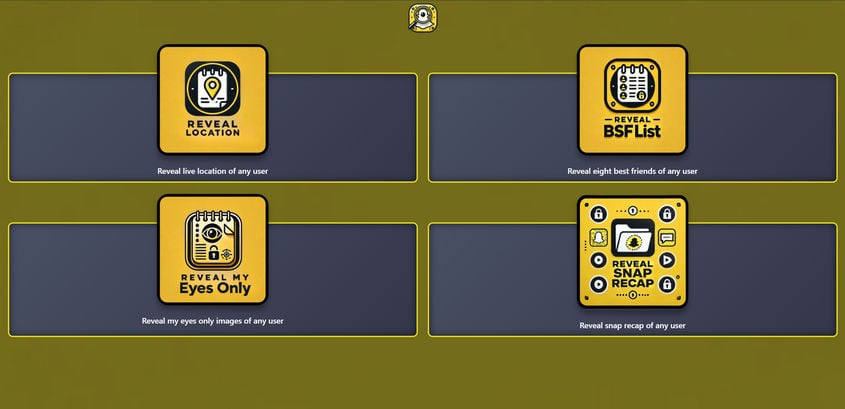
The Snaptroid 3.0 scam is the latest version of a recurring fraudulent scheme targeting Snapchat users. Hosted primarily through the domain Snaptroid.co, this deceptive website promotes itself as a tool able to retrieve and display sensitive, non-public Snapchat user data.
Specific private account details the Snaptroid site claims it can reveal includes:
- Real-time location maps showing where any user is currently located
- Full lists of a user’s best friends on Snapchat
- Access to private “My Eyes Only” images and videos
- Ability to view any user’s full Snapchat story and memories
By inputting a target user’s Snapchat username, Snaptroid promises it can then showcase all of the above insights into their activity and connections on Snapchat.
However, this is all an intricately fabricated ruse designed solely to deceive victims and generate illicit profits for the Snaptroid scammers behind it.
In reality, Snaptroid has zero actual capability to retrieve any legitimately private Snapchat user data. The entire premise of the services it promotes on its website is completely falsified and fraudulent.
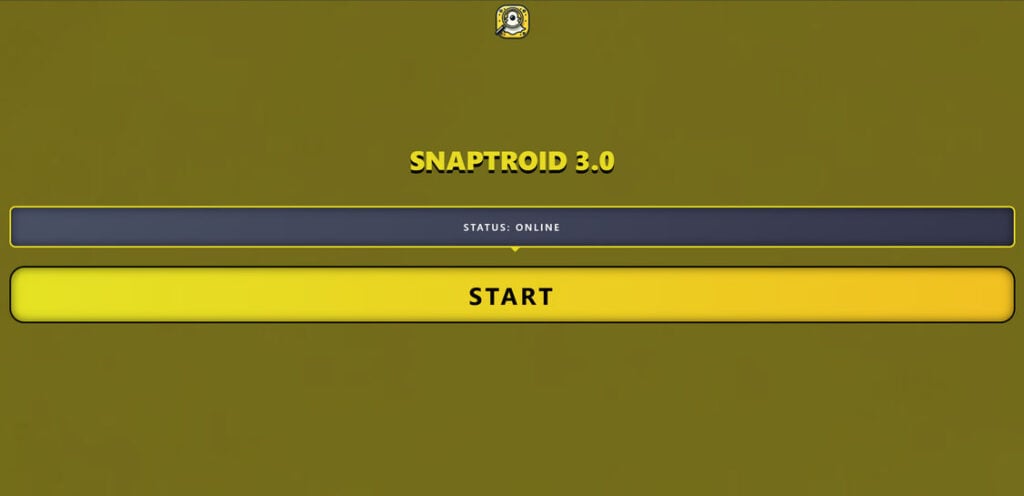
By luring Snapchat users in under these false pretenses of exposed secrets and insights, the Snaptroid scam is able to manipulate and exploit victims in various unethical ways, including:
- Getting users to download unrelated apps containing malware, viruses and spyware by disguising them as “verification tools”
- Tricking users into taking spam surveys and subscribing to sketchy services in order to unlock the promised (but fake) Snapchat data
- Generating profits from commissions earned on the deceptive downloads and subscriptions users complete
- Harvesting user details like phone numbers and emails to sell to third party advertisers and scam operations
- Putting users’ devices and Snapchat accounts at risk through malware infections and password theft
Some examples of the extremely dubious and deceptive claims made by the Snaptroid site include:
“Access the private Snapchat stories and memories of ANY Snapchat user”
“See anyone’s My Eyes Only photos regardless of their privacy settings”
“Instantly generate a real-time map showing the exact GPS location of any Snapchat user”
As is hopefully clear, a scam platform like Snaptroid would never be granted access to this level of private Snapchat user data by the app’s developers. But false promises tap into human curiosity and temptation.
Let’s see into how the Snaptroid 3.0 scam unfolds and exploits Snapchat users through deceptive tactics:
How the Snaptroid 3.0 Scam Works
The Snaptroid 3.0 scam employs several unethical techniques to carry out its social media deception:
Step 1: False Service Offer Pages Lure Victims
The Snaptroid.co website promotes “services” claiming to reveal private Snapchat information. Pages highlight the supposed value of exposing locations, My Eyes Only content, friend lists, and more. These irresistible but fake offers create temptation and curiosity.
Step 2: Users Get Redirected to “Verification” Pages
Upon clicking a service button, users get redirected to a “human verification” page rather than receiving any actual Snapchat data. This tricks users into thinking more steps are required before access is granted.

Step 3: Repeated Actions Needed for “Verification”
To get past the endless verification loop, Snaptroid forces users to:
- Download unrelated apps and files
- Complete spam surveys
- Subscribe to sketchy services
- Watch ads and videos
Often multiple repetitive steps are demanded, but no data is ever provided.
Step 4: No Snapchat Data Is Ever Disclosed
Despite jumping through hoops, users gain zero actual Snapchat insights. The cycle simply repeats with more verification requirements.
Step 5: Shady Downloads Generate Profits
Snaptroid profits by getting users to complete “verifications” tied to commissions. This includes downloads bundled with malware, trial offers, and subscriptions.
Step 6: User Data Gets Sold and Misused
Any personal information submitted to Snaptroid gets sold to shady third party advertisers, exposing victims to more spam, scams, and data misuse.
As you can see, the deception runs deep with the Snaptroid 3.0 scam. But being aware of the manipulative tactics is key to avoiding becoming victimized.
Tactics Used by Snaptroid 3.0 to Deceive Snapchat Users
Snaptroid relies on various forms of trickery and manipulation, including:
Offering Fabricated Services
No third party can access private Snapchat data like friend lists or location maps. But Snaptroid falsely advertises these services anyway.
Deploying Fake Verification Steps
Endless loops of downloading apps and completing surveys dupe users into thinking verification is required.
Leveraging Curiosity About Others
Promises to expose private Snapchat data take advantage of natural human curiosity and temptation.
Using Clickbait Headlines
Clickbait-style headlines like “Uncover My Eyes Only” or “See Any User’s Location” entice engagement based on temptation versus facts.
Making False Limited Time Offers
Fake countdown timers and limited time messaging create a false sense of urgency and pressure.
Concealing Sponsorship Details
Affiliate links and sponsors for advertised downloads are never disclosed, hiding incentives.
Offering Rewards for Participation
Deceptive promises about earning rewards or coins for completing “verifications” keep the scam cycling.
The more aware you become of these manipulative tactics and how scammers employ them, the less chance you have of falling victim.
Recognizing Red Flags of the Snaptroid 3.0 Scam
Be vigilant about these common red flags that can expose deceptive sites like Snaptroid:
- Too-good-to-be-true claims – Private Snapchat data is inaccessible for a reason.
- Sketchy downloads – Legit services won’t force unverified app installs for “confirmation.”
- Aggressive pop-ups and Ads – Excessive pop-ups and ads signify ulterior profit motives.
- Vague descriptions – Using general terms like “premium Snapchat data” without specifics often indicates scam sites.
- No connection to Snapchat – Lack of official partnership or endorsement is a major red flag.
- Spam and bot comments – Fake comments and testimonials using stock language expose untrustworthy sites.
- No verifiable contact info – Lack of legitimate business details linked to the site and owners indicates shady operation.
- Repetitive loops – Real verification processes don’t endlessly repeat requirements.
When multiple red flags appear, cease all engagement immediately and avoid sharing any personal data.
Dangers of Providing Data to Snaptroid 3.0
Aside from wasted time, users face significant risks by interacting with Snaptroid:
- Malware infections – Downloaded apps and files often contain viruses, Trojans, spyware and adware.
- Snapchat account hacking – Username and password details entered can lead to account hijacking.
- Identity theft – Personal information is leveraged for credit card fraud and financial theft.
- Endless spam texts and calls – Phone numbers provided get sold to shady advertisers and scammers.
- Blackmail – Snaptroid may threaten to “expose” details like locations to force more participation in the scam.
The more data points Snaptroid can collect, the greater the risks to your privacy, security and identity. Avoid feeding it any info.
What To Do If You Shared Information with Snaptroid
If you already provided personal data or downloaded anything from Snaptroid, take these steps immediately:
- Change passwords for any accounts that may have been exposed or compromised. Enable two-factor authentication on Snapchat and other accounts for enhanced security.
- Run malware scans to check for viruses or spyware. Remove anything suspicious that is detected during scans.
- Place fraud alerts with credit bureaus to get notifications about new accounts opened in your name, which can indicate identity theft.
- Monitor accounts closely for unauthorized access or activity and report any signs of breach. Freeze credit reports if evidence of ID theft emerges.
- Avoid communications claiming to be from Snapchat security teams – these “account limitation” warnings are often phishing links from scammers.
How to Avoid Falling Victim to Snapchat Scams
Here are some tips to protect yourself from scams targeting Snapchat users:
- Avoid third-party analytics tools – Snapchat prohibits external access to friend lists, locations, stories, and other personal data for good reason – it enables scams.
- Use unique passwords for Snapchat accounts – never reuse credentials across multiple sites and apps.
- Enable two-factor authentication – Adding an extra verification step blocks scammers from accessing accounts even with stolen passwords.
- Watch for “too good to be true” offers about uncovering private details of other users – nothing can legitimately deliver this.
- Beware verification scams – Downloading random apps, taking spam surveys, and providing phone numbers won’t unlock anything.
- Manage app permissions carefully – Only allow apps you fully trust to access personal data like locations.
Stay vigilant against the endless permutations of social media scams aiming to exploit Snapchat users. Avoid becoming the next victim.
Is Your Device Infected? Run a Free Malware Scan
Slow performance, constant pop-ups, or strange behavior? These are classic signs of a malware infection. The fastest way to find out is to scan your device with Malwarebytes Free — one of the most trusted malware removal tools available.
The free version detects and removes the most common threats, including:
- Adware — the cause of those annoying pop-ups
- Browser hijackers — unwanted redirects and changed homepages
- Trojans and spyware — hidden programs stealing your data
- Potentially unwanted programs (PUPs) — software you never asked for
👉 Select your device below — Windows, Mac, or Android — then follow the simple steps to download Malwarebytes, scan your system, and remove any threats it finds. The scan usually takes 5 to 20 minutes.
Run a Malware Scan with Malwarebytes for Windows
Malwarebytes is one of the most popular and trusted anti-malware tools for Windows — and it’s completely free for removing infections. It catches threats that many antivirus programs miss, including adware, browser hijackers, and trojans. Follow the steps below to scan and clean your PC in just a few minutes.
Download Malwarebytes
Click the button below to download the latest version of Malwarebytes for Windows from the official source. The free version is all you need — it will scan your computer and remove adware, browser hijackers, and other malicious software at no cost.
Download MalwarebytesOfficial installer for Windows 11 and 10. Your download starts right away.Want real-time protection? See Malwarebytes Premium Malwarebytes Free for WindowsScans and removes malware at no cost
-
Install Malwarebytes
When the download finishes, open your Downloads folder and double-click the MBSetup file. If Windows shows a User Account Control pop-up, click “Yes” to allow the installation.

Follow the On-Screen Prompts to Install Malwarebytes
The setup wizard will walk you through a few quick screens:
-
Choose where you’re installing the program — “Personal Computer” or “Work Computer” — then click Next.

-
Malwarebytes will now install on your device. This usually takes under a minute.

-
When installation is complete, the “Welcome to Malwarebytes” screen will open automatically.

-
On the final screen, click Open Malwarebytes to launch the program.

-
Enable “Scan for Rootkits”
Before scanning, turn on rootkit detection so Malwarebytes can find even the most hidden threats. Click the Settings gear icon on the left side of the screen.

In the settings menu, find “Scan for rootkits” and click the toggle so it turns blue.

Done? Click “Dashboard” in the left pane to return to the main screen.
Start the Scan
Click the blue Scan button. Malwarebytes will automatically update its virus database and start checking your computer for malware.

-
Wait for the Scan to Finish
The scan checks your entire system for browser hijackers and other malicious programs, so it can take 5 to 20 minutes depending on your computer. Feel free to do something else — just check back occasionally to see the progress.

-
Quarantine the Detected Threats
When the scan is done, you’ll see a list of everything Malwarebytes found — malware, adware, and potentially unwanted programs. Click the “Quarantine” button to remove all of them at once.

Malwarebytes will now remove the malicious files and registry entries and move them safely into quarantine.

-
Restart Your Computer
Some threats can only be fully removed after a reboot. If Malwarebytes asks you to restart, click Yes. Once you’re logged back in, Malwarebytes has finished removing the threats it found.

That’s it — your Windows PC is now clean of trojans, adware, and other malware, and should be back to running smoothly.
If you are still having problems with your computer after completing these instructions, then please follow one of the steps:
- Run a computer scan with ESET Online Scanner
- Ask for help in our Windows Malware Removal Help & Support forum.
Run a Malware Scan with Malwarebytes for Mac
Malwarebytes for Mac is a free on-demand scanner that removes the malware other security software tends to miss — adware, browser hijackers, and unwanted programs included. Cleaning an infected Mac with Malwarebytes has always been completely free, and it’s our go-to recommendation. Follow the steps below to scan and clean your Mac in just a few minutes.
-
Download Malwarebytes for Mac
Click the button below to download the latest version of Malwarebytes for Mac.
Download MalwarebytesOfficial installer for macOS. Your download starts right away.Want real-time protection? See Malwarebytes PremiumMalwarebytes Free for MacScans and removes malware at no cost -
Open the Malwarebytes setup file
When the download finishes, open your Downloads folder and double-click the setup file to begin the installation.

-
Follow the On-Screen Prompts to Install Malwarebytes
The Malwarebytes for Mac Installer will guide you through a few quick screens. Click “Continue” and keep following the prompts until the installation completes.



When the installation is complete, Malwarebytes opens to the Welcome to Malwarebytes screen. Click “Get started“.
-
Select “Personal Computer” or “Work Computer”
Malwarebytes will ask what type of computer you’re installing it on. Click either Personal Computer or Work Computer, whichever applies.

-
Start the Scan
Click the “Scan” button. Malwarebytes will automatically update its detection database and begin checking your Mac for malware.

-
Wait for the Scan to Finish
Malwarebytes will scan your Mac for adware, browser hijackers, and other malicious programs. This can take a few minutes, so feel free to do something else — just check back occasionally to see the progress.

-
Quarantine the Detected Threats
When the scan is done, you’ll see a list of everything Malwarebytes found. Click the “Quarantine” button to remove all the threats at once.

-
Restart Your Mac
Malwarebytes will now remove all the malicious files it found. Some threats can only be fully removed after a reboot — if Malwarebytes asks you to restart, allow it. Once you’re logged back in, your Mac is clean.

That’s it — your Mac is now free of adware, rogue browser extensions, and other potentially harmful software.
If you are still experiencing problems while trying to remove a malicious program from your computer, please ask for help in our Mac Malware Removal Help & Support forum.
Run a Malware Scan with Malwarebytes for Android
Malwarebytes for Android automatically detects and removes dangerous threats like malware and ransomware so you don’t have to worry about your most-used device being compromised. Aggressive detection of adware and potentially unwanted programs keeps your Android phone or tablet running smooth.
-
Download Malwarebytes for Android.
You can download Malwarebytes for Android by clicking the link below.
Get Malwarebytes for AndroidOpens Google Play in a new tab.Want real-time protection? See Malwarebytes Premium for AndroidMalwarebytes for AndroidScans your phone and removes malware at no cost -
Install Malwarebytes for Android on your phone.
In the Google Play Store, tap “Install” to install Malwarebytes for Android on your device.

When the installation process has finished, tap “Open” to begin using Malwarebytes for Android. You can also open Malwarebytes by tapping on its icon in your phone menu or home screen.

-
Follow the on-screen prompts to complete the setup process
When Malwarebytes will open, you will see the Malwarebytes Setup Wizard which will guide you through a series of permissions and other setup options.
This is the first of two screens that explain the difference between the Premium and Free versions. Swipe this screen to continue.
Tap on “Got it” to proceed to the next step.
Malwarebytes for Android will now ask for a set of permissions that are required to scan your device and protect it from malware. Tap on “Give permission” to continue.
Tap on “Allow” to permit Malwarebytes to access the files on your phone.
-
Update database and run a scan with Malwarebytes for Android
You will now be prompted to update the Malwarebytes database and run a full system scan.

Click on “Update database” to update the Malwarebytes for Android definitions to the latest version, then click on “Run full scan” to perform a system scan.

-
Wait for the Malwarebytes scan to complete.
Malwarebytes will now start scanning your phone for adware and other malicious apps. This process can take a few minutes, so we suggest you do something else and periodically check on the status of the scan to see when it is finished.

-
Click on “Remove Selected”.
When the scan has been completed, you will be presented with a screen showing the malware infections that Malwarebytes for Android has detected. To remove the malicious apps that Malwarebytes has found, tap on the “Remove Selected” button.

-
Restart your phone.
Malwarebytes for Android will now remove all the malicious apps that it has found. To complete the malware removal process, Malwarebytes may ask you to restart your device.
That’s it — your Android phone is now clean — no more malicious apps, adware, or browser redirects.
If you are still having problems with your phone after completing these instructions, then please follow one of the steps:
- Restore your phone to factory settings by going to Settings > General management > Reset > Factory data reset.
- Ask for help in our Mobile Malware Removal Help & Support forum.
Stay Protected: Block Ads and Malicious Sites
Now that your device is clean, keep it that way. Most infections start with a malicious ad or a fake download button — so blocking them at the source is your best defense.
We recommend AdGuard, which blocks malicious ads, phishing pages, and dangerous redirects before they can reach you.
👉 Download AdGuard and browse safely
Frequently Asked Questions about the Snaptroid 3.0 Scam Targeting Snapchat Users
1. What exactly is the Snaptroid 3.0 scam?
Snaptroid 3.0 is a deceptive website that falsely promises it can access private Snapchat user data like locations, friend lists, memories, and My Eyes Only content. It tricks users into downloading malware and completing spam offers under the guise of “verification” to unlock promised insights that it cannot actually provide.
2. How does the Snaptroid 3.0 scam work?
The scam operates by promoting tempting but fabricated claims about revealing sensitive Snapchat account details. Users get redirected through endless “verification” loops involving sketchy app downloads, surveys and subscriptions, allowing Snaptroid to profit from commissions.
3. What tactics does Snaptroid 3.0 use to trick Snapchat users?
Tactics include exaggerated claims about access to private data, fake limited-time offers, aggressive pop-up ads, clickbait headlines, endless verification loops, and leveraging human curiosity around social media activity.
4. What are some red flags that expose the Snaptroid scam?
Red flags include lack of connection to Snapchat, too-good-to-be-true claims, repetitive verification steps, vague language, no verifiable contact information, and pushy pop-ups and ads.
5. What risks are there in providing personal data to Snaptroid 3.0?
Major risks include malware infections, identity theft, Snapchat account hijacking, endless spam texts/calls, and blackmail threats to force continued participation in the scam.
6. What should I do if I already entered information on Snaptroid 3.0?
Immediately change passwords, run malware scans, enable two-factor authentication, monitor accounts closely for unauthorized changes, and place fraud alerts with credit bureaus.
7. How can I avoid becoming a victim of the Snaptroid scam?
Avoid third-party analytics sites, use unique passwords, enable two-factor authentication, watch for too-good-to-be-true offers, and beware verification scams demanding downloads or surveys.
8. Can Snaptroid 3.0 actually access my private Snapchats and data?
No, Snaptroid has no legitimate capability whatsoever to retrieve or display private user data from Snapchat. All the promised Snapchat insights are completely fabricated.
9. What is Snapchat’s policy on third-party services like Snaptroid?
Snapchat prohibits third parties from claiming access to private user data like locations, friend lists, memories, etc. Scraping Snapchat data breaches their terms and can risk account termination.
10. How can I report the Snaptroid 3.0 scam?
You can report Snaptroid 3.0 directly to Snapchat as an unauthorized application attempting to access private user data in violation of their terms. Avoid engaging with the site.
The Bottom Line on Snaptroid 3.0
Snaptroid 3.0 employs deceptive techniques to falsely advertise its capabilities, profit from affiliate app installs, harvest user data, and perpetuate viral scams. It cannot actually access or display any exclusive Snapchat user insights.
Avoid interacting with the Snaptroid scam and warning friends to steer clear as well. Never enter personal information or Snapchat account credentials into unverified third-party websites.

Join the discussion
0 commentsShare your experience or ask a question about this article.
Discussion
Start the conversation
Have a question or something useful to share? Add the first comment.