

Who doesn’t want more free Brawl Stars gems and gold? Scammers know players crave premium currency and cosmetics. They capitalize on these desires through websites promising free gems to those who complete “quick activities.”
This article reveals the deceitful tactics of free Brawl Stars gems scam sites. You’ll learn how to recognize these harmful schemes and most importantly, avoid losing your time, money, or personal data.
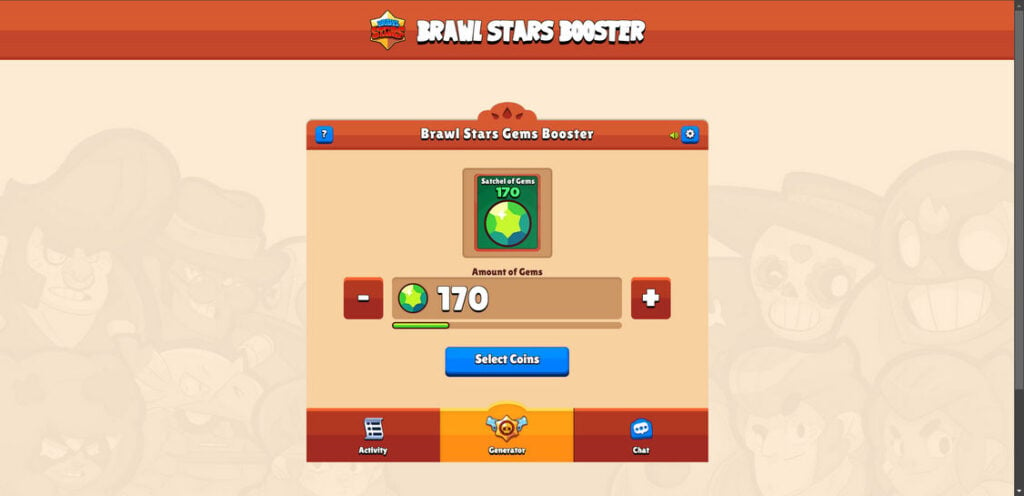
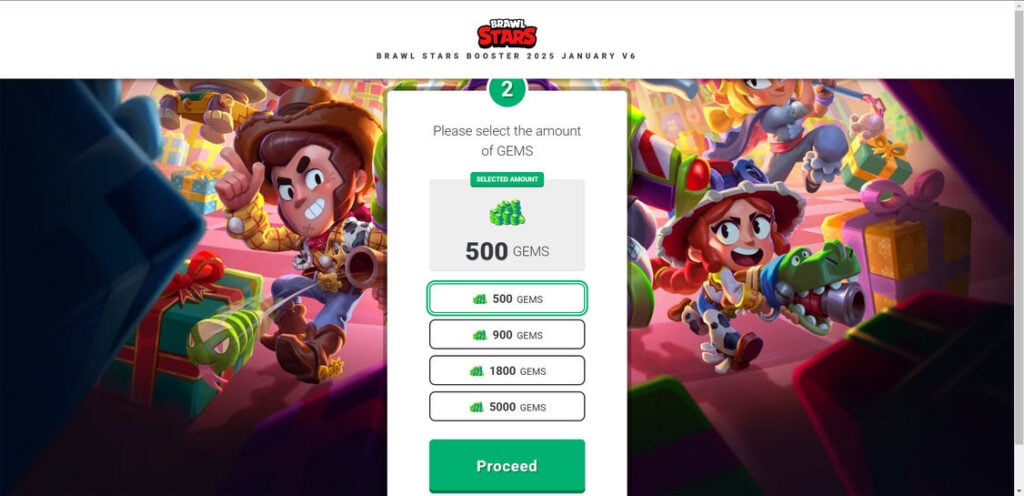
An Overview of Free Gems Scam Websites Targeting Brawl Stars
Fraudulent free gems websites operate by aggressively spreading links across social platforms and gaming communities. When players click, the sites instruct them to input their usernames and complete “human verification” offers.
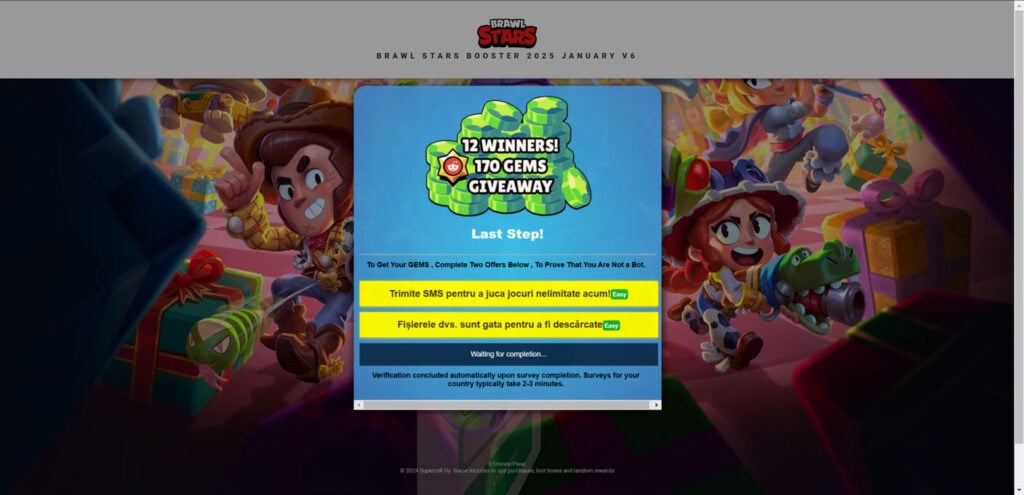
In reality, these offers are just affiliate marketing links generating payouts for scammers. Players receive zero gems while scammers profit from their clicks.
Hundreds of scam sites exist using slight variations on this model. They rapidly shift domain names once exposed, making it difficult to track individual operations.
Regardless of the domain, identifying the deceptive tactics allows players to recognize and avoid endless clones peddling imaginary rewards.
Dissecting the Tactics Used By Free Brawl Stars Gems Scam Sites
These scam websites may differ in appearance, but employ the same core strategies to deceive and manipulate victims. Here are the key procedures nearly all these sites follow:
Step1: Bait Players Through Aggressive Promotion
The first step scammers take is aggressively promoting links through:
- Posting on gaming forums and social media using clickbait captions
- Spamming Discord, Telegram, and WhatsApp gaming groups with sketchy links
- Buying ads with false promises that sneak past platform moderators
Their goal is putting links in front of as many eager players as possible to drive traffic. Because they often pretend to be fellow gamers, their true intent stays hidden.
Step 2: Make Bold Claims on the Landing Page
Players who click scam links arrive at pages promising outrageous rewards, like:
- “Unlock 5000 Free Gems Instantly!”
- “Get Unlimited Coins and Skins NOW!”
- “Click Here for 500 Free Brawl Boxes”
Graphics reinforce these lies, showing images of brawlers, animations, and chests bursting with loot. The goal is enticing players to keep going.
Step 3: Use Deception to Obtain Usernames and Platform Info
Before earning imagined rewards, players are prompted to enter their:
- Brawl Stars username
- Device platform (iOS or Android)
- Email address
Scammers claim this allows verifying identity or sending rewards. In truth, it’s only to build profiles for affiliate tracking and potential account theft.
Step 4: Disguise Affiliate Offers as “Human Verification”
The final step is the main scam: cloaking affiliate offers as human verification. Players have to:
- Download suspicious apps from links
- Take email subscription quizzes
- Enter credit card info on fishy websites
- Purchase products to “verify” identity
Each completes an affiliate conversion earning scammers money. Meanwhile, victims remain stuck in endless offer loops, never receiving anything.
Step 5: Redirect Back to the Beginning
Players finishing “verification” are sent back to the landing page and told more offers are required to get remaining rewards. This cycle repeats infinitely until the user gets frustrated and quits.
This structure maximizes how many conversions scammers can earn per victim. Affiliate clicks alone generate decent money, even if players catch on quickly. Those stuck in cycles for hours earn far more.
The Costs and Consequences of Chasing Imaginary Gems
The surface-level loss from these scams is wasted time chasing imaginary gems. But the risks run far deeper:
- Financial Fraud – Deceptive offers can dupe victims into unwanted subscriptions under false pretenses.
- Account Theft – Username and password requests open the door for account takeovers.
- Malware Downloads – Required downloads may contain viruses or spyware.
- Data Harvesting – Registration info provides data for fraud databases.
- Stolen Payment Info – Keyloggers or spyware capture financial credentials entered on scam sites.
While not every scam website abuses victims to these extremes, the potential for severe harm remains quite real. At minimum, hours of clicking shady links exposes devices and accounts to unacceptable risks.
For young, eager players unfamiliar with such deception, these consequences can be especially devastating. Their excitement is exploited in the name of cold, calculated affiliate profits.
What to Do If You Encountered a Free Gems Scam Website
If you already engaged with a scam gems offer, don’t panic. Here are steps to minimize damage:
- Cancel Unauthorized Subscriptions or Services – If signed up under false pretenses, terminate immediately.
- Run Security Scans – Scan devices used for malware or spyware. Change all account passwords as well.
- Verify Charges – Closely inspect bank and card statements for any unusual activity indicating potential fraud.
- Contact Support – Notify Supercell, Apple, or Google support about unauthorized access concerns.
- Reset Advertising ID – Prevent affiliate networks from continuing to track and target you.
- Report Scam Ads and Sites – Comment warnings for fellow players on social posts promoting these. The more who know, the fewer new victims.
While some losses like wasted time can’t be recovered, quick action prevents scammers from profiting further. Shutting down payments and locking down accounts limits the damage significantly.
Avoiding All Gems Scam Websites – Advice and Tips
The appeal of free premium content is powerful. But with the right knowledge, players can recognize scams before getting ensnared.
- Use Healthy Skepticism – If an offer seems too good to be true, it always is. Real rewards never require surveys or downloads.
- Understand Persuasion Tactics – Timers, pressure phrases, and scarcity claims are manipulation, not legitimacy.
- Protect Credentials – Official services rarely request usernames or passwords through third parties.
- Read Terms Closely – Check for hidden fees and shady practices before providing payment info.
- Only Use First-Party Stores – For real premium content, go directly through Google Play, the App Store, or the developer.
- Discuss with Guardians – Adults can help identify if an offer is appropriate, especially if payments are involved.
With greater awareness, players avoid gambling with their accounts, information, and devices. Stay patient building legitimate progression rather than chasing imaginary shortcuts from shady sources.
For more guidance, visit Supercell’s player safety resources or youth gaming protection groups. Together, we can prevent these scammers from deceiving more victims.
Is Your Device Infected? Run a Free Malware Scan
Slow performance, constant pop-ups, or strange behavior? These are classic signs of a malware infection. The fastest way to find out is to scan your device with Malwarebytes Free — one of the most trusted malware removal tools available.
The free version detects and removes the most common threats, including:
- Adware — the cause of those annoying pop-ups
- Browser hijackers — unwanted redirects and changed homepages
- Trojans and spyware — hidden programs stealing your data
- Potentially unwanted programs (PUPs) — software you never asked for
👉 Select your device below — Windows, Mac, or Android — then follow the simple steps to download Malwarebytes, scan your system, and remove any threats it finds. The scan usually takes 5 to 20 minutes.
Run a Malware Scan with Malwarebytes for Windows
Malwarebytes is one of the most popular and trusted anti-malware tools for Windows — and it’s completely free for removing infections. It catches threats that many antivirus programs miss, including adware, browser hijackers, and trojans. Follow the steps below to scan and clean your PC in just a few minutes.
Download Malwarebytes
Click the button below to download the latest version of Malwarebytes for Windows from the official source. The free version is all you need — it will scan your computer and remove adware, browser hijackers, and other malicious software at no cost.
Download MalwarebytesOfficial installer for Windows 11 and 10. Your download starts right away.Want real-time protection? See Malwarebytes Premium Malwarebytes Free for WindowsScans and removes malware at no cost
-
Install Malwarebytes
When the download finishes, open your Downloads folder and double-click the MBSetup file. If Windows shows a User Account Control pop-up, click “Yes” to allow the installation.

Follow the On-Screen Prompts to Install Malwarebytes
The setup wizard will walk you through a few quick screens:
-
Choose where you’re installing the program — “Personal Computer” or “Work Computer” — then click Next.

-
Malwarebytes will now install on your device. This usually takes under a minute.

-
When installation is complete, the “Welcome to Malwarebytes” screen will open automatically.

-
On the final screen, click Open Malwarebytes to launch the program.

-
Enable “Scan for Rootkits”
Before scanning, turn on rootkit detection so Malwarebytes can find even the most hidden threats. Click the Settings gear icon on the left side of the screen.

In the settings menu, find “Scan for rootkits” and click the toggle so it turns blue.

Done? Click “Dashboard” in the left pane to return to the main screen.
Start the Scan
Click the blue Scan button. Malwarebytes will automatically update its virus database and start checking your computer for malware.

-
Wait for the Scan to Finish
The scan checks your entire system for browser hijackers and other malicious programs, so it can take 5 to 20 minutes depending on your computer. Feel free to do something else — just check back occasionally to see the progress.

-
Quarantine the Detected Threats
When the scan is done, you’ll see a list of everything Malwarebytes found — malware, adware, and potentially unwanted programs. Click the “Quarantine” button to remove all of them at once.

Malwarebytes will now remove the malicious files and registry entries and move them safely into quarantine.

-
Restart Your Computer
Some threats can only be fully removed after a reboot. If Malwarebytes asks you to restart, click Yes. Once you’re logged back in, Malwarebytes has finished removing the threats it found.

That’s it — your Windows PC is now clean of trojans, adware, and other malware, and should be back to running smoothly.
If you are still having problems with your computer after completing these instructions, then please follow one of the steps:
- Run a computer scan with ESET Online Scanner
- Ask for help in our Windows Malware Removal Help & Support forum.
Run a Malware Scan with Malwarebytes for Mac
Malwarebytes for Mac is a free on-demand scanner that removes the malware other security software tends to miss — adware, browser hijackers, and unwanted programs included. Cleaning an infected Mac with Malwarebytes has always been completely free, and it’s our go-to recommendation. Follow the steps below to scan and clean your Mac in just a few minutes.
-
Download Malwarebytes for Mac
Click the button below to download the latest version of Malwarebytes for Mac.
Download MalwarebytesOfficial installer for macOS. Your download starts right away.Want real-time protection? See Malwarebytes PremiumMalwarebytes Free for MacScans and removes malware at no cost -
Open the Malwarebytes setup file
When the download finishes, open your Downloads folder and double-click the setup file to begin the installation.

-
Follow the On-Screen Prompts to Install Malwarebytes
The Malwarebytes for Mac Installer will guide you through a few quick screens. Click “Continue” and keep following the prompts until the installation completes.



When the installation is complete, Malwarebytes opens to the Welcome to Malwarebytes screen. Click “Get started“.
-
Select “Personal Computer” or “Work Computer”
Malwarebytes will ask what type of computer you’re installing it on. Click either Personal Computer or Work Computer, whichever applies.

-
Start the Scan
Click the “Scan” button. Malwarebytes will automatically update its detection database and begin checking your Mac for malware.

-
Wait for the Scan to Finish
Malwarebytes will scan your Mac for adware, browser hijackers, and other malicious programs. This can take a few minutes, so feel free to do something else — just check back occasionally to see the progress.

-
Quarantine the Detected Threats
When the scan is done, you’ll see a list of everything Malwarebytes found. Click the “Quarantine” button to remove all the threats at once.

-
Restart Your Mac
Malwarebytes will now remove all the malicious files it found. Some threats can only be fully removed after a reboot — if Malwarebytes asks you to restart, allow it. Once you’re logged back in, your Mac is clean.

That’s it — your Mac is now free of adware, rogue browser extensions, and other potentially harmful software.
If you are still experiencing problems while trying to remove a malicious program from your computer, please ask for help in our Mac Malware Removal Help & Support forum.
Run a Malware Scan with Malwarebytes for Android
Malwarebytes for Android automatically detects and removes dangerous threats like malware and ransomware so you don’t have to worry about your most-used device being compromised. Aggressive detection of adware and potentially unwanted programs keeps your Android phone or tablet running smooth.
-
Download Malwarebytes for Android.
You can download Malwarebytes for Android by clicking the link below.
Get Malwarebytes for AndroidOpens Google Play in a new tab.Want real-time protection? See Malwarebytes Premium for AndroidMalwarebytes for AndroidScans your phone and removes malware at no cost -
Install Malwarebytes for Android on your phone.
In the Google Play Store, tap “Install” to install Malwarebytes for Android on your device.

When the installation process has finished, tap “Open” to begin using Malwarebytes for Android. You can also open Malwarebytes by tapping on its icon in your phone menu or home screen.

-
Follow the on-screen prompts to complete the setup process
When Malwarebytes will open, you will see the Malwarebytes Setup Wizard which will guide you through a series of permissions and other setup options.
This is the first of two screens that explain the difference between the Premium and Free versions. Swipe this screen to continue.
Tap on “Got it” to proceed to the next step.
Malwarebytes for Android will now ask for a set of permissions that are required to scan your device and protect it from malware. Tap on “Give permission” to continue.
Tap on “Allow” to permit Malwarebytes to access the files on your phone.
-
Update database and run a scan with Malwarebytes for Android
You will now be prompted to update the Malwarebytes database and run a full system scan.

Click on “Update database” to update the Malwarebytes for Android definitions to the latest version, then click on “Run full scan” to perform a system scan.

-
Wait for the Malwarebytes scan to complete.
Malwarebytes will now start scanning your phone for adware and other malicious apps. This process can take a few minutes, so we suggest you do something else and periodically check on the status of the scan to see when it is finished.

-
Click on “Remove Selected”.
When the scan has been completed, you will be presented with a screen showing the malware infections that Malwarebytes for Android has detected. To remove the malicious apps that Malwarebytes has found, tap on the “Remove Selected” button.

-
Restart your phone.
Malwarebytes for Android will now remove all the malicious apps that it has found. To complete the malware removal process, Malwarebytes may ask you to restart your device.
That’s it — your Android phone is now clean — no more malicious apps, adware, or browser redirects.
If you are still having problems with your phone after completing these instructions, then please follow one of the steps:
- Restore your phone to factory settings by going to Settings > General management > Reset > Factory data reset.
- Ask for help in our Mobile Malware Removal Help & Support forum.
Stay Protected: Block Ads and Malicious Sites
Now that your device is clean, keep it that way. Most infections start with a malicious ad or a fake download button — so blocking them at the source is your best defense.
We recommend AdGuard, which blocks malicious ads, phishing pages, and dangerous redirects before they can reach you.
👉 Download AdGuard and browse safely
FAQ: Avoiding Free Brawl Stars Gems Scams
What are free Brawl Stars gems scam websites?
These are fraudulent sites claiming to offer free gems, coins, skins, and rewards if users complete tasks. In reality, it is a scam tactic to get players to click affiliate links earning site owners money. No rewards are ever delivered.
How do free gems scam sites work?
The sites aggressively promote links through social media, then make bold claims promising free rewards. Users are asked to input account info to “verify identity.” Then they are redirected to offers disguised as “human verification” which are actually just affiliate links.
What are risks of using free gems scam sites?
Major risks include financial fraud from unwanted subscriptions, account theft by giving away passwords, malware infections from required downloads, and wasted time earning nothing. Scammers may also harvest data and payment info.
What should I do if I clicked a free gems scam link?
Immediately cancel any unwanted subscriptions activated. Run malware scans on devices used. Change account passwords and enable two-factor authentication. Monitor bank accounts closely for fraud. Reset advertising ID to disrupt tracking.
How can I recognize free gems scam sites in the future?
Be skeptical of any site offering rewards for just entering info or clicking links. Read all terms closely before downloads. Never enter credentials into third party sites. Stick to official stores for real premium content purchases.
Where can I learn more about avoiding gaming scams?
Visit gaming security sites like Saferkids.com and Supercell’s player safety page. Educate yourself on scam tactics, enable account protections, and please warn friends about any free gems scams encountered.
Why do free gems scams keep working on players?
Scammers exploit players’ desire for quick rewards and “something for nothing” shortcuts. With knowledge of how they really operate, we can recognize empty manipulation tactics designed to bait us.
The Bottom Line
Scam websites will always exist as long as rewards like gems motivate players. But their hollow deception cannot withstand transparency and vigilance.
Players armed with knowledge of how gems scams operate rob these fraudsters of their ability to deceive. Spreading awareness protects fellow gamers who may lack proper skepticism.
United, our community thrives through collaboration – not imaginary rewards. We enjoy Brawl Stars for the experience itself, not what any scammer promises. Honest gameplay builds dedication that deception can never replicate.
Rather than hope for effortless gems, champion legitimate accomplishment gained through skill. By staying alert and advocating for others, players block deceitful tactics at every turn.
Our passion cannot be exploited as long as we retain control through wisdom. With transparency, vigilance, and unity, we help this community continue growing stronger.

Join the discussion
0 commentsShare your experience or ask a question about this article.
Discussion
Start the conversation
Have a question or something useful to share? Add the first comment.