

If you received an email with the subject line “YOU PERVERT, I RECORDED YOU!”, take a breath before doing anything else.
The message is designed to shock you. It claims your device was infected with a Trojan, your webcam was accessed, your private activity was recorded, and your contacts will receive the video unless you pay in Bitcoin.
It sounds terrifying. That is the point.
This is a sextortion email scam. It uses shame, fake hacking claims, email spoofing, and cryptocurrency pressure to scare victims into sending money fast.
Scam Overview
What Is the “YOU PERVERT, I RECORDED YOU” Email Scam?
The “YOU PERVERT, I RECORDED YOU” email scam is a Bitcoin blackmail scheme.
The scammer claims they infected your device with a private Trojan or R.A.T., short for Remote Administration Tool. They say this gave them access to your files, accounts, webcam, and personal data.
Then they make the threat.
They claim they recorded you during a private moment and will send the video to your family, friends, relatives, email contacts, social networks, and even the darknet unless you pay.
In the version provided, the scammer demands $800 in Bitcoin and lists this wallet address:
1Loo6tksj4vV6k5PjxUArfaW8jVgvfazeA
This wallet has already appeared in public scam reports linked to Bitcoin extortion emails, which is a strong sign that this is not a private, targeted hack. It is part of a broader scam pattern.
This Scam Is Meant to Trigger Panic
The subject line is aggressive on purpose.
“YOU PERVERT, I RECORDED YOU!”
It is not written to sound professional. It is written to make your stomach drop.
The scammer wants you to feel exposed before you even read the body of the email. By the time you reach the Bitcoin demand, they want you scared, embarrassed, and desperate to make the problem disappear.
That emotional pressure is the scam.
The sender does not need real evidence if they can make you imagine the evidence.
A Known Sextortion Pattern
This email is a variant of a long-running sextortion scam. Malwarebytes reported a wave of similar messages using the subject line “You pervert, I recorded you!” and described them as a variation of the older “Hello pervert” scam.
The FTC has also warned about scam emails that claim hackers recorded victims visiting adult websites and demand Bitcoin to keep the supposed video private. The FTC’s guidance is clear: do not pay.
These scams have been around for years because they work on fear, not technical skill.
Most victims are not hacked. Most videos do not exist. Most threats are copy-paste intimidation.
Why the Email Claims It Came From Your Own Account
One of the most alarming lines in the scam says:
“Check the sender of this email; I have sent it from your email account.”
This is meant to make you believe your email has been compromised.
But an email can appear to come from your own address because of spoofing. Spoofing is when a scammer manipulates email header information so the message looks like it came from someone else.
The FBI warns that phishing schemes often use spoofing techniques to trick people into trusting fraudulent messages.
So, if the message appears to come from your own email address, that does not automatically mean your account was hacked.
It may simply mean the sender forged the “From” field.
The R.A.T. Claim Is Usually Fake
The email mentions a private Trojan and R.A.T., which stands for Remote Administration Tool.
That sounds technical and dangerous. It is supposed to.
A real R.A.T. can allow an attacker to control a device remotely. But this email does not prove one was installed.
The scammer does not provide:
- The name of the infected file
- The date of infection
- The device name
- The operating system
- A real screenshot
- A sample of stolen files
- A list of your contacts
- Any actual recording
Instead, the message says, “Google it.”
That is a trick.
The scammer uses a real cybersecurity term, then tells you to research it yourself. Once you see how serious a R.A.T. can be, you may assume the threat is real.
But the email gives no real proof that your device was infected.
Why the Bitcoin Address Matters
The scammer asks for Bitcoin because crypto payments are difficult to reverse.
Once Bitcoin is sent, the victim usually cannot cancel the transaction or force a refund. That makes it attractive for extortion scams.
The wallet address in this version, 1Loo6tksj4vV6k5PjxUArfaW8jVgvfazeA, has been reported in connection with Bitcoin extortion and blackmail scam activity.
That does not mean every report is automatically proven by law enforcement. But it does mean the address is not appearing in isolation.
It has been publicly associated with scam complaints.
That is a major warning sign.
The Exchange List Is Part of the Manipulation
The email does something especially revealing. It lists well-known crypto platforms and tells victims where they can buy Bitcoin.
That is not what a sophisticated hacker needs to do.
That is what a scammer does when they know many victims do not understand crypto.
The scammer is not just threatening you. They are also giving you a payment tutorial.
That detail makes the scam more dangerous because it lowers the barrier for frightened victims. Someone who has never bought Bitcoin may follow the instructions step by step while under emotional pressure.
This is why you should not follow any payment instructions in the email.
Do not visit links from the message. Do not copy instructions from the scammer. Do not send money.
How the Scam Works
1. The Scammer Starts With a Shock Subject Line
The subject line is the first weapon.
“YOU PERVERT, I RECORDED YOU!”
It is crude, direct, and humiliating.
The goal is not subtlety. The goal is impact.
The scammer wants you to open the email immediately. They want your mind racing before you can analyze anything.
This is a classic social engineering tactic. The message does not attack your computer first. It attacks your emotions.
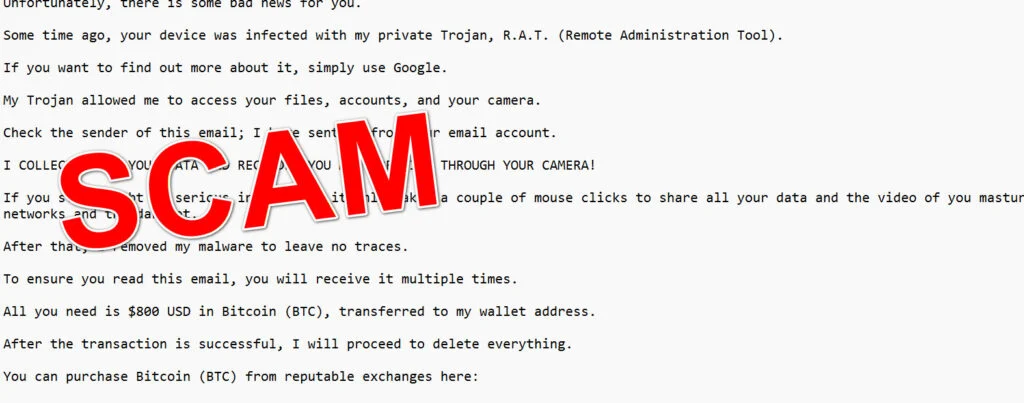
Here is how the scam email might look:
Email Subject:
YOU PERVERT, I RECORDED YOU!Email body:
Hello!Unfortunately, there is some bad news for you.
Some time ago, your device was infected with my private Trojan, R.A.T. (Remote Administration Tool).
If you want to find out more about it, simply use Google.
My Trojan allowed me to access your files, accounts, and your camera.
Check the sender of this email; I have sent it from your email account.
I COLLECTED ALL YOUR DATA AND RECORDED YOU MASTURBATING THROUGH YOUR CAMERA!
If you still doubt my serious intentions, it only takes a couple of mouse clicks to share all your data and the video of you masturbating with your family, friends, relatives, all email contacts, on social networks and the darknet.
After that, I removed my malware to leave no traces.
To ensure you read this email, you will receive it multiple times.
All you need is $800 USD in Bitcoin (BTC), transferred to my wallet address.
After the transaction is successful, I will proceed to delete everything.
You can purchase Bitcoin (BTC) from reputable exchanges here:
hxxp://www.coinbase.com – Payment options: Credit/Debit Cards, Bank Transfers, PayPal (in some regions).
hxxp://www.binance.com – Payment options: Credit/Debit Cards, Bank Transfers, P2P trading, third-party payment providers, and gift cards.
hxxp://www.bitrefill.com – Payment options: Paysafecard, credit/debit cards, crypto, bank transfer, and other gift cards.
hxxp://www.crypto.com – Payment options: Credit/Debit Cards, Bank Transfers, Apple Pay, Google Pay, and more.
hxxp://www.etoro.com – Payment options: Credit/Debit Cards, Bank Transfers, PayPal.Alternatively, simply Google for other exchanges.
Once purchased, you can send the Bitcoin (BTC) directly to my wallet address or use a wallet application such as Atomic Wallet or Exodus Wallet to manage your transactions.
My Bitcoin (BTC) wallet address is: 1Loo6tksj4vV6k5PjxUArfaW8jVgvfazeA
Yes, that’s how the wallet address looks. Copy and paste my wallet address; it’s case-sensitive.
A piece of advice from me: regularly change all your passwords and update your device with the latest security patches.
2. The Email Claims Your Device Was Infected
Next, the scammer says your device was infected with a Trojan or R.A.T.
This makes the threat sound technical.
The email suggests that the scammer had deep access to your:
- Files
- Accounts
- Camera
- Data
- Email contacts
- Private activity
But the message stays vague.
It does not name the device. It does not show a stolen file. It does not mention your real operating system. It does not include a screenshot from your webcam.
That matters.
A real hacker trying to prove access would usually show proof. A scammer sending mass emails usually makes broad claims and hopes fear fills in the blanks.
3. The Sender Pretends to Have Used Your Webcam
The most frightening claim is that the scammer recorded you through your camera.
This is the center of the scam.
They use explicit language because they want you embarrassed. The more uncomfortable you feel, the less likely you are to ask for help.
That is exactly what the scammer wants.
They are not just trying to steal money. They are trying to isolate you.
If you feel ashamed, you may not tell your spouse, parent, friend, coworker, IT department, bank, or police.
Silence protects the scammer.
4. The Email Threatens to Send the Video Everywhere
The scammer then increases the fear.
They claim they can share the supposed video with:
- Family
- Friends
- Relatives
- Email contacts
- Social networks
- The darknet
This threat is built to feel total.
It suggests there is nowhere to hide. It makes the victim imagine damage to their reputation, relationships, job, and personal life.
But again, the scammer gives no proof that they have the material.
They do not include a screenshot. They do not name real contacts. They do not show a file. They simply describe a nightmare and ask you to pay to stop it.
That is extortion psychology.
5. The Scammer Claims the Malware Was Removed
The message says the attacker removed the malware to leave no traces.
This line is clever.
It gives the scammer an excuse for why you cannot find anything suspicious on your device.
If your antivirus scan comes back clean, the scammer has already planted the answer in your mind: “I removed it.”
This is how the scam protects itself from logic.
No evidence of malware? They say they deleted it.
No webcam light? They say they used stealth access.
No stolen file sample? They say they will release it only if you do not pay.
Every missing detail is covered by another fake claim.
6. The Message Says You Will Receive It Multiple Times
The scam email also says you will receive it multiple times to make sure you read it.
This is another pressure tactic.
Receiving the same threat repeatedly can make it feel more serious. It can make the victim think the scammer is watching closely.
In reality, repeated emails can simply mean the scammer loaded the address into an automated spam campaign.
Mass email tools can send the same message again and again with little effort.
Repetition is not proof of hacking.
7. The Scammer Demands $800 in Bitcoin
After building fear, the scammer presents the “solution.”
Pay $800 in Bitcoin.
Then they claim they will delete everything.
This is not a deal. It is a trap.
You have no reason to trust someone who is threatening you. There is no guarantee they will stop after payment. In many cases, paying can make the situation worse because it confirms that you are willing to send money under pressure.
Once scammers know that, they may come back.
They may demand more money. They may send new threats. They may sell your email address to other scammers.
8. The Scammer Provides Payment Instructions
The email lists crypto platforms and wallet apps. That detail is important.
The scammer knows some victims may not know how to buy Bitcoin. So they make it easy.
They provide exchange names, payment methods, and instructions to copy the wallet address carefully.
This is not a sign of a real hacker. It is a sign of a scammer optimizing conversion.
The whole email is built like a criminal sales funnel:
- Shock the victim.
- Claim device access.
- Create shame.
- Threaten exposure.
- Add urgency.
- Explain payment.
- Demand Bitcoin.
Every part is designed to push the victim toward one action: sending crypto.
9. The “Security Advice” at the End Is Fake Credibility
The email ends with a strange line:
“A piece of advice from me: regularly change all your passwords and update your device with the latest security patches.”
This is meant to make the scammer sound like a real hacker giving you a warning.
It also adds a fake sense of authority.
But it does not change what the email is.
A criminal demanding Bitcoin with no proof is still a scammer, even if they include basic cybersecurity advice at the end.
Red Flags in the “YOU PERVERT, I RECORDED YOU” Email
This email contains many warning signs.
Look for these red flags:
- The subject line is aggressive and humiliating
- The sender claims to have hacked your device
- The message mentions a Trojan or R.A.T. but gives no proof
- It claims your webcam was used to record you
- It threatens to send material to your contacts
- It demands payment in Bitcoin
- It gives a short, fear-based deadline
- It lists crypto exchanges and wallet apps
- It claims the malware was removed
- It may appear to come from your own email address
- It provides no real screenshot, video, file name, or contact list
- The Bitcoin wallet has appeared in public scam reports
If you see these signs, treat the message as a scam.
What To Do If You Received This Email
1. Do Not Pay
Do not send Bitcoin.
Paying does not protect you. It does not guarantee that anything will be deleted. It does not prove the scammer has anything.
It can make you a bigger target.
The FTC warns people not to pay Bitcoin blackmail demands because the claims are often fake and payment only helps scammers.
2. Do Not Reply
Do not answer the email.
Do not ask for proof.
Do not insult the scammer.
Do not negotiate.
Any reply tells the scammer that your email address is active and that the message affected you.
That can invite more scams.
3. Save Evidence
Before deleting the email, save a copy.
Keep:
- The subject line
- The sender address
- The full message
- The Bitcoin wallet address
- The payment amount
- Any links or attached files, without opening them
- The date and time received
- Any email headers if possible
If you already paid, save the transaction ID too.
4. Report the Scam
Report the email as phishing or extortion through your email provider.
You can also report spoofing and phishing to the FBI’s Internet Crime Complaint Center at IC3.gov.
If you are outside the United States, report it to your national cybercrime center, local police, or consumer protection authority.
5. Change Important Passwords
Even if the email is fake, use it as a security reminder.
Change passwords for:
- Banking
- Social media
- Cloud storage
- Shopping accounts
- Crypto accounts
- Work accounts
Use unique passwords for every account.
If you reuse passwords, one old breach can put multiple accounts at risk.
6. Turn On Two-Factor Authentication
Enable two-factor authentication on important accounts.
Start with your email account. Your email is the key to many other accounts because it can be used for password resets.
Use an authenticator app when possible.
7. Scan Your Device
If you did not click any links or open attachments, your device is probably not infected because of this email.
Still, running a full scan with trusted security software is a reasonable precaution.
If you did click anything, scan your device immediately. Also check for unknown apps, browser extensions, or remote access tools.
8. Check Your Email Account Settings
If the email looked like it came from your own address, check your account settings.
Look for:
- Unknown forwarding addresses
- Strange filters
- Suspicious login history
- Unknown connected devices
- Recovery email changes
- Recovery phone changes
- Connected apps you do not recognize
If something looks wrong, remove it, change your password, and sign out of all sessions.
9. Warn Others if Needed
If the scam came to a work email, alert your IT or security team.
If it came to a personal email, you may want to warn family members or friends so they do not panic if they receive the same scam.
Sextortion emails are often sent in bulk. You are probably not the only person targeted.
Is Your Device Infected? Run a Free Malware Scan
Slow performance, constant pop-ups, or strange behavior? These are classic signs of a malware infection. The fastest way to find out is to scan your device with Malwarebytes Free — one of the most trusted malware removal tools available.
The free version detects and removes the most common threats, including:
- Adware — the cause of those annoying pop-ups
- Browser hijackers — unwanted redirects and changed homepages
- Trojans and spyware — hidden programs stealing your data
- Potentially unwanted programs (PUPs) — software you never asked for
👉 Select your device below — Windows, Mac, or Android — then follow the simple steps to download Malwarebytes, scan your system, and remove any threats it finds. The scan usually takes 5 to 20 minutes.
Run a Malware Scan with Malwarebytes for Windows
Malwarebytes is one of the most popular and trusted anti-malware tools for Windows — and it’s completely free for removing infections. It catches threats that many antivirus programs miss, including adware, browser hijackers, and trojans. Follow the steps below to scan and clean your PC in just a few minutes.
Download Malwarebytes
Click the button below to download the latest version of Malwarebytes for Windows from the official source. The free version is all you need — it will scan your computer and remove adware, browser hijackers, and other malicious software at no cost.
Download MalwarebytesOfficial installer for Windows 11 and 10. Your download starts right away.Want real-time protection? See Malwarebytes Premium Malwarebytes Free for WindowsScans and removes malware at no cost
-
Install Malwarebytes
When the download finishes, open your Downloads folder and double-click the MBSetup file. If Windows shows a User Account Control pop-up, click “Yes” to allow the installation.

Follow the On-Screen Prompts to Install Malwarebytes
The setup wizard will walk you through a few quick screens:
-
Choose where you’re installing the program — “Personal Computer” or “Work Computer” — then click Next.

-
Malwarebytes will now install on your device. This usually takes under a minute.

-
When installation is complete, the “Welcome to Malwarebytes” screen will open automatically.

-
On the final screen, click Open Malwarebytes to launch the program.

-
Enable “Scan for Rootkits”
Before scanning, turn on rootkit detection so Malwarebytes can find even the most hidden threats. Click the Settings gear icon on the left side of the screen.

In the settings menu, find “Scan for rootkits” and click the toggle so it turns blue.

Done? Click “Dashboard” in the left pane to return to the main screen.
Start the Scan
Click the blue Scan button. Malwarebytes will automatically update its virus database and start checking your computer for malware.

-
Wait for the Scan to Finish
The scan checks your entire system for browser hijackers and other malicious programs, so it can take 5 to 20 minutes depending on your computer. Feel free to do something else — just check back occasionally to see the progress.

-
Quarantine the Detected Threats
When the scan is done, you’ll see a list of everything Malwarebytes found — malware, adware, and potentially unwanted programs. Click the “Quarantine” button to remove all of them at once.

Malwarebytes will now remove the malicious files and registry entries and move them safely into quarantine.

-
Restart Your Computer
Some threats can only be fully removed after a reboot. If Malwarebytes asks you to restart, click Yes. Once you’re logged back in, Malwarebytes has finished removing the threats it found.

That’s it — your Windows PC is now clean of trojans, adware, and other malware, and should be back to running smoothly.
If you are still having problems with your computer after completing these instructions, then please follow one of the steps:
- Run a computer scan with ESET Online Scanner
- Ask for help in our Windows Malware Removal Help & Support forum.
Run a Malware Scan with Malwarebytes for Mac
Malwarebytes for Mac is a free on-demand scanner that removes the malware other security software tends to miss — adware, browser hijackers, and unwanted programs included. Cleaning an infected Mac with Malwarebytes has always been completely free, and it’s our go-to recommendation. Follow the steps below to scan and clean your Mac in just a few minutes.
-
Download Malwarebytes for Mac
Click the button below to download the latest version of Malwarebytes for Mac.
Download MalwarebytesOfficial installer for macOS. Your download starts right away.Want real-time protection? See Malwarebytes PremiumMalwarebytes Free for MacScans and removes malware at no cost -
Open the Malwarebytes setup file
When the download finishes, open your Downloads folder and double-click the setup file to begin the installation.

-
Follow the On-Screen Prompts to Install Malwarebytes
The Malwarebytes for Mac Installer will guide you through a few quick screens. Click “Continue” and keep following the prompts until the installation completes.



When the installation is complete, Malwarebytes opens to the Welcome to Malwarebytes screen. Click “Get started“.
-
Select “Personal Computer” or “Work Computer”
Malwarebytes will ask what type of computer you’re installing it on. Click either Personal Computer or Work Computer, whichever applies.

-
Start the Scan
Click the “Scan” button. Malwarebytes will automatically update its detection database and begin checking your Mac for malware.

-
Wait for the Scan to Finish
Malwarebytes will scan your Mac for adware, browser hijackers, and other malicious programs. This can take a few minutes, so feel free to do something else — just check back occasionally to see the progress.

-
Quarantine the Detected Threats
When the scan is done, you’ll see a list of everything Malwarebytes found. Click the “Quarantine” button to remove all the threats at once.

-
Restart Your Mac
Malwarebytes will now remove all the malicious files it found. Some threats can only be fully removed after a reboot — if Malwarebytes asks you to restart, allow it. Once you’re logged back in, your Mac is clean.

That’s it — your Mac is now free of adware, rogue browser extensions, and other potentially harmful software.
If you are still experiencing problems while trying to remove a malicious program from your computer, please ask for help in our Mac Malware Removal Help & Support forum.
Run a Malware Scan with Malwarebytes for Android
Malwarebytes for Android automatically detects and removes dangerous threats like malware and ransomware so you don’t have to worry about your most-used device being compromised. Aggressive detection of adware and potentially unwanted programs keeps your Android phone or tablet running smooth.
-
Download Malwarebytes for Android.
You can download Malwarebytes for Android by clicking the link below.
Get Malwarebytes for AndroidOpens Google Play in a new tab.Want real-time protection? See Malwarebytes Premium for AndroidMalwarebytes for AndroidScans your phone and removes malware at no cost -
Install Malwarebytes for Android on your phone.
In the Google Play Store, tap “Install” to install Malwarebytes for Android on your device.

When the installation process has finished, tap “Open” to begin using Malwarebytes for Android. You can also open Malwarebytes by tapping on its icon in your phone menu or home screen.

-
Follow the on-screen prompts to complete the setup process
When Malwarebytes will open, you will see the Malwarebytes Setup Wizard which will guide you through a series of permissions and other setup options.
This is the first of two screens that explain the difference between the Premium and Free versions. Swipe this screen to continue.
Tap on “Got it” to proceed to the next step.
Malwarebytes for Android will now ask for a set of permissions that are required to scan your device and protect it from malware. Tap on “Give permission” to continue.
Tap on “Allow” to permit Malwarebytes to access the files on your phone.
-
Update database and run a scan with Malwarebytes for Android
You will now be prompted to update the Malwarebytes database and run a full system scan.

Click on “Update database” to update the Malwarebytes for Android definitions to the latest version, then click on “Run full scan” to perform a system scan.

-
Wait for the Malwarebytes scan to complete.
Malwarebytes will now start scanning your phone for adware and other malicious apps. This process can take a few minutes, so we suggest you do something else and periodically check on the status of the scan to see when it is finished.

-
Click on “Remove Selected”.
When the scan has been completed, you will be presented with a screen showing the malware infections that Malwarebytes for Android has detected. To remove the malicious apps that Malwarebytes has found, tap on the “Remove Selected” button.

-
Restart your phone.
Malwarebytes for Android will now remove all the malicious apps that it has found. To complete the malware removal process, Malwarebytes may ask you to restart your device.
That’s it — your Android phone is now clean — no more malicious apps, adware, or browser redirects.
If you are still having problems with your phone after completing these instructions, then please follow one of the steps:
- Restore your phone to factory settings by going to Settings > General management > Reset > Factory data reset.
- Ask for help in our Mobile Malware Removal Help & Support forum.
Stay Protected: Block Ads and Malicious Sites
Now that your device is clean, keep it that way. Most infections start with a malicious ad or a fake download button — so blocking them at the source is your best defense.
We recommend AdGuard, which blocks malicious ads, phishing pages, and dangerous redirects before they can reach you.
👉 Download AdGuard and browse safely
What If You Already Paid?
If you already sent Bitcoin, stop all communication with the scammer.
Do not send more money.
Then take these steps:
- Save the full email.
- Save the wallet address.
- Save the transaction ID.
- Contact the crypto exchange or wallet service you used.
- Report the scam to IC3 or your local cybercrime authority.
- Change important passwords.
- Enable two-factor authentication.
- Monitor your accounts for suspicious activity.
Be careful with “crypto recovery” offers. Many are scams too. If someone promises to recover your Bitcoin for an upfront fee, treat it as another red flag.
FAQ
Is the “YOU PERVERT, I RECORDED YOU” email real?
In most cases, no. It is a sextortion scam that uses fake hacking claims to scare people into sending Bitcoin.
Did the scammer really record me?
Usually, no. These emails almost never provide real proof. They rely on fear and embarrassment.
Why does it look like the email came from my own account?
It may be spoofed. Email spoofing can make a message appear to come from your own address even if your account was not hacked.
Should I send the $800 in Bitcoin?
No. Paying does not guarantee anything. It can also make you a target for more threats.
Is the Bitcoin wallet address suspicious?
Yes. The wallet address 1Loo6tksj4vV6k5PjxUArfaW8jVgvfazeA has appeared in public scam reports connected to Bitcoin extortion activity.
Should I click the crypto exchange links in the email?
No. Do not click links from scam emails. If you need to visit any financial or crypto platform, type the official address manually in your browser.
What if I clicked a link?
Run a full malware scan, check your browser extensions, change important passwords, and monitor your accounts.
Should I delete the email?
Save evidence first. Then mark it as phishing or spam and block the sender.
The Bottom Line
The “YOU PERVERT, I RECORDED YOU” email scam is a blunt, ugly, fear-based Bitcoin blackmail scam.
It claims your device was infected with a Trojan. It says your webcam recorded you. It threatens to send private material to your contacts. Then it demands $800 in Bitcoin.
But the message provides no real proof.
The wallet address has appeared in public scam reports, the hacking claims are generic, and the payment instructions are built to push frightened victims into sending crypto fast.
Do not pay. Do not reply.
Save the evidence, report the email, secure your accounts, and move on calmly.
The scammer wants panic. Your best response is control.

Join the discussion
0 commentsShare your experience or ask a question about this article.
Discussion
Start the conversation
Have a question or something useful to share? Add the first comment.