Extended $EXT Allocation Scam Uses a Fake Claim Page to Drain Your Wallet
Written by: Lapain Epuran
Published on:
A surprise token allocation can feel like found money, especially when the page appears to know the language of snapshots, eligibility, and claim deadlines.
The Extended $EXT Allocation Scam uses that excitement to place a dangerous wallet request in front of visitors. The supposed reward can instead expose crypto assets to theft.
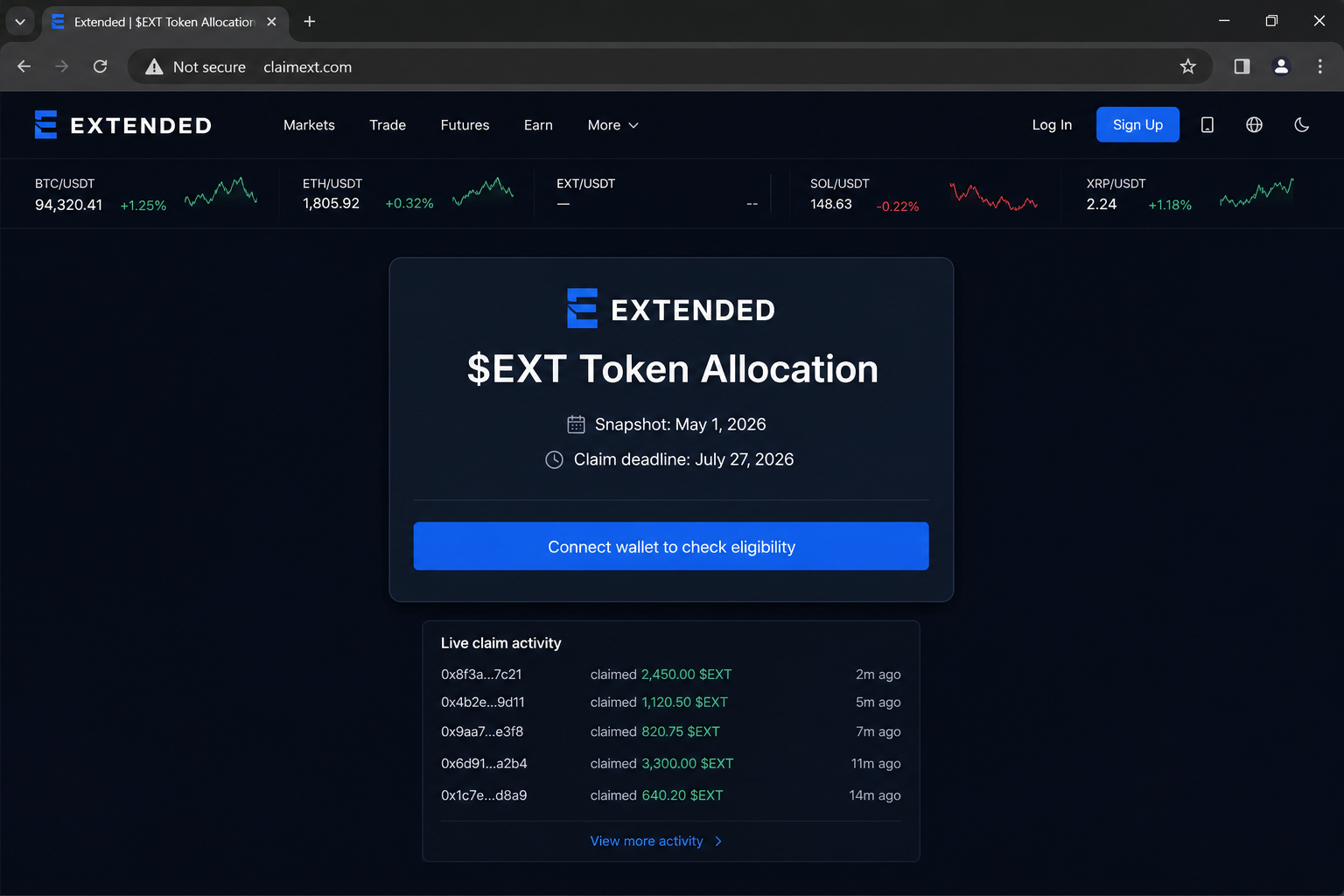
The observed page appeared at claimext[.]com and copied the look of the legitimate Extended trading platform. It advertised an $EXT allocation tied to a May 1, 2026 snapshot.
A July 27, 2026 deadline added urgency, while a live activity panel displayed wallets supposedly receiving tokens. Those details were designed to make the offer feel active and widely trusted.
The central button asked visitors to connect a wallet to check eligibility. That request was not a harmless account lookup and could lead to a malicious signature or token approval.
Overview
The reward page is an imitation, not an official Extended claim
Extended is a real crypto trading project, which gives the impersonation a credible foundation. The scam domain is separate from Extended’s official extended.exchange website.
A polished interface cannot establish ownership. Criminals routinely copy logos, navigation labels, market tickers, colors, and product language from genuine services within hours.
The fake address uses claimext[.]com rather than the project’s recognized official domain.
The page promises a token allocation before showing any verifiable claim contract details.
A countdown and claim deadline encourage action before independent confirmation.
Simulated wallet activity creates social proof without proving that any transfer occurred.
Wallet connection is the gateway to the theft attempt
Connecting a wallet normally reveals its public address to a site. The greater danger begins when the page requests a signature, contract interaction, or spending permission.
A deceptive approval may authorize an attacker-controlled contract to move selected tokens. A signature can also approve an order whose practical effect is hidden behind technical text.
A connection prompt identifies the wallet but does not make the website trustworthy.
An unlimited token allowance can remain usable until it is revoked on-chain.
A signature may create an authorization even when the wallet shows no immediate network fee.
A transaction preview should name the contract, asset, amount, and permission being granted.
The campaign relies on urgency, familiarity, and crypto jargon
Snapshot dates and allocation language are familiar to anyone who has joined a points program or early trading campaign. The scam borrows those conventions to reduce suspicion.
Victims may arrive through social posts, search ads, compromised websites, direct messages, or popups. The referring account can be fake or hijacked from a real person.
A limited claim window makes delaying feel costly.
A familiar brand reduces the urge to inspect the full domain.
Large displayed allocations encourage visitors to imagine an immediate gain.
A wallet counter suggests that hundreds of other users already approved the request.
Why the Fake $EXT Allocation Looks Convincing
Real projects teach users to expect eligibility checks
Crypto projects often reward early users, liquidity providers, traders, or community members. An eligibility checker therefore fits a pattern many wallet owners have seen before.
That familiarity is exactly what the operator exploits. A plausible campaign format should never substitute for confirmation through the project’s independently located channels.
The design resembles a functioning exchange
The fake page includes trading navigation, token pairs, price movements, login controls, and brand styling. These decorative features have no connection to the claim’s authenticity.
Most visitors focus on the centered allocation card rather than testing the surrounding controls. A copied shell can therefore provide credibility without needing a real trading backend.
A deadline turns caution into fear of missing out
The page says the opportunity ends on a specific date. A visitor who believes tokens may expire can view verification as a delay that risks losing money.
Legitimate deadlines do exist, but an urgent clock does not prove a claim. Confirm the announcement from a known bookmark before allowing any wallet interaction.
What a Crypto Wallet Drainer Can Do
Token approvals can outlive the browser session
An allowance is recorded on a blockchain, not merely inside the web page. Closing the tab or disconnecting the site does not necessarily remove that permission.
If the approval gives broad spending authority, the receiving contract may transfer tokens later. The victim might not connect the loss with the earlier allocation page.
Signatures can hide the important consequence
Some requests appear as human-readable messages rather than ordinary transfers. They can still authorize marketplace orders, permits, or other operations that an attacker later executes.
Never assume a gasless signature is harmless. Read the requesting origin and decoded action, then reject anything that is vague, unlimited, or unrelated to the expected task.
Different assets may face different risks
A malicious contract may target ERC-20 tokens, NFTs, or approvals connected to a specific network. Native assets can be stolen through direct transfers or crafted transaction calls.
The visible wallet balance does not reveal every authorization already granted. Reviewing current allowances is essential after interacting with an untrusted claim page.
How the Extended $EXT Allocation Scam Works
Step 1: The operator creates a lookalike Extended website
The campaign begins with a standalone domain that contains the project name or a claim-related phrase. Copied branding makes the address seem like a dedicated campaign site.
The operator recreates familiar market panels and navigation around a prominent allocation card. Visual accuracy is easier to copy than ownership, security, or a legitimate contract.
Step 2: Traffic is directed toward the fake allocation
Links may spread through ads, official-post replies, Telegram, Discord, email, or hacked profiles. Search ads can also promote an imitation.
The surrounding message usually promises eligibility, bonus tokens, or an expiring reward. It avoids explaining why the recipient qualified because curiosity brings the visitor to the page.
A newly created social account may copy the project’s logo and biography.
A compromised influencer profile can make the same link appear more credible.
A shortened URL may conceal the destination until the browser opens it.
Step 3: The page displays a snapshot and a closing date
The observed lure names May 1, 2026 as the snapshot and July 27, 2026 as the claim deadline. Specific dates make the campaign sound administratively planned.
A live activity feed lists abbreviated addresses and token amounts. Those entries can be fabricated locally and should not be mistaken for blockchain evidence.
Step 4: The visitor selects the wallet connection button
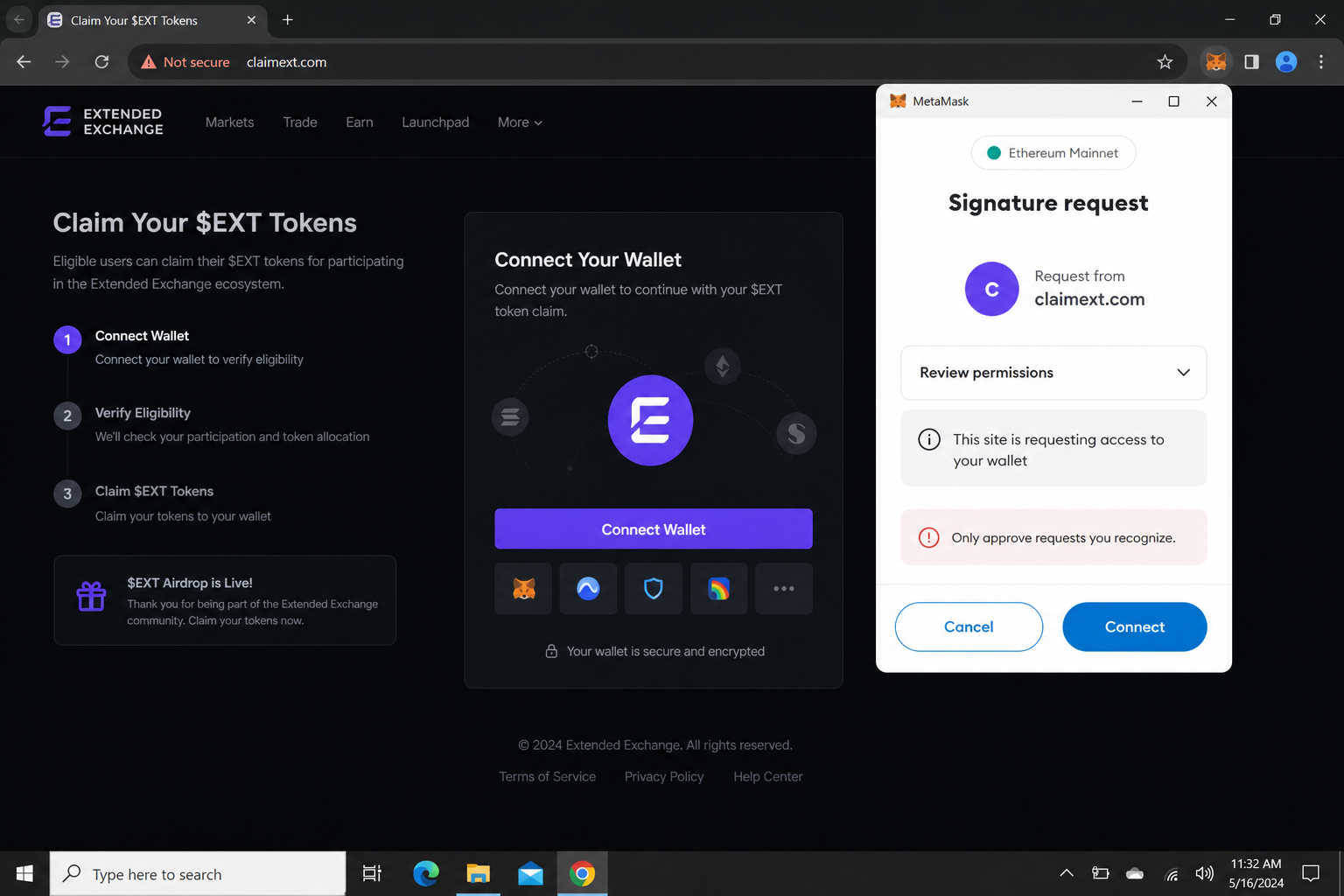
The page says a connection is needed to check eligibility. This framing encourages the visitor to treat the request as read-only before the actual permissions are shown.
A wallet extension then identifies the requesting origin. The domain remains the strongest warning because it does not belong to the legitimate Extended service.
Step 5: A deceptive approval or signature is presented
The next prompt can vary by wallet, network, and campaign version. It may request token access, a contract call, a message signature, or a direct transaction.
Technical labels can obscure the effect. The visitor may believe confirmation proves eligibility when it actually grants authority to an unknown spender.
Reject requests that mention unlimited allowances or unfamiliar spender addresses.
Do not approve a contract simply because the transaction value displays $0.
Treat blind-signing warnings as a reason to stop, not a routine obstacle.
Step 6: The attacker attempts to transfer valuable assets
Once usable authority exists, automated scripts can identify tokens and NFTs worth taking. Transfers may happen quickly, before the victim understands what the confirmation allowed.
Some operators wait, prioritize high-value wallets, or use several destination addresses. On-chain transfers are normally irreversible, which limits recovery options.
Step 7: The site and promotion are replaced when exposed
A fraudulent domain may disappear after browsers, hosts, or security providers block it. The same page can return under a new address with another token name.
Removing one site does not cancel permissions already granted. Anyone who interacted must inspect the wallet rather than assuming the campaign’s disappearance ended the risk.
Company, Address, and Fulfillment Checks
Extended is a legitimate trading project
The authentic Extended platform operates from extended.exchange and provides self-custodial trading services. Its real existence is what makes the imitation believable.
The scam should not be treated as evidence that the legitimate project created the fraudulent page. Brand impersonation can target any recognizable crypto service.
The observed claim domain is unrelated
The $EXT allocation page appeared at claimext[.]com. A brand name inside a separate domain does not create an official relationship with the company being copied.
Read domains from right to left and identify the registered portion. Extra words such as claim, reward, secure, or allocation can be chosen by anyone.
Public wallet counters are not independent verification
The page says hundreds of wallets have participated, but a number displayed by the same site proves nothing. It may be random, fixed, or increased by a simple script.
Reliable verification requires an independently obtained announcement and contract. Explorer activity must match that published contract, not the page’s address.
Official channels should be reached independently
Open a saved bookmark or type the recognized company address yourself. Then check its documentation, verified social account, or in-app notices for the exact campaign.
Do not use a social reply or search advertisement as the only route. Impersonators often position their links beside genuine announcements where users already expect news.
Warning Signs That Reveal the Fake Extended Claim
The domain does not match the official service
The unrelated claim domain is the clearest warning. Copied logos and HTTPS cannot turn it into Extended’s official website.
Check the address before connecting. Mobile browsers may shorten it, so tap the address bar and inspect the entire hostname without following another link.
The campaign appears only through unsolicited promotions or replies.
The site offers no independently verifiable contract announcement.
The wallet request does more than reveal a public address.
The page treats a rushed confirmation as the only eligibility check.
The requested action is broader than the stated purpose
Checking a public address can be performed without permission to spend its tokens. A request for allowances or contract execution is disproportionate to a simple eligibility lookup.
A legitimate claim may require a transaction, but its contract, network, amount, and purpose should be publicly documented. An unexplained spender is not acceptable.
How to Check a Token Claim Safely
Start from a known official address
Use a bookmark created before the promotion. Otherwise, compare official documentation and verified accounts before opening any claim interface.
A genuine announcement should identify eligibility rules, supported networks, timing, and the contract. Major omissions are more important than professional graphics.
Use a separate low-value wallet for experimentation
A wallet holding long-term assets should not be the first account connected to an unfamiliar decentralized application. Segmentation limits what one mistake can expose.
A secondary wallet is not permission to approve blindly. It simply reduces the possible impact while you verify contract behavior and transaction previews.
Decode every request before confirming
Modern wallets and explorers can translate contract calls into readable actions. Confirm the token, spender, amount, network, and destination before signing.
If the wallet cannot explain the request, stop. Moving to another wallet interface does not make an unknown contract safer.
Possible Consequences of Approving the Request
Tokens and NFTs may leave without another warning
A valid allowance lets the approved spender call the token contract later. The next transfer can occur without reopening the original claim page.
Stolen assets may pass through several addresses or swapping services. This movement makes voluntary recovery difficult even when the transfers remain visible publicly.
The same wallet may attract follow-up scams
Public blockchain activity can reveal that an address interacted with a malicious contract. Fraudsters may then send fake recovery offers, support messages, or replacement claims.
Anyone promising guaranteed recovery for an advance payment, seed phrase, or wallet synchronization should be treated as another attacker.
What to Do if You Have Fallen Victim to This Scam
Disconnect the suspicious site inside the wallet interface, but understand that disconnection alone does not cancel blockchain approvals already recorded for claimext[.]com.
Use a reputable allowance checker for the correct network and revoke unfamiliar token or NFT permissions. Confirm revocation transactions from a clean, independently opened service.
If a seed phrase or private key was entered anywhere, create a new wallet on a clean device and move remaining assets immediately. Never reuse the exposed recovery phrase.
Review recent transactions, signatures, permits, and connected applications. Record transaction hashes, spender contracts, destination addresses, screenshots, and the fraudulent URL before it disappears.
Contact the wallet provider, exchange, or marketplace through its official support route. They cannot reverse most on-chain transfers, but they may flag destination accounts or guide containment.
Report the address and domain to the hosting provider, browser safety services, relevant blockchain explorers, and local cybercrime authorities. Include evidence without sharing private keys.
Scan the device with Malwarebytes if a file, extension, or application was installed during the interaction. Remove unknown browser extensions and update the browser and operating system.
Install AdGuard or another reputable content blocker to reduce malicious advertising and known scam redirects. A blocker adds protection but cannot replace careful wallet approval review.
Is Your Device Infected? Run a Free Malware Scan
Slow performance, constant pop-ups, or strange behavior? These are classic signs of a malware infection. The fastest way to find out is to scan your device with Malwarebytes Anti-Malware Free — one of the most trusted malware removal tools available.
The free version detects and removes the most common threats, including:
Adware — the cause of those annoying pop-ups
Browser hijackers — unwanted redirects and changed homepages
Trojans and spyware — hidden programs stealing your data
Potentially unwanted programs (PUPs) — software you never asked for
👉 Select your device below — Windows, Mac, or Android — then follow the simple steps to download Malwarebytes, scan your system, and remove any threats it finds. The whole process takes about 5 minutes.
Malwarebytes for WindowsMalwarebytes for MacMalwarebytes for Android
Run a Malware Scan with Malwarebytes for Windows
Malwarebytes is one of the most popular and trusted anti-malware tools for Windows — and it’s completely free for removing infections. It catches threats that many antivirus programs miss, including adware, browser hijackers, and trojans. Follow the steps below to scan and clean your PC in just a few minutes.
Download Malwarebytes
Click the button below to download the latest version of Malwarebytes for Windows from the official source. The free version is all you need — it will scan your computer and remove adware, browser hijackers, and other malicious software at no cost.
(The link opens in a new page where your download will start)
Install Malwarebytes
When the download finishes, open your Downloads folder and double-click the MBSetup file. If Windows shows a User Account Control pop-up, click “Yes” to allow the installation.
Follow the On-Screen Prompts to Install Malwarebytes
The setup wizard will walk you through a few quick screens:
Choose where you’re installing the program — “Personal Computer” or “Work Computer” — then click Next.
Malwarebytes will now install on your device. This usually takes under a minute.
When installation is complete, the “Welcome to Malwarebytes” screen will open automatically.
On the final screen, click Open Malwarebytes to launch the program.
Enable “Scan for Rootkits”
Before scanning, turn on rootkit detection so Malwarebytes can find even the most hidden threats. Click the Settings gear icon on the left side of the screen.
In the settings menu, find “Scan for rootkits” and click the toggle so it turns blue.
Done? Click “Dashboard” in the left pane to return to the main screen.
Start the Scan
Click the blue Scan button. Malwarebytes will automatically update its virus database and start checking your computer for malware.
Wait for the Scan to Finish
The scan checks your entire system for browser hijackers and other malicious programs, so it can take several minutes. Feel free to do something else — just check back occasionally to see the progress.
Quarantine the Detected Threats
When the scan is done, you’ll see a list of everything Malwarebytes found — malware, adware, and potentially unwanted programs. Click the “Quarantine” button to remove all of them at once.
Malwarebytes will now remove the malicious files and registry entries and move them safely into quarantine.
Restart Your Computer
Some threats can only be fully removed after a reboot. If Malwarebytes asks you to restart, click Yes. Once you’re logged back in, your PC is clean and you can continue with the next steps in this guide.
When the scan finishes, click Quarantine to remove everything Malwarebytes found. That’s it — your Windows PC is now clean of trojans, adware, and other malware, and should be back to running smoothly.
If your current antivirus allowed this malicious program on your computer, you may want to consider purchasing Malwarebytes Premium to protect against these types of threats in the future. If you are still having problems with your computer after completing these instructions, then please follow one of the steps:
Malwarebytes for Mac is a free on-demand scanner that removes the malware other security software tends to miss — adware, browser hijackers, and unwanted programs included. Cleaning an infected Mac with Malwarebytes has always been completely free, and it’s our go-to recommendation. Follow the steps below to scan and clean your Mac in just a few minutes.
Download Malwarebytes for Mac
Click the button below to download the latest version of Malwarebytes for Mac.
When the download finishes, open your Downloads folder and double-click the setup file to begin the installation.
Follow the On-Screen Prompts to Install Malwarebytes
The Malwarebytes for Mac Installer will guide you through a few quick screens. Click “Continue” and keep following the prompts until the installation completes.
When the installation is complete, Malwarebytes opens to the Welcome to Malwarebytes screen. Click “Get started“.
Select “Personal Computer” or “Work Computer”
Malwarebytes will ask what type of computer you’re installing it on. Click either Personal Computer or Work Computer, whichever applies.
Start the Scan
Click the “Scan” button. Malwarebytes will automatically update its detection database and begin checking your Mac for malware.
Wait for the Scan to Finish
Malwarebytes will scan your Mac for adware, browser hijackers, and other malicious programs. This can take a few minutes, so feel free to do something else — just check back occasionally to see the progress.
Quarantine the Detected Threats
When the scan is done, you’ll see a list of everything Malwarebytes found. Click the “Quarantine” button to remove all the threats at once.
Restart Your Mac
Malwarebytes will now remove all the malicious files it found. Some threats can only be fully removed after a reboot — if Malwarebytes asks you to restart, allow it. Once you’re logged back in, your Mac is clean.
Once the scan is done, remove every threat it detected. Your Mac is now free of adware, rogue browser extensions, and other potentially harmful software.
If your current antivirus allowed a malicious program on your computer, you might want to consider purchasing the full-featured version of Malwarebytes Anti-Malware to protect against these types of threats in the future. If you are still experiencing problems while trying to remove a malicious program from your computer, please ask for help in our Mac Malware Removal Help & Support forum.
Run a Malware Scan with Malwarebytes for Android
Malwarebytes for Android automatically detects and removes dangerous threats like malware and ransomware so you don’t have to worry about your most-used device being compromised. Aggressive detection of adware and potentially unwanted programs keeps your Android phone or tablet running smooth.
Download Malwarebytes for Android.
You can download Malwarebytes for Android by clicking the link below.
In the Google Play Store, tap “Install” to install Malwarebytes for Android on your device.
When the installation process has finished, tap “Open” to begin using Malwarebytes for Android. You can also open Malwarebytes by tapping on its icon in your phone menu or home screen.
Follow the on-screen prompts to complete the setup process
When Malwarebytes will open, you will see the Malwarebytes Setup Wizard which will guide you through a series of permissions and other setup options. This is the first of two screens that explain the difference between the Premium and Free versions. Swipe this screen to continue. Tap on “Got it” to proceed to the next step. Malwarebytes for Android will now ask for a set of permissions that are required to scan your device and protect it from malware. Tap on “Give permission” to continue. Tap on “Allow” to permit Malwarebytes to access the files on your phone.
Update database and run a scan with Malwarebytes for Android
You will now be prompted to update the Malwarebytes database and run a full system scan.
Click on “Update database” to update the Malwarebytes for Android definitions to the latest version, then click on “Run full scan” to perform a system scan.
Wait for the Malwarebytes scan to complete.
Malwarebytes will now start scanning your phone for adware and other malicious apps. This process can take a few minutes, so we suggest you do something else and periodically check on the status of the scan to see when it is finished.
Click on “Remove Selected”.
When the scan has been completed, you will be presented with a screen showing the malware infections that Malwarebytes for Android has detected. To remove the malicious apps that Malwarebytes has found, tap on the “Remove Selected” button.
Restart your phone.
Malwarebytes for Android will now remove all the malicious apps that it has found. To complete the malware removal process, Malwarebytes may ask you to restart your device.
After the scan, tap Remove Selected to delete all detected threats. Your Android phone is now clean — no more malicious apps, adware, or browser redirects.
If your current antivirus allowed a malicious app on your phone, you may want to consider purchasing the full-featured version of Malwarebytes to protect against these types of threats in the future. If you are still having problems with your phone after completing these instructions, then please follow one of the steps:
Restore your phone to factory settings by going to Settings > General management > Reset > Factory data reset.
Now that your device is clean, keep it that way. Most infections start with a malicious ad or a fake download button — so blocking them at the source is your best defense.
We recommend AdGuard, which blocks malicious ads, phishing pages, and dangerous redirects before they can reach you.
Is the Extended $EXT Allocation Scam connected to the real Extended platform?
No evidence from the observed domain establishes that relationship. The scam copies Extended branding, while the legitimate service uses its recognized extended.exchange address.
Can connecting a wallet alone drain it?
A basic connection generally exposes a public address, but the page may immediately request a harmful signature or approval. Read and reject every unexpected follow-up prompt.
Does a $0 transaction mean the request is safe?
No. A transaction can display $0 while granting token access, calling a contract, or creating an authorization that enables a later transfer.
Will disconnecting claimext[.]com remove its permissions?
Not necessarily. Disconnecting ends the browser session, while on-chain allowances remain until revoked through a valid blockchain transaction.
Can stolen cryptocurrency be reversed?
Blockchain transfers are usually final. Rapid reporting may help an exchange freeze deposited assets, but nobody can honestly promise guaranteed recovery.
How should a real $EXT campaign be verified?
Reach Extended through a known official address and compare its announcement, eligibility rules, supported network, and published contract before connecting any wallet.
The Bottom Line
The Extended $EXT Allocation Scam turns an attractive reward into a wallet trap. Its copied interface, dates, and activity feed only persuade.
Ignore claimext[.]com and verify promotions through Extended’s recognized channels. If you approved something, revoke permissions and protect remaining assets now.
10 Rules to Avoid Online Scams
Here are 10 practical safety rules to help you avoid malware, online shopping scams, crypto scams, and other online fraud. Each tip includes a quick “if you already got hit” action.
Stop and verify before you click, log in, download, or pay.
Most scams win by creating urgency. Verify using a trusted method: type the website address yourself, use the official app, or call a known number (not the one in the message).
If you already clicked: close the page, do not enter passwords, and run a malware scan.
Keep your operating system, browser, and apps updated.
Updates patch security holes used by malware and malicious ads. Turn on automatic updates where possible.
If you saw a scary “update now” pop-up: close it and update only through your device settings or the official app store.
Use layered protection: antivirus plus an ad blocker.
Antivirus helps block malware. An ad blocker reduces scam redirects, phishing pages, and malvertising.
If your browser is acting weird: remove unknown extensions, reset the browser, then run a full scan.
Install apps, software, and extensions only from official sources.
Avoid cracked software, “keygens,” and random downloads. During installs, choose Custom/Advanced and decline bundled offers you do not recognize.
If you already installed something suspicious: uninstall it, restart, and scan again.
Treat links and attachments as untrusted by default.
Phishing often impersonates delivery services, banks, and popular brands. If it is unexpected, do not open attachments or log in through the message.
If you entered credentials: change the password immediately and enable 2FA.
Shop safely: research the store, then pay with protection.
Be cautious with brand-new stores, “closing sale” stories, and prices that make no sense. Prefer credit cards or PayPal for dispute options. Avoid wire transfers, gift cards, and crypto payments.
If you already paid: contact your card issuer or PayPal quickly to dispute the transaction.
Crypto rule: never pay a “fee” to withdraw or recover money.
Common patterns include fake profits, then “tax,” “gas,” or “verification” fees. Another is a “recovery agent” who demands upfront crypto.
If you already sent crypto: stop paying, save evidence (wallet addresses, TXIDs, chats), and report the scam to the platform used.
Secure your accounts with unique passwords and 2FA (start with email).
Use a password manager and unique passwords for every account. Enable 2FA using an authenticator app when possible.
If you suspect an account takeover: change passwords, sign out of all devices, and review recent logins and recovery settings.
Back up important files and keep one backup offline.
Backups protect you from ransomware and device failure. Keep at least one backup on an external drive that is not always connected.
If you suspect infection: do not connect backup drives until the system is clean.
If you think you are a victim: stop losses, document evidence, and escalate fast.
Move quickly. Speed matters for disputes, account recovery, and limiting damage.
Stop payments and contact: do not send more money or respond to the scammer.
Call your bank or card issuer: block transactions, replace the card if needed, and start a dispute or chargeback.
Secure your email first: change the email password, enable 2FA, and remove unfamiliar recovery options.
Secure other accounts: change passwords, enable 2FA, and log out of all sessions.
Scan your device: remove suspicious apps or extensions, then run a full malware scan.
Save evidence: screenshots, emails, order pages, tracking pages, wallet addresses, TXIDs, and chat logs.
Report it: to the payment provider, marketplace, social platform, exchange, or wallet service involved.
These rules are intentionally simple. Most online losses happen when decisions are rushed. Slow down, verify independently, and use payment methods and account controls that give you recourse.
Hello! I'm Lapain Epuran, your go-to source for detailed and honest product reviews. From tech gadgets to miracle cures, I provide insights to help you make informed choices. Join me as we discover what's truly worth your time and money.