Polymarket UFC 329 Invitation Email Scam Can Drain Your Crypto Wallets
Written by: Lapain Epuran
Published on:
A private invitation to trade on a headline UFC matchup can feel exclusive, timely, and worth opening. Adding a $100 bonus makes the offer even harder to dismiss.
The Polymarket UFC 329 Invitation Email Scam is not an ordinary promotion. It funnels recipients to a copied market interface where wallet access can become the route to crypto theft.
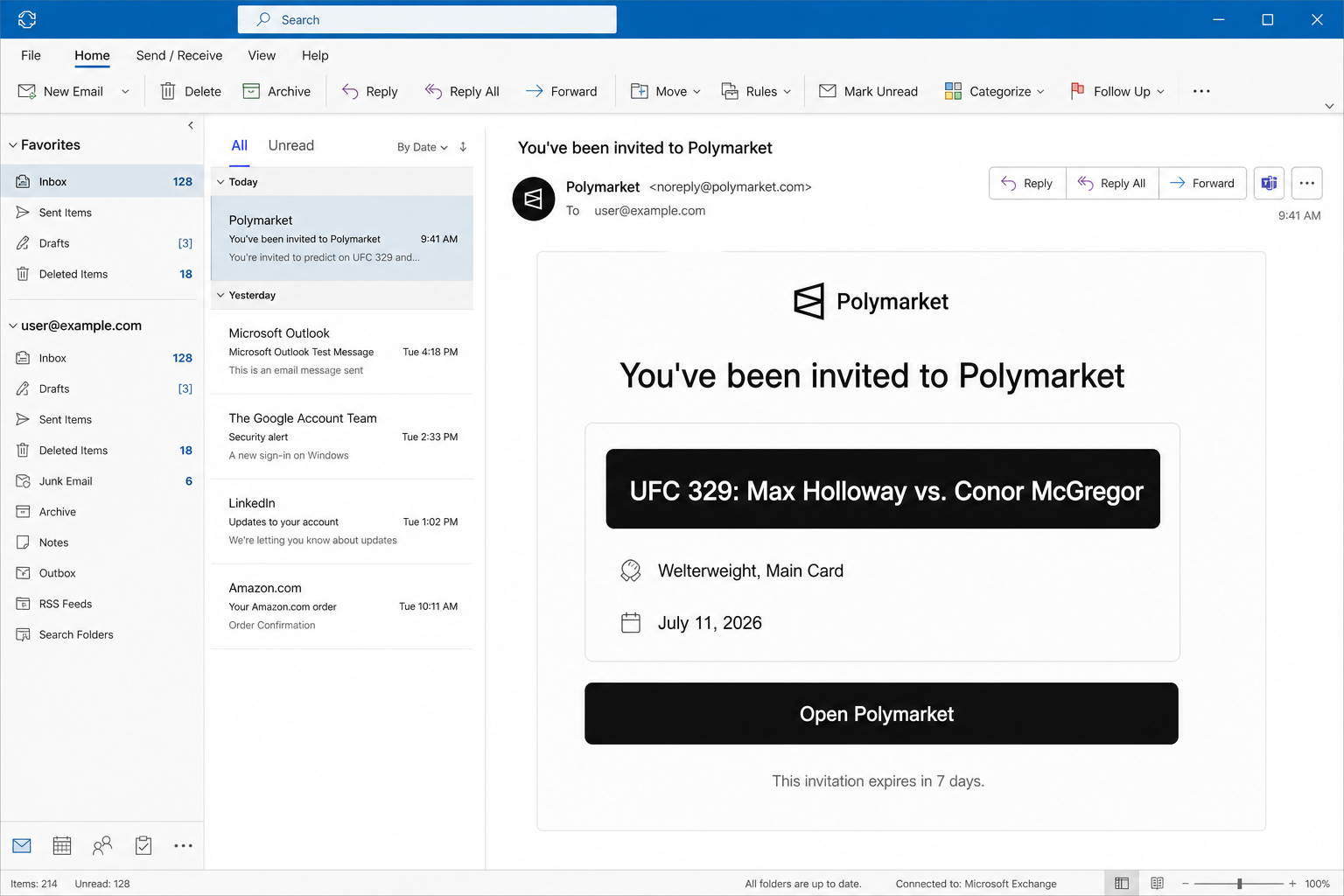
The email claims the recipient was invited to a Polymarket event for UFC 329: Max Holloway versus Conor McGregor, presented as a July 11, 2026 welterweight main-card matchup.
The Open Polymarket button and seven-day expiry suggest a controlled invitation. A WorkOS reference makes the delivery sound automated.
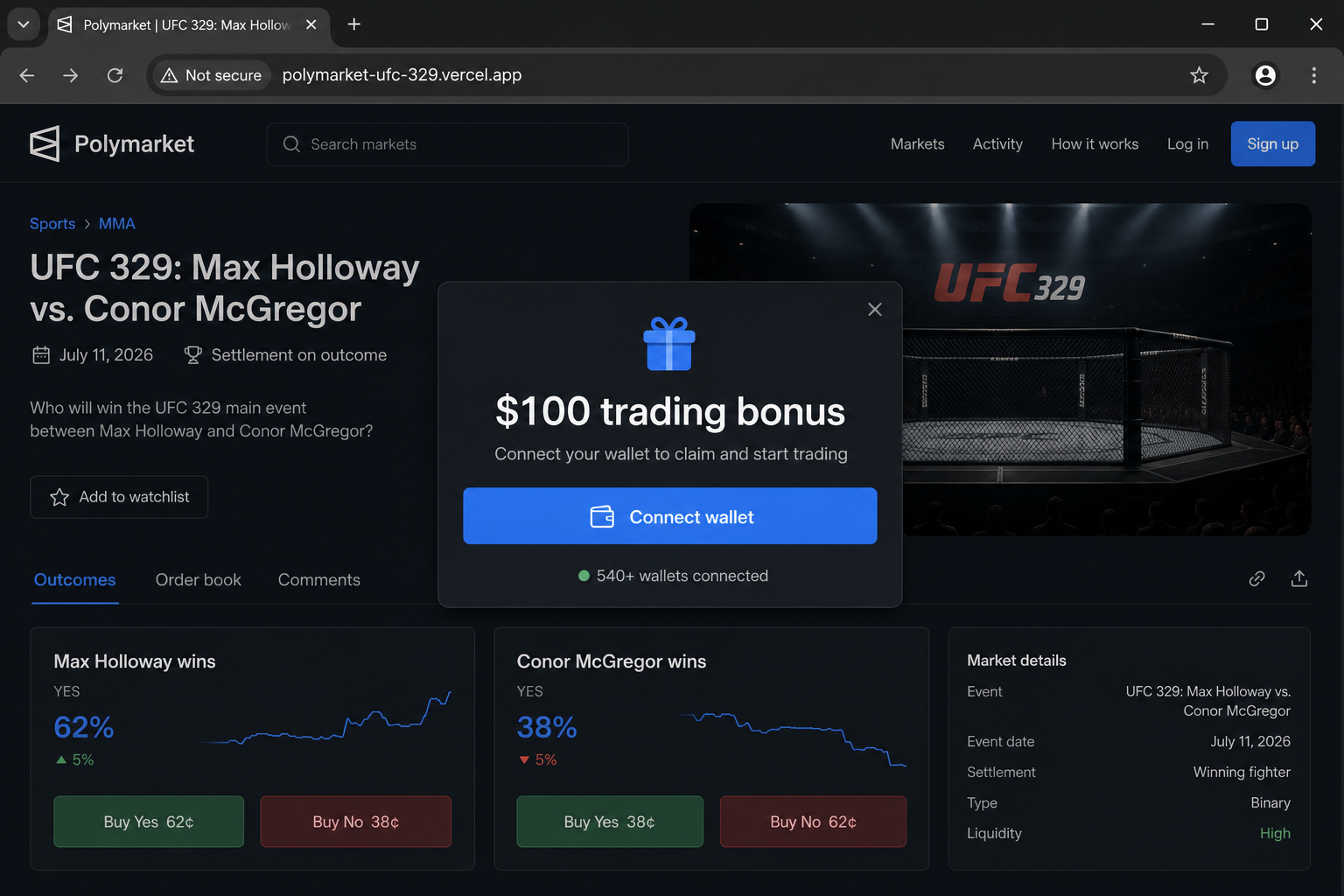
The button instead leads to polymarket-ufc-329.vercel[.]app. A popup on the imitation site offers a $100 trading bonus and asks visitors to connect a crypto wallet.
Overview
The email combines sports excitement with a trusted market brand
Polymarket is a real prediction market, and major fight announcements naturally attract speculation. The campaign blends those two recognizable subjects into a credible-looking invitation.
The scam does not need every sports detail to be accurate. It only needs the recipient to believe a special market might exist and click before checking official listings.
The invitation names two famous fighters and a numbered UFC event.
A precise date and card placement make the message appear researched.
The seven-day expiry adds scarcity without an immediate threat.
A familiar authentication-service name suggests a legitimate automated invitation.
The destination is a Vercel app, not the normal Polymarket domain
The copied interface is hosted on a free project-style Vercel address. Vercel is a legitimate platform, but a user deployment there does not become part of Polymarket.
Attackers often abuse respected hosting services because HTTPS and fast page delivery make the result look professional. The exact hostname still reveals who controls the destination.
The registered host ends in vercel.app rather than polymarket.com.
The Polymarket name appears only in a selectable subdomain chosen by the page creator.
The email link does not preserve a recognizable official account path.
The promotion is absent unless the visitor follows the unsolicited invitation.
The $100 bonus is bait for a wallet interaction
The site shifts attention from the fight market to an immediate reward. Claiming the bonus supposedly requires connecting a wallet, a familiar step on real decentralized applications.
The dangerous part is the request that follows. A malicious signature, token allowance, or contract transaction can authorize asset movement unrelated to any market trade.
A bonus should not require an unexplained unlimited token approval.
A wallet counter can be fabricated and does not prove safe participation.
A $0 value in a prompt does not rule out permission changes.
The requesting contract must match independently published official documentation.
Why a Fight-Market Invitation Feels Believable
Major sporting events create natural urgency
Sports markets change as rumors, injuries, weigh-ins, and public sentiment develop. A recipient may believe early access provides a better opportunity than waiting.
That perceived timing advantage discourages careful research. Criminals use events precisely because interest and speculation are already moving quickly.
A private invite appears more valuable than a public link
The wording makes the recipient feel selected rather than randomly targeted. An expiration period reinforces the idea that access is limited to a controlled group.
In reality, phishing campaigns can send thousands of identical invitations. Personal attention is simulated by inserting the address or name into a reusable template.
The WorkOS reference supplies borrowed legitimacy
WorkOS supports business authentication and invitations, so its name adds technical credibility. A text reference does not prove it delivered the message.
Recipients should inspect authentication results and the actual destination rather than trusting a footer. Any company name can be typed into a phishing email.
How Wallet-Based Prediction Markets Normally Work
A wallet identifies the user and signs actions
A non-custodial market can use a wallet as an account and require signatures for orders or deposits. That normal behavior gives scammers a convincing pretext for confirmation prompts.
The difference lies in the site, contract, and requested action. A wallet cannot decide that a copied page is trustworthy merely because its interface looks familiar.
Market funding should use documented contracts
Legitimate decentralized services publish network and contract information. The transaction preview should correspond with those details and the action the user intentionally selected.
A popup promising a bonus before any authenticated account context deserves skepticism. Unknown spender addresses should be rejected until independently verified.
Prediction-market branding does not protect an external site
A cloned page can reproduce categories, probabilities, volume figures, and outcome buttons without connecting to a real market. Static values are enough to influence a first-time visitor.
Test the address before testing the interface. Official features should be accessible by navigating from the recognized service rather than through a one-off Vercel deployment.
How the Polymarket UFC 329 Invitation Email Scam Works
Step 1: Fraudsters build a counterfeit sports market
The operator creates a dark trading interface with Polymarket-style branding and a page devoted to the supposed UFC 329 matchup. Displayed markets can be entirely decorative.
Hosting the copy on Vercel provides HTTPS and reliable delivery at little cost. Neither feature demonstrates authorization from the company being impersonated.
Step 2: A targeted-looking invitation reaches the inbox
The message announces access rather than asking whether the recipient is interested. This wording assumes legitimacy and moves the reader directly toward the event button.
Fighter names, card position, and a date provide concrete anchors. The recipient may start evaluating the matchup instead of evaluating the email.
The From name can be forged or registered to resemble a notification service.
The recipient field may be personalized from a leaked address list.
A neat invitation layout hides the absence of verifiable account context.
Step 3: The invitation expires in seven days
The expiration is long enough to sound reasonable but short enough to prevent endless postponement. It creates a decision window without using an obviously aggressive countdown.
A genuine invitation should also appear after visiting the account independently. If access exists only through the email URL, the claim is unsafe.
Step 4: The Open Polymarket button redirects to the clone
Selecting the button opens the unrelated polymarket-ufc-329.vercel[.]app address. The page uses the trusted brand name before the real registered domain to mislead quick readers.
On a narrow mobile screen, the address may be shortened further. Expand it before accepting any wallet prompt or signing into a service.
Step 5: A $100 trading bonus triggers the connection request
The site presents the bonus as a welcome reward and says more than 540 wallets have connected. Both claims can be generated by the page itself.
The visitor is prompted to select a wallet. The popup turns curiosity about a sports market into a financial action that can expose blockchain permissions.
Do not rely on participant counts supplied by the page requesting trust.
Reject blind-signing prompts that cannot describe the contract action.
Compare every contract with information obtained from official Polymarket documentation.
Step 6: The victim is asked to authorize a malicious action
Depending on the connected network, the fake site may request a token approval, typed-data signature, or direct transaction. The text can make this look like bonus enrollment.
Confirmation may enable a drainer to transfer selected assets. The theft could occur immediately or after the page identifies what the wallet holds.
Step 7: Assets are moved and the campaign changes addresses
Stolen tokens can be swapped and forwarded through multiple wallets. The public transaction trail helps document the loss but does not normally permit cancellation.
Once a deployment is reported, the operator can publish the same kit under another subdomain. Previously granted approvals remain a separate problem that victims must revoke.
Company, Address, and Fulfillment Checks
Polymarket is a real prediction-market service
The authentic platform provides non-custodial prediction markets and publishes technical documentation for its supported infrastructure. Criminals borrow that established reputation.
This scam report concerns the invitation and copied external site, not evidence that Polymarket operated the phishing campaign.
The UFC 329 invitation cannot be trusted
The observed email names a Holloway versus McGregor market and provides promotional details. Those claims should be checked against official event and platform listings independently.
Even an accurate event reference would not authenticate the link. Scammers frequently attach real news to unrelated wallet traps.
The Vercel deployment is not an official domain
polymarket-ufc-329.vercel[.]app is a project address beneath Vercel’s platform. The Polymarket wording is selected by the project creator and does not prove brand control.
Vercel hosts legitimate applications and is not responsible for every abusive deployment before it is reported. Judge the exact site, not the reputation of the hosting provider.
WorkOS branding does not validate the sender
The email says an authentication company sent the invitation on Polymarket’s behalf. That sentence can be added without involving either organization.
Mail authentication headers, account history, and a matching official destination provide stronger evidence. A footer alone has no authority.
Warning Signs in the Polymarket Invitation
The offer is delivered through an unrelated domain
The most decisive warning is visible before any wallet connects. A Polymarket promotion should not require visitors to trust a separately controlled Vercel project.
HTTPS only protects traffic to that project. It does not certify that the project represents the logo displayed on its pages.
An unsolicited event invitation arrives without prior account activity.
A seven-day expiry discourages patient verification.
A $100 reward appears after the click rather than in official account records.
The wallet prompt requests authority beyond viewing a public address.
The bonus and wallet counter manufacture confidence
Visitors see an immediate financial benefit and evidence that others supposedly participated. This combination uses greed and social proof at the same moment.
Neither element is independently verifiable from the page. A displayed number can change without any blockchain interaction occurring.
How to Verify a Polymarket Promotion Safely
Navigate to the platform without the email
Close the invitation and open the recognized Polymarket site from a bookmark. Search its markets and account notices for the exact event and bonus.
If the supposed opportunity cannot be reached from the official interface, do not connect through the external page.
Confirm contract addresses and network actions
Use official technical documentation obtained separately to identify legitimate contracts. Compare the wallet preview character by character when meaningful funds are involved.
A request for unlimited spending should be replaced with the minimum necessary amount when the service supports that choice. Unknown contracts deserve rejection.
Use wallet simulation and readable previews
Transaction simulators can show expected balance and permission changes before confirmation. They improve visibility but do not replace domain verification.
If the preview predicts token transfers, broad approvals, or asset-for-all permissions unrelated to the chosen market, cancel immediately.
Risks Created by a Malicious Wallet Approval
Stablecoins and other tokens can be transferred
Prediction markets often involve widely held crypto assets, so an approval request may target balances already present in the wallet. The advertised bonus is only a pretext.
A contract allowance can remain active after the website closes. Review all approvals on the network used during the interaction.
Recovery impersonators may approach afterward
Victims who discuss losses publicly can receive messages from people claiming to be investigators, support agents, or blockchain recovery specialists.
No legitimate helper needs a seed phrase or a remote wallet synchronization fee. Advance-payment recovery promises frequently lead to a second loss.
What to Do if You Have Fallen Victim to This Scam
Stop interacting with polymarket-ufc-329.vercel[.]app and disconnect it from the wallet’s connected-site list. Do not confirm a second request that claims to cancel the first.
Inspect recent approvals and signatures on the correct network. Revoke unknown spenders through a reputable allowance tool reached independently, and pay only normal network fees.
Move remaining valuable assets to a new wallet if a recovery phrase or private key was exposed. Create that wallet on a clean device and never import the compromised secret again.
Save the email with full headers, the fake URL, wallet prompts, transaction hashes, spender address, destination wallets, and timestamps. This evidence supports provider and law-enforcement reports.
Notify the real wallet provider and any exchange that received stolen funds through their official support channels. Fast reporting may help identify or restrict an account-controlled destination.
Report the phishing message to your mail provider and the fraudulent deployment to its host. Also submit the malicious contracts or addresses to relevant blockchain explorers.
Run Malwarebytes if the page asked you to install software, a browser add-on, or a wallet update. Remove unknown extensions and verify that the genuine wallet extension remains intact.
Enable AdGuard or a comparable reputable blocker to reduce scam advertisements and malicious redirects. Continue reviewing every transaction because content filters cannot decode your intent.
Is Your Device Infected? Run a Free Malware Scan
Slow performance, constant pop-ups, or strange behavior? These are classic signs of a malware infection. The fastest way to find out is to scan your device with Malwarebytes Anti-Malware Free — one of the most trusted malware removal tools available.
The free version detects and removes the most common threats, including:
Adware — the cause of those annoying pop-ups
Browser hijackers — unwanted redirects and changed homepages
Trojans and spyware — hidden programs stealing your data
Potentially unwanted programs (PUPs) — software you never asked for
👉 Select your device below — Windows, Mac, or Android — then follow the simple steps to download Malwarebytes, scan your system, and remove any threats it finds. The whole process takes about 5 minutes.
Malwarebytes for WindowsMalwarebytes for MacMalwarebytes for Android
Run a Malware Scan with Malwarebytes for Windows
Malwarebytes is one of the most popular and trusted anti-malware tools for Windows — and it’s completely free for removing infections. It catches threats that many antivirus programs miss, including adware, browser hijackers, and trojans. Follow the steps below to scan and clean your PC in just a few minutes.
Download Malwarebytes
Click the button below to download the latest version of Malwarebytes for Windows from the official source. The free version is all you need — it will scan your computer and remove adware, browser hijackers, and other malicious software at no cost.
(The link opens in a new page where your download will start)
Install Malwarebytes
When the download finishes, open your Downloads folder and double-click the MBSetup file. If Windows shows a User Account Control pop-up, click “Yes” to allow the installation.
Follow the On-Screen Prompts to Install Malwarebytes
The setup wizard will walk you through a few quick screens:
Choose where you’re installing the program — “Personal Computer” or “Work Computer” — then click Next.
Malwarebytes will now install on your device. This usually takes under a minute.
When installation is complete, the “Welcome to Malwarebytes” screen will open automatically.
On the final screen, click Open Malwarebytes to launch the program.
Enable “Scan for Rootkits”
Before scanning, turn on rootkit detection so Malwarebytes can find even the most hidden threats. Click the Settings gear icon on the left side of the screen.
In the settings menu, find “Scan for rootkits” and click the toggle so it turns blue.
Done? Click “Dashboard” in the left pane to return to the main screen.
Start the Scan
Click the blue Scan button. Malwarebytes will automatically update its virus database and start checking your computer for malware.
Wait for the Scan to Finish
The scan checks your entire system for browser hijackers and other malicious programs, so it can take several minutes. Feel free to do something else — just check back occasionally to see the progress.
Quarantine the Detected Threats
When the scan is done, you’ll see a list of everything Malwarebytes found — malware, adware, and potentially unwanted programs. Click the “Quarantine” button to remove all of them at once.
Malwarebytes will now remove the malicious files and registry entries and move them safely into quarantine.
Restart Your Computer
Some threats can only be fully removed after a reboot. If Malwarebytes asks you to restart, click Yes. Once you’re logged back in, your PC is clean and you can continue with the next steps in this guide.
When the scan finishes, click Quarantine to remove everything Malwarebytes found. That’s it — your Windows PC is now clean of trojans, adware, and other malware, and should be back to running smoothly.
If your current antivirus allowed this malicious program on your computer, you may want to consider purchasing Malwarebytes Premium to protect against these types of threats in the future. If you are still having problems with your computer after completing these instructions, then please follow one of the steps:
Malwarebytes for Mac is a free on-demand scanner that removes the malware other security software tends to miss — adware, browser hijackers, and unwanted programs included. Cleaning an infected Mac with Malwarebytes has always been completely free, and it’s our go-to recommendation. Follow the steps below to scan and clean your Mac in just a few minutes.
Download Malwarebytes for Mac
Click the button below to download the latest version of Malwarebytes for Mac.
When the download finishes, open your Downloads folder and double-click the setup file to begin the installation.
Follow the On-Screen Prompts to Install Malwarebytes
The Malwarebytes for Mac Installer will guide you through a few quick screens. Click “Continue” and keep following the prompts until the installation completes.
When the installation is complete, Malwarebytes opens to the Welcome to Malwarebytes screen. Click “Get started“.
Select “Personal Computer” or “Work Computer”
Malwarebytes will ask what type of computer you’re installing it on. Click either Personal Computer or Work Computer, whichever applies.
Start the Scan
Click the “Scan” button. Malwarebytes will automatically update its detection database and begin checking your Mac for malware.
Wait for the Scan to Finish
Malwarebytes will scan your Mac for adware, browser hijackers, and other malicious programs. This can take a few minutes, so feel free to do something else — just check back occasionally to see the progress.
Quarantine the Detected Threats
When the scan is done, you’ll see a list of everything Malwarebytes found. Click the “Quarantine” button to remove all the threats at once.
Restart Your Mac
Malwarebytes will now remove all the malicious files it found. Some threats can only be fully removed after a reboot — if Malwarebytes asks you to restart, allow it. Once you’re logged back in, your Mac is clean.
Once the scan is done, remove every threat it detected. Your Mac is now free of adware, rogue browser extensions, and other potentially harmful software.
If your current antivirus allowed a malicious program on your computer, you might want to consider purchasing the full-featured version of Malwarebytes Anti-Malware to protect against these types of threats in the future. If you are still experiencing problems while trying to remove a malicious program from your computer, please ask for help in our Mac Malware Removal Help & Support forum.
Run a Malware Scan with Malwarebytes for Android
Malwarebytes for Android automatically detects and removes dangerous threats like malware and ransomware so you don’t have to worry about your most-used device being compromised. Aggressive detection of adware and potentially unwanted programs keeps your Android phone or tablet running smooth.
Download Malwarebytes for Android.
You can download Malwarebytes for Android by clicking the link below.
In the Google Play Store, tap “Install” to install Malwarebytes for Android on your device.
When the installation process has finished, tap “Open” to begin using Malwarebytes for Android. You can also open Malwarebytes by tapping on its icon in your phone menu or home screen.
Follow the on-screen prompts to complete the setup process
When Malwarebytes will open, you will see the Malwarebytes Setup Wizard which will guide you through a series of permissions and other setup options. This is the first of two screens that explain the difference between the Premium and Free versions. Swipe this screen to continue. Tap on “Got it” to proceed to the next step. Malwarebytes for Android will now ask for a set of permissions that are required to scan your device and protect it from malware. Tap on “Give permission” to continue. Tap on “Allow” to permit Malwarebytes to access the files on your phone.
Update database and run a scan with Malwarebytes for Android
You will now be prompted to update the Malwarebytes database and run a full system scan.
Click on “Update database” to update the Malwarebytes for Android definitions to the latest version, then click on “Run full scan” to perform a system scan.
Wait for the Malwarebytes scan to complete.
Malwarebytes will now start scanning your phone for adware and other malicious apps. This process can take a few minutes, so we suggest you do something else and periodically check on the status of the scan to see when it is finished.
Click on “Remove Selected”.
When the scan has been completed, you will be presented with a screen showing the malware infections that Malwarebytes for Android has detected. To remove the malicious apps that Malwarebytes has found, tap on the “Remove Selected” button.
Restart your phone.
Malwarebytes for Android will now remove all the malicious apps that it has found. To complete the malware removal process, Malwarebytes may ask you to restart your device.
After the scan, tap Remove Selected to delete all detected threats. Your Android phone is now clean — no more malicious apps, adware, or browser redirects.
If your current antivirus allowed a malicious app on your phone, you may want to consider purchasing the full-featured version of Malwarebytes to protect against these types of threats in the future. If you are still having problems with your phone after completing these instructions, then please follow one of the steps:
Restore your phone to factory settings by going to Settings > General management > Reset > Factory data reset.
Now that your device is clean, keep it that way. Most infections start with a malicious ad or a fake download button — so blocking them at the source is your best defense.
We recommend AdGuard, which blocks malicious ads, phishing pages, and dangerous redirects before they can reach you.
The observed invitation is a scam because it sends recipients to an unrelated Vercel deployment that requests wallet access for a supposed bonus.
Is polymarket-ufc-329.vercel[.]app owned by Polymarket?
Its hostname shows a project hosted beneath vercel.app, not the recognized Polymarket domain. Branding inside the subdomain does not establish ownership.
Can a wallet be drained without sharing the seed phrase?
Yes. A harmful token approval, permit, signature, or contract transaction may give an attacker authority while the recovery phrase remains private.
Does the $100 bonus make the request suspicious?
A bonus is not proof of fraud by itself, but an unsolicited reward on an unofficial site is a strong lure and must not justify unknown permissions.
What if I connected but rejected every request?
Remove the site connection, review recent wallet activity, and stay alert. Risk is much lower when no signature, approval, or transaction was confirmed.
How can I find legitimate Polymarket markets?
Open the recognized platform directly and use its own search and navigation. Do not rely on an event link supplied only by an unsolicited email.
The Bottom Line
The Polymarket UFC 329 Invitation Email Scam turns a compelling fight market and $100 reward into a wallet-drainer funnel. Its Vercel hostname exposes the imitation.
Delete the invitation, navigate to prediction markets independently, and never approve an unknown contract for a bonus. Revoke permissions promptly if you already interacted.
10 Rules to Avoid Online Scams
Here are 10 practical safety rules to help you avoid malware, online shopping scams, crypto scams, and other online fraud. Each tip includes a quick “if you already got hit” action.
Stop and verify before you click, log in, download, or pay.
Most scams win by creating urgency. Verify using a trusted method: type the website address yourself, use the official app, or call a known number (not the one in the message).
If you already clicked: close the page, do not enter passwords, and run a malware scan.
Keep your operating system, browser, and apps updated.
Updates patch security holes used by malware and malicious ads. Turn on automatic updates where possible.
If you saw a scary “update now” pop-up: close it and update only through your device settings or the official app store.
Use layered protection: antivirus plus an ad blocker.
Antivirus helps block malware. An ad blocker reduces scam redirects, phishing pages, and malvertising.
If your browser is acting weird: remove unknown extensions, reset the browser, then run a full scan.
Install apps, software, and extensions only from official sources.
Avoid cracked software, “keygens,” and random downloads. During installs, choose Custom/Advanced and decline bundled offers you do not recognize.
If you already installed something suspicious: uninstall it, restart, and scan again.
Treat links and attachments as untrusted by default.
Phishing often impersonates delivery services, banks, and popular brands. If it is unexpected, do not open attachments or log in through the message.
If you entered credentials: change the password immediately and enable 2FA.
Shop safely: research the store, then pay with protection.
Be cautious with brand-new stores, “closing sale” stories, and prices that make no sense. Prefer credit cards or PayPal for dispute options. Avoid wire transfers, gift cards, and crypto payments.
If you already paid: contact your card issuer or PayPal quickly to dispute the transaction.
Crypto rule: never pay a “fee” to withdraw or recover money.
Common patterns include fake profits, then “tax,” “gas,” or “verification” fees. Another is a “recovery agent” who demands upfront crypto.
If you already sent crypto: stop paying, save evidence (wallet addresses, TXIDs, chats), and report the scam to the platform used.
Secure your accounts with unique passwords and 2FA (start with email).
Use a password manager and unique passwords for every account. Enable 2FA using an authenticator app when possible.
If you suspect an account takeover: change passwords, sign out of all devices, and review recent logins and recovery settings.
Back up important files and keep one backup offline.
Backups protect you from ransomware and device failure. Keep at least one backup on an external drive that is not always connected.
If you suspect infection: do not connect backup drives until the system is clean.
If you think you are a victim: stop losses, document evidence, and escalate fast.
Move quickly. Speed matters for disputes, account recovery, and limiting damage.
Stop payments and contact: do not send more money or respond to the scammer.
Call your bank or card issuer: block transactions, replace the card if needed, and start a dispute or chargeback.
Secure your email first: change the email password, enable 2FA, and remove unfamiliar recovery options.
Secure other accounts: change passwords, enable 2FA, and log out of all sessions.
Scan your device: remove suspicious apps or extensions, then run a full malware scan.
Save evidence: screenshots, emails, order pages, tracking pages, wallet addresses, TXIDs, and chat logs.
Report it: to the payment provider, marketplace, social platform, exchange, or wallet service involved.
These rules are intentionally simple. Most online losses happen when decisions are rushed. Slow down, verify independently, and use payment methods and account controls that give you recourse.
Hello! I'm Lapain Epuran, your go-to source for detailed and honest product reviews. From tech gadgets to miracle cures, I provide insights to help you make informed choices. Join me as we discover what's truly worth your time and money.