


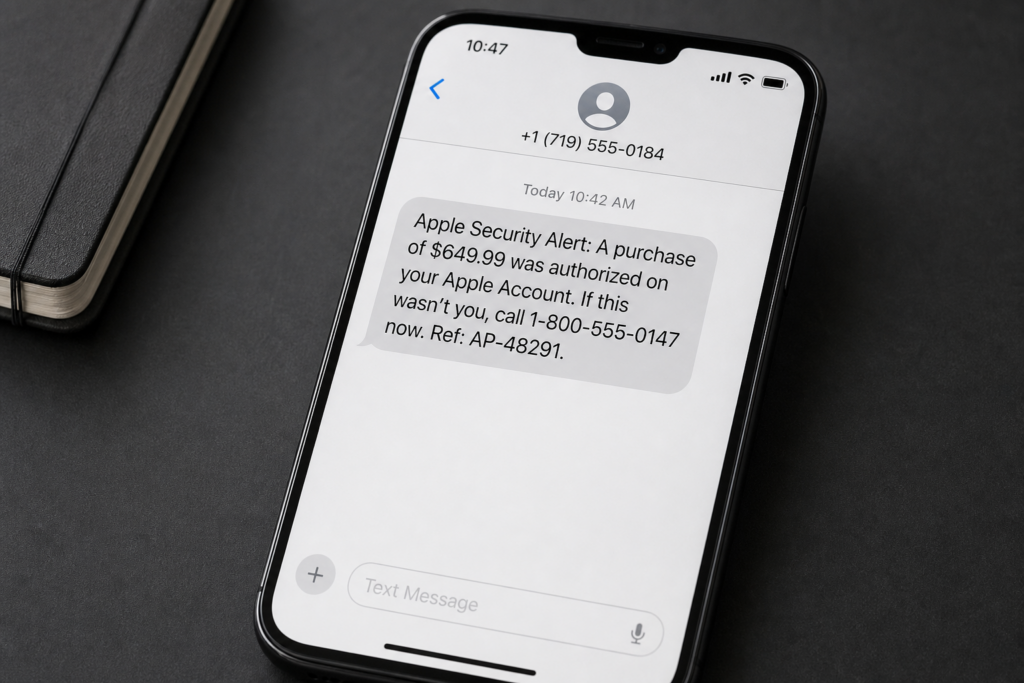
The Pueblo County banking text scam begins with a small interruption that feels impossible to ignore. A familiar company says your account, computer, or recent purchase needs immediate attention.
The text may wear Apple or PayPal branding, but its real destination is closer to your wallet. One tap or phone call can turn a routine-looking alert into a very different conversation.
The most important clue is not a typo or an unknown area code. It is the path the message wants you to follow before you have time to verify anything independently.
Overview
Pueblo County issued the warning, but the county is not the disguise
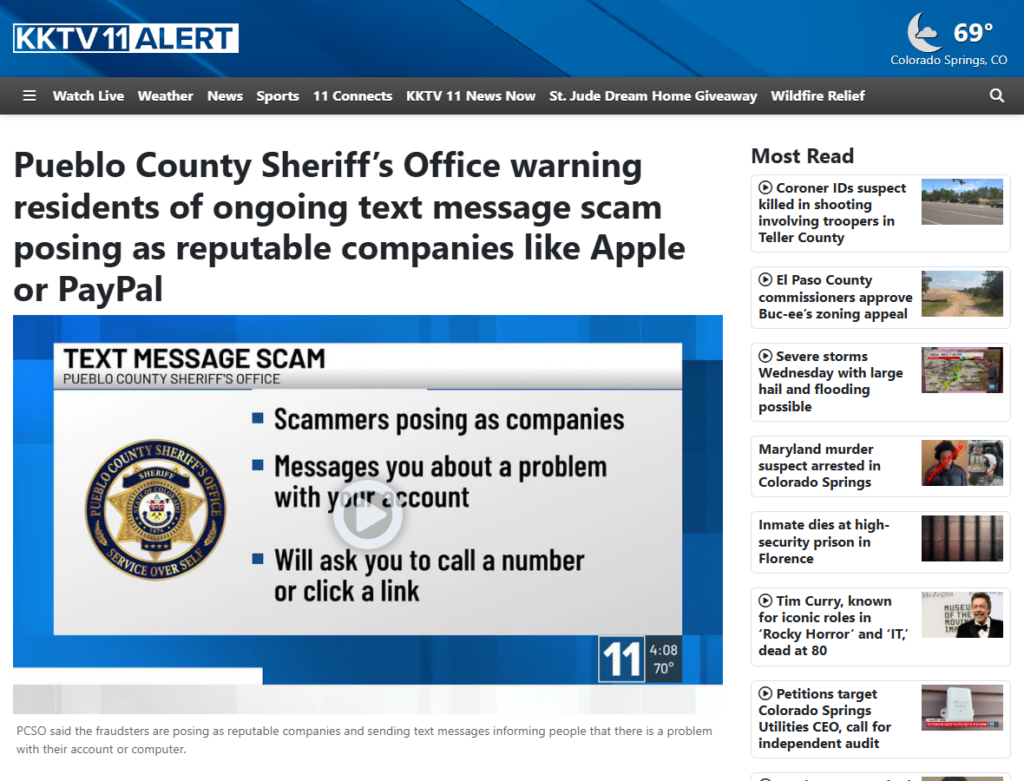
The name Pueblo County banking text scam describes where the latest public warning gained attention. The messages reported by the Pueblo County Sheriff’s Office were not pretending to be the county, its sheriff, or a local bank.
According to KKTV’s August 25 report, scammers were posing as recognizable companies such as Apple and PayPal. The message claimed there was a problem with an account or computer.
The call or link is the bridge to the banking theft
The first text does not need to steal everything. It only needs to move the recipient into a channel controlled by the sender. That can be a callback number, a fake sign-in page, or a supposed support conversation.
From there, the operator can request card details, online banking information, passwords, or security codes. The Pueblo County warning also says some victims may be pressured to buy gift cards to clear the invented problem.
Apple and PayPal are examples, not the limits of the campaign
A scammer can replace the brand while keeping the same machinery. Tomorrow’s message may name a bank, retailer, delivery company, streaming service, or technology provider instead.
Watch for this combination of behaviors:
- An unexpected alert claims there is a problem with an account, payment, purchase, or device.
- The text provides a number or link and demands a quick response.
- The sender discourages you from opening the real app or contacting the company independently.
- A supposed representative requests a password, card number, banking login, or one-time code.
- The proposed fix involves gift cards, a transfer, remote access, or a test payment.
- The alert cannot be found after you sign in through the genuine app or website.
What the Pueblo County Warning Actually Confirms
The public warning is specific about the mechanism but limited about individual messages. It confirms that scammers are sending texts while posing as reputable companies, including Apple and PayPal.
It also confirms the common opening story: the recipient is told that something is wrong with an account or computer. The message then asks the person to call a number or click a link.
The stated goals include access to bank accounts, credit card information, and gift card payments. These are separate routes. A fake page may collect credentials, while a fake support agent may guide the victim through a transfer or card purchase.
The report does not publish a specific scam phone number, web domain, transaction amount, or verbatim victim message. Any example that supplies those missing details should be treated as an illustration unless a source identifies it as an actual captured text.
That limitation matters because phone numbers and domains rotate quickly. Blocking one number can help, but recognizing the requested action protects against the next number as well.
Nothing in the warning suggests that Apple, PayPal, Pueblo County, or a particular local bank caused the messages. Their names provide borrowed credibility. The impersonated organizations are not the operators behind the scam.
A Real Bank Alert Can Look Similar
Banks and payment services do send legitimate fraud alerts. Some ask whether a transaction was yours. Some tell you to open the app, review activity, or contact the institution.
That overlap is exactly why visual appearance cannot settle the question. Sender names can be spoofed, messages can be copied, and a fraudulent text may arrive in the same conversation thread as earlier legitimate notices.
Do not decide by replying, tapping, or calling. Open the bank or service app from your home screen. If the transaction or alert is real, the account should show evidence of it there.
If you need help, use the number printed on the back of the card or a contact route inside the genuine app. The number in the text is part of the unverified claim.
A message that happens to name your real bank is not proof of targeted access. Large campaigns send many brand versions to many numbers. Some recipients will match the guessed institution by chance.
Personal details can make a version more convincing, but they still do not authenticate the sender. Names, phone numbers, addresses, and partial account details can come from prior breaches, data brokers, stolen inboxes, or previous scam conversations.
How the Pueblo County Banking Text Scam Works
Step 1: A familiar brand carries the first warning
The text may display Apple, PayPal, a bank, or another company the recipient recognizes. It claims a purchase, sign-in, payment failure, account lock, computer infection, or security issue needs attention.
The opening is deliberately broad. A recipient does not need an active PayPal dispute or a broken Apple device to worry that somebody may have used the account without permission.
Step 2: Urgency makes the supplied route feel necessary
The message suggests that waiting will allow a charge to complete, an account to close, or an attacker to keep moving. A callback number or link appears beside the danger.
That pairing is the trap. The sender creates the emergency and then sells the only visible exit from it. Independent verification feels slower, even though it is the safest and usually fastest option.
Step 3: The victim enters the scammer’s support channel
A link can open a copied login page that records whatever the visitor types. A callback number can reach an operator who answers with a polished company greeting and a scripted fraud-department identity.
Calling can feel safer than clicking, but both routes were chosen by the sender. A professional voice, hold music, case number, or transfer to a supervisor does not make the destination genuine.
Step 4: Verification requests complete the stolen profile
The operator may already know a name, phone number, or email address. The conversation then fills the missing fields: card number, expiration date, security code, banking username, password, Social Security number, or account balance.
A one-time code is especially valuable. It may approve a password reset, sign-in, digital wallet, new device, transfer, or payment. Reading it aloud can authorize the exact action the caller claims to be stopping.
Step 5: A fake fix moves money or account control
Some victims are told to transfer funds to a safe account, send a test payment, or install remote-access software. Others are instructed to buy gift cards and read the numbers to the operator.
Gift cards are not a security tool. Once the code is shared, its value can be redeemed or resold quickly. The victim receives no meaningful bank protection from a payment they were manipulated into authorizing.
Step 6: The real account is used to hide the theft
An operator with remote access may tell the victim not to touch the screen. A stolen login can be used to add payees, change recovery details, enroll another device, or move funds while the fake support call continues.
The criminal may label genuine bank warnings as technical errors. Every instruction that bypasses a warning, disables protection, or conceals the screen should end the conversation immediately.
Step 7: Follow-up scammers reuse the successful story
A person who responded has confirmed that the number is active and the subject creates concern. That information can be retained, sold, or used in a second attempt.
The next caller may pose as a bank investigator, police officer, Apple specialist, PayPal agent, or recovery company. A reference to the first incident makes the second approach sound connected, but it may be another layer of the same fraud.
Why the Callback Number Is Not Proof
A phone number printed inside the alert is evidence only of where the sender wants you to go. It is not independently connected to Apple, PayPal, a bank, or Pueblo County.
Search results are not a perfect replacement. Criminals can publish fake support pages, purchase ads, and seed directories with their own number. Begin with an app already installed, a card in your possession, or a domain typed manually.
Caller ID can also be spoofed. A returning call may display a trusted company or a local area code even when the call originated elsewhere. Hang up and start a new call using a vetted number.
Do not let the operator keep the line open while you call the bank from another phone. End the original call first. Some scams depend on maintaining pressure and coaching the victim through every bank prompt.
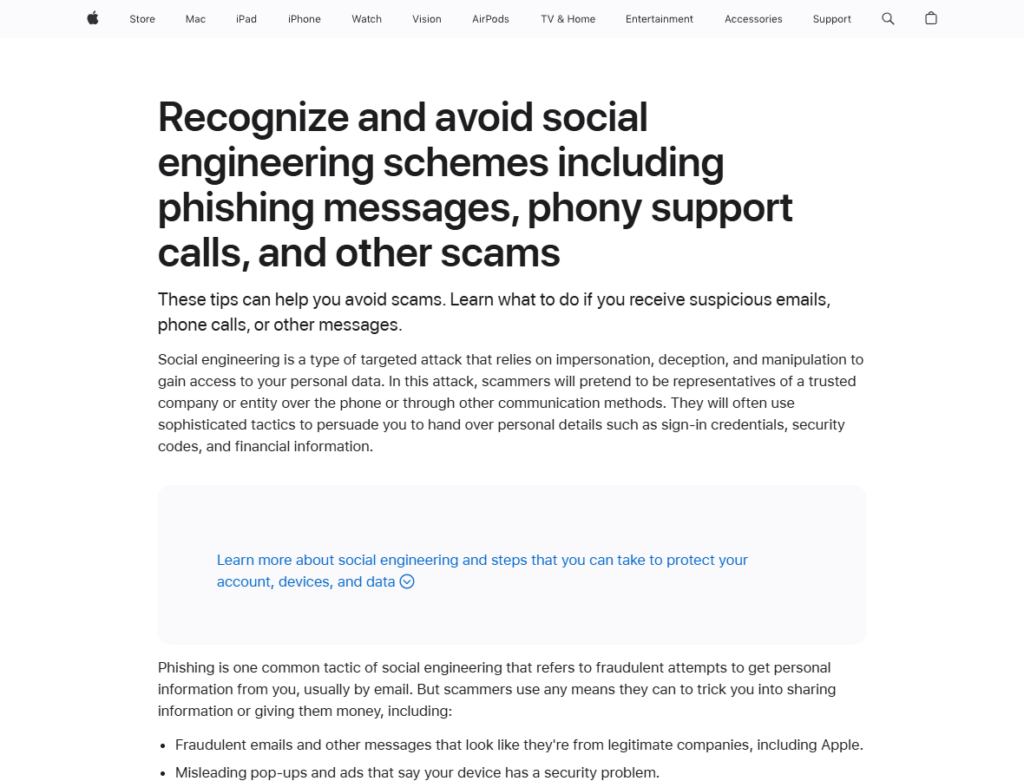
Apple’s current social-engineering guidance says it never asks customers to share an Apple Account password or verification code to provide support. It also says suspicious Apple SMS messages can be reported with a screenshot.
PayPal’s scam guidance warns that customer-service impersonators may request passwords, two-factor codes, money, or software downloads. PayPal directs users to its real Help Center rather than a number included in a suspicious request.
Company, Address, and Fulfillment Checks
Apple and PayPal are real, but the sender still needs proof
A brand name, logo, copyright line, or accurate support phrase can be copied. These elements identify the company being impersonated, not the person who sent the message.
Check the supposed event inside the genuine account. A real transaction, invoice, sign-in, or case should exist after you open the official app independently.
The sender address may be only a costume
An SMS can arrive from a full phone number, short code, email address, or displayed business name. None should be trusted solely because it resembles an earlier alert.
The Pueblo County warning did not publish one universal scam number. Treat any circulating number as temporary evidence, not as the definition of the campaign.
Support must survive an independent callback
Close the message and choose the contact route yourself. For a bank, use the number on the physical card or inside its authenticated app. For Apple or PayPal, open their official support pages manually.
A genuine issue will still exist when you switch channels. An impostor usually needs you to remain on the supplied line, fake page, or remote-access session.
The promised fix must appear in the real account
Digital fulfillment means a visible, verifiable result: a transaction is disputed, a card is locked, a password is changed, a device is removed, or a case appears in account history.
A verbal promise, emailed receipt, gift card claim, or operator’s case number is not enough. Do not keep paying or sharing codes to make an invisible fix complete.
How to Check the Message in Under Two Minutes
First, do nothing inside the text. Do not reply, tap the preview, copy its number, or use its link. A message cannot drain an account merely because you paused to verify it.
Second, open the relevant app from your home screen. Review transactions, notifications, messages, connected devices, invoices, and security activity.
Third, contact the company through the app or a number already on your card. Ask whether the transaction and alert exist. Do not read the suspicious text’s phone number to an unverified caller.
Fourth, report and delete the message after preserving a screenshot if needed. The FTC recommends forwarding unwanted texts to 7726, using the messaging app’s spam-report option, and reporting fraud at ReportFraud.ftc.gov.
This process works even when the message looks perfect. It does not depend on spotting grammar errors, unusual punctuation, or a foreign number. It tests the claim where a real account problem must leave evidence.
For examples focused on the individual disguises, MalwareTips also explains the Apple Support text scam and the fake PayPal customer-service message.
What to Do if You Have Fallen Victim to This Scam
- End the call and stop using the link. Do not argue with the operator or accept a transfer to a supervisor. Save screenshots, numbers, URLs, names, gift card receipts, and the time of each interaction.
- Contact the bank immediately. Use the number on the card or inside the official app. Explain exactly what you shared or approved. Ask about locking cards, securing online banking, recalling transfers, removing new payees, and reviewing device enrollment.
- Report any one-time code. Tell the bank or service which code you disclosed and when. A code may have approved a login, password reset, wallet enrollment, or payment that is not yet visible.
- Secure the impersonated account. Change the Apple, PayPal, email, or banking password from the genuine app or site. Replace reused passwords, enable multi-factor authentication, review recovery details, and remove unfamiliar devices or sessions.
- Disconnect remote access. If you installed a support app, disconnect the device from the internet and contact the bank from another device. Remove the app and inspect accessibility, screen-sharing, device-admin, and configuration-profile permissions.
- Check the device. Run a reputable scan such as Malwarebytes to look for malicious software installed through a link or remote-support session. Change sensitive passwords again from a clean device if malware is found.
- Reduce repeat exposure. A blocker such as AdGuard can prevent many known malicious domains and deceptive ads from loading. It cannot authenticate a text, recover money, or make a callback number safe.
- Act on card and identity exposure. Replace a compromised card and follow the issuer’s instructions. If a Social Security number or identity document was shared, use IdentityTheft.gov to build a recovery plan and consider a credit freeze.
- Report the fraud. File a report at ReportFraud.ftc.gov. Pueblo County residents can also use the independently opened Sheriff’s Office website to find current reporting and contact information.
- Report gift cards quickly. Contact the card issuer using the official information printed on the card or its website. Keep the card and receipt. Ask whether the balance can be frozen before it is redeemed.
- Expect a recovery scam. Do not pay an investigator or recovery company that contacts you unexpectedly. A person who promises guaranteed recovery for an advance fee may be using information from the first scam.
Is Your Device Infected? Run a Free Malware Scan
Slow performance, constant pop-ups, or strange behavior? These are classic signs of a malware infection. A quick way to check is to scan your device with Malwarebytes Free, one of the most trusted malware removal tools available. If you only visited a scam page and didn’t download or install anything, this scan is optional.
The free version detects and removes the most common threats, including:
- Adware — the cause of those annoying pop-ups
- Browser hijackers — unwanted redirects and changed homepages
- Trojans and spyware — hidden programs stealing your data
- Potentially unwanted programs (PUPs) — software you never asked for
👉 Select your device below — Windows, Mac, or Android — then follow the simple steps to download Malwarebytes, scan your system, and remove any threats it finds. The scan usually takes 5 to 20 minutes.
Run a Malware Scan with Malwarebytes for Windows
Malwarebytes is one of the most popular and trusted anti-malware tools for Windows — and it’s completely free for removing infections. It catches threats that many antivirus programs miss, including adware, browser hijackers, and trojans. Follow the steps below to scan your PC and remove what Malwarebytes finds.
Download Malwarebytes
Click the button below to download the latest version of Malwarebytes for Windows from the official source. The free version is all you need — it will scan your computer and remove adware, browser hijackers, and other malicious software at no cost.
Download MalwarebytesOfficial installer for Windows 11 and 10. Your download starts right away.Want real-time protection? See Malwarebytes Premium Malwarebytes Free for WindowsScans and removes malware at no cost
-
Install Malwarebytes
When the download finishes, open your Downloads folder and double-click the MBSetup file. If Windows shows a User Account Control pop-up, click “Yes” to allow the installation.

Follow the On-Screen Prompts to Install Malwarebytes
The setup wizard will walk you through a few quick screens:
-
Choose where you’re installing the program — “Personal Computer” or “Work Computer” — then click Next.

-
Malwarebytes will now install on your device. This usually takes under a minute.

-
When installation is complete, the “Welcome to Malwarebytes” screen will open automatically.

-
On the final screen, click Open Malwarebytes to launch the program.

-
Optional: Check for rootkits with a Custom Scan
You don’t need to change any settings for a normal scan. The standard Threat Scan in the next step is enough for most problems, so you can go straight to it.
If you also want to check for rootkits, use a Custom Scan. In current versions of Malwarebytes, rootkit scanning is only available there:
- On the Scanner tile, click the three-dot menu and select Advanced Scan.
- Choose Custom Scan. In its options, check Scan for rootkits.
- Select your system drive (usually C:\) as the location to scan, then start the scan. It takes longer than a Threat Scan.
- When it finishes, review and quarantine the results as described in the steps below.
Rootkit scanning isn’t available on Windows devices with ARM processors.
Start the Scan
Click the blue Scan button. Malwarebytes will automatically update its virus database and start checking your computer for malware.

-
Wait for the Scan to Finish
The scan checks your entire system for browser hijackers and other malicious programs, so it can take 5 to 20 minutes depending on your computer. Feel free to do something else — just check back occasionally to see the progress.

-
Quarantine the Detected Threats
When the scan is done, you’ll see a list of everything Malwarebytes found — malware, adware, and potentially unwanted programs. Click the “Quarantine” button to remove all of them at once.

Malwarebytes will now remove the malicious files and registry entries and move them safely into quarantine.

-
Restart Your Computer
Some threats can only be fully removed after a reboot. If Malwarebytes asks you to restart, click Yes. Once you’re logged back in, Malwarebytes has finished removing the threats it found.

When the scan is done, check whether the problems you noticed have stopped. If they continue, see the options below.
If you are still having problems with your computer after completing these instructions, then please follow one of the steps:
- Run a computer scan with ESET Online Scanner
- Ask for help in our Windows Malware Removal Help & Support forum.
Run a Malware Scan with Malwarebytes for Mac
Malwarebytes for Mac is a free on-demand scanner that removes the malware other security software tends to miss — adware, browser hijackers, and unwanted programs included. Cleaning an infected Mac with Malwarebytes has always been completely free, and it’s our go-to recommendation. Follow the steps below to scan your Mac and remove what Malwarebytes finds.
-
Download Malwarebytes for Mac
Click the button below to download the latest version of Malwarebytes for Mac.
Download MalwarebytesOfficial installer for macOS. Your download starts right away.Want real-time protection? See Malwarebytes PremiumMalwarebytes Free for MacScans and removes malware at no cost -
Open the Malwarebytes setup file
When the download finishes, open your Downloads folder and double-click the setup file to begin the installation.

-
Follow the On-Screen Prompts to Install Malwarebytes
The Malwarebytes for Mac Installer will guide you through a few quick screens. Click “Continue” and keep following the prompts until the installation completes.



When the installation is complete, Malwarebytes opens to the Welcome to Malwarebytes screen. Click “Get started“.
Malwarebytes needs Full Disk Access to check your whole Mac. When it asks, open System Settings > Privacy & Security > Full Disk Access, turn on Malwarebytes (it may be listed as Malwarebytes Protection), and confirm with your password or Touch ID. Then return to Malwarebytes. On macOS Monterey and earlier, this setting is in System Preferences > Security & Privacy > Privacy.
-
Select “Personal Computer” or “Work Computer”
Malwarebytes will ask what type of computer you’re installing it on. Click either Personal Computer or Work Computer, whichever applies.

-
Start the Scan
Click the “Scan” button. Malwarebytes will automatically update its detection database and begin checking your Mac for malware.

-
Wait for the Scan to Finish
Malwarebytes will scan your Mac for adware, browser hijackers, and other malicious programs. This can take a few minutes, so feel free to do something else — just check back occasionally to see the progress.

-
Quarantine the Detected Threats
When the scan is done, you’ll see a list of everything Malwarebytes found. Click the “Quarantine” button to remove all the threats at once.

-
Restart Your Mac
Malwarebytes will now remove all the malicious files it found. Some threats can only be fully removed after a reboot — if Malwarebytes asks you to restart, allow it. Once you’re logged back in, check whether the problems you noticed have stopped. If they come back, save the scan report and ask for help in our forum.

If the problems you noticed continue after the scan, see the options below.
If you are still experiencing problems while trying to remove a malicious program from your computer, please ask for help in our Mac Malware Removal Help & Support forum.
Run a Malware Scan with Malwarebytes for Android
Malwarebytes for Android scans your phone or tablet for malware, adware, and potentially unwanted apps. The free version scans only when you start a scan. Real-time protection, which checks apps automatically, is part of the paid Premium version.
-
Download Malwarebytes for Android.
You can download Malwarebytes for Android by clicking the link below.
Get Malwarebytes for AndroidOpens Google Play in a new tab.Want real-time protection? See Malwarebytes Premium for AndroidMalwarebytes for AndroidScans your phone and removes malware at no cost -
Install Malwarebytes for Android on your phone.
In the Google Play Store, tap “Install” to install Malwarebytes for Android on your device.

When the installation process has finished, tap “Open” to begin using Malwarebytes for Android. You can also open Malwarebytes by tapping on its icon in your phone menu or home screen.

-
Follow the on-screen prompts to complete the setup process
When Malwarebytes opens, it walks you through a short setup. Tap Get started and follow the prompts. If you see an offer for a trial or a paid plan, read it before you accept. You can skip it and keep using the free scanner.
Malwarebytes will ask for permission to access the files on your phone so it can scan them. Tap Allow, or turn on the permission in the Android screen that opens, then return to Malwarebytes.
-
Run a scan with Malwarebytes for Android
On the main screen, tap Scan now. In some versions, you open the menu, tap Scanner, and then tap Run a scan.
-
Wait for the Malwarebytes scan to complete.
Malwarebytes will now start scanning your phone for adware and other malicious apps. This process can take a few minutes, so we suggest you do something else and periodically check on the status of the scan to see when it is finished.

-
Remove the detected apps.
When the scan has been completed, you will see a list of the threats that Malwarebytes for Android has detected. Next to each detected item, tap the menu icon (three dots), then choose to uninstall the app or delete the file. Android then asks you to confirm. Tap OK or Uninstall to remove the app.
-
Restart your phone.
When the detected apps are removed, restart your phone if Malwarebytes asks you to. Then check whether the problems you noticed have stopped.
If the problems you noticed continue after the scan, see the options below.
If you are still having problems with your phone after completing these instructions, then please follow one of the steps:
- Ask for help in our Mobile Malware Removal Help & Support forum.
- Only as a last resort, reset your phone to factory settings. Read the warning below first.
- Back up your photos, videos, files, and messages, for example to your Google account or a computer.
- Make sure you know your Google account email and password. The phone asks for them after the reset. If you changed the password recently, Google recommends waiting 24 hours before you reset.
- On a Samsung phone, also make sure you know your Samsung account password.
- If you use an authenticator app for two-step verification, move your accounts to another device or save your backup codes first.
Stay Protected: Block Ads and Malicious Sites
No scan can prove a device is completely clean, so it helps to block threats before they reach you. Most infections start with a malicious ad or a fake download button — so blocking them at the source is your best defense.
We recommend AdGuard, which blocks malicious ads, phishing pages, and dangerous redirects before they can reach you.
👉 Download AdGuard and browse safely
Frequently Asked Questions
Is Pueblo County sending the banking scam text?
No. Pueblo County law enforcement warned residents about the campaign. The reported texts impersonate companies such as Apple and PayPal and try to lead recipients toward financial theft.
Does the warning identify one scam phone number?
No. The current public report does not provide a universal fraud number or domain. Numbers can rotate, so verify through the genuine app or the number printed on your card.
Can a legitimate bank send a fraud-alert text?
Yes. The safe response is still to open the bank’s app independently or call the vetted number on the card. Do not use the link or callback number inside an unexpected message.
What happens if I only opened the text?
Reading a normal SMS usually does not expose banking credentials. Risk increases if you tap a link, download something, call the number, share information, provide a code, or approve a payment.
Why would fake Apple or PayPal support ask for gift cards?
Gift card codes can be redeemed or resold quickly and are difficult to reverse. Apple says its gift cards should never be used to make payments to other people.
What if the transaction named in the text is real?
Contact the bank or service through its official app or a trusted number. A real unauthorized charge requires action, but the person who alerted you may still be an impostor exploiting that event.
The Bottom Line
The Pueblo County banking text scam does not need a perfect fake website to work. A familiar name, an alarming account problem, and a supplied number can be enough to move a worried person into the wrong support channel.
Do not let the message choose how you verify the message. Open the real app, use the number on the card, and check whether the supposed transaction or warning exists in the genuine account.
Apple, PayPal, and bank names can rotate. The safest rule does not: the alert may be urgent, but its link and phone number are still unverified.

Join the discussion
0 commentsShare your experience or ask a question about this article.
Discussion
Start the conversation
Have a question or something useful to share? Add the first comment.