Uber Text Message Scam: How Fake Codes Let Thieves Hijack Your Account
Written by: Lapain Epuran
Published on:
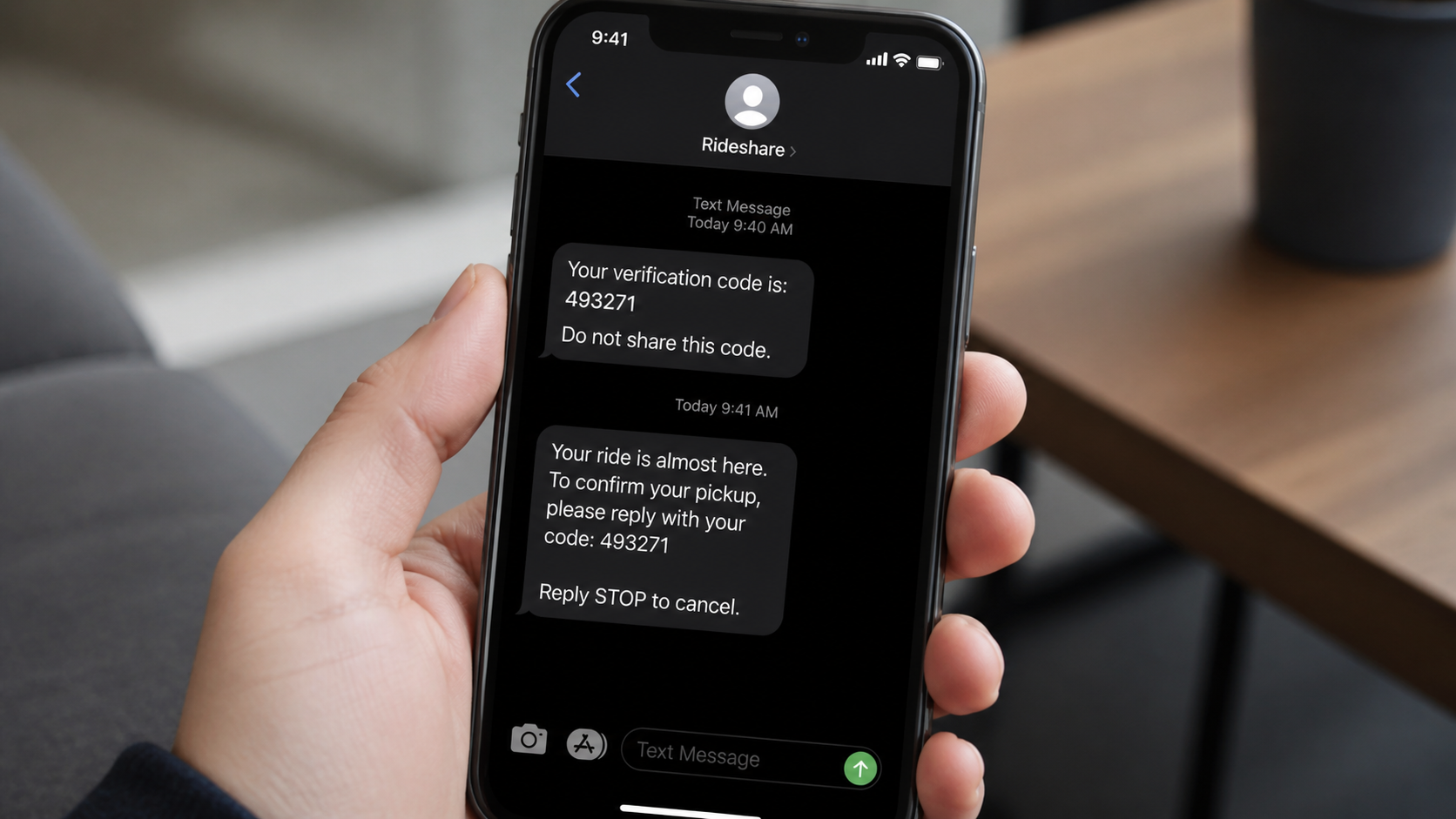
An Uber code lands on your phone even though you are not signing in. A moment later, someone who sounds helpful asks you to read it back so they can “verify” a ride, cancel a charge, or protect your account.
That six-digit number can be the only thing standing between a stranger and your saved rides, personal details, and payment methods.
Overview
The message borrows trust from a service people use every day
An Uber text message scam impersonates Uber, a driver, or a security employee to make an unexpected code or account warning feel legitimate. The sender wants the recipient to click a phishing link, reply to an unfamiliar number, or disclose a one-time verification code.
The opening story varies. It may mention a ride you did not request, a new payment policy, a driver verification problem, an Uber One charge, or suspicious activity on your account.
Some victims receive real Uber verification codes because a criminal is actively attempting to register or access an account with their phone number. The code is genuine, but the person asking for it is not.
Common versions of the Uber text scam
The wording changes quickly, but most messages create a small emergency that appears easy to resolve. Watch for these recurring approaches:
A “driver” asks for a code before arriving or cancelling a trip
A message claims a new policy requires immediate identity verification
A fake receipt says an expensive ride or subscription was charged
A text warns that an unknown device accessed the account
A sender asks you to reply STOP to a separate unfamiliar number
Repeated genuine codes arrive during an account-takeover attempt
A shortened link opens a copied Uber sign-in page
The real objective is account access or payment information
A stolen login can reveal names, phone numbers, trip history, saved addresses, and partial payment information. It may also let the criminal request rides, change profile details, or use the account as a believable identity in another scam.
If a fake page collects a card number and one-time bank code, the damage can extend beyond Uber. Reused passwords can expose email, shopping, and financial accounts as well.
Uber’s own SMS phishing guidance warns that fraudulent texts may direct users to fake Uber pages designed to steal account details.
Why an Unexpected Uber Code May Be Real
Verification codes are generated by an automated security system. A criminal who knows your phone number can trigger that system by attempting a login, registration, password reset, or sensitive account change.
This creates a confusing situation: the text may arrive from the same sender history as genuine Uber messages. The presence of a real code does not validate the caller or prove that you requested the action.
Treat every unsolicited code as private. Uber support, a driver, a courier, and a bank employee do not need you to dictate a code that was sent specifically to your phone.
If codes keep arriving, open the official app yourself. Do not use a link from the text, and do not call a number supplied by the person contacting you.
How the Scam Works
Step 1: The scammer obtains or guesses your phone number
The number may come from a data leak, a public advertisement, a compromised account, or a list sold between criminals. In an in-app variation, the attacker may be using a stolen driver or rider profile that already has a way to contact you.
The criminal does not necessarily know your password. The plan is to use the account-recovery process and persuade you to provide whatever security detail is missing.
Step 2: A login or registration attempt triggers a genuine code
The attacker enters your number into Uber and requests verification. Uber’s system sends the code to the real owner of the number, which is you.
Receiving the code can make the next call or message appear convincing. The scammer may claim the code proves a ride belongs to you, confirms a cancellation, or removes an unauthorized device.
Step 3: The sender invents a reason you must respond immediately
Urgency is essential because the code expires. A fake driver may say the ride cannot begin. A supposed security agent may warn that charges will continue unless the account is locked within minutes.
The caller may already know your name or recent details from another source. Personal information can make a scripted conversation feel like an official investigation.
Step 4: You are asked for the code, password, or a link-based login
In the direct version, the criminal simply asks you to read the six digits aloud. In the phishing version, the text opens a page that copies Uber’s branding and asks for your phone number, password, card details, or code.
A fake page may deliberately reject the first password. This lets the operator collect several passwords that you commonly use while you assume you made a typing mistake.
Step 5: The attacker completes the account takeover
Once the criminal enters the code, the platform may accept the login or account change. The attacker can then attempt to change the email address, phone number, password, or other recovery settings.
If you suddenly get logged out, stop communicating with the sender. That can indicate the takeover has progressed beyond a simple attempt.
Step 6: Payment and personal details are exploited
The thief may order rides, test saved payment methods, sell the account, or use trip and profile details for targeted impersonation. A captured card can be tested through unrelated online merchants.
Some schemes move the victim into a second fraud. The caller may offer a refund but demand remote-access software, a bank transfer, or a “temporary” payment to secure the account.
Step 7: The stolen account is used to reach more people
A compromised driver or rider account appears more credible than a random phone number. Criminals can use it to contact other users with verification stories, payment requests, or malicious links.
This recycling of trusted accounts is why a message can contain correct names or ride-related context. Familiar details show access to information; they do not make the request safe.
Company, Address, and Fulfillment Checks
Confirm the company through the app you already installed
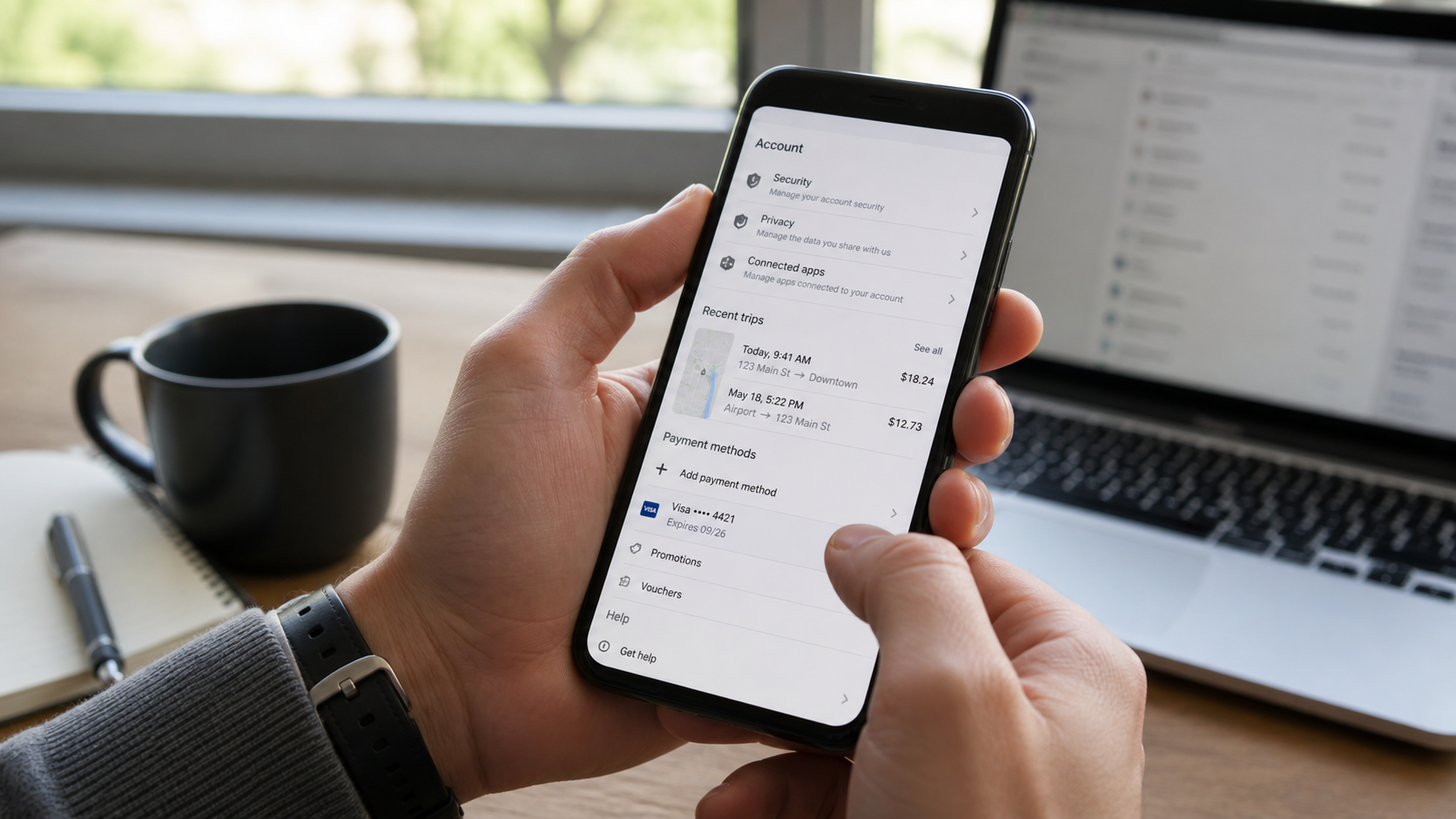
Do not let the text choose your route to support. Open the Uber app from your phone’s normal home screen and check Help, Wallet, recent trips, and account notices there.
If the message claims to come from another business, find that company independently. A caller who objects to independent verification is protecting the scam, not your account.
Compare pickup and destination details with the live trip
A genuine ride has information inside the app, including the driver, vehicle, pickup point, and trip status. A text that contradicts the app should not override what the official account shows.
Never send a home address, workplace, or live location merely to help a stranger “locate the booking.” Personal location data can support stalking, burglary, or more persuasive follow-up fraud.
Check whether the requested action actually completes a service
Scammers describe code sharing as cancellation, verification, or a refund, but a login code does not perform those customer-service tasks. Read the code message itself; it commonly says not to share it.
Trip changes, tips, receipts, and payment updates should appear in the app. A separate transfer or gift card does not fulfill a normal ride.
Verify payment and refund claims in both accounts
Review Uber activity and the bank or card account without screen sharing. A text receipt, screenshot, or caller-provided transaction number can be fabricated.
Refunds generally return through the original payment route. A stranger does not need your full card number, bank password, or remote access to send one.
Extra Precautions for Riders and Drivers
Drivers can be targeted with fake support calls that reference an active trip and promise a bonus or resolve a rider complaint. The caller may ask for a code, payout information, or a new debit card for “verification.”
Riders may encounter a compromised driver account that asks them to cancel, pay outside the app, or disclose a code. Keep the transaction and communication inside the platform whenever possible.
Both groups should use unique passwords and protect the email account connected to Uber. Email access can turn a single stolen password into a complete recovery takeover.
Review payout and payment settings after any suspicious contact. A criminal may make a quiet change and wait before attempting a withdrawal or purchase.
Red Flags That Expose the Message
The sender wants a one-time code
A one-time password authorizes the action being attempted. Anyone who asks for it is trying to place themselves inside a security process intended only for you.
Do not share a code even if the person threatens cancellation, claims they sent it accidentally, or says the request comes from a supervisor.
The link does not lead to an official Uber domain
Look at the full destination before opening it. Misspellings, extra words, unfamiliar country domains, URL shorteners, and long strings of characters are common signs of a phishing site.
A padlock icon only shows that data is encrypted between you and that website. It does not prove the operator is Uber.
The conversation moves away from the official app
Scammers prefer ordinary calls, SMS, WhatsApp, or Telegram because those channels reduce platform oversight. A driver who insists that an account issue must be handled through a separate number is creating avoidable risk.
Open the Uber app and use its Help section. If the supposed problem is real, you should be able to investigate it without following the sender’s instructions.
How to Check the Message Safely
Start with the official app. Review recent trips, payment activity, profile details, and security notifications from a device you trust.
If you cannot sign in, type Uber’s address into your browser or use the app’s established recovery flow. Never search for a support phone number and call the first sponsored result, because fraudulent support listings can appear in ads.
Take a screenshot of the suspicious text, number, and link without opening it. Evidence helps Uber, your carrier, your bank, and law enforcement understand what happened.
If the message refers to a bank charge, verify it through your bank’s official app. A line of text is not proof that a transaction occurred.
What to Do if You Have Fallen Victim to This Scam
End contact and stop using every link from the message. Do not continue arguing with the sender or accept help from a second caller. Take screenshots first, then block the number.
Secure your Uber account through the official app or website. Change the password to a unique one, review profile and payment details, and remove information or devices you do not recognize.
Protect the email account connected to Uber. Change its password, enable multifactor authentication, and review forwarding rules, recovery addresses, active sessions, and recent security events.
Contact your bank or card issuer immediately. Explain what information was entered and ask whether the card should be frozen or replaced. Dispute unauthorized transactions and monitor small test charges.
Change reused passwords everywhere. Begin with email, banking, shopping, mobile carrier, and social accounts. A password manager can create different credentials for each service.
Report the incident to Uber and your mobile carrier. Include screenshots, timestamps, phone numbers, and the phishing address. Ask the carrier about protections against SIM swapping if phone service behaved strangely.
Watch for follow-up fraud. Criminals may pose as recovery agents, bank investigators, or Uber support. No legitimate helper needs gift cards, cryptocurrency, remote access, or another verification code.
Scan any device that received a download. Remove unknown apps or configuration profiles and run Malwarebytes to look for malicious or unwanted software before accessing sensitive accounts.
Block the phishing path while accounts are repaired. AdGuard can help stop known malicious domains and redirects, but it does not replace password changes, bank contact, or account recovery.
Is Your Device Infected? Run a Free Malware Scan
Slow performance, constant pop-ups, or strange behavior? These are classic signs of a malware infection. The fastest way to find out is to scan your device with Malwarebytes Anti-Malware Free — one of the most trusted malware removal tools available.
The free version detects and removes the most common threats, including:
Adware — the cause of those annoying pop-ups
Browser hijackers — unwanted redirects and changed homepages
Trojans and spyware — hidden programs stealing your data
Potentially unwanted programs (PUPs) — software you never asked for
👉 Select your device below — Windows, Mac, or Android — then follow the simple steps to download Malwarebytes, scan your system, and remove any threats it finds. The whole process takes about 5 minutes.
Malwarebytes for WindowsMalwarebytes for MacMalwarebytes for Android
Run a Malware Scan with Malwarebytes for Windows
Malwarebytes is one of the most popular and trusted anti-malware tools for Windows — and it’s completely free for removing infections. It catches threats that many antivirus programs miss, including adware, browser hijackers, and trojans. Follow the steps below to scan and clean your PC in just a few minutes.
Download Malwarebytes
Click the button below to download the latest version of Malwarebytes for Windows from the official source. The free version is all you need — it will scan your computer and remove adware, browser hijackers, and other malicious software at no cost.
(The link opens in a new page where your download will start)
Install Malwarebytes
When the download finishes, open your Downloads folder and double-click the MBSetup file. If Windows shows a User Account Control pop-up, click “Yes” to allow the installation.
Follow the On-Screen Prompts to Install Malwarebytes
The setup wizard will walk you through a few quick screens:
Choose where you’re installing the program — “Personal Computer” or “Work Computer” — then click Next.
Malwarebytes will now install on your device. This usually takes under a minute.
When installation is complete, the “Welcome to Malwarebytes” screen will open automatically.
On the final screen, click Open Malwarebytes to launch the program.
Enable “Scan for Rootkits”
Before scanning, turn on rootkit detection so Malwarebytes can find even the most hidden threats. Click the Settings gear icon on the left side of the screen.
In the settings menu, find “Scan for rootkits” and click the toggle so it turns blue.
Done? Click “Dashboard” in the left pane to return to the main screen.
Start the Scan
Click the blue Scan button. Malwarebytes will automatically update its virus database and start checking your computer for malware.
Wait for the Scan to Finish
The scan checks your entire system for browser hijackers and other malicious programs, so it can take several minutes. Feel free to do something else — just check back occasionally to see the progress.
Quarantine the Detected Threats
When the scan is done, you’ll see a list of everything Malwarebytes found — malware, adware, and potentially unwanted programs. Click the “Quarantine” button to remove all of them at once.
Malwarebytes will now remove the malicious files and registry entries and move them safely into quarantine.
Restart Your Computer
Some threats can only be fully removed after a reboot. If Malwarebytes asks you to restart, click Yes. Once you’re logged back in, your PC is clean and you can continue with the next steps in this guide.
When the scan finishes, click Quarantine to remove everything Malwarebytes found. That’s it — your Windows PC is now clean of trojans, adware, and other malware, and should be back to running smoothly.
If your current antivirus allowed this malicious program on your computer, you may want to consider purchasing Malwarebytes Premium to protect against these types of threats in the future. If you are still having problems with your computer after completing these instructions, then please follow one of the steps:
Malwarebytes for Mac is a free on-demand scanner that removes the malware other security software tends to miss — adware, browser hijackers, and unwanted programs included. Cleaning an infected Mac with Malwarebytes has always been completely free, and it’s our go-to recommendation. Follow the steps below to scan and clean your Mac in just a few minutes.
Download Malwarebytes for Mac
Click the button below to download the latest version of Malwarebytes for Mac.
When the download finishes, open your Downloads folder and double-click the setup file to begin the installation.
Follow the On-Screen Prompts to Install Malwarebytes
The Malwarebytes for Mac Installer will guide you through a few quick screens. Click “Continue” and keep following the prompts until the installation completes.
When the installation is complete, Malwarebytes opens to the Welcome to Malwarebytes screen. Click “Get started“.
Select “Personal Computer” or “Work Computer”
Malwarebytes will ask what type of computer you’re installing it on. Click either Personal Computer or Work Computer, whichever applies.
Start the Scan
Click the “Scan” button. Malwarebytes will automatically update its detection database and begin checking your Mac for malware.
Wait for the Scan to Finish
Malwarebytes will scan your Mac for adware, browser hijackers, and other malicious programs. This can take a few minutes, so feel free to do something else — just check back occasionally to see the progress.
Quarantine the Detected Threats
When the scan is done, you’ll see a list of everything Malwarebytes found. Click the “Quarantine” button to remove all the threats at once.
Restart Your Mac
Malwarebytes will now remove all the malicious files it found. Some threats can only be fully removed after a reboot — if Malwarebytes asks you to restart, allow it. Once you’re logged back in, your Mac is clean.
Once the scan is done, remove every threat it detected. Your Mac is now free of adware, rogue browser extensions, and other potentially harmful software.
If your current antivirus allowed a malicious program on your computer, you might want to consider purchasing the full-featured version of Malwarebytes Anti-Malware to protect against these types of threats in the future. If you are still experiencing problems while trying to remove a malicious program from your computer, please ask for help in our Mac Malware Removal Help & Support forum.
Run a Malware Scan with Malwarebytes for Android
Malwarebytes for Android automatically detects and removes dangerous threats like malware and ransomware so you don’t have to worry about your most-used device being compromised. Aggressive detection of adware and potentially unwanted programs keeps your Android phone or tablet running smooth.
Download Malwarebytes for Android.
You can download Malwarebytes for Android by clicking the link below.
In the Google Play Store, tap “Install” to install Malwarebytes for Android on your device.
When the installation process has finished, tap “Open” to begin using Malwarebytes for Android. You can also open Malwarebytes by tapping on its icon in your phone menu or home screen.
Follow the on-screen prompts to complete the setup process
When Malwarebytes will open, you will see the Malwarebytes Setup Wizard which will guide you through a series of permissions and other setup options. This is the first of two screens that explain the difference between the Premium and Free versions. Swipe this screen to continue. Tap on “Got it” to proceed to the next step. Malwarebytes for Android will now ask for a set of permissions that are required to scan your device and protect it from malware. Tap on “Give permission” to continue. Tap on “Allow” to permit Malwarebytes to access the files on your phone.
Update database and run a scan with Malwarebytes for Android
You will now be prompted to update the Malwarebytes database and run a full system scan.
Click on “Update database” to update the Malwarebytes for Android definitions to the latest version, then click on “Run full scan” to perform a system scan.
Wait for the Malwarebytes scan to complete.
Malwarebytes will now start scanning your phone for adware and other malicious apps. This process can take a few minutes, so we suggest you do something else and periodically check on the status of the scan to see when it is finished.
Click on “Remove Selected”.
When the scan has been completed, you will be presented with a screen showing the malware infections that Malwarebytes for Android has detected. To remove the malicious apps that Malwarebytes has found, tap on the “Remove Selected” button.
Restart your phone.
Malwarebytes for Android will now remove all the malicious apps that it has found. To complete the malware removal process, Malwarebytes may ask you to restart your device.
After the scan, tap Remove Selected to delete all detected threats. Your Android phone is now clean — no more malicious apps, adware, or browser redirects.
If your current antivirus allowed a malicious app on your phone, you may want to consider purchasing the full-featured version of Malwarebytes to protect against these types of threats in the future. If you are still having problems with your phone after completing these instructions, then please follow one of the steps:
Restore your phone to factory settings by going to Settings > General management > Reset > Factory data reset.
Now that your device is clean, keep it that way. Most infections start with a malicious ad or a fake download button — so blocking them at the source is your best defense.
We recommend AdGuard, which blocks malicious ads, phishing pages, and dangerous redirects before they can reach you.
Someone may have entered your phone number by mistake or may be trying to access an account. Do not share the code. Check your account directly and strengthen its security if attempts continue.
Will an Uber driver ever need my verification code?
No driver needs a login or account-recovery code sent to your phone. Some legitimate trip features use PINs inside the app, but you should follow the app’s visible instructions, not a caller’s improvised story.
Can replying STOP make the problem worse?
Do not reply to an unfamiliar number just because the message tells you to. A reply confirms your number is active and may lead to more contact or unexpected carrier charges.
Is the message safe if it appears in an old Uber text thread?
Not necessarily. Sender names can be spoofed, and genuine codes can be triggered by attackers. Judge the requested action, not only where the phone displays the message.
What if I clicked the link but entered nothing?
Close the page and do not download anything. Clear the browser tab, check downloads and permissions, update the device, and scan it if the page installed a file or profile.
Can Uber reverse a fraudulent bank charge?
Report the transaction to Uber, but also contact your bank or card issuer promptly. The financial institution controls card freezes, replacements, and disputes, and deadlines may apply.
The Bottom Line
An unexpected Uber text becomes dangerous when it persuades you to share a code, follow a link, or trust a stranger’s urgent instructions. Keep every verification code private and investigate account warnings only through Uber’s official app or website.
10 Rules to Avoid Online Scams
Here are 10 practical safety rules to help you avoid malware, online shopping scams, crypto scams, and other online fraud. Each tip includes a quick “if you already got hit” action.
Stop and verify before you click, log in, download, or pay.
Most scams win by creating urgency. Verify using a trusted method: type the website address yourself, use the official app, or call a known number (not the one in the message).
If you already clicked: close the page, do not enter passwords, and run a malware scan.
Keep your operating system, browser, and apps updated.
Updates patch security holes used by malware and malicious ads. Turn on automatic updates where possible.
If you saw a scary “update now” pop-up: close it and update only through your device settings or the official app store.
Use layered protection: antivirus plus an ad blocker.
Antivirus helps block malware. An ad blocker reduces scam redirects, phishing pages, and malvertising.
If your browser is acting weird: remove unknown extensions, reset the browser, then run a full scan.
Install apps, software, and extensions only from official sources.
Avoid cracked software, “keygens,” and random downloads. During installs, choose Custom/Advanced and decline bundled offers you do not recognize.
If you already installed something suspicious: uninstall it, restart, and scan again.
Treat links and attachments as untrusted by default.
Phishing often impersonates delivery services, banks, and popular brands. If it is unexpected, do not open attachments or log in through the message.
If you entered credentials: change the password immediately and enable 2FA.
Shop safely: research the store, then pay with protection.
Be cautious with brand-new stores, “closing sale” stories, and prices that make no sense. Prefer credit cards or PayPal for dispute options. Avoid wire transfers, gift cards, and crypto payments.
If you already paid: contact your card issuer or PayPal quickly to dispute the transaction.
Crypto rule: never pay a “fee” to withdraw or recover money.
Common patterns include fake profits, then “tax,” “gas,” or “verification” fees. Another is a “recovery agent” who demands upfront crypto.
If you already sent crypto: stop paying, save evidence (wallet addresses, TXIDs, chats), and report the scam to the platform used.
Secure your accounts with unique passwords and 2FA (start with email).
Use a password manager and unique passwords for every account. Enable 2FA using an authenticator app when possible.
If you suspect an account takeover: change passwords, sign out of all devices, and review recent logins and recovery settings.
Back up important files and keep one backup offline.
Backups protect you from ransomware and device failure. Keep at least one backup on an external drive that is not always connected.
If you suspect infection: do not connect backup drives until the system is clean.
If you think you are a victim: stop losses, document evidence, and escalate fast.
Move quickly. Speed matters for disputes, account recovery, and limiting damage.
Stop payments and contact: do not send more money or respond to the scammer.
Call your bank or card issuer: block transactions, replace the card if needed, and start a dispute or chargeback.
Secure your email first: change the email password, enable 2FA, and remove unfamiliar recovery options.
Secure other accounts: change passwords, enable 2FA, and log out of all sessions.
Scan your device: remove suspicious apps or extensions, then run a full malware scan.
Save evidence: screenshots, emails, order pages, tracking pages, wallet addresses, TXIDs, and chat logs.
Report it: to the payment provider, marketplace, social platform, exchange, or wallet service involved.
These rules are intentionally simple. Most online losses happen when decisions are rushed. Slow down, verify independently, and use payment methods and account controls that give you recourse.
Hello! I'm Lapain Epuran, your go-to source for detailed and honest product reviews. From tech gadgets to miracle cures, I provide insights to help you make informed choices. Join me as we discover what's truly worth your time and money.