

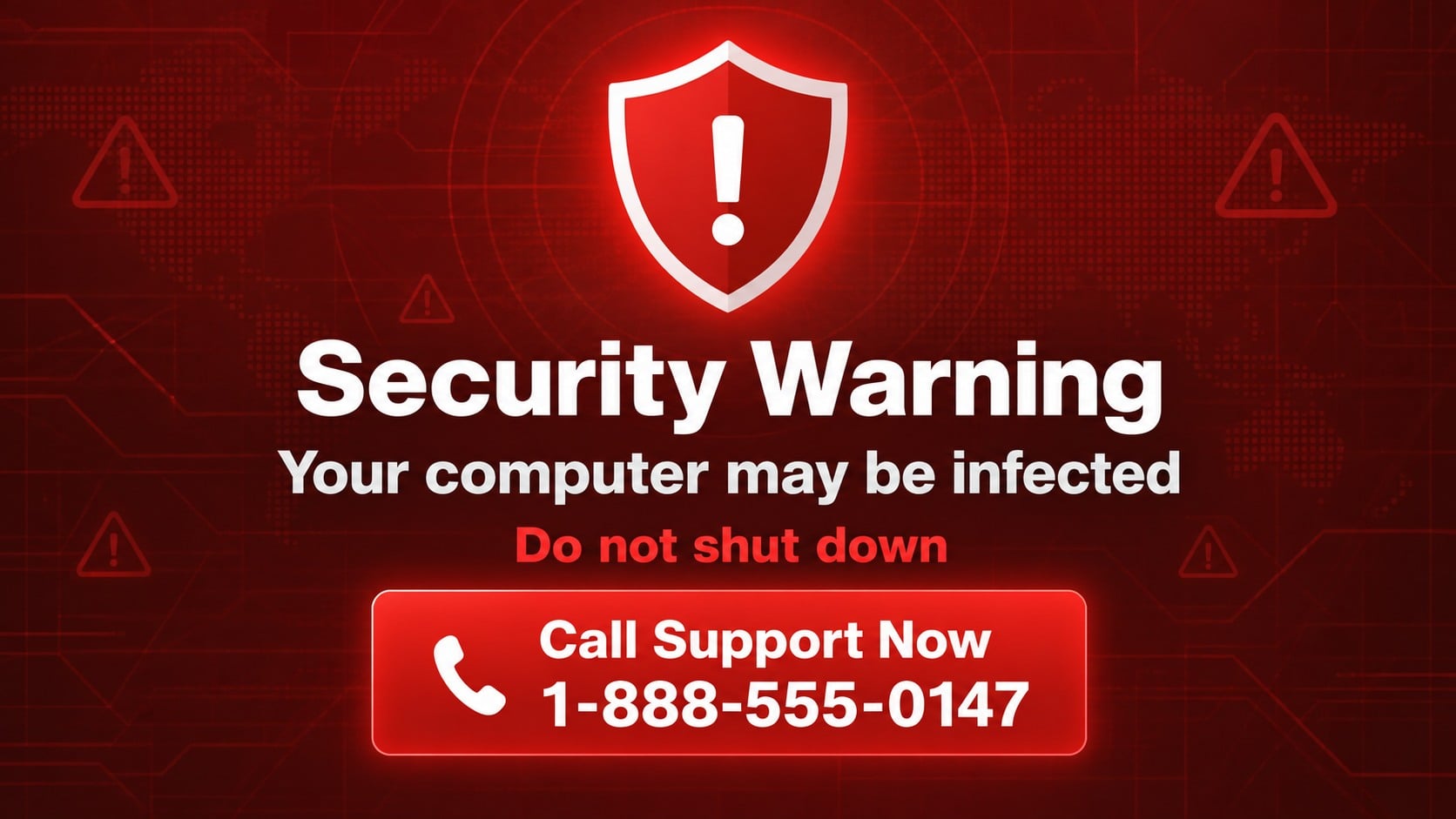
The warning takes over the browser, an alarm begins to repeat, and a large phone number promises immediate help. It says the computer is infected, banking data is exposed, and closing the page could make the damage worse.
The screen is designed to make a calm person feel trapped. The real danger often begins only after the number is called and a stranger is allowed inside the computer.
Overview
The scam invents a computer problem and sells the cure
A technical support scam is an impersonation scheme in which criminals pretend to be technicians from Microsoft, Apple, an antivirus provider, an internet company, or a local repair service. They claim to have detected malware, account compromise, expired protection, or illegal activity.
The contact may begin with a browser pop-up, unsolicited call, search advertisement, email, text, or fake subscription invoice. The supposed technician has not independently scanned the computer. The warning and diagnosis are part of the same sales script.
The FTC states that legitimate technology companies do not unexpectedly contact people to announce a computer problem, and genuine security pop-ups do not tell users to call a phone number.
Remote access changes a frightening story into a real compromise
The caller asks the victim to install a remote-support application or visit a session page. Remote tools have legitimate uses, but they give the operator significant control when installed for an unknown caller.
Once connected, a scammer may:
- Show ordinary system logs and describe them as proof of infection.
- Disable the screen while opening files or saved passwords.
- Install persistence tools, malware, or additional remote software.
- Open online banking and manipulate what appears on screen.
- Collect card information or demand unusual payment methods.
- Transfer the victim to a fake bank or government investigator.
The criminal may perform visible but meaningless “repairs” to make a fee seem justified. The activity on screen is theater, while the valuable work happens out of view.
The scheme can become a bank-protection or refund scam
Modern technical support scams often move beyond a one-time repair charge. The caller claims hackers reached the victim’s bank, then says money must be moved into a safe account, cryptocurrency wallet, federal locker, or protected card.
Another version begins with a fake renewal invoice. When the victim calls to cancel, the scammer claims to issue too large a refund and pressures the victim to return the difference by transfer, gift card, cash, or cryptocurrency.
No legitimate company needs remote access to a personal computer to refund a subscription. Banks and government agencies do not ask customers to move money into a special account for protection.
Where the Fake Warning Comes From
A browser pop-up can appear after a malicious advertisement, mistyped address, compromised website, deceptive notification, or page designed solely to display the warning. Full-screen mode and repeating audio make the browser seem locked.
Usually, the page cannot see whether the device contains a virus. It uses generic browser information and scripted messages. Closing the browser, ending the task, or restarting the device does not cause the threatened data loss.
Search-result scams work differently. Criminals buy ads or optimize pages for phrases such as printer support, password recovery, or antivirus renewal. The victim initiates the call but still reaches an impostor.
Why Normal System Tools Are Misrepresented
A scammer may open Event Viewer, Command Prompt, Task Manager, or a network utility and point to warnings, stopped services, or active connections. Normal computers contain logs, occasional errors, and network entries.
Those screens do not prove the caller’s story. A legitimate diagnosis requires context, reproducible symptoms, and trustworthy support. Random log entries are easy to present as frightening when the victim cannot interpret them.
The safest response is to end the session and seek help through the official support page of the device or software company, or through a trusted local technician.
How the Technical Support Scam Works
Step 1: A warning or contact creates immediate fear
The victim sees a full-screen alert, receives a call, finds a sponsored support number, or opens an invoice. The message uses a recognized company name and warns about viruses, identity theft, banking exposure, or service cancellation.
A countdown, siren, frozen-looking page, or threat not to shut down the computer makes the situation feel urgent.
Step 2: The fake technician establishes authority
The person who answers provides a department name, employee number, case ID, and technical language. Caller ID and display names may be spoofed.
The scammer asks scripted questions that make ordinary slowness, pop-ups, or account concerns sound like confirmation of a serious breach.
Step 3: Remote-access software is installed
The victim is guided to download a legitimate remote-support tool or unfamiliar application. A session code connects the caller to the computer.
The scammer may ask the victim to approve elevated permissions, disable security software, or keep the session open while the “scan” runs.
Step 4: Harmless information is presented as proof
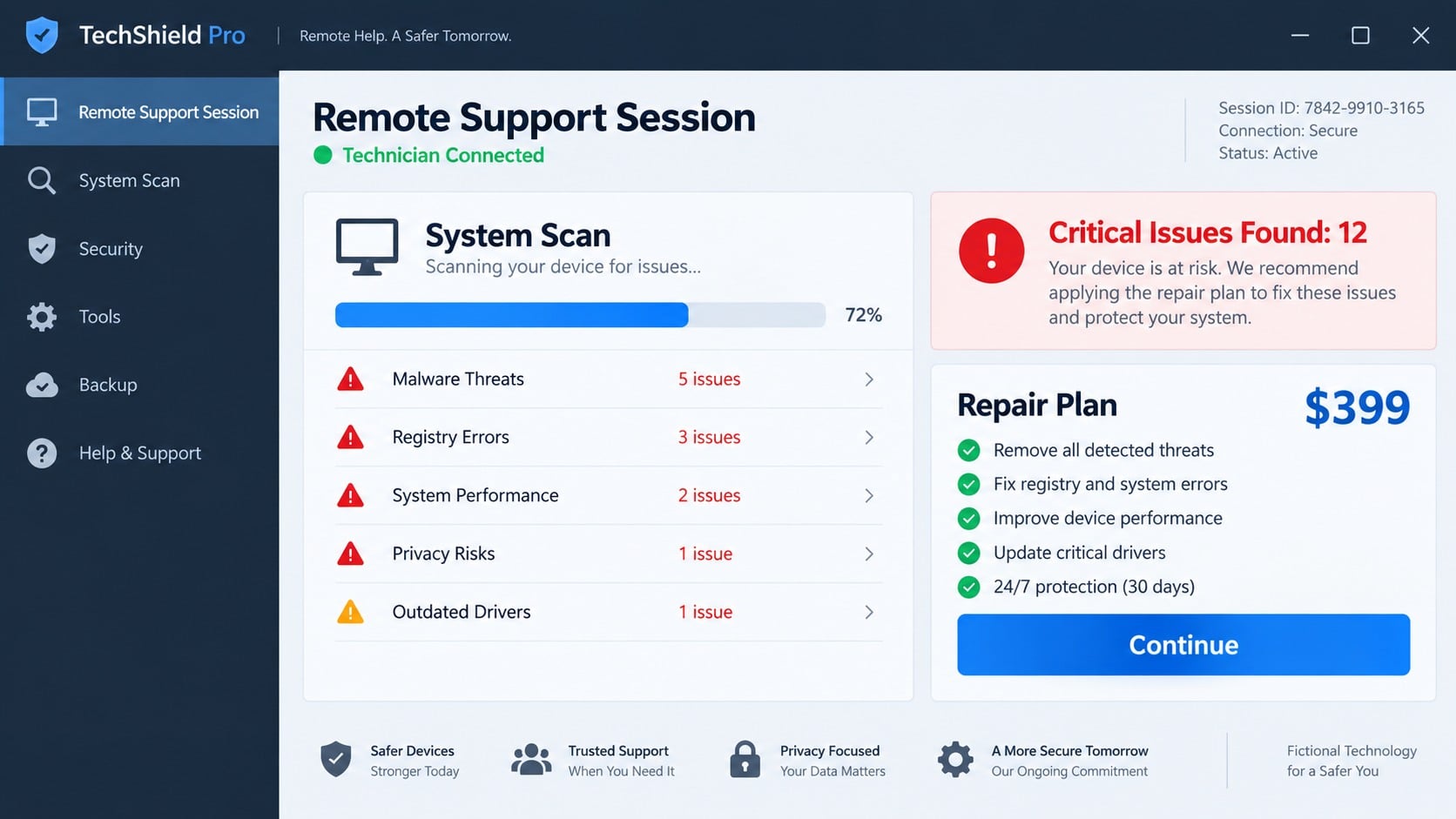
The operator opens logs, lists services, or runs commands that produce dramatic-looking output. Normal warnings and network activity are labeled as hackers, malware, or stolen identity records.
The fake diagnosis is not based on a real security investigation. It exists to justify payment and keep the victim compliant.
Step 5: The victim is charged or sent into online banking
The scammer offers a repair plan, lifetime protection, refund, or bank-security operation. Payment may be requested by card, transfer, gift card, cryptocurrency, cash delivery, or payment app.
If online banking is opened during remote access, the screen may be hidden while the criminal transfers money or edits page content to simulate a refund.
Step 6: The story escalates to prevent interruption
The caller claims the victim must not contact family, the bank, or police because an investigation is active. A second scammer may pose as a bank officer or government agent.
Secrecy protects the fraud. Real companies do not prevent customers from independently confirming a problem, and government officials do not demand protected transfers, gift cards, gold, or cash.
Company, Address, and Fulfillment Checks
The brand name on the warning proves nothing
Microsoft, Apple, Google, security vendors, and retailers are routinely impersonated. Confirm support through the official company website or a number already stored in a genuine account.
Do not use the number in a pop-up, search advertisement, invoice, or unsolicited message.
The address may belong to a lead generator or shell operation
Check the legal company on the invoice and payment page. A virtual office, unrelated residence, or copied corporate address does not prove a repair business has trained staff.
Search the company name with the phone number and address, but treat reviews cautiously because fake support operations can manufacture ratings.
Support should explain the problem without secrecy
A trustworthy technician can describe the symptom, scope, fee, and remedy in writing. They will not object when the customer pauses to verify the company or seeks a second opinion.
Pressure to remain on the phone, hide the conversation, or keep remote software open is a reason to disconnect.
Payment and work must be traceable
A legitimate repair creates an invoice identifying the company, service, tax, payment method, and warranty. Gift cards, cryptocurrency, cash couriers, and transfers to personal accounts offer little normal consumer protection.
A visible scan animation is not proof that a service was performed. Ask for a written diagnosis and verify it independently.
Clear Signs of a Fake Technician
- An unsolicited caller says they detected a problem on your computer.
- A browser warning instructs you to call a phone number.
- The caller wants remote access before explaining the issue.
- Normal logs or network connections are labeled as proof of hackers.
- You are told to disable security tools or hide the session from the bank.
- Payment is demanded by gift card, cryptocurrency, wire, cash, or gold.
- A refund requires access to online banking.
- The caller transfers you to a supposed government or bank investigator.
End the call even if the person sounds patient and professional. A calm manner does not make an unsolicited diagnosis legitimate.
The Fake Refund Variation
Some technical support scams begin with an email claiming that a security or support subscription renewed for $399. The message says the charge can be cancelled only by calling the number shown.
The caller asks for remote access to process the refund. They then direct the victim to online banking, hide the screen, and alter what appears in the browser. A transfer between the victim’s own accounts may be presented as an accidental overpayment.
The scammer claims the employee will lose a job unless the extra money is returned immediately. Gift cards, cryptocurrency, wire transfer, cash pickup, or a payment app are suggested because the supposed company cannot reverse its own error.
No real refund requires a customer to send money back through a different payment method. Close remote access and compare the claimed renewal with the actual bank or card statement. If there is no charge, there is nothing to refund.
If a charge does exist, contact the issuer and merchant through verified channels. The person named in the cancellation email should not control the investigation, remote session, and repayment.
What the Scammer May Do While the Screen Is Hidden
Remote tools can blank the display while the operator changes settings, copies files, opens saved browser data, or creates transfers. The victim may hear reassuring explanations while being unable to see the activity.
After disconnecting, review more than the visible desktop. Check installed applications, user accounts, browser extensions, email rules, banking payees, and authentication settings. A computer that appears normal can still contain changes made during the session.
Write down what the caller opened and what permissions were approved. Those details help the bank, security professional, or repair technician focus the recovery instead of guessing.
What to Do if You Have Fallen Victim to This Scam
- Disconnect the computer from the internet. Turn off Wi-Fi or unplug the network cable. Do not keep negotiating through the compromised session.
- Contact the bank from a different trusted device. Explain that a scammer had remote access while banking or payment information may have been visible. Ask about freezes, reversals, replacement cards, new account numbers, and added security.
- Remove remote-access software. Uninstall every tool used during the call and review startup applications, browser extensions, and newly created user accounts. If control persists, seek help from a trusted technician.
- Run a full security scan. Update the operating system and use Malwarebytes to scan for malware, persistence tools, and unwanted programs. For high-risk access, consider a professionally supervised reset rather than assuming one scan proves the device is clean.
- Change passwords from a clean device. Start with email, banking, password manager, cloud storage, and mobile carrier accounts. Enable multi-factor authentication and revoke unknown sessions.
- Preserve evidence. Save the phone number, invoice, remote-tool name, payment details, chat, emails, and bank records. Do not reopen malicious files to collect them.
- Report every payment route. Contact gift-card issuers, transfer services, cryptocurrency exchanges, payment apps, or courier companies immediately. Report the incident at ReportFraud.ftc.gov and to local police when money or identity documents were taken.
- Block repeat scam pages. AdGuard can help filter known malicious advertising, redirect, and tech-support domains. Keep browser notifications limited to sites you recognize.
- Check identity and credit exposure. If Social Security, identity, or tax details were shared, use the recovery steps at IdentityTheft.gov and review credit reports.
- Ignore recovery callers. A new caller may claim to be a regulator, hacker, or refund department. Do not provide remote access or pay another fee.
Frequently Asked Questions
Can a website really detect every virus on my computer?
No. A random webpage cannot perform the deep scan claimed by fake warnings. It may know basic browser details, but that is not a malware diagnosis.
Is all remote-support software malicious?
No. Legitimate technicians use remote tools, but the tool becomes dangerous when access is granted to an unverified caller or deceptive support service.
Should I call the number in a security pop-up?
No. The FTC says real security pop-ups do not ask users to call a phone number. Close the page and use official support independently.
What if the caller knew my name and computer model?
Personal details can come from data breaches, marketing records, or earlier conversations. They do not prove the caller detected a problem.
Can scammers change what I see in online banking?
Yes. With remote control, criminals can hide the screen, alter browser content, or move money while presenting a fake balance or refund.
Is restarting the computer enough after remote access?
No. It ends many sessions but may not remove installed software or stolen access. Disconnect, scan, remove tools, change passwords, and notify financial institutions.
The Bottom Line
A technical support scam manufactures fear, then asks the victim to trust the same stranger who supplied the frightening diagnosis. The pop-up, employee number, system logs, and remote scan are props in a payment and account-takeover scheme.
Never call a number in a browser warning or grant remote access to an unsolicited technician. Close the page, contact a trusted company through its official site, and act quickly if a stranger reached the computer or online banking.








