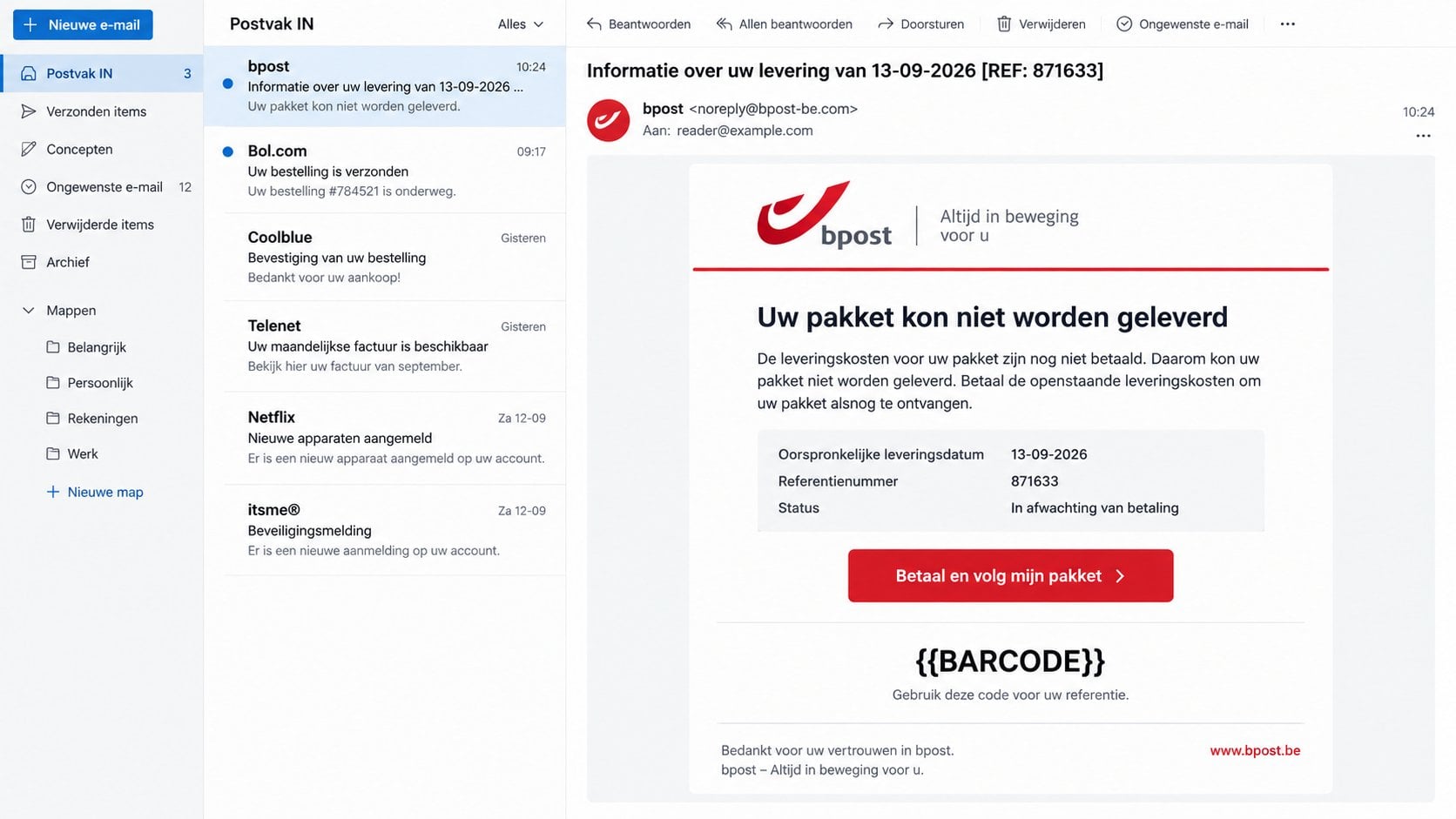
A delivery message claims your parcel is waiting because a fee remains unpaid. It even offers a narrow delivery window and a tracking-style reference.
That combination can feel urgent when you are expecting an order. A closer reading, however, exposes details that a real postal notice should not contain.
Overview
A Dutch-Language Parcel Notice With a Payment Demand
The bpost Delivery Fees Not Paid email scam impersonates Belgium’s postal operator and claims an outstanding charge prevents a package from being delivered.
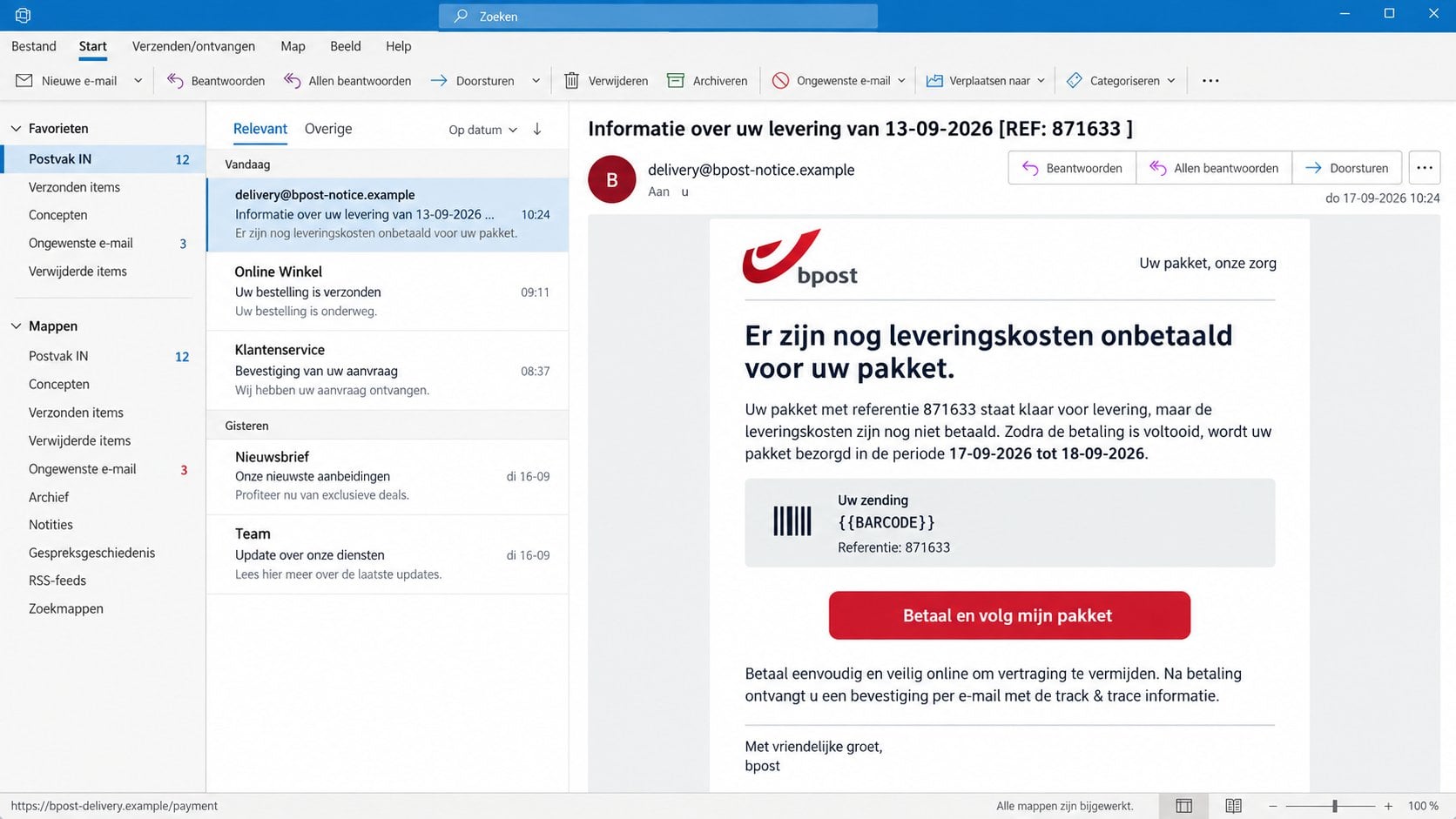
The reported subject was “Informatie over uw levering van 13-09-2026 [REF: 871633 ].” It refers to delivery information for September 13.
The body proposes a new delivery period from 17-09-2026 through 18-09-2026. A button labeled “Betaal en volg mijn pakket” invites payment and tracking.
bpost is a legitimate postal company and is not responsible for this campaign. Criminals copied its identity to borrow the confidence attached to a familiar carrier.
One Unfinished Placeholder Reveals the Template
The message contains the literal text “{{BARCODE}}” where a real parcel barcode or tracking value should appear. The mailing template was not completed correctly.
The email alleges unpaid delivery costs without identifying a retailer.
Its subject and body use precise dates to create momentum.
The reference number looks plausible but proves no shipment exists.
The barcode field still contains an automation placeholder.
The payment button leads outside the official postal account route.
The message pushes payment before providing verifiable parcel history.
Template errors are useful warnings, but a polished version would remain dangerous. The destination and requested information matter more than spelling or presentation quality.
What the Criminals Are Probably Seeking
The linked destination was inactive when examined, so its final form could not be observed directly. That limitation is important and should not be hidden.
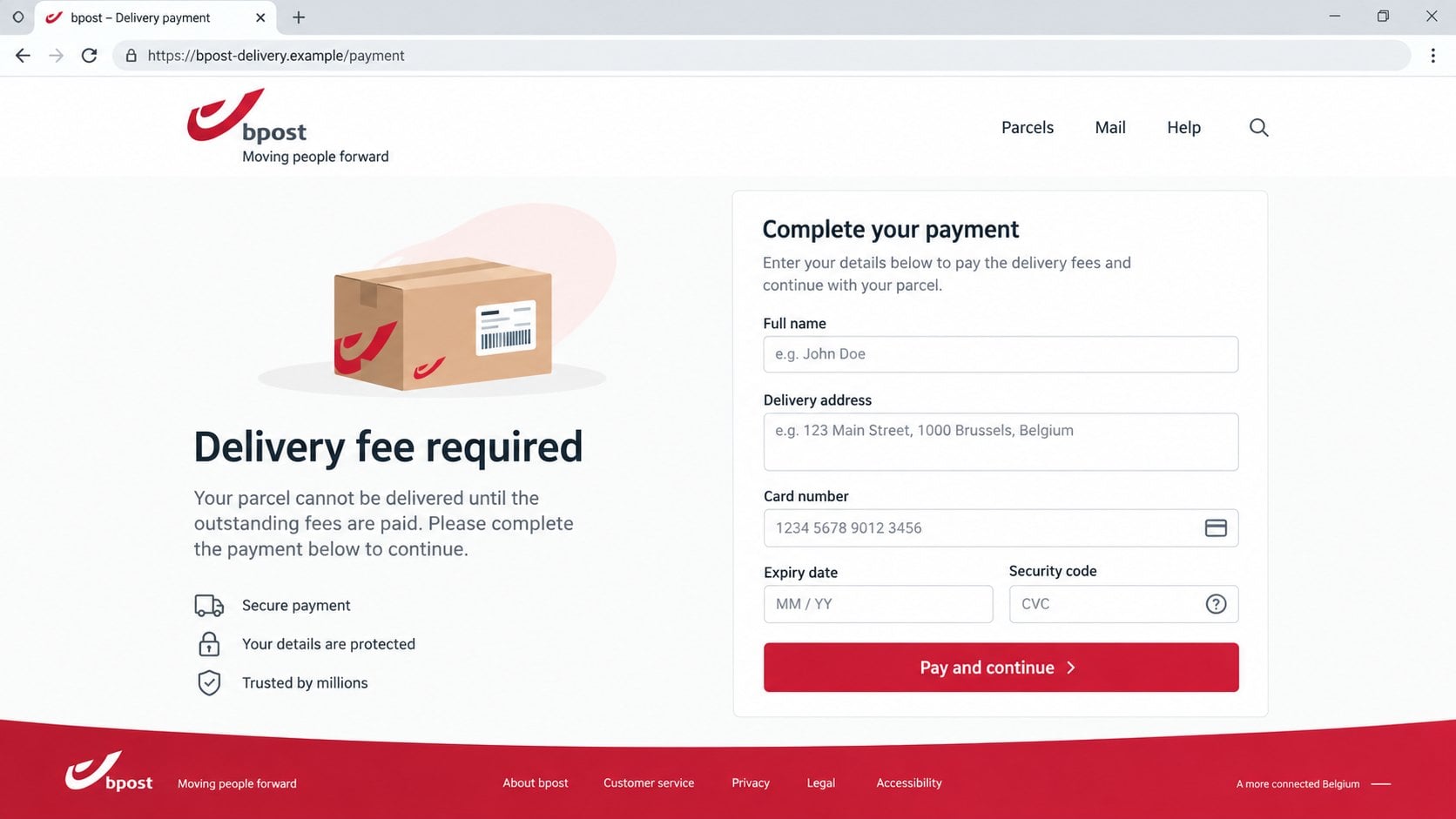
Parcel-fee campaigns commonly open counterfeit checkout pages seeking names, addresses, telephone numbers, and card details. Some also request a small initial payment.
The payment-page image in this article illustrates that likely stage. It is a reconstruction, not a claim that the unavailable page displayed those exact fields.
Until a destination is independently verified, assume any submitted personal or financial data may reach an unauthorized operator.
How the bpost Delivery Fees Not Paid Email Scam Works
Step 1: The Email Arrives During Normal Shopping Activity
Many people have several online orders moving simultaneously. A vague carrier notice can match that background activity without naming the actual merchant.
The scammer does not need to know whether you ordered something. Enough recipients are awaiting parcels for the message to feel personally relevant.
Dutch wording narrows the target and makes the email appear locally appropriate. Language alone does not prove it originated within Belgium.
A reference number supplies just enough detail to resemble automated logistics. It cannot be trusted unless the same number appears in an independent order record.
Step 2: A Missed Fee Explains the Delivery Problem
The message says delivery costs remain unpaid. That claim creates a simple problem with an immediate solution: pay now and keep the parcel moving.
A short delivery window increases pressure. The recipient may fear a return to sender, storage charge, or missed item if action is delayed.
The email does not establish who shipped the parcel or why postage was insufficient. Those missing facts are replaced by a prominent payment button.
Real carriers can experience customs or postage issues, but those events should correspond with genuine tracking data and official account records.
Step 3: The Button Leaves the Official bpost Route
“Betaal en volg mijn pakket” translates to “Pay and track my package.” The wording combines two useful tasks so clicking feels practical.
The button’s destination matters more than the logo surrounding it. Fraudulent pages can copy postal colors, navigation labels, and security icons accurately.
In this case, the linked site was no longer active during inspection. An inactive page does not make the email genuine or reveal what earlier visitors saw.
Domains used in short campaigns may be disabled quickly. Operators can replace them while reusing the same email design and payment story.
Step 4: A Counterfeit Checkout May Request Valuable Details
A parcel-payment page may ask for the recipient’s name, delivery address, phone number, card number, expiry date, and security code.
Those fields can appear reasonable because a carrier needs addresses and a merchant needs payment information. The context makes excessive collection easier to overlook.
The criminal can retain the data even if the page later displays an error. No successful delivery transaction is required for theft to occur.
Some campaigns add a one-time password prompt after collecting the card. Supplying that code may authorize a transaction or card enrollment.
Step 5: Small-Fee Psychology Lowers the Victim’s Guard
Parcel scams often frame the amount as minor compared with the value of the expected order. A reader may decide verification takes longer than paying.
The true risk is not limited to the displayed charge. Full card credentials can support later purchases, account testing, or resale.
Personal data also helps criminals build more convincing messages. A known address and telephone number can make future delivery fraud feel unusually accurate.
Never approve a banking notification merely because the first amount looks small. Read the merchant, value, and requested action carefully.
Step 6: Captured Information Enables Follow-Up Fraud
After a failed checkout, the recipient may receive calls or texts pretending to resolve the delivery. Those contacts can request another payment or verification code.
Card details may be tested with small transactions before larger attempts. Alerts that seem insignificant can therefore provide early evidence of compromise.
If the victim created a password on the fake page, reused credentials can threaten unrelated accounts. Delivery portals should never receive an existing banking password.
The campaign may disappear before complaints accumulate. That short lifespan is why independent verification must happen before any data is submitted.
How to Check the Parcel and the Delivery Fee
Start With the Retailer, Not the Email
Open the store application or type the retailer’s known website address. Review current orders and find the carrier named in the original shipping confirmation.
Match the order number, destination, and status. If no active purchase corresponds with the notice, the payment claim has no reliable foundation.
Marketplace sellers sometimes use several carriers. The retailer’s order page remains a safer starting point than an unsolicited message.
Enter Tracking Information Independently
Reach bpost through its official website or application without using the email button. Enter the tracking code supplied by the merchant.
A valid tracking record should show meaningful events, not merely repeat the email’s warning. Compare dates and destination details carefully.
Reference 871633 is not enough by itself. Short numbers and invented identifiers can be placed inside any mass-distributed template.
Examine the Template and Link Destination
The unfilled “{{BARCODE}}” token shows that an automated variable failed. A legitimate customer message should contain the actual value or omit that section.
Preview the payment button’s address. Look for spelling changes, extra words, unrelated hosting services, and domains that do not match the official carrier.
A padlock only indicates an encrypted connection. It does not establish that bpost owns, approves, or monitors the page behind it.
Ask the Carrier Through Verified Support
Contact bpost using details from its independently opened official site. Provide the legitimate tracking number, not card information or passwords.
Ask whether a payment is genuinely due and how the company normally collects it. Verified support can explain customs, postage, or delivery exceptions.
Do not call a telephone number printed inside the suspicious email. That line could connect directly to the people running the scheme.
What to Do If You Fell Victim to the bpost Delivery Fees Email Scam
Act according to the information you shared. A clicked link requires caution, while submitted card details demand immediate financial action.
Close the page and save the evidence.
Stop entering information and take note of the email subject, sender, destination, and time. Preserve the original message for reporting.
Do not revisit an inactive site hoping to confirm what it collected. That can expose you to a restored or altered page.
Call the card issuer through a trusted number.
Use the telephone number printed on the card or inside the bank’s official application. Explain that card details reached a phishing page.
Ask whether the card should be frozen or replaced. Follow the issuer’s instructions concerning pending and unfamiliar transactions.
Review every approval request and account alert.
Check recent charges, declined attempts, new payees, wallet enrollments, and banking notifications. Do not approve a request you did not initiate independently.
Continue monitoring after the first day. Stolen card information may not be used immediately.
Change any password entered on the fake page.
Use the genuine service and choose a unique replacement. Update every other account where the same password or close variation was used.
Enable multifactor authentication for important accounts. Never disclose a one-time banking code to a caller claiming to reverse the scam.
Watch for targeted parcel follow-ups.
Expect possible texts, calls, or emails that mention the same reference. Criminals may use submitted details to continue the story.
Verify future delivery notices in the retailer account and official carrier tracker. Do not trust a message simply because it knows your address.
Check the device if a file or application opened.
A standard payment page does not require special software. If anything downloaded, run a full Malwarebytes scan and remove unknown browser extensions.
AdGuard can reduce exposure to known malicious advertising and phishing domains. It supplements careful verification rather than replacing it.
Report the fraudulent message and any financial loss.
Use the mail provider’s phishing-report control and notify bpost through verified channels. Include screenshots without publishing full card or personal details.
Report unauthorized charges to the bank promptly. Where required, also file a report with the appropriate Belgian or national fraud authority.
Is Your Device Infected? Run a Free Malware Scan
Slow performance, constant pop-ups, or strange behavior? These are classic signs of a malware infection. The fastest way to find out is to scan your device with Malwarebytes Anti-Malware Free — one of the most trusted malware removal tools available.
The free version detects and removes the most common threats, including:
Adware — the cause of those annoying pop-ups
Browser hijackers — unwanted redirects and changed homepages
Trojans and spyware — hidden programs stealing your data
Potentially unwanted programs (PUPs) — software you never asked for
👉 Select your device below — Windows, Mac, or Android — then follow the simple steps to download Malwarebytes, scan your system, and remove any threats it finds. The whole process takes about 5 minutes.
Malwarebytes for WindowsMalwarebytes for MacMalwarebytes for Android
Run a Malware Scan with Malwarebytes for Windows
Malwarebytes is one of the most popular and trusted anti-malware tools for Windows — and it’s completely free for removing infections. It catches threats that many antivirus programs miss, including adware, browser hijackers, and trojans. Follow the steps below to scan and clean your PC in just a few minutes.
Download Malwarebytes
Click the button below to download the latest version of Malwarebytes for Windows from the official source. The free version is all you need — it will scan your computer and remove adware, browser hijackers, and other malicious software at no cost.
(The link opens in a new page where your download will start)
Install Malwarebytes
When the download finishes, open your Downloads folder and double-click the MBSetup file. If Windows shows a User Account Control pop-up, click “Yes” to allow the installation.
Follow the On-Screen Prompts to Install Malwarebytes
The setup wizard will walk you through a few quick screens:
Choose where you’re installing the program — “Personal Computer” or “Work Computer” — then click Next.
Malwarebytes will now install on your device. This usually takes under a minute.
When installation is complete, the “Welcome to Malwarebytes” screen will open automatically.
On the final screen, click Open Malwarebytes to launch the program.
Enable “Scan for Rootkits”
Before scanning, turn on rootkit detection so Malwarebytes can find even the most hidden threats. Click the Settings gear icon on the left side of the screen.
In the settings menu, find “Scan for rootkits” and click the toggle so it turns blue.
Done? Click “Dashboard” in the left pane to return to the main screen.
Start the Scan
Click the blue Scan button. Malwarebytes will automatically update its virus database and start checking your computer for malware.
Wait for the Scan to Finish
The scan checks your entire system for browser hijackers and other malicious programs, so it can take several minutes. Feel free to do something else — just check back occasionally to see the progress.
Quarantine the Detected Threats
When the scan is done, you’ll see a list of everything Malwarebytes found — malware, adware, and potentially unwanted programs. Click the “Quarantine” button to remove all of them at once.
Malwarebytes will now remove the malicious files and registry entries and move them safely into quarantine.
Restart Your Computer
Some threats can only be fully removed after a reboot. If Malwarebytes asks you to restart, click Yes. Once you’re logged back in, your PC is clean and you can continue with the next steps in this guide.
When the scan finishes, click Quarantine to remove everything Malwarebytes found. That’s it — your Windows PC is now clean of trojans, adware, and other malware, and should be back to running smoothly.
If your current antivirus allowed this malicious program on your computer, you may want to consider purchasing Malwarebytes Premium to protect against these types of threats in the future. If you are still having problems with your computer after completing these instructions, then please follow one of the steps:
Malwarebytes for Mac is a free on-demand scanner that removes the malware other security software tends to miss — adware, browser hijackers, and unwanted programs included. Cleaning an infected Mac with Malwarebytes has always been completely free, and it’s our go-to recommendation. Follow the steps below to scan and clean your Mac in just a few minutes.
Download Malwarebytes for Mac
Click the button below to download the latest version of Malwarebytes for Mac.
When the download finishes, open your Downloads folder and double-click the setup file to begin the installation.
Follow the On-Screen Prompts to Install Malwarebytes
The Malwarebytes for Mac Installer will guide you through a few quick screens. Click “Continue” and keep following the prompts until the installation completes.
When the installation is complete, Malwarebytes opens to the Welcome to Malwarebytes screen. Click “Get started“.
Select “Personal Computer” or “Work Computer”
Malwarebytes will ask what type of computer you’re installing it on. Click either Personal Computer or Work Computer, whichever applies.
Start the Scan
Click the “Scan” button. Malwarebytes will automatically update its detection database and begin checking your Mac for malware.
Wait for the Scan to Finish
Malwarebytes will scan your Mac for adware, browser hijackers, and other malicious programs. This can take a few minutes, so feel free to do something else — just check back occasionally to see the progress.
Quarantine the Detected Threats
When the scan is done, you’ll see a list of everything Malwarebytes found. Click the “Quarantine” button to remove all the threats at once.
Restart Your Mac
Malwarebytes will now remove all the malicious files it found. Some threats can only be fully removed after a reboot — if Malwarebytes asks you to restart, allow it. Once you’re logged back in, your Mac is clean.
Once the scan is done, remove every threat it detected. Your Mac is now free of adware, rogue browser extensions, and other potentially harmful software.
If your current antivirus allowed a malicious program on your computer, you might want to consider purchasing the full-featured version of Malwarebytes Anti-Malware to protect against these types of threats in the future. If you are still experiencing problems while trying to remove a malicious program from your computer, please ask for help in our Mac Malware Removal Help & Support forum.
Run a Malware Scan with Malwarebytes for Android
Malwarebytes for Android automatically detects and removes dangerous threats like malware and ransomware so you don’t have to worry about your most-used device being compromised. Aggressive detection of adware and potentially unwanted programs keeps your Android phone or tablet running smooth.
Download Malwarebytes for Android.
You can download Malwarebytes for Android by clicking the link below.
In the Google Play Store, tap “Install” to install Malwarebytes for Android on your device.
When the installation process has finished, tap “Open” to begin using Malwarebytes for Android. You can also open Malwarebytes by tapping on its icon in your phone menu or home screen.
Follow the on-screen prompts to complete the setup process
When Malwarebytes will open, you will see the Malwarebytes Setup Wizard which will guide you through a series of permissions and other setup options. This is the first of two screens that explain the difference between the Premium and Free versions. Swipe this screen to continue. Tap on “Got it” to proceed to the next step. Malwarebytes for Android will now ask for a set of permissions that are required to scan your device and protect it from malware. Tap on “Give permission” to continue. Tap on “Allow” to permit Malwarebytes to access the files on your phone.
Update database and run a scan with Malwarebytes for Android
You will now be prompted to update the Malwarebytes database and run a full system scan.
Click on “Update database” to update the Malwarebytes for Android definitions to the latest version, then click on “Run full scan” to perform a system scan.
Wait for the Malwarebytes scan to complete.
Malwarebytes will now start scanning your phone for adware and other malicious apps. This process can take a few minutes, so we suggest you do something else and periodically check on the status of the scan to see when it is finished.
Click on “Remove Selected”.
When the scan has been completed, you will be presented with a screen showing the malware infections that Malwarebytes for Android has detected. To remove the malicious apps that Malwarebytes has found, tap on the “Remove Selected” button.
Restart your phone.
Malwarebytes for Android will now remove all the malicious apps that it has found. To complete the malware removal process, Malwarebytes may ask you to restart your device.
After the scan, tap Remove Selected to delete all detected threats. Your Android phone is now clean — no more malicious apps, adware, or browser redirects.
If your current antivirus allowed a malicious app on your phone, you may want to consider purchasing the full-featured version of Malwarebytes to protect against these types of threats in the future. If you are still having problems with your phone after completing these instructions, then please follow one of the steps:
Restore your phone to factory settings by going to Settings > General management > Reset > Factory data reset.
Now that your device is clean, keep it that way. Most infections start with a malicious ad or a fake download button — so blocking them at the source is your best defense.
We recommend AdGuard, which blocks malicious ads, phishing pages, and dangerous redirects before they can reach you.
Delivery notifications arrive frequently and usually require little thought. Scammers insert themselves into that routine with a request small enough to seem plausible.
The recipient may not remember which carrier serves each order. That uncertainty gives a generic postal notice room to fit several active purchases.
A near-term delivery window turns hesitation into a perceived cost. Waiting feels like risking a delay, while clicking promises an immediate fix.
The broken barcode token is unusually revealing here. Yet relying only on mistakes is dangerous because the next version may render every field correctly.
Strong verification starts outside the message. The retailer, authentic tracking record, and independently contacted carrier can confirm whether any parcel or fee exists.
When those records do not agree with the email, do not let its polished branding decide the matter.
Delivery Details That Should Match Before You Pay
A real parcel problem begins with an identifiable shipment. The retailer, carrier, recipient, destination, and tracking history should describe the same delivery.
Check whether the order has already included shipping costs. An unexpected second fee needs a clear explanation from the merchant or carrier.
Customs charges can be legitimate, but they usually correspond with an international shipment and formal import information. A generic warning supplies insufficient evidence.
The carrier should explain why money is due, who assesses it, and how payment affects delivery. “Unpaid fees” alone is not an itemized charge.
Look for earlier tracking events. A package that supposedly reached the payment stage should have a coherent origin and transit record.
Compare the destination postcode without disclosing the full address to an unknown form. Genuine tracking tools sometimes use limited details for confirmation.
Ask the seller whether duties were prepaid or collected on arrival. Its answer can resolve confusion without exposing card data to an email link.
Do not assume a small request deserves less scrutiny. Low amounts are precisely what make parcel-payment lures efficient at scale.
Postal branding does not identify the merchant shown on a card statement. The checkout should disclose the entity collecting funds before authorization.
If the description remains unclear, allow the delivery to pause while you investigate. A short delay is safer than replacing a compromised card.
Household members should compare active orders together. A scam often succeeds because one person assumes the mysterious parcel belongs to someone else.
Businesses can route carrier charges through procurement. Central review makes unrecognized references and duplicated postage requests easier to detect.
Frequently Asked Questions
Is the bpost unpaid delivery fee email genuine?
The analyzed message was fraudulent. Its unfinished barcode placeholder and unverified payment route did not provide credible evidence of a real bpost charge.
What does “{{BARCODE}}” mean in the message?
It is an automation placeholder that should have been replaced with data. Seeing it suggests the sender distributed an unfinished bulk-email template.
Was the fake payment page confirmed?
The linked site was inactive during analysis, so its exact fields were unavailable. The payment page shown here illustrates the likely method, not recovered screen content.
Can bpost ever request additional delivery payment?
Legitimate charges can occur in some circumstances. Confirm them through official tracking and independently contacted support, never solely through an unsolicited email button.
What if I paid but no charge appears yet?
Contact the card issuer anyway. Criminals may retain details for later use, and the bank can advise whether replacement or enhanced monitoring is appropriate.
Is it safe to click if the website has HTTPS?
No. HTTPS encrypts traffic but does not verify the operator’s honesty. A phishing checkout can obtain a valid certificate and display a browser padlock.
The Bottom Line
The bpost Delivery Fees Not Paid email uses parcel anxiety, specific dates, and a payment button to pull recipients away from verified tracking and toward an untrusted site.
Check every shipment through the retailer and official carrier route. If card data was entered, contact the issuer promptly and monitor for follow-up fraud.
10 Rules to Avoid Online Scams
Here are 10 practical safety rules to help you avoid malware, online shopping scams, crypto scams, and other online fraud. Each tip includes a quick “if you already got hit” action.
Stop and verify before you click, log in, download, or pay.
Most scams win by creating urgency. Verify using a trusted method: type the website address yourself, use the official app, or call a known number (not the one in the message).
If you already clicked: close the page, do not enter passwords, and run a malware scan.
Keep your operating system, browser, and apps updated.
Updates patch security holes used by malware and malicious ads. Turn on automatic updates where possible.
If you saw a scary “update now” pop-up: close it and update only through your device settings or the official app store.
Use layered protection: antivirus plus an ad blocker.
Antivirus helps block malware. An ad blocker reduces scam redirects, phishing pages, and malvertising.
If your browser is acting weird: remove unknown extensions, reset the browser, then run a full scan.
Install apps, software, and extensions only from official sources.
Avoid cracked software, “keygens,” and random downloads. During installs, choose Custom/Advanced and decline bundled offers you do not recognize.
If you already installed something suspicious: uninstall it, restart, and scan again.
Treat links and attachments as untrusted by default.
Phishing often impersonates delivery services, banks, and popular brands. If it is unexpected, do not open attachments or log in through the message.
If you entered credentials: change the password immediately and enable 2FA.
Shop safely: research the store, then pay with protection.
Be cautious with brand-new stores, “closing sale” stories, and prices that make no sense. Prefer credit cards or PayPal for dispute options. Avoid wire transfers, gift cards, and crypto payments.
If you already paid: contact your card issuer or PayPal quickly to dispute the transaction.
Crypto rule: never pay a “fee” to withdraw or recover money.
Common patterns include fake profits, then “tax,” “gas,” or “verification” fees. Another is a “recovery agent” who demands upfront crypto.
If you already sent crypto: stop paying, save evidence (wallet addresses, TXIDs, chats), and report the scam to the platform used.
Secure your accounts with unique passwords and 2FA (start with email).
Use a password manager and unique passwords for every account. Enable 2FA using an authenticator app when possible.
If you suspect an account takeover: change passwords, sign out of all devices, and review recent logins and recovery settings.
Back up important files and keep one backup offline.
Backups protect you from ransomware and device failure. Keep at least one backup on an external drive that is not always connected.
If you suspect infection: do not connect backup drives until the system is clean.
If you think you are a victim: stop losses, document evidence, and escalate fast.
Move quickly. Speed matters for disputes, account recovery, and limiting damage.
Stop payments and contact: do not send more money or respond to the scammer.
Call your bank or card issuer: block transactions, replace the card if needed, and start a dispute or chargeback.
Secure your email first: change the email password, enable 2FA, and remove unfamiliar recovery options.
Secure other accounts: change passwords, enable 2FA, and log out of all sessions.
Scan your device: remove suspicious apps or extensions, then run a full malware scan.
Save evidence: screenshots, emails, order pages, tracking pages, wallet addresses, TXIDs, and chat logs.
Report it: to the payment provider, marketplace, social platform, exchange, or wallet service involved.
These rules are intentionally simple. Most online losses happen when decisions are rushed. Slow down, verify independently, and use payment methods and account controls that give you recourse.
Hello! I'm Lapain Epuran, your go-to source for detailed and honest product reviews. From tech gadgets to miracle cures, I provide insights to help you make informed choices. Join me as we discover what's truly worth your time and money.