Sword Ransomware Virus: Complete Removal, Recovery, and Decryption Guide
Written by: Lapain Epuran
Published on:
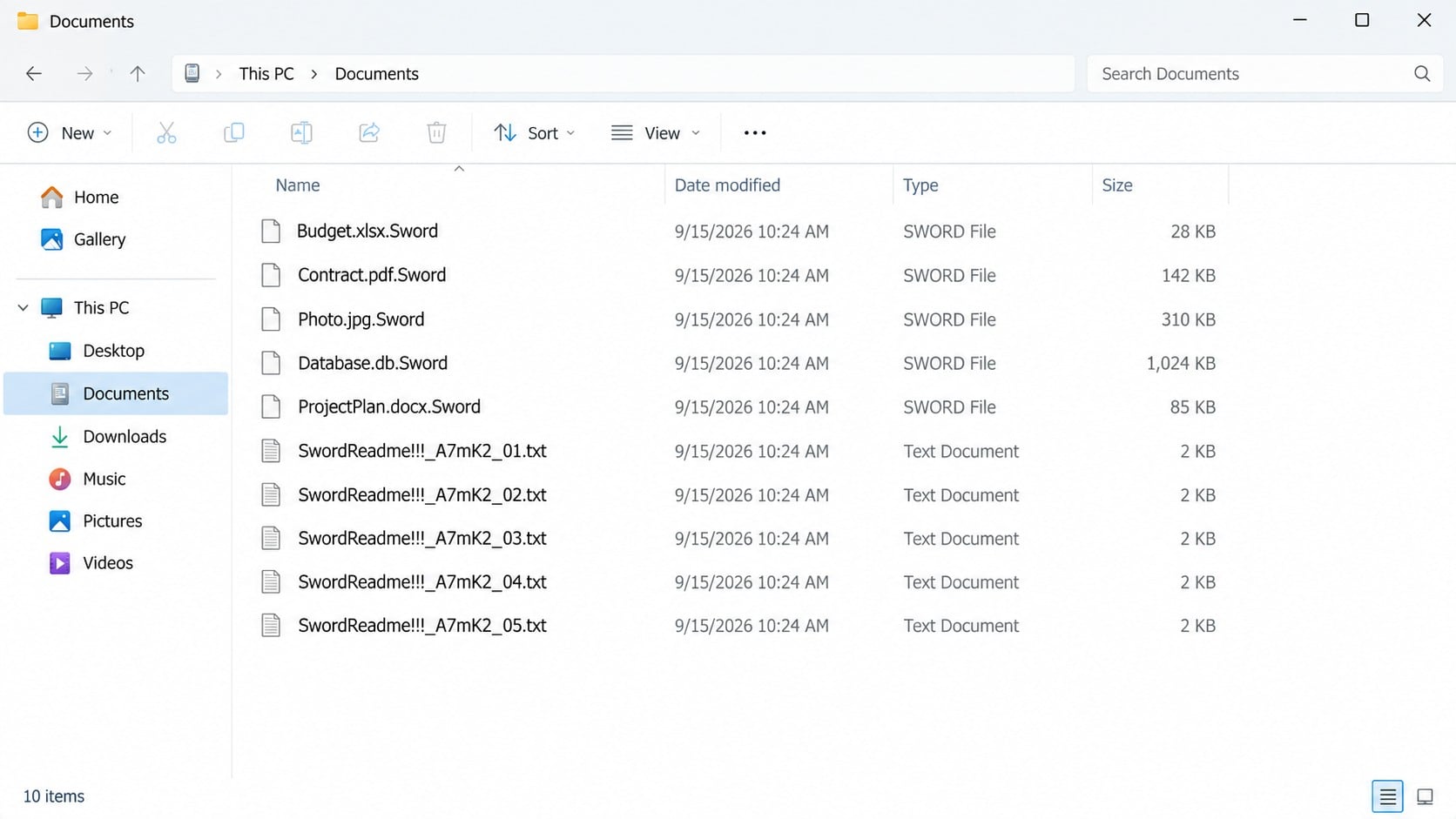
One moment, familiar documents have ordinary names. The next, they carry an unfamiliar extension while a full-screen demand repeatedly blocks access to the computer.
That combination points to a disruptive ransomware incident requiring careful containment. Understanding what changed is the safest place to begin.
Overview
What Sword ransomware changes
Sword is file-encrypting malware that appends the .Sword extension to affected data. A document can remain visible in its folder while its contents become unusable.
The malware also drops numerous ransom-note copies with names beginning “SwordReadme.” Repetition ensures that victims encounter the attacker’s instructions throughout the damaged environment.
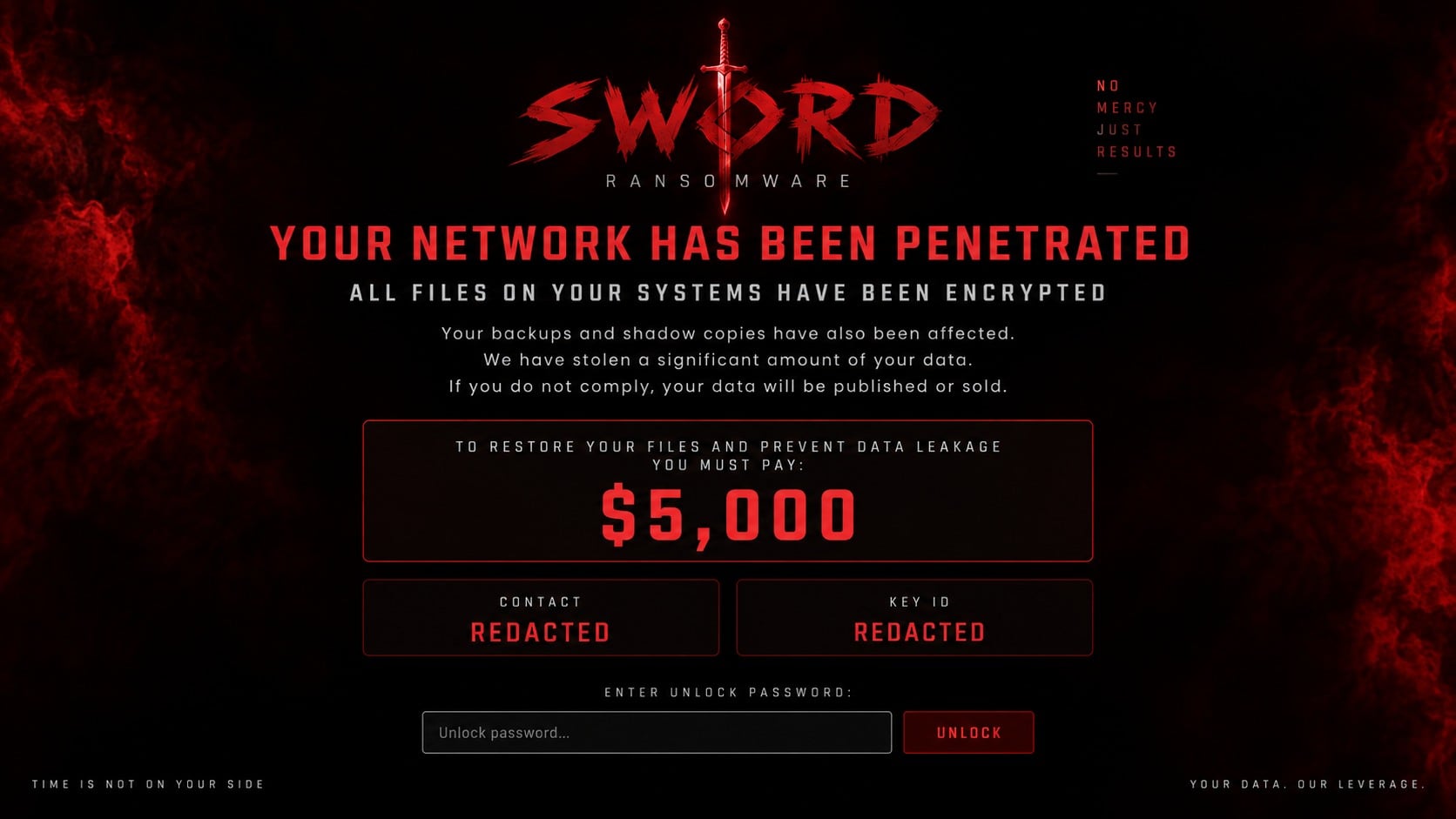
A full-screen lock message adds pressure. Reports indicate that closing it provides only brief relief because the screen can return roughly ten seconds later, including after restarts.
What the attackers claim
The ransom message says systems across the network were encrypted and that backups or shadow copies were affected. Such statements must be investigated, not automatically believed.
It also claims that production databases, financial material, customer records, internal files, and source code were stolen. This introduces a possible data-theft dimension beyond encryption.
The demand is $5,000, offered through cryptocurrency payment options. Paying does not establish that a working decryption tool exists or that copied information will be deleted.
The immediate priorities
Disconnect affected computers from wired, wireless, and shared networks.
Do not erase encrypted files, ransom notes, logs, or suspicious programs.
Identify whether encryption is still progressing before beginning restoration.
Protect clean backups from access by compromised accounts or systems.
Determine whether business, personal, regulated, or customer information may have left the network.
Separate malware removal from data recovery because one does not accomplish the other.
Fast action matters, but random changes can destroy evidence or spread damage. Containment should come before experiments with encrypted data.
How Sword Ransomware Works
Step 1: Malicious code reaches a Windows system
The exact delivery route can vary between incidents. Ransomware commonly arrives through malicious attachments, stolen remote-access credentials, cracked software, deceptive downloads, or unpatched exposed services.
That list describes common possibilities, not a confirmed Sword distribution method for every victim. Incident logs are needed to identify the original entry point.
An executable may be launched directly by a user or indirectly by another infection. Once running, it can inspect the computer, available drives, and reachable network resources.
Business networks face additional risk when one account can write to shared folders. A compromised workstation may damage files that belong to many users.
Step 2: The ransomware prepares the environment
Before encryption, malware may check language settings, security tools, running processes, drive letters, and available storage. These checks help it decide what to target.
Some ransomware attempts to stop database or backup services so normally locked files become available. Whether Sword succeeds depends on privileges and system configuration.
Claims about deleted shadow copies should be verified with administrative tools. A ransom note is written by the attacker and may exaggerate damage to discourage independent recovery.
Network defenders should preserve event logs and endpoint telemetry promptly. Normal log rotation can remove the timeline needed to understand these preparatory actions.
Step 3: Files are encrypted and renamed
Sword processes selected file types and transforms their contents using encryption. The familiar filename remains, but the added .Sword extension marks the altered version.
Renaming alone is not the problem. Simply deleting the extension will not restore the original bytes and can make later file organization more confusing.
Different folders may be affected at different times. Modified timestamps, endpoint events, and storage logs can help reconstruct the order of encryption.
Disconnecting quickly may save data on resources the malware has not reached. It cannot reverse files already encrypted, but it can limit continuing access.
Step 4: Sword floods folders with ransom notes
The malware reportedly places about twenty SwordReadme files with randomized name portions. Multiple copies make the instructions difficult to overlook or remove accidentally.
The note describes a broad compromise and presents payment as the only practical route. That framing is intended to replace technical assessment with fear and urgency.
Contact details and wallet information can change between campaigns. Publishing or following them blindly may expose victims to impersonators who have no connection to the original intrusion.
The full-screen interface reinforces that pressure by interrupting normal use. A password field may suggest that payment unlocks the machine, but it offers no independent guarantee.
Because the lock returns quickly, ordinary cleanup can become frustrating. Starting Windows in Safe Mode with Networking may provide a more stable environment for assessment.
Safe Mode is not a decryption technique. It merely limits startup components, which can make it easier to stop persistence and run trusted security tools.
Step 5: The attacker introduces a possible leak threat
Sword’s message reportedly says sensitive information was taken before encryption. This follows a double-extortion pattern, where confidentiality and availability are threatened together.
Victims should not assume the claim is false because no sample appears publicly. Nor should they assume every listed data category was actually stolen.
Network traffic, cloud audit records, archive creation, unusual command execution, and large outbound transfers can support or weaken the exfiltration claim.
Organizations handling customer or regulated information may have notification duties. Legal counsel and incident-response professionals can help evaluate those obligations based on evidence and jurisdiction.
Step 6: Payment pressure competes with sound recovery
The $5,000 demand may look smaller than downtime costs, creating pressure for a quick decision. However, payment introduces technical, legal, and ethical uncertainties.
Attackers may provide a broken decryptor, disappear after payment, demand more money, or leave persistence behind. Decryption also does not prove that stolen data was erased.
Cryptocurrency transfers are difficult to reverse. Victims can additionally face sanctions and compliance questions depending on the recipient and their location.
A structured recovery plan examines clean backups, unaffected copies, application-level exports, cloud history, and possible future decryptors before treating payment as an answer.
Removal Does Not Decrypt .Sword Files
Security software can detect malicious executables, persistence entries, scripts, and related payloads. Removing those components prevents further activity from the identified malware.
Encrypted documents remain encrypted afterward because their contents were already mathematically transformed. Antivirus products cannot recreate missing decryption keys through ordinary malware removal.
This distinction protects victims from false expectations. A clean scan is necessary before restoration, but it is not evidence that damaged data has been repaired.
Keep at least one untouched copy of encrypted files before attempting recovery. Future research may produce a decryptor, or forensic specialists may identify weaknesses not currently known.
Work only on duplicates during experiments. A faulty utility or incorrect command can overwrite metadata and reduce the value of otherwise recoverable evidence.
How to Identify a Sword Ransomware Infection
Look for the .Sword filename extension
Files that previously opened normally may now end in .Sword and fail in their associated applications. Confirm several folders rather than relying on one isolated filename.
Do not rename originals. Document paths, timestamps, sizes, and affected storage locations to create an initial incident inventory.
Find SwordReadme ransom-note copies
Search for text files beginning with SwordReadme and preserve representative samples. Their contents can help responders identify the variant and compare known cases.
Avoid contacting addresses or paying wallets found inside them while emotions are high. First validate the infection and obtain professional guidance.
Confirm the recurring lock screen
A Sword screen that reappears shortly after being closed is a strong behavioral clue. Photograph or capture it without exposing live attacker contact details publicly.
Record when it appears, which account is logged in, and whether Safe Mode suppresses it. Those details can help locate persistence.
Measure the actual incident scope
Check local drives, removable media, shared folders, servers, cloud synchronization, and backup repositories. Identify the earliest known encrypted file and newest clean copy.
Review accounts used by the affected host. A compromised administrator or service credential can leave other systems exposed even after one machine is isolated.
What to Do If Sword Encrypted Your Files
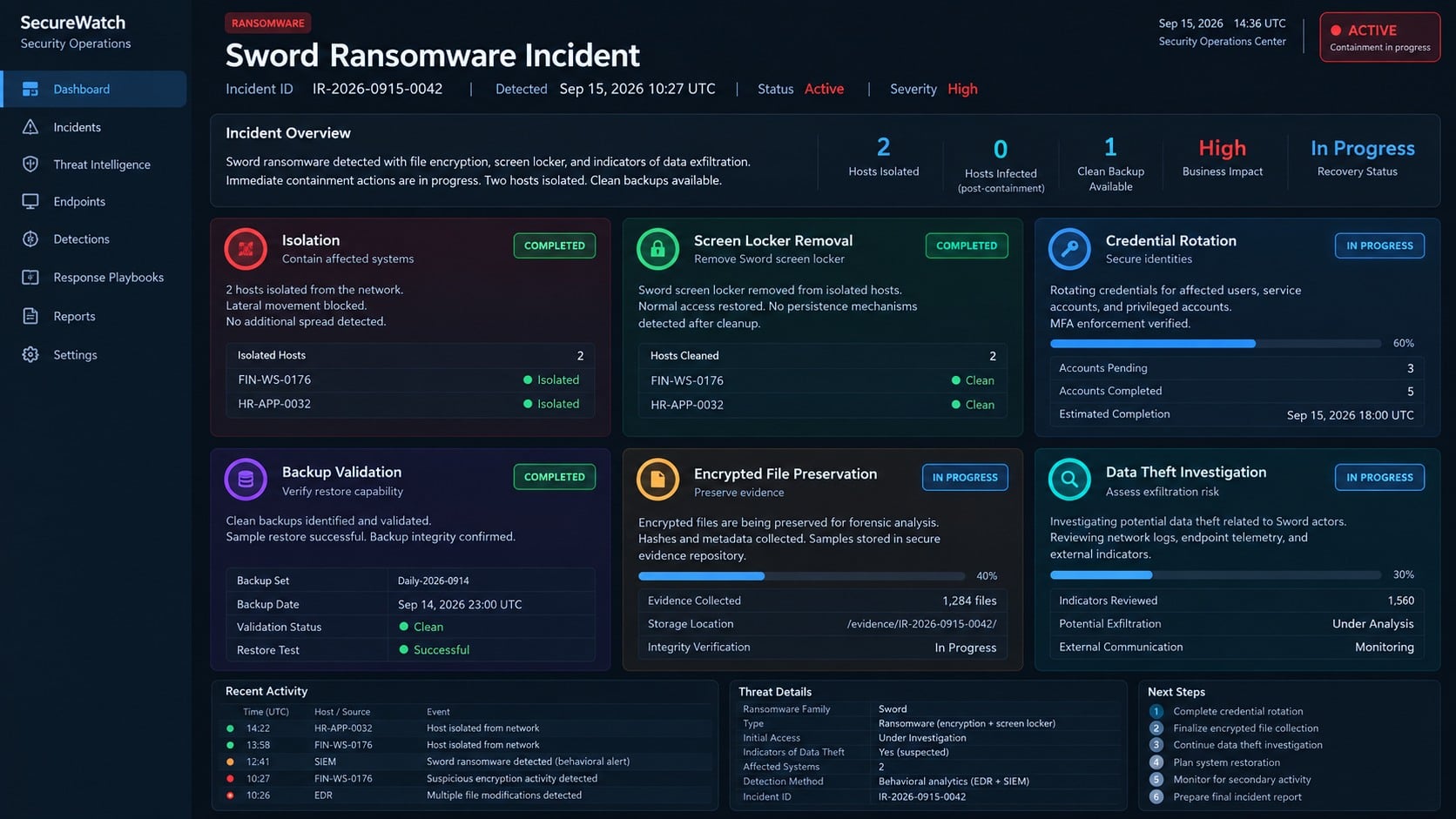
Isolate affected systems. Unplug network cables and disable Wi-Fi and Bluetooth. Disconnect shared storage through administrative controls when several machines are involved.
Protect backups immediately. Remove backup access from compromised accounts. Do not connect offline media until the infected environment is contained and examined.
Preserve evidence. Keep ransom notes, encrypted samples, logs, suspicious files, memory captures, and timeline details. Businesses should establish documented evidence handling.
Determine whether encryption continues. Watch file changes from a safe administrative system. Do not reconnect an isolated computer merely to test network access.
Use trusted security tools. Run Malwarebytes from a clean installation source, using Safe Mode with Networking if the recurring screen blocks normal scanning.
Remove persistence before restoring. Confirm that malicious processes, scheduled tasks, startup entries, services, and secondary payloads are gone from every affected host.
Reset exposed credentials. From a known-clean device, change passwords and revoke sessions for accounts used on compromised computers. Prioritize administrators and remote access.
Evaluate recovery sources. Test offline backups, snapshots, cloud versions, exports, and unaffected devices. Restore into a clean environment, not over an active infection.
Reduce malicious web exposure. AdGuard can block known harmful destinations and deceptive downloads, but patching and access controls remain essential.
Report and escalate appropriately. Contact law enforcement, insurers, legal counsel, and incident responders when sensitive data, business operations, or regulated records are involved.
Is Your Device Infected? Run a Free Malware Scan
Slow performance, constant pop-ups, or strange behavior? These are classic signs of a malware infection. The fastest way to find out is to scan your device with Malwarebytes Anti-Malware Free — one of the most trusted malware removal tools available.
The free version detects and removes the most common threats, including:
Adware — the cause of those annoying pop-ups
Browser hijackers — unwanted redirects and changed homepages
Trojans and spyware — hidden programs stealing your data
Potentially unwanted programs (PUPs) — software you never asked for
👉 Select your device below — Windows, Mac, or Android — then follow the simple steps to download Malwarebytes, scan your system, and remove any threats it finds. The whole process takes about 5 minutes.
Malwarebytes for WindowsMalwarebytes for MacMalwarebytes for Android
Run a Malware Scan with Malwarebytes for Windows
Malwarebytes is one of the most popular and trusted anti-malware tools for Windows — and it’s completely free for removing infections. It catches threats that many antivirus programs miss, including adware, browser hijackers, and trojans. Follow the steps below to scan and clean your PC in just a few minutes.
Download Malwarebytes
Click the button below to download the latest version of Malwarebytes for Windows from the official source. The free version is all you need — it will scan your computer and remove adware, browser hijackers, and other malicious software at no cost.
(The link opens in a new page where your download will start)
Install Malwarebytes
When the download finishes, open your Downloads folder and double-click the MBSetup file. If Windows shows a User Account Control pop-up, click “Yes” to allow the installation.
Follow the On-Screen Prompts to Install Malwarebytes
The setup wizard will walk you through a few quick screens:
Choose where you’re installing the program — “Personal Computer” or “Work Computer” — then click Next.
Malwarebytes will now install on your device. This usually takes under a minute.
When installation is complete, the “Welcome to Malwarebytes” screen will open automatically.
On the final screen, click Open Malwarebytes to launch the program.
Enable “Scan for Rootkits”
Before scanning, turn on rootkit detection so Malwarebytes can find even the most hidden threats. Click the Settings gear icon on the left side of the screen.
In the settings menu, find “Scan for rootkits” and click the toggle so it turns blue.
Done? Click “Dashboard” in the left pane to return to the main screen.
Start the Scan
Click the blue Scan button. Malwarebytes will automatically update its virus database and start checking your computer for malware.
Wait for the Scan to Finish
The scan checks your entire system for browser hijackers and other malicious programs, so it can take several minutes. Feel free to do something else — just check back occasionally to see the progress.
Quarantine the Detected Threats
When the scan is done, you’ll see a list of everything Malwarebytes found — malware, adware, and potentially unwanted programs. Click the “Quarantine” button to remove all of them at once.
Malwarebytes will now remove the malicious files and registry entries and move them safely into quarantine.
Restart Your Computer
Some threats can only be fully removed after a reboot. If Malwarebytes asks you to restart, click Yes. Once you’re logged back in, your PC is clean and you can continue with the next steps in this guide.
When the scan finishes, click Quarantine to remove everything Malwarebytes found. That’s it — your Windows PC is now clean of trojans, adware, and other malware, and should be back to running smoothly.
If your current antivirus allowed this malicious program on your computer, you may want to consider purchasing Malwarebytes Premium to protect against these types of threats in the future. If you are still having problems with your computer after completing these instructions, then please follow one of the steps:
Malwarebytes for Mac is a free on-demand scanner that removes the malware other security software tends to miss — adware, browser hijackers, and unwanted programs included. Cleaning an infected Mac with Malwarebytes has always been completely free, and it’s our go-to recommendation. Follow the steps below to scan and clean your Mac in just a few minutes.
Download Malwarebytes for Mac
Click the button below to download the latest version of Malwarebytes for Mac.
When the download finishes, open your Downloads folder and double-click the setup file to begin the installation.
Follow the On-Screen Prompts to Install Malwarebytes
The Malwarebytes for Mac Installer will guide you through a few quick screens. Click “Continue” and keep following the prompts until the installation completes.
When the installation is complete, Malwarebytes opens to the Welcome to Malwarebytes screen. Click “Get started“.
Select “Personal Computer” or “Work Computer”
Malwarebytes will ask what type of computer you’re installing it on. Click either Personal Computer or Work Computer, whichever applies.
Start the Scan
Click the “Scan” button. Malwarebytes will automatically update its detection database and begin checking your Mac for malware.
Wait for the Scan to Finish
Malwarebytes will scan your Mac for adware, browser hijackers, and other malicious programs. This can take a few minutes, so feel free to do something else — just check back occasionally to see the progress.
Quarantine the Detected Threats
When the scan is done, you’ll see a list of everything Malwarebytes found. Click the “Quarantine” button to remove all the threats at once.
Restart Your Mac
Malwarebytes will now remove all the malicious files it found. Some threats can only be fully removed after a reboot — if Malwarebytes asks you to restart, allow it. Once you’re logged back in, your Mac is clean.
Once the scan is done, remove every threat it detected. Your Mac is now free of adware, rogue browser extensions, and other potentially harmful software.
If your current antivirus allowed a malicious program on your computer, you might want to consider purchasing the full-featured version of Malwarebytes Anti-Malware to protect against these types of threats in the future. If you are still experiencing problems while trying to remove a malicious program from your computer, please ask for help in our Mac Malware Removal Help & Support forum.
Run a Malware Scan with Malwarebytes for Android
Malwarebytes for Android automatically detects and removes dangerous threats like malware and ransomware so you don’t have to worry about your most-used device being compromised. Aggressive detection of adware and potentially unwanted programs keeps your Android phone or tablet running smooth.
Download Malwarebytes for Android.
You can download Malwarebytes for Android by clicking the link below.
In the Google Play Store, tap “Install” to install Malwarebytes for Android on your device.
When the installation process has finished, tap “Open” to begin using Malwarebytes for Android. You can also open Malwarebytes by tapping on its icon in your phone menu or home screen.
Follow the on-screen prompts to complete the setup process
When Malwarebytes will open, you will see the Malwarebytes Setup Wizard which will guide you through a series of permissions and other setup options. This is the first of two screens that explain the difference between the Premium and Free versions. Swipe this screen to continue. Tap on “Got it” to proceed to the next step. Malwarebytes for Android will now ask for a set of permissions that are required to scan your device and protect it from malware. Tap on “Give permission” to continue. Tap on “Allow” to permit Malwarebytes to access the files on your phone.
Update database and run a scan with Malwarebytes for Android
You will now be prompted to update the Malwarebytes database and run a full system scan.
Click on “Update database” to update the Malwarebytes for Android definitions to the latest version, then click on “Run full scan” to perform a system scan.
Wait for the Malwarebytes scan to complete.
Malwarebytes will now start scanning your phone for adware and other malicious apps. This process can take a few minutes, so we suggest you do something else and periodically check on the status of the scan to see when it is finished.
Click on “Remove Selected”.
When the scan has been completed, you will be presented with a screen showing the malware infections that Malwarebytes for Android has detected. To remove the malicious apps that Malwarebytes has found, tap on the “Remove Selected” button.
Restart your phone.
Malwarebytes for Android will now remove all the malicious apps that it has found. To complete the malware removal process, Malwarebytes may ask you to restart your device.
After the scan, tap Remove Selected to delete all detected threats. Your Android phone is now clean — no more malicious apps, adware, or browser redirects.
If your current antivirus allowed a malicious app on your phone, you may want to consider purchasing the full-featured version of Malwarebytes to protect against these types of threats in the future. If you are still having problems with your phone after completing these instructions, then please follow one of the steps:
Restore your phone to factory settings by going to Settings > General management > Reset > Factory data reset.
Now that your device is clean, keep it that way. Most infections start with a malicious ad or a fake download button — so blocking them at the source is your best defense.
We recommend AdGuard, which blocks malicious ads, phishing pages, and dangerous redirects before they can reach you.
Do not delete the encrypted dataset after restoring a few essential files. Keep a protected archive because a reliable decryptor may become available later.
Businesses should rebuild high-risk systems from known-good media rather than trusting a cleaned installation. Hidden access tools can survive incomplete remediation.
Sword Ransomware Recovery Options
Offline backups offer the strongest path when they were created before compromise and cannot be modified from production accounts. Verify integrity before beginning a large restoration.
Cloud storage may retain earlier versions or deleted items. Pause synchronization first, because encrypted replacements can propagate and complicate selection of clean copies.
Email attachments, collaboration platforms, external recipients, and application exports sometimes contain usable copies. These fragments may restore critical records even without complete backup coverage.
Shadow copies are worth checking, but do not depend on them. Ransomware often attempts to delete them, and attacker claims about success can be either accurate or exaggerated.
No publicly confirmed free Sword decryptor should be assumed available. Downloading random tools carrying that label can introduce another infection or destroy files.
Reputable decryptors normally identify supported variants clearly and never demand remote access from an unknown operator. Test any recovery method on copies.
Preventing Another Ransomware Incident
Maintain backups that cannot be rewritten by everyday user accounts. Include offline or immutable copies and practice restoring them before an emergency.
Patch internet-facing services promptly and remove those no longer needed. Remote desktop access should sit behind strong authentication, limited networks, and monitored gateways.
Use separate administrative accounts for privileged tasks. Daily email and browsing should not occur under credentials that can change servers, backups, or security controls.
Restrict script interpreters and application execution where practical. Allowlisting can stop unfamiliar programs even when a malicious file reaches an employee.
Monitor unusual archive creation, backup deletion, security-tool interference, and rapid file modifications. Early detection can turn a network-wide disaster into a contained workstation event.
Train staff to report suspicious attachments and login prompts without embarrassment. Fast reporting matters more than assigning blame after a mistake.
Segment servers and workstations so one compromised account cannot write everywhere. Critical storage should accept connections only from systems that genuinely need them.
Protect backup consoles with different credentials from the production domain. This separation prevents a captured administrator password from immediately reaching every recovery copy.
Endpoint logs should be retained centrally, beyond the reach of an infected workstation. Local evidence may disappear during encryption, cleanup, or an attacker’s deliberate tampering.
Test alert escalation outside business hours. Ransomware does not wait for office schedules, and an ignored overnight warning can become a morning-wide outage.
Document who can isolate switches, cloud accounts, and storage systems. Responders lose valuable minutes when nobody knows which person controls a critical connection.
Recovery drills should include corrupted backups and unavailable staff. Realistic complications reveal fragile assumptions before criminals can exploit them during a genuine emergency.
Frequently Asked Questions
Can I recover .Sword files by renaming them?
No. Removing the extension changes only the filename. It does not reverse the encryption applied to the file’s contents.
Is there a free Sword ransomware decryptor?
No confirmed universal free decryptor is currently established for this threat. Preserve samples and check reputable security resources for future developments.
Should I pay the $5,000 ransom?
Payment carries no recovery guarantee and may create legal complications. Explore clean backups and professional incident response before making any decision.
Why does the lock screen return after closing?
Persistence can relaunch the ransomware interface. Safe Mode may make removal easier, although responders must still locate and eliminate the underlying startup mechanism.
Does a Malwarebytes scan restore encrypted files?
No. A scan helps remove active malware and related components. File restoration requires backups, a compatible decryptor, or other clean copies.
How can I know whether data was stolen?
Examine network, endpoint, cloud, and server records for collection or outbound transfers. A ransom-note claim alone cannot establish the scope of exfiltration.
The Bottom Line
Sword ransomware combines .Sword file encryption, repeated ransom notes, a persistent lock screen, and alleged data theft to pressure victims into a $5,000 payment.
Isolate systems, preserve evidence, remove malware, and restore only from verified clean sources. Keep encrypted copies safely stored in case better recovery options emerge.
10 Rules to Avoid Online Scams
Here are 10 practical safety rules to help you avoid malware, online shopping scams, crypto scams, and other online fraud. Each tip includes a quick “if you already got hit” action.
Stop and verify before you click, log in, download, or pay.
Most scams win by creating urgency. Verify using a trusted method: type the website address yourself, use the official app, or call a known number (not the one in the message).
If you already clicked: close the page, do not enter passwords, and run a malware scan.
Keep your operating system, browser, and apps updated.
Updates patch security holes used by malware and malicious ads. Turn on automatic updates where possible.
If you saw a scary “update now” pop-up: close it and update only through your device settings or the official app store.
Use layered protection: antivirus plus an ad blocker.
Antivirus helps block malware. An ad blocker reduces scam redirects, phishing pages, and malvertising.
If your browser is acting weird: remove unknown extensions, reset the browser, then run a full scan.
Install apps, software, and extensions only from official sources.
Avoid cracked software, “keygens,” and random downloads. During installs, choose Custom/Advanced and decline bundled offers you do not recognize.
If you already installed something suspicious: uninstall it, restart, and scan again.
Treat links and attachments as untrusted by default.
Phishing often impersonates delivery services, banks, and popular brands. If it is unexpected, do not open attachments or log in through the message.
If you entered credentials: change the password immediately and enable 2FA.
Shop safely: research the store, then pay with protection.
Be cautious with brand-new stores, “closing sale” stories, and prices that make no sense. Prefer credit cards or PayPal for dispute options. Avoid wire transfers, gift cards, and crypto payments.
If you already paid: contact your card issuer or PayPal quickly to dispute the transaction.
Crypto rule: never pay a “fee” to withdraw or recover money.
Common patterns include fake profits, then “tax,” “gas,” or “verification” fees. Another is a “recovery agent” who demands upfront crypto.
If you already sent crypto: stop paying, save evidence (wallet addresses, TXIDs, chats), and report the scam to the platform used.
Secure your accounts with unique passwords and 2FA (start with email).
Use a password manager and unique passwords for every account. Enable 2FA using an authenticator app when possible.
If you suspect an account takeover: change passwords, sign out of all devices, and review recent logins and recovery settings.
Back up important files and keep one backup offline.
Backups protect you from ransomware and device failure. Keep at least one backup on an external drive that is not always connected.
If you suspect infection: do not connect backup drives until the system is clean.
If you think you are a victim: stop losses, document evidence, and escalate fast.
Move quickly. Speed matters for disputes, account recovery, and limiting damage.
Stop payments and contact: do not send more money or respond to the scammer.
Call your bank or card issuer: block transactions, replace the card if needed, and start a dispute or chargeback.
Secure your email first: change the email password, enable 2FA, and remove unfamiliar recovery options.
Secure other accounts: change passwords, enable 2FA, and log out of all sessions.
Scan your device: remove suspicious apps or extensions, then run a full malware scan.
Save evidence: screenshots, emails, order pages, tracking pages, wallet addresses, TXIDs, and chat logs.
Report it: to the payment provider, marketplace, social platform, exchange, or wallet service involved.
These rules are intentionally simple. Most online losses happen when decisions are rushed. Slow down, verify independently, and use payment methods and account controls that give you recourse.
Hello! I'm Lapain Epuran, your go-to source for detailed and honest product reviews. From tech gadgets to miracle cures, I provide insights to help you make informed choices. Join me as we discover what's truly worth your time and money.