Face Melter Ransomware: Complete Removal, Recovery, and Decryption Guide
Written by: Lapain Epuran
Published on:
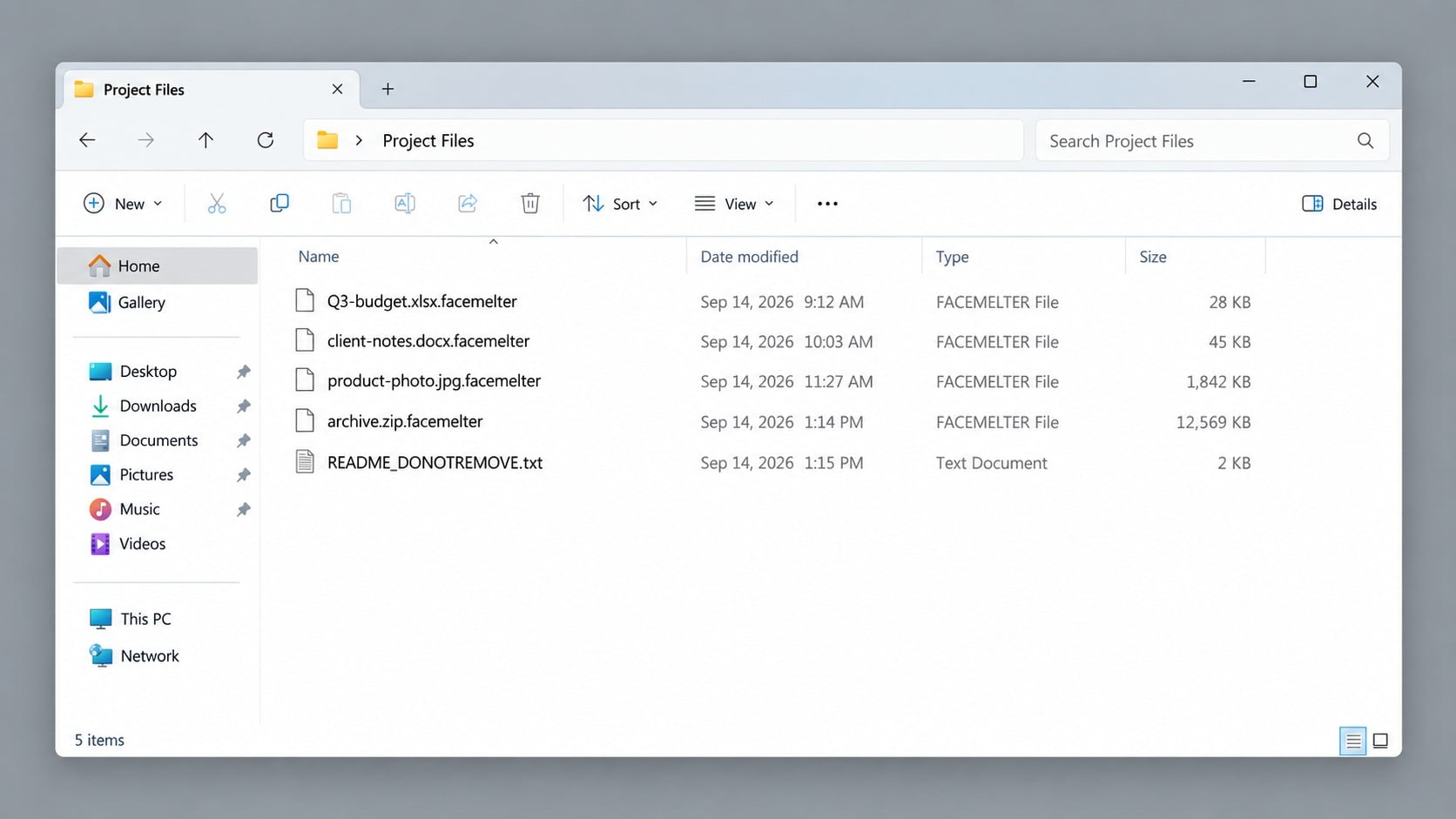
The first sign may be a strange suffix attached to photographs, archives, and spreadsheets. Then a changed wallpaper and blunt question-and-answer note make the situation unmistakable.
Face Melter ransomware is meant to turn confusion into pressure. A methodical response can protect what remains and prevent hurried choices from causing further damage.
Overview
How Face Melter reveals itself
Face Melter encrypts accessible files and adds .facemelter to their names. Programs can no longer interpret the changed contents, even though the files remain visible.
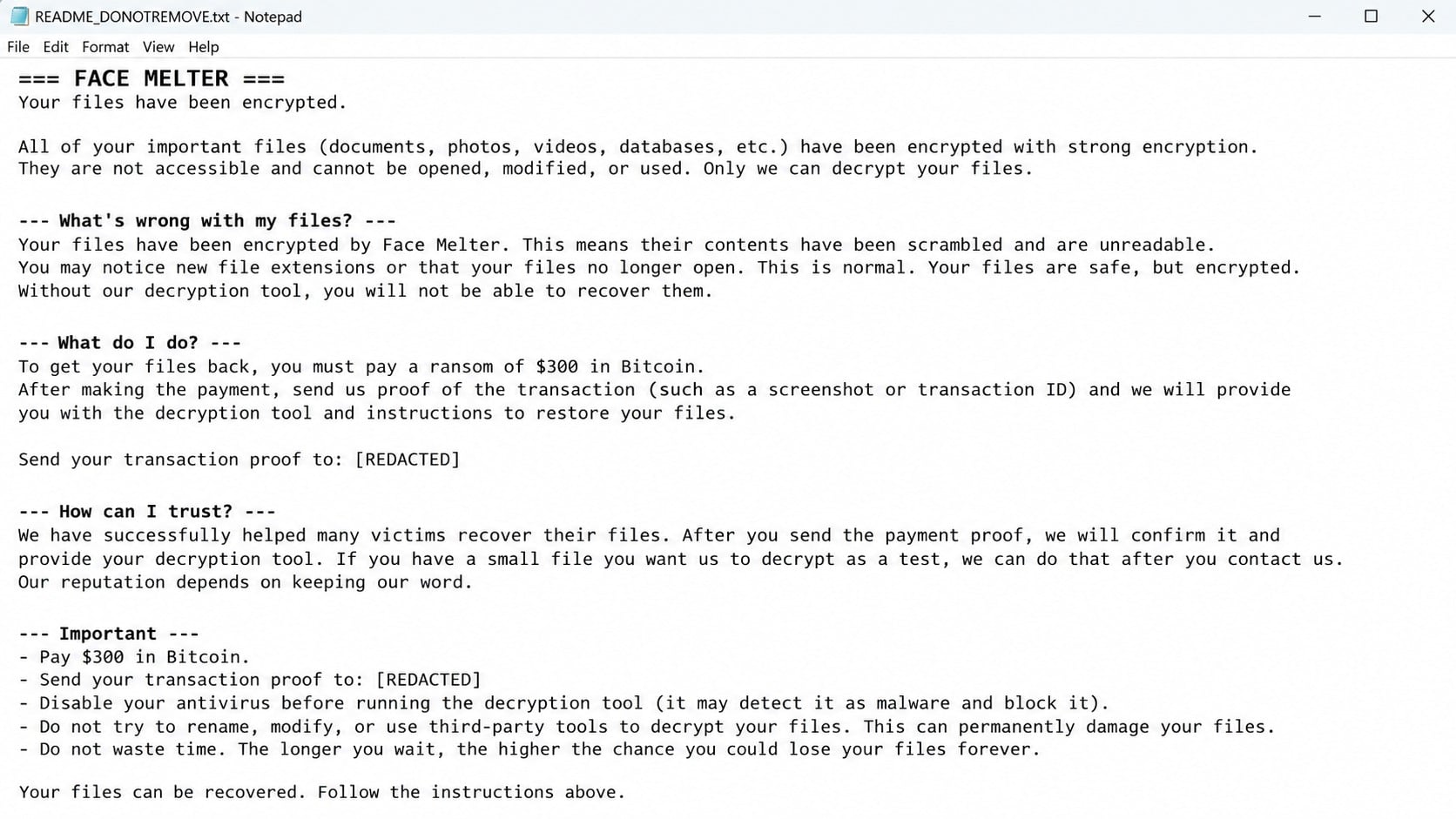
The infection creates a document named README_DONOTREMOVE.txt. It also changes the desktop background, placing the ransom demand where a victim cannot easily overlook it.
These clues form a recognizable pattern: inaccessible data, a distinctive filename extension, a written demand, and a visual change to the Windows desktop.
What the ransom note demands
The note uses a question-and-answer format to explain that files were encrypted. It requests a $300 Bitcoin payment and asks for proof of the transaction.
The attackers direct victims toward a messaging contact. They may also say antivirus protection must be disabled, an instruction that increases danger and should never be followed.
Nothing in the note guarantees restoration. The person demanding payment controls the promised decryptor, communication channel, and interpretation of whether payment was sufficient.
What victims should understand immediately
Renaming .facemelter files cannot reverse their cryptographic transformation.
Deleting the ransomware does not automatically repair data already changed.
Disabling security software creates an opportunity for additional malware.
A $300 transfer can be lost without producing a usable decryption key.
Unplugged and immutable backups should remain disconnected during containment.
Original encrypted files may become useful if a future decryptor is released.
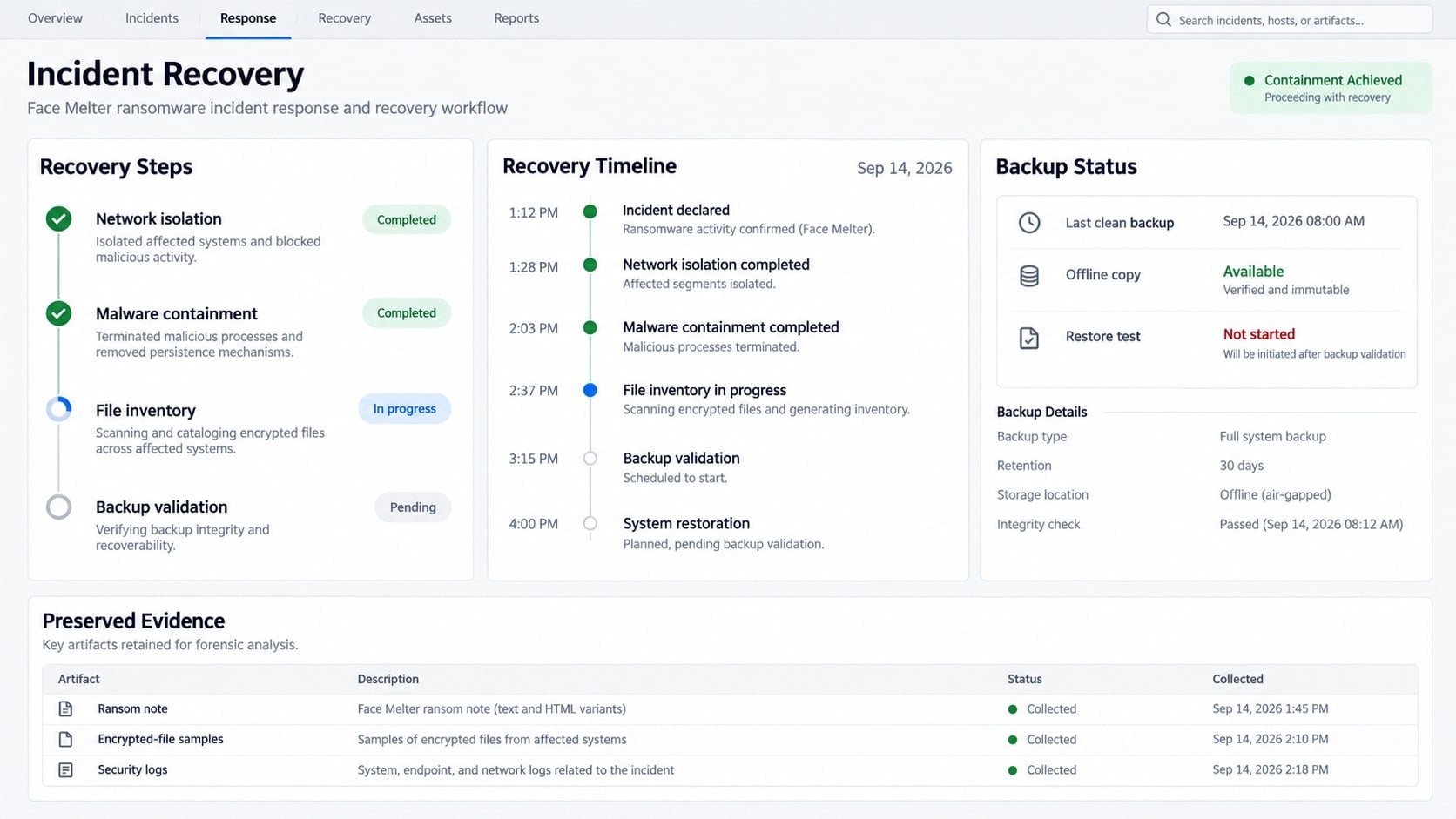
The right sequence is containment, preservation, cleanup, and validated recovery. Skipping directly to restoration can expose clean backups to the same compromised environment.
How Face Melter Ransomware Works
Step 1: The ransomware is executed
Face Melter was identified through a submitted malware sample, but one sample does not establish every delivery route used in active attacks.
File-encrypting malware commonly spreads through harmful email attachments, pirated installers, fake updates, compromised websites, exposed remote services, and downloads delivered by another infection.
Those routes are risk scenarios, not proof of how a particular Face Melter victim was infected. The answer requires evidence from the affected computer and network.
Once launched, the program runs under the permissions available to its process. Greater privileges and broader network access can expand the potential damage.
Step 2: It searches for data it can modify
The ransomware can enumerate local folders, attached storage, and locations available through the logged-in account. It selects files that fit its targeting rules.
Documents, images, archives, databases, and project files are typical high-value targets. System components may be skipped so Windows still starts and displays the demand.
Mapped drives and synchronized folders deserve immediate attention. If the current account can change their contents, malicious software may be able to change them too.
Cloud synchronization can copy encrypted versions outward. Pausing the client protects version history from additional churn while responders assess which copies remain clean.
Step 3: File contents are encrypted
Face Melter transforms the underlying bytes and marks affected names with .facemelter. For example, a normal archive can become archive.zip.facemelter.
Applications then report errors because the internal structure no longer matches the expected document, image, or archive format.
The new suffix is a label, not a lock by itself. Removing it gives the file its old-looking name while leaving the encrypted content untouched.
Encryption may occur rapidly, but large drives and network folders can take time. Isolation can interrupt access to destinations the malware has not yet processed.
Step 4: The malware leaves instructions and changes the wallpaper
README_DONOTREMOVE.txt explains the attacker’s terms in a simple Q&A. The filename discourages deletion while making the document easy to find during panic.
The altered wallpaper repeats the incident visually. Even if a victim closes the note, the desktop continues directing attention toward the ransom.
Payment is set at $300 in Bitcoin. A lower demand may be chosen because an individual can consider paying it without a prolonged approval process.
The note’s instructions to disable antivirus are particularly revealing. Legitimate data-recovery tools do not need victims to remove defenses before receiving support.
Turning protection off can allow Face Melter, a credential stealer, or an unrelated payload to continue operating without interruption.
The contact handle and cryptocurrency wallet may change between samples. Victims should preserve the original note privately instead of circulating usable attacker details.
Step 5: The payment channel shifts all risk to the victim
Bitcoin transfers do not include ordinary card-dispute protections. Once confirmed, a victim cannot ask the network to reverse payment because the promised service failed.
The attacker can stop responding, request another amount, or provide software that corrupts files. Even a working tool may be slow and unstable.
Decryption keys can also be wrong for a particular computer. Ransomware development mistakes sometimes leave each victim with incompatible or incomplete key material.
Payment tells criminals that the campaign generated revenue. It may also identify the victim as somebody willing to negotiate, increasing later targeting.
Step 6: Cleanup and recovery become separate jobs
Removing the active program stops new encryption from that copy. It does not undo the mathematical changes applied before detection.
Recovery instead relies on clean backups, earlier cloud versions, unaffected devices, exported records, or a decryptor built for the exact ransomware variant.
Both tasks must succeed. Restoring into an infected installation risks another round, while cleaning without recovery leaves important information unavailable.
Organizations may prefer a full rebuild for systems handling sensitive work. Reinstalling from trusted media provides stronger assurance than attempting to identify every hidden modification.
Why the $300 Demand Is Not a Safe Shortcut
The amount may seem modest beside irreplaceable photographs or business documents. That emotional comparison is part of the pressure strategy.
There is no enforceable contract with the operator. Their identity is hidden, their software is unverified, and their communication account can vanish without notice.
A small test decryption does not prove the main recovery process will work. Attackers can successfully restore one selected file while withholding the complete key.
Running an unknown decryptor supplied by criminals introduces another executable into an already compromised environment. It may steal credentials, install persistence, or demand additional payment.
Before considering any communication, create protected copies, understand legal implications, and consult qualified responders. A rushed transfer should never replace evidence-based recovery planning.
How to Identify a Face Melter Infection
Confirm the .facemelter extension
Inspect several affected folders for names ending in .facemelter. Record original paths, file sizes, timestamps, and storage locations before making changes.
Open only copies during testing. Repeated save attempts from ordinary applications can overwrite useful data or create confusing secondary files.
Preserve README_DONOTREMOVE.txt
Keep the ransom note because its wording can help identify the family and distinguish similar infections. Store a copy with access restricted to responders.
Do not publish its live contact or wallet information. Impersonators can use public details to approach victims with false recovery offers.
Document the desktop changes
Capture the altered wallpaper and any visible messages. Include the time, affected user account, and whether the change returns after reboot.
The image is supporting evidence rather than proof by itself. Wallpaper files can be copied by unrelated threats, prank software, or later variants.
Check every reachable storage location
Inventory internal disks, USB devices, network shares, synchronized folders, servers, and backup repositories. Label each as encrypted, clean, unavailable, or still under review.
Identify the earliest damaged timestamp. That boundary helps teams select backup versions created before the malicious activity began.
What to Do If Face Melter Encrypted Your Files
Disconnect the computer. Remove Ethernet and disable wireless connections. Leave the machine powered on if professional memory capture is immediately available.
Separate vulnerable storage. Detach removable drives and revoke compromised access to network shares. Keep offline backups physically disconnected.
Save incident evidence. Preserve README_DONOTREMOVE.txt, encrypted samples, screenshots, event records, security alerts, and the suspected installer.
Do not disable protection. Ignore the ransom note’s antivirus instruction. Weakening defenses can permit additional payloads or renewed encryption.
Scan with Malwarebytes. Use a clean installer and updated definitions. Quarantine the ransomware and associated threats before any restoration begins.
Change exposed credentials elsewhere. From an unaffected device, reset accounts used on the infected machine and invalidate remote sessions.
Build a clean recovery environment. Reinstall or reimage compromised systems when practical. Apply updates before reconnecting data or production services.
Restore verified copies. Test offline backups, version history, email attachments, and unaffected endpoints. Open restored files in an isolated location first.
Add web filtering. AdGuard can reduce encounters with harmful advertising and deceptive download pages, but it cannot replace patched software or good backups.
Escalate when necessary. Businesses should involve incident responders, legal advisers, insurers, and authorities if operations or protected data may be affected.
Is Your Device Infected? Run a Free Malware Scan
Slow performance, constant pop-ups, or strange behavior? These are classic signs of a malware infection. The fastest way to find out is to scan your device with Malwarebytes Anti-Malware Free — one of the most trusted malware removal tools available.
The free version detects and removes the most common threats, including:
Adware — the cause of those annoying pop-ups
Browser hijackers — unwanted redirects and changed homepages
Trojans and spyware — hidden programs stealing your data
Potentially unwanted programs (PUPs) — software you never asked for
👉 Select your device below — Windows, Mac, or Android — then follow the simple steps to download Malwarebytes, scan your system, and remove any threats it finds. The whole process takes about 5 minutes.
Malwarebytes for WindowsMalwarebytes for MacMalwarebytes for Android
Run a Malware Scan with Malwarebytes for Windows
Malwarebytes is one of the most popular and trusted anti-malware tools for Windows — and it’s completely free for removing infections. It catches threats that many antivirus programs miss, including adware, browser hijackers, and trojans. Follow the steps below to scan and clean your PC in just a few minutes.
Download Malwarebytes
Click the button below to download the latest version of Malwarebytes for Windows from the official source. The free version is all you need — it will scan your computer and remove adware, browser hijackers, and other malicious software at no cost.
(The link opens in a new page where your download will start)
Install Malwarebytes
When the download finishes, open your Downloads folder and double-click the MBSetup file. If Windows shows a User Account Control pop-up, click “Yes” to allow the installation.
Follow the On-Screen Prompts to Install Malwarebytes
The setup wizard will walk you through a few quick screens:
Choose where you’re installing the program — “Personal Computer” or “Work Computer” — then click Next.
Malwarebytes will now install on your device. This usually takes under a minute.
When installation is complete, the “Welcome to Malwarebytes” screen will open automatically.
On the final screen, click Open Malwarebytes to launch the program.
Enable “Scan for Rootkits”
Before scanning, turn on rootkit detection so Malwarebytes can find even the most hidden threats. Click the Settings gear icon on the left side of the screen.
In the settings menu, find “Scan for rootkits” and click the toggle so it turns blue.
Done? Click “Dashboard” in the left pane to return to the main screen.
Start the Scan
Click the blue Scan button. Malwarebytes will automatically update its virus database and start checking your computer for malware.
Wait for the Scan to Finish
The scan checks your entire system for browser hijackers and other malicious programs, so it can take several minutes. Feel free to do something else — just check back occasionally to see the progress.
Quarantine the Detected Threats
When the scan is done, you’ll see a list of everything Malwarebytes found — malware, adware, and potentially unwanted programs. Click the “Quarantine” button to remove all of them at once.
Malwarebytes will now remove the malicious files and registry entries and move them safely into quarantine.
Restart Your Computer
Some threats can only be fully removed after a reboot. If Malwarebytes asks you to restart, click Yes. Once you’re logged back in, your PC is clean and you can continue with the next steps in this guide.
When the scan finishes, click Quarantine to remove everything Malwarebytes found. That’s it — your Windows PC is now clean of trojans, adware, and other malware, and should be back to running smoothly.
If your current antivirus allowed this malicious program on your computer, you may want to consider purchasing Malwarebytes Premium to protect against these types of threats in the future. If you are still having problems with your computer after completing these instructions, then please follow one of the steps:
Malwarebytes for Mac is a free on-demand scanner that removes the malware other security software tends to miss — adware, browser hijackers, and unwanted programs included. Cleaning an infected Mac with Malwarebytes has always been completely free, and it’s our go-to recommendation. Follow the steps below to scan and clean your Mac in just a few minutes.
Download Malwarebytes for Mac
Click the button below to download the latest version of Malwarebytes for Mac.
When the download finishes, open your Downloads folder and double-click the setup file to begin the installation.
Follow the On-Screen Prompts to Install Malwarebytes
The Malwarebytes for Mac Installer will guide you through a few quick screens. Click “Continue” and keep following the prompts until the installation completes.
When the installation is complete, Malwarebytes opens to the Welcome to Malwarebytes screen. Click “Get started“.
Select “Personal Computer” or “Work Computer”
Malwarebytes will ask what type of computer you’re installing it on. Click either Personal Computer or Work Computer, whichever applies.
Start the Scan
Click the “Scan” button. Malwarebytes will automatically update its detection database and begin checking your Mac for malware.
Wait for the Scan to Finish
Malwarebytes will scan your Mac for adware, browser hijackers, and other malicious programs. This can take a few minutes, so feel free to do something else — just check back occasionally to see the progress.
Quarantine the Detected Threats
When the scan is done, you’ll see a list of everything Malwarebytes found. Click the “Quarantine” button to remove all the threats at once.
Restart Your Mac
Malwarebytes will now remove all the malicious files it found. Some threats can only be fully removed after a reboot — if Malwarebytes asks you to restart, allow it. Once you’re logged back in, your Mac is clean.
Once the scan is done, remove every threat it detected. Your Mac is now free of adware, rogue browser extensions, and other potentially harmful software.
If your current antivirus allowed a malicious program on your computer, you might want to consider purchasing the full-featured version of Malwarebytes Anti-Malware to protect against these types of threats in the future. If you are still experiencing problems while trying to remove a malicious program from your computer, please ask for help in our Mac Malware Removal Help & Support forum.
Run a Malware Scan with Malwarebytes for Android
Malwarebytes for Android automatically detects and removes dangerous threats like malware and ransomware so you don’t have to worry about your most-used device being compromised. Aggressive detection of adware and potentially unwanted programs keeps your Android phone or tablet running smooth.
Download Malwarebytes for Android.
You can download Malwarebytes for Android by clicking the link below.
In the Google Play Store, tap “Install” to install Malwarebytes for Android on your device.
When the installation process has finished, tap “Open” to begin using Malwarebytes for Android. You can also open Malwarebytes by tapping on its icon in your phone menu or home screen.
Follow the on-screen prompts to complete the setup process
When Malwarebytes will open, you will see the Malwarebytes Setup Wizard which will guide you through a series of permissions and other setup options. This is the first of two screens that explain the difference between the Premium and Free versions. Swipe this screen to continue. Tap on “Got it” to proceed to the next step. Malwarebytes for Android will now ask for a set of permissions that are required to scan your device and protect it from malware. Tap on “Give permission” to continue. Tap on “Allow” to permit Malwarebytes to access the files on your phone.
Update database and run a scan with Malwarebytes for Android
You will now be prompted to update the Malwarebytes database and run a full system scan.
Click on “Update database” to update the Malwarebytes for Android definitions to the latest version, then click on “Run full scan” to perform a system scan.
Wait for the Malwarebytes scan to complete.
Malwarebytes will now start scanning your phone for adware and other malicious apps. This process can take a few minutes, so we suggest you do something else and periodically check on the status of the scan to see when it is finished.
Click on “Remove Selected”.
When the scan has been completed, you will be presented with a screen showing the malware infections that Malwarebytes for Android has detected. To remove the malicious apps that Malwarebytes has found, tap on the “Remove Selected” button.
Restart your phone.
Malwarebytes for Android will now remove all the malicious apps that it has found. To complete the malware removal process, Malwarebytes may ask you to restart your device.
After the scan, tap Remove Selected to delete all detected threats. Your Android phone is now clean — no more malicious apps, adware, or browser redirects.
If your current antivirus allowed a malicious app on your phone, you may want to consider purchasing the full-featured version of Malwarebytes to protect against these types of threats in the future. If you are still having problems with your phone after completing these instructions, then please follow one of the steps:
Restore your phone to factory settings by going to Settings > General management > Reset > Factory data reset.
Now that your device is clean, keep it that way. Most infections start with a malicious ad or a fake download button — so blocking them at the source is your best defense.
We recommend AdGuard, which blocks malicious ads, phishing pages, and dangerous redirects before they can reach you.
Keep one archival set of encrypted originals in read-only storage. New research could eventually reveal a weakness or produce a compatible recovery utility.
If several computers show the extension, coordinate centrally. Unplanned individual cleanup can erase shared evidence and make the initial entry point harder to locate.
Data Recovery Paths Worth Checking
Start with backups created before the first suspicious timestamp. Confirm they are complete, readable, and isolated from credentials used on the infected system.
Cloud services may retain version histories even after synchronized files changed. Freeze or pause synchronization before selecting older copies.
Other computers can hold local caches, downloads, or unsynchronized project copies. Disconnect them from the affected network before searching.
Colleagues and customers may have attachments originally sent from the lost folders. Requesting those copies can rebuild essential records without engaging the attacker.
Application databases sometimes support native exports or transaction logs stored separately. Consult the vendor before attempting manual manipulation of encrypted database files.
Windows shadow copies can be examined, but availability varies. Never assume their absence solely because the ransom note says recovery features were removed.
At present, victims should not rely on an advertised universal Face Melter decryptor. Fake recovery downloads commonly exploit people searching urgently for a solution.
A legitimate tool will state which variants it supports and encourage testing on duplicate files. It should not require payment to an anonymous chat contact.
Hardening the System After Recovery
Rebuild from trusted installation media, then update Windows, browsers, document software, remote-access tools, and security products before returning the machine to normal use.
Use separate accounts for administration and daily work. Malware launched from a standard profile should not automatically gain authority over backups or other endpoints.
Keep multiple backup generations, including one immutable or offline copy. A backup connected with write permission can become another encryption target.
Restrict remote access to approved users and networks. Add multi-factor authentication, lockout controls, and alerting for unusual login times or locations.
Block executable content from risky temporary and download locations when business needs allow. Application controls can interrupt ransomware before it reaches valuable folders.
Review the incident honestly. Determine which control failed, why detection was delayed, and how restoration performed under pressure.
A post-incident plan should assign owners and deadlines. General promises to “be more careful” rarely survive the return to normal operations.
Review software installation rights and remove local administrator access where it is unnecessary. Fewer privileged launches can reduce the reach of a malicious download.
Centralize security logs so an encrypted endpoint cannot erase the only useful record. Retention should cover the likely delay between intrusion and discovery.
Set alerts for rapid renaming across many folders. A sudden burst involving an unfamiliar extension can reveal encryption while part of the dataset remains untouched.
Protect service accounts with narrow permissions and noninteractive sign-in rules. Shared credentials make it harder to determine which process accessed a storage location.
Keep an updated inventory of essential data owners. Recovery moves faster when responders know which files support payroll, customers, legal duties, and daily operations.
Practice decision-making without attacker communication. Teams should know how to obtain legal, insurance, forensic, and executive guidance before a payment deadline creates panic.
Frequently Asked Questions
Can I open files after deleting .facemelter?
No. The suffix identifies affected files, but encryption changed their contents. Renaming them cannot reconstruct the original information.
Is Face Melter the same as a screen locker?
It changes the wallpaper, but its primary impact includes file encryption. Restoring the desktop appearance does not recover damaged documents.
Will paying $300 guarantee decryption?
No. The attacker can supply a broken tool, request more money, or disappear. Cryptocurrency payment offers no dependable recovery protection.
Why does the note ask me to disable antivirus?
Security software may detect the ransomware or attacker-supplied programs. Disabling it removes protection and can deepen the compromise.
Can Malwarebytes decrypt Face Melter files?
Malwarebytes can help remove active malicious components. Decryption requires the correct key, a compatible decryptor, or an unaffected copy.
Should I keep the encrypted files?
Yes. Store protected copies with the ransom note and relevant metadata. Future analysis or a new decryptor may provide options unavailable today.
The Bottom Line
Face Melter ransomware encrypts data, adds .facemelter, changes the wallpaper, and demands $300 in Bitcoin while encouraging victims to weaken their own defenses.
Do not disable protection or rush into payment. Contain the machine, preserve evidence, remove the malware, and recover only from verified clean sources.
10 Rules to Avoid Online Scams
Here are 10 practical safety rules to help you avoid malware, online shopping scams, crypto scams, and other online fraud. Each tip includes a quick “if you already got hit” action.
Stop and verify before you click, log in, download, or pay.
Most scams win by creating urgency. Verify using a trusted method: type the website address yourself, use the official app, or call a known number (not the one in the message).
If you already clicked: close the page, do not enter passwords, and run a malware scan.
Keep your operating system, browser, and apps updated.
Updates patch security holes used by malware and malicious ads. Turn on automatic updates where possible.
If you saw a scary “update now” pop-up: close it and update only through your device settings or the official app store.
Use layered protection: antivirus plus an ad blocker.
Antivirus helps block malware. An ad blocker reduces scam redirects, phishing pages, and malvertising.
If your browser is acting weird: remove unknown extensions, reset the browser, then run a full scan.
Install apps, software, and extensions only from official sources.
Avoid cracked software, “keygens,” and random downloads. During installs, choose Custom/Advanced and decline bundled offers you do not recognize.
If you already installed something suspicious: uninstall it, restart, and scan again.
Treat links and attachments as untrusted by default.
Phishing often impersonates delivery services, banks, and popular brands. If it is unexpected, do not open attachments or log in through the message.
If you entered credentials: change the password immediately and enable 2FA.
Shop safely: research the store, then pay with protection.
Be cautious with brand-new stores, “closing sale” stories, and prices that make no sense. Prefer credit cards or PayPal for dispute options. Avoid wire transfers, gift cards, and crypto payments.
If you already paid: contact your card issuer or PayPal quickly to dispute the transaction.
Crypto rule: never pay a “fee” to withdraw or recover money.
Common patterns include fake profits, then “tax,” “gas,” or “verification” fees. Another is a “recovery agent” who demands upfront crypto.
If you already sent crypto: stop paying, save evidence (wallet addresses, TXIDs, chats), and report the scam to the platform used.
Secure your accounts with unique passwords and 2FA (start with email).
Use a password manager and unique passwords for every account. Enable 2FA using an authenticator app when possible.
If you suspect an account takeover: change passwords, sign out of all devices, and review recent logins and recovery settings.
Back up important files and keep one backup offline.
Backups protect you from ransomware and device failure. Keep at least one backup on an external drive that is not always connected.
If you suspect infection: do not connect backup drives until the system is clean.
If you think you are a victim: stop losses, document evidence, and escalate fast.
Move quickly. Speed matters for disputes, account recovery, and limiting damage.
Stop payments and contact: do not send more money or respond to the scammer.
Call your bank or card issuer: block transactions, replace the card if needed, and start a dispute or chargeback.
Secure your email first: change the email password, enable 2FA, and remove unfamiliar recovery options.
Secure other accounts: change passwords, enable 2FA, and log out of all sessions.
Scan your device: remove suspicious apps or extensions, then run a full malware scan.
Save evidence: screenshots, emails, order pages, tracking pages, wallet addresses, TXIDs, and chat logs.
Report it: to the payment provider, marketplace, social platform, exchange, or wallet service involved.
These rules are intentionally simple. Most online losses happen when decisions are rushed. Slow down, verify independently, and use payment methods and account controls that give you recourse.
Hello! I'm Lapain Epuran, your go-to source for detailed and honest product reviews. From tech gadgets to miracle cures, I provide insights to help you make informed choices. Join me as we discover what's truly worth your time and money.