

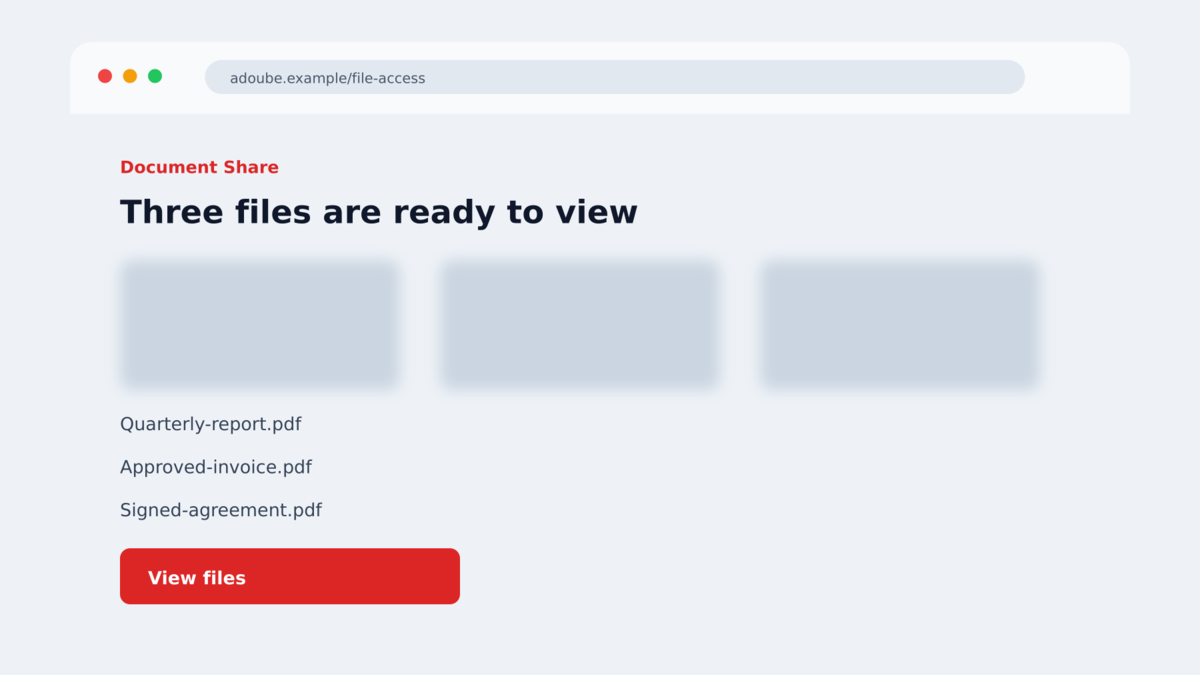
An email says a document is waiting. The link opens a page with blurred files and a familiar Adobe prompt explaining that Reader must be updated before the documents can be viewed.
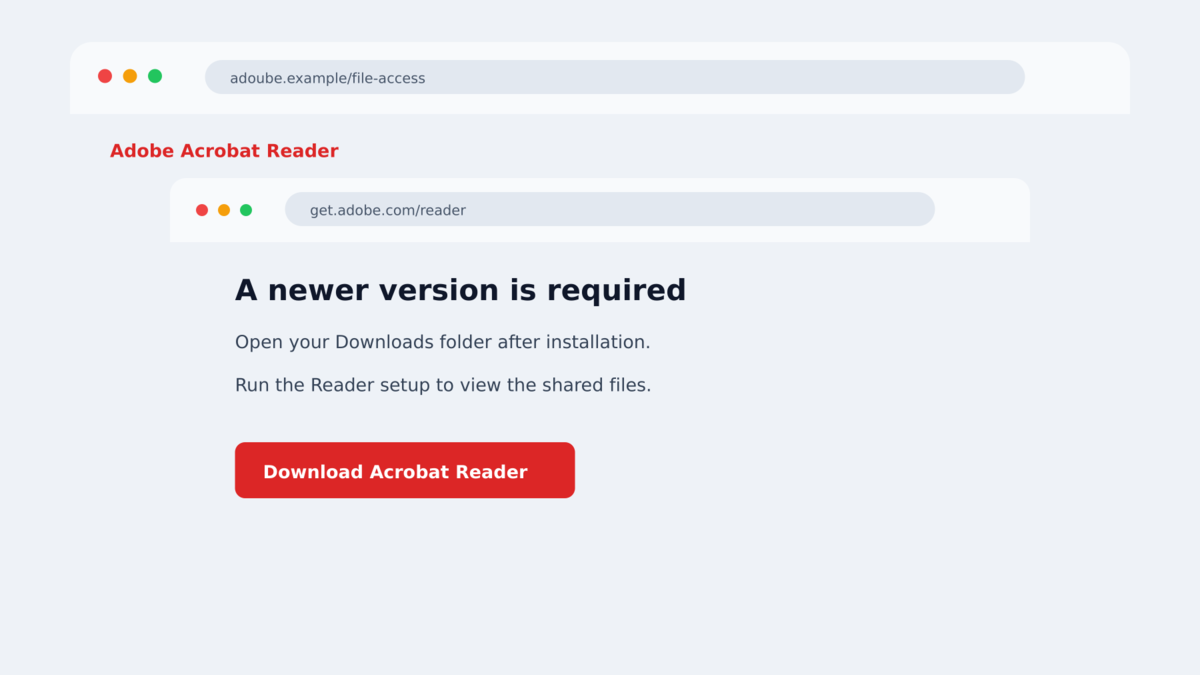
Clicking the button appears to open a new browser window on an official Adobe address. The padlock, favicon, and address bar all look correct.
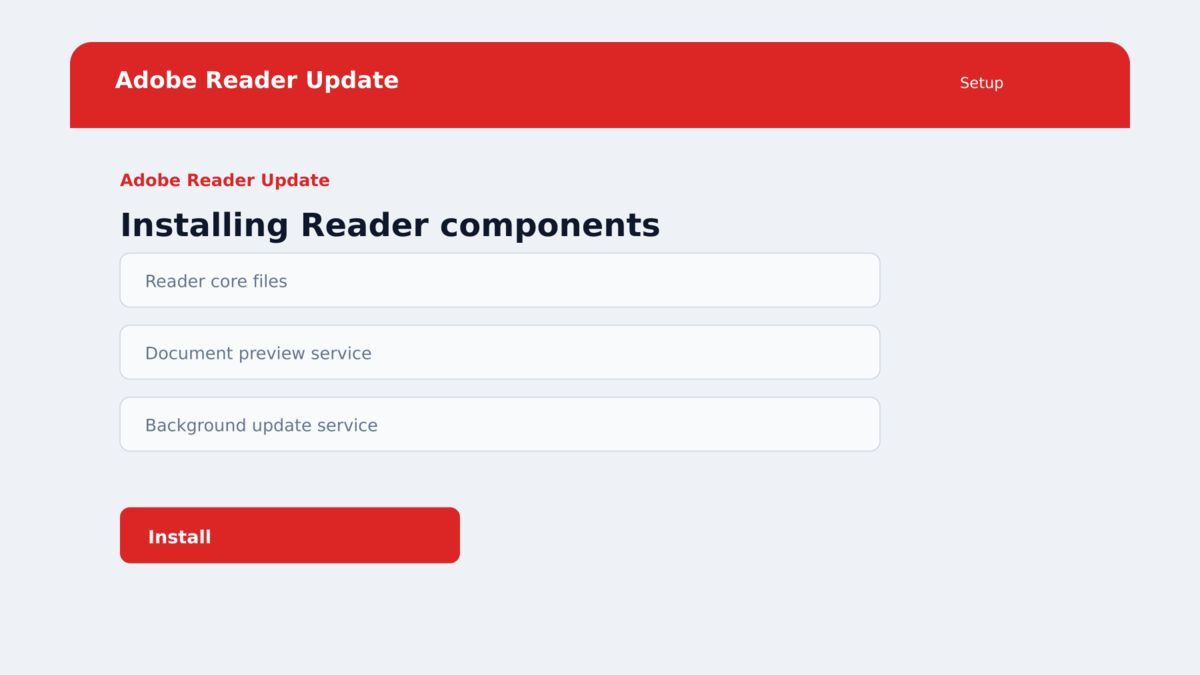
Fake Adobe Reader pages build that window inside the malicious site. The “Adobe update” installs remote-access software controlled by the attacker.
Overview
The phishing pages imitate Adobe document viewing and updates
Huntress investigated two related attacks in August 2026 that began with phishing messages and led to pages claiming Adobe PDF Reader was required to open shared files. One path used the typosquatted domain adoube.vu, while another used a compromised or attacker-controlled page under a different domain.
The sites displayed blurred document previews and instructions to select “View Files.” Some visitors first saw a fake “Safe access” browser check resembling a CAPTCHA. Each stage was designed to make the final software download feel like a normal document-viewing requirement.
A browser-in-the-browser window hides the real domain
After the visitor interacts with the page, it creates a fake browser window inside the existing webpage. This technique is known as browser-in-the-browser, or BitB. The attacker can draw an address bar, padlock, tabs, favicon, and a convincing get.adobe.com address.
The displayed Adobe URL is not the browser’s real address bar. It is ordinary page content made to look like browser chrome, so it can show any trusted domain the attacker chooses.
The downloaded installer deploys rogue ScreenConnect access
The supposed Reader installer is actually a ScreenConnect client or an MSI package that installs remote-management software. ScreenConnect is a legitimate support product, but in this campaign it was configured to give unauthorized operators persistent access to the victim’s computer.
Huntress found multiple rogue ScreenConnect instances and defense-evasion tools named HideCursor.exe and HideUL.exe. The security company interrupted both observed incidents before the attackers progressed further.
- The attacks started with phishing messages containing malicious links.
- One chain used adoube.vu, a misspelling of Adobe.
- A fake browser check and blurred document preview prepared the victim.
- The page rendered a false browser window showing a legitimate-looking Adobe URL.
- The “Reader” download was actually ScreenConnect remote-access software.
- A second incident disguised the installer as AdbRdBkUpsStUp.msi.
- Multiple remote-access clients were installed for persistence.
- Additional tools attempted to hide attacker activity on the screen.
- Adobe and ScreenConnect were abused brands and tools, not the operators of the phishing campaign.
The campaign is especially dangerous in offices where PDF documents arrive constantly. An invoice, signed agreement, voicemail attachment, or shared report provides a believable reason for the recipient to expect Adobe software.
Attackers do not need to copy every Adobe feature. They only need enough familiar elements to keep the victim moving from the message to the preview, from the preview to the update, and from the update to the installer.
The request can also arrive during a real business process. Someone waiting for a contract or invoice may assume the page relates to that expected document, even when the sender and file-sharing route have not been verified.
Pausing to contact the supposed sender through a known telephone number can break the chain before any software reaches the computer.
Why Checking the Address Bar Can Fail on This Page
People are correctly taught to inspect the address bar before entering information or downloading software. Browser-in-the-browser attacks exploit that habit by showing a second, fake address bar that exists entirely inside the webpage.
The attacker controls every pixel in that imitation window. It can display get.adobe.com, a padlock, an Adobe icon, and familiar browser buttons even though the real tab remains on a malicious domain.
A user may focus on the inner window because it looks like the active browser. On a smaller laptop screen, or when the page dims the background, the real address bar can be easy to overlook.
The false window cannot behave exactly like genuine browser chrome. It usually cannot be dragged beyond the boundaries of the original webpage, and clicking its address text may not place a real cursor in the browser’s location field.
Those tests can help, but the safest response is simpler. A document-sharing page should not require installing Reader from a prompt embedded inside the document page. Close it and obtain Adobe software only by manually visiting Adobe or using the application’s built-in updater.
The campaign also uses several layers before the download, which reduces the chance that the user will stop at the final step. After completing a “safe access” check and seeing file previews, the update prompt feels like the last ordinary obstacle.
This staged design is important. The phishing email creates curiosity, the browser check creates legitimacy, the blurred files create anticipation, and the fake Adobe window supplies authority. No single screen has to carry the entire deception.
Company, Address, and Fulfillment Checks
The adoube.vu address is a deliberate lookalike
One attack used adoube.vu, which rearranges letters in the Adobe name. A visitor scanning quickly may read what they expect rather than the actual spelling.
The page later shows get.adobe.com inside the fake browser window. That second address does not replace the real typosquatted destination and does not establish any connection to Adobe.
The inner address bar is webpage content
Browser-in-the-browser does not compromise the real address bar. It imitates it. The genuine browser still knows the actual page address, but the site draws another interface below it and encourages the user to trust the copy.
Security decisions must be based on the outer browser interface and on independently reached vendor pages, not on a window rendered by the site being evaluated.
The installer belongs to a remote-support chain
The first observed payload used a ScreenConnect ClientSetup executable. The second disguised an MSI installer as an Adobe Reader update. Both led to unauthorized ScreenConnect clients that contacted attacker-selected relay infrastructure.
Remote-management tools can allow screen viewing, command execution, file transfer, and persistent reconnection. A legitimate tool becomes dangerous when installed without informed approval and enrolled into an attacker’s account.
Huntress confirmed two related incidents
Huntress documented the phishing messages, Adobe-themed BitB pages, rogue ScreenConnect installers, persistence, and defense-evasion files. Its incident-response team stopped both attacks before later objectives could be observed.
The evidence confirms the delivery and remote-access stages. It does not establish every action the operators might have taken if uninterrupted, so claims about later theft or ransomware should remain possibilities rather than reported outcomes in these two cases.
That evidence boundary is useful for victims. The installation of unauthorized remote software is enough to require serious containment even without proof that a bank account or file was opened. Waiting for visible theft gives the operator more time.
How the Fake Adobe Reader Update Scam Works
Step 1: A phishing message presents a shared document
The victim receives an email or cloud-communications message with a link to view files. Huntress did not recover every original lure, but its telemetry tied both incidents to users following malicious links from messages.
One incident involved a message accessed through Gmail. Another used AT&T Office@Hand, based on RingCentral, as the delivery channel.
Step 2: The landing page displays a safety check or file preview
The first path shows a fake “Safe access” browser check. After interaction, it redirects to a page with blurred documents and an Adobe PDF Reader message.
The second path reaches a similar Adobe-themed template. Reusing the design across different domains lets the attackers change delivery infrastructure while keeping the same persuasion flow.
Step 3: The site opens a fake browser window
When the victim chooses to view the files, the page renders a BitB window. Its address bar displays an official-looking Adobe URL, even though the outer page is still controlled by the attacker.
The false window instructs the victim to download Reader, open the Downloads folder, and run the installer.
Step 4: The fake update installs ScreenConnect
The downloaded file is not Adobe Reader. Depending on the incident, it is a ScreenConnect executable or an MSI with an Adobe-like name.
Running it enrolls the machine into remote-access infrastructure controlled by the attackers. The user has effectively installed the operator’s doorway while believing they installed a document reader.
The installed service may use a normal product name and digital signature because the underlying remote-support software is real. Detection therefore depends on whether the tool was authorized, who controls its instance, and which relay it contacts.
Step 5: Additional clients create persistent access
Huntress found more than one rogue ScreenConnect instance in each chain. Multiple clients can give the attacker another way back if one service is noticed or removed.
The tools contacted separate relay and payload-hosting domains, allowing the operator to manage the compromised endpoint remotely.
Step 6: Defense-evasion tools hide visible activity
The attackers deployed files named HideCursor.exe and HideUL.exe. These tools were intended to conceal on-screen activity and reduce the chance that the person at the computer would notice remote actions.
Huntress stopped the observed attacks at this stage. On an unmanaged computer, persistent remote access could be used for account theft, financial fraud, data theft, or delivery of additional malware.
Warning Signs on a Fake Document Viewer
- An unexpected document message requires a software download.
- The real browser address contains a misspelling such as adoube instead of Adobe.
- A “Safe access” or CAPTCHA-style page appears before the document.
- The site displays blurred files but will not identify the sender clearly.
- A second browser window appears inside the webpage.
- The inner address bar shows Adobe while the outer address bar shows another domain.
- The update downloads directly from unfamiliar storage or relay infrastructure.
- The file is an EXE or MSI with an unusual Reader-style name.
- The document page tells you to install software before verifying the file.
- ScreenConnect appears even though you did not request remote support.
Adobe Reader should be installed from Adobe’s website reached manually, a trusted software-management system, or its built-in updater. A shared-document page should never choose the installer for you.
What to Do if You Have Fallen Victim to This Scam
- Disconnect the computer from the network. Turn off Wi-Fi or unplug Ethernet to interrupt active remote sessions. Do not continue using the machine for email, banking, or passwords.
- Tell your workplace security team immediately. Provide the message, URL, downloaded file name, approximate installation time, and any ScreenConnect window or service you noticed.
- Do not rely on closing the visible program. The campaign installed multiple remote-access clients. Administrators should inventory ScreenConnect services, startup items, scheduled tasks, relay connections, and additional payloads.
- Change credentials from a clean device. Begin with primary email and work identity accounts, then financial services, cloud storage, and any password entered or stored on the affected computer.
- Revoke sessions and review authentication changes. Remove unfamiliar devices, tokens, forwarding rules, connected apps, and MFA methods. Password changes alone may not end every active session.
- Run a full incident-response scan. Malwarebytes can help find remote-access components and related malware. AdGuard can reduce exposure to malicious pages and advertising, but a computer with confirmed rogue RMM access may need professional reimaging.
- Check for financial and data access. Review bank activity, cryptocurrency wallets, browser-saved passwords, cloud downloads, and sent email. Notify affected institutions quickly.
- Preserve evidence before rebuilding. Security teams may need installer hashes, browser history, Windows logs, ScreenConnect configuration, and network records to determine the scope.
- Report the phishing infrastructure. Notify the email or communication provider, Adobe, the hosting providers, and the appropriate cybercrime authority. Ignore anyone offering paid remote cleanup after contacting you unexpectedly.
Frequently Asked Questions
What is browser-in-the-browser phishing?
It is a technique where a malicious webpage draws a fake browser window inside itself, including an address bar and padlock, to display a trusted-looking domain.
Was get.adobe.com actually compromised?
The documented page only displayed that address inside a fake window. The attacker-controlled site did not become legitimate by drawing Adobe’s URL.
Is ScreenConnect malware?
ScreenConnect is legitimate remote-support software. In this campaign, attackers installed unauthorized clients configured for their own access, making the deployment malicious.
Can opening the phishing page alone install the remote tool?
The observed chain required the victim to download and run the supposed Reader installer. Viewing the page is not the same as executing the file, but the page should still be closed and reported.
What if Adobe Reader is already installed?
That is another reason the prompt is suspicious. Verify Reader updates through the installed application or Adobe’s site, never through a document link.
Is removing one ScreenConnect client enough?
Not necessarily. Huntress observed multiple rogue instances and additional defense-evasion files. A complete endpoint investigation or trusted reimage is safer.
The Bottom Line
The fake Adobe Reader pages combine a familiar document lure with a browser window that lies about its own address. The convincing get.adobe.com display is page artwork, not proof of location.
The downloaded “update” installs remote-access software, giving attackers a persistent route into the computer. Adobe Reader is the disguise, not the payload.
If you ran the installer, disconnect the machine and treat it as remotely compromised. Remove every unauthorized access path, recover accounts from a clean device, and reimage the system when the scope cannot be proven safe.








