McGiftClaim Scam Exposed: Is the $100 McDonald’s Gift Card Offer Real?
Written by: Lapain Epuran
Published on:
A $100 McDonald’s gift card sounds ordinary enough to be believable, especially when the page asks for only a few simple actions.
McGiftClaim used that familiar promise to turn a casual click into a much longer journey through questions, offers, and personal-data requests.
Overview
McGiftClaim was not a normal McDonald’s promotion
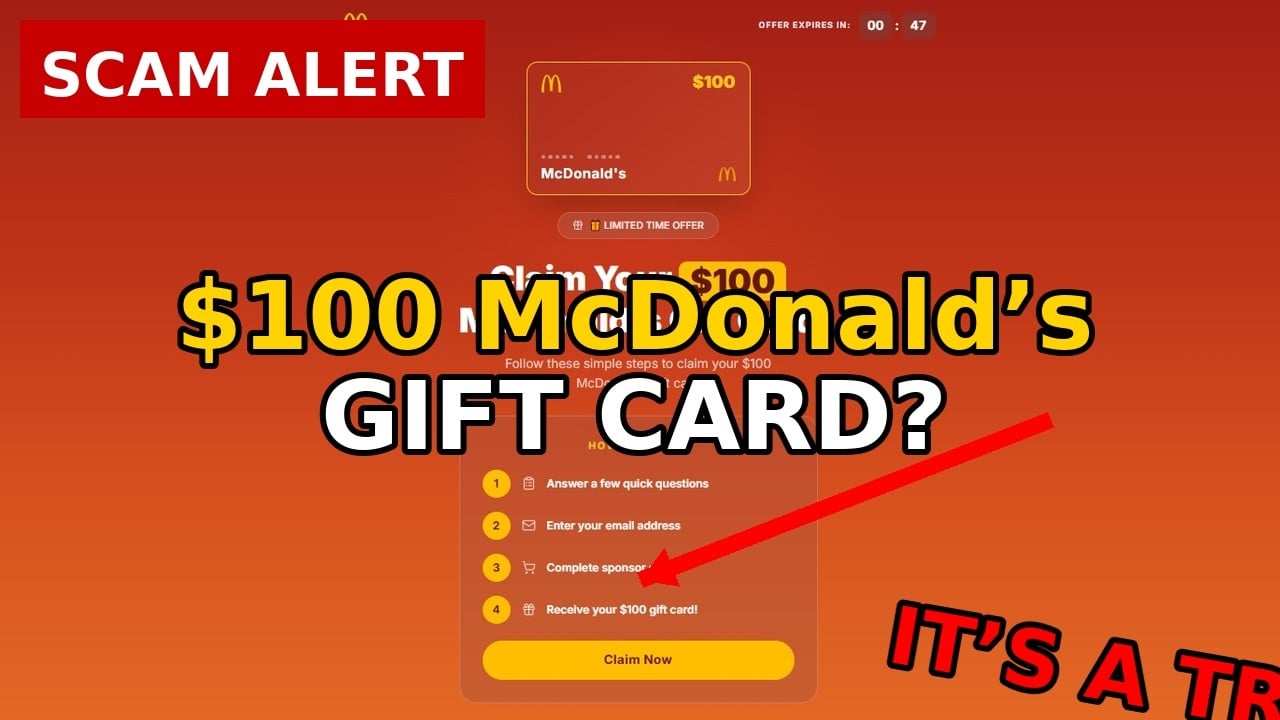
McGiftClaim.com promoted a $100 McDonald’s gift card through a third-party reward funnel rather than an official McDonald’s website or app.
The offer reportedly began with basic questions, then required users to complete sponsor deals before becoming eligible for the advertised reward.
That distinction changes everything. The page was not simply distributing gift cards after a short customer survey.
The reward was bait for a monetized offer chain
Each app installation, trial, quote request, subscription, or lead form could generate revenue for companies operating the funnel.
The visitor carried the cost through time, personal information, marketing consent, trial charges, and possible recurring billing.
The gift card remained conditional, while the operator could earn money before the visitor completed every requirement.
The original site has already lost its public storefront
McGiftClaim.com was registered on February 14, 2026, according to public domain records captured during our review.
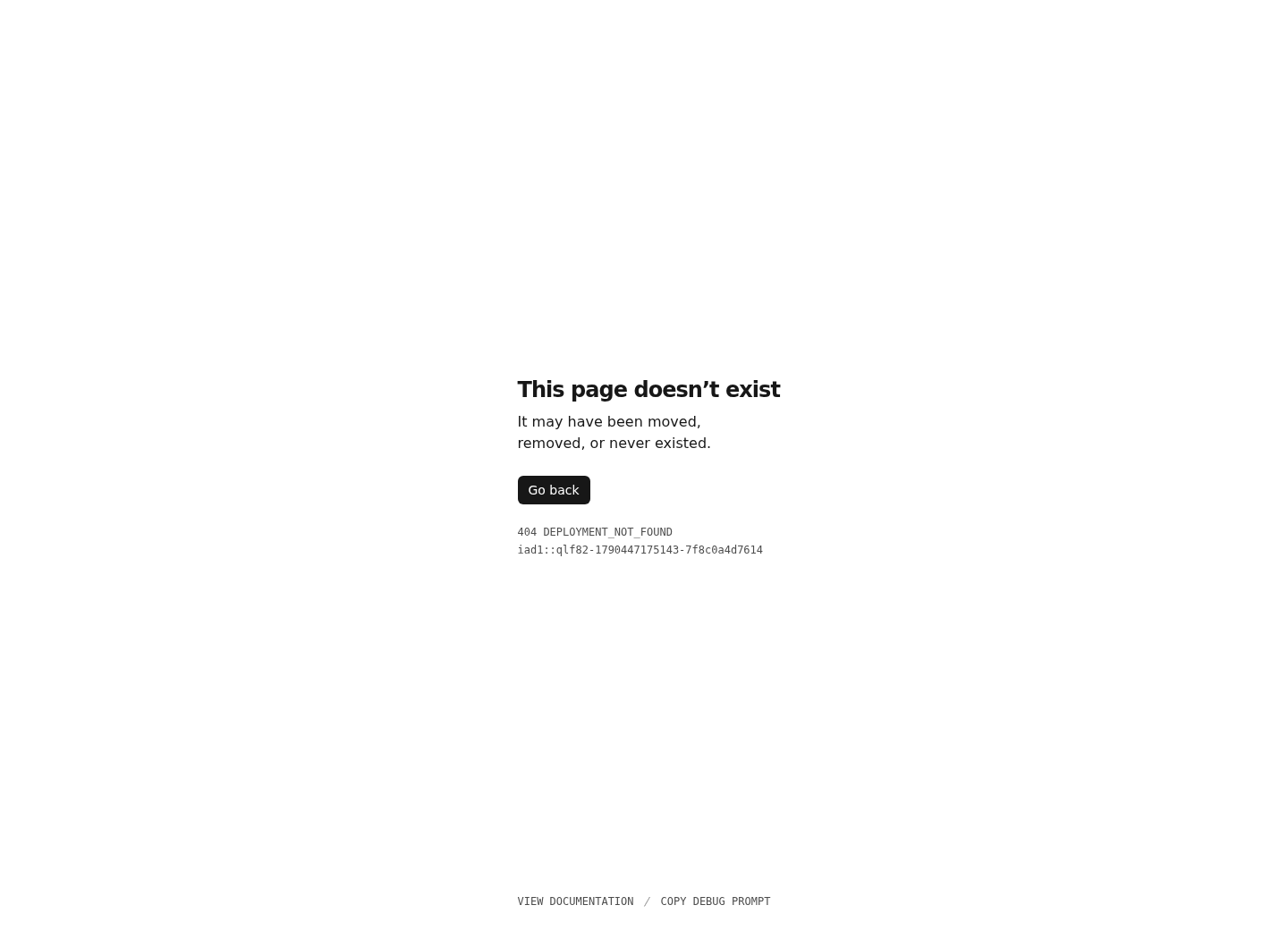
The domain currently displays a Vercel “deployment not found” message instead of the reward presentation described in earlier coverage.
McGiftClaim was not an official McDonald’s domain.
The $100 reward depended on third-party sponsor requirements.
Trials and subscriptions could create real financial costs.
Personal details could feed marketing and follow-up campaigns.
The domain appeared in 2026 and the original deployment is now gone.
Disappearance makes support, accountability, and reward claims harder to verify.
How the McGiftClaim Scam Works
Step 1: The offer borrows a household brand
McDonald’s is familiar, widely available, and associated with gift cards that ordinary consumers understand immediately.
That familiarity reduces the need for a long explanation. A visitor can imagine using $100 at nearby restaurants within seconds.
The domain name reinforced the connection by combining “Mc” with “Gift Claim,” although it was not an official corporate address.
Brand colors, food imagery, gift-card graphics, and familiar wording can create implied affiliation without making a direct legal statement.
Step 2: A short questionnaire creates momentum
The first questions are usually easy, such as age range, shopping habits, restaurant preferences, or previous participation.
These questions make the process resemble market research, even when the answers mainly qualify the visitor for advertising offers.
Every completed screen creates commitment. Leaving feels harder after someone has already invested time and shared information.
A progress bar or checklist can make the reward appear close, even when important conditions remain hidden behind later pages.
Step 3: Contact details become part of the price
The funnel asks for an email address, phone number, postal information, or demographic details before revealing every requirement.
That information can support email marketing, SMS campaigns, telemarketing, lead resale, audience profiling, and repeated reward advertisements.
Consent language may be buried beside a button, inside a checkbox, or behind links few visitors open on a phone.
The consumer thinks the form is for gift-card delivery. The operator may treat it as permission for commercial contact.
Step 4: “Recommended” deals become mandatory
Reward funnels often call tasks recommended deals, then explain that a specific number or level is required for eligibility.
Offers can include downloading applications, requesting insurance quotes, joining memberships, buying samples, or starting trial subscriptions.
Some cost nothing initially. Others require a payment card and begin billing after a short promotional period.
The word “deal” makes each requirement sound like an extra benefit, although it actually finances the reward network.
Step 5: Tracking problems move the goalposts
After completing offers, users may discover that one did not track, remained pending, or failed to meet an undisclosed condition.
A trial may need to remain active for several days. An app may require reaching a level or making an in-app purchase.
A survey can redirect repeatedly before the system recognizes completion. Each failure encourages another monetized attempt.
The user sees a nearly finished checklist, while the operator continues collecting revenue from unfinished or rejected actions.
Step 6: Identity verification creates another barrier
Some reward programs require identity verification after users complete expensive or time-consuming deals.
That stage may request a driver’s license, selfie, address proof, tax information, or another sensitive document.
A legitimate company may verify recipients to prevent duplicate claims. An unclear operator creates a much larger privacy risk.
Never upload identity documents unless the company, privacy controller, retention rules, security process, and reward terms are independently verified.
Step 7: Follow-up messages keep the funnel alive
Once a visitor responds, new messages can claim the reward is pending, expiring, incomplete, or awaiting one final action.
Other messages may advertise Walmart, Costco, Amazon, restaurant, airline, or cash rewards through similar domains.
Each variation exploits the earlier click. The sender already knows the recipient is interested in high-value online rewards.
A supposed support agent may also request fees, documents, card details, or remote access to “release” the gift card.
Step 8: The landing page disappears
The original McGiftClaim deployment is now unavailable, leaving the domain without the funnel buyers originally saw.
A vanished page weakens accountability because policies, screenshots, support routes, and exact promises become difficult to recover.
The same campaign can reappear under a new brand, reward amount, restaurant, or disposable domain while preserving the underlying process.
This is why understanding the funnel matters more than memorizing one web address.
Why the $100 McDonald’s Gift Card Story Fails Basic Checks
The web address was not owned by McDonald’s
McGiftClaim.com was a standalone domain, not McDonalds.com or another verified corporate property.
A brand name inside a domain does not prove ownership, sponsorship, approval, or responsibility for the advertised reward.
Real promotions identify the sponsor, administrator, eligibility, geographic limits, dates, prize count, odds, and complete official rules.
A guaranteed gift is different from a sweepstakes prize
Legitimate sweepstakes explain that winners are selected according to published rules. A guaranteed reward requires a clear contractual path.
“Complete deals and claim” sounds direct, yet eligibility may depend on tracking, levels, deadlines, exclusions, identity checks, and verification.
The practical burden can cost more than the face value, especially when paid subscriptions continue after the visitor stops pursuing the reward.
A countdown timer proves nothing about inventory
Digital gift cards do not require a generic countdown unless the official terms define a genuine promotional deadline.
Timers often reset after refreshing, revisiting, clearing cookies, or opening the page from another device.
The purpose is psychological. A ticking clock discourages visitors from reading policies, checking domains, or searching independent reviews.
What the Offer Really Costs
The survey collects more than harmless opinions
Questions about age, household, shopping habits, income, insurance, and interests can sort a visitor into valuable advertising categories.
An answer that feels conversational may decide which insurance lead, trial offer, mobile subscription, or financial promotion appears next.
Combined with a name, email, phone number, and location, the completed profile can support persistent marketing well beyond the gift-card page.
The visitor should therefore judge every requested field as part of the transaction, even when the form never displays a conventional price.
Sponsor deals can create separate obligations
One deal may involve a low-cost trial. Another may require a purchase, credit application, subscription, app installation, or paid membership.
Each sponsor can have its own company, privacy policy, cancellation method, eligibility rules, and billing descriptor.
Completing several offers can leave the participant managing multiple contracts while still lacking clear proof that the promised reward will arrive.
A legitimate purchase from one sponsor does not validate the McGiftClaim reward, and a sponsor may not control the claim page’s representations.
The reward threshold keeps changing the calculation
Reward funnels become difficult when completed tasks fail to register, a new requirement appears, or verification begins only after substantial effort.
The user has already invested time and personal information, making one more offer feel easier than abandoning everything.
This sunk-cost effect is powerful. It can keep a person moving forward after the original promotion no longer resembles a simple gift.
Before starting any reward program, find the complete qualification terms and calculate the maximum spending, waiting period, and documentation burden.
A vanished claim page weakens every later promise
McGiftClaim’s current deployment error leaves no usable public portal where a participant can review progress, retrieve terms, or contact a visible operator.
That does not prove every sponsor transaction was unauthorized. It does make the advertised reward substantially harder to verify or enforce.
Participants should preserve browser history, confirmation emails, screenshots, and sponsor receipts before clearing messages or deleting accounts.
Without those records, a bank, regulator, or sponsor may see only separate charges rather than the sequence that connected them.
Check the sender information in every confirmation message, because the visible brand name may differ from the company operating the offer.
Search unfamiliar billing descriptors before disputing them. A sponsor may use a corporate name that never appeared prominently during enrollment.
Cancel directly with each sponsor, request written confirmation, and monitor future statements rather than assuming one cancellation closes the entire chain.
If identity documents were uploaded, consider a credit freeze and watch for accounts or inquiries that you do not recognize.
These precautions address the real cost of the funnel, which may continue long after the promised gift card has disappeared.
Treat future reward messages as untrusted until an independently located company contact confirms the promotion, requirements, and exact redemption path in writing.
Company, Address, Support, and Domain Checks
No durable reward administrator is visible now
The current domain does not display a company name, physical office, consumer-support number, or functioning claim portal.
That absence prevents consumers from comparing the operator with their consent records, receipts, trial charges, or data requests.
A credible rewards program should remain identifiable after the advertisement ends, particularly while subscriptions and disputes remain active.
The domain’s short history matters
Public records place the registration in February 2026, giving the domain little history before the promotion circulated.
A young domain is not automatically fraudulent. It becomes meaningful beside brand impersonation, conditional rewards, and disappearing content.
Always compare a business-history claim with registration dates, archived pages, corporate filings, and longstanding support information.
The companies charging you may use different names
Each sponsor deal can involve a different advertiser, merchant, subscription service, billing descriptor, cancellation process, and privacy policy.
McGiftClaim may never appear on the card statement, even when the journey began on its page.
Review every confirmation email and list each merchant separately before contacting the bank or cancelling services.
Support must be tested before sensitive data is shared
A legitimate administrator should answer precise questions about requirements, reward delivery, data sharing, subscriptions, verification, and dispute procedures.
Vague automated replies, shifting domains, unreachable addresses, or pressure to complete more offers are reasons to stop.
Never rely on a support number supplied through a follow-up text. Locate and verify each merchant independently.
What to Do If You Used McGiftClaim
Stop completing offers. Do not keep spending money or sharing information because a progress screen says the reward is almost ready.
List every deal separately. Search email and texts for confirmations, merchant names, trial dates, renewal prices, cancellation rules, and billing descriptors.
Cancel trials directly. Contact each company through its verified website. Request written confirmation and save the date, agent, ticket number, and response.
Review payment statements. Look for small authorizations, unfamiliar descriptors, shipping charges, membership fees, and renewals. Continue monitoring for several months.
Contact the card issuer. Explain any unauthorized or misleading charge. Provide the funnel screenshots, offer terms, cancellation attempts, and merchant communications.
Protect your identity. If you uploaded documents, consider a credit freeze or fraud alert and monitor credit reports for unfamiliar accounts.
Secure your device and browser. Remove unfamiliar apps or extensions, run Malwarebytes, and use AdGuard to block malicious advertisements, redirects, and follow-up reward pages.
Report the campaign. Notify the advertising platform, McDonald’s brand-protection channel, your consumer authority, and the FTC if you are in the United States.
Is Your Device Infected? Run a Free Malware Scan
Slow performance, constant pop-ups, or strange behavior? These are classic signs of a malware infection. The fastest way to find out is to scan your device with Malwarebytes Anti-Malware Free — one of the most trusted malware removal tools available.
The free version detects and removes the most common threats, including:
Adware — the cause of those annoying pop-ups
Browser hijackers — unwanted redirects and changed homepages
Trojans and spyware — hidden programs stealing your data
Potentially unwanted programs (PUPs) — software you never asked for
👉 Select your device below — Windows, Mac, or Android — then follow the simple steps to download Malwarebytes, scan your system, and remove any threats it finds. The whole process takes about 5 minutes.
Malwarebytes for WindowsMalwarebytes for MacMalwarebytes for Android
Run a Malware Scan with Malwarebytes for Windows
Malwarebytes is one of the most popular and trusted anti-malware tools for Windows — and it’s completely free for removing infections. It catches threats that many antivirus programs miss, including adware, browser hijackers, and trojans. Follow the steps below to scan and clean your PC in just a few minutes.
Download Malwarebytes
Click the button below to download the latest version of Malwarebytes for Windows from the official source. The free version is all you need — it will scan your computer and remove adware, browser hijackers, and other malicious software at no cost.
(The link opens in a new page where your download will start)
Install Malwarebytes
When the download finishes, open your Downloads folder and double-click the MBSetup file. If Windows shows a User Account Control pop-up, click “Yes” to allow the installation.
Follow the On-Screen Prompts to Install Malwarebytes
The setup wizard will walk you through a few quick screens:
Choose where you’re installing the program — “Personal Computer” or “Work Computer” — then click Next.
Malwarebytes will now install on your device. This usually takes under a minute.
When installation is complete, the “Welcome to Malwarebytes” screen will open automatically.
On the final screen, click Open Malwarebytes to launch the program.
Enable “Scan for Rootkits”
Before scanning, turn on rootkit detection so Malwarebytes can find even the most hidden threats. Click the Settings gear icon on the left side of the screen.
In the settings menu, find “Scan for rootkits” and click the toggle so it turns blue.
Done? Click “Dashboard” in the left pane to return to the main screen.
Start the Scan
Click the blue Scan button. Malwarebytes will automatically update its virus database and start checking your computer for malware.
Wait for the Scan to Finish
The scan checks your entire system for browser hijackers and other malicious programs, so it can take several minutes. Feel free to do something else — just check back occasionally to see the progress.
Quarantine the Detected Threats
When the scan is done, you’ll see a list of everything Malwarebytes found — malware, adware, and potentially unwanted programs. Click the “Quarantine” button to remove all of them at once.
Malwarebytes will now remove the malicious files and registry entries and move them safely into quarantine.
Restart Your Computer
Some threats can only be fully removed after a reboot. If Malwarebytes asks you to restart, click Yes. Once you’re logged back in, your PC is clean and you can continue with the next steps in this guide.
When the scan finishes, click Quarantine to remove everything Malwarebytes found. That’s it — your Windows PC is now clean of trojans, adware, and other malware, and should be back to running smoothly.
If your current antivirus allowed this malicious program on your computer, you may want to consider purchasing Malwarebytes Premium to protect against these types of threats in the future. If you are still having problems with your computer after completing these instructions, then please follow one of the steps:
Malwarebytes for Mac is a free on-demand scanner that removes the malware other security software tends to miss — adware, browser hijackers, and unwanted programs included. Cleaning an infected Mac with Malwarebytes has always been completely free, and it’s our go-to recommendation. Follow the steps below to scan and clean your Mac in just a few minutes.
Download Malwarebytes for Mac
Click the button below to download the latest version of Malwarebytes for Mac.
When the download finishes, open your Downloads folder and double-click the setup file to begin the installation.
Follow the On-Screen Prompts to Install Malwarebytes
The Malwarebytes for Mac Installer will guide you through a few quick screens. Click “Continue” and keep following the prompts until the installation completes.
When the installation is complete, Malwarebytes opens to the Welcome to Malwarebytes screen. Click “Get started“.
Select “Personal Computer” or “Work Computer”
Malwarebytes will ask what type of computer you’re installing it on. Click either Personal Computer or Work Computer, whichever applies.
Start the Scan
Click the “Scan” button. Malwarebytes will automatically update its detection database and begin checking your Mac for malware.
Wait for the Scan to Finish
Malwarebytes will scan your Mac for adware, browser hijackers, and other malicious programs. This can take a few minutes, so feel free to do something else — just check back occasionally to see the progress.
Quarantine the Detected Threats
When the scan is done, you’ll see a list of everything Malwarebytes found. Click the “Quarantine” button to remove all the threats at once.
Restart Your Mac
Malwarebytes will now remove all the malicious files it found. Some threats can only be fully removed after a reboot — if Malwarebytes asks you to restart, allow it. Once you’re logged back in, your Mac is clean.
Once the scan is done, remove every threat it detected. Your Mac is now free of adware, rogue browser extensions, and other potentially harmful software.
If your current antivirus allowed a malicious program on your computer, you might want to consider purchasing the full-featured version of Malwarebytes Anti-Malware to protect against these types of threats in the future. If you are still experiencing problems while trying to remove a malicious program from your computer, please ask for help in our Mac Malware Removal Help & Support forum.
Run a Malware Scan with Malwarebytes for Android
Malwarebytes for Android automatically detects and removes dangerous threats like malware and ransomware so you don’t have to worry about your most-used device being compromised. Aggressive detection of adware and potentially unwanted programs keeps your Android phone or tablet running smooth.
Download Malwarebytes for Android.
You can download Malwarebytes for Android by clicking the link below.
In the Google Play Store, tap “Install” to install Malwarebytes for Android on your device.
When the installation process has finished, tap “Open” to begin using Malwarebytes for Android. You can also open Malwarebytes by tapping on its icon in your phone menu or home screen.
Follow the on-screen prompts to complete the setup process
When Malwarebytes will open, you will see the Malwarebytes Setup Wizard which will guide you through a series of permissions and other setup options. This is the first of two screens that explain the difference between the Premium and Free versions. Swipe this screen to continue. Tap on “Got it” to proceed to the next step. Malwarebytes for Android will now ask for a set of permissions that are required to scan your device and protect it from malware. Tap on “Give permission” to continue. Tap on “Allow” to permit Malwarebytes to access the files on your phone.
Update database and run a scan with Malwarebytes for Android
You will now be prompted to update the Malwarebytes database and run a full system scan.
Click on “Update database” to update the Malwarebytes for Android definitions to the latest version, then click on “Run full scan” to perform a system scan.
Wait for the Malwarebytes scan to complete.
Malwarebytes will now start scanning your phone for adware and other malicious apps. This process can take a few minutes, so we suggest you do something else and periodically check on the status of the scan to see when it is finished.
Click on “Remove Selected”.
When the scan has been completed, you will be presented with a screen showing the malware infections that Malwarebytes for Android has detected. To remove the malicious apps that Malwarebytes has found, tap on the “Remove Selected” button.
Restart your phone.
Malwarebytes for Android will now remove all the malicious apps that it has found. To complete the malware removal process, Malwarebytes may ask you to restart your device.
After the scan, tap Remove Selected to delete all detected threats. Your Android phone is now clean — no more malicious apps, adware, or browser redirects.
If your current antivirus allowed a malicious app on your phone, you may want to consider purchasing the full-featured version of Malwarebytes to protect against these types of threats in the future. If you are still having problems with your phone after completing these instructions, then please follow one of the steps:
Restore your phone to factory settings by going to Settings > General management > Reset > Factory data reset.
Now that your device is clean, keep it that way. Most infections start with a malicious ad or a fake download button — so blocking them at the source is your best defense.
We recommend AdGuard, which blocks malicious ads, phishing pages, and dangerous redirects before they can reach you.
No verified corporate connection was established. The promotion used a separate domain rather than an official McDonald’s property.
Could anyone really receive the $100 gift card?
Some reward programs may pay qualifying users, but the costs and conditions make the headline promise misleadingly simple.
Why did McGiftClaim ask users to complete deals?
Advertisers can pay for completed trials, applications, purchases, installations, and qualified leads. Those payments fund the funnel.
Why is the website unavailable now?
The current domain displays a missing-deployment message. We cannot confirm whether the operator removed it, misconfigured it, or abandoned it.
What if I entered only my email address?
Expect marketing and possible phishing. Use spam controls, avoid reward follow-ups, and protect the email account with a unique password and 2-factor authentication.
What if I gave a sponsor my card details?
Identify the merchant, cancel promptly, monitor statements, and contact the issuer if charges are unauthorized or cancellation is obstructed.
The Bottom Line
McGiftClaim turned a simple $100 McDonald’s gift-card promise into a conditional sponsor-offer funnel that monetized users before delivering any reward.
The original deployment is now gone. Remember the pattern: borrowed brand, easy questions, mandatory deals, tracking barriers, recurring charges, and disappearing support.
10 Rules to Avoid Online Scams
Here are 10 practical safety rules to help you avoid malware, online shopping scams, crypto scams, and other online fraud. Each tip includes a quick “if you already got hit” action.
Stop and verify before you click, log in, download, or pay.
Most scams win by creating urgency. Verify using a trusted method: type the website address yourself, use the official app, or call a known number (not the one in the message).
If you already clicked: close the page, do not enter passwords, and run a malware scan.
Keep your operating system, browser, and apps updated.
Updates patch security holes used by malware and malicious ads. Turn on automatic updates where possible.
If you saw a scary “update now” pop-up: close it and update only through your device settings or the official app store.
Use layered protection: antivirus plus an ad blocker.
Antivirus helps block malware. An ad blocker reduces scam redirects, phishing pages, and malvertising.
If your browser is acting weird: remove unknown extensions, reset the browser, then run a full scan.
Install apps, software, and extensions only from official sources.
Avoid cracked software, “keygens,” and random downloads. During installs, choose Custom/Advanced and decline bundled offers you do not recognize.
If you already installed something suspicious: uninstall it, restart, and scan again.
Treat links and attachments as untrusted by default.
Phishing often impersonates delivery services, banks, and popular brands. If it is unexpected, do not open attachments or log in through the message.
If you entered credentials: change the password immediately and enable 2FA.
Shop safely: research the store, then pay with protection.
Be cautious with brand-new stores, “closing sale” stories, and prices that make no sense. Prefer credit cards or PayPal for dispute options. Avoid wire transfers, gift cards, and crypto payments.
If you already paid: contact your card issuer or PayPal quickly to dispute the transaction.
Crypto rule: never pay a “fee” to withdraw or recover money.
Common patterns include fake profits, then “tax,” “gas,” or “verification” fees. Another is a “recovery agent” who demands upfront crypto.
If you already sent crypto: stop paying, save evidence (wallet addresses, TXIDs, chats), and report the scam to the platform used.
Secure your accounts with unique passwords and 2FA (start with email).
Use a password manager and unique passwords for every account. Enable 2FA using an authenticator app when possible.
If you suspect an account takeover: change passwords, sign out of all devices, and review recent logins and recovery settings.
Back up important files and keep one backup offline.
Backups protect you from ransomware and device failure. Keep at least one backup on an external drive that is not always connected.
If you suspect infection: do not connect backup drives until the system is clean.
If you think you are a victim: stop losses, document evidence, and escalate fast.
Move quickly. Speed matters for disputes, account recovery, and limiting damage.
Stop payments and contact: do not send more money or respond to the scammer.
Call your bank or card issuer: block transactions, replace the card if needed, and start a dispute or chargeback.
Secure your email first: change the email password, enable 2FA, and remove unfamiliar recovery options.
Secure other accounts: change passwords, enable 2FA, and log out of all sessions.
Scan your device: remove suspicious apps or extensions, then run a full malware scan.
Save evidence: screenshots, emails, order pages, tracking pages, wallet addresses, TXIDs, and chat logs.
Report it: to the payment provider, marketplace, social platform, exchange, or wallet service involved.
These rules are intentionally simple. Most online losses happen when decisions are rushed. Slow down, verify independently, and use payment methods and account controls that give you recourse.
Hello! I'm Lapain Epuran, your go-to source for detailed and honest product reviews. From tech gadgets to miracle cures, I provide insights to help you make informed choices. Join me as we discover what's truly worth your time and money.