

You need a payroll document, and a page offers a convenient desktop app for the service your workplace already uses. The download looks ordinary.
That familiarity is exactly why the link deserves a second look. A trusted company name on a page is not proof that the company made the installer.
Overview
Real payroll brands, invented desktop downloads
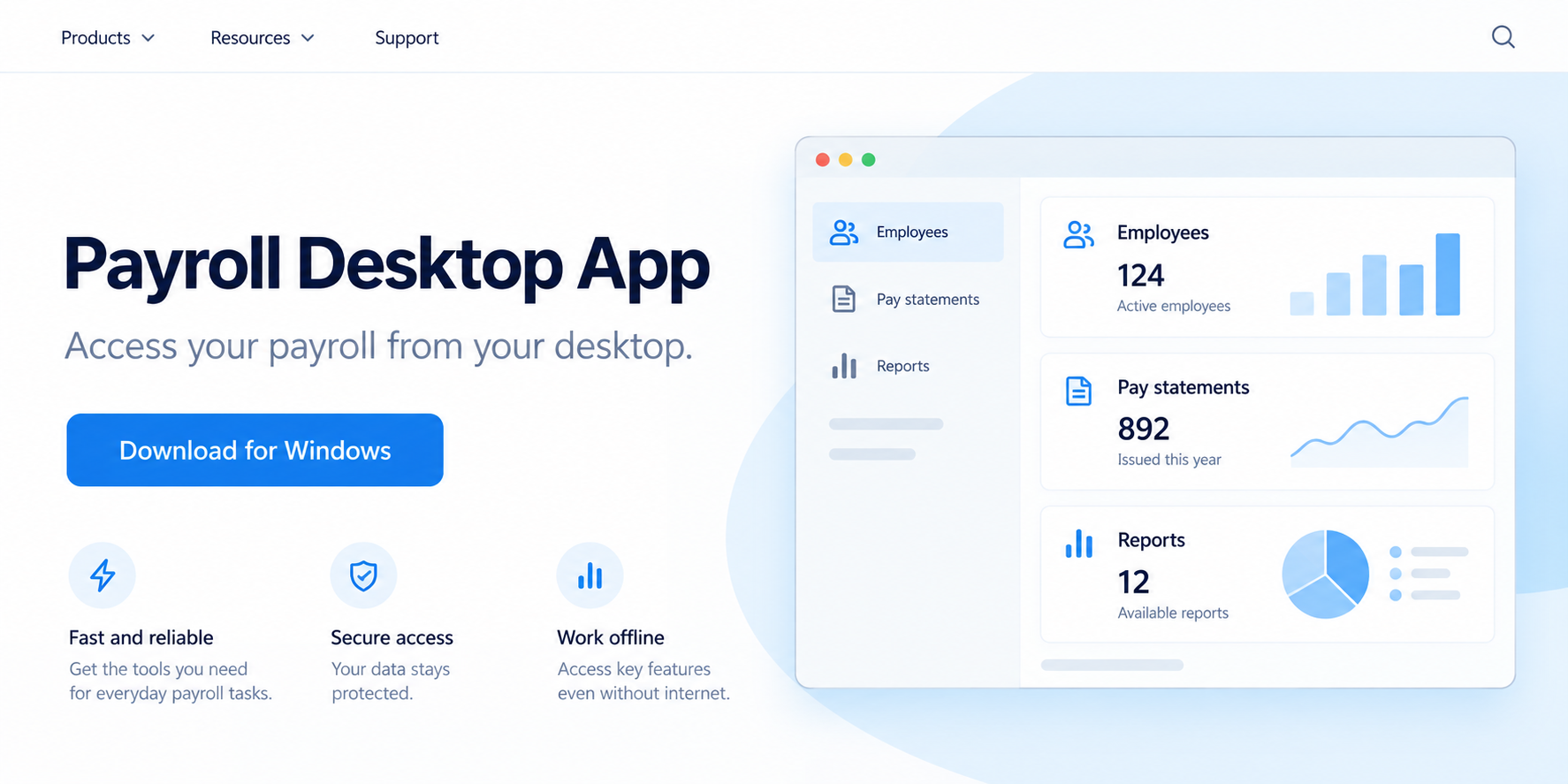
Allure Security investigated three webpages that impersonated real US payroll and HR providers. Each offered a desktop application the corresponding service did not provide.
The investigators withheld the provider names in their public report. We will not guess them or turn another payroll vendor into a suspect by association.
Our opening image is a brand-free reconstruction, not a capture of one of the pages. It shows the kind of plausible download pitch involved.
The downloaded program was not a helpful payroll client. It installed a remote-access tool configured for someone outside the victim’s organization.
- The lure borrowed the reputation of an actual workplace service.
- The website was built with legitimate AI web tooling and hosted on legitimate infrastructure.
- The installer arrived through GitHub Releases, a real software-distribution platform.
- A visible Microsoft component helped make the process look routine.
- ConnectWise ScreenConnect was silently configured for unauthorized remote access.
Why the installer looked credible
Allure found the pages were created with an AI builder and hosted through established services. That does not make the content trustworthy, but it removes obvious technical rough edges.
The installer also ran a genuine Microsoft .NET Desktop Runtime setup where a user could see it. The remote-access component was installed quietly in the background.
ScreenConnect is a legitimate support product. The danger here is not its name alone; it is an unexpected installation connected to an operator the company never approved.
That combination can evade a person’s usual instincts. Every visible platform may be real while the overall journey is a trap.
What the known numbers mean
GitHub showed 291 downloads across the campaign’s release assets. Allure explicitly called this a ceiling, not a count of infected people.
That total includes researchers, automated sandboxes, and other downloads. The investigators could confirm the pages served the installer, not how many machines ran it.
The route people took to the pages was also unconfirmed. It might have included search, ads, or messages, but the public evidence does not establish one channel.
These limits matter. The campaign is real without an invented victim count or an invented story about how every person found it.
Why Workplace Software Is a Powerful Lure
Payroll pages hold sensitive information: pay stubs, addresses, tax forms, direct-deposit details, and access to an employer account.
An employee looking for one document may not scrutinize a download as carefully as a person installing an unfamiliar game. The brand name seems to do the vetting.
Cloud payroll services also train users to sign in from many places. A separate page promising an easier desktop route can feel like a natural extension.
That is precisely the question to ask: does the provider actually distribute a desktop app? Check its own verified website or your employer’s IT instructions.
The fake pages in this investigation did not need to be perfect copies of real company sites. They were new product pages built from the brands’ visual cues.
A page can borrow colors, wording, and logos while still living at a domain the real provider never controlled. Read the address, not just the hero banner.
GitHub hosting adds another layer of credibility. Millions of legitimate developers publish software there, but an individual release is only as trustworthy as its publisher.
The same applies to a code-signing certificate. A signed file can still be harmful when the signer is unrelated to the product you wanted.
Allure traced one short-lived certificate used in the campaign. Its existence did not convert the fake desktop app into an authorized payroll product.
How the Fake Payroll Desktop App Scam Works
Step 1: The employee meets a plausible download page
The page presents a desktop app for a recognizable HR or payroll service. The brand is real, so the proposed convenience seems believable.
Allure documented the pages and payloads, but not the precise path each visitor took to them. Avoid assuming a particular email or ad existed.
A search result, shared link, or message can be a lead, never a validation. Go back to the employer’s known portal to confirm the software offer.
Step 2: The page offers an installer from a trusted host
Clicking the download led to a release asset on GitHub. That well-known domain can make the file look safer than an obscure download server.
GitHub does not endorse every repository. Anyone evaluating a release still needs to verify the project owner and the vendor’s official distribution instructions.
The installer was a sizeable Windows package. Size and professional packaging can signal craftsmanship, but neither proves the software serves its advertised purpose.
If your organization has a software catalog, use it. Payroll-related applications should not require employees to improvise from a web search.
Step 3: A genuine component occupies the screen
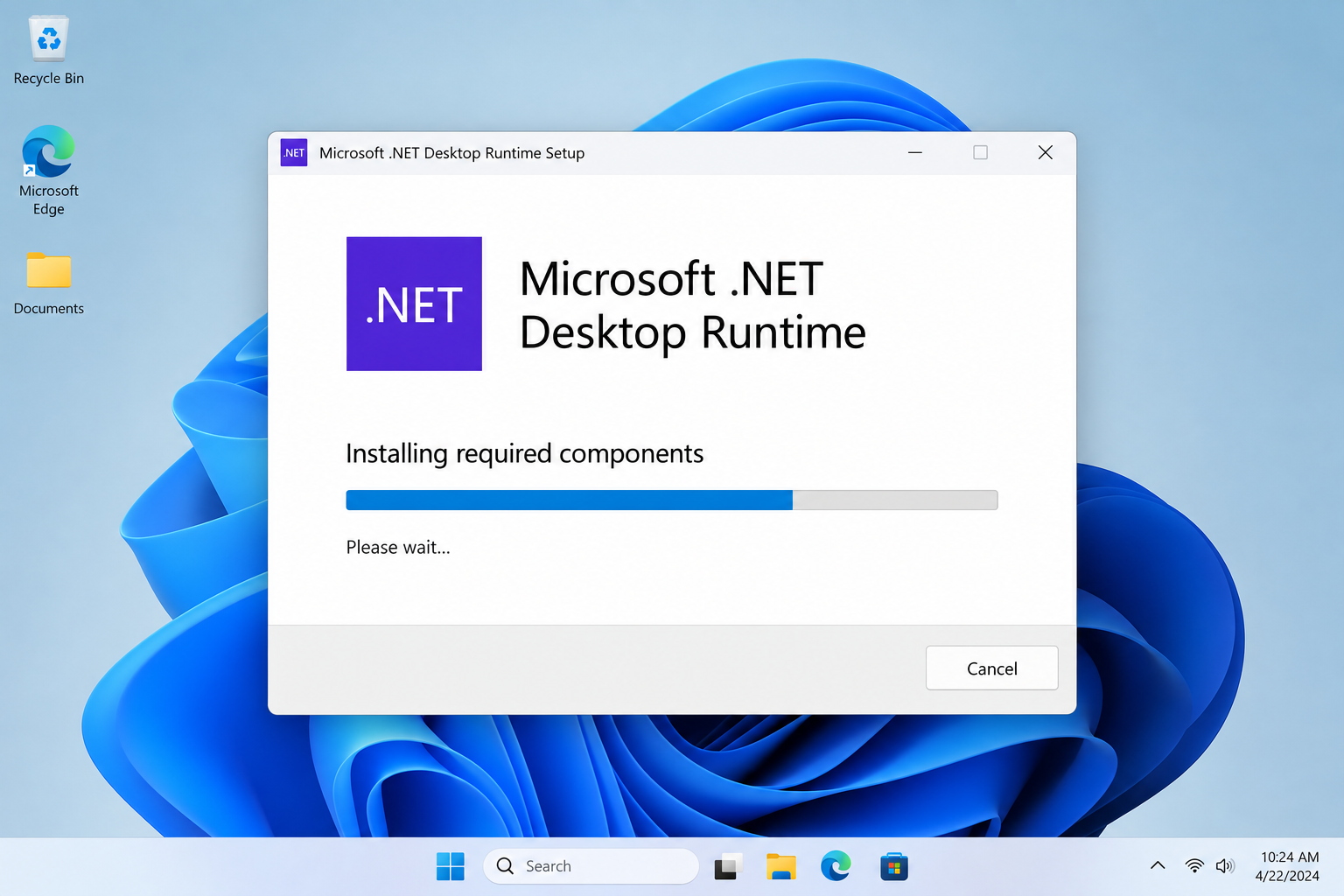
The package visibly installed a Microsoft .NET runtime. For a nontechnical user, that is an ordinary-looking prerequisite for a desktop application.
Meanwhile, the unwanted remote-access client was installed silently. The user could believe setup was proceeding normally because a real Microsoft window appeared.
Our second image illustrates this split. It is not a forensic screenshot of an infected machine or one of the campaign’s actual installers.
The trick is subtle: the visible part is legitimate software, but it provides cover for a different action that was never authorized.
Step 4: ScreenConnect connects to an outside operator
ConnectWise ScreenConnect is used by legitimate IT teams for remote support. In this campaign, the attacker set up a client pointing to the attacker’s own relay.
That can give someone remote access without a fresh support call each time. The danger is particularly serious on a work computer with payroll data.
A ScreenConnect installation is not automatically malicious. Ask whether your employer deployed it and whether its relay belongs to your approved support organization.
Allure tied the three fake brand pages to one operator through a shared live-chat account and matching payload infrastructure. That is stronger than visual similarity alone.
Step 5: The backdoor can outlive the fake page
The download page may disappear after takedown, but an installed remote-access client remains a separate problem until the endpoint is investigated.
Allure reported taking down the three lure pages, related repositories, and the command server. That does not prove every downloaded copy was removed.
An employer should treat an unexpected remote-management tool as a security incident, not merely a bad browser choice. The machine may need containment and forensic review.
Do not guess whether files were opened or credentials stolen. Investigate logs, sessions, and account activity to determine what actually happened.
What Makes This Different From an Ordinary Fake Download
Many malware campaigns use a malicious executable that antivirus tools can easily recognize. This one leaned heavily on legitimate services and a legitimate support product.
The AI-built page, GitHub release, Microsoft runtime, and ScreenConnect client each have valid uses. The malicious purpose appears in how they were combined.
That is why brand verification beats a simple “does the page look professional?” test. Professional pages are cheap to create.
A more reliable test is whether the genuine payroll provider links to that exact download and whether your employer instructed you to install it.
Allure also warned against treating a default ScreenConnect file name or port as a unique indicator. Legitimate installations can use the same defaults.
For defenders, the destination relay, client instance, and deployment authorization matter far more than one generic filename.
For ordinary users, the simpler lesson is enough: a cloud service suddenly advertising an unfamiliar desktop client deserves independent confirmation.
Company, Address, Support, and Installer Checks
Confirm the actual software publisher
Use the real payroll provider’s domain and documentation. Check whether it advertises a Windows desktop app at all.
The public Allure report did not name the three impersonated providers. A generic page with their colors would not prove ownership even if the name were visible.
On a work machine, an employer’s approved software catalog and IT team should be the final authority for installation.
A hosting address is not a company office
A Vercel page or GitHub download URL identifies where content is hosted. It is not evidence that the real payroll company operates the page.
Search for the provider’s official download link from a trusted starting point. A lookalike domain and a recognizable hosting platform are not substitutes.
Do not send tax forms to an address found on the lure page. Use the employer’s known HR contact for account or payroll questions.
Support chat can be part of the disguise
The three fake pages carried the same live-chat account, according to Allure. Shared chat infrastructure helped investigators connect them.
A friendly chat agent on a download page does not confirm the page is official. Call your employer or provider through a known number before installing.
If a supposed support worker requests remote access after you followed a questionable link, stop and verify independently.
Trace what the installer actually deploys
The visible Microsoft runtime was not the whole installation. The hidden ScreenConnect client was the security issue.
Your IT team can compare installed software, service entries, network connections, and the approved remote-support inventory. A consumer should not attempt guesswork on a corporate machine.
Keep the installer file and URL for security staff if safe to do so, but do not run it again or share it casually.
How Employers Can Reduce This Risk
Put the official payroll portal in an internal bookmark or employee handbook. People should not need to search the web for every pay stub.
List which desktop applications, if any, the provider actually distributes. A fake product is harder to sell when employees know it does not exist.
Restrict unauthorized remote-management tools. Many organizations allow legitimate support clients, but they should know which instances and relays belong to their team.
Investigate a new client connected to an unknown relay promptly. Removing the program without reviewing activity could erase clues about a wider compromise.
Train help-desk staff to ask which URL and installer were used. A screenshot of a lure page can reveal the issue faster than a generic malware alert.
Do not blame the employee for recognizing the real brand. The page was designed to exploit exactly that trust.
Security reporting should be easy and early. An employee who admits “I clicked install” quickly gives IT more time to contain remote access.
Finally, keep backups and account-monitoring procedures ready. Payroll systems involve sensitive data, and incident response cannot begin after a fraud alert arrives.
What to Do if You Installed a Fake Payroll App
- Stop using the computer for payroll. Disconnect it from the network if your organization’s incident procedure allows, then contact your IT or security team immediately.
- Tell IT exactly what happened. Share the download page, file name, approximate installation time, and any unusual prompts. Do not delete the installer before they advise.
- Have the remote client assessed. An unexpected ScreenConnect instance connected to an unknown relay needs professional investigation and containment.
- Protect work accounts from a clean device. With IT guidance, reset affected passwords, revoke sessions, and review multifactor authentication and direct-deposit changes.
- Review payroll activity. Check pay details, tax forms, bank routing information, and administrative access logs for changes you did not authorize.
- Scan appropriately. Malwarebytes can help identify malicious files, but a clean scan does not prove an unauthorized support tool never connected. Follow IT’s endpoint plan.
- Reduce repeat exposure. Use approved software links and consider AdGuard to block malicious ads and known scam pages. It cannot replace employer verification.
- Escalate sensitive-data concerns. If financial or identity records may have been accessed, let the employer coordinate notices, bank contact, and any required reporting.
Frequently Asked Questions
Were the real payroll companies involved?
No evidence in the public report suggests they operated the fake pages. Their identities were abused as a lure.
Is ScreenConnect itself malware?
No. It is legitimate remote-support software. An unauthorized installation controlled by an outside operator is the danger in this case.
Did 291 people become infected?
No. That was a combined GitHub download count and included researchers and automated systems. Allure could not establish an infection count.
Did victims find the pages through search ads?
The public investigation could not establish the delivery route. Search, ads, and messages are possible, but none should be stated as confirmed here.
Can a signed installer still be unsafe?
Yes. A signature can identify a signer or file integrity, but it does not prove the installer came from the payroll provider or serves its claimed purpose.
What if I only opened the page?
Opening the page is not the same as running the installer. Close it, verify the genuine portal, and report the link to your IT team.
The Bottom Line
Fake payroll desktop apps turn a familiar workplace brand into a path for unauthorized remote access. The strongest clue is a download the genuine provider never offered.
Confirm software through your employer’s approved channel. If you installed the package, tell IT quickly so they can check the machine and payroll accounts.








