

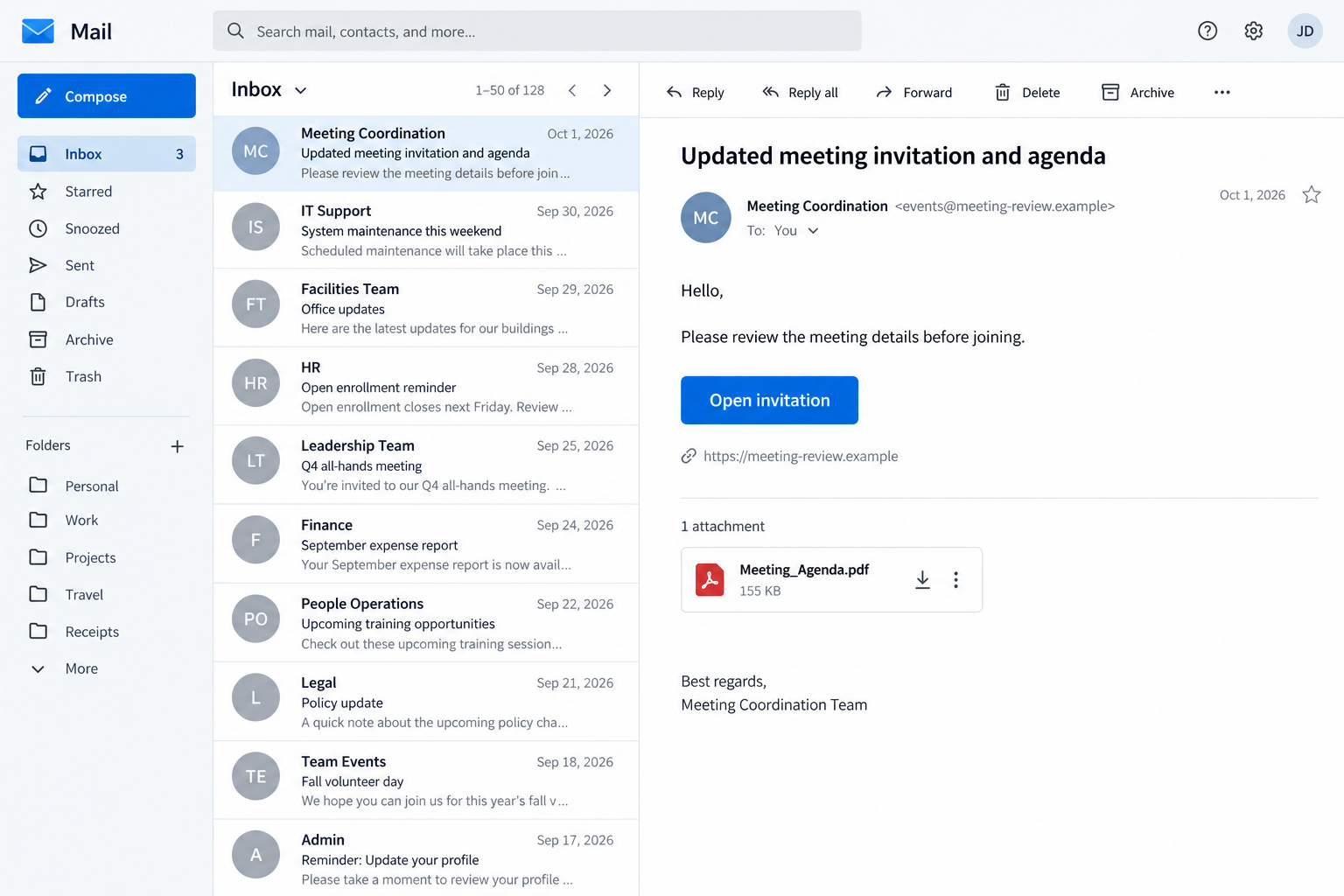
A meeting invitation lands in your inbox. The agenda looks routine, but the link says you need to download something before joining.
That small detour deserves a second look. The file behind it may have nothing to do with the meeting on your calendar.
Overview
The invitation is a delivery method, not the real meeting
Microsoft documented phishing campaigns that reached organizations through meeting invitations, PDF-themed messages, software-update prompts, and other familiar business requests.
Some messages led people to pages resembling document portals or collaboration services. The download offered there was not the expected meeting file.
Instead, the campaigns delivered a legitimate remote-management installer under a deceptive name. That is the key distinction in this story.
The software was real, but the reason for installing it was false. Its connection to the attacker was the danger.
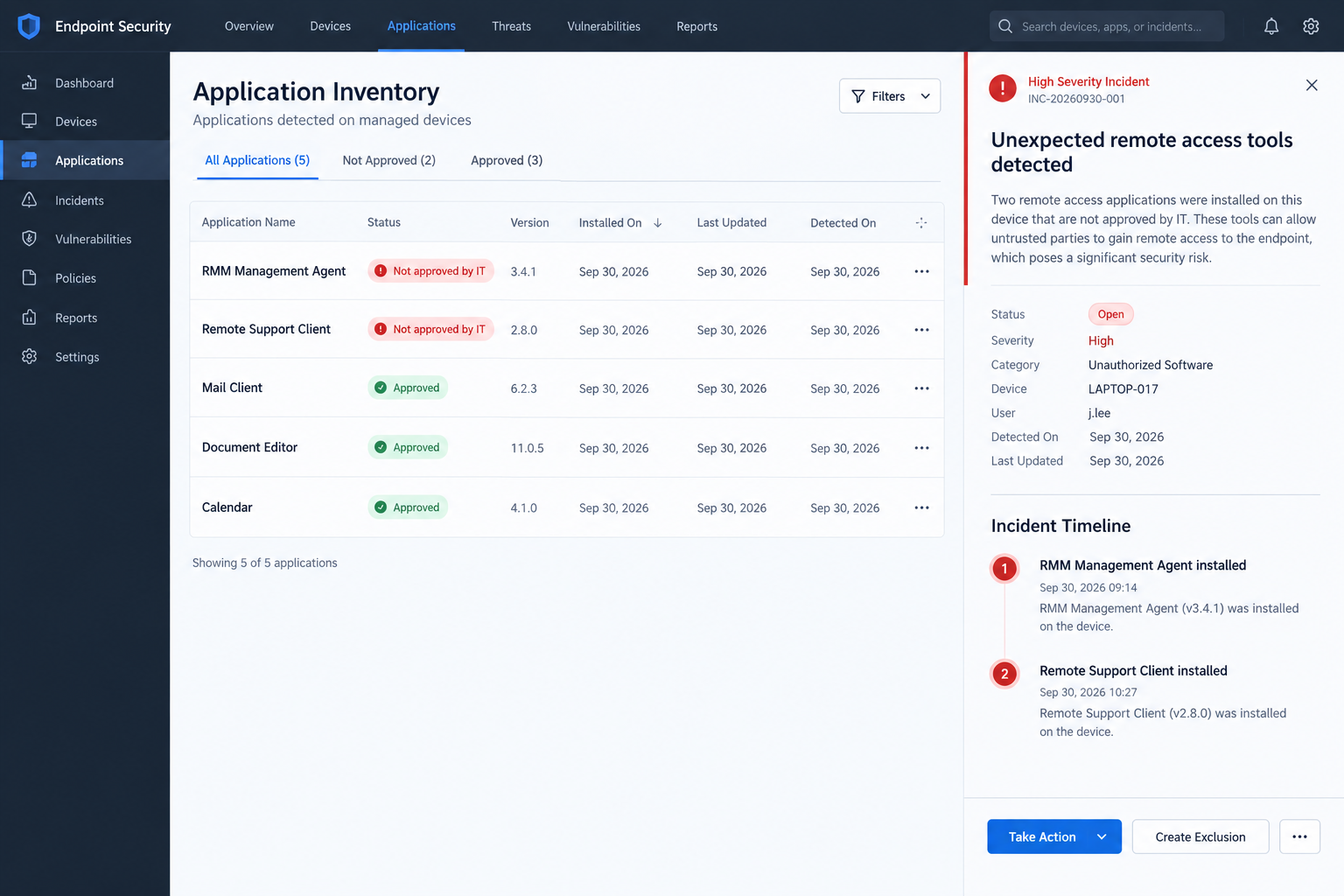
One installation could open two remote-access channels
In the cases Microsoft examined, a disguised MSP360 Remote Monitoring and Management installer established the first channel after successful installation.
The installed agent then downloaded and silently installed a ConnectWise ScreenConnect client, providing a second, separate way to reach the same computer.
Microsoft observed subsequent information collection and activity aimed at obtaining credentials. It did not say every recipient reached that stage.
Neither MSP360 nor ConnectWise is accused of creating the phishing emails. Their legitimate administrative tools were abused by the intruders.
The warning signs are ordinary enough to miss
A message can mention a meeting, shared PDF, signature request, or delivery update. The common feature is an unnecessary executable download.
Watch for these clues before opening a file:
- An invitation demands an installer instead of offering a normal browser join option.
- A supposed PDF or agenda downloads as an executable program.
- The link moves through an unfamiliar document portal or download page.
- The file asks for administrator permission to handle a simple meeting.
- A new remote-support agent appears even though your IT team did not authorize it.
- The sender pushes urgency and discourages checking through your usual channel.
The safest response is not to guess whether the message looks professional. Confirm the meeting and its software requirements independently.
What Microsoft Actually Found
In research published September 29, 2026, Microsoft described campaigns it observed in July across several industries.
The attackers sent phishing messages built around workplace tasks. Meeting requests were one lure, alongside document review, e-cards, job offers, and delivery notices.
Links opened actor-controlled pages that borrowed the appearance of document-sharing portals, Zoom installation flows, Adobe Reader pages, and other collaboration services.
Some payloads were hosted on attacker infrastructure. Others came through ordinary cloud services, making the hosting company alone a poor trust test.
Different filenames promised different things. Microsoft found that many of those downloads contained the same MSP360 RMM installer.
The version identified in its analysis was 2.5.0.67. It was a legitimate, digitally signed remote-management program distributed misleadingly.
This was not a report that hackers had discovered a flaw in MSP360 or ScreenConnect. It was a report about deception and unauthorized installation.
That matters because a security warning may not say “malware” when the underlying program is a tool real IT teams use every day.
What separates an approved support agent from an intrusion is consent, ownership, configuration, and the path that put it on the device.
An approved company agent is usually deployed through managed software, with records showing the responsible team and an account the organization controls.
An unexpected download from a meeting email has none of that assurance. The same program can connect to a different administrator entirely.
Microsoft has not publicly attributed these campaigns to a named threat actor. Similar-looking invitations should not automatically be assigned to this operation.
How the Fake Meeting Invite Scam Works
Step 1: A routine business task provides cover
The attacker sends an invitation or related message that appears to fit the recipient’s working day.
A meeting agenda, shared document, signature request, or software-update notice gives the recipient a reason to click without much reflection.
The message may use a familiar service name. That name is bait, not proof that the service sent the email.
Step 2: A link opens a convincing download path
The click leads to a page styled as a collaboration or document-sharing workflow. It may say a viewer or meeting component is required.
In Microsoft’s investigation, some links eventually resolved to files on mainstream cloud platforms. A respected hosting domain did not make the payload trustworthy.
The important question is who requested the download and why an executable is necessary for the task.
Step 3: The file name disguises a remote-control agent
Microsoft saw executable names resembling invitations, PDFs, Zoom installers, and other business content. Their labels did not describe their actual function.
Under the cover name was a signed MSP360 RMM installer. A signature can verify a publisher but cannot establish your organization’s approval.
Opening the file moves the attack from a suspicious email to a local installation attempt.
Step 4: Administrator approval makes the first channel persistent
The installer may request Windows User Account Control approval. In Microsoft’s successful cases, elevation allowed services and startup components to be created.
If the user denied elevation, Microsoft also observed installations that stopped before the remote-management components were fully deployed.
That is why the appearance of a permission prompt is a critical pause point, not a nuisance to click through.
Step 5: The first agent brings in a second one
Once active, the MSP360 agent launched PowerShell and retrieved an MSI package from attacker-controlled infrastructure.
The package installed a ScreenConnect client quietly, without a second obvious user-facing setup process.
The result was redundant access. Removing only the program you remember downloading might leave the second agent behind.
Step 6: Remote access supports further intrusion
Microsoft observed the ScreenConnect session contacting attacker-controlled infrastructure and transferring additional utilities to affected machines.
Some tools supported credential access, local information collection, and other post-compromise activity. The precise impact depended on the individual intrusion.
The attackers could choose their next action after remote access was established. A clean-looking meeting invite was only the entrance.
Step 7: The lure changes while the objective remains
Microsoft saw multiple themes and filenames during the campaign. A recipient might receive a PDF notice instead of a meeting request.
It also observed related activity that used another legitimate deployment agent before installing ScreenConnect.
That variation is why blocking one email subject or file name is not enough. The durable warning is an unexpected remote tool delivered through deception.
Why the Signed Installer Is Not a Safety Guarantee
A digital signature tells Windows which certificate signed a file. It does not answer whether the person sending the file has a right to administer your computer.
The installer in Microsoft’s report was genuine MSP360 software. The scam did not depend on disguising a conventional virus as a signed file.
It depended on getting a trusted administrative product installed for an attacker-controlled purpose.
That is especially confusing in a workplace where legitimate support agents may already run in the background.
An employee may assume a new tray icon came from IT. A small business owner may not know which remote-support products are approved.
The safest check is organizational, not cosmetic. Ask your IT team whether it requested that exact installation, through your normal support channel.
Do not use the phone number, chat button, or reply address supplied in the suspicious invitation for verification.
For a personal computer, check your own software history and whether you knowingly arranged remote support with that provider.
Even an authentic product name in Windows Apps is insufficient. Who controls its account and remote session matters more.
Do not try to determine that controller by calling a number displayed in the email. The sender could simply answer as fake support.
For a workplace device, the security team can compare installed agents with its inventory and review the connection destination.
How to Check an Invitation Without Taking the Bait
Start with the meeting itself. Is it on the calendar you normally use, from someone you expect to meet?
If the sender is a colleague or client, contact them through an existing conversation or a number already in your records.
Ask a simple question: “Did you send a file that I need to install before our call?” A real organizer can explain the requirement.
Then inspect the file type. An agenda should normally be a document or web page, not an `.exe` installer.
A meeting client may legitimately need installation, but its official download page should be reachable independently from the vendor’s verified website.
Do not trust the invitation to choose that page for you. A copied logo can make an attacker-controlled portal appear official.
For managed devices, let your IT team approve software. Do not install a remote-management agent because an external meeting invite says to.
A browser can often join a meeting without adding any local tool. If it cannot, that is a reason to verify, not a reason to rush.
Check the sender address, but treat it as supporting evidence only. Compromised accounts and convincing domains can still send harmful invitations.
A calendar entry is not a software authorization. Anyone can place a convincing event in an email, and some calendars add invitations automatically.
If the organizer unexpectedly changed the meeting platform, verify that change in the existing email thread or by calling them directly.
Hovering over a link may expose an unrelated destination. Even a normal cloud-storage address does not prove the downloadable file is safe.
File previews can mislead, too. A download named like an agenda may be a program with an `.exe` extension at the end.
Windows may hide known extensions by default. Look at the file’s actual type before double-clicking, especially after a page claims installation is necessary.
The overall request must make sense: who sent it, why a program is needed, and whether its publisher and purpose match the meeting.
What to Do if You Have Fallen Victim to This Scam
- Stop using the affected computer for sensitive work. If you ran the installer, do not log into banking, payroll, or administrator accounts on that machine.
- Disconnect it from the network. Turn off Wi-Fi or unplug the network cable. Tell your IT team immediately if it is a work device.
- Preserve the message and download details. Keep the email, link, file name, download time, and any permission prompts you remember seeing.
- Ask for a proper endpoint investigation. A security professional should look for both MSP360 and ScreenConnect installations, their services, persistence, and remote-session history.
- Do not assume deleting one app fixes everything. Microsoft’s observed chain installed two remote-access channels and then transferred other tools.
- Change important passwords from a different, clean device. Prioritize email, work identity, password manager, banking, and any accounts used on the affected computer.
- Review account activity and enable MFA. Check sign-ins, forwarding rules, recovery methods, and unfamiliar devices. Revoke active sessions where supported.
- Ask IT to assess data exposure. If the device held customer information, company files, or administrator credentials, the response may need to extend beyond the laptop.
- Report the attempt. Forward the message to your organization’s security team. In the United States, individuals can report phishing and related losses to IC3.
For a personal device, a reputable anti-malware scan, including Malwarebytes, can help identify unwanted software.
Because a remote operator may have installed additional tools, a clean reinstall or professional review may still be the safer recovery route.
AdGuard or another trusted blocker can reduce exposure to malicious advertising, but it cannot remove an installed remote agent.
If money or data was taken, report that separately to the relevant bank, employer, or service provider. Keep records of every call.
If you used a work password while the device was under remote control, tell the security team which account and approximately when.
That detail helps them review sign-ins and decide whether other systems need containment. You do not need to investigate the attacker yourself.
Frequently Asked Questions
Is every meeting invitation that asks for an app a scam?
No. Some meetings use legitimate desktop apps. Verify the organizer and obtain any necessary software through the vendor’s official site or your IT team.
Are MSP360 and ConnectWise ScreenConnect malicious products?
No. They are legitimate remote-management tools. Microsoft’s report concerns attackers deceptively installing them and configuring remote access without the user’s informed approval.
Why would the attacker install two remote tools?
Microsoft found that MSP360 delivered ScreenConnect, giving the intruder a second channel. Redundancy can preserve access if one tool is removed or interrupted.
Can a digitally signed installer still be part of the scam?
Yes. The file may be authentic software deployed for an unauthorized purpose. A signature does not prove your employer approved its installation.
What if I clicked the link but did not run the download?
Close the page, do not install anything, and report the message. If you entered credentials, change them from a trusted device and review account activity.
What if I approved the Windows permission prompt?
Tell your IT team or a qualified technician immediately. Disconnect the device and request checks for both remote-access tools and any follow-on activity.
The Bottom Line
The fake meeting invite scam turns a routine calendar task into permission to install remote-management software.
Microsoft documented a path from one disguised, signed installer to two remote-access channels and further intrusion. The legitimate tools were misused, not inherently fraudulent.
When a meeting link unexpectedly asks for an executable, verify the organizer and use your approved software route before opening the file.








