

A POP3 SMTP Settings Update notice arrives just as you are waiting for an important reply. Suddenly, an ordinary quiet inbox feels like a technical problem.
The message offers a quick fix. Before trusting it, take a closer look at what that repair actually requires and where it asks you to go.
Overview
A technical settings notice disguises a password request
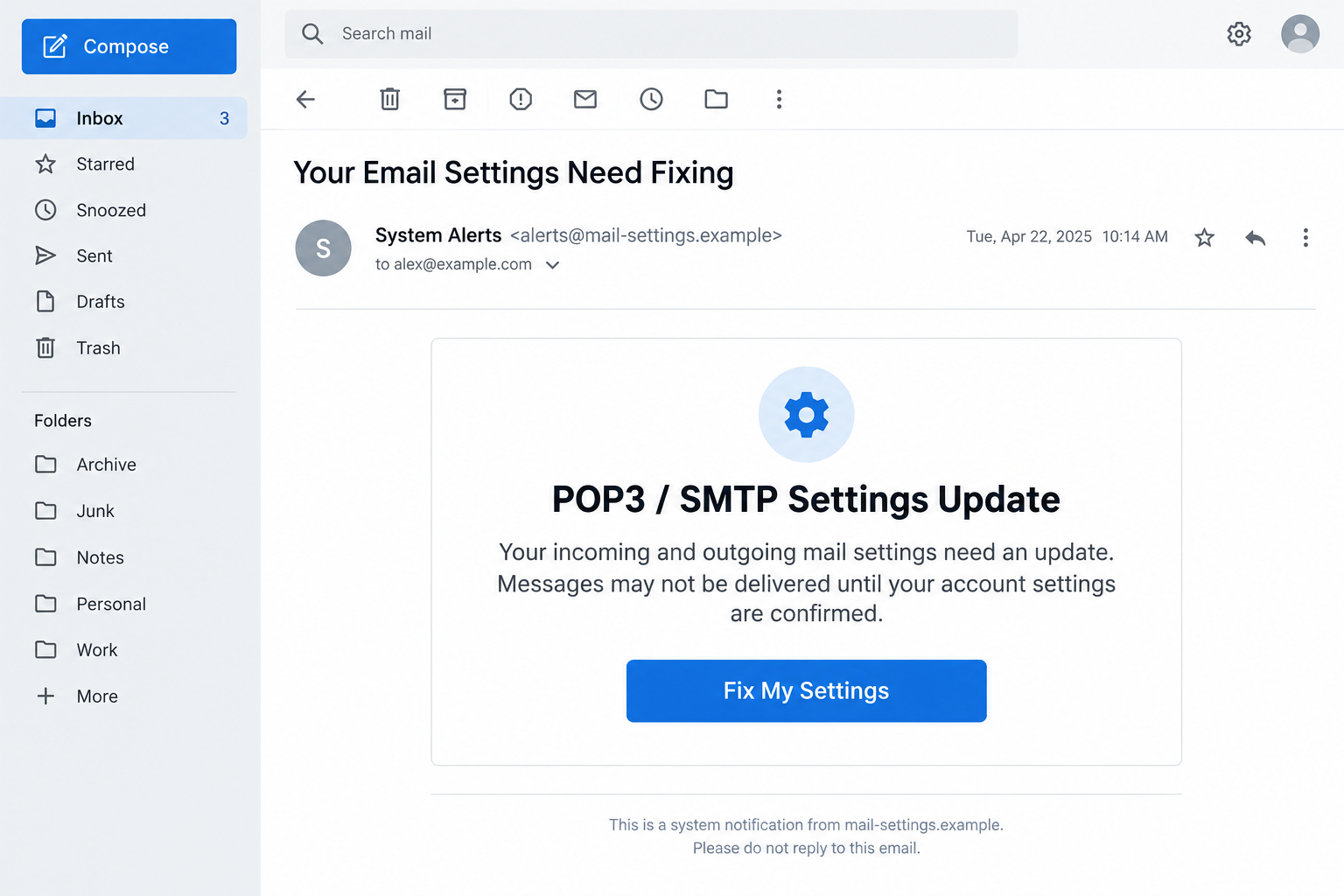
The POP3 SMTP Settings Update email scam uses a supposed mail configuration problem to push recipients toward a counterfeit sign-in form.
Its premise is that incoming or outgoing messages may fail unless the recipient updates account settings. That sounds practical, especially to someone using desktop email software.
However, the reported destination asks for credentials rather than showing verified server settings. The repair story supplies a reason to surrender the mailbox password.
This is a phishing warning, not evidence that POP3 or SMTP is unsafe. Both are genuine email technologies, and providers sometimes require legitimate configuration changes.
The reported page does not belong to the mailbox provider
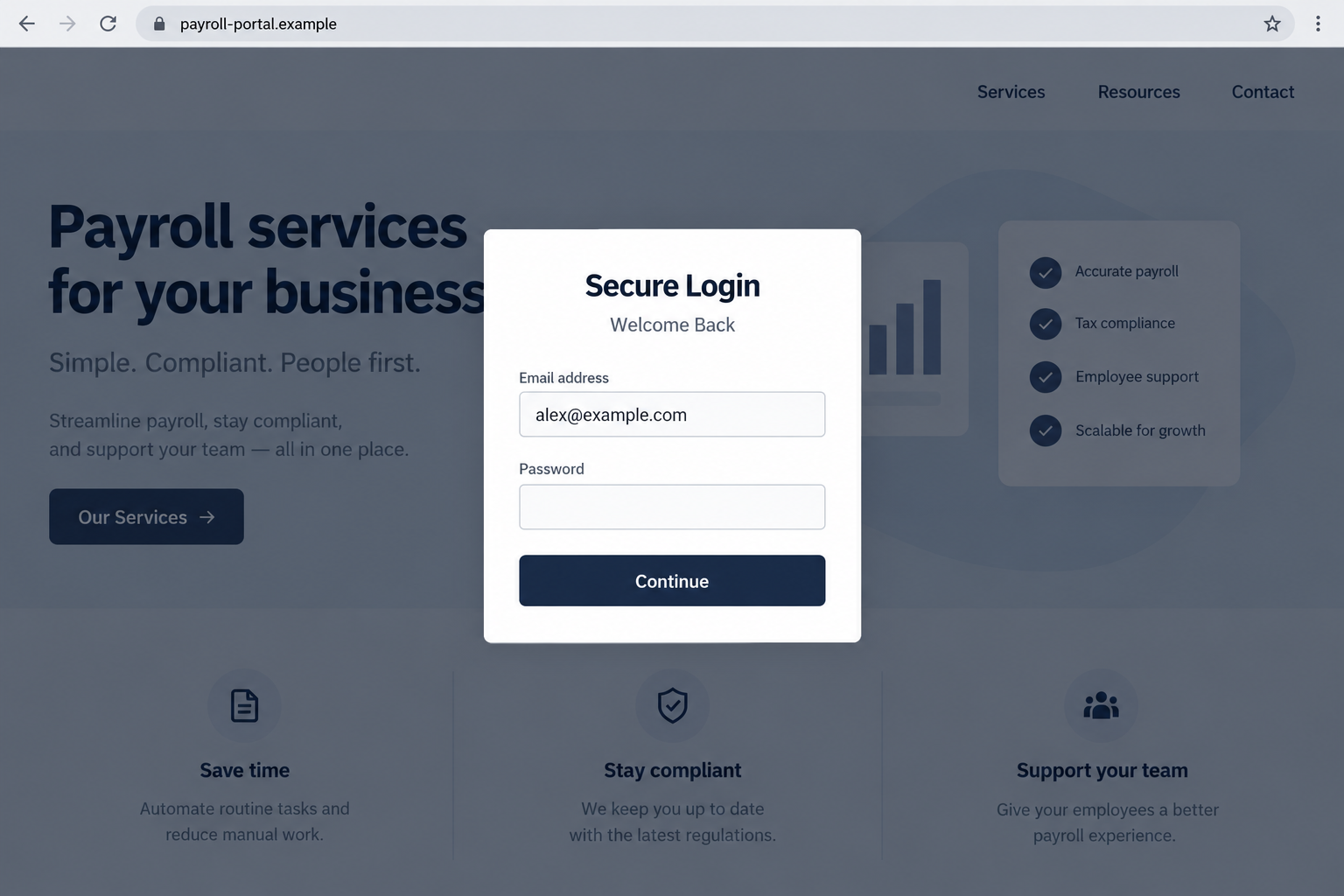
A documented version uses a generic system-alert identity and a button labeled “Fix My Settings.” Its destination presents a “Secure Login” overlay.
The background reportedly resembles a payroll website. A business-looking page behind a password box can make an unrelated destination appear established and trustworthy.
That background does not explain why a payroll page should collect the password for an unrelated email account. The service mismatch is the important clue.
- A warning claims email settings need attention without providing a verifiable provider ticket.
- The suggested repair begins through an unsolicited message rather than the account’s normal settings.
- The destination asks for the existing mailbox password on an unrelated site.
- Familiar security language tries to make that unexpected handoff feel routine.
The risk depends on what you actually did
Receiving the notice does not establish an account compromise. Opening a webpage is also different from submitting a password, approving a login, or installing software.
If you entered valid credentials, treat them as exposed. If you stopped before submitting anything, close the page and verify the account through your normal route.
The images here illustrate the message and overlay using fictional details. They are not evidence that the reported destination remains active or has identical branding today.
What POP3 and SMTP Really Do
Incoming and outgoing mail use different settings
POP3 lets a mail application retrieve messages from a server. SMTP handles sending mail. IMAP is another common way to access and synchronize received messages.
A provider change can affect one function without breaking the other. For example, an application might receive messages normally while outgoing authentication fails.
That does not mean every quiet inbox requires a settings update. A delayed reply, a spam filter, or a recipient’s absence can explain missing correspondence.
A real troubleshooting process identifies the application, account type, error, and provider. This email skips those details and supplies one universal-looking button instead.
Real configuration changes happen in the right place
Microsoft’s Outlook.com settings guidance describes server names, ports, encryption, and authentication. Those values come from the actual provider.
For another service, its own documentation or administrator determines the correct configuration. Copying random values from a message can create problems rather than solve them.
Some accounts use modern authentication through an official provider sign-in. Others use application-specific passwords. The supported method depends on the account and software.
A genuine authentication window still needs a verified origin. The words “Secure Login” are a design choice, not a certificate that the form belongs to your provider.
How the POP3 SMTP Settings Update Email Scam Works
Step 1: The message creates doubt about normal mail delivery
The recipient sees a maintenance-style notification rather than an obvious offer or invoice. Its technical vocabulary suggests that the sender knows something about the account.
The delivery warning matters because missed email can mean missed work. An owner waiting for a quote or customer response may be especially tempted to act.
Consider an example: your supplier has not replied this morning. The notice arrives, and you connect those unrelated events without checking whether the supplier sent anything.
That example illustrates the pressure, not a documented victim story. The attacker does not need access to your conversations for ordinary uncertainty to make the warning persuasive.
Step 2: A repair button replaces actual troubleshooting
Instead of asking you to consult your provider’s status page or inspect a specific error, the email offers an immediate settings fix.
The button’s purpose is to move the investigation onto a page chosen by the sender. You are no longer checking the problem independently.
Its wording also lowers resistance. Updating a setting sounds less consequential than signing into an unfamiliar service, even when both lead to the same credential request.
You can pause here without losing anything. Open the mail application yourself and look for a real sending or receiving error before considering any change.
Step 3: An unrelated website supplies a reassuring backdrop
The reported link leads to a login overlay displayed against a payroll-style background. Visually, that can resemble a normal business portal with an account session.
The relevant question is not whether the background looks professional. It is whether this service has any legitimate role in managing your particular mailbox.
A page can contain ordinary business material while an added form requests unrelated credentials. Copied design and legitimate-looking content do not authenticate the overlay.
We cannot establish from the visible report whether the underlying site was compromised, imitated, or otherwise used. Do not blame its business solely for the background.
Step 4: The supposed update becomes a credential submission
The form asks for an email address and password. Those are enough to attempt a login elsewhere if the account lacks effective additional protection.
Nothing about filling those fields repairs a POP3 server name, an SMTP port, or an encryption mismatch. The requested action does not match the promised fix.
An address already displayed inside the form can make it seem personalized. An email address is not a secret that proves the sender controls the account.
Once valid information reaches a phishing operator, closing the window cannot retrieve it. Even an error message afterward does not establish that submission failed.
Step 5: Stolen access can turn into further account abuse
A compromised inbox can reveal correspondence, invoices, contact information, and password-reset messages. The immediate loss is therefore broader than access to one mail application.
Attackers may send convincing requests from the account or alter forwarding rules to keep reading new messages. These are possible consequences, not confirmed events for every recipient.
Password reuse expands the exposure. An email credential may also work on a shopping account, cloud service, hosting panel, or another unrelated login.
Two-factor authentication can block some attempts, but never approve a prompt you did not initiate. Do not provide a one-time code to finish the supposed repair.
How to Check a Mail Settings Warning Without Following It
Start with the application, not the email’s button
Try sending an ordinary test message to another account you control. Check the outbox and any error displayed by the software you already use.
Also open the provider’s webmail directly. If webmail works but one application fails, the issue may belong to that application’s configuration rather than the mailbox itself.
Neither test authenticates the suspicious notice. They simply give you independent information before someone else’s webpage defines the problem.
Do not delete and recreate a working account just because the email recommends it. That could remove useful local settings or complicate access to stored mail.
Before a verified configuration change, note the current settings without recording passwords. An administrator can then compare the old and intended values without unnecessary disruption.
If several coworkers are affected, ask whether there is a known service incident. A shared outage is not solved by each person entering credentials into an unrelated overlay.
For a personal account, keep the investigation equally concrete: which application failed, what error appeared, and whether the same problem happens in official webmail.
Those observations help genuine support troubleshoot efficiently. They also expose how little the unsolicited notice knows about the software and account it claims to repair.
Ask for a change that can be verified
A real administrator should be able to identify the affected service and explain the required change through an established support channel.
For workplace accounts, forward the notice as an attachment to your IT team if their reporting procedure supports that. Avoid forwarding it casually to coworkers.
Ask whether any migration, authentication change, or outage is scheduled. Give the administrator the subject and sender details, not your password.
Microsoft’s account-settings instructions show how configuration can be checked inside the client. Use equivalent official guidance for your actual software.
Check the destination separately from its appearance
A link label can say one thing while the target address says another. View the destination without opening it where your email application supports that.
Check the complete hostname, not just a familiar word at the beginning. A payroll-related name is not an email provider merely because the page asks for email.
HTTPS protects the connection to a site. It does not establish that the site is authorized to collect your mailbox password or modify your settings.
Do not visit a suspected phishing destination just to test it. Screenshots, the original message, and the visible link are safer evidence to preserve.
What to Do if You Have Fallen Victim to This Scam
- Stop the repair attempt and note your exposure.
Close the form. Write down whether you only viewed it, submitted a password, supplied a code, accepted a prompt, or downloaded anything.
That distinction helps you prioritize the response. Receiving a scam message alone does not call for the same recovery measures as a stolen login.
- Replace the exposed password through the genuine account.
Use the provider’s known app or a trusted bookmark. Choose a unique password, then change any other account that used the same old password.
If access has already been lost, use official account recovery. Avoid support numbers or links supplied by the suspicious email or its follow-up messages.
- End unauthorized access, not just the browser session.
Review active sessions and recent sign-ins in the provider’s security controls. Sign out other sessions or revoke access using the available account options.
Check recovery email addresses, phone numbers, authentication methods, and connected applications. Remove unfamiliar changes after confirming which entries should legitimately exist.
Enable multifactor authentication if available. A phishing-resistant passkey or security key can offer stronger protection than simply approving unexpected notifications.
- Inspect mailbox rules and messages.
Look for new forwarding destinations, filters that hide security alerts, unexpected sent mail, and deleted messages. A password change may leave those settings intact.
Restore any altered controls. For a business account, ask IT to check logs and application access rather than relying only on what the inbox displays.
- Warn the people who could be affected.
If fraudulent messages left your account, contact the recipients through a separate trusted route. Explain which request should be ignored and whether payment details were changed.
Alert finance staff immediately if invoice conversations or bank details were exposed. A prompt warning may prevent a second person from losing money.
- Check the device when the interaction warrants it.
If you installed a supposed repair utility, opened a suspicious download, or see persistent redirects, run an updated Malwarebytes scan and review browser extensions.
Remove unwanted notification permissions. AdGuard may reduce exposure to deceptive ads and known malicious destinations, but it cannot reclaim a password already submitted.
If you only received the email, a malware scan is not evidence that anything was stolen. Account-security checks remain the priority after credential exposure.
- Preserve and report the original notice.
Keep the email, headers, link text, and approximate time of interaction. Report it through your provider’s phishing function and your employer’s security process if applicable.
Avoid posting passwords or full private correspondence when seeking help. A report should identify the attempted deception without exposing additional sensitive information.
Frequently Asked Questions
Is every POP3 or SMTP update email a scam?
No. Providers can announce genuine changes. Verify the notice through the account dashboard, official documentation, or an administrator you contact independently.
Why would a payroll-looking website ask for my email password?
In this reported scheme, the background supports an unrelated login overlay. Its professional appearance does not establish permission to collect credentials for your mailbox.
Can I lose my account just by reading the message?
Reading the notice alone does not establish account theft. Submitting credentials, approving access, or installing software creates different risks that need different responses.
Does an error after I entered my password mean I am safe?
No. A phishing page can receive information before displaying an error. Replace a valid password submitted there even if the promised update never completes.
Should I change my SMTP server to the address in the email?
Not without independently verifying the provider’s instructions. Unexpected server values may break delivery or introduce additional exposure instead of repairing the account.
What if my email still works normally afterward?
Normal delivery does not rule out unauthorized access. Review sessions, recovery details, forwarding rules, and sent messages if you gave the form a valid password.
The Bottom Line
The POP3 SMTP Settings Update email scam turns an ordinary maintenance concern into an unrelated password request. The login form is not a verified mail repair.
Check settings through your provider or administrator. If credentials were submitted, secure the account and its existing access permissions before returning to routine email.








