

Your inbox is quiet, then a storage warning says it might stop receiving messages. For anyone running a small business, that sounds like a problem worth fixing.
The message names Roundcube and offers two familiar-looking buttons. Before either becomes your next click, there are details in this particular alert worth examining.
Overview
What the Roundcube storage email claims
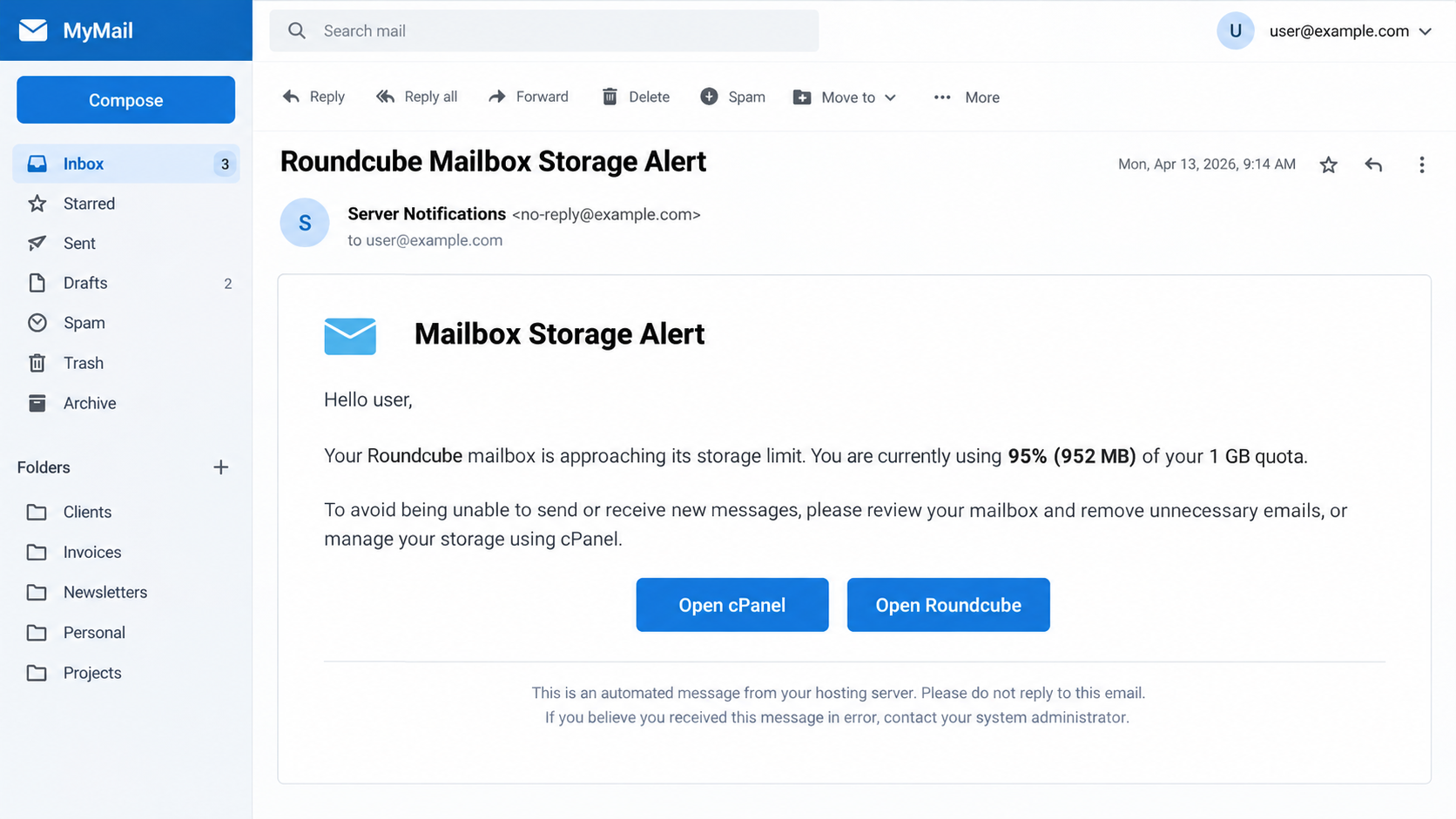
The reported email uses the subject “Roundcube Mailbox Storage Alert.” It says a mailbox reached its configured quota and that new mail may be rejected.
That premise is plausible because real hosted mailboxes can fill up. Plausibility, however, does not authenticate an unsolicited message or the links inside it.
The specimen presents two actions, “Open cPanel” and “Open Roundcube.” Both reportedly lead away from legitimate administration and toward a lookalike webmail login.
The request is for an email address and password. In this campaign, those credentials, not extra storage space, are the valuable outcome for the sender.
Why the familiar names matter
cPanel is a real hosting control panel, and Roundcube is a real webmail client supplied with many cPanel installations. Neither name makes this email authentic.
A genuine quota issue can be checked inside your usual hosting dashboard. You do not need an emailed button to discover your account’s actual storage usage.
- The warning names a real condition that hosted mailboxes can experience.
- It offers two branded paths that appear to solve the problem.
- The reported destination asks for login credentials on an unrelated page.
- The safe check starts at a saved hosting address or through your administrator.
Our assessment and its limits
This is a credential-phishing campaign impersonating a mail administration notice. It should not be treated as a normal cPanel or Roundcube support message.
We reviewed the reported wording and the documented destination behavior. We did not receive the original message in your inbox or test a live login submission.
The particular phishing address may disappear or change. The useful warning is the route from a quota story to a password form outside your trusted workflow.
Why a Mailbox Quota Warning Feels Credible
People who manage their own domain often know just enough about email hosting to recognize the word “quota.” They may not know where to check it.
That gap is exactly where a polished warning works. It offers a shortcut at the moment you worry customers could be sending messages into a full mailbox.
cPanel’s documentation explains that an account can have an allocated storage limit. When a mailbox exceeds it, incoming messages may be returned to senders.
This real behavior is not evidence that this email measured your mailbox. The sender can repeat an accurate technical fact without having access to your account.
Roundcube adds a second familiar label. A reader may think one button opens the server panel while the other opens the inbox.
In the reported example, neither choice provided that distinction. Both routes were used to push the reader toward a fraudulent login.
Notice the message’s broad instructions. It asks you to review storage and archive mail, but it cannot show a trustworthy account view inside your existing dashboard.
Even the line advising you to verify the domain is not proof of honesty. Phishing messages sometimes include sensible-sounding security language to appear responsible.
There is also no universal “official Roundcube URL” for every organization. Your mail host determines how you reach its webmail service.
That makes an arbitrary cloud-hosted login page especially suspect. A familiar logo cannot bridge the mismatch between your organization’s domain and the destination.
How the Roundcube Mailbox Storage Scam Works
Step 1: The email creates a delivery problem
The message says the mailbox has reached its limit and new mail could bounce. For a business user, missed orders and replies are easy to imagine.
It does not need to know whether you are near the limit. The threat works because many people have seen genuine storage warnings elsewhere.
If you do have a full mailbox, that coincidence can make the fraudulent email feel validated. The two facts must still be checked independently.
The wording also avoids an outrageous deadline. A plain operational warning can seem more credible than a message shouting that an account closes in minutes.
Step 2: Two buttons present a convenient fix
“Open cPanel” suggests administrator-level control. “Open Roundcube” suggests a route to delete or archive messages without leaving webmail.
Both choices appear to fit the stated problem, which reduces the chance that the reader questions why a link is needed at all.
Button text is only a label. It does not tell you which website will open after redirects or where a submitted password will go.
A shortened or cloud-hosted destination may still render a convincing form. The browser’s address bar matters more than the artwork on that form.
Step 3: A lookalike portal requests your password
The reported landing page resembles webmail and asks for an address and password. That is the moment the fake maintenance task becomes credential theft.
Entering a password there does not free any space. It gives whoever operates the page a chance to log in to the actual mailbox.
Some sites may reject the first entry and ask again, creating an excuse to collect a second password or a corrected spelling.
We have not verified that extra behavior in this specimen. Treat any repeated password prompt on an untrusted site as another reason to stop.
Step 4: The account can become a bridge to other accounts
Email is often the recovery channel for shopping, banking, payroll, and workplace services. Control of one inbox can make password resets elsewhere possible.
An intruder may also search invoices, customer details, or prior conversations. That information can make later messages to coworkers seem unusually convincing.
Mail forwarding rules deserve special attention. A password change alone may not stop copies of incoming messages if an attacker added a hidden forwarder.
Business accounts can also have delegated access or connected apps. These should be reviewed with the host after any suspected unauthorized login.
None of this means every click causes those outcomes. The risk becomes much more serious if credentials were entered or the account shows unusual activity.
How to Check a Real Quota Problem Safely
Open the hosting dashboard from a bookmark or type the provider’s address yourself. If an employer manages the mailbox, ask its IT team to check.
Inside cPanel, the Email Accounts area can show current usage and allocated storage. Your host may offer a separate webmail path or its own interface.
Compare the account shown there with the mailbox named in the warning. A legitimate problem should be visible in the service that actually stores your mail.
If the dashboard reports plenty of room, the email’s claim is false for that account. Mark the message as phishing and avoid both buttons.
If usage really is high, resolve it from the dashboard. You can remove unnecessary mail, change an allocation where authorized, or ask the host about options.
Do not move to a link in the suspicious message merely because a separate quota problem exists. Coincidences do not make its destination safe.
Webmail addresses differ among hosting providers. The provider’s official help pages or your organization’s documentation are better references than a message’s footer.
When in doubt, send the full email to your administrator using your usual internal reporting channel. They can inspect headers and destination URLs without entering credentials.
There is another reason not to rush: mailbox quotas and account-wide disk quotas are not always the same. Your provider may show several storage figures.
An email that quotes one impressive number without identifying the relevant account, limit, and service may be trading on that confusion.
Shared business mailboxes deserve a coordinated response. Deleting messages to free room without checking retention policies can remove records your team needs.
Ask the person who administers the account before changing storage settings or bulk-deleting mail. The legitimate fix may be an allocation adjustment instead.
If clients report bounces, ask them to forward the delivery failure through a known channel. A genuine bounce includes information your host can examine.
Do not forward the suspicious message to clients as proof that your inbox is failing. That could accidentally spread the phishing link.
Also be careful with “upgrade storage” offers. Some hosts sell larger plans, but a real purchase should start from the provider’s own account dashboard.
Review the hosting invoice or contact contract owner if the quota change has a cost. The phishing email is not a reliable price quote.
If your host recently migrated mail, verify the new access address with support through a known number. Migration confusion is another opening for impersonators.
The practical habit is simple: treat email as a notice to investigate, not as the place where you authenticate or buy a repair.
Sender, Link, and Login Checks That Matter
Look beyond the display name
“cPanel Support” can be typed into a sender name by anyone. Open the full address and compare its domain with your host’s published contact details.
Even a matching-looking sender is not enough by itself. Mail can be spoofed, and a compromised account can send an authentic-looking message with malicious links.
Your administrator can check authentication results and routing headers if the message matters. Ordinary users need not become email forensics experts before refusing a link.
Follow the address bar, not the email button
Preview the link without opening it where possible. On a phone, long-pressing may reveal the destination, though interfaces differ and previews can be incomplete.
Cloud storage and generic page-hosting domains are not your organization’s cPanel installation. Legitimate services can use cloud infrastructure, but this mismatch requires verification.
A familiar lock icon only says a connection is encrypted. It does not certify that the site is operated by your mail provider.
Know where your actual login belongs
Find your account’s normal sign-in route before an emergency. Save it as a bookmark, and ask your host which domain should appear in the browser.
That small preparation removes the phisher’s advantage. When a scary warning arrives, you can check a known page rather than guessing which button is safe.
What to Do if You Have Fallen Victim to This Scam
-
If you only read the email, leave the links alone. Mark it as phishing, then check storage through your normal dashboard if the warning worries you.
Reading a message is not the same as sharing a password. You do not need to reinstall software simply because the email appeared.
-
If you opened the page but entered nothing, close it. Check your browser downloads and notification permissions, especially if the page asked for more than a login.
A reputable scanner such as Malwarebytes is useful if a file downloaded or your browser began behaving strangely. A click alone does not prove infection.
-
If you entered a password, change it from the real service immediately. Use a trusted device and a manually entered address, not the button in the message.
Ask the host or administrator to terminate active sessions. Turn on multifactor authentication if available, and replace reused passwords on other accounts.
-
Inspect the account for persistence and misuse. Review recent logins, forwarding rules, filters, delegated access, recovery settings, and connected apps.
Tell your workplace IT team promptly if this was a work mailbox. They can assess other accounts, message logs, and possible data exposure.
-
Check the inbox’s downstream accounts. Look for password reset notices, unfamiliar receipts, and outgoing messages you did not send.
If the mailbox handles financial instructions, independently warn relevant colleagues or partners to verify any unexpected payment changes through known channels.
-
Keep evidence and report the attempt. Save the message with headers if possible, note the time, and report it to the host or your organization.
If the page requested a download or enabled browser notifications, block that site’s permissions. AdGuard may help reduce malicious advertising, but it cannot reverse account compromise.
Frequently Asked Questions
Is every Roundcube mailbox storage alert a scam?
No. Mail quotas are real. This reported message is dangerous because its action buttons lead to a fraudulent login, not because storage warnings are impossible.
Does cPanel send a single universal login link?
No. Hosts configure account access differently. Confirm your own provider’s webmail address through a bookmark, official host documentation, or an administrator.
What if my mailbox really is full?
Resolve the quota inside your known hosting account. A genuine storage problem does not make links in an unrelated unsolicited email trustworthy.
Can the sender steal my password if I just open the email?
Simply reading it does not disclose your password. Risk rises if you enter credentials on the fake page, approve a login, or run a downloaded file.
Should I change my password after clicking the button?
If you typed it into the suspicious page, yes, immediately. If you only clicked and entered nothing, inspect downloads and account activity first.
Can an antivirus scan secure a compromised mailbox?
No. Scanning can help with a suspicious download. Account recovery requires a new password, session revocation, multifactor authentication, and review of forwarding settings.
The Bottom Line
The Roundcube mailbox storage alert borrows a real hosting problem and familiar names to move readers toward a fake password form. Its buttons cannot fix mail.
Check quota and sign in through the account path you already trust. If you entered credentials, secure the mailbox and investigate what happened inside it.








