

A receipt is easy to open without much thought. You may be looking for an expense record, reconciling an invoice, or checking whether someone paid.
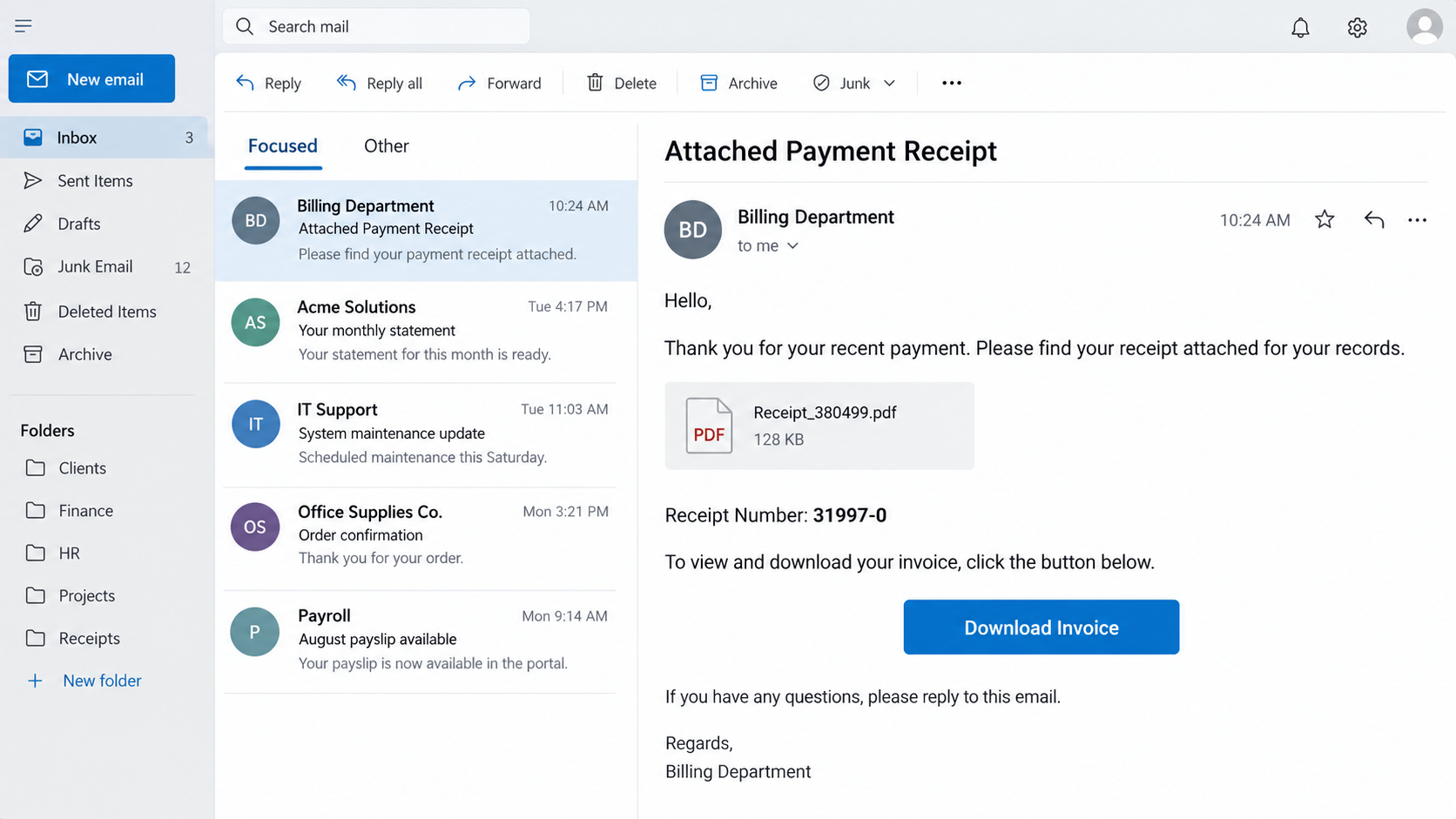
One message titled “Attached Payment Receipt” uses that ordinary task to lead readers through a very different download. The file names make this case especially worth understanding.
Overview
The receipt is a reason to click, not the destination
The reported email announces a payment receipt and mentions Receipt_380499.pdf plus receipt number 31997-0. It offers a “Download Invoice” button.
That button reportedly opens a page imitating an Adobe Acrobat download, not the promised remittance document. The page tries to deliver an executable file.
A PDF name in the message does not mean the button downloads a PDF. It is only part of the story the sender wants you to believe.
The dangerous file is an application
The reported download is named Adobe-Zecurit_agent_3.22.exe. Despite the Adobe-like wording, it was identified as a remote-access trojan.
The specific malware family is not established in the available campaign account. We have not run this file or verified a current live download ourselves.
The crucial boundary is whether a recipient executed it. Receiving the email, visiting a page, downloading a file, and running that file are different exposures.
- The email advertises a PDF receipt and invoice download.
- The reported link opens an Adobe-themed software page instead.
- The delivered file has an .exe extension, not .pdf.
- Running that file may grant an intruder access to the computer.
Why this is more than ordinary phishing
Many fake receipt emails seek card details or passwords. This reported campaign pushes a program to install, creating a potential device compromise.
Adobe is a real software company and has no indicated role in the campaign. Its name and visual cues are used to make an unexpected installer seem routine.
If you merely received the message, it did not install anything by itself. If you ran the executable, act as if the device may be exposed.
The Small Details That Make the Receipt Believable
Receipt numbers and PDF filenames can look administrative rather than emotional. That is precisely why they work in a finance inbox.
Someone closing the month’s books may not remember every small transaction. A receipt might be easier to open than to challenge.
The message also includes a customer-care number and a line about contacting the seller. Those details suggest a normal business relationship.
Do not use that number to verify a charge. It belongs to the suspicious message, and we have not authenticated who answers it.
The “Download Invoice” button seems practical. Yet it is already odd that a receipt supposedly attached to the email requires a separate website.
The next page supplies an explanation: Adobe Reader is supposedly missing or outdated. That answer can feel plausible if you expected a PDF.
In reality, the page changes the task. You set out to read a receipt, and suddenly you are being asked to install software from an unfamiliar site.
That shift is the moment to stop. A document does not give an email sender authority to choose your software installation source.
Adobe provides its own official Reader download. An unrelated receipt site has no reason to push a specially named installer.
The strange spelling in Adobe-Zecurit_agent_3.22.exe is another warning, but file names can be changed. The safer rule is about origin and behavior.
How the Attached Payment Receipt Scam Works
Step 1: The message invents a routine payment task
The email claims a receipt is available and invites the recipient to view remittance details. It speaks in the language of ordinary accounting.
A reported subject code, rather than a dramatic alert, can make it resemble an automated record. The numbers create familiarity without proving any payment occurred.
The sender does not have to charge your card for this pretext to work. It only has to create enough curiosity for a click.
If you manage many orders, check your own ledger before accepting the email’s claim. A genuine payment should leave a record outside this message.
Step 2: A PDF filename keeps expectations focused on a document
Receipt_380499.pdf sounds like a mundane attachment. The “Download Invoice” button invites you to fetch it if the email view does not show one.
When a page opens, readers may still be thinking about the PDF. That expectation makes an Acrobat-themed site appear related to the task.
But the displayed file name and actual download type are separate. Check the browser’s download shelf and the file extension before opening anything.
Windows can hide known extensions in some views. File properties and a trusted security tool offer better confirmation than a PDF icon alone.
Step 3: A fake Adobe page explains the detour
The reported landing page resembles an Acrobat download page and says Reader is not detected or must be updated.
That explanation turns an unexpected detour into a supposed prerequisite. To see the receipt, the victim is told, they first need the software.
Legitimate Adobe software should come from Adobe’s own site or a trusted managed software channel. The email does not become an approved distributor.
Do not accept a browser page’s claim that an application is absent without checking your device. Many browsers can display PDFs without installing Reader.
Step 4: The executable downloads
The reported file name is Adobe-Zecurit_agent_3.22.exe. The .exe extension identifies a Windows program, not a document.
According to the campaign analysis, it is a remote-access trojan. That means running it can give an operator unauthorized control or surveillance capability.
Automatic downloading is not the same as automatic execution. A modern browser may save the file without launching it.
That distinction matters for response. You should remove an unrun suspicious download, but a launched executable calls for a fuller incident process.
Step 5: A running trojan creates a wider incident
Remote-access malware can enable file theft, credential collection, or later payloads. The exact actions depend on the sample and operator.
We cannot determine from the reported email which accounts a particular infected machine exposed. Treat stored credentials and active sessions as potentially affected.
For a work device, contact the security team immediately. They may need logs, isolation, and a trusted rebuild rather than a quick cleanup.
For a personal device, avoid banking or changing passwords on it until its status is assessed. Use another known-clean device for account recovery.
What a Real PDF Workflow Would Look Like
A vendor that sent a receipt should be identifiable in your own payment records. Start with the transaction, not with the document link.
Ask the sender through a previously known contact if the receipt number is unfamiliar. Do not reply to the suspicious message.
If your organization uses a vendor portal, sign into that portal directly and look for the receipt there.
A genuine PDF may open in the browser or in software already installed. It should not force an unrelated Windows executable into the workflow.
Do not let a polished download page settle the matter. Verify the hostname and vendor, because graphics can be copied easily.
An update prompt that appears only after following an invoice email deserves special suspicion. Software maintenance and payment confirmation are different tasks.
Keep your PDF reader updated through its normal update mechanism. That reduces the appeal of a surprise “outdated Reader” warning.
Finally, a receipt is not a reason to grant administrator permission. If a download requests system changes before showing a payment record, stop.
Checks Worth Making Before You Open an Unexpected Receipt
Start with the organization named in the message. Is it a company you actually pay, or merely a familiar-sounding name with no matching transaction?
Search your own accounting system, order history, or bank activity. Do not let a receipt number supplied by the sender become your only evidence.
Look at the sender’s full address, but remember that a plausible address alone is not proof. Accounts can be compromised, and display names are easy to imitate.
Hover over the invoice button on a desktop computer or inspect its destination safely without opening it. The landing domain should make sense for the vendor.
Even a familiar domain is not sufficient if the page asks you to download a program. A receipt should remain a document, not turn into software installation.
If the message is part of a legitimate business relationship, a known phone number or established vendor portal gives you a separate way to verify it.
That independent check takes minutes. Recovering from a remote-access infection can take much longer, especially if the computer handles payroll or customer records.
For shared inboxes, flag the message for colleagues instead of forwarding it casually. A forwarded phishing email can look more credible when it comes from a teammate.
Organizations can also restrict executable downloads and use application allowlisting. Those controls reduce the damage if someone follows the link despite training.
No filter catches every campaign. The most dependable habit is to question the moment a financial document unexpectedly becomes an installer.
Make that distinction part of the approval routine for anyone who regularly handles invoices or remittance notices.
When you report the message, tell colleagues that its PDF filename is a lure. The reported danger comes from the executable offered after the link.
That detail helps others recognize the same campaign if the sender changes the subject line, receipt number, or business name.
Why the Exposure Level Changes the Response
If you saw the email and ignored it, you have a suspicious message, not an infected computer.
If you clicked the button, the browser may have loaded a malicious page. Check downloads and permissions before deciding what else is necessary.
If the .exe arrived but was never opened, preserve its name for reporting, then let your security team or antivirus quarantine it.
If you launched the file, do not rely on a single scan result to prove the system is clean. A remote-access incident can require professional investigation.
That last distinction is especially important at work. An infected accounting computer may contain more than one person’s financial information.
Let the security team decide whether to collect evidence before removal. Deleting files in a panic can make it harder to learn what happened.
What to Do if You Have Fallen Victim to This Scam
-
Stop using the suspicious page and file. Close the site, do not call its customer-care number, and do not run the installer.
If you only read the email, report and delete it. A malware response is not needed solely because the message arrived.
-
Determine whether the executable actually ran. Check your downloads and recent application prompts. Record the filename and the approximate time.
Do not experiment by opening it again. If a work device is involved, give these facts to your IT or security team promptly.
-
Isolate a device that ran the file. Disconnect it from networks and stop using it for email, banking, or work until a trusted responder advises.
A company may need to preserve evidence before cleaning. On a personal PC, seek qualified help if scans find remote-access malware.
-
Scan from trusted software sources. Use your installed protection or a reputable tool such as Malwarebytes, obtained directly from its official site.
A scan can identify known threats, but it cannot promise that an intruder never copied data or left another access path.
-
Secure accounts from a different device. Change important passwords, revoke sessions, enable multifactor authentication, and inspect financial activity.
Prioritize email and accounts whose credentials were stored or used on the affected computer. Contact your bank if you see unauthorized transactions.
-
Keep evidence and watch for follow-up attempts. Save the email, download name, browser history, and any security alerts for investigators.
Remove unwanted browser permissions. AdGuard can help limit malicious ads later, but it is not a treatment for an already running trojan.
Frequently Asked Questions
Is Receipt_380499.pdf itself the malicious file?
That name appears in the email’s story. The reported dangerous download is an .exe file from the fake Adobe page, not a verified PDF receipt.
Does clicking “Download Invoice” infect my computer?
A click may open a deceptive site or download a file. Infection risk becomes much higher if you run the executable it provides.
Is Adobe responsible for the fake update?
No evidence connects Adobe to this campaign. The page imitates a trusted software brand to make a malicious installer look familiar.
What if I downloaded the .exe but never opened it?
Do not launch it. Ask your security team or trusted antivirus to quarantine it, then check whether anything else was downloaded or executed.
Can a normal antivirus scan prove nothing was stolen?
No. A clean scan is useful but cannot reconstruct every action taken before detection. A launched remote-access trojan may require deeper investigation.
Should I call the support number in the receipt email?
No. Use a vendor number from your established records if you need to verify a real payment. The email’s number is unverified.
The Bottom Line
The attached payment receipt email promises a document, then redirects readers toward an Adobe-themed executable download. That swap is the core danger.
Verify payments through your own records. If the program ran, treat the device and its accounts as a security incident, not merely a bad email.








