

A security warning names TRIPAUL3, but your computer still seems to work. It is difficult to know what to trust when nothing obvious has changed.
Before deleting unfamiliar files or buying a supposed emergency fix, work out what the warning actually says and which computer it concerns.
Overview
A Windows remote-access threat, not an ordinary document problem
TRIPAUL3 is reported as a remote-access Trojan targeting 64-bit Windows. Its described functions include remote control, surveillance, and theft of credentials or files.
That makes the response broader than deleting one download. The affected system and accounts used through it may both need attention.
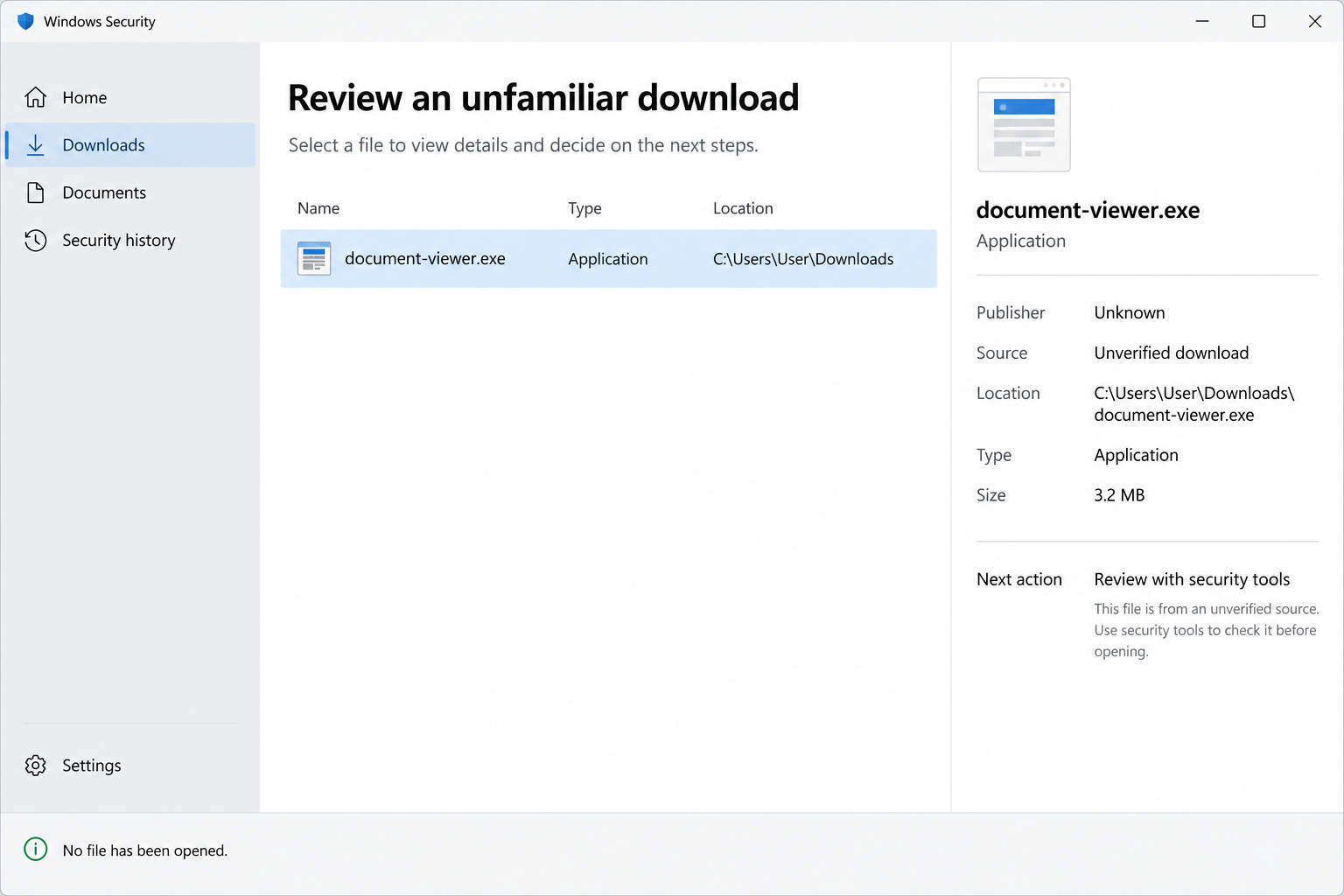
The lead illustration is a fictional file-review interface. It is not a genuine Windows Security screen or a test showing TRIPAUL3 on a particular computer.
A malware name does not tell you how your device was exposed
No specimen was executed or infection reproduced here. An exact initial delivery route cannot be assigned to an individual reader from the family name alone.
Keep the alert, detection location, and relevant activity together. They help distinguish a blocked download from code that actually ran.
A browser popup displaying a malware name is not equivalent to a finding inside your real security software. Confirm the source of the warning first.
The priorities are containment, cleanup, and account protection
- Stop using a potentially compromised computer for sensitive sign-ins.
- Preserve useful evidence before making sweeping changes.
- Use trusted Windows tools and recover exposed accounts from an unaffected environment.
This guide separates those jobs. A completed scan can help address malware, but it cannot bring back information already copied or certify every account.
Start by Identifying the Warning You Actually Have
Open the security application from its normal installed shortcut or Windows settings. Do not use a download button inside a webpage claiming your computer is infected.
Look for an actual detection record. Note the product, exact detection text, date, file path, and action already taken.
A quarantined file and an active threat are not the same status. Keep the tool’s wording rather than turning every alert into a confirmed live intrusion.
Similarly, a slow application, busy fan, or unfamiliar process is not enough to identify TRIPAUL3. Performance problems have many possible explanations.
If this is a work computer, report the observation before attempting personal repairs. The device may belong to a wider incident your administrator is investigating.
Do not erase a suspicious file merely because its name resembles a technical term. Legitimate components and malicious files can both use plausible names.
A useful first decision is whether you need routine scanning, immediate containment, or professional assistance. Let the actual evidence guide that choice.
How a TRIPAUL3 Remote-Access Incident Can Develop
Step 1: Untrusted software gets an opportunity to run
A remote-access infection requires an entry route. Depending on the incident, that might involve a download, a malicious attachment, or access already present on the system.
Those are possibilities to investigate, not a claim that one particular email or installer delivered every TRIPAUL3 infection.
Think back to recent activity without reopening suspicious items. Record anything relevant, including a security warning that was dismissed or an unfamiliar program installed.
A file’s location can help reconstruct the sequence. Something in Downloads may need different investigation from a detection in a running process.
Do not reinstall the suspected program to confirm your memory. The original event and existing records are safer starting points.
Step 2: Remote access makes the computer an unreliable place for secrets
The defining concern with a RAT is unauthorized access. The operator may interact with the compromised environment rather than merely display advertisements.
When surveillance or credential theft is possible, typing a replacement password on that computer can expose the replacement too.
Move urgent account recovery to an unaffected device. This is a practical boundary, not a claim that every account was definitely stolen.
Consider the computer’s role. A personal browsing machine, a finance workstation, and an administrator’s laptop hold different access and require different response scope.
Tell support about that role early. They need to know what the device could reach, not just the malware name in a report.
Step 3: The absence of visible disruption can delay a response
A computer may continue opening documents and browsing normally while unauthorized activity is investigated. Normal performance does not establish trustworthy access controls.
Equally, a crash does not prove an attacker is currently watching. Avoid interpreting every inconvenience as confirmation of the worst possibility.
Use security findings, account records, and professional investigation where available. They provide a firmer basis than watching the mouse pointer for unusual movement.
Do not wait for financial loss before acting on a credible detection. Containment aims to prevent further exposure while the facts are assessed.
Keep any affected backup or shared-storage connections in mind. Tell your incident team about them before reconnecting media to a potentially compromised machine.
Step 4: Cleanup must be followed by recovery checks
Removing a detected component addresses part of the incident. Account sessions, copied files, unauthorized settings, or additional software may need separate review.
A detection that returns after restarting is a reason to seek more help. Repeatedly dismissing the alert does not resolve the cause.
A trusted reinstall may be appropriate when integrity cannot be established. That is a planned recovery operation, not a first instruction to erase everything.
Preserve necessary data and arrange access to legitimate installation media before taking that route. Managed devices should follow their organization’s recovery process.
The goal is a system you can use with justified confidence, not simply a screen that no longer displays a warning.
What to Do After a Suspected TRIPAUL3 Detection
Pause sensitive activity. Stop banking, work approvals, password changes, and wallet use on the affected computer until the exposure is assessed.
If active compromise is suspected, disconnect its network connection and contact trusted support. Use another device for the conversation.
Do not grant remote access to someone who contacted you through a popup or unsolicited call. A malware concern should not become a support impersonation incident.
Preserve the information needed for a decision. Save the alert details and note what occurred before it appeared, without running the suspicious item again.
For work equipment, let IT determine what evidence must be collected. Unplanned cleanup can remove information useful for understanding the wider incident.
Keep the summary factual. “The tool quarantined this file” is more useful than an unsupported assertion that every password or document has been stolen.
Plan safe scanning. Use the Windows-specific sequence below or your organization’s approved tools. Obtain software through maintained, trustworthy routes.
Malwarebytes can help scan and quarantine malicious software. Its findings do not establish whether a password or document was copied before cleanup.
Do not disable protection to install an unknown cleaner. If a genuine security application will not start, seek help rather than improvising with advertised repair utilities.
Keep scan reports and record any restart requested by the tool. Those results help determine whether further remediation is needed.
Protect accounts independently. From a clean device, address exposed email, work, financial, and other important accounts according to their actual use on the computer.
Review active sessions, recovery contacts, and authorized applications as well as passwords. Account access may require more than one control to restore.
Contact the genuine financial provider promptly if unauthorized activity is visible. Malware removal should not delay reporting an actual payment problem.
Get help when trust remains uncertain. Persistent detections, administrator-level access, business secrets, or repeated security failures may justify specialist investigation or a supported rebuild.
Use your organization’s response team or the MalwareTips Windows malware-removal help forum for unresolved personal-computer cases.
Share logs only through the appropriate process and review them for private information. Never post passwords, wallet secrets, or confidential documents to prove the problem.
After recovery, AdGuard can help filter some harmful advertising. It neither removes a remote-access infection nor repairs an account whose credentials were exposed.
Is Your Device Infected? Run a Free Malware Scan
Slow performance, constant pop-ups, or strange behavior? These are classic signs of a malware infection. The fastest way to find out is to scan your device with Malwarebytes Free — one of the most trusted malware removal tools available.
The free version detects and removes the most common threats, including:
- Adware — the cause of those annoying pop-ups
- Browser hijackers — unwanted redirects and changed homepages
- Trojans and spyware — hidden programs stealing your data
- Potentially unwanted programs (PUPs) — software you never asked for
👉 Select your device below — Windows, Mac, or Android — then follow the simple steps to download Malwarebytes, scan your system, and remove any threats it finds. The scan usually takes 5 to 20 minutes.
Run a Malware Scan with Malwarebytes for Windows
Malwarebytes is one of the most popular and trusted anti-malware tools for Windows — and it’s completely free for removing infections. It catches threats that many antivirus programs miss, including adware, browser hijackers, and trojans. Follow the steps below to scan and clean your PC in just a few minutes.
Download Malwarebytes
Click the button below to download the latest version of Malwarebytes for Windows from the official source. The free version is all you need — it will scan your computer and remove adware, browser hijackers, and other malicious software at no cost.
Download MalwarebytesOfficial installer for Windows 11 and 10. Your download starts right away.Want real-time protection? See Malwarebytes Premium Malwarebytes Free for WindowsScans and removes malware at no cost
-
Install Malwarebytes
When the download finishes, open your Downloads folder and double-click the MBSetup file. If Windows shows a User Account Control pop-up, click “Yes” to allow the installation.

Follow the On-Screen Prompts to Install Malwarebytes
The setup wizard will walk you through a few quick screens:
-
Choose where you’re installing the program — “Personal Computer” or “Work Computer” — then click Next.

-
Malwarebytes will now install on your device. This usually takes under a minute.

-
When installation is complete, the “Welcome to Malwarebytes” screen will open automatically.

-
On the final screen, click Open Malwarebytes to launch the program.

-
Enable “Scan for Rootkits”
Before scanning, turn on rootkit detection so Malwarebytes can find even the most hidden threats. Click the Settings gear icon on the left side of the screen.

In the settings menu, find “Scan for rootkits” and click the toggle so it turns blue.

Done? Click “Dashboard” in the left pane to return to the main screen.
Start the Scan
Click the blue Scan button. Malwarebytes will automatically update its virus database and start checking your computer for malware.

-
Wait for the Scan to Finish
The scan checks your entire system for browser hijackers and other malicious programs, so it can take 5 to 20 minutes depending on your computer. Feel free to do something else — just check back occasionally to see the progress.

-
Quarantine the Detected Threats
When the scan is done, you’ll see a list of everything Malwarebytes found — malware, adware, and potentially unwanted programs. Click the “Quarantine” button to remove all of them at once.

Malwarebytes will now remove the malicious files and registry entries and move them safely into quarantine.

-
Restart Your Computer
Some threats can only be fully removed after a reboot. If Malwarebytes asks you to restart, click Yes. Once you’re logged back in, Malwarebytes has finished removing the threats it found.

That’s it — your Windows PC is now clean of trojans, adware, and other malware, and should be back to running smoothly.
If you are still having problems with your computer after completing these instructions, then please follow one of the steps:
- Run a computer scan with ESET Online Scanner
- Ask for help in our Windows Malware Removal Help & Support forum.
Run a Malware Scan with Malwarebytes for Mac
Malwarebytes for Mac is a free on-demand scanner that removes the malware other security software tends to miss — adware, browser hijackers, and unwanted programs included. Cleaning an infected Mac with Malwarebytes has always been completely free, and it’s our go-to recommendation. Follow the steps below to scan and clean your Mac in just a few minutes.
-
Download Malwarebytes for Mac
Click the button below to download the latest version of Malwarebytes for Mac.
Download MalwarebytesOfficial installer for macOS. Your download starts right away.Want real-time protection? See Malwarebytes PremiumMalwarebytes Free for MacScans and removes malware at no cost -
Open the Malwarebytes setup file
When the download finishes, open your Downloads folder and double-click the setup file to begin the installation.

-
Follow the On-Screen Prompts to Install Malwarebytes
The Malwarebytes for Mac Installer will guide you through a few quick screens. Click “Continue” and keep following the prompts until the installation completes.



When the installation is complete, Malwarebytes opens to the Welcome to Malwarebytes screen. Click “Get started“.
-
Select “Personal Computer” or “Work Computer”
Malwarebytes will ask what type of computer you’re installing it on. Click either Personal Computer or Work Computer, whichever applies.

-
Start the Scan
Click the “Scan” button. Malwarebytes will automatically update its detection database and begin checking your Mac for malware.

-
Wait for the Scan to Finish
Malwarebytes will scan your Mac for adware, browser hijackers, and other malicious programs. This can take a few minutes, so feel free to do something else — just check back occasionally to see the progress.

-
Quarantine the Detected Threats
When the scan is done, you’ll see a list of everything Malwarebytes found. Click the “Quarantine” button to remove all the threats at once.

-
Restart Your Mac
Malwarebytes will now remove all the malicious files it found. Some threats can only be fully removed after a reboot — if Malwarebytes asks you to restart, allow it. Once you’re logged back in, your Mac is clean.

That’s it — your Mac is now free of adware, rogue browser extensions, and other potentially harmful software.
If you are still experiencing problems while trying to remove a malicious program from your computer, please ask for help in our Mac Malware Removal Help & Support forum.
Run a Malware Scan with Malwarebytes for Android
Malwarebytes for Android automatically detects and removes dangerous threats like malware and ransomware so you don’t have to worry about your most-used device being compromised. Aggressive detection of adware and potentially unwanted programs keeps your Android phone or tablet running smooth.
-
Download Malwarebytes for Android.
You can download Malwarebytes for Android by clicking the link below.
Get Malwarebytes for AndroidOpens Google Play in a new tab.Want real-time protection? See Malwarebytes Premium for AndroidMalwarebytes for AndroidScans your phone and removes malware at no cost -
Install Malwarebytes for Android on your phone.
In the Google Play Store, tap “Install” to install Malwarebytes for Android on your device.

When the installation process has finished, tap “Open” to begin using Malwarebytes for Android. You can also open Malwarebytes by tapping on its icon in your phone menu or home screen.

-
Follow the on-screen prompts to complete the setup process
When Malwarebytes will open, you will see the Malwarebytes Setup Wizard which will guide you through a series of permissions and other setup options.
This is the first of two screens that explain the difference between the Premium and Free versions. Swipe this screen to continue.
Tap on “Got it” to proceed to the next step.
Malwarebytes for Android will now ask for a set of permissions that are required to scan your device and protect it from malware. Tap on “Give permission” to continue.
Tap on “Allow” to permit Malwarebytes to access the files on your phone.
-
Update database and run a scan with Malwarebytes for Android
You will now be prompted to update the Malwarebytes database and run a full system scan.

Click on “Update database” to update the Malwarebytes for Android definitions to the latest version, then click on “Run full scan” to perform a system scan.

-
Wait for the Malwarebytes scan to complete.
Malwarebytes will now start scanning your phone for adware and other malicious apps. This process can take a few minutes, so we suggest you do something else and periodically check on the status of the scan to see when it is finished.

-
Click on “Remove Selected”.
When the scan has been completed, you will be presented with a screen showing the malware infections that Malwarebytes for Android has detected. To remove the malicious apps that Malwarebytes has found, tap on the “Remove Selected” button.

-
Restart your phone.
Malwarebytes for Android will now remove all the malicious apps that it has found. To complete the malware removal process, Malwarebytes may ask you to restart your device.
That’s it — your Android phone is now clean — no more malicious apps, adware, or browser redirects.
If you are still having problems with your phone after completing these instructions, then please follow one of the steps:
- Restore your phone to factory settings by going to Settings > General management > Reset > Factory data reset.
- Ask for help in our Mobile Malware Removal Help & Support forum.
Stay Protected: Block Ads and Malicious Sites
Now that your device is clean, keep it that way. Most infections start with a malicious ad or a fake download button — so blocking them at the source is your best defense.
We recommend AdGuard, which blocks malicious ads, phishing pages, and dangerous redirects before they can reach you.
👉 Download AdGuard and browse safely
Windows Cleanup for a Suspected Remote-Access Infection
Step 1: Establish a safe place to work
For a managed computer, stop here and follow IT’s incident instructions. The remaining steps are for a personal Windows device when a supported cleanup is appropriate.
Keep external backup drives disconnected. Do not browse personal accounts on the affected installation while preparing scanners.
Use a clean device to obtain instructions and verify download sources. If transferring a legitimate installer, avoid carrying the suspected file alongside it.
Network isolation and obtaining updates need coordination. Ask a technician how to prepare current tools if reconnecting the computer would create unacceptable risk.
Step 2: Inspect Windows Security and run the appropriate scan
Open Windows Security, then Virus and threat protection. Review current findings and obtain current security intelligence when safely possible.
Under Scan options, select the scan appropriate to the situation. A Full scan checks more than a quick scan and may take longer.
Microsoft Defender Offline restarts the computer to scan outside the normal Windows session. Save open work and read the restart notice before starting it.
Microsoft’s scan guidance explains these options. Follow the current interface and do not treat one clean result as proof that no data was exposed.
Step 3: Use a genuine Malwarebytes scan without assuming every feature is free
The site’s Windows download controls provide a maintained installer route. For paid protection details, the separate Malwarebytes product link leads to the vendor.
Read the current app’s options and any trial offer. You do not need to buy a plan merely because an alarming message demands immediate payment.
The vendor’s current feature comparison distinguishes free Quick and Custom scans from paid features. Do not assume every scan label has identical availability.
To inspect particular folders, use the Scanner tile’s three-dot menu, Advanced Scan, and Custom Scan where shown. Choose the locations you intend to check.
Review results, quarantine detected threats, and restart if requested. Export or retain the report before clearing useful history.
The existing general scan component above is navigation to device instructions, not certification of a clean system. Use current controls when older screenshots differ.
Step 4: Review remaining changes without blind deletion
Check installed applications and recent additions with support where necessary. Do not uninstall a legitimate component solely because its name is unfamiliar.
Keep built-in security protections enabled. Do not follow a supposed removal guide that asks you to permanently weaken them.
A browser reset is relevant only when browser settings or extensions require repair. It does not remove every kind of remote-access malware.
Likewise, disk checks and Windows file repairs address particular system problems. They are not substitutes for finding and containing unauthorized software.
If detections return or access remains uncertain, stop repeating minor fixes. A reputable technician can assess a clean reinstall with an appropriate backup and recovery plan.
Step 5: Verify the device before restoring normal use
Confirm that the intended quarantine actions completed and the security tool is working. Review new findings after any required restart.
Restore documents carefully, keeping executables and suspicious archives out of the recovery set. Reinstall needed applications from genuine sources.
Reconnect backup media only when the environment is ready. Do not use your only good copy as a trial run for an uncertain recovery.
Check that your ordinary applications came from their intended publishers. Do not restore an unfamiliar installer merely because it was included in an older backup.
Continue the account review even if the machine now works normally. Device health and the privacy of information previously exposed are separate outcomes.
Make the Account Recovery List Specific
Start with the services actually used on the affected computer. Prioritize accounts that can reset others or authorize valuable actions.
For each one, record the recovery action, suspicious activity found, and any support reference. Keep secrets out of that checklist.
If a browser held a password manager session, consult the manager’s genuine incident guidance. Do not assume changing one master password automatically fixes every saved account.
If cryptocurrency secrets may have been exposed, obtain wallet-specific help from a trusted device. A scanner cannot replace the secret controlling an account.
For shared systems, coordinate with other users rather than silently changing their access. They may need to assess their own sessions and credentials.
Record unresolved questions for support. A planned follow-up is safer than treating the disappearance of an alert as the end of every related risk.
Frequently Asked Questions
What is TRIPAUL3 RAT?
It is reported as a Windows remote-access Trojan with surveillance and information-theft capabilities. A credible detection warrants device containment and account review.
Does an unfamiliar process prove TRIPAUL3 is present?
No. Process names and slow performance are insufficient to identify a malware family. Preserve reliable security findings and seek help interpreting them.
Should I delete every file named in an online guide?
No. File names can overlap with legitimate software. Use detection context and supported quarantine rather than arbitrary deletion of system files.
Can a clean scan restore stolen passwords?
No. Scanning addresses malicious software. Replace exposed credentials and review account access separately from the device cleanup.
Do I always need to erase Windows immediately?
No. Assess the evidence and recovery options first. A supported rebuild may be appropriate when integrity remains uncertain, especially for sensitive or managed systems.
Are these instructions for Android or iPhone?
No. This guide concerns Windows. Do not run Windows installers or apply its system instructions to a different platform.
The Bottom Line
Do not rerun a suspicious file or rely on normal performance to dismiss a credible TRIPAUL3 warning. Contain the Windows device and use trusted cleanup assistance.
Recover exposed accounts from an unaffected environment. If system integrity cannot be established, arrange a supported rebuild rather than returning to sensitive work with unresolved access.

Join the discussion
0 commentsShare your experience or ask a question about this article.
Your progress
Did these steps help?
Let us know how the guide worked for you.
Describe what you see and the step you reached. Keep passwords and other private information out.
Discussion
Start the conversation
Have a question or something useful to share? Add the first comment.