

A compliance email lands in your business inbox, warning that a sponsor licence could be affected. There is an update to download and apparently little time.
For an employer responsible for sponsored workers, that is not a message to dismiss casually. It is also one worth checking before opening its paperwork.
Overview
The warning targets people responsible for a sponsor licence
The GOV.UK sponsor licence email scam imitates a Home Office compliance communication. It urges the recipient to review updates or risk consequences for the licence.
This is not the same as a fake job offer asking a worker to buy sponsorship. The target is access to an organization’s sponsorship-management account.
The real Home Office and genuine sponsor obligations are not fraudulent. The deception lies in the unsolicited document route and the credentials it requests.
The supposed PDF is a login form in disguise
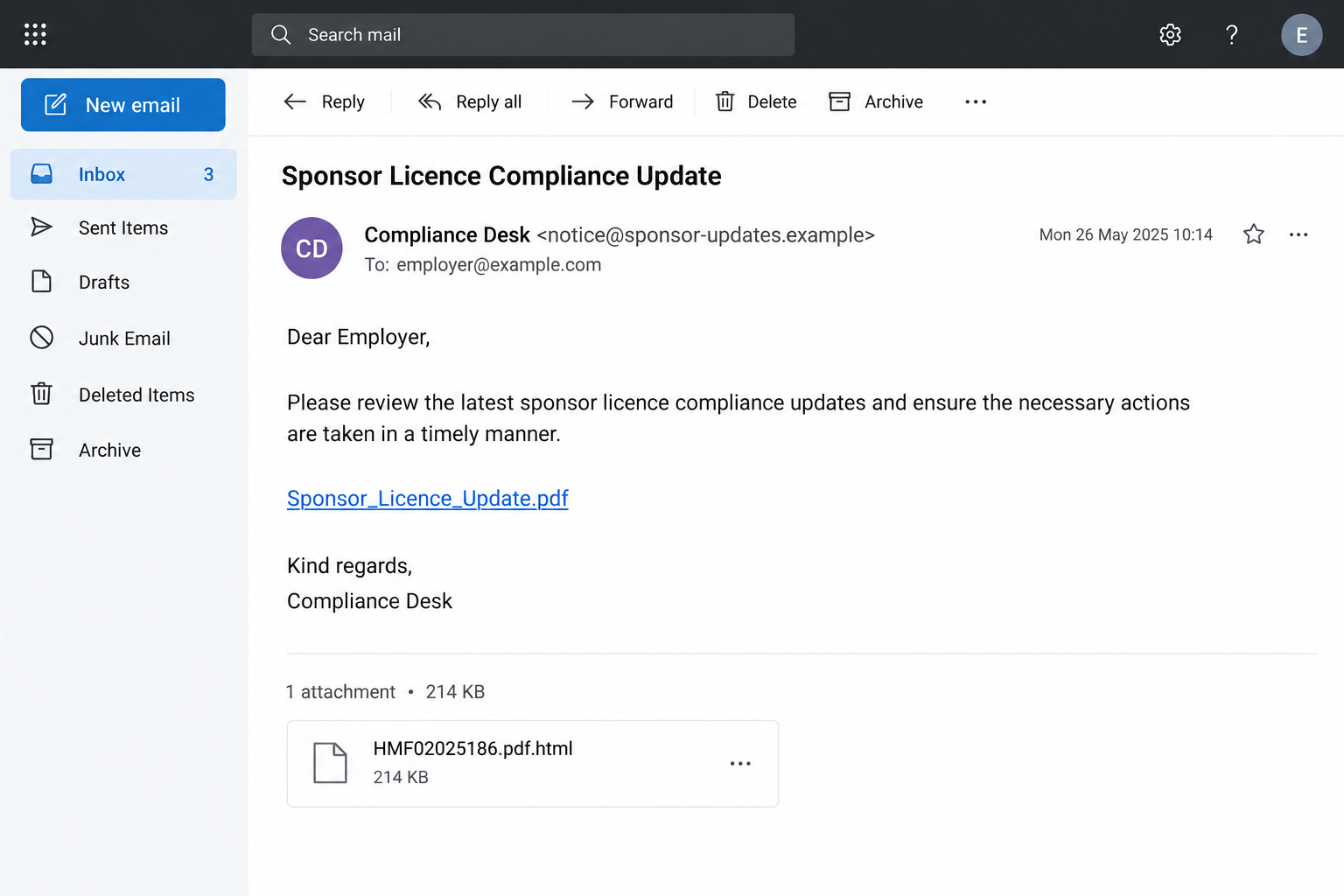
A reported link labeled Sponsor_Licence_Update.pdf downloads a file named HMF02025186.pdf.html. Filenames can change, but the final extension in that example is HTML.
The resulting page asks for SMS login details to obtain the documents and supposedly enable protection. Here, SMS means the sponsorship management system, not a text message.
No original file was opened or submitted for this article. The image is an illustrative email, and the described mechanism is credential theft, not a confirmed executable infection.
The checks to make before entering a user ID
- Verify the alleged update through an independently opened GOV.UK route.
- Check the complete filename, not only the PDF-looking label in the message.
- Do not provide SMS credentials to an email sender or an unverified document form.
- Tell the person responsible for the licence about a suspicious request.
- Report possible account compromise promptly through genuine Home Office channels.
The Home Office business helpdesk guidance specifically warns sponsors about unsolicited contact seeking SMS user IDs or passwords.
Why This Email Can Put a Business Under Pressure
Sponsor compliance is a real responsibility. Staff may reasonably worry that overlooking an official update could affect recruitment, reporting, or the workers who depend on the business.
The scam uses that sense of responsibility. It does not need to offer a prize or make an obviously extravagant claim.
Instead, the reader is asked to perform a task that resembles normal administration: download a notice, review requirements, and authenticate when prompted.
A broad greeting such as sponsor can still sound relevant when it reaches the right organization. It is not evidence that the sender knows the licence.
Likewise, naming a compliance team creates an official tone without establishing that any such team issued the message.
The safest response is not to ignore real obligations. It is to verify them through the existing government account and the people authorized to manage it.
That distinction helps protect both security and continuity. You can reject the unsafe route while still addressing any genuine requirement found independently.
How the GOV.UK Sponsor Licence Email Scam Works
Step 1: A government-style notice makes the task feel mandatory
The email claims to come from a compliance unit and says an important update needs attention. It links the requested action to the status of the sponsor licence.
For an HR or business administrator, that creates a practical concern. They may forward the task internally or try to finish it before another deadline arrives.
Notice what has not yet been checked: whether the sender is genuine, whether the update exists, and whether the recipient is the appropriate SMS user.
A copied government identity does not answer those questions. Logos and formal language are easy to reproduce in an email.
Do not pass the download along as an authenticated instruction. Ask the responsible colleague to verify the notice through the organization’s established route.
If you are not authorized to manage the account, the message does not give you that role. A compliance warning should not expand access responsibilities on its own.
Step 2: A PDF label conceals the actual file type
The download is described as a PDF update. That creates an expectation of reading information rather than interacting with a website.
The reported filename instead ends in .html, allowing it to display a web-style page. The earlier .pdf portion does not make it a PDF.
A familiar document icon can reinforce the wrong impression. File labels, icons, and actual file types should not be treated as interchangeable.
You do not need to launch the file to find out whether it is trustworthy. Preserve its name and ask your security team to assess it safely.
Nor should a message persuade you to enable scripts, bypass a browser warning, or install an extra viewer before its authenticity has been checked.
A downloaded HTML file can contain a form that sends information elsewhere. Being stored on your computer does not make every request inside it private or safe.
Step 3: The document task turns into a credential request
The fake page presents signing in as a condition for seeing the promised update. Protection language adds another reason to comply.
This changes the task. Reading guidance has become supplying the user ID and password used to manage a real account.
Ask why this particular document should receive that information. Its presentation is not the same as independently reaching the genuine SMS login.
Do not enter a password to see what happens next. A form can receive information even when the page later displays an error or fails to show a document.
If the first attempt appears unsuccessful, do not try your email password or another account’s credentials. That could expand a single disclosure into several.
Leave the form and open GOV.UK separately. The legitimate service should be reached through a trusted route, not through the file demanding the secret.
Step 4: Stolen access threatens more than the missing PDF
SMS users can manage licence information and assign certificates of sponsorship. That makes account access more consequential than opening a missing document.
Unauthorized access could therefore create operational problems beyond an exposed password. The precise risk depends on the account’s permissions and any actions actually taken.
That does not mean every recipient has lost control of the licence. Receiving the message, opening a file, and disclosing working credentials are different events.
If credentials were supplied, however, do not wait for an obvious change before reporting the incident. Timely account protection may help prevent further misuse.
Where additional authentication is enabled, reject unexpected requests and protect verification codes. Extra protection is valuable, but it does not make a disclosed password acceptable to keep.
Use genuine support to establish the appropriate response. Do not start deleting records or changing sponsorship decisions because the suspicious email says a repair is necessary.
Step 5: Confusion over compliance can keep the false process alive
A failed download can make someone think they still have an unfinished obligation. That encourages retries, replies, or requests for help from the same sender.
Stop treating the email’s process as the task that needs completion. The real task is checking whether a legitimate notice exists.
If an actual update is found independently, handle it through the genuine account. A matching topic does not retroactively authenticate the suspicious file.
Any caller who follows up should be verified separately. Knowing your organization name or the timing of a download does not establish a Home Office role.
Keep the false communication and the real compliance work separate in your records. That makes it easier to investigate without disrupting legitimate duties.
Where to Check Genuine Sponsor Information
Use the GOV.UK starting point
The official sponsorship management system page explains who can use the service and provides its established entry route.
Reach it by a trusted bookmark or independently opened GOV.UK page. Do not search inside the downloaded file for a supposedly safer login button.
Read genuine account messages and current guidance through that route. A professional-looking email should not override what you can verify in the actual service.
Involve the right people inside the organization
Notify the Authorising Officer, Key Contact, appropriate SMS user, or person responsible for security, depending on your role and the incident.
Explain what happened without circulating credentials. Someone who needs to coordinate the response does not need your password copied into a group conversation.
If more than one colleague received the email, establish whether anyone else followed it. One person reporting the message does not mean every affected account is protected.
Use verified helpdesk instructions for suspected compromise
The Home Office’s business helpdesk guidance tells sponsors to report concerns about a compromised SMS account as soon as possible.
Use the current contact details and reporting requirements on that genuine page. Do not rely on a telephone number or reply address inside the suspect notice.
Have the organization name, licence reference where appropriate, interaction time, and a concise explanation ready. Provide sensitive material only through the verified reporting process.
Do Not Confuse an Account Incident With a Licensing Decision
A fraudulent email can threaten licence consequences without having authority to impose them. The threat is a persuasion tactic, not an official decision.
At the same time, a real account compromise deserves prompt attention. The right response is a clear report and verified assistance, not assuming the issue is harmless.
Keep track of actual changes you can identify, including unexpected account activity or records that no longer match your organization’s own information.
Preserve relevant evidence before attempting corrections that could obscure the sequence. Ask genuine support how to handle anything you cannot safely interpret.
Do not tell sponsored workers that their status has changed based solely on the scam’s warning. That would turn an unverified claim into unnecessary distress.
If genuine compliance questions emerge, address them with appropriate professional advice and current official guidance. A security article cannot decide an individual sponsor’s legal position.
The practical priority remains clear: stop the false login route, secure affected access, and let the authorized people handle any real organizational consequences.
What to Do if You Have Fallen Victim to This Scam
Close the downloaded form without further entries. Do not enter a second password, verification code, or extra information to make the supposed PDF appear.
Keep the original email and filename for your security team. Avoid reopening the file merely to check what it asked you.
Notify the people responsible for the sponsor account. State which user ID was involved, whether a password was entered, and when the interaction happened.
Use a clean internal communication. Do not include the impostor in a reply chain or forward the link as a task others should finish.
Report suspected compromise through the official Home Office route. Follow the current business helpdesk instructions promptly rather than waiting for the sender’s deadline.
Explain that credentials may have gone to an untrusted form. Keep the account incident separate from any genuine compliance notice.
Protect the affected login through verified assistance. Change exposed credentials where the genuine service permits and follow its recovery process.
Do not share a fresh code with someone offering to restore protection. Any code should be used only for the action you intentionally initiated.
Check other accounts only where exposure connects them. Replace a reused password through each real service that shared it.
If you entered an email password instead of an SMS password, secure that mailbox too, including recovery settings and unauthorized access.
Review unexpected actions without making random changes. Work with authorized colleagues and genuine support to identify activity that needs investigation.
Preserve timestamps and relevant records. Do not erase evidence or alter sponsorship information simply because an unsolicited adviser tells you to.
Assess the device if the file led to software activity. An installed viewer, extension, or other unfamiliar program needs a separate technical review.
Malwarebytes may help investigate malware exposure, while AdGuard can limit some malicious advertising. Neither restores SMS credentials or corrects unauthorized sponsorship records.
Is Your Device Infected? Run a Free Malware Scan
Slow performance, constant pop-ups, or strange behavior? These are classic signs of a malware infection. The fastest way to find out is to scan your device with Malwarebytes Free — one of the most trusted malware removal tools available.
The free version detects and removes the most common threats, including:
- Adware — the cause of those annoying pop-ups
- Browser hijackers — unwanted redirects and changed homepages
- Trojans and spyware — hidden programs stealing your data
- Potentially unwanted programs (PUPs) — software you never asked for
👉 Select your device below — Windows, Mac, or Android — then follow the simple steps to download Malwarebytes, scan your system, and remove any threats it finds. The scan usually takes 5 to 20 minutes.
Run a Malware Scan with Malwarebytes for Windows
Malwarebytes is one of the most popular and trusted anti-malware tools for Windows — and it’s completely free for removing infections. It catches threats that many antivirus programs miss, including adware, browser hijackers, and trojans. Follow the steps below to scan and clean your PC in just a few minutes.
Download Malwarebytes
Click the button below to download the latest version of Malwarebytes for Windows from the official source. The free version is all you need — it will scan your computer and remove adware, browser hijackers, and other malicious software at no cost.
Download MalwarebytesOfficial installer for Windows 11 and 10. Your download starts right away.Want real-time protection? See Malwarebytes Premium Malwarebytes Free for WindowsScans and removes malware at no cost
-
Install Malwarebytes
When the download finishes, open your Downloads folder and double-click the MBSetup file. If Windows shows a User Account Control pop-up, click “Yes” to allow the installation.

Follow the On-Screen Prompts to Install Malwarebytes
The setup wizard will walk you through a few quick screens:
-
Choose where you’re installing the program — “Personal Computer” or “Work Computer” — then click Next.

-
Malwarebytes will now install on your device. This usually takes under a minute.

-
When installation is complete, the “Welcome to Malwarebytes” screen will open automatically.

-
On the final screen, click Open Malwarebytes to launch the program.

-
Enable “Scan for Rootkits”
Before scanning, turn on rootkit detection so Malwarebytes can find even the most hidden threats. Click the Settings gear icon on the left side of the screen.

In the settings menu, find “Scan for rootkits” and click the toggle so it turns blue.

Done? Click “Dashboard” in the left pane to return to the main screen.
Start the Scan
Click the blue Scan button. Malwarebytes will automatically update its virus database and start checking your computer for malware.

-
Wait for the Scan to Finish
The scan checks your entire system for browser hijackers and other malicious programs, so it can take 5 to 20 minutes depending on your computer. Feel free to do something else — just check back occasionally to see the progress.

-
Quarantine the Detected Threats
When the scan is done, you’ll see a list of everything Malwarebytes found — malware, adware, and potentially unwanted programs. Click the “Quarantine” button to remove all of them at once.

Malwarebytes will now remove the malicious files and registry entries and move them safely into quarantine.

-
Restart Your Computer
Some threats can only be fully removed after a reboot. If Malwarebytes asks you to restart, click Yes. Once you’re logged back in, Malwarebytes has finished removing the threats it found.

That’s it — your Windows PC is now clean of trojans, adware, and other malware, and should be back to running smoothly.
If you are still having problems with your computer after completing these instructions, then please follow one of the steps:
- Run a computer scan with ESET Online Scanner
- Ask for help in our Windows Malware Removal Help & Support forum.
Run a Malware Scan with Malwarebytes for Mac
Malwarebytes for Mac is a free on-demand scanner that removes the malware other security software tends to miss — adware, browser hijackers, and unwanted programs included. Cleaning an infected Mac with Malwarebytes has always been completely free, and it’s our go-to recommendation. Follow the steps below to scan and clean your Mac in just a few minutes.
-
Download Malwarebytes for Mac
Click the button below to download the latest version of Malwarebytes for Mac.
Download MalwarebytesOfficial installer for macOS. Your download starts right away.Want real-time protection? See Malwarebytes PremiumMalwarebytes Free for MacScans and removes malware at no cost -
Open the Malwarebytes setup file
When the download finishes, open your Downloads folder and double-click the setup file to begin the installation.

-
Follow the On-Screen Prompts to Install Malwarebytes
The Malwarebytes for Mac Installer will guide you through a few quick screens. Click “Continue” and keep following the prompts until the installation completes.



When the installation is complete, Malwarebytes opens to the Welcome to Malwarebytes screen. Click “Get started“.
-
Select “Personal Computer” or “Work Computer”
Malwarebytes will ask what type of computer you’re installing it on. Click either Personal Computer or Work Computer, whichever applies.

-
Start the Scan
Click the “Scan” button. Malwarebytes will automatically update its detection database and begin checking your Mac for malware.

-
Wait for the Scan to Finish
Malwarebytes will scan your Mac for adware, browser hijackers, and other malicious programs. This can take a few minutes, so feel free to do something else — just check back occasionally to see the progress.

-
Quarantine the Detected Threats
When the scan is done, you’ll see a list of everything Malwarebytes found. Click the “Quarantine” button to remove all the threats at once.

-
Restart Your Mac
Malwarebytes will now remove all the malicious files it found. Some threats can only be fully removed after a reboot — if Malwarebytes asks you to restart, allow it. Once you’re logged back in, your Mac is clean.

That’s it — your Mac is now free of adware, rogue browser extensions, and other potentially harmful software.
If you are still experiencing problems while trying to remove a malicious program from your computer, please ask for help in our Mac Malware Removal Help & Support forum.
Run a Malware Scan with Malwarebytes for Android
Malwarebytes for Android automatically detects and removes dangerous threats like malware and ransomware so you don’t have to worry about your most-used device being compromised. Aggressive detection of adware and potentially unwanted programs keeps your Android phone or tablet running smooth.
-
Download Malwarebytes for Android.
You can download Malwarebytes for Android by clicking the link below.
Get Malwarebytes for AndroidOpens Google Play in a new tab.Want real-time protection? See Malwarebytes Premium for AndroidMalwarebytes for AndroidScans your phone and removes malware at no cost -
Install Malwarebytes for Android on your phone.
In the Google Play Store, tap “Install” to install Malwarebytes for Android on your device.

When the installation process has finished, tap “Open” to begin using Malwarebytes for Android. You can also open Malwarebytes by tapping on its icon in your phone menu or home screen.

-
Follow the on-screen prompts to complete the setup process
When Malwarebytes will open, you will see the Malwarebytes Setup Wizard which will guide you through a series of permissions and other setup options.
This is the first of two screens that explain the difference between the Premium and Free versions. Swipe this screen to continue.
Tap on “Got it” to proceed to the next step.
Malwarebytes for Android will now ask for a set of permissions that are required to scan your device and protect it from malware. Tap on “Give permission” to continue.
Tap on “Allow” to permit Malwarebytes to access the files on your phone.
-
Update database and run a scan with Malwarebytes for Android
You will now be prompted to update the Malwarebytes database and run a full system scan.

Click on “Update database” to update the Malwarebytes for Android definitions to the latest version, then click on “Run full scan” to perform a system scan.

-
Wait for the Malwarebytes scan to complete.
Malwarebytes will now start scanning your phone for adware and other malicious apps. This process can take a few minutes, so we suggest you do something else and periodically check on the status of the scan to see when it is finished.

-
Click on “Remove Selected”.
When the scan has been completed, you will be presented with a screen showing the malware infections that Malwarebytes for Android has detected. To remove the malicious apps that Malwarebytes has found, tap on the “Remove Selected” button.

-
Restart your phone.
Malwarebytes for Android will now remove all the malicious apps that it has found. To complete the malware removal process, Malwarebytes may ask you to restart your device.
That’s it — your Android phone is now clean — no more malicious apps, adware, or browser redirects.
If you are still having problems with your phone after completing these instructions, then please follow one of the steps:
- Restore your phone to factory settings by going to Settings > General management > Reset > Factory data reset.
- Ask for help in our Mobile Malware Removal Help & Support forum.
Stay Protected: Block Ads and Malicious Sites
Now that your device is clean, keep it that way. Most infections start with a malicious ad or a fake download button — so blocking them at the source is your best defense.
We recommend AdGuard, which blocks malicious ads, phishing pages, and dangerous redirects before they can reach you.
👉 Download AdGuard and browse safely
Frequently Asked Questions
Does SMS mean the email is about text messages?
No. In this campaign, SMS refers to the sponsorship management system used by licensed sponsors. The requested login is organizational account access.
Is a file ending in .pdf.html a normal PDF?
The final extension identifies an HTML file, despite the PDF-looking text earlier in its name. Do not open an unexpected file merely to test it.
Are all Home Office compliance updates fraudulent?
No. Genuine duties and account notices exist. Verify them through independently reached official services instead of using an unsolicited document’s login form.
Can a form receive my password without displaying the document?
Yes. An error or blank result does not establish that submitted information was discarded. Treat an exposed password as disclosed.
Will reporting the message automatically revoke my licence?
The scam’s threat is not a licensing decision. Report suspected compromise promptly and obtain guidance for your organization’s circumstances rather than assuming a particular outcome.
Does a clean malware scan mean the sponsor account is safe?
No. Device scanning and account protection address different problems. Credentials and any unauthorized account activity require attention even if no malware is found.
The Bottom Line
Do not enter SMS credentials into this fake sponsor-compliance download. A PDF label and a licence warning cannot authenticate the form asking for your password.
Check genuine requirements through GOV.UK. If you already supplied access details, notify the responsible colleagues and report suspected compromise through the official Home Office helpdesk promptly.

Join the discussion
0 commentsShare your experience or ask a question about this article.
Discussion
Start the conversation
Have a question or something useful to share? Add the first comment.