

An unexpected email says a dormant Bitcoin fortune needs someone to claim it. A financial firm is named, and your proposed share sounds life-changing.
There is paperwork, a deadline, and a request to keep things private. Before answering, take a closer look at what this unusual invitation actually asks of you.
Overview
The offer turns a stranger into a supposed estate beneficiary
The Pantera Capital estate recovery email scam borrows an investment firm’s identity to offer access to an alleged deceased person’s cryptocurrency.
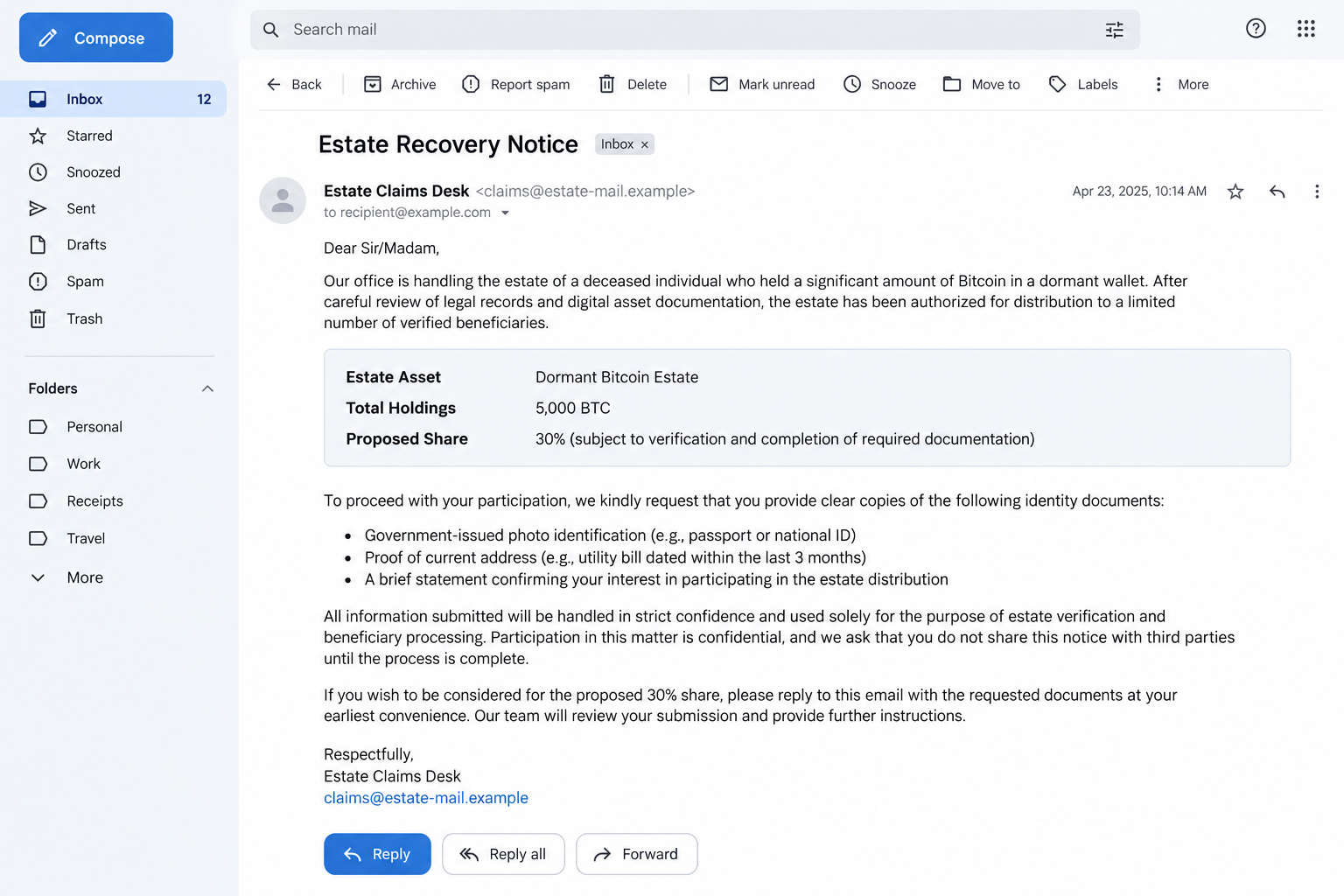
One reported version describes 5,000 BTC and offers the recipient 30%, or 1,500 BTC. It presents identification checks and confidential cooperation as the way forward.
Other versions change the balance and presentation. The underlying problem stays the same: an unsolicited sender is offering someone else’s assets without establishing your entitlement.
A company name does not authenticate a private arrangement
Pantera Capital is a real investment business. The email impersonation is separate from that firm and does not establish wrongdoing by its genuine employees.
The reported reply address is kerrycwong[at]yahoo[.]com. A personal mailbox, copied signature, or familiar employee name cannot authenticate an off-book arrangement.
The image is a fictional notice illustrating the approach. No wallet balance, estate appointment, legal deadline, payout, or real representative’s involvement has been independently established here.
What the sender wants you to accept
- You can receive a substantial share without a demonstrated relationship to the deceased.
- Identification documents should be sent before the arrangement is independently checked.
- Keeping outsiders uninformed is supposedly necessary to preserve eligibility.
- A fee can be presented as a small obstacle to a much larger return.
- The sender, rather than an independently verified institution, controls the next instructions.
Do not participate through this message. Its financial promise is a reason to investigate the request, not a reason to surrender documents or send money.
Why a Bitcoin Estate Can Sound Convincing
People really do die while holding digital assets, and access to those assets can create difficult estate problems. That genuine background makes a fabricated story sound plausible.
The email adds a recognizable firm, legal-sounding terminology, and an apparently precise balance. Together, those details make the proposal feel more substantial than an ordinary prize message.
Yet precision is not verification. Anyone can write an exact quantity, copy a public address, or attach a professional-looking signature to an email.
The important missing connection is personal. Why would you be entitled to this estate, and who has independently established the authority to distribute it?
An explanation that you qualify simply by living outside the US does not answer either question. Geographic eligibility is not evidence of inheritance rights.
Nor does the word recovery explain why a stranger should receive the money. Recovering an asset and lawfully transferring ownership are different matters.
If an actual estate issue affects you, seek qualified advice through a professional you choose independently. Do not let the email appoint your adviser and control the evidence.
How the Pantera Capital Estate Recovery Email Scam Works
Step 1: The sender borrows a trusted financial identity
The opening presents the sender as someone connected to an established investment firm. A senior-sounding role encourages the recipient to assume the opportunity has already been checked.
This shifts attention toward the size of the offer. Instead of asking who is writing, the reader begins considering whether the arrangement might be worth pursuing.
A copied employee name can strengthen that impression when a quick search finds a real person. Finding the person does not authenticate the email using their identity.
The same applies to an office address, corporate website, or registration number placed in the footer. These details can be copied without access to the business.
Use the firm’s independently reached contact page if you need to report the impersonation. Do not reply to the suspicious sender to ask whether they are genuine.
The person behind the email can send another convincing signature. Check with the firm through contact details you found outside the exchange.
Step 2: An unclaimed fortune becomes an invitation meant just for you
The estate story supplies a reason the money is supposedly available. The large proposed share gives you a reason to care before a real relationship has been established.
Restrictions on nationality, age, or confidentiality can make a mass-distributed approach feel selective. The recipient may believe they have passed an unusual eligibility test.
But a list of conditions is easy to invent. It does not explain how you were selected or why the deceased person’s property should become yours.
Notice whether the sender answers practical questions with more promises. Saying that legal paperwork will arrive later leaves the basic authority unresolved now.
The value of Bitcoin also makes the reward emotionally powerful. Do not convert the quoted quantity into a personal budget or treat it as money awaiting collection.
A number inside an email is not an available balance in your account. Planning around it can make the next small concession feel easier to justify.
Step 3: KYC language creates a reason to request identification
The message presents identity verification as a normal financial requirement. A passport or driver’s license can then seem like routine paperwork rather than sensitive information.
Know-your-customer checks do exist in financial services. That fact does not establish that this particular recipient of your documents is authorized to conduct one.
The order matters. First identify the organization, its role, and your legitimate reason for dealing with it. Only then consider an appropriate, verified document-submission process.
Do not send an ID photograph merely to receive more details about the offer. You would be disclosing valuable information before the basic story has been validated.
Depending on what is shared, an impostor could use the material to make later requests more convincing or attempt identity misuse.
A document containing your photograph is not a wallet key. The risks are different, and an identity disclosure should not be mistaken for an automatic cryptocurrency transfer.
Keep a precise record of what you supplied. The document type and information visible on it will matter more than the sender’s label for the process.
Step 4: A small-looking fee is attached to a huge promise
One reported message mentions a 0.05% procurement fee. Against an enormous advertised reward, a fractional charge can seem modest or commercially reasonable.
The percentage alone does not tell you the amount payable. The calculation base, recipient, timing, and supposed service would all need to be clear.
More importantly, a transparent calculation would not make the estate story genuine. Even a precisely described fee can be part of a false promise.
Do not pay to activate an account, prepare a transfer, release documents, or prove you are serious about collecting the assets.
If a later message replaces the original fee with another charge, treat that as another demand from the same unverified source, not progress toward a payout.
A forged invoice or payment receipt can make the exchange look formal. Neither proves the sender controls the alleged estate or will deliver anything.
Step 5: Secrecy and deadlines keep the conversation moving
The sender claims that disclosure could end your eligibility. That discourages the very conversations most likely to reveal the problem.
A deadline adds another pressure: delaying for verification supposedly risks losing the opportunity. Legal language can make that countdown sound unavoidable.
Those dates and rules are claims made by the message. They are not an independently verified instruction from a court, executor, regulator, or government agency.
You do not need to resolve the sender’s legal story to refuse the request. You can decline an unverified arrangement without proving where every quoted rule came from.
Speak with someone you trust before any further disclosure. A demand that you avoid independent advice should make you step back, not hurry.
If you have already spent time or money, stopping can feel like abandoning a chance to recover it. Continuing with the same impostor can deepen the loss.
A Public Wallet Address Is Not an Inheritance Document
An email may supply a Bitcoin address to make its claim look independently checkable. Public blockchain information can show activity associated with an address.
It cannot, by itself, identify the person emailing you, establish an estate relationship, or authorize a distribution to a newly contacted stranger.
Even a visible balance would leave essential questions unanswered. Does the sender control the assets, and do they have any lawful basis to offer them?
Do not mistake a transaction screenshot for an answer. Images can be fabricated, outdated, or taken from unrelated activity.
There is also no need to connect your wallet to prove you can receive an ordinary transfer. Never disclose recovery words to someone arranging an alleged inheritance.
A receiving address and a private key serve different purposes. The former can identify a destination; the latter can grant control over funds.
If a supposed custodian introduces a new portal, investigate it separately. The original message’s promise does not authenticate whatever website appears next.
Check the Firm Without Entering the Sender’s Process
Start with published corporate contacts
Pantera Capital’s contact page lists its genuine corporate contact routes, including cybersecurity. Open that page independently instead of trusting copied contact details.
If reporting the message, explain that someone is using the firm’s identity. Do not assume the genuine employee named in the email sent it.
Never attach your passport merely to ask whether an unsolicited proposal is real. A report can describe the approach without creating another unnecessary disclosure.
Keep evidence separate from claims of entitlement
Save the original message, reply address, any documents received, and payment instructions. Preserve the sequence of events rather than only the final demand.
Mark the advertised balance and deadlines as statements made by the sender. Do not present them to your bank as assets you actually owned.
For a payment report, the real transaction amount and destination matter. An alleged future payout is not a substitute for those details.
Do not buy a second recovery promise
People who lose money can be approached by someone offering to retrieve it for another upfront payment.
The FTC’s recovery-scam guidance explains this follow-up danger. Paying a new intermediary does not validate the first inheritance or guarantee a return.
Choose assistance through established institutions and independently verified professionals. A person who knows your loss amount may simply have received information from the original operation.
What to Do if You Have Fallen Victim to This Scam
End the private negotiation. Stop replying and do not submit another document or payment. Keep the correspondence before blocking the sender.
You are not obliged to finish a verification process just because you started answering questions. An invented confidentiality condition does not prevent you from seeking help.
List the information already shared. Separate your name and address from ID scans, bank details, passwords, and wallet secrets.
Contact the relevant identity-document authority or local identity-support service if identification was exposed. Ask about safeguards appropriate to the document rather than assuming replacement is always required.
Contact the payment provider immediately if you paid. Give the actual amount, transaction reference, recipient, date, and explanation of the false estate offer.
Ask about any recall, dispute, or fraud process available for that payment method. Do not wait for the sender’s next promised payout date.
Protect any account credentials you disclosed. Replace exposed passwords through the real services and review recovery details, active sessions, and unexpected changes.
If a private key or wallet backup was shared, obtain verified wallet-security assistance. A new app password does not replace a compromised cryptocurrency key.
Investigate software exposure separately. If a later document required an unfamiliar viewer, extension, or remote-access application, ask trusted technical support to inspect the device.
Malwarebytes can help check possible malware. AdGuard may reduce deceptive advertising, but neither retrieves an ID scan or reverses a payment already sent.
Report the impersonation and preserve a timeline. Use genuine corporate reporting routes and appropriate fraud authorities in your jurisdiction.
Include the reply mailbox and transaction records, but keep sensitive identity documents out of public posts. Explain which parts of the sender’s story were never verified.
Reject anyone guaranteeing recovery for another fee. Do not send wallet backups, account codes, or a new transfer to unlock a refund.
Tell a trusted person what happened. A calm second opinion can help you separate useful assistance from another persuasive offer.
Is Your Device Infected? Run a Free Malware Scan
Slow performance, constant pop-ups, or strange behavior? These are classic signs of a malware infection. The fastest way to find out is to scan your device with Malwarebytes Free — one of the most trusted malware removal tools available.
The free version detects and removes the most common threats, including:
- Adware — the cause of those annoying pop-ups
- Browser hijackers — unwanted redirects and changed homepages
- Trojans and spyware — hidden programs stealing your data
- Potentially unwanted programs (PUPs) — software you never asked for
👉 Select your device below — Windows, Mac, or Android — then follow the simple steps to download Malwarebytes, scan your system, and remove any threats it finds. The scan usually takes 5 to 20 minutes.
Run a Malware Scan with Malwarebytes for Windows
Malwarebytes is one of the most popular and trusted anti-malware tools for Windows — and it’s completely free for removing infections. It catches threats that many antivirus programs miss, including adware, browser hijackers, and trojans. Follow the steps below to scan and clean your PC in just a few minutes.
Download Malwarebytes
Click the button below to download the latest version of Malwarebytes for Windows from the official source. The free version is all you need — it will scan your computer and remove adware, browser hijackers, and other malicious software at no cost.
Download MalwarebytesOfficial installer for Windows 11 and 10. Your download starts right away.Want real-time protection? See Malwarebytes Premium Malwarebytes Free for WindowsScans and removes malware at no cost
-
Install Malwarebytes
When the download finishes, open your Downloads folder and double-click the MBSetup file. If Windows shows a User Account Control pop-up, click “Yes” to allow the installation.

Follow the On-Screen Prompts to Install Malwarebytes
The setup wizard will walk you through a few quick screens:
-
Choose where you’re installing the program — “Personal Computer” or “Work Computer” — then click Next.

-
Malwarebytes will now install on your device. This usually takes under a minute.

-
When installation is complete, the “Welcome to Malwarebytes” screen will open automatically.

-
On the final screen, click Open Malwarebytes to launch the program.

-
Enable “Scan for Rootkits”
Before scanning, turn on rootkit detection so Malwarebytes can find even the most hidden threats. Click the Settings gear icon on the left side of the screen.

In the settings menu, find “Scan for rootkits” and click the toggle so it turns blue.

Done? Click “Dashboard” in the left pane to return to the main screen.
Start the Scan
Click the blue Scan button. Malwarebytes will automatically update its virus database and start checking your computer for malware.

-
Wait for the Scan to Finish
The scan checks your entire system for browser hijackers and other malicious programs, so it can take 5 to 20 minutes depending on your computer. Feel free to do something else — just check back occasionally to see the progress.

-
Quarantine the Detected Threats
When the scan is done, you’ll see a list of everything Malwarebytes found — malware, adware, and potentially unwanted programs. Click the “Quarantine” button to remove all of them at once.

Malwarebytes will now remove the malicious files and registry entries and move them safely into quarantine.

-
Restart Your Computer
Some threats can only be fully removed after a reboot. If Malwarebytes asks you to restart, click Yes. Once you’re logged back in, Malwarebytes has finished removing the threats it found.

That’s it — your Windows PC is now clean of trojans, adware, and other malware, and should be back to running smoothly.
If you are still having problems with your computer after completing these instructions, then please follow one of the steps:
- Run a computer scan with ESET Online Scanner
- Ask for help in our Windows Malware Removal Help & Support forum.
Run a Malware Scan with Malwarebytes for Mac
Malwarebytes for Mac is a free on-demand scanner that removes the malware other security software tends to miss — adware, browser hijackers, and unwanted programs included. Cleaning an infected Mac with Malwarebytes has always been completely free, and it’s our go-to recommendation. Follow the steps below to scan and clean your Mac in just a few minutes.
-
Download Malwarebytes for Mac
Click the button below to download the latest version of Malwarebytes for Mac.
Download MalwarebytesOfficial installer for macOS. Your download starts right away.Want real-time protection? See Malwarebytes PremiumMalwarebytes Free for MacScans and removes malware at no cost -
Open the Malwarebytes setup file
When the download finishes, open your Downloads folder and double-click the setup file to begin the installation.

-
Follow the On-Screen Prompts to Install Malwarebytes
The Malwarebytes for Mac Installer will guide you through a few quick screens. Click “Continue” and keep following the prompts until the installation completes.



When the installation is complete, Malwarebytes opens to the Welcome to Malwarebytes screen. Click “Get started“.
-
Select “Personal Computer” or “Work Computer”
Malwarebytes will ask what type of computer you’re installing it on. Click either Personal Computer or Work Computer, whichever applies.

-
Start the Scan
Click the “Scan” button. Malwarebytes will automatically update its detection database and begin checking your Mac for malware.

-
Wait for the Scan to Finish
Malwarebytes will scan your Mac for adware, browser hijackers, and other malicious programs. This can take a few minutes, so feel free to do something else — just check back occasionally to see the progress.

-
Quarantine the Detected Threats
When the scan is done, you’ll see a list of everything Malwarebytes found. Click the “Quarantine” button to remove all the threats at once.

-
Restart Your Mac
Malwarebytes will now remove all the malicious files it found. Some threats can only be fully removed after a reboot — if Malwarebytes asks you to restart, allow it. Once you’re logged back in, your Mac is clean.

That’s it — your Mac is now free of adware, rogue browser extensions, and other potentially harmful software.
If you are still experiencing problems while trying to remove a malicious program from your computer, please ask for help in our Mac Malware Removal Help & Support forum.
Run a Malware Scan with Malwarebytes for Android
Malwarebytes for Android automatically detects and removes dangerous threats like malware and ransomware so you don’t have to worry about your most-used device being compromised. Aggressive detection of adware and potentially unwanted programs keeps your Android phone or tablet running smooth.
-
Download Malwarebytes for Android.
You can download Malwarebytes for Android by clicking the link below.
Get Malwarebytes for AndroidOpens Google Play in a new tab.Want real-time protection? See Malwarebytes Premium for AndroidMalwarebytes for AndroidScans your phone and removes malware at no cost -
Install Malwarebytes for Android on your phone.
In the Google Play Store, tap “Install” to install Malwarebytes for Android on your device.

When the installation process has finished, tap “Open” to begin using Malwarebytes for Android. You can also open Malwarebytes by tapping on its icon in your phone menu or home screen.

-
Follow the on-screen prompts to complete the setup process
When Malwarebytes will open, you will see the Malwarebytes Setup Wizard which will guide you through a series of permissions and other setup options.
This is the first of two screens that explain the difference between the Premium and Free versions. Swipe this screen to continue.
Tap on “Got it” to proceed to the next step.
Malwarebytes for Android will now ask for a set of permissions that are required to scan your device and protect it from malware. Tap on “Give permission” to continue.
Tap on “Allow” to permit Malwarebytes to access the files on your phone.
-
Update database and run a scan with Malwarebytes for Android
You will now be prompted to update the Malwarebytes database and run a full system scan.

Click on “Update database” to update the Malwarebytes for Android definitions to the latest version, then click on “Run full scan” to perform a system scan.

-
Wait for the Malwarebytes scan to complete.
Malwarebytes will now start scanning your phone for adware and other malicious apps. This process can take a few minutes, so we suggest you do something else and periodically check on the status of the scan to see when it is finished.

-
Click on “Remove Selected”.
When the scan has been completed, you will be presented with a screen showing the malware infections that Malwarebytes for Android has detected. To remove the malicious apps that Malwarebytes has found, tap on the “Remove Selected” button.

-
Restart your phone.
Malwarebytes for Android will now remove all the malicious apps that it has found. To complete the malware removal process, Malwarebytes may ask you to restart your device.
That’s it — your Android phone is now clean — no more malicious apps, adware, or browser redirects.
If you are still having problems with your phone after completing these instructions, then please follow one of the steps:
- Restore your phone to factory settings by going to Settings > General management > Reset > Factory data reset.
- Ask for help in our Mobile Malware Removal Help & Support forum.
Stay Protected: Block Ads and Malicious Sites
Now that your device is clean, keep it that way. Most infections start with a malicious ad or a fake download button — so blocking them at the source is your best defense.
We recommend AdGuard, which blocks malicious ads, phishing pages, and dangerous redirects before they can reach you.
👉 Download AdGuard and browse safely
Frequently Asked Questions
Is Pantera Capital operating this estate offer?
The reported email impersonates the real firm. A copied name or signature does not establish that Pantera Capital or its genuine employees authorized the proposal.
Does knowing a wallet address prove the sender owns its Bitcoin?
No. Public transaction information does not establish the sender’s identity, control of the keys, or authority to distribute an estate.
Is a passport request legitimate because it is called KYC?
No. Identity checks can be genuine, but the label does not authenticate the person requesting documents or your reason for submitting them.
Should I pay a small charge to test the offer?
Do not pay through this proposal. A limited test payment can still be lost and may lead to further demands.
Have I lost cryptocurrency just by replying?
A reply alone is not a blockchain transfer. Assess the information, authorizations, software, or payments actually involved rather than assuming every possible consequence occurred.
What if the sender threatens to cancel my eligibility?
Do not let that threat restart the exchange. The supposed entitlement was never established, and you can report the approach despite its secrecy demands.
The Bottom Line
Do not reply, submit identification, or pay through this Pantera Capital estate recovery offer. An unsolicited promise does not give you verified rights to another person’s Bitcoin.
If you already participated, document the actual disclosure or payment and contact the appropriate institution promptly. Do not pay a second stranger to recover the first loss.

Join the discussion
0 commentsShare your experience or ask a question about this article.
Discussion
Start the conversation
Have a question or something useful to share? Add the first comment.