

A security check suddenly appears while you are browsing. A progress bar moves, problems are listed, and a button offers to put things right.
It can look reassuringly familiar at first. Before accepting the result, stop and ask which program is actually performing this unexpected check.
Overview
The page invents a diagnosis to create a need
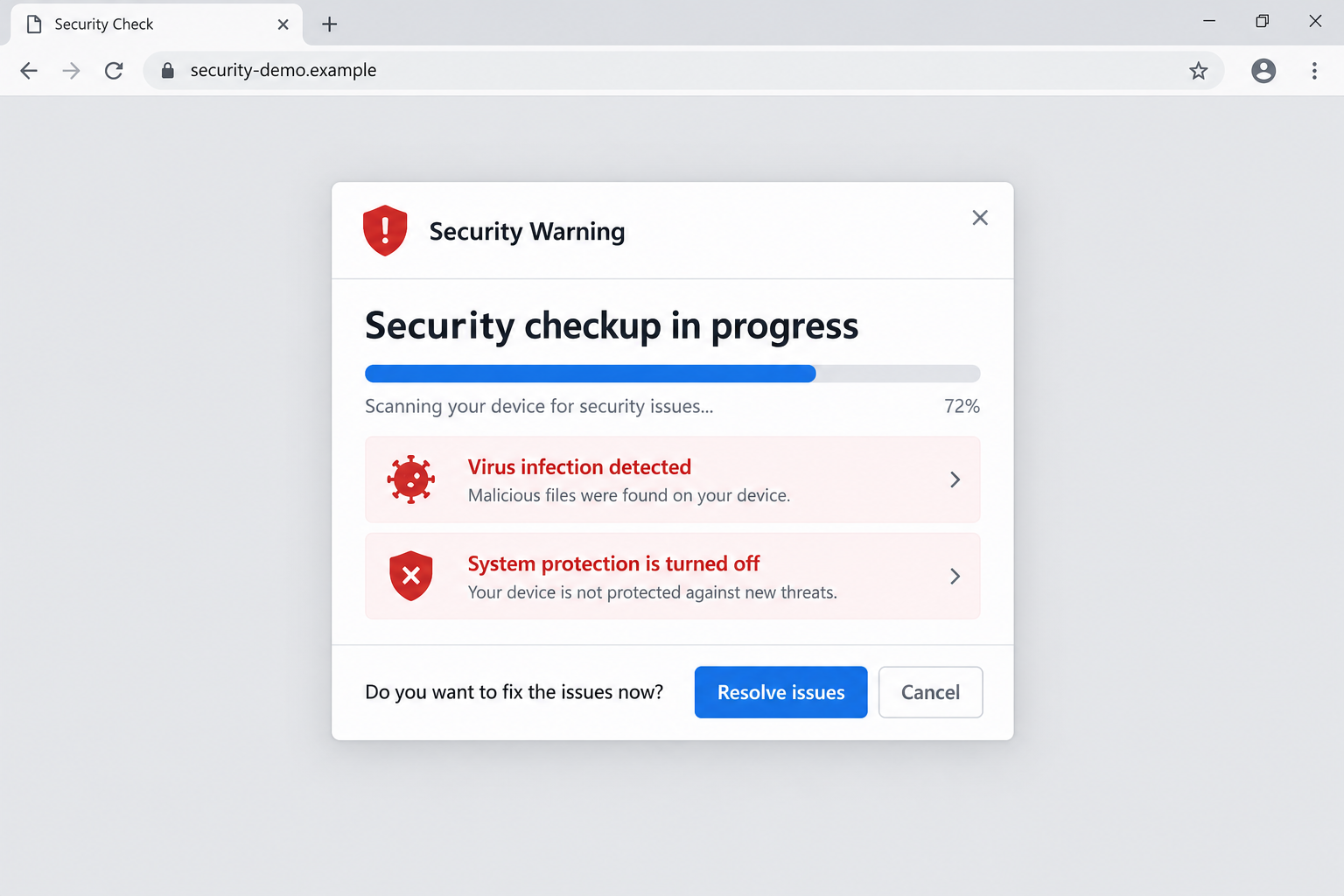
The Security Checkup in Progress scam displays a supposed scan, then claims a virus was found and system protection is switched off.
It asks whether the visitor wants to resolve the problems. The reported campaign has been associated with redstarstory[.]shop, although addresses and destinations can change.
The warning is deceptive because the page presents a fabricated device diagnosis as the reason to follow its instructions.
A genuine product destination does not validate the warning
A reported version redirected to McAfee’s official website. That is an important distinction: deceptive promotion can steer someone toward a real product to pursue affiliate commissions.
This does not make McAfee the operator of the warning or prove its software is fake. The misconduct belongs to the false alert and its promotional route.
The historical redirect was not reproduced as a current purchase. The image is a fictional interface, and no particular installer or infection was confirmed through this page.
Your next action depends on what actually happened
- If you only saw the alert, close it without accepting its repair offer.
- If you allowed website notifications, remove that permission through the browser’s own settings.
- If you bought software, verify the actual merchant and order independently.
- If you installed an unfamiliar program, investigate that software with trusted assistance.
- If you disclosed passwords or payment details, protect those separately from device cleanup.
You do not need to prove that the computer is perfectly clean before rejecting this diagnosis. The page has not earned the authority it claims.
The Scan Is Part of the Page, Not Evidence About Your Computer
A website can display a progress bar, changing numbers, and red warning symbols. Those are ordinary interface elements that can be programmed to appear on a schedule.
The same animation can therefore be shown to visitors with very different devices. Its appearance does not demonstrate that files were inspected.
Simply loading an ordinary web page does not give it unrestricted access to your disk or the settings of your installed security software.
A claim that protection is disabled should be checked inside your real security application or operating-system controls, not accepted from a promotional modal.
This does not mean browsers never show legitimate security warnings. A genuine browser warning about a dangerous site is different from the site’s own invented virus report.
The location and source of the message matter. A box drawn inside a webpage can imitate the appearance of a system dialog without becoming one.
When uncertain, close the page and open the security application yourself. That separates an independent device check from the seller chosen by the warning.
How the Security Checkup in Progress Scam Works
Step 1: An unexpected page starts a check you did not request
The visitor encounters a page claiming to inspect security. A scan-like presentation makes the process look as though something useful is already happening.
There are several possible arrival routes, including advertisements or redirects. A single appearance does not identify the route or prove that adware is installed.
Record what you were doing when it appeared. A recurring notification from one permitted website is a different situation from an unfamiliar program opening new tabs.
Do not click a button merely to stop an animation or hear its explanation. Those controls belong to the same page making the unsupported claim.
The fact that the check begins automatically is not evidence of a built-in protection service. It may simply be how the page was designed.
You remain free to leave. An unsolicited website does not gain permission to direct device repairs by starting a countdown or progress bar.
Step 2: Simple results make the problem feel easy to understand
The reported alert lists a virus and inactive protection. These are short, worrying statements that do not require technical knowledge to understand.
They also create an apparently clear remedy: remove the threat and restore protection. That makes pressing the offered button feel like sensible maintenance.
Where is the result in your actual security app? If it exists only inside this webpage, don’t let its red warning choose your next download.
Do not spend time arguing with the displayed result. Repeating the supposed scan or refreshing the page is not an independent test.
Even a device model or browser name would not establish a file inspection. Websites can learn some technical information without performing an antivirus scan.
The useful response is to leave the page and check the actual protection status through software you already know or obtain independently.
Step 3: The fix button chooses the product or destination for you
Once the page has created concern, it offers a way forward. The visitor may now be ready to install or buy whatever appears to resolve the warnings.
In the reported affiliate version, the next destination was a legitimate McAfee site. The false diagnosis was the sales pressure, even though the product could be real.
Affiliate marketing is not automatically dishonest. The problem is manufacturing an infection claim to influence a purchase, not the mere existence of a referral link.
A real checkout cannot tell you whether the earlier page inspected your device. These are separate questions about different parts of the journey.
Do not assume every later destination will remain the same. Promotional routes can change, and an imitation seller or unknown installer needs its own assessment.
Leave the referral flow rather than pressing through to find out where it ends. If you want security software, choose the product and source independently.
Step 4: The purchase or download creates a new decision
A visitor who follows the prompt may buy a licence, download an application, or supply information. Each action needs a response suited to what actually occurred.
A confirmed purchase from a genuine vendor is not the same as sending card details to a fake form. Check the receipt and account before describing the incident.
Likewise, downloading a file and running an unknown installer are different exposures. Preserve the filename without reopening it to investigate.
If nothing was installed and no information was supplied, the visible alert alone does not demonstrate a malware infection.
If something unfamiliar was installed, however, do not let the page’s reassuring result settle the matter. The downloaded program now needs an independent review.
The original warning cannot be trusted to certify either the problem or its solution. A second green screen from the same process is still not independent evidence.
Buying Real Antivirus Does Not Make the Earlier Claim True
The receipt answers who sold you something
A genuine order record may identify the vendor, product, price, licence period, and billing arrangements. Check those details through the vendor’s actual account or support.
That can help establish whether there is a real purchase to cancel or a subscription to review. It does not authenticate the warning that sent you there.
If you purchased because of the false alert, explain that concern honestly to the merchant. Ask about applicable refund and renewal options.
Do not call an intentional purchase unauthorized merely to improve a dispute. Describe the misleading promotion and the payment accurately.
The software’s real scan is a separate event
A legitimate installed product may perform a genuine scan after you obtain it. Its findings should be assessed on their own merits.
A clean result does not prove the promotional warning was accurate. Nor should you invent a detected threat simply because the earlier page said one existed.
If your genuine security application reports something, follow verified instructions for that finding. Do not return to the original pop-up for technical advice.
The vendor’s name can also be misused
McAfee’s guidance on fake antivirus describes fabricated security warnings and the pressure to obtain an alleged solution.
The guidance is useful background, not proof that a specific current pop-up was authorized by the company.
Keep the deceptive promoter and the genuine vendor distinct when reporting. A copied name or a historical redirect does not establish common ownership.
How to Close the Warning Without Following Its Buttons
Use the browser’s actual tab or window controls rather than buttons drawn inside the warning. Those are different controls, even if they look similar.
On a keyboard, the usual close-tab shortcut can help. If the page traps the browser, close the browser through the operating system’s normal application controls.
When reopening it, avoid restoring the suspicious tab. Otherwise, the same page may reappear and look like a persistent infection.
A returned page is a reason to investigate the browser session, not immediate proof that your files were infected.
Check whether a website has permission to send notifications. Notifications can keep displaying alarming messages after the original browsing session ends.
Remove an unwanted permission through the browser’s own site settings. Do not use a notification’s supposed unsubscribe or repair button to correct it.
If the browser is managed by an employer or school, involve its administrator before altering organizational settings. Do not remove legitimate protection policies as a troubleshooting shortcut.
When Repeated Alerts Need a Closer Look
A persistent problem deserves attention, but several causes can look alike. Restored tabs, permitted notifications, extensions, and unwanted applications need different checks.
Note when the alert appears and whether the browser is open. That helps a trusted technician narrow the cause without guessing from the wording alone.
Review recently installed extensions and applications. Focus on items introduced around the problem, while avoiding arbitrary deletion of unfamiliar system components.
Microsoft explains that potentially unwanted applications can cause advertising and other undesirable behavior. That category is not identical to every kind of malware.
A product you intentionally use may also display genuine notices. Verify their source before treating all security-related messages as part of this scam.
Do not disable antivirus, bypass a warning, or run a cleanup command supplied by an unknown page. Troubleshooting should not require surrendering existing safeguards.
If you need advanced assistance, use a trusted support route and describe the sequence. Seeing the fake warning alone is not a reason for a destructive reset.
What to Do if You Have Fallen Victim to This Scam
Leave the false checkup. Close the browser tab using genuine browser controls. Do not press resolve, download, or a support link inside the warning.
Avoid restoring that tab when reopening the browser. Save the hostname privately if you already have it, without revisiting just to collect evidence.
Check protection independently. Open your installed security application or operating-system security settings directly.
Review actual status and alerts there. Do not change settings to match a webpage’s unsupported diagnosis or assume its threat count was real.
Remove unwanted website permissions. If you allowed notifications, locate the site in the browser’s notification settings and remove its permission.
Check recent extensions if redirects continue. Ask an administrator before changing managed browser settings or removing anything you cannot identify safely.
Assess any downloaded or installed program. Tell trusted support what ran, where it came from, and whether it requested unusual access.
Use Malwarebytes when possible malware exposure needs checking. AdGuard can reduce deceptive advertisements, but blocking ads does not remove an already installed program.
Verify purchases with the actual merchant. Open the genuine vendor’s account or independently located support route and inspect the order and renewal terms.
Request cancellation or a refund where appropriate. If the payment was unauthorized or went to an impostor, contact the payment provider promptly with accurate details.
Secure information supplied outside a genuine service. Replace exposed passwords and contact your card provider if payment details went to an untrusted form.
A device scan cannot retrieve information already copied. Keep account, payment, and software responses separate rather than expecting one repair to solve everything.
Report the false promotion. Use the relevant advertising platform, genuine vendor, or fraud-reporting channel, and retain receipts and screenshots you already have.
Decline any new caller offering paid cleanup or a guaranteed refund. The reported affiliate flow does not make a stranger’s follow-up support legitimate.
Is Your Device Infected? Run a Free Malware Scan
Slow performance, constant pop-ups, or strange behavior? These are classic signs of a malware infection. The fastest way to find out is to scan your device with Malwarebytes Free — one of the most trusted malware removal tools available.
The free version detects and removes the most common threats, including:
- Adware — the cause of those annoying pop-ups
- Browser hijackers — unwanted redirects and changed homepages
- Trojans and spyware — hidden programs stealing your data
- Potentially unwanted programs (PUPs) — software you never asked for
👉 Select your device below — Windows, Mac, or Android — then follow the simple steps to download Malwarebytes, scan your system, and remove any threats it finds. The scan usually takes 5 to 20 minutes.
Run a Malware Scan with Malwarebytes for Windows
Malwarebytes is one of the most popular and trusted anti-malware tools for Windows — and it’s completely free for removing infections. It catches threats that many antivirus programs miss, including adware, browser hijackers, and trojans. Follow the steps below to scan and clean your PC in just a few minutes.
Download Malwarebytes
Click the button below to download the latest version of Malwarebytes for Windows from the official source. The free version is all you need — it will scan your computer and remove adware, browser hijackers, and other malicious software at no cost.
Download MalwarebytesOfficial installer for Windows 11 and 10. Your download starts right away.Want real-time protection? See Malwarebytes Premium Malwarebytes Free for WindowsScans and removes malware at no cost
-
Install Malwarebytes
When the download finishes, open your Downloads folder and double-click the MBSetup file. If Windows shows a User Account Control pop-up, click “Yes” to allow the installation.

Follow the On-Screen Prompts to Install Malwarebytes
The setup wizard will walk you through a few quick screens:
-
Choose where you’re installing the program — “Personal Computer” or “Work Computer” — then click Next.

-
Malwarebytes will now install on your device. This usually takes under a minute.

-
When installation is complete, the “Welcome to Malwarebytes” screen will open automatically.

-
On the final screen, click Open Malwarebytes to launch the program.

-
Enable “Scan for Rootkits”
Before scanning, turn on rootkit detection so Malwarebytes can find even the most hidden threats. Click the Settings gear icon on the left side of the screen.

In the settings menu, find “Scan for rootkits” and click the toggle so it turns blue.

Done? Click “Dashboard” in the left pane to return to the main screen.
Start the Scan
Click the blue Scan button. Malwarebytes will automatically update its virus database and start checking your computer for malware.

-
Wait for the Scan to Finish
The scan checks your entire system for browser hijackers and other malicious programs, so it can take 5 to 20 minutes depending on your computer. Feel free to do something else — just check back occasionally to see the progress.

-
Quarantine the Detected Threats
When the scan is done, you’ll see a list of everything Malwarebytes found — malware, adware, and potentially unwanted programs. Click the “Quarantine” button to remove all of them at once.

Malwarebytes will now remove the malicious files and registry entries and move them safely into quarantine.

-
Restart Your Computer
Some threats can only be fully removed after a reboot. If Malwarebytes asks you to restart, click Yes. Once you’re logged back in, Malwarebytes has finished removing the threats it found.

That’s it — your Windows PC is now clean of trojans, adware, and other malware, and should be back to running smoothly.
If you are still having problems with your computer after completing these instructions, then please follow one of the steps:
- Run a computer scan with ESET Online Scanner
- Ask for help in our Windows Malware Removal Help & Support forum.
Run a Malware Scan with Malwarebytes for Mac
Malwarebytes for Mac is a free on-demand scanner that removes the malware other security software tends to miss — adware, browser hijackers, and unwanted programs included. Cleaning an infected Mac with Malwarebytes has always been completely free, and it’s our go-to recommendation. Follow the steps below to scan and clean your Mac in just a few minutes.
-
Download Malwarebytes for Mac
Click the button below to download the latest version of Malwarebytes for Mac.
Download MalwarebytesOfficial installer for macOS. Your download starts right away.Want real-time protection? See Malwarebytes PremiumMalwarebytes Free for MacScans and removes malware at no cost -
Open the Malwarebytes setup file
When the download finishes, open your Downloads folder and double-click the setup file to begin the installation.

-
Follow the On-Screen Prompts to Install Malwarebytes
The Malwarebytes for Mac Installer will guide you through a few quick screens. Click “Continue” and keep following the prompts until the installation completes.



When the installation is complete, Malwarebytes opens to the Welcome to Malwarebytes screen. Click “Get started“.
-
Select “Personal Computer” or “Work Computer”
Malwarebytes will ask what type of computer you’re installing it on. Click either Personal Computer or Work Computer, whichever applies.

-
Start the Scan
Click the “Scan” button. Malwarebytes will automatically update its detection database and begin checking your Mac for malware.

-
Wait for the Scan to Finish
Malwarebytes will scan your Mac for adware, browser hijackers, and other malicious programs. This can take a few minutes, so feel free to do something else — just check back occasionally to see the progress.

-
Quarantine the Detected Threats
When the scan is done, you’ll see a list of everything Malwarebytes found. Click the “Quarantine” button to remove all the threats at once.

-
Restart Your Mac
Malwarebytes will now remove all the malicious files it found. Some threats can only be fully removed after a reboot — if Malwarebytes asks you to restart, allow it. Once you’re logged back in, your Mac is clean.

That’s it — your Mac is now free of adware, rogue browser extensions, and other potentially harmful software.
If you are still experiencing problems while trying to remove a malicious program from your computer, please ask for help in our Mac Malware Removal Help & Support forum.
Run a Malware Scan with Malwarebytes for Android
Malwarebytes for Android automatically detects and removes dangerous threats like malware and ransomware so you don’t have to worry about your most-used device being compromised. Aggressive detection of adware and potentially unwanted programs keeps your Android phone or tablet running smooth.
-
Download Malwarebytes for Android.
You can download Malwarebytes for Android by clicking the link below.
Get Malwarebytes for AndroidOpens Google Play in a new tab.Want real-time protection? See Malwarebytes Premium for AndroidMalwarebytes for AndroidScans your phone and removes malware at no cost -
Install Malwarebytes for Android on your phone.
In the Google Play Store, tap “Install” to install Malwarebytes for Android on your device.

When the installation process has finished, tap “Open” to begin using Malwarebytes for Android. You can also open Malwarebytes by tapping on its icon in your phone menu or home screen.

-
Follow the on-screen prompts to complete the setup process
When Malwarebytes will open, you will see the Malwarebytes Setup Wizard which will guide you through a series of permissions and other setup options.
This is the first of two screens that explain the difference between the Premium and Free versions. Swipe this screen to continue.
Tap on “Got it” to proceed to the next step.
Malwarebytes for Android will now ask for a set of permissions that are required to scan your device and protect it from malware. Tap on “Give permission” to continue.
Tap on “Allow” to permit Malwarebytes to access the files on your phone.
-
Update database and run a scan with Malwarebytes for Android
You will now be prompted to update the Malwarebytes database and run a full system scan.

Click on “Update database” to update the Malwarebytes for Android definitions to the latest version, then click on “Run full scan” to perform a system scan.

-
Wait for the Malwarebytes scan to complete.
Malwarebytes will now start scanning your phone for adware and other malicious apps. This process can take a few minutes, so we suggest you do something else and periodically check on the status of the scan to see when it is finished.

-
Click on “Remove Selected”.
When the scan has been completed, you will be presented with a screen showing the malware infections that Malwarebytes for Android has detected. To remove the malicious apps that Malwarebytes has found, tap on the “Remove Selected” button.

-
Restart your phone.
Malwarebytes for Android will now remove all the malicious apps that it has found. To complete the malware removal process, Malwarebytes may ask you to restart your device.
That’s it — your Android phone is now clean — no more malicious apps, adware, or browser redirects.
If you are still having problems with your phone after completing these instructions, then please follow one of the steps:
- Restore your phone to factory settings by going to Settings > General management > Reset > Factory data reset.
- Ask for help in our Mobile Malware Removal Help & Support forum.
Stay Protected: Block Ads and Malicious Sites
Now that your device is clean, keep it that way. Most infections start with a malicious ad or a fake download button — so blocking them at the source is your best defense.
We recommend AdGuard, which blocks malicious ads, phishing pages, and dangerous redirects before they can reach you.
👉 Download AdGuard and browse safely
Frequently Asked Questions
Did the pop-up really scan my computer?
The described page displays a fabricated diagnosis. Its progress bar and results do not establish that a genuine security application inspected your files.
Does seeing the warning mean malware is installed?
No. Assess any downloads, installations, permissions, and recurring behavior separately. A single deceptive page is not an infection diagnosis.
Is McAfee responsible because a version linked to its website?
No such responsibility is established. A dishonest promoter can abuse a genuine product’s affiliate route while the vendor and software remain separate.
Should I uninstall a genuine antivirus purchase immediately?
Verify the product and seller first. A misleading promotion does not automatically make the legitimate application malicious. Review the actual order and your protection needs.
Why does the warning keep returning after I close it?
Possible causes include a restored tab, website notifications, or unwanted software. Check the circumstances rather than assuming every recurrence proves the same cause.
Can I trust the scan if it eventually shows everything is fixed?
Not when that result comes from the same untrusted page. Confirm actual protection and any cleanup through independently obtained security software.
The Bottom Line
Close the Security Checkup in Progress warning and do not buy or install through its fix button. A fabricated virus report is not trustworthy purchasing advice.
If you already acted, verify the merchant, software, permissions, and information actually involved. Use genuine account and security controls instead of continuing the page’s repair process.

Join the discussion
0 commentsShare your experience or ask a question about this article.
Discussion
Start the conversation
Have a question or something useful to share? Add the first comment.