


Your messaging app opens normally. Conversations are where you expect them, and the familiar controls give you little reason to question the installation.
But the source of that app matters as much as its appearance. A modified copy can change what happens behind an otherwise ordinary conversation.
Overview
uCreator is an Android surveillance framework, not just a misleading pop-up
uCreator Android spyware, also described as uCreater or YingGai, is a remotely managed platform for instrumenting applications on a device.
The reported distribution includes modified messaging apps and a container called Onion Box. The recognizable application can continue working inside an environment controlled by other code.
This makes installation history important. An app obtained through an unfamiliar message or download page deserves scrutiny even when its conversations and buttons look normal.
The danger concerns access inside an authenticated application
Technical research describes code capable of accessing messaging data and manipulating account sessions. Telegram-specific components include sensitive account and two-step-verification functionality.
An affected app does not mean every listed feature was used against you. Match the response to the installed package and actual account activity.
Telegram, WeChat, and other targeted services are not themselves the malware. A repackaged client or intrusive container is different from their legitimate applications.
Removing an app and recovering an account are separate jobs
A practical response addresses both the Android installation and any account access it could expose. Start by identifying what was installed and where it came from.
- Check unfamiliar APK installations and app containers.
- Preserve essential information before removing apps that hold local data.
- Use a trusted device to review important account sessions.
- Do not assume a password change cleans the Android installation.
- Do not assume uninstalling a package revokes access already established elsewhere.
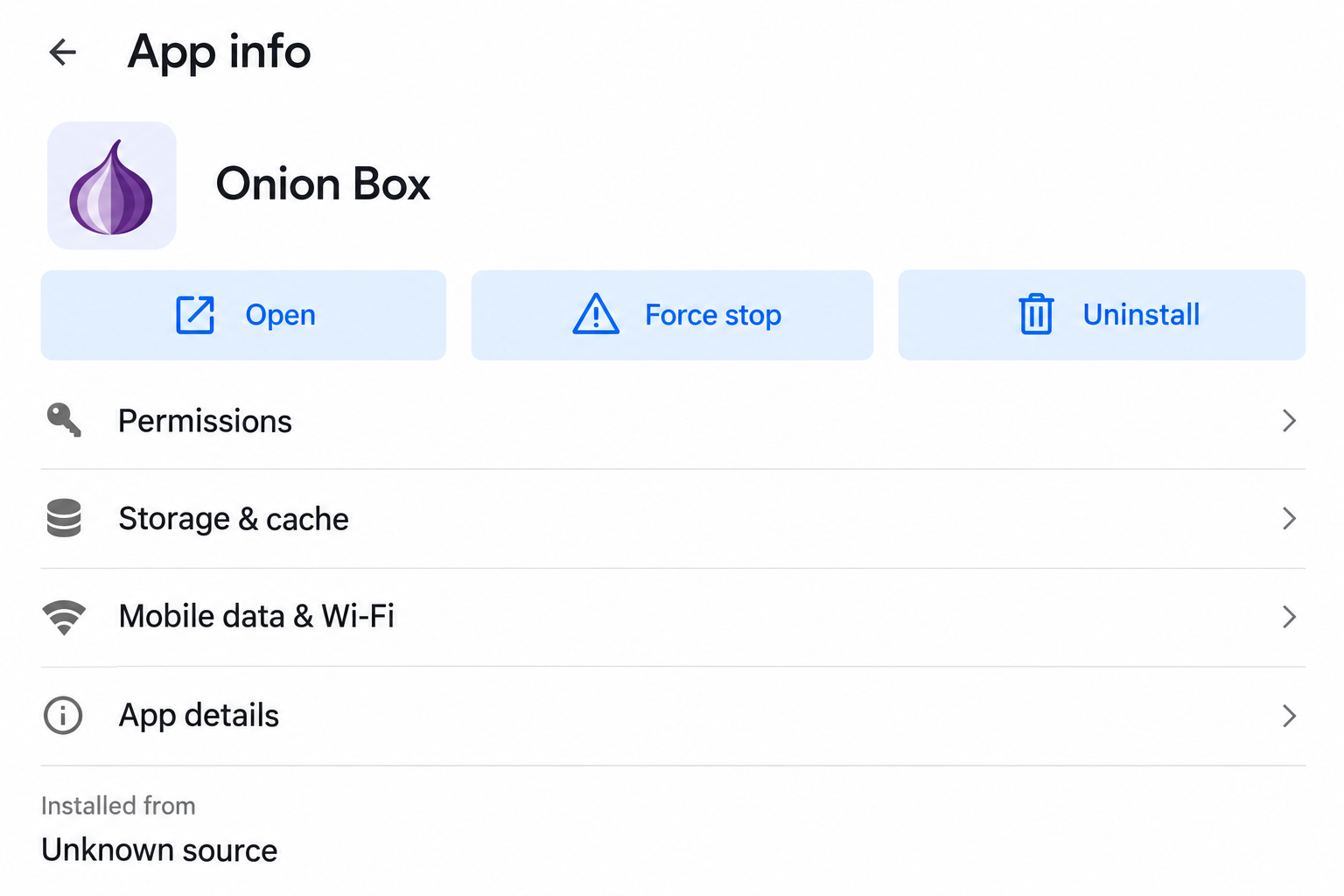
The App info illustration is a simplified example, not a detection record. Names and icons alone cannot identify whether a particular installation contains this framework.
How a Familiar App Can Run Inside an Untrusted Environment
A modified client can preserve the ordinary experience
People often expect malicious software to replace a useful application with something obviously broken. That expectation is unreliable when the genuine application’s code still performs its normal work.
A modified client can retain recognizable conversations, menus, and notifications. The user sees the expected service while additional code interacts with its execution.
Think of the distinction as the service versus the installation you use to reach it. Recognizing the service does not authenticate a package obtained from an unrelated sender.
There is no need to distrust every alternative client indiscriminately. What matters is its provenance, integrity, permissions, and whether its behavior has been independently assessed.
A container can change the trust boundary
App containers can host other applications within a separate environment. Virtualization also has legitimate uses, so the technique alone is not a malware verdict.
The concern here is the reported combination of hosted apps, intrusive instrumentation, and remote management. That combination can expose information available to the running application.
A second copy of a messaging app inside a container is not necessarily equivalent to installing the official client directly. Its surrounding software deserves its own assessment.
Do not grant extra access merely because the container promises convenient account switching. Understand which company provides it and why each permission is needed.
Encryption does not solve an untrusted endpoint
Protecting a message during transport is different from protecting it after the recipient’s application displays it. A compromised endpoint can undermine that second boundary.
This does not mean the underlying messaging protocol has been broken. It means code acting within an authenticated application’s environment may reach information the app can use.
The original technical analysis separates supported capabilities from uncertain deployment and victim impact. That distinction should guide recovery too.
Respond to credible evidence of an affected installation. Do not infer that every contact or conversation was stolen simply because a research report lists a capability.
What to Check Before Removing Anything
Start with the installation that caused concern. Note its displayed name, installation source, approximate date, and whether it opens another application inside it.
Do not install a second suspicious build to compare the icons. A visual comparison cannot establish the integrity of either package.
Save any detection name and the security product that produced it. A generic unwanted-app alert may need interpretation rather than automatic attribution to uCreator.
Likewise, high battery use or a slow device is not a family-specific diagnosis. Many ordinary application problems can cause those symptoms.
If someone else manages the device, involve them before changing its configuration. A workplace profile or approved management application must not be removed by guesswork.
For a personally owned device, list the applications you intentionally installed through messaging links or websites. That history may be more informative than the current home-screen appearance.
Remember that a renamed app can be difficult to recognize. Ask for qualified help if the source, package, and detection information do not clearly identify the suspect installation.
Check whether the official client and a container hold different signed-in accounts. The same contact name on two home-screen icons may conceal separate identities.
Write down which phone number or account belongs to each installation without recording its password. That makes subsequent session review less confusing.
If the device has personal and work profiles, identify where the suspect app exists. Removing a personal copy does not automatically address an installation elsewhere.
Likewise, do not wipe a legitimate work profile to remove an unrelated personal app. Ask its administrator to assess the managed environment separately.
Account Risks Worth Addressing Promptly
Messaging sessions can outlast the original installation
An account can have authorized sessions on more than one device. Removing a local app does not necessarily terminate a separate session already established by someone else.
Review the service’s actual session controls from a trusted environment. Identify unfamiliar devices using the available details rather than relying only on a location label.
For Telegram, the official FAQ explains Devices or Active Sessions and Two-Step Verification. Use the current supported account controls.
If the service imposes a recovery delay or restriction, follow that process. Do not purchase a bypass from a person who promises instant restoration.
A reused secret can create additional exposure
A messaging password may also be used elsewhere. If a real secret was exposed, replace it on other services where it remains valid.
Prioritize the email account and recovery methods connected to important identities. Their role in account recovery can matter more than the number of ordinary apps installed.
Do not type replacement passwords into the suspected client. First establish a trusted device or a recovered installation that is appropriate for sensitive sign-in.
Keep recovery information private. A helper does not need your current password, login code, or complete recovery phrase to understand the incident.
Financial activity needs its own provider response
If a wallet or payment service was used within a suspect environment, review its real activity and contact the provider about unfamiliar access or transactions.
Describe what happened accurately: the app involved, the account used, and any suspicious approvals. Do not report a completed transfer unless records actually show one.
For cryptocurrency, never share recovery words with someone offering to inspect the damage. Device cleanup cannot reverse a completed blockchain transfer.
A provider may recommend account restrictions or a particular recovery procedure. Follow independently established support instructions rather than a link introduced by the suspicious installation.
What to Do If You Installed a Suspected uCreator App
Stop using the untrusted client or container. Avoid new logins, sensitive messages, payments, and password changes through that installation.
If there is evidence of active compromise, disconnect the affected Android device from network access while arranging a response. Use another trusted device for urgent support.
Keep a concise incident record. Save the original installation link privately, the app name, detection information, and relevant times.
Do not reopen malicious links or upload private conversations publicly. A responder can explain what evidence is necessary and how to share it safely.
Protect essential local information before uninstalling. Determine what exists only inside the affected app or container, including drafts or device-specific conversations.
Uninstalling can remove local app data. Ask for advice if preserving important material conflicts with removing the installation promptly.
Review important accounts from a clean environment. End unauthorized sessions and replace exposed secrets through the genuine provider.
Tell contacts if the account actually sent suspicious requests. Do not distribute a warning containing the original live installation link.
Remove and inspect the Android software. Follow the device-specific steps below. Malwarebytes can scan installed apps and accessible files, but a result is not an account-recovery certificate.
If an app cannot be removed or returns, seek help from the device manufacturer, administrator, or a qualified responder instead of disabling security protections.
Address financial or identity misuse separately. Contact the relevant institution through its established route and retain case numbers and transaction records.
Reject anyone charging a fee for guaranteed recovery. No legitimate review requires sending your messaging password or cryptocurrency recovery words to a stranger.
Is Your Device Infected? Run a Free Malware Scan
Slow performance, constant pop-ups, or strange behavior? These are classic signs of a malware infection. The fastest way to find out is to scan your device with Malwarebytes Free — one of the most trusted malware removal tools available.
The free version detects and removes the most common threats, including:
- Adware — the cause of those annoying pop-ups
- Browser hijackers — unwanted redirects and changed homepages
- Trojans and spyware — hidden programs stealing your data
- Potentially unwanted programs (PUPs) — software you never asked for
👉 Select your device below — Windows, Mac, or Android — then follow the simple steps to download Malwarebytes, scan your system, and remove any threats it finds. The scan usually takes 5 to 20 minutes.
Run a Malware Scan with Malwarebytes for Windows
Malwarebytes is one of the most popular and trusted anti-malware tools for Windows — and it’s completely free for removing infections. It catches threats that many antivirus programs miss, including adware, browser hijackers, and trojans. Follow the steps below to scan and clean your PC in just a few minutes.
Download Malwarebytes
Click the button below to download the latest version of Malwarebytes for Windows from the official source. The free version is all you need — it will scan your computer and remove adware, browser hijackers, and other malicious software at no cost.
Download MalwarebytesOfficial installer for Windows 11 and 10. Your download starts right away.Want real-time protection? See Malwarebytes Premium Malwarebytes Free for WindowsScans and removes malware at no cost
-
Install Malwarebytes
When the download finishes, open your Downloads folder and double-click the MBSetup file. If Windows shows a User Account Control pop-up, click “Yes” to allow the installation.

Follow the On-Screen Prompts to Install Malwarebytes
The setup wizard will walk you through a few quick screens:
-
Choose where you’re installing the program — “Personal Computer” or “Work Computer” — then click Next.

-
Malwarebytes will now install on your device. This usually takes under a minute.

-
When installation is complete, the “Welcome to Malwarebytes” screen will open automatically.

-
On the final screen, click Open Malwarebytes to launch the program.

-
Enable “Scan for Rootkits”
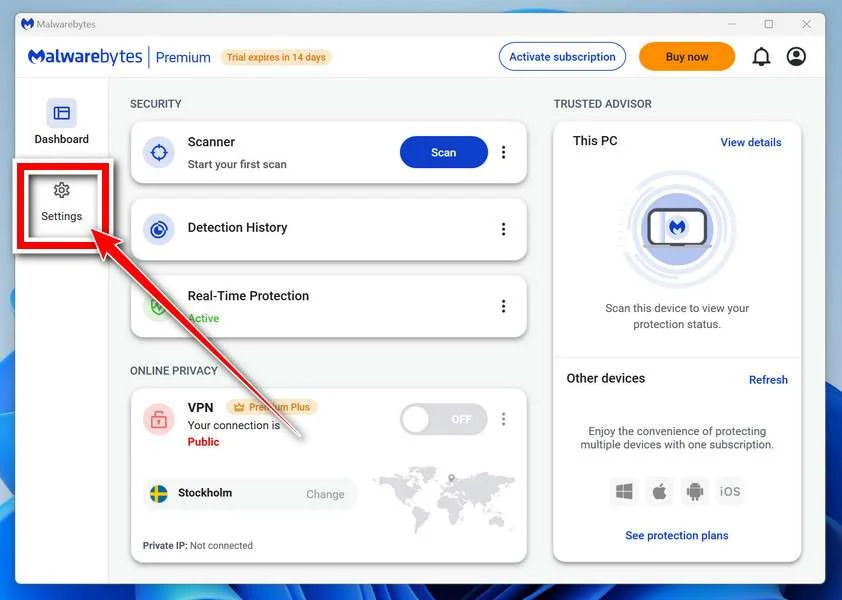
Before scanning, turn on rootkit detection so Malwarebytes can find even the most hidden threats. Click the Settings gear icon on the left side of the screen.
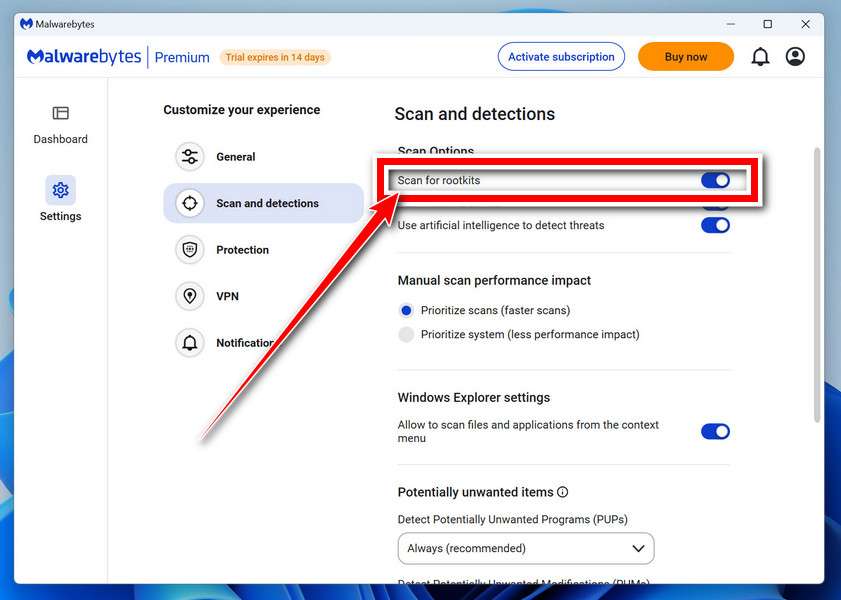
In the settings menu, find “Scan for rootkits” and click the toggle so it turns blue.
Done? Click “Dashboard” in the left pane to return to the main screen.
Start the Scan
Click the blue Scan button. Malwarebytes will automatically update its virus database and start checking your computer for malware.

-
Wait for the Scan to Finish
The scan checks your entire system for browser hijackers and other malicious programs, so it can take 5 to 20 minutes depending on your computer. Feel free to do something else — just check back occasionally to see the progress.

-
Quarantine the Detected Threats
When the scan is done, you’ll see a list of everything Malwarebytes found — malware, adware, and potentially unwanted programs. Click the “Quarantine” button to remove all of them at once.

Malwarebytes will now remove the malicious files and registry entries and move them safely into quarantine.

-
Restart Your Computer
Some threats can only be fully removed after a reboot. If Malwarebytes asks you to restart, click Yes. Once you’re logged back in, Malwarebytes has finished removing the threats it found.

That’s it — your Windows PC is now clean of trojans, adware, and other malware, and should be back to running smoothly.
If you are still having problems with your computer after completing these instructions, then please follow one of the steps:
- Run a computer scan with ESET Online Scanner
- Ask for help in our Windows Malware Removal Help & Support forum.
Run a Malware Scan with Malwarebytes for Mac
Malwarebytes for Mac is a free on-demand scanner that removes the malware other security software tends to miss — adware, browser hijackers, and unwanted programs included. Cleaning an infected Mac with Malwarebytes has always been completely free, and it’s our go-to recommendation. Follow the steps below to scan and clean your Mac in just a few minutes.
-
Download Malwarebytes for Mac
Click the button below to download the latest version of Malwarebytes for Mac.
Download MalwarebytesOfficial installer for macOS. Your download starts right away.Want real-time protection? See Malwarebytes PremiumMalwarebytes Free for MacScans and removes malware at no cost -
Open the Malwarebytes setup file
When the download finishes, open your Downloads folder and double-click the setup file to begin the installation.

-
Follow the On-Screen Prompts to Install Malwarebytes
The Malwarebytes for Mac Installer will guide you through a few quick screens. Click “Continue” and keep following the prompts until the installation completes.



When the installation is complete, Malwarebytes opens to the Welcome to Malwarebytes screen. Click “Get started“.
-
Select “Personal Computer” or “Work Computer”
Malwarebytes will ask what type of computer you’re installing it on. Click either Personal Computer or Work Computer, whichever applies.

-
Start the Scan
Click the “Scan” button. Malwarebytes will automatically update its detection database and begin checking your Mac for malware.

-
Wait for the Scan to Finish
Malwarebytes will scan your Mac for adware, browser hijackers, and other malicious programs. This can take a few minutes, so feel free to do something else — just check back occasionally to see the progress.

-
Quarantine the Detected Threats
When the scan is done, you’ll see a list of everything Malwarebytes found. Click the “Quarantine” button to remove all the threats at once.

-
Restart Your Mac
Malwarebytes will now remove all the malicious files it found. Some threats can only be fully removed after a reboot — if Malwarebytes asks you to restart, allow it. Once you’re logged back in, your Mac is clean.

That’s it — your Mac is now free of adware, rogue browser extensions, and other potentially harmful software.
If you are still experiencing problems while trying to remove a malicious program from your computer, please ask for help in our Mac Malware Removal Help & Support forum.
Run a Malware Scan with Malwarebytes for Android
Malwarebytes for Android automatically detects and removes dangerous threats like malware and ransomware so you don’t have to worry about your most-used device being compromised. Aggressive detection of adware and potentially unwanted programs keeps your Android phone or tablet running smooth.
-
Download Malwarebytes for Android.
You can download Malwarebytes for Android by clicking the link below.
Get Malwarebytes for AndroidOpens Google Play in a new tab.Want real-time protection? See Malwarebytes Premium for AndroidMalwarebytes for AndroidScans your phone and removes malware at no cost -
Install Malwarebytes for Android on your phone.
In the Google Play Store, tap “Install” to install Malwarebytes for Android on your device.

When the installation process has finished, tap “Open” to begin using Malwarebytes for Android. You can also open Malwarebytes by tapping on its icon in your phone menu or home screen.

-
Follow the on-screen prompts to complete the setup process
When Malwarebytes will open, you will see the Malwarebytes Setup Wizard which will guide you through a series of permissions and other setup options.
This is the first of two screens that explain the difference between the Premium and Free versions. Swipe this screen to continue.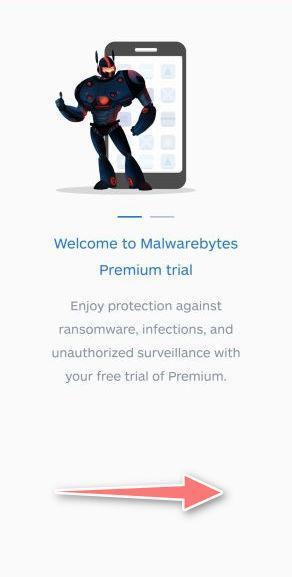
Tap on “Got it” to proceed to the next step.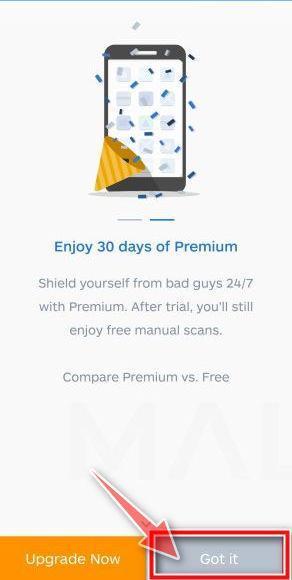
Malwarebytes for Android will now ask for a set of permissions that are required to scan your device and protect it from malware. Tap on “Give permission” to continue.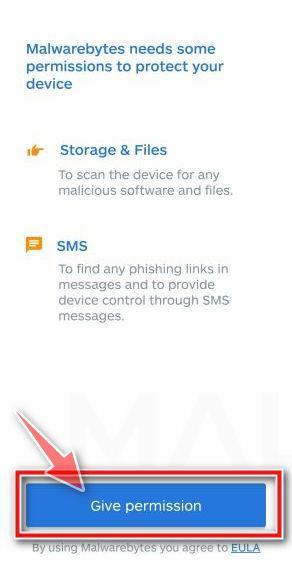
Tap on “Allow” to permit Malwarebytes to access the files on your phone.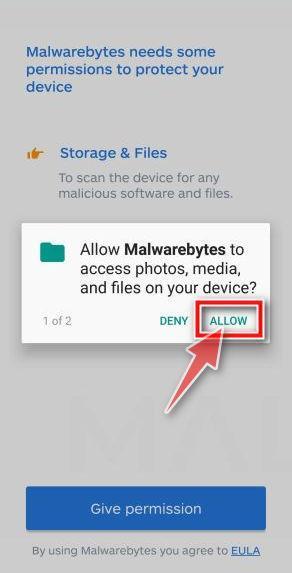
-
Update database and run a scan with Malwarebytes for Android
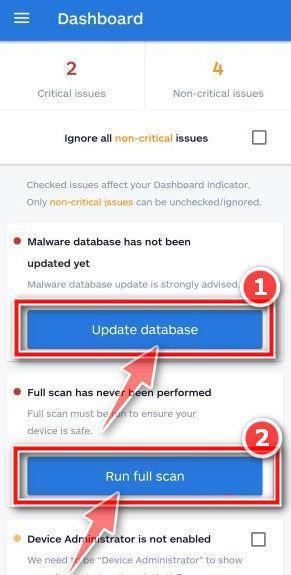
You will now be prompted to update the Malwarebytes database and run a full system scan.
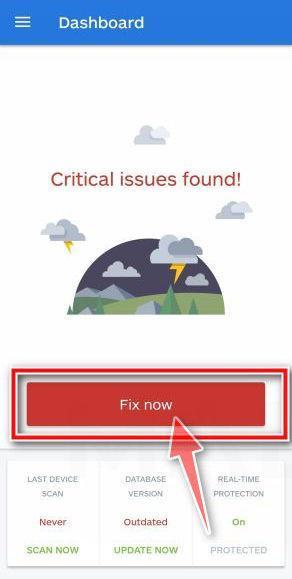
Click on “Update database” to update the Malwarebytes for Android definitions to the latest version, then click on “Run full scan” to perform a system scan.
-
Wait for the Malwarebytes scan to complete.
Malwarebytes will now start scanning your phone for adware and other malicious apps. This process can take a few minutes, so we suggest you do something else and periodically check on the status of the scan to see when it is finished.

-
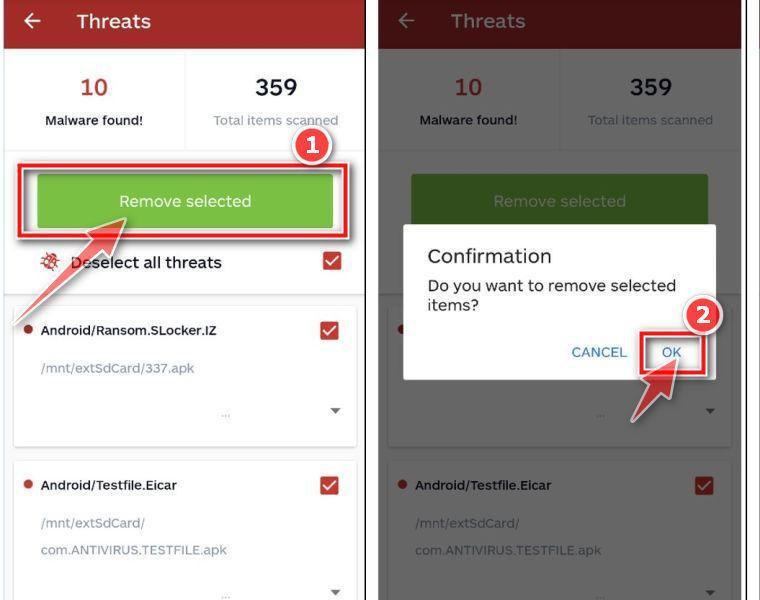
Click on “Remove Selected”.
When the scan has been completed, you will be presented with a screen showing the malware infections that Malwarebytes for Android has detected. To remove the malicious apps that Malwarebytes has found, tap on the “Remove Selected” button.
-
Restart your phone.
Malwarebytes for Android will now remove all the malicious apps that it has found. To complete the malware removal process, Malwarebytes may ask you to restart your device.
That’s it — your Android phone is now clean — no more malicious apps, adware, or browser redirects.
If you are still having problems with your phone after completing these instructions, then please follow one of the steps:
- Restore your phone to factory settings by going to Settings > General management > Reset > Factory data reset.
- Ask for help in our Mobile Malware Removal Help & Support forum.
Stay Protected: Block Ads and Malicious Sites
Now that your device is clean, keep it that way. Most infections start with a malicious ad or a fake download button — so blocking them at the source is your best defense.
We recommend AdGuard, which blocks malicious ads, phishing pages, and dangerous redirects before they can reach you.
👉 Download AdGuard and browse safely
How to Remove Suspected uCreator Apps From Android
Step 1: Identify the affected installation and preserve what matters
Open Android Settings and review Apps. Locate the package associated with the warning or suspicious installation, including any container hosting the client.
Record its details before removing it. Do not assume every application using the same ordinary display name belongs to this platform.
Choose a recovery approach for essential local data first. Copying a suspect APK or restoring its full app backup can preserve the unwanted software too.
Step 2: Uninstall through the device’s normal controls
Use the application’s App info page and choose Uninstall for the identified untrusted package. Confirm the device’s prompt after reviewing its data-loss warning.
If a management restriction prevents removal, stop and identify who controls it. A legitimate employer-managed device needs administrator assistance, not improvised policy removal.
Some phones provide a manufacturer-supported Safe Mode removal route. Consult instructions for that exact model rather than assuming one button sequence works everywhere.
Step 3: Check Play Protect and supported Android updates
Google’s unsafe-software guidance covers Play Protect, security updates, and removing untrusted apps. Follow the controls available on your device.
Keep Play Protect enabled. Do not install an alleged cleanup package that tells you to turn protection off before it can work.
Supported updates improve security but are not proof that a previously modified client is now trustworthy. Obtain replacement applications from established official sources.
Step 4: Run a current Android malware scan
Install Malwarebytes through Google Play. Our Android protection page concerns optional paid features. Review any offers separately.
The vendor’s scan instructions place Scan now under Device on the dashboard. Grant the explained file access if you want files included.
When results appear, examine each detection and confirm Android’s uninstall prompts for malicious apps. Retain the findings if removal fails or the package reappears.
Step 5: Restore a trusted messaging environment
Install the legitimate client through the provider’s established distribution. Do not recover access by reinstalling the same APK from the original conversation.
Check active sessions again after sign-in and follow the provider’s security recommendations. Reintroduce only the accounts and integrations you actually need.
A legitimate client cannot erase messages or information already copied elsewhere. Concentrate on ending access and preventing further exposure rather than accepting promises of complete retrieval.
Step 6: Escalate unresolved compromise without rushing a reset
If suspicious software remains, ask the manufacturer or a qualified responder about rebuilding the device. Explain whether private evidence or business data must be preserved.
A factory reset erases local data and settings. Prepare an appropriate backup and recovery-access plan before accepting that option.
Restore necessary personal files selectively. Avoid automatically restoring the untrusted container, its installer, or a backup that recreates the same questionable environment.
Frequently Asked Questions
Is the legitimate Telegram app uCreator spyware?
No. This case concerns modified clients and intrusive hosting environments. A legitimate service and an untrusted package claiming to access it are different things.
Does uCreator require a rooted device?
The documented framework includes no-root instrumentation approaches. A device not being rooted is therefore not sufficient reassurance about a modified installation.
Does the Onion Box name prove infection?
No. Assess the exact package, origin, behavior, and detection evidence. A shared display name or a similar icon alone cannot establish what code is installed.
Can two-step verification replace device cleanup?
No. Stronger account protection is valuable, but it does not make a suspect client trustworthy. Secure the endpoint and review account access separately.
Will uninstalling preserve every conversation?
Not necessarily. Local data and device-specific chats can be lost. Understand the service’s storage model and preserve essential information before removal when safely possible.
Does a scan prove nobody accessed my messages?
No. Scanning examines software and files available to the tool. Historical account access and information already copied require a separate assessment.
The Bottom Line
Do not keep using an untrusted messaging build or container because the interface looks familiar. Identify the installation, preserve essentials, and remove the suspect software safely.
Then recover affected accounts through genuine providers on a trusted device. If removal or account control remains uncertain, obtain qualified help before resuming sensitive use.

Join the discussion
0 commentsShare your experience or ask a question about this article.
Discussion
Start the conversation
Have a question or something useful to share? Add the first comment.