

Windows Route Manager is a potentially unwanted program that is commonly bundled with other free programs that you download off of the Internet.
Unfortunately, some free downloads do not adequately disclose that other software will also be installed and you may find that you have installed Windows Route Manager without your knowledge.
When Windows Route Manager is installed, you may notice the following symptoms:
- Your computer may run slow when this adware is installed
- Your computer’s CPU utilization may rise to as high as 70%
- This program will be set to automatically start with Windows
- Windows Route Manager will connect to various sites on the Internet
- You will see a process called WinRouteD.exe running in Task Manager that use a large amount of CPU power. These processes will have a description called Windows Route Manager.
You should always pay attention when installing software because often, a software installer includes optional installs, such as this Windows Route Manager adware. Be very careful what you agree to install.
Always opt for the custom installation and deselect anything that is not familiar, especially optional software that you never wanted to download and install in the first place. It goes without saying that you should not install software that you don’t trust.
How to remove Windows Route Manager (Uninstall Guide)
This page is a comprehensive guide which will remove Windows Route Manager and other malicious programs that may be installed on your machine.
Please perform all the steps in the correct order. If you have any questions or doubt at any point, STOP and ask for our assistance.
STEP 1: Uninstall Windows Route Manager from Windows
STEP 2: Scan your computer with Malwarebytes Anti-Malware
STEP 3: Double-check for malware with HitmanPro
STEP 1: Uninstall Windows Route Manager from Windows
In this first step, we will try to identify and remove any malicious program that might be installed on your computer.
- Go to the uninstall menu.
Windows 10 or Windows 8
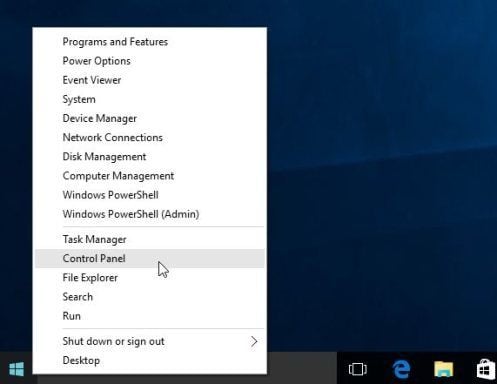
- To uninstall a program on Windows 10 or Windows 8, right-click on the Windows Start button and choose “Control Panel” from the pop-up menu.
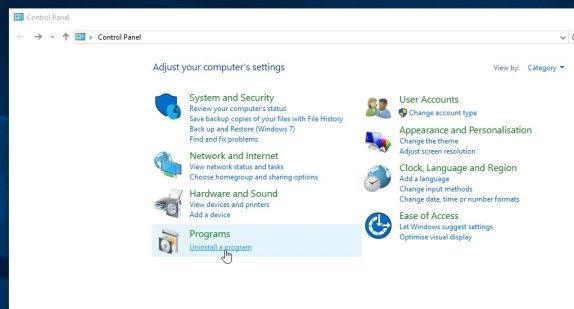
- When the “Control Panel” window opens click on the “Uninstall a program” option under “Programs” category.
Windows 7 or Windows Vista
- If you are using Windows XP, Windows Vista or Windows 7, click the “Start” button, then click on the “Control Panel” menu option.
![[Image: Control Panel in Windows Start Menu]](https://malwaretips.com/blogs/wp-content/uploads/2014/08/windows-start-menu-control-panel.jpg "Control Panel in Windows Start Menu")
- When the “Control Panel” window opens click on the “Uninstall a program” option under “Programs” category.
![[Image: Uninstall a program]](https://malwaretips.com/blogs/wp-content/uploads/2013/03/uninstall-a-program-windows.jpg "Click on Uninstall a program")
- To uninstall a program on Windows 10 or Windows 8, right-click on the Windows Start button and choose “Control Panel” from the pop-up menu.
- When the “Programs and Features” screen is displayed, scroll through the list of currently installed programs and uninstall “Windows Route Manager” .
The malicious program may have a different name on your computer. To view the most recently installed programs, you can click on the “Installed On” column to sort your program by the installation date. Scroll through the list, and uninstall any unwanted or unknown programs.If you are having issues while trying to uninstall the Windows Route Manager program, you can use Revo Uninstaller to completely remove this unwanted program from your machine.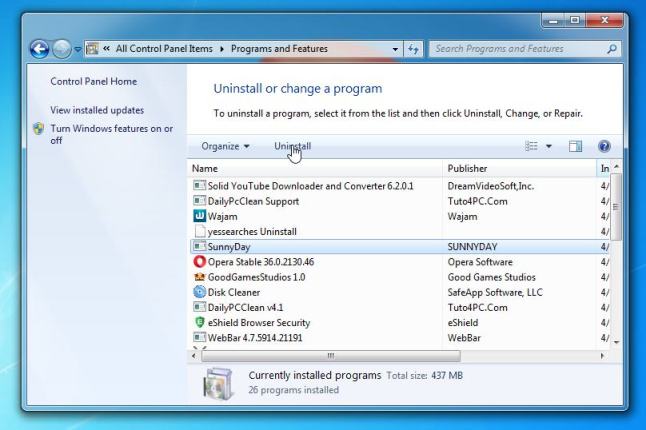 If you cannot find any unwanted or unknown programs on your machine, then you can proceed with the next step.
STEP 2: Scan your computer with Malwarebytes Anti-Malware
Malwarebytes Anti-Malware is a powerful on-demand scanner which will remove all the malware from your machine. It is important to note that Malwarebytes Anti-Malware will run alongside antivirus software without conflicts.
- You can download download Malwarebytes Anti-Malware from the below link.
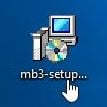
MALWAREBYTES ANTI-MALWARE DOWNLOAD LINK (This link will open a new web page from where you can download “Malwarebytes Anti-Malware Free”) - Once downloaded, close all programs, then double-click on the icon on your desktop named “mbam-setup” to start the installation of Malwarebytes Anti-Malware.
 You may be presented with a User Account Control dialog asking you if you want to run this file. If this happens, you should click “Yes” to continue with the installation.
 - When the installation begins, you will see the Malwarebytes Anti-Malware Setup Wizard which will guide you through the installation process.
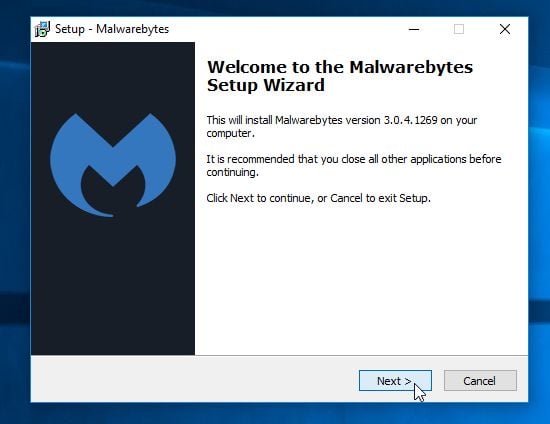
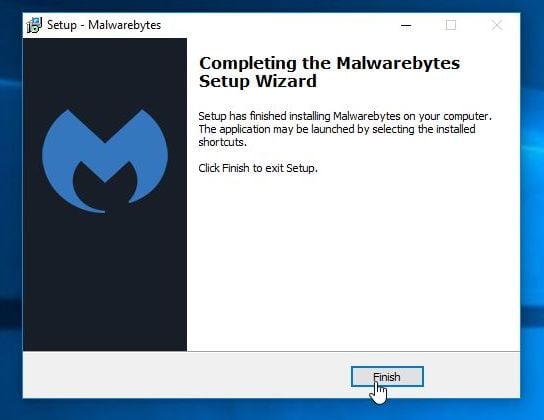
To install Malwarebytes Anti-Malware on your machine, keep following the prompts by clicking the “Next” button.
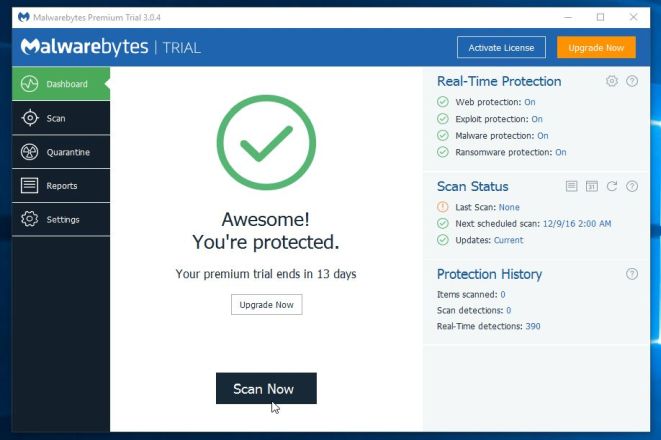
- Once installed, Malwarebytes Anti-Malware will automatically start and you will see a message stating that you should update the program, and that a scan has never been run on your system. To start a system scan you can click on the “Scan Now” button.
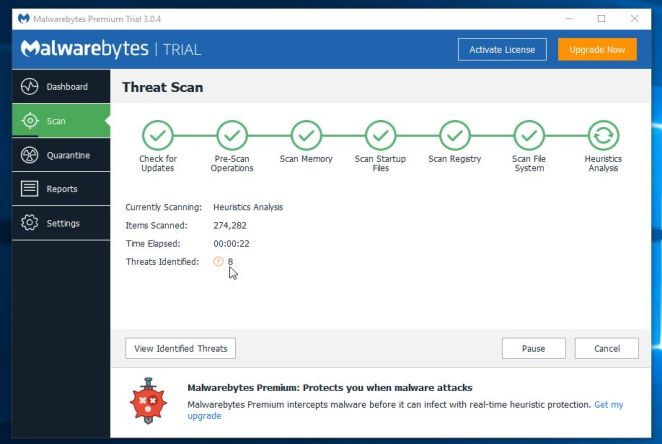
- Malwarebytes Anti-Malware will now start scanning your computer for the Windows Route Manager adware. When Malwarebytes Anti-Malware is scanning it will look like the image below.
- When the scan has completed, you will be presented with a screen showing the malware infections that Malwarebytes Anti-Malware has detected. To remove the malicious programs that Malwarebytes Anti-malware has found, click on the “Remove Selected” button.
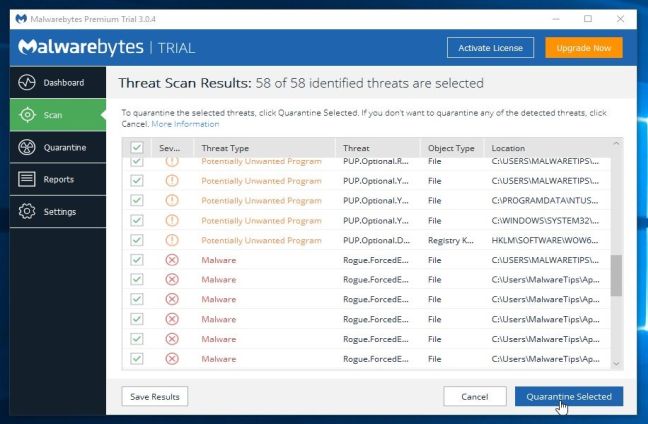
Please note that the infections found may be different than what is shown in the image. - Malwarebytes Anti-Malware will now quarantine all the malicious files and registry keys that it has found. When removing the files, Malwarebytes Anti-Malware may require a reboot in order to remove some of them. If it displays a message stating that it needs to reboot your computer, please allow it to do so.
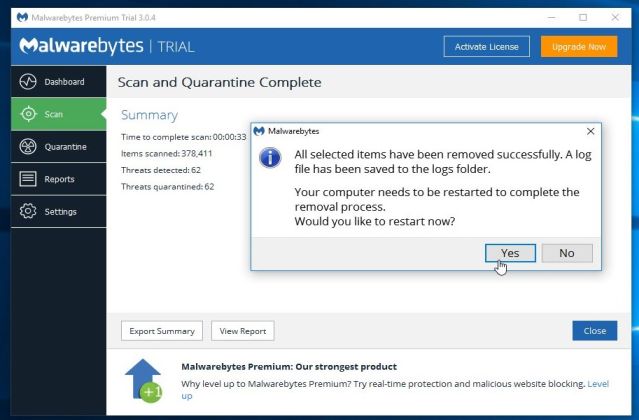
After your computer will restart, you should open Malwarebytes Anti-Malware and perform another “Threat Scan” scan to verify that there are no remaining threats
STEP 3: Double-check for malware with HitmanPro
HitmanPro finds and removes malware, adware, bots, and other threats that even the best antivirus suite can oftentimes miss. It’s designed to run alongside your antivirus suite, firewall, and other security tools.
- You can download HitmanPro from the below link:
HITMANPRO DOWNLOAD LINK (This link will open a new web page from where you can download “HitmanPro”) - Double-click on the file named “HitmanPro.exe” (for 32-bit versions of Windows) or “HitmanPro_x64.exe” (for 64-bit versions of Windows). When the program starts you will be presented with the start screen as shown below.
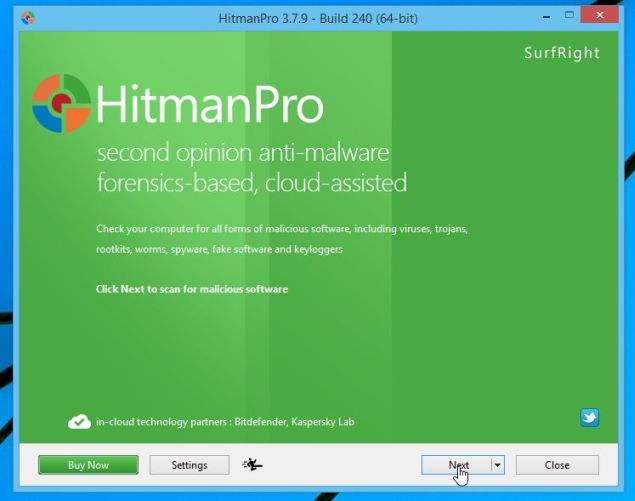
Click on the “Next” button, to install HitmanPro on your computer.
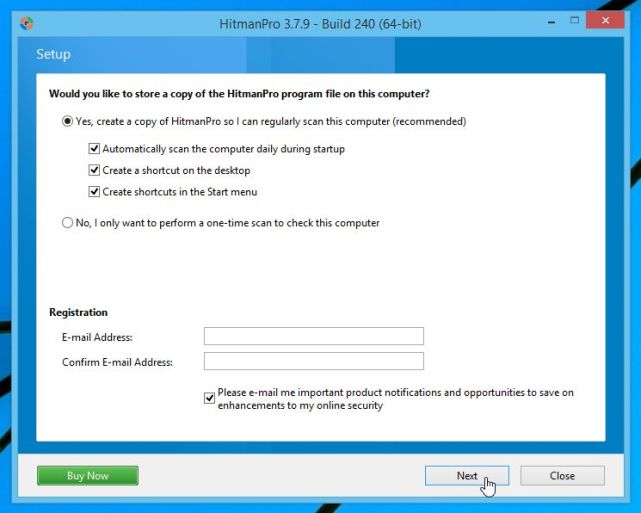
- HitmanPro will now begin to scan your computer for the Windows Route Manager adware.
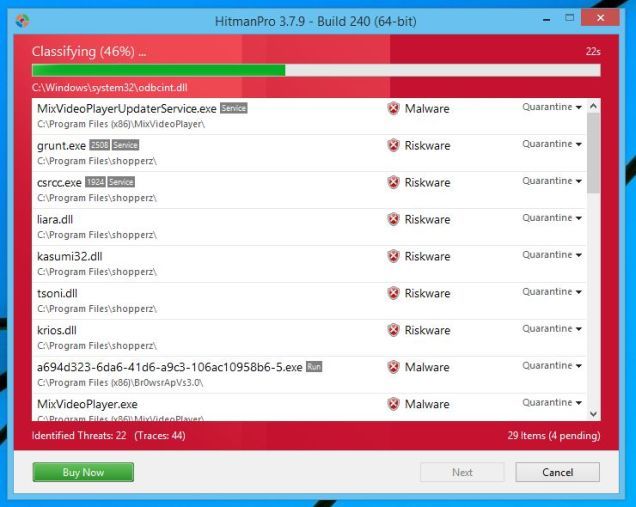
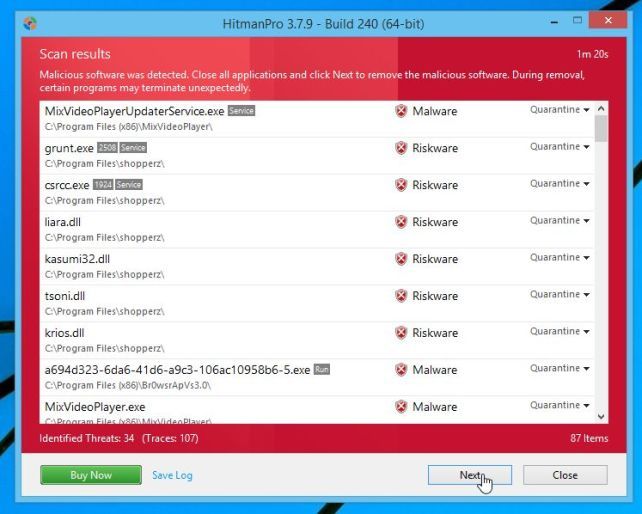
- When it has finished it will display a list of all the malware that the program found as shown in the image below. Click on the “Next” button, to remove malware.
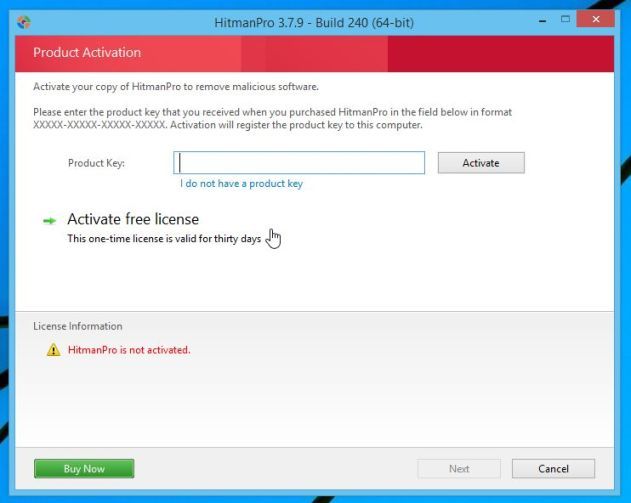
- Click on the “Activate free license” button to begin the free 30 days trial, and remove all the malicious files from your computer.
Your computer should now be free of the Windows Route Manager adware.
If you are still experiencing problems while trying to remove Windows Route Manager from your machine, please do one of the following:
- Run a system scan with Zemana AntiMalware
- Start a new thread in our Malware Removal Assistance forum.








