

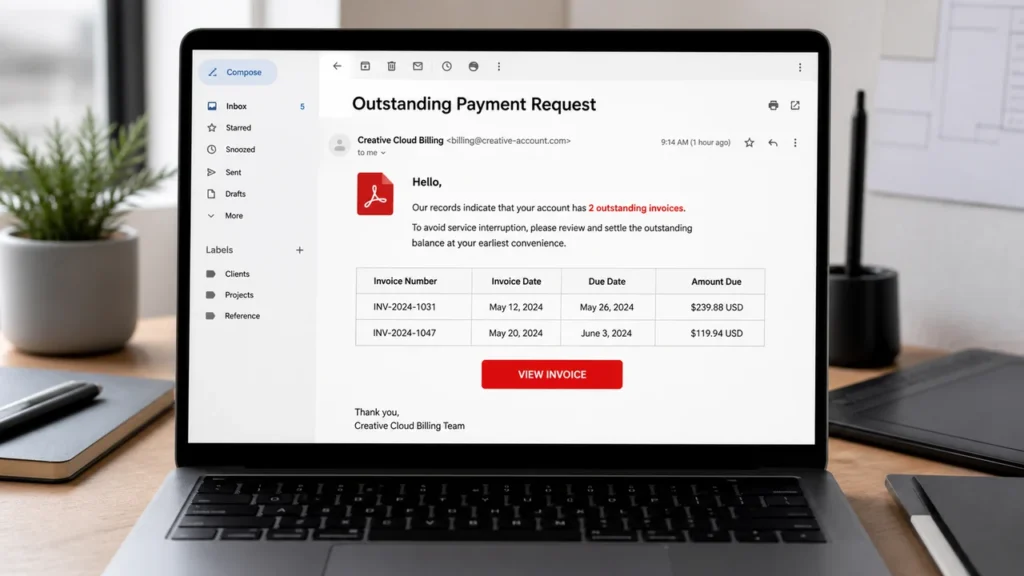
An email that appears to come from Adobe says two invoices remain unpaid. It lists invoice numbers, shows a file size, and provides a red “View Invoice” button so the balance can be reviewed.
There is no invoice behind that button. The Adobe Outstanding Invoices email virus campaign sends recipients to a copied download page that disguises a malicious Windows batch file as an Acrobat Reader update.
Overview
The Adobe Outstanding Invoices email virus is a malspam campaign that impersonates Adobe to distribute malware. Its message claims the recipient has two outstanding invoices and must review them through a link.
Clicking “View Invoice” does not open an invoice in Adobe Acrobat or an Adobe account. It leads to a fraudulent webpage styled to resemble an official Adobe download page.
The page reports that Adobe Reader is out of date and claims an update is being downloaded automatically. It then tells the visitor to find the downloaded file and run it.
The observed file was named Adobe_Acrobat_Reader_pro.bat. It is a Windows batch script, not an authentic Adobe installer. Running it executes commands chosen by the attacker.
Researchers had not confirmed the final malware family delivered by the script at the time of analysis. That uncertainty is important: a malicious batch file can install a downloader, information stealer, remote-access trojan, keylogger, ransomware, or another payload. It should not be described as one specific threat without evidence.
Adobe is not connected to the email, download page, or file. Its name and familiar document branding are being misused to make an unexpected payment notice feel routine.
Reading the email does not install malware. The serious risk begins if the recipient visits the linked page and runs the downloaded batch file. Clicking without downloading is still a reason to close the page and check the device, but it is not the same as executing the file.
What the Adobe Outstanding Invoices Email Looks Like
The campaign uses a compact payment notice rather than a long explanation. It says there are “2 outstanding open invoices,” places invoice information in a small table, and asks the recipient to “Review and Take Action.”
The subject used in the examined email was “Outstanding Payment Request.” The apparent invoice row included two invoice numbers and a size of 3.1 MB, giving the message the appearance of a document waiting behind the button.
Warning signs inside the message
- The invoice is unexpected: The recipient does not recognize the purchase, subscription, account, or amount behind the alleged balance.
- The message provides little billing context: It may show invoice numbers without identifying the licensed product, billing period, account, or verified company contact.
- The sender domain is not an official Adobe domain: A display name can say Adobe even when the actual address belongs to somebody else.
- The button hides an unrelated website: The destination is not an Adobe account or help page.
- The invoice turns into a software update: A billing link should not require a new Reader installation before an account balance can be checked.
- The site downloads a script: A file ending in
.batis not a PDF invoice and should never be treated as one.
The strongest warning appears after the click. The story changes from “review your invoices” to “your software is outdated.” That change gives the attacker a reason to place executable code on the computer.
Why a familiar PDF icon is not proof
PDF documents, Acrobat, and Adobe Sign are common in business communication. Criminals use that familiarity because employees regularly receive contracts, purchase orders, and invoices that appear to involve a PDF.
An icon is only an image. The real file type is determined by its extension and content. Windows may hide known extensions by default, so a filename that looks like an Adobe document can still be a script or executable.
Users should enable visible filename extensions and check the complete name before opening a download. An invoice is normally a PDF or a record viewed inside a verified account, not a batch script that asks to change the system.
How The Scam Works
1. The attacker sends a fake overdue-invoice notice
The email is distributed to individuals and business inboxes that may already handle software subscriptions or PDF documents. Adobe’s broad customer base makes the impersonation plausible even when the campaign is sent without precise targeting.
The message avoids a complicated story. An outstanding invoice creates enough concern to prompt a click, especially for someone responsible for accounts payable or software renewals.
2. Invoice details make the warning feel specific
Numbers, table rows, and file sizes create a sense that a real billing system generated the notice. The recipient may focus on identifying the purchase and overlook the sender address.
Attackers can also use a large amount or urgent deadline to increase pressure. In the observed version, the details were sparse, but the Adobe identity and structured invoice row supplied the credibility.
3. The View Invoice button opens a fake Adobe page
The link directs the browser to a site controlled by the campaign operator. The page copies visual cues associated with Adobe and Acrobat, but the address bar does not show an official Adobe domain.
A copied page can look nearly perfect because website colors, images, and layouts are public. The domain is harder to copy. Look at the registered part of the address rather than trusting words such as “adobe,” “invoice,” or “secure” placed elsewhere in a long URL.
4. The page invents an outdated Reader problem
Instead of displaying the invoice, the site claims the installed PDF reader is too old. This creates a second problem and offers an immediate solution: run the “update” that is already downloading.
The transition is designed to feel technical rather than suspicious. A person who only wants to inspect the bill may follow the instructions without asking why a browser page can determine the state of a desktop application.
5. A malicious batch file is delivered
The downloaded file uses Adobe and Acrobat words in its name to resemble legitimate software. Its .bat extension means Windows will interpret the file as a sequence of command-line instructions.
Batch files can start PowerShell, change system settings, contact remote servers, download additional programs, or launch content already embedded in the script. The visible window may appear briefly or not at all, depending on how the attack was prepared.
6. Running the file starts the infection chain
Opening the file is the action that allows its commands to run. The script may then retrieve a second-stage payload, establish persistence, weaken security controls, or collect information from the device.
The final result can vary between campaign waves. Operators frequently replace one payload with another while leaving the email and download page largely unchanged.
7. The malware may steal data or provide remote access
A successful infection can expose saved browser passwords, authentication cookies, cryptocurrency data, documents, keystrokes, screenshots, and financial information. A remote-access tool may let an attacker operate the device as if sitting in front of it.
On a business network, one infected workstation can become an entry point for wider compromise. Stolen email access may also be used to send the same invoice lure to customers and colleagues.
8. The fake page provides cover for the delay
The site may continue showing update instructions, a progress indicator, or an error while the malicious script works. If the victim never sees an invoice, they may assume the update failed rather than recognizing an infection.
That uncertainty is why running the file should be treated as a security incident even if nothing unusual appears afterward.
What Could Happen After the File Is Opened
The exact payload in this campaign was not identified, so nobody should claim that every downloaded file produces the same outcome. The safest assumption is that the device’s confidentiality and account security may be affected until an investigation shows otherwise.
Possible consequences include credential theft, browser-session theft, cryptocurrency loss, fraudulent access to email, surveillance, additional malware downloads, file encryption, and lateral movement into workplace systems.
Information stealers are especially common in malspam campaigns. They can copy passwords and cookies from browsers quickly, which means changing passwords on the infected computer may give the new credentials to the attacker as well.
A loader can appear to do very little because its main job is downloading another threat. Security software might identify only the second stage, or the operator may wait before deploying it.
Ransomware is another possible result of script-based delivery, but it should be treated as a risk rather than a confirmed payload here. Accurate reporting separates what the campaign demonstrably delivered from what that delivery method is capable of doing.
For an example of a document-themed campaign with a confirmed remote-access payload, read our report on the Finance Department Secure Document email virus.
What to Do if You Have Fallen Victim to This Scam
- Do not run the downloaded file. If it is still in the Downloads folder and has never been opened, leave it closed. Quarantine or remove it using trusted security software.
- If you ran it, disconnect the device from networks. Turn off Wi-Fi and unplug Ethernet to limit communication with attacker infrastructure and other systems. Do not shut down a workplace device unless your incident-response team instructs you to do so, because volatile evidence may matter.
- Notify the IT or security team immediately. Provide the email, linked address, filename, approximate click time, and actions taken. Do not hide the mistake; fast reporting can prevent wider damage.
- Run a full security scan. Update a reputable antivirus or endpoint-security product from a trusted source, then perform a complete scan. A quick scan may not inspect every relevant location.
- Have the device professionally assessed. When sensitive business, financial, or identity data was accessible, a clean antivirus result may not be enough. Incident responders can inspect processes, persistence, logs, and network activity.
- Change passwords from a separate clean device. Prioritize email, banking, cloud storage, business systems, and password-manager accounts. Never change them first on a device that may still contain an information stealer.
- Revoke sessions and authentication tokens. Sign out active browser and application sessions, review multifactor methods, and remove connected apps you do not recognize.
- Monitor financial and business accounts. Watch for unauthorized charges, invoice changes, new payees, and unusual transfers. Contact the institution through its official number if anything looks wrong.
- Preserve the email as evidence. Save it in a way that retains full headers if your security team requests it. Do not forward the live attachment broadly.
- Report the impersonation. Adobe says fake emails, sites, or pop-ups claiming to represent Adobe can be reported to phishing@adobe.com. The message can also be reported to the email provider and at ReportFraud.ftc.gov.
If the device handled customer records or regulated data, the organization may have additional containment and notification obligations. Document what happened and when, even if no loss is immediately visible.
Is Your Device Infected? Run a Free Malware Scan
Slow performance, constant pop-ups, or strange behavior? These are classic signs of a malware infection. The fastest way to find out is to scan your device with Malwarebytes Free — one of the most trusted malware removal tools available.
The free version detects and removes the most common threats, including:
- Adware — the cause of those annoying pop-ups
- Browser hijackers — unwanted redirects and changed homepages
- Trojans and spyware — hidden programs stealing your data
- Potentially unwanted programs (PUPs) — software you never asked for
👉 Select your device below — Windows, Mac, or Android — then follow the simple steps to download Malwarebytes, scan your system, and remove any threats it finds. The scan usually takes 5 to 20 minutes.
Run a Malware Scan with Malwarebytes for Windows
Malwarebytes is one of the most popular and trusted anti-malware tools for Windows — and it’s completely free for removing infections. It catches threats that many antivirus programs miss, including adware, browser hijackers, and trojans. Follow the steps below to scan and clean your PC in just a few minutes.
Download Malwarebytes
Click the button below to download the latest version of Malwarebytes for Windows from the official source. The free version is all you need — it will scan your computer and remove adware, browser hijackers, and other malicious software at no cost.
Download MalwarebytesOfficial installer for Windows 11 and 10. Your download starts right away.Want real-time protection? See Malwarebytes Premium Malwarebytes Free for WindowsScans and removes malware at no cost
-
Install Malwarebytes
When the download finishes, open your Downloads folder and double-click the MBSetup file. If Windows shows a User Account Control pop-up, click “Yes” to allow the installation.

Follow the On-Screen Prompts to Install Malwarebytes
The setup wizard will walk you through a few quick screens:
-
Choose where you’re installing the program — “Personal Computer” or “Work Computer” — then click Next.

-
Malwarebytes will now install on your device. This usually takes under a minute.

-
When installation is complete, the “Welcome to Malwarebytes” screen will open automatically.

-
On the final screen, click Open Malwarebytes to launch the program.

-
Enable “Scan for Rootkits”
Before scanning, turn on rootkit detection so Malwarebytes can find even the most hidden threats. Click the Settings gear icon on the left side of the screen.

In the settings menu, find “Scan for rootkits” and click the toggle so it turns blue.

Done? Click “Dashboard” in the left pane to return to the main screen.
Start the Scan
Click the blue Scan button. Malwarebytes will automatically update its virus database and start checking your computer for malware.

-
Wait for the Scan to Finish
The scan checks your entire system for browser hijackers and other malicious programs, so it can take 5 to 20 minutes depending on your computer. Feel free to do something else — just check back occasionally to see the progress.

-
Quarantine the Detected Threats
When the scan is done, you’ll see a list of everything Malwarebytes found — malware, adware, and potentially unwanted programs. Click the “Quarantine” button to remove all of them at once.

Malwarebytes will now remove the malicious files and registry entries and move them safely into quarantine.

-
Restart Your Computer
Some threats can only be fully removed after a reboot. If Malwarebytes asks you to restart, click Yes. Once you’re logged back in, Malwarebytes has finished removing the threats it found.

That’s it — your Windows PC is now clean of trojans, adware, and other malware, and should be back to running smoothly.
If you are still having problems with your computer after completing these instructions, then please follow one of the steps:
- Run a computer scan with ESET Online Scanner
- Ask for help in our Windows Malware Removal Help & Support forum.
Run a Malware Scan with Malwarebytes for Mac
Malwarebytes for Mac is a free on-demand scanner that removes the malware other security software tends to miss — adware, browser hijackers, and unwanted programs included. Cleaning an infected Mac with Malwarebytes has always been completely free, and it’s our go-to recommendation. Follow the steps below to scan and clean your Mac in just a few minutes.
-
Download Malwarebytes for Mac
Click the button below to download the latest version of Malwarebytes for Mac.
Download MalwarebytesOfficial installer for macOS. Your download starts right away.Want real-time protection? See Malwarebytes PremiumMalwarebytes Free for MacScans and removes malware at no cost -
Open the Malwarebytes setup file
When the download finishes, open your Downloads folder and double-click the setup file to begin the installation.

-
Follow the On-Screen Prompts to Install Malwarebytes
The Malwarebytes for Mac Installer will guide you through a few quick screens. Click “Continue” and keep following the prompts until the installation completes.



When the installation is complete, Malwarebytes opens to the Welcome to Malwarebytes screen. Click “Get started“.
-
Select “Personal Computer” or “Work Computer”
Malwarebytes will ask what type of computer you’re installing it on. Click either Personal Computer or Work Computer, whichever applies.

-
Start the Scan
Click the “Scan” button. Malwarebytes will automatically update its detection database and begin checking your Mac for malware.

-
Wait for the Scan to Finish
Malwarebytes will scan your Mac for adware, browser hijackers, and other malicious programs. This can take a few minutes, so feel free to do something else — just check back occasionally to see the progress.

-
Quarantine the Detected Threats
When the scan is done, you’ll see a list of everything Malwarebytes found. Click the “Quarantine” button to remove all the threats at once.

-
Restart Your Mac
Malwarebytes will now remove all the malicious files it found. Some threats can only be fully removed after a reboot — if Malwarebytes asks you to restart, allow it. Once you’re logged back in, your Mac is clean.

That’s it — your Mac is now free of adware, rogue browser extensions, and other potentially harmful software.
If you are still experiencing problems while trying to remove a malicious program from your computer, please ask for help in our Mac Malware Removal Help & Support forum.
Run a Malware Scan with Malwarebytes for Android
Malwarebytes for Android automatically detects and removes dangerous threats like malware and ransomware so you don’t have to worry about your most-used device being compromised. Aggressive detection of adware and potentially unwanted programs keeps your Android phone or tablet running smooth.
-
Download Malwarebytes for Android.
You can download Malwarebytes for Android by clicking the link below.
Get Malwarebytes for AndroidOpens Google Play in a new tab.Want real-time protection? See Malwarebytes Premium for AndroidMalwarebytes for AndroidScans your phone and removes malware at no cost -
Install Malwarebytes for Android on your phone.
In the Google Play Store, tap “Install” to install Malwarebytes for Android on your device.

When the installation process has finished, tap “Open” to begin using Malwarebytes for Android. You can also open Malwarebytes by tapping on its icon in your phone menu or home screen.

-
Follow the on-screen prompts to complete the setup process
When Malwarebytes will open, you will see the Malwarebytes Setup Wizard which will guide you through a series of permissions and other setup options.
This is the first of two screens that explain the difference between the Premium and Free versions. Swipe this screen to continue.
Tap on “Got it” to proceed to the next step.
Malwarebytes for Android will now ask for a set of permissions that are required to scan your device and protect it from malware. Tap on “Give permission” to continue.
Tap on “Allow” to permit Malwarebytes to access the files on your phone.
-
Update database and run a scan with Malwarebytes for Android
You will now be prompted to update the Malwarebytes database and run a full system scan.

Click on “Update database” to update the Malwarebytes for Android definitions to the latest version, then click on “Run full scan” to perform a system scan.

-
Wait for the Malwarebytes scan to complete.
Malwarebytes will now start scanning your phone for adware and other malicious apps. This process can take a few minutes, so we suggest you do something else and periodically check on the status of the scan to see when it is finished.

-
Click on “Remove Selected”.
When the scan has been completed, you will be presented with a screen showing the malware infections that Malwarebytes for Android has detected. To remove the malicious apps that Malwarebytes has found, tap on the “Remove Selected” button.

-
Restart your phone.
Malwarebytes for Android will now remove all the malicious apps that it has found. To complete the malware removal process, Malwarebytes may ask you to restart your device.
That’s it — your Android phone is now clean — no more malicious apps, adware, or browser redirects.
If you are still having problems with your phone after completing these instructions, then please follow one of the steps:
- Restore your phone to factory settings by going to Settings > General management > Reset > Factory data reset.
- Ask for help in our Mobile Malware Removal Help & Support forum.
Stay Protected: Block Ads and Malicious Sites
Now that your device is clean, keep it that way. Most infections start with a malicious ad or a fake download button — so blocking them at the source is your best defense.
We recommend AdGuard, which blocks malicious ads, phishing pages, and dangerous redirects before they can reach you.
👉 Download AdGuard and browse safely
How to Verify Adobe Invoices and Updates Safely
Do not investigate an Adobe billing warning through the email that created the concern. Open a fresh browser tab and sign in through the Adobe address you normally use.
Adobe’s official billing guidance says individual customers can find invoices in the Orders and invoices area of their Adobe account. Teams customers use the Admin Console, where billing information is available to the appropriate administrator.
That provides a safe verification path. If the alleged invoice is absent from the real account, the email should not be trusted simply because it contains Adobe artwork.
When a company centrally manages Adobe subscriptions, employees should ask the licensed administrator or accounts-payable team rather than attempting to resolve a balance from an inbox button. The administrator can compare the invoice number, plan, and billing history inside the real console.
A legitimate invoice dispute also remains a billing issue. It should never require a recipient to run a script, disable security software, or install an update from an unrelated download domain.
- Download Adobe software and updates only from Adobe’s official applications or website.
- Do not install an update supplied by an invoice, shared-document, or account-warning page.
- Keep filename extensions visible in Windows.
- Block or quarantine script attachments such as
.bat,.cmd,.js, and.vbswhen the business does not require them. - Use application allowlisting and endpoint detection on workplace systems.
- Verify unexpected invoices with the vendor through a known account portal or independently obtained contact.
- Train employees to report story changes, such as an invoice link suddenly becoming a software-update request.
Similar branding is also used for credential theft. Our guide to the Adobe Acrobat Sign Request email scam explains how a fake document notification can lead to a copied login page rather than a malware download.
The Bottom Line
The Adobe Outstanding Invoices email virus campaign is not a billing reminder. It uses a fake invoice button and copied Adobe-style page to convince Windows users to run a malicious batch file disguised as a Reader update.
Check invoices inside your real Adobe account and obtain updates only from official Adobe channels. If you ran the file, disconnect the device, notify the responsible security team, scan and investigate it, and protect your accounts from a separate trusted device.

Join the discussion
0 commentsShare your experience or ask a question about this article.
Discussion
Start the conversation
Have a question or something useful to share? Add the first comment.