

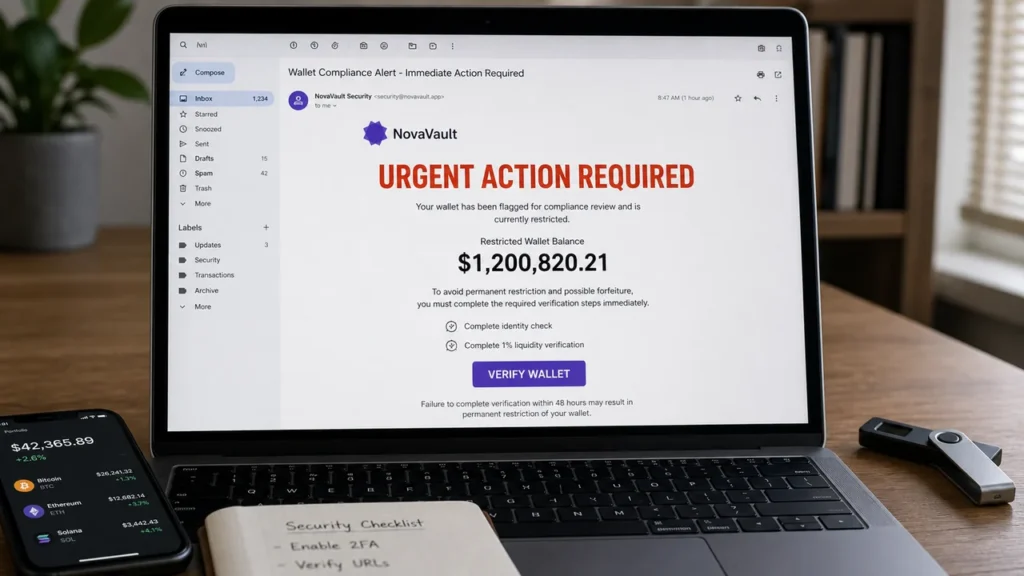
An urgent email claims more than $1.2 million is waiting in a restricted cryptocurrency wallet. To release it, the recipient only needs to prove their identity and complete a 1% “liquidity verification.”
There is no hidden fortune. The Phantom Wallet Identity Confirmation email scam combines an advance-fee scheme with identity theft, using a life-changing balance to make a payment of $12,008.20 seem like a reasonable final step.
Overview
The Phantom Wallet Identity Confirmation email scam impersonates a cryptocurrency compliance team and falsely tells the recipient that $1,200,820.21 has been identified in a restricted wallet account.
The message demands two types of value. First, it asks for copies of a government-issued identity document and a recent bank statement. Second, it instructs the recipient to transfer $12,008.20 in cryptocurrency as a supposed 1% liquidity check.
Neither request is legitimate. The money does not exist, there is no pending transfer, and sending the requested cryptocurrency will not unlock a wallet balance.
The email calls itself a notice from “Blockchain Phantom Wallet Compliance & Security.” That is not the identity of the real Phantom wallet service at phantom.com. Phantom has no connection to the campaign.
This is primarily an advance-fee scam. A large fictional reward is placed just out of reach, and the target is told to pay a smaller amount before it can be released. Once a victim pays, new charges often follow under names such as tax, clearance, gas fee, insurance, wallet synchronization, or regulatory certification.
The identity-document request creates a second danger. A clear ID and bank statement can help criminals impersonate the victim, attempt account recovery, create fraudulent financial profiles, or support scams targeting other people.
Receiving or reading the email does not compromise a Phantom wallet. The risk escalates if the recipient replies, sends documents or cryptocurrency, follows links, connects a wallet, approves a transaction, or reveals a Secret Recovery Phrase or private key.
What the Fake Phantom Compliance Email Claims
The observed message used the subject “URGENT ACTION REQUIRED” and described itself as a critical security notice. It said the wallet needed “immediate liquidity provisioning” to avoid regulatory flags and interruption.
The email then announced a supposed transfer of $1,200,820.21. Although that amount was allegedly already associated with the recipient, the funds were described as restricted and unavailable for transactions.
To establish ownership, the recipient was told to reply with a government-issued ID and a recent bank statement showing current account details. The scam borrowed Know Your Customer and Anti-Money Laundering terminology to make this unusual request sound like a regulated process.
The final demand was a transfer of $12,008.20 through a regulated cryptocurrency exchange. The message insisted this was not a fee or tax and promised the payment would become an additional balance inside the wallet.
That explanation is designed to neutralize the most obvious objection: why should somebody send money to receive money they supposedly already own? Calling the payment a “liquidity check” does not change the fact that the recipient is being asked to transfer real cryptocurrency to validate fictional funds.
Warning signs that expose the scam
- An unexpected seven-figure balance: The recipient did not open, fund, or control the account containing the claimed $1,200,820.21.
- Payment required to release money: A demand for 1% upfront is the central feature of an advance-fee scam.
- Unsolicited contact from “support”: Phantom’s official guidance says Phantom will not unexpectedly email or message users and ask them to send funds.
- Identity documents requested by reply: Sensitive KYC material should not be sent to an unknown email address because a message invokes compliance language.
- Invented organization name: “Blockchain Phantom Wallet” is used to sound official while distancing the sender from verifiable Phantom support channels.
- Pressure to use cryptocurrency: Crypto transfers are difficult to reverse, which is useful to scammers.
- Contradictory reassurance: The email says the transfer is “not a fee” while requiring it as a condition for access.
How The Scam Works
1. The email reaches people with or without a Phantom wallet
The message can be sent in bulk to addresses collected from breaches, marketing lists, public crypto communities, fake airdrops, or previous scam databases. A recipient does not need to own a Phantom wallet to receive it.
When the email reaches somebody interested in cryptocurrency, the terminology may feel relevant enough to keep reading. When it reaches a non-user, curiosity about the unexplained balance can still overcome doubt.
2. A huge balance creates surprise and hope
The amount is carefully chosen to dominate the decision. A person who believes there is even a small chance the funds are real may continue because the potential reward appears far larger than the requested payment.
The amount includes cents rather than using a round $1.2 million. That false precision makes it resemble a calculated wallet balance or transaction record.
3. Compliance language makes the restriction sound legitimate
The scammers refer to KYC, AML, identity confirmation, regulated exchanges, and security protocols. These are real concepts used in parts of the financial and cryptocurrency industries.
Real terminology can support a false process. The important question is not whether KYC exists, but whether this sender, account, and request can be verified through the service’s official app and support system.
Phantom’s documentation states that identity verification for Phantom Cash is handled by Link, a Stripe company. Phantom receives the verification status rather than collecting identity documents through an unsolicited email reply.
4. The victim is asked to send identity documents
An ID can reveal a full name, birth date, photograph, address, document number, and signature. A bank statement can add account information, transaction history, employer or payment details, and proof of address.
Together, these documents create a strong identity package. Criminals may use it to approach banks, exchanges, payment services, lenders, or other victims while pretending to be the document owner.
5. The 1% payment reframes a large loss as a small requirement
The requested $12,008.20 is substantial, but the email compares it to the fictional $1,200,820.21 balance. This anchoring makes the payment appear to be a small administrative step rather than a five-figure loss.
The message claims the funds will stay in the victim’s wallet, but the destination and control remain with the scammer. Cryptocurrency transfers do not become safe because an email calls them verification.
6. The scammer supplies transfer instructions
A victim who replies may receive a wallet address, exchange instructions, QR code, or pressure from a supposed compliance agent. The operator may remain in contact while the cryptocurrency is purchased and transferred.
This personal guidance reduces the chance that the victim pauses to consult somebody else. It can also help the scammer adjust the story when an exchange warns about fraud or delays the withdrawal.
7. A first payment leads to additional demands
The promised balance is never released because it was never real. Instead, a new obstacle appears: a tax certificate, transfer activation, wallet gas reserve, cross-border clearance, anti-fraud deposit, or legal fee.
Each charge is described as the final requirement. The scammer may even show a fabricated dashboard where the balance grows while withdrawals remain blocked.
8. Stolen documents support identity fraud and follow-up scams
The documents may be reused long after the email conversation ends. They can also make a recovery scam more convincing, because a second criminal appears to know the victim’s identity and details of the original loss.
Victims should be cautious of anyone promising to retrieve cryptocurrency for another upfront payment. The person may be the original operator using a different name.
9. Wallet-connection requests may be added later
Although the reviewed email focused on documents and an advance payment, related impersonation scams may send a fake Phantom link, request a wallet connection, ask for a transaction signature, or demand a Secret Recovery Phrase.
Phantom states that support will never ask for a Secret Recovery Phrase or request that users send funds. A recovery phrase gives complete control of the wallet and must never be entered into a website or shared with support.
Why the Liquidity Check Story Is False
Liquidity describes how easily an asset can be bought, sold, or converted without significantly affecting its price. It is not a normal reason for an unknown support team to demand that an individual transfer 1% of a surprise balance.
KYC is a process used by regulated financial providers to verify customers. It does not prove that an unsolicited wallet balance exists, and it does not make a crypto transfer to an unknown address refundable.
AML controls are intended to detect and prevent financial crime. A message that uses AML language while asking a stranger to send $12,008.20 is not demonstrating compliance; it is using the vocabulary of compliance to suppress suspicion.
The claim that the payment is “additional” to the balance is also meaningless unless the recipient independently controls the destination wallet. A number displayed in an email, screenshot, or website dashboard is not proof of a blockchain asset.
A genuine cryptocurrency balance can be checked on the relevant blockchain using a public wallet address. Even then, seeing assets at an address does not prove the recipient owns its private keys or that a third party will transfer them.
The real Phantom service explicitly warns that scammers send alarming identity-verification messages, create lookalike sites, and ask users to transfer assets to a supposedly verified address. Phantom says it does not unexpectedly contact users and ask them to send funds.
Related schemes often use fake airdrops or wallet rewards. Our report on the Chainbase Airdrop scam explains how another invented crypto opportunity can lead users toward wallet-draining actions.
What to Do if You Have Fallen Victim to This Scam
- Stop communicating and do not send another payment. New “final” charges will not unlock the claimed balance. Block the sender after preserving evidence.
- Contact the sending exchange immediately. If you transferred cryptocurrency, use the exchange’s official support channel and report fraud. Provide the transaction hash, destination address, amount, time, and related messages. A blockchain transfer is generally irreversible, but rapid reporting may help flag an address or account.
- Save evidence. Keep the original email with headers, wallet addresses, transaction hashes, receipts, screenshots, documents sent, and the names used by the scammer. Do not edit the originals.
- Report the wallet address. Phantom recommends reporting scam activity to its support system and to Chainabuse. U.S. victims can also file a report with the FBI’s Internet Crime Complaint Center at IC3.gov.
- Report the financial fraud. Submit the incident at ReportFraud.ftc.gov and contact local law enforcement, particularly when the loss is substantial.
- Protect any identity documents you sent. In the United States, create a recovery plan at IdentityTheft.gov. Consider credit freezes or fraud alerts with the major credit bureaus and monitor financial accounts.
- Notify the bank shown on the statement. Explain that an identity document and statement were shared with a scammer. Ask what monitoring or account changes are appropriate.
- Replace exposed documents when advised. Contact the government agency that issued the ID. Replacement and fraud-reporting procedures differ by document and country.
- Secure your email account. Change its password, revoke unknown sessions, review forwarding rules, and enable multifactor authentication. The scammer may use the email conversation for further impersonation.
- Secure the wallet if you connected or signed anything. Disconnect unfamiliar apps and revoke token approvals. Phantom advises moving remaining assets to a new wallet when compromise is suspected.
- Create a new wallet if the recovery phrase was exposed. A wallet whose Secret Recovery Phrase was shared is permanently compromised. Create a fresh wallet with a new phrase on a clean device and transfer remaining assets immediately.
- Scan devices used during the scam. Remove suspicious extensions or apps, update the operating system, and run a trusted malware scan, especially if any file was downloaded.
Do not pay a recovery service that contacts you unexpectedly. Cryptocurrency victims are frequently targeted again by people who promise tracing, legal clearance, or guaranteed recovery in exchange for another upfront fee.
Is Your Device Infected? Run a Free Malware Scan
Slow performance, constant pop-ups, or strange behavior? These are classic signs of a malware infection. The fastest way to find out is to scan your device with Malwarebytes Free — one of the most trusted malware removal tools available.
The free version detects and removes the most common threats, including:
- Adware — the cause of those annoying pop-ups
- Browser hijackers — unwanted redirects and changed homepages
- Trojans and spyware — hidden programs stealing your data
- Potentially unwanted programs (PUPs) — software you never asked for
👉 Select your device below — Windows, Mac, or Android — then follow the simple steps to download Malwarebytes, scan your system, and remove any threats it finds. The scan usually takes 5 to 20 minutes.
Run a Malware Scan with Malwarebytes for Windows
Malwarebytes is one of the most popular and trusted anti-malware tools for Windows — and it’s completely free for removing infections. It catches threats that many antivirus programs miss, including adware, browser hijackers, and trojans. Follow the steps below to scan and clean your PC in just a few minutes.
Download Malwarebytes
Click the button below to download the latest version of Malwarebytes for Windows from the official source. The free version is all you need — it will scan your computer and remove adware, browser hijackers, and other malicious software at no cost.
Download MalwarebytesOfficial installer for Windows 11 and 10. Your download starts right away.Want real-time protection? See Malwarebytes Premium Malwarebytes Free for WindowsScans and removes malware at no cost
-
Install Malwarebytes
When the download finishes, open your Downloads folder and double-click the MBSetup file. If Windows shows a User Account Control pop-up, click “Yes” to allow the installation.

Follow the On-Screen Prompts to Install Malwarebytes
The setup wizard will walk you through a few quick screens:
-
Choose where you’re installing the program — “Personal Computer” or “Work Computer” — then click Next.

-
Malwarebytes will now install on your device. This usually takes under a minute.

-
When installation is complete, the “Welcome to Malwarebytes” screen will open automatically.

-
On the final screen, click Open Malwarebytes to launch the program.

-
Enable “Scan for Rootkits”
Before scanning, turn on rootkit detection so Malwarebytes can find even the most hidden threats. Click the Settings gear icon on the left side of the screen.

In the settings menu, find “Scan for rootkits” and click the toggle so it turns blue.

Done? Click “Dashboard” in the left pane to return to the main screen.
Start the Scan
Click the blue Scan button. Malwarebytes will automatically update its virus database and start checking your computer for malware.

-
Wait for the Scan to Finish
The scan checks your entire system for browser hijackers and other malicious programs, so it can take 5 to 20 minutes depending on your computer. Feel free to do something else — just check back occasionally to see the progress.

-
Quarantine the Detected Threats
When the scan is done, you’ll see a list of everything Malwarebytes found — malware, adware, and potentially unwanted programs. Click the “Quarantine” button to remove all of them at once.

Malwarebytes will now remove the malicious files and registry entries and move them safely into quarantine.

-
Restart Your Computer
Some threats can only be fully removed after a reboot. If Malwarebytes asks you to restart, click Yes. Once you’re logged back in, Malwarebytes has finished removing the threats it found.

That’s it — your Windows PC is now clean of trojans, adware, and other malware, and should be back to running smoothly.
If you are still having problems with your computer after completing these instructions, then please follow one of the steps:
- Run a computer scan with ESET Online Scanner
- Ask for help in our Windows Malware Removal Help & Support forum.
Run a Malware Scan with Malwarebytes for Mac
Malwarebytes for Mac is a free on-demand scanner that removes the malware other security software tends to miss — adware, browser hijackers, and unwanted programs included. Cleaning an infected Mac with Malwarebytes has always been completely free, and it’s our go-to recommendation. Follow the steps below to scan and clean your Mac in just a few minutes.
-
Download Malwarebytes for Mac
Click the button below to download the latest version of Malwarebytes for Mac.
Download MalwarebytesOfficial installer for macOS. Your download starts right away.Want real-time protection? See Malwarebytes PremiumMalwarebytes Free for MacScans and removes malware at no cost -
Open the Malwarebytes setup file
When the download finishes, open your Downloads folder and double-click the setup file to begin the installation.

-
Follow the On-Screen Prompts to Install Malwarebytes
The Malwarebytes for Mac Installer will guide you through a few quick screens. Click “Continue” and keep following the prompts until the installation completes.



When the installation is complete, Malwarebytes opens to the Welcome to Malwarebytes screen. Click “Get started“.
-
Select “Personal Computer” or “Work Computer”
Malwarebytes will ask what type of computer you’re installing it on. Click either Personal Computer or Work Computer, whichever applies.

-
Start the Scan
Click the “Scan” button. Malwarebytes will automatically update its detection database and begin checking your Mac for malware.

-
Wait for the Scan to Finish
Malwarebytes will scan your Mac for adware, browser hijackers, and other malicious programs. This can take a few minutes, so feel free to do something else — just check back occasionally to see the progress.

-
Quarantine the Detected Threats
When the scan is done, you’ll see a list of everything Malwarebytes found. Click the “Quarantine” button to remove all the threats at once.

-
Restart Your Mac
Malwarebytes will now remove all the malicious files it found. Some threats can only be fully removed after a reboot — if Malwarebytes asks you to restart, allow it. Once you’re logged back in, your Mac is clean.

That’s it — your Mac is now free of adware, rogue browser extensions, and other potentially harmful software.
If you are still experiencing problems while trying to remove a malicious program from your computer, please ask for help in our Mac Malware Removal Help & Support forum.
Run a Malware Scan with Malwarebytes for Android
Malwarebytes for Android automatically detects and removes dangerous threats like malware and ransomware so you don’t have to worry about your most-used device being compromised. Aggressive detection of adware and potentially unwanted programs keeps your Android phone or tablet running smooth.
-
Download Malwarebytes for Android.
You can download Malwarebytes for Android by clicking the link below.
Get Malwarebytes for AndroidOpens Google Play in a new tab.Want real-time protection? See Malwarebytes Premium for AndroidMalwarebytes for AndroidScans your phone and removes malware at no cost -
Install Malwarebytes for Android on your phone.
In the Google Play Store, tap “Install” to install Malwarebytes for Android on your device.

When the installation process has finished, tap “Open” to begin using Malwarebytes for Android. You can also open Malwarebytes by tapping on its icon in your phone menu or home screen.

-
Follow the on-screen prompts to complete the setup process
When Malwarebytes will open, you will see the Malwarebytes Setup Wizard which will guide you through a series of permissions and other setup options.
This is the first of two screens that explain the difference between the Premium and Free versions. Swipe this screen to continue.
Tap on “Got it” to proceed to the next step.
Malwarebytes for Android will now ask for a set of permissions that are required to scan your device and protect it from malware. Tap on “Give permission” to continue.
Tap on “Allow” to permit Malwarebytes to access the files on your phone.
-
Update database and run a scan with Malwarebytes for Android
You will now be prompted to update the Malwarebytes database and run a full system scan.

Click on “Update database” to update the Malwarebytes for Android definitions to the latest version, then click on “Run full scan” to perform a system scan.

-
Wait for the Malwarebytes scan to complete.
Malwarebytes will now start scanning your phone for adware and other malicious apps. This process can take a few minutes, so we suggest you do something else and periodically check on the status of the scan to see when it is finished.

-
Click on “Remove Selected”.
When the scan has been completed, you will be presented with a screen showing the malware infections that Malwarebytes for Android has detected. To remove the malicious apps that Malwarebytes has found, tap on the “Remove Selected” button.

-
Restart your phone.
Malwarebytes for Android will now remove all the malicious apps that it has found. To complete the malware removal process, Malwarebytes may ask you to restart your device.
That’s it — your Android phone is now clean — no more malicious apps, adware, or browser redirects.
If you are still having problems with your phone after completing these instructions, then please follow one of the steps:
- Restore your phone to factory settings by going to Settings > General management > Reset > Factory data reset.
- Ask for help in our Mobile Malware Removal Help & Support forum.
Stay Protected: Block Ads and Malicious Sites
Now that your device is clean, keep it that way. Most infections start with a malicious ad or a fake download button — so blocking them at the source is your best defense.
We recommend AdGuard, which blocks malicious ads, phishing pages, and dangerous redirects before they can reach you.
👉 Download AdGuard and browse safely
How to Protect Yourself From Phantom Wallet Impersonation
Begin from the wallet, official website, or official help center rather than from an unsolicited message. A genuine account issue should be visible or verifiable there.
- Use only phantom.com and the official applications reached through it.
- Never share a Secret Recovery Phrase, private key, or wallet PIN.
- Never send cryptocurrency because support claims it is needed for verification, protection, liquidity, or recovery.
- Check the full destination and transaction details inside the wallet before approving anything.
- Disconnect unknown connected apps and periodically review token approvals.
- Keep recovery phrases offline rather than in email, cloud notes, screenshots, or online forms.
- Use a separate wallet for everyday app interactions when holding valuable long-term assets.
- Verify KYC requests inside the real product flow and with the stated verification partner.
- Discuss unexpected windfalls with a trusted person before sending money or documents.
Phantom says it only emails users who have submitted a support ticket, while marketing messages come from verified domains. It does not have agents who contact users first and ask them to transfer funds for safekeeping or account verification.
Remember that self-custody changes the recovery process. Phantom cannot reverse blockchain transactions or restore a wallet after its recovery phrase is compromised. Prevention and rapid movement of any remaining assets are critical.
The Bottom Line
The Phantom Wallet Identity Confirmation email scam invents a $1,200,820.21 balance, then uses compliance language to demand identity documents and a $12,008.20 cryptocurrency transfer.
There are no restricted funds and no legitimate 1% liquidity check. Do not reply, upload documents, connect a wallet, or send cryptocurrency. If you already acted, stop further payments, protect your identity and accounts, secure or replace any compromised wallet, preserve the transaction evidence, and report the scam immediately.

Join the discussion
0 commentsShare your experience or ask a question about this article.
Discussion
Start the conversation
Have a question or something useful to share? Add the first comment.