

The voicemail sounds almost considerate. A friendly caller says financial help has already been set aside for you, and all that remains is one quick call before the office closes.
Then comes the figure: up to $55,000 in “economic relief funds.” If you never applied for anything, that surprising offer is the first reason to stop. The second is that the message never clearly explains who is providing the money, what product is being offered, or why you supposedly qualify.
Overview
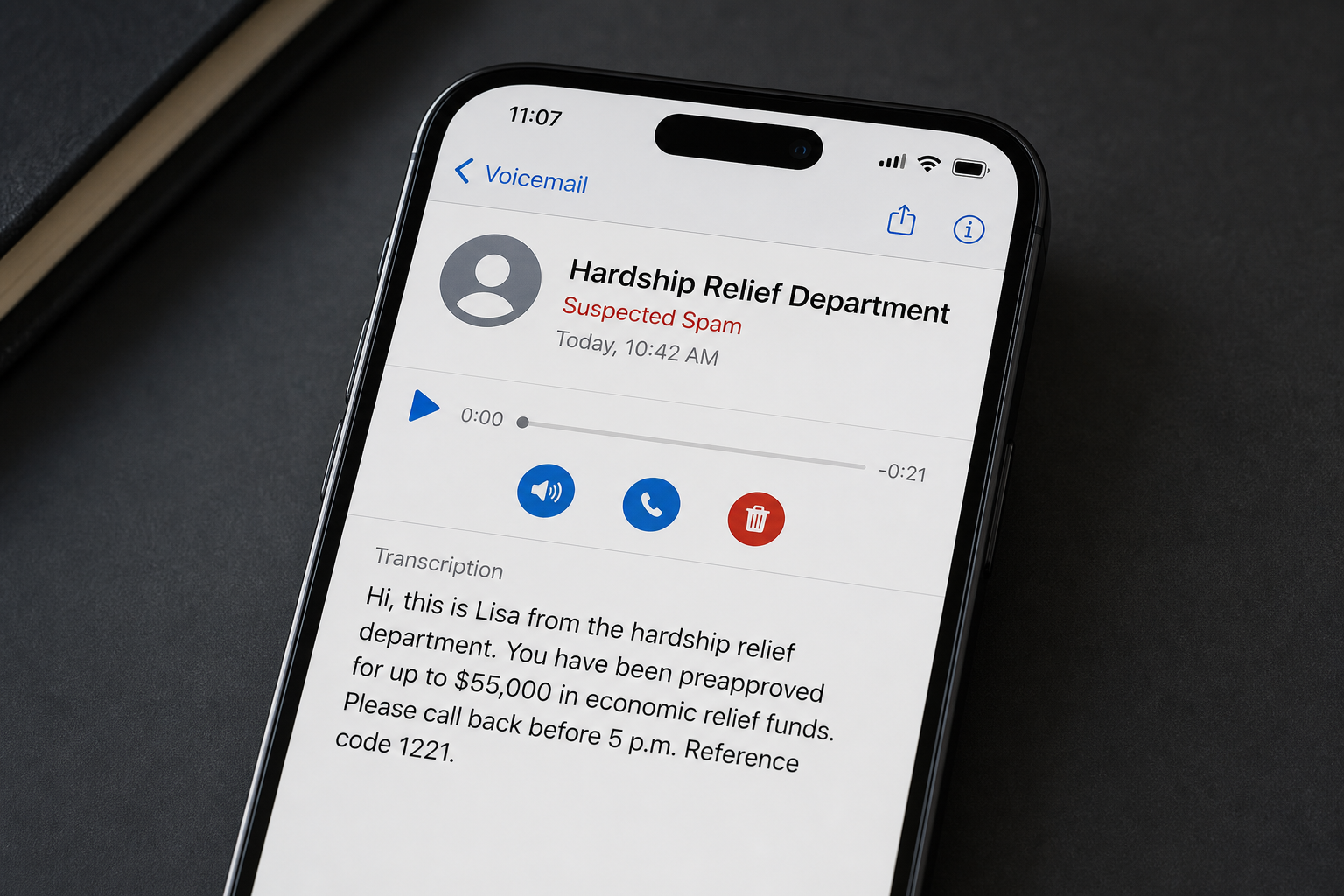
The Hardship Relief Program scam is an unsolicited voicemail and robocall campaign built around a large, unexplained financial offer. In one widely reported version, a caller using the name “Lisa” says she is with the “hardship relief department” at “Rapid Start Solutions.”
The recording claims the recipient has been preapproved for up to $55,000 in economic relief funds. It says there is only one step left, asks for a callback before 5 p.m., and provides reference code 1221. The reported callback number is 855-595-0766.
Other recipients have described nearly identical messages with amounts such as $58,000 or $42,400. The name, amount, incoming number, and deadline can change, but the core script stays the same: unexpected approval, vague relief language, a large sum, and pressure to call immediately.
Those variations matter. They indicate a campaign designed to reach many people rather than a real offer based on one person’s application, income, credit, or eligibility. A reference code can make the message feel personal, but a code repeated across many calls is just another part of the script.
What is actually being offered?
The voicemail never gives a clear answer. “Economic relief funds” is not a normal description of a specific loan, government benefit, grant, debt-management plan, or debt-settlement service. It is broad language that lets the caller discover what kind of financial pressure the recipient is facing after contact is made.
The callback may lead to a private loan pitch, debt-relief sales funnel, lead-generation operation, or outright advance-fee fraud. It may also be used to collect identity and financial information for later abuse. Not every recipient will necessarily hear the same second-stage pitch.
That uncertainty is not a reason to give the caller a chance. It is itself a warning. A legitimate financial provider should identify its legal business name, explain the product, disclose important terms, and provide information that can be independently checked before asking for sensitive data.
Why the voicemail should not be trusted
- You are told that you were preapproved even though you did not submit an application.
- The message promises up to $55,000 without discussing income, credit, debt, or eligibility.
- “Economic relief funds” sounds official but does not identify a real program.
- A generic “hardship relief department” is presented as if it were an established authority.
- The same general script appears with different names, amounts, and caller-ID numbers.
- A same-day deadline is used to discourage independent research.
- The callback number in the recording may be different from the incoming number.
- The reference code creates a false impression that a personal file already exists.
The safest response is not to call 855-595-0766 or any replacement number supplied by a similar recording. Do not press a key to speak with an agent, and do not use an “opt out” option offered by the message. Engaging can confirm that your number is active and responsive.
How The Scam Works
The Hardship Relief Program scam does not need every recipient to believe the entire story. It only needs a small number of people to feel curious, worried, or hopeful enough to call back. From there, the conversation can be adapted to whatever financial problem the person reveals.
Step 1: Automated calls reach a large list of phone numbers
The operation begins with mass dialing. Phone numbers may come from data brokers, old marketing forms, public records, previous scam responses, leaked databases, or automated generation. Receiving the call does not mean the sender reviewed your finances.
Automated voicemail campaigns are inexpensive and easy to scale. The operators can rotate incoming caller-ID numbers as carriers label or block them, while directing recipients to one callback line that handles the sales or fraud stage.
Step 2: “Preapproved” turns a cold call into unfinished business
Instead of asking whether you want help, the recording says you already qualify. This wording encourages the brain to search for a connection: perhaps a loan-comparison form, a credit-card inquiry, a benefit application, or a recent search about debt.
That moment of uncertainty is useful to the caller. Even someone who normally ignores sales calls may return a message that sounds like an incomplete application. The campaign borrows the language of a process that has already started, although no real underwriting is shown.
Step 3: A vague department name creates borrowed authority
“Hardship relief department” sounds formal without saying whether it belongs to a lender, debt-settlement company, nonprofit counselor, or government agency. The phrase is designed to feel familiar while remaining difficult to verify.
The recording may also use a business-sounding name such as “Rapid Start Solutions.” A name spoken in a voicemail is not proof of who placed the call. Scammers and aggressive lead generators can use invented names, generic names, or the name of an unrelated real company.
Step 4: A large amount creates hope and curiosity
Up to $55,000 is large enough to sound life-changing, yet still resembles the upper range of some personal-loan advertisements. The phrase “up to” gives the operator room to reduce the amount later without admitting that the original promise was meaningless.
Different recipients may hear $58,000, $42,400, or another figure. A genuine preapproval would normally be tied to an application and specific underwriting criteria. A rotating number inserted into a mass script is a marketing hook, not evidence that funds are waiting.
Step 5: Inflation language makes the pitch feel timely
The voicemail may describe the offer as a way to stay ahead of inflation or future economic changes. That wording connects the call to real anxieties without explaining what the recipient would actually receive or owe.
A loan is not free relief. Debt settlement is not a government benefit. A lead-generation form is not an approval. By avoiding those concrete labels, the caller can let the recipient imagine the most favorable interpretation.
Step 6: The deadline and reference code manufacture urgency
A request to call before 5 p.m. makes an ordinary sales callback feel like a closing window. Reference code 1221 adds a small piece of administrative detail, suggesting there is a file, case, or reserved allocation connected to the recipient.
Neither detail proves anything. A legitimate offer can be reviewed in writing, compared with alternatives, and verified through independently located contact information. A person who pressures you to act before you can do those things is trying to control the decision.
Step 7: Calling back confirms a responsive target
When you return the call, the operation learns that the number is active and that financial-relief language gets your attention. That information has value even if you hang up before sharing personal data.
A live agent may answer with a professional tone and ask for the reference code. Because the code came from the recording, accepting it proves nothing about a private account. It simply keeps the conversation moving along a prepared script.
Step 8: The agent conducts a “qualification” interview
Questions often begin with ordinary details such as your name, ZIP code, monthly debt, income, or reason for seeking relief. The agent may sound sympathetic and frame the questions as a way to find the best program.
The requests can then become more sensitive: date of birth, Social Security number, employer, bank name, credit-card balances, account numbers, or online-banking information. Together, these details can support identity theft, account takeover, highly targeted follow-up calls, or the sale of a valuable debt lead.
Step 9: The original “relief” becomes a different product or fee
After learning about the victim’s finances, the agent can change the offer. The promised funds may become a personal loan with costly terms, a debt-settlement contract, a credit-repair subscription, or a request to speak with yet another partner.
In a direct advance-fee version, the victim is told to pay for processing, insurance, taxes, document preparation, account validation, or release of the funds. The Federal Trade Commission warns that a lender promising a loan in exchange for payment before the money is delivered is a classic scam sign.
Step 10: Payment or account access creates the loss
The caller may request a card payment, bank transfer, payment-app transfer, gift card, or cryptocurrency. Another version asks for a bank password or one-time security code under the pretense of verifying an account for deposit.
A legitimate provider does not need your online-banking password. A one-time code can approve a transfer, add a device, or reset access. If the caller asks you to read a code aloud, install a remote-access app, or move money to “verify” the account, end the call immediately.
Step 11: The data can be reused even when no payment is made
People who refuse the first offer may receive more calls from supposed lenders, debt specialists, government departments, or fraud investigators. Each new caller may know details shared during the earlier conversation, making the next approach feel more credible.
This is why “I did not pay anything” does not always mean there is nothing to do. If you supplied identity, account, or login information, treat the exposure seriously and secure the affected accounts before waiting for visible fraud.
Is There a Real Government Hardship Relief Program?
There is no general federal program that cold-calls random people to announce an automatic, unrestricted award of up to $55,000. Real assistance programs have names, eligibility rules, official application processes, and government web pages ending in .gov.
Grants.gov warns that the government does not contact people to award grants they never applied for. It also says federal grant applications do not require a fee and cannot be completed through an unexpected phone call.
Personal assistance may exist for specific needs such as food, housing, health care, utilities, unemployment, or disaster recovery. Those programs are not interchangeable with a private loan or debt-settlement service. Start at the official agency website or USA.gov’s benefits page, not at a number left in an unsolicited voicemail.
How Legitimate Debt Relief Differs From This Voicemail
Real financial help is not always simple, and not every private debt-relief company is fraudulent. The difference is transparency. A legitimate provider explains who it is, what service it sells, what the service costs, how long it may take, and what risks the customer faces.
Debt consolidation generally means using a new loan to combine existing debts. Debt management usually involves a structured repayment plan, often arranged through a credit counselor. Debt settlement attempts to negotiate less than the full amount owed and can carry serious credit, fee, tax, and collection consequences.
According to the FTC’s debt-relief guidance, companies selling debt-relief services by phone cannot collect fees before they settle or otherwise resolve a debt under the applicable federal rule. Guarantees, demands to stop communicating with creditors, and requests for payment before results are major warning signs.
The Consumer Financial Protection Bureau also warns that debt-settlement programs can leave consumers deeper in debt because missed payments may add interest and late fees while collection continues. A vague voicemail does not disclose any of those tradeoffs.
How to Handle a Hardship Relief Voicemail Safely
- Do not call the number in the recording. If you want financial help, locate a lender, creditor, counselor, or government agency independently.
- Do not confirm your name or financial situation. Even basic answers can enrich a lead profile and make future approaches more convincing.
- Save evidence before blocking the call. Keep the voicemail, date, time, incoming caller ID, callback number, claimed company, and reference code.
- Block both numbers if they differ. The displayed caller ID and the callback number may play different roles in the campaign.
- Use your carrier’s spam-reporting option. Reports help phone providers identify related traffic, although the callers may rotate numbers.
- Verify any named company independently. Search for its official website, legal name, address, licensing, and regulator records. Never use only the contact details supplied by the caller.
Do not press 9, 2, or another key because the recording promises to remove you from a list. Lawful marketers may honor opt-out requests, but the Hardship Relief Program scam can use that response to confirm a live number. Blocking and reporting are safer.
What to Do If You Have Fallen Victim to This Scam
The right response depends on what you shared or paid. Move quickly, but do not let panic push you into a second mistake. Work through the steps that match your situation.
-
End all contact and send no more money.
Stop answering calls, texts, and emails connected to the offer. Do not pay a second fee to release funds, cancel a contract, obtain a refund, or prevent supposed legal action. A new deadline is usually an attempt to deepen the loss.
-
Contact your bank or card issuer through an official channel.
Use the number printed on the card or the bank’s official app. Explain what information was shared, identify payments and pending transfers, and ask whether the card or account number should be replaced. If you disclosed a one-time code or banking password, say so clearly.
-
Try to stop or reverse the payment.
Ask the bank, card issuer, wire service, payment app, gift-card issuer, or cryptocurrency platform about its fraud process immediately. Recovery is not guaranteed, but delay reduces the available options. Keep case numbers and written confirmation of every report.
-
Secure your email and financial accounts.
Change exposed passwords from a trusted device, starting with email and banking. Use unique passwords, enable multifactor authentication, sign out unfamiliar sessions, and review recovery addresses, phone numbers, devices, and transfer recipients for unauthorized changes.
-
Freeze your credit if identity information was exposed.
If you shared a Social Security number, date of birth, driver’s license, or a detailed identity profile, place free credit freezes with Equifax, Experian, and TransUnion. A freeze makes it harder for someone to open new credit in your name.
-
Create an identity-theft recovery plan.
Visit IdentityTheft.gov and follow the steps for the data that was exposed. Review your official credit reports at AnnualCreditReport.com and investigate unfamiliar accounts, inquiries, addresses, or collection notices.
-
Preserve the voicemail and the full paper trail.
Save call logs, screenshots, emails, texts, contracts, payment receipts, bank records, names used by agents, website addresses, and the exact promises made. Do not edit the original files. A clear timeline can help banks, platforms, regulators, and law enforcement understand what happened.
-
Report the campaign to the FTC and FCC.
File a fraud report at ReportFraud.ftc.gov. For the unwanted call or robocall, use the FCC complaint process. Include the incoming number, callback number, date, recording, and reference code.
-
Review any agreement you were pressured to sign.
If the call led to a loan, debt-settlement, credit-repair, or subscription contract, obtain the complete document and identify the legal company named in it. Ask your state attorney general or a qualified consumer attorney about cancellation rights and unauthorized withdrawals.
-
Contact creditors directly if debt pressure led you to respond.
Call the number on your statement and ask about hardship options, payment plans, or temporary accommodations. You can also look for a reputable nonprofit credit counselor. A real counselor should explain alternatives and costs without promising a secret fund that expires today.
-
Watch for recovery scams.
Victims are often contacted by someone claiming to be an investigator, refund specialist, attorney, or government agent. Anyone who guarantees recovery in exchange for an upfront payment is creating another risk. Verify organizations independently and never give a new caller remote access to your device.
Is Your Device Infected? Run a Free Malware Scan
Slow performance, constant pop-ups, or strange behavior? These are classic signs of a malware infection. The fastest way to find out is to scan your device with Malwarebytes Free — one of the most trusted malware removal tools available.
The free version detects and removes the most common threats, including:
- Adware — the cause of those annoying pop-ups
- Browser hijackers — unwanted redirects and changed homepages
- Trojans and spyware — hidden programs stealing your data
- Potentially unwanted programs (PUPs) — software you never asked for
👉 Select your device below — Windows, Mac, or Android — then follow the simple steps to download Malwarebytes, scan your system, and remove any threats it finds. The scan usually takes 5 to 20 minutes.
Run a Malware Scan with Malwarebytes for Windows
Malwarebytes is one of the most popular and trusted anti-malware tools for Windows — and it’s completely free for removing infections. It catches threats that many antivirus programs miss, including adware, browser hijackers, and trojans. Follow the steps below to scan and clean your PC in just a few minutes.
Download Malwarebytes
Click the button below to download the latest version of Malwarebytes for Windows from the official source. The free version is all you need — it will scan your computer and remove adware, browser hijackers, and other malicious software at no cost.
Download MalwarebytesOfficial installer for Windows 11 and 10. Your download starts right away.Want real-time protection? See Malwarebytes Premium Malwarebytes Free for WindowsScans and removes malware at no cost
-
Install Malwarebytes
When the download finishes, open your Downloads folder and double-click the MBSetup file. If Windows shows a User Account Control pop-up, click “Yes” to allow the installation.

Follow the On-Screen Prompts to Install Malwarebytes
The setup wizard will walk you through a few quick screens:
-
Choose where you’re installing the program — “Personal Computer” or “Work Computer” — then click Next.

-
Malwarebytes will now install on your device. This usually takes under a minute.

-
When installation is complete, the “Welcome to Malwarebytes” screen will open automatically.

-
On the final screen, click Open Malwarebytes to launch the program.

-
Enable “Scan for Rootkits”
Before scanning, turn on rootkit detection so Malwarebytes can find even the most hidden threats. Click the Settings gear icon on the left side of the screen.

In the settings menu, find “Scan for rootkits” and click the toggle so it turns blue.

Done? Click “Dashboard” in the left pane to return to the main screen.
Start the Scan
Click the blue Scan button. Malwarebytes will automatically update its virus database and start checking your computer for malware.

-
Wait for the Scan to Finish
The scan checks your entire system for browser hijackers and other malicious programs, so it can take 5 to 20 minutes depending on your computer. Feel free to do something else — just check back occasionally to see the progress.

-
Quarantine the Detected Threats
When the scan is done, you’ll see a list of everything Malwarebytes found — malware, adware, and potentially unwanted programs. Click the “Quarantine” button to remove all of them at once.

Malwarebytes will now remove the malicious files and registry entries and move them safely into quarantine.

-
Restart Your Computer
Some threats can only be fully removed after a reboot. If Malwarebytes asks you to restart, click Yes. Once you’re logged back in, Malwarebytes has finished removing the threats it found.

That’s it — your Windows PC is now clean of trojans, adware, and other malware, and should be back to running smoothly.
If you are still having problems with your computer after completing these instructions, then please follow one of the steps:
- Run a computer scan with ESET Online Scanner
- Ask for help in our Windows Malware Removal Help & Support forum.
Run a Malware Scan with Malwarebytes for Mac
Malwarebytes for Mac is a free on-demand scanner that removes the malware other security software tends to miss — adware, browser hijackers, and unwanted programs included. Cleaning an infected Mac with Malwarebytes has always been completely free, and it’s our go-to recommendation. Follow the steps below to scan and clean your Mac in just a few minutes.
-
Download Malwarebytes for Mac
Click the button below to download the latest version of Malwarebytes for Mac.
Download MalwarebytesOfficial installer for macOS. Your download starts right away.Want real-time protection? See Malwarebytes PremiumMalwarebytes Free for MacScans and removes malware at no cost -
Open the Malwarebytes setup file
When the download finishes, open your Downloads folder and double-click the setup file to begin the installation.

-
Follow the On-Screen Prompts to Install Malwarebytes
The Malwarebytes for Mac Installer will guide you through a few quick screens. Click “Continue” and keep following the prompts until the installation completes.



When the installation is complete, Malwarebytes opens to the Welcome to Malwarebytes screen. Click “Get started“.
-
Select “Personal Computer” or “Work Computer”
Malwarebytes will ask what type of computer you’re installing it on. Click either Personal Computer or Work Computer, whichever applies.

-
Start the Scan
Click the “Scan” button. Malwarebytes will automatically update its detection database and begin checking your Mac for malware.

-
Wait for the Scan to Finish
Malwarebytes will scan your Mac for adware, browser hijackers, and other malicious programs. This can take a few minutes, so feel free to do something else — just check back occasionally to see the progress.

-
Quarantine the Detected Threats
When the scan is done, you’ll see a list of everything Malwarebytes found. Click the “Quarantine” button to remove all the threats at once.

-
Restart Your Mac
Malwarebytes will now remove all the malicious files it found. Some threats can only be fully removed after a reboot — if Malwarebytes asks you to restart, allow it. Once you’re logged back in, your Mac is clean.

That’s it — your Mac is now free of adware, rogue browser extensions, and other potentially harmful software.
If you are still experiencing problems while trying to remove a malicious program from your computer, please ask for help in our Mac Malware Removal Help & Support forum.
Run a Malware Scan with Malwarebytes for Android
Malwarebytes for Android automatically detects and removes dangerous threats like malware and ransomware so you don’t have to worry about your most-used device being compromised. Aggressive detection of adware and potentially unwanted programs keeps your Android phone or tablet running smooth.
-
Download Malwarebytes for Android.
You can download Malwarebytes for Android by clicking the link below.
Get Malwarebytes for AndroidOpens Google Play in a new tab.Want real-time protection? See Malwarebytes Premium for AndroidMalwarebytes for AndroidScans your phone and removes malware at no cost -
Install Malwarebytes for Android on your phone.
In the Google Play Store, tap “Install” to install Malwarebytes for Android on your device.

When the installation process has finished, tap “Open” to begin using Malwarebytes for Android. You can also open Malwarebytes by tapping on its icon in your phone menu or home screen.

-
Follow the on-screen prompts to complete the setup process
When Malwarebytes will open, you will see the Malwarebytes Setup Wizard which will guide you through a series of permissions and other setup options.
This is the first of two screens that explain the difference between the Premium and Free versions. Swipe this screen to continue.
Tap on “Got it” to proceed to the next step.
Malwarebytes for Android will now ask for a set of permissions that are required to scan your device and protect it from malware. Tap on “Give permission” to continue.
Tap on “Allow” to permit Malwarebytes to access the files on your phone.
-
Update database and run a scan with Malwarebytes for Android
You will now be prompted to update the Malwarebytes database and run a full system scan.

Click on “Update database” to update the Malwarebytes for Android definitions to the latest version, then click on “Run full scan” to perform a system scan.

-
Wait for the Malwarebytes scan to complete.
Malwarebytes will now start scanning your phone for adware and other malicious apps. This process can take a few minutes, so we suggest you do something else and periodically check on the status of the scan to see when it is finished.

-
Click on “Remove Selected”.
When the scan has been completed, you will be presented with a screen showing the malware infections that Malwarebytes for Android has detected. To remove the malicious apps that Malwarebytes has found, tap on the “Remove Selected” button.

-
Restart your phone.
Malwarebytes for Android will now remove all the malicious apps that it has found. To complete the malware removal process, Malwarebytes may ask you to restart your device.
That’s it — your Android phone is now clean — no more malicious apps, adware, or browser redirects.
If you are still having problems with your phone after completing these instructions, then please follow one of the steps:
- Restore your phone to factory settings by going to Settings > General management > Reset > Factory data reset.
- Ask for help in our Mobile Malware Removal Help & Support forum.
Stay Protected: Block Ads and Malicious Sites
Now that your device is clean, keep it that way. Most infections start with a malicious ad or a fake download button — so blocking them at the source is your best defense.
We recommend AdGuard, which blocks malicious ads, phishing pages, and dangerous redirects before they can reach you.
👉 Download AdGuard and browse safely
Frequently Asked Questions
Is the Hardship Relief Program scam a real $55,000 grant?
No evidence in the voicemail shows that a grant exists or that the recipient qualifies for one. The recording does not name an official agency, identify a specific program, explain eligibility, or point to a .gov application. Treat the $55,000 figure as bait.
Is 855-595-0766 a scam number?
The number has been reported as the callback line in this hardship-relief voicemail pattern, so you should not call it based on the unsolicited message. Phone numbers can be spoofed, replaced, or later reassigned, so the warning applies to the reported campaign and behavior, not every possible future use of the digits.
Is Rapid Start Solutions a government agency?
The voicemail does not establish that it is a government agency, and the phrase “hardship relief department” does not name one. Do not assume any private-sounding company is connected to the government merely because it uses words such as relief, economic, department, or program.
What if I called back but shared nothing?
Hang up, block the numbers, and expect possible follow-up calls. Returning the call may confirm that your number is active, but it does not by itself give the caller access to your bank or phone. Do not engage with later callers who refer to the same offer.
Can listening to the voicemail infect my phone?
Simply listening to an ordinary voicemail does not install malware. The greater danger begins when you call back, follow a texted link, install an app, share a security code, or give the agent sensitive information. Delete unexpected links and install software only from official app stores.
Why did the caller know my name?
Names and phone numbers are widely available through marketing databases, public records, data breaches, and people-search services. Knowing a name does not prove that the caller has an application, account, approval, or legitimate relationship with you.
The Bottom Line
The Hardship Relief Program scam turns financial stress into a callback. An unexplained preapproval of up to $55,000, a vague “economic relief” label, a same-day deadline, and reference code 1221 are not proof that money is waiting. They are the persuasion tools of a mass voicemail campaign.
Do not call 855-595-0766 or any replacement number supplied by a similar recording. Verify real assistance through official websites and contact known creditors directly. If you already shared information or paid, secure your accounts, freeze your credit when appropriate, preserve the evidence, and report the incident without delay.

Join the discussion
0 commentsShare your experience or ask a question about this article.
Discussion
Start the conversation
Have a question or something useful to share? Add the first comment.