


You finish a short online quiz and wait for your result. One final check appears, apparently the last thing standing between you and the score.
It is tempting to finish what you started. Before following that check’s instructions, notice whether the task has moved beyond the quiz itself.

Overview
The intelligence quiz is a setup for a different action
The AI-powered IQ test scam uses a short quiz to lead visitors into ClickFix, a technique that tricks people into running a malicious command.
The reported example appeared at aiiqtest[.]xyz. It advertised a two-minute test, asked ten questions, and placed a supposed human check before the result.
That last request is the dangerous part. It asks the visitor to leave normal webpage interaction and use a Windows command-launching feature.
The risky transition is from answering questions to running code
A website cannot make an unknown command safe by calling it verification. Running it can give software a chance to act on the computer.
The exact payload from this quiz was not independently executed. Don’t assume a particular stealer, remote-access program, or ransomware family without examining an actual incident.
Reading the page, copying something, and executing a command are different exposures. What you did determines the response.
You can abandon the result without completing the check
There is no score worth running an unexplained command. Close the test rather than following system-level instructions to prove that you are human.
- Don’t paste material from the quiz into Windows Run or a terminal.
- Don’t accept a command as safe merely because the page calls it a CAPTCHA.
- If a command was executed, stop sensitive activity on that device.
- Involve workplace IT promptly if it was a managed computer.
- Use trusted recovery guidance, not another repair supplied by the quiz.
Why the Last Screen Can Catch People Off Guard
The first questions establish a harmless routine. You read something, choose an answer, and move forward. The final check appears to belong to that routine.
By then, you’ve invested a little time and become curious about the result. Leaving feels less satisfying than completing one more instruction.
The word AI adds a technical explanation without explaining the requested action. A sophisticated-sounding test still has no reason to make you execute an unknown command.
A claimed completion counter or accuracy rate cannot validate that instruction. Such numbers are page content, not independent evidence of safety or scientific quality.
This warning isn’t an assessment of every online intelligence test. It concerns a quiz that changes its task into a route for running software.
You don’t need to determine whether the questions are clever or the scoring is accurate. The system-level request is enough reason to stop.
Think of the last screen as a new request, not the last quiz question. It deserves a separate decision about what it would let the computer do.
If a child or relative encounters it, explain that difference plainly. Finishing the quiz is optional; protecting the device is more important than seeing its result.
How the AI-Powered IQ Test Scam Works
Step 1: A quick assessment makes participation feel low-risk
The page offers a fast answer to a personal curiosity. Short questions and an appealing result can make the interaction feel closer to entertainment than a download.
That first impression matters. You may not apply the caution you would use when installing an unfamiliar program.
But a page can change its demands after you begin. Reassess each new action rather than treating initial participation as consent to everything that follows.
A modern design or a progress indicator doesn’t authenticate the operator. Nor does a claim that many other people have completed the test.
The initial invitation’s exact distribution route is not established here. Whether encountered through an ad or a shared link, the later instruction still needs scrutiny.
Step 2: The result is withheld behind an apparently routine human check
The quiz reaches completion, but the promised reward is not immediately available. The visitor is given another task under a familiar verification label.
Legitimate websites can use human checks. The warning sign is not the word CAPTCHA itself, but what this particular check asks you to do.
Selecting images inside a browser and launching a pasted system command are fundamentally different activities. Don’t let the shared label blur that difference.
If the instructions suddenly mention Windows tools, stop. They are no longer simply asking you to answer a question on the page.
There is no need to finish the process to discover whether it is harmful. Refusing the command avoids giving it the opportunity to run.
Step 3: A paste-and-run sequence turns the visitor into the launcher
ClickFix pages can place a command on the clipboard and direct visitors to paste it into a system tool. The visitor unknowingly performs the launching step.
In the reported quiz, the request involved opening Windows Run, pasting, and confirming execution. These are warning signs to recognize, not instructions to reproduce.
The clipboard contents may not be obvious from the visible page text. A button’s label doesn’t guarantee that it copied only the words you saw.
Do not paste the material into a terminal to inspect it. Inspection should never depend on risking execution in the very tool the page selected.
There is also no reason to approve security exceptions or disable protection because the test asks. A quiz does not need that authority to score answers.
Step 4: The launched command can begin a software attack
Once an unknown command runs, the issue is no longer limited to a misleading webpage. It can fetch or launch additional software with the available permissions.
Microsoft’s ClickFix analysis explains how this technique uses seemingly helpful instructions to induce code execution.
The wider technique has been used for different payloads. That does not identify which one, if any, completed on a particular reader’s computer.
A brief window, an error, or an unchanged desktop doesn’t settle the outcome. Preserve what you remember and start an appropriate investigation.
Do not run a second repair command from the same site. An alleged fix can be another stage rather than a way to undo the first.
Work Out Which Boundary You Crossed
If you only answered the quiz, stop using it and don’t continue to its verification screen. Quiz participation alone is not proof a payload executed.
If you copied something but didn’t paste or run it, avoid using that clipboard content elsewhere. Replace it with harmless text copied from a trusted source.
If a Run window is open with unfamiliar text, cancel it without confirming. Don’t press Enter to see what happens.
If you executed the command, record approximately when it happened. Stop signing into important accounts from that computer until the exposure is assessed.
If it was a work device, tell IT what you actually did. They may need logs and organizational response measures beyond a home-user scan.
Do not clear histories or run a registry cleaner to remove embarrassment. Those actions can destroy useful evidence without resolving the underlying issue.
If a security product blocked something, keep its detection name and report. A blocked component is useful evidence, not automatic proof that every possible effect was prevented.
Where uncertainty remains, say so. A precise partial account is more useful than either assuming a harmless error or inventing a confirmed infection.
Windows Cleanup After Running the Test’s Command
Step 1: Stop sensitive use and get the right person involved
Close the quiz. If unwanted remote activity is occurring, disconnect the network connection. Don’t keep banking or entering passwords while investigating.
For a managed computer, contact IT from another trusted device. Follow their containment instructions before installing extra tools or changing organizational settings.
Write down the time and any visible alerts. Keep existing screenshots if safe, but never repeat the command just to create evidence.
Do not delete unfamiliar Windows files, tasks, or registry entries on guesswork. Legitimate components can look unfamiliar, and arbitrary deletion can create another problem.
Step 2: Scan and remove software through trusted Windows tools
Malwarebytes scan and removal
Use this procedure on a personal Windows PC after preserving the incident details. For a managed computer, let your security team decide when scanning should begin.
Malwarebytes can find and quarantine threats. Its free Custom Scan is separate from paid real-time protection and Threat Scan. Neither edition supplies ransomware decryption keys.
-
Download the Windows installer.
Open the official download page using the button below. Select Free Download there and save the Windows installer.
If the affected PC cannot browse safely, use a trusted computer and arrange an appropriate transfer without exposing clean backup media.
Malwarebytes for WindowsManual scanning and quarantine, with optional paid protection.
Opens the official free-scanner page. Choose its Windows download; paid protection is optional.
-
Open the setup file.
Open Downloads and double-click the MBSetup file. If Windows requests permission, check that the prompt identifies Malwarebytes before allowing the installation.

-
Complete setup without accepting unwanted extras.
Select Install, choose the appropriate Personal or Business device option, and continue. Business-managed computers should be handled through their administrator’s process.

Review any browser extension, trial, or subscription offers. Skip optional features you do not want, then select Open Malwarebytes when setup finishes.

-
Choose a supported scan.
Find the Scanner tile on the dashboard. For a free Custom Scan, open its three-dot menu, select Advanced Scan, and choose Custom Scan.
Expand the file-location selector and select the system drive and relevant locations. Review potentially unwanted program settings, then select Start Custom Scan.
A paid or eligible trial edition may also offer Threat Scan. Use the controls available in your edition; do not disable Windows protections to unlock another option.

-
Let the scan complete and inspect its findings.
Keep the computer powered on while scanning and wait for the results. A large Custom Scan can take longer than a scan limited to common locations.
Review each detection and its location. Leave confirmed threats selected and choose Quarantine. Save the report if a detection is unclear rather than adding it to exclusions.
The results illustration uses sample detections to show the Quarantine control. Those names are not identifiers for the malware discussed in this article.

-
Finish removal and handle a requested restart.
Follow the quarantine prompts. If a restart is requested, save your work and coordinate it with anyone preserving evidence before restarting.

Reopen the application afterward and review the result. Repeated detections, blocked removal, or signs of continuing access need further investigation, not an automatic clean-device conclusion.
The screen design can vary by installed release. Follow the named controls and the vendor’s current scan instructions if your version looks different.
Optional second-opinion scan
HitmanPro provides an optional second opinion when a Windows infection or unresolved finding warrants another check. Run scanners sequentially, not at the same time.
Scanning is free. Removal needs an eligible one-time 30-day trial or a paid license. A computer that already used its trial may not qualify again.
-
Obtain HitmanPro from the established download route.
HitmanProOptional second-opinion Windows scanner.
Free scan. Removal requires an eligible trial or paid license.
-
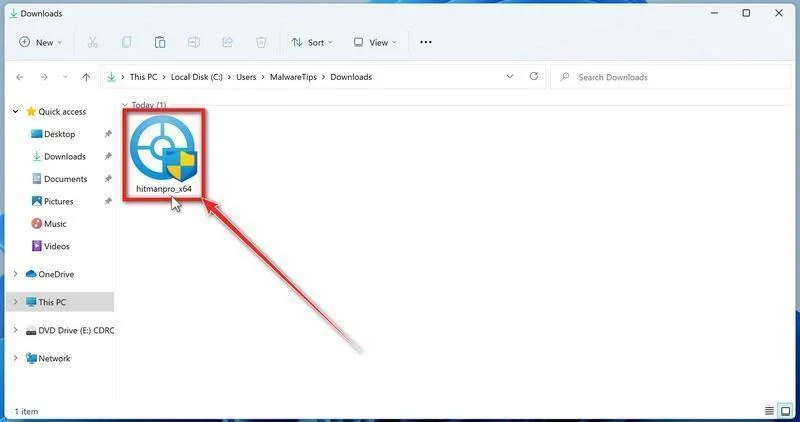
Launch the downloaded program.
Open Downloads and run the appropriate HitmanPro file for your system. Check the publisher in any Windows permission prompt before allowing it.
-
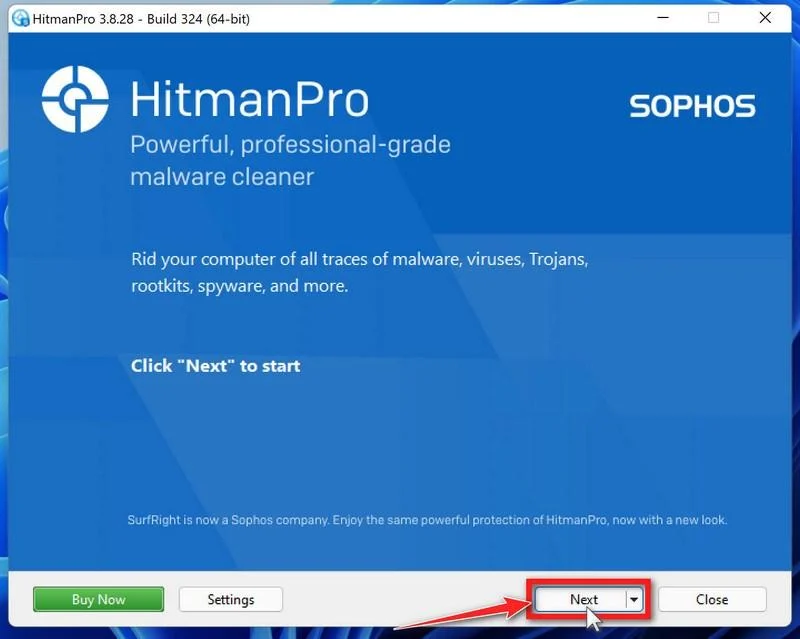
Start the scan.
Open HitmanPro, select Next, and follow its license and setup prompts. Its cloud checks require an internet connection; arrange controlled access if the PC was isolated.
-
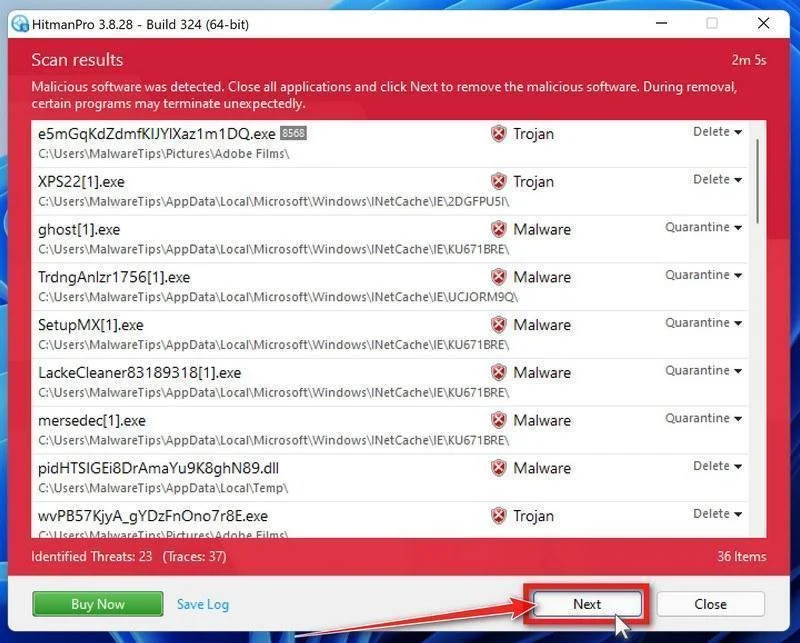
Review the results before removal.
Allow scanning to finish. Inspect the listed objects and proposed actions, then select Next for confirmed unwanted items. Save uncertain findings for qualified assistance.
-
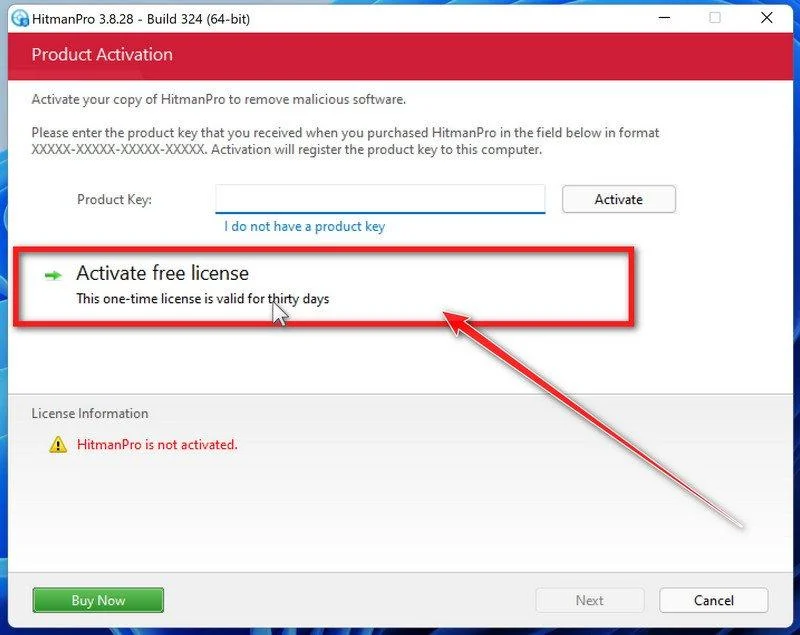
Use an eligible license and complete cleanup.
If available, select Activate free license and follow the trial prompts. Otherwise, use an existing license or retain the report; do not assume purchase is mandatory.
Finish the proposed cleanup and restart if requested. If problems persist, keep both scanners’ reports and seek help rather than repeatedly activating unfamiliar repair tools.
Step 3: Recheck the device and escalate unresolved signs
Keep the scan report and any earlier security alerts together. If new detections or unexplained behavior continue, seek qualified help rather than repeating random fixes.
A work device may need further investigation even after a local scan. Your organization determines whether account, network, or data exposure requires additional response.
If a reinstall or reset is recommended, discuss backup and data loss first. Don’t erase the only copy of important files or needed recovery information.
Use another trusted device for urgent account protection. Device cleanup and account recovery can proceed separately; one should not be mistaken for the other.
What to Do if You Have Fallen Victim to This Scam
-
Identify the last action you completed. Distinguish answering the quiz, copying text, opening Run, and actually confirming a command. Record the time as closely as possible.
Don’t run the sequence again to check your memory. Existing alerts and your honest recollection are a safer starting point.
-
Use the Windows response above if execution occurred. Stop sensitive activity and contact workplace IT where applicable. Use genuine security tools, not the quiz’s suggested repair.
Malwarebytes can help investigate possible software threats. Closing the browser does not remove a payload already launched, and the quiz alone doesn’t identify a particular malware family.
-
Protect important accounts from a trusted environment. If execution may have exposed account information, prioritize email and financial access. Change affected passwords and review unfamiliar sessions.
Retain multifactor protection. Ask providers about suspicious changes, particularly recovery details, instead of assuming one password change resolves every access method.
-
Contact financial services about actual exposure or misuse. Report unauthorized transactions, disclosed payment details, or compromised financial accounts through their genuine support routes.
Keep the bank’s case reference. A device scan cannot reverse a payment or replace the provider’s investigation.
-
Preserve useful evidence and report the page. Keep the address, approximate time, and detection reports without distributing executable text. Use appropriate fraud or security reporting channels.
If sharing a screenshot, remove private information. You don’t need to publish the malicious command to explain the quiz and verification hook.
-
Review how the page can reach you again. Remove unwanted notification permissions and keep your browser current. AdGuard may reduce some misleading advertising that leads to such pages.
Blocking ads doesn’t authorize future commands. Refuse system-level instructions from a webpage even if no security warning appears.
-
Ignore unsolicited rescue offers. Someone contacting you about the incident may be another impostor. Use contacts you establish through the real provider or organization.
Do not grant remote access, share codes, or pay a fee simply to remove a supposedly pending quiz verification.
Frequently Asked Questions
Is every online IQ quiz dangerous?
No. This warning concerns a quiz using a fake human check to induce command execution. It isn’t a judgment on every assessment website.
Leave any test that asks you to run unexplained system commands.
Is copying the text the same as executing it?
No. Copying, pasting, and running are separate actions. The response depends on which actually occurred.
Don’t paste unknown clipboard content into a tool capable of executing it.
What malware does the quiz install?
The exact payload was not independently established here. ClickFix can deliver different threats, so don’t infer a particular family from the quiz alone.
Use actual security findings and incident evidence.
Should a CAPTCHA require Windows Run?
A webpage’s human check should not require you to launch an unexplained system command. Calling it verification doesn’t make it appropriate.
Cancel rather than completing that request.
Does a clean scan mean my accounts are safe?
No scan can retrieve copied credentials or cancel all account sessions. Handle relevant account protection separately.
Report continuing symptoms or suspicious activity to qualified support.
Do I have to buy a subscription to finish recovery?
A purchase is not evidence that recovery is complete. Review current genuine scan options and get help appropriate to the actual exposure.
Never buy or install protection merely because the quiz demands it.
The Bottom Line
Abandon this IQ test rather than running its supposed human-verification command. The missing score is not worth giving unknown code a chance to execute.
If you already ran it, stop sensitive device use, follow appropriate Windows investigation steps, and protect relevant accounts from a trusted environment.

Join the discussion
0 commentsShare your experience or ask a question about this article.
Discussion
Start the conversation
Have a question or something useful to share? Add the first comment.