

An offer of $5,000 in emergency cash can feel like breathing room when rent, repairs, or medical bills have arrived at the worst moment.
The name sounds charitable and official. The page behind it, however, describes a commercial loan-matching system with consequences that deserve a patient reading.

Overview
This is not a government emergency grant
American Emergency Fund is a privately operated lead-generation website. Its current disclosure says it is not affiliated with any federal, state, or local government agency.
The service does not hand applicants a free $5,000 payment. It gathers a loan request and tries to connect that request with outside financial providers.
Advertisements using words such as fund, emergency, Americans in need, or cash may create a charitable impression that the legal page does not support.
The website is not the lender making the decision
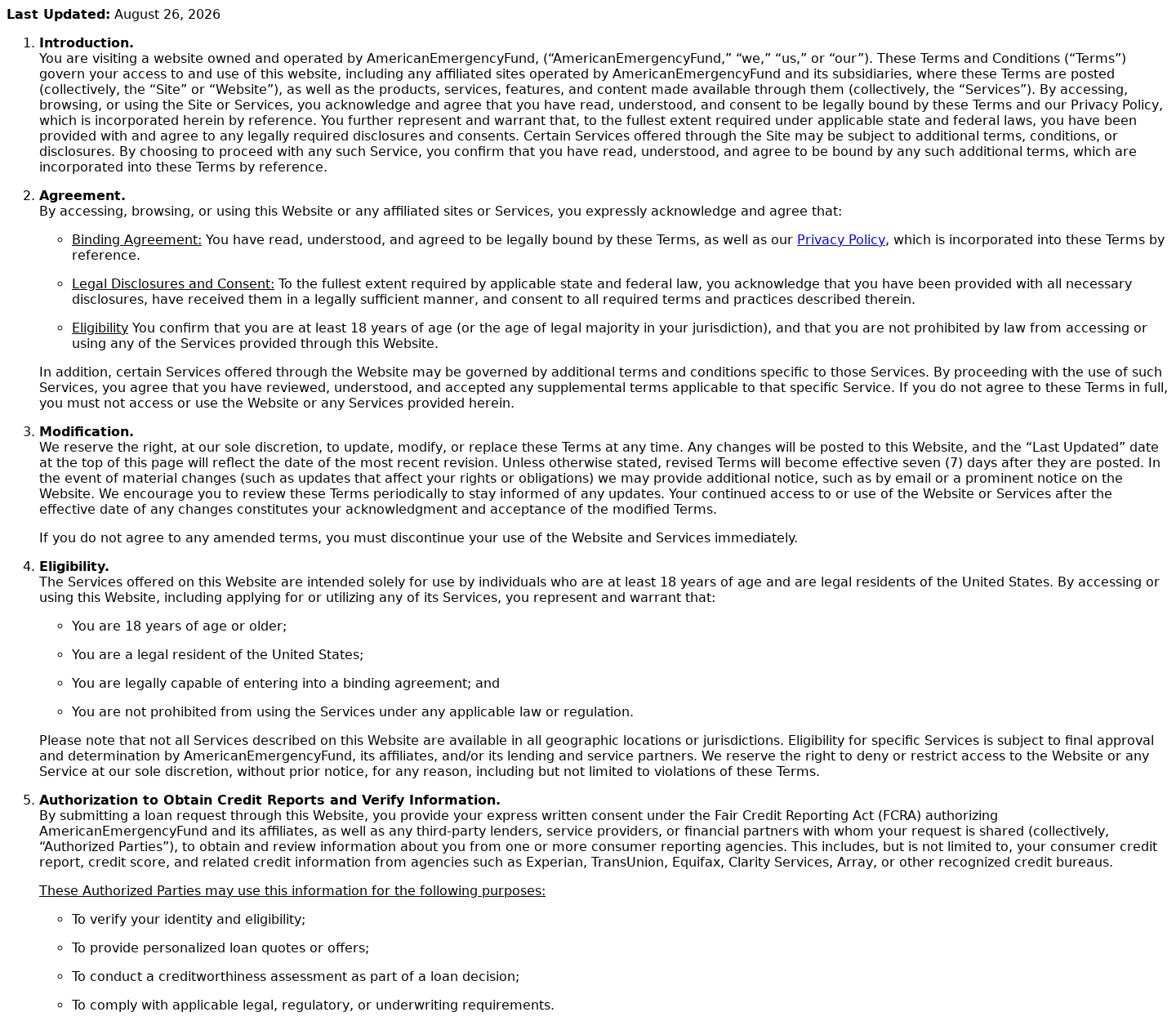
The site says it is not a lender, does not make credit decisions, and cannot guarantee approval, an interest rate, or any particular loan amount.
Its current page advertises potential amounts from $500 to $35,000. It also displays APR examples ranging from 5.99% to 35.99% for qualified customers.
An advertisement focused on $5,000 can therefore lead to a different offer, a smaller amount, a costly loan, or no loan at all.
Submitting the form authorizes extensive data sharing
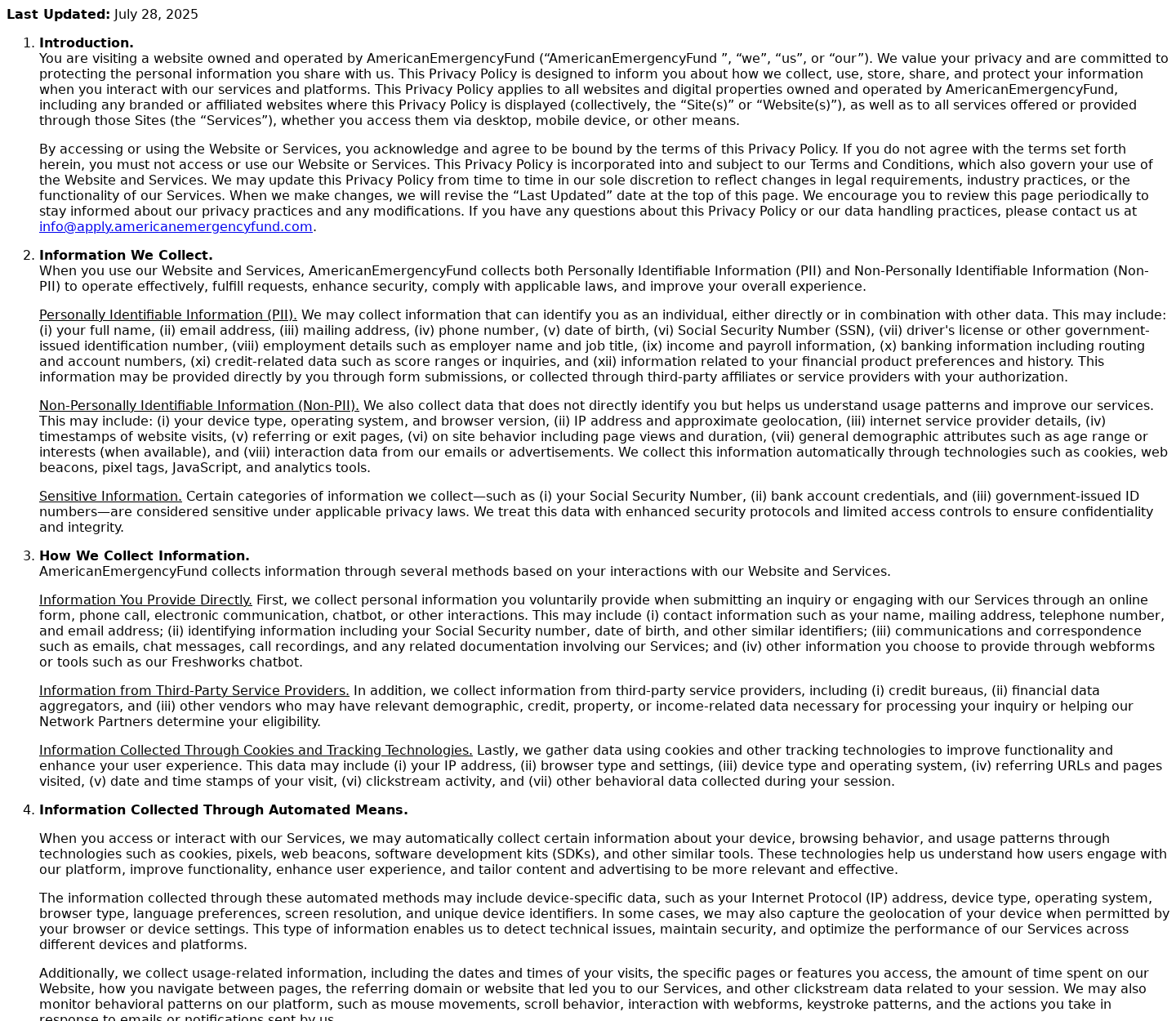
The privacy policy lists names, addresses, telephone numbers, dates of birth, Social Security numbers, employment information, income, and bank details among possible collected data.
It also describes sharing with lenders, intermediary providers, marketers, analytics services, and other partners. Some parties may retain information even without a completed loan.
The most important findings are:
- The website is a commercial matching service, not an emergency grant program.
- It does not itself lend money or guarantee approval.
- Applicants may be connected with outside lenders and non-lender providers.
- The advertised $5,000 figure is not a guaranteed payment.
- Potential APRs can reach 35.99% on the current disclosure.
- Submitting data can trigger calls, texts, emails, and partner marketing.
- Personal information may remain with partners after an application ends.
- Some terms warn that tribal lenders may follow different legal frameworks.
Why the Name Creates the Wrong First Impression
American Emergency Fund sounds like an institution created to distribute relief. Most people hear fund and imagine a public program, charity, or protected pool of assistance.
The visual language can strengthen that assumption. Patriotic colors, promises of fast cash, broad credit acceptance, and confident success statistics make the service feel official.
The current application page says cash may reach a bank as soon as the next business day. Speed becomes the emotional center of the offer.
Someone facing an overdue utility bill may not pause to distinguish a lender from a marketplace that sells or transmits a financial lead.
That distinction changes everything. A lender presents its own license, underwriting rules, rate, repayment schedule, and legal responsibility for the proposed agreement.
A matching platform collects an application and searches a network. The person submitting the form may not know which companies receive the information beforehand.
The site now states its private status and matching role. Yet those disclosures sit below the urgent promise that brought many visitors to the page.
Earlier social promotions described $5,000 for Americans in need in language that fact-checkers found misleading. The money was not a free emergency benefit.
A precise amount is useful advertising because it feels concrete. In practice, the website says available loans can vary and no requested amount is guaranteed.
The phrase all credit types considered also needs translation. Considered does not mean approved, affordable, or matched with a lender licensed under familiar state rules.
A 96% success statistic on the current form appears beside language about connecting users with a lender. It is not proof that 96% receive $5,000.
Before sharing anything sensitive, a visitor should ask what the statistic measures, which period it covers, and whether an independent party audited it.
How the American Emergency $5,000 Fund Funnel Works
Step 1: An urgent cash message reaches people under pressure
The advertisement emphasizes immediate relief rather than borrowing costs. It may promise easy eligibility, fast deposit, or a simple route to $5,000.
Financial stress narrows attention. A person worried about eviction or a broken vehicle may focus on the amount and overlook who actually provides it.
The language avoids the friction associated with a bank visit. A two-minute form seems easier than comparing regulated lenders, credit unions, or assistance programs.
Step 2: The page begins with harmless-looking questions
The application usually starts with a requested amount, purpose, or broad credit category. Those questions feel ordinary and do not immediately expose the data-sharing scope.
Progressive forms reveal fields gradually. Once someone has completed several screens, abandoning the request feels like losing work already invested.
The design can also repeat reassurances about security and approval. Encryption protects transmission, but it does not limit which authorized partners later receive the information.
Step 3: Sensitive identity and financial details are collected
Later stages can request contact details, employment, income, date of birth, Social Security number, driver’s license information, and bank account data.
Each item has legitimate uses in lending. The risk comes from providing the combined identity package before knowing the eventual lender and final terms.
The privacy policy also mentions information from credit bureaus, financial aggregators, and other vendors. The resulting profile can extend beyond answers typed into one form.
Step 4: The request is transmitted through a partner network
The terms describe an automated marketplace where partners use filters and bid strategies to decide which consumer leads they want.
Compensation may influence the order or manner of offers. That means the first presentation is not necessarily the cheapest or best available credit.
If a lender accepts the lead, the applicant may be redirected to another website. New terms and another privacy policy can then govern the next stage.
Step 5: Calls, texts, and emails can multiply
Submission can authorize communications from the website, lenders, providers, and operational or marketing partners. The policy mentions email, telephone, SMS, and direct mail.
One application may therefore feel like several applications afterward. Different companies can contact the consumer with loans, credit services, or related products.
Some partners may keep data even when the person declines every offer. Cancelling one conversation does not automatically erase copies held elsewhere.
Step 6: The final loan may be expensive or unsuitable
The matching site advertises APRs up to 35.99%, while final terms depend on the lender. Fees and repayment schedules must be read on the actual agreement.
The terms also discuss tribal lenders, which may claim sovereign authority and different limits or dispute procedures. That legal difference can matter considerably.
A fast deposit does not make expensive credit affordable. Compare total repayment, payment frequency, late fees, origination charges, and consequences of missed installments.
Step 7: Fraudsters can imitate the recognizable name
Even when the current website operates as a lead marketplace, unrelated callers can impersonate it and demand an advance fee for approval.
No legitimate lender needs gift cards, cryptocurrency, or a wire to release an ordinary personal loan. A guaranteed loan after a fee is a separate scam.
Use only contact information typed independently from the verified site. Do not trust a number supplied by a social comment, unsolicited text, or follow-up stranger.
What the Privacy Policy Allows
The privacy document is not a decorative page. It explains the commercial value exchanged when the service itself appears free to the applicant.
The site says it may collect identifiers, contact data, government-issued numbers, employment details, income information, banking details, and credit-related information.
It can obtain data directly, through affiliates, and from outside providers. Cookies and tracking tools can also record device, browser, location, and browsing activity.
The policy describes sharing with network partners to facilitate loan requests. Those recipients can include direct lenders, marketplaces, and intermediary facilitators.
Marketing and advertising partners may also receive information for campaign measurement or targeted promotion. This is broader than sending one application to one known bank.
A consumer can decline an offer and still receive contact because the data transaction happened when the inquiry was submitted, not when a loan was accepted.
The document notes that partners follow their own privacy practices. The original site cannot provide a single universal deletion or communication rule for every recipient.
That fragmentation makes screenshots essential. Save the consent language and partner list visible on the day of submission because policies can change later.
Residents may have state privacy rights, including requests to access, correct, delete, or opt out of certain sales or sharing. Those rights vary by location.
An opt-out request should identify the email and telephone used in the application. Keep confirmation from every business that acknowledges the request.
Do not send additional identity documents through an unverified email merely to unsubscribe. Confirm the privacy request channel on the site’s official policy.
For unwanted marketing calls, maintain a log of dates, numbers, company names, and requests to stop. That record helps distinguish persistent marketing from outright impersonation.
Company, Address, and Fulfillment Checks
The brand name does not identify a public agency
The current website plainly says it is privately operated and unaffiliated with government. Any advertisement implying federal emergency cash conflicts with that disclosure.
Search the exact legal name in lending and business registries. A marketing brand alone does not reveal licenses, responsible officers, or the lender holding the contract.
The contact path should answer who received your data
Ask for the identity of every partner that received the application. A generic reply about a network does not help someone exercise privacy or cancellation rights.
If email receives no meaningful answer, use any formal privacy request and state regulator channels available. Do not provide passwords or bank login credentials.
The address may serve marketing rather than lending operations
A listed address should be compared with state filings, lending licenses, privacy notices, and the final creditor’s agreement. One mailbox cannot validate an entire partner network.
The lender named in the contract matters most. That entity controls funding, repayment, fees, servicing, collections, and the legal dispute process.
Fulfillment means a signed loan, not a congratulatory screen
Being matched or prequalified is not funding. Do not budget around the money until a named lender provides final terms and the deposit actually clears.
Reject any caller who says taxes, insurance, gift cards, or crypto must be paid first. Advance-fee demands are not normal personal-loan fulfillment.
Safer Ways to Look for Emergency Help
Start with organizations whose role is clear. Local government assistance, regulated credit unions, established banks, and nonprofit counseling services provide identifiable accountability.
Ask utility providers, landlords, medical offices, and creditors about hardship programs before taking high-cost credit. A payment arrangement may cost less than a new loan.
Use official state regulator tools to verify a lender’s license. Search the legal company name, not only the friendly brand displayed in an advertisement.
Compare at least three written offers. Record APR, total repayment, origination fee, payment frequency, late charges, collateral requirements, and whether arbitration is mandatory.
Never use the monthly payment alone. A smaller installment spread across a longer term can produce a much larger total cost.
Read whether payments are weekly, biweekly, or monthly. Frequent withdrawals can collide with rent and utilities even when each individual payment looks manageable.
Ask whether the lender reports to credit bureaus and what happens after one missed payment. Obtain the answer in the contract, not from a sales call.
If the offer changes after application, stop. A lender should not replace agreed terms with a fee, gift card, or remote-access session to complete funding.
Ask a nonprofit counselor to review unfamiliar terms before signing. A neutral reader can spot rollover risks, expensive fees, and unrealistic payment assumptions.
Calculate the household budget after essential expenses, not before them. Emergency borrowing that creates next month’s shortfall has only moved the crisis.
Delete abandoned applications when a portal provides that option, then record the request. Data deletion rights and practical results vary by jurisdiction.
What to Do if You Shared Information or Accepted a Costly Loan
- Save every disclosure. Keep the advertisement, form, consent language, privacy policy, partner redirects, proposed agreement, emails, texts, and call records.
- Identify the actual lender. Find the legal creditor in the agreement and verify its license with the appropriate state regulator.
- Review cancellation rights immediately. Ask the lender in writing whether the transaction can be cancelled and what deadlines or repayment obligations apply.
- Stop advance-fee fraud. If anyone requests gift cards, cryptocurrency, or another payment before releasing funds, end contact and notify your bank.
- Protect exposed identity data. Consider a credit freeze and fraud alert if a Social Security number, driver’s license, or bank information was submitted.
- Secure financial accounts. Change compromised credentials, review bank activity, enable alerts, and ask the institution about replacing exposed account numbers.
- Withdraw marketing consent. Use official unsubscribe and privacy channels, then make separate stop-contact requests to companies that continue calling.
- Run Malwarebytes when needed. Scan if a partner page installed software, opened suspicious downloads, or produced persistent redirects and popups.
- Use AdGuard cautiously. It can block risky ads and tracking routes, but it cannot retrieve data already sent to financial partners.
- Report material deception. File with the FTC, CFPB, state regulator, and IC3 when advertising, identity use, billing, or advance fees appear fraudulent.
Is Your Device Infected? Run a Free Malware Scan
Slow performance, constant pop-ups, or strange behavior? These are classic signs of a malware infection. The fastest way to find out is to scan your device with Malwarebytes Free — one of the most trusted malware removal tools available.
The free version detects and removes the most common threats, including:
- Adware — the cause of those annoying pop-ups
- Browser hijackers — unwanted redirects and changed homepages
- Trojans and spyware — hidden programs stealing your data
- Potentially unwanted programs (PUPs) — software you never asked for
👉 Select your device below — Windows, Mac, or Android — then follow the simple steps to download Malwarebytes, scan your system, and remove any threats it finds. The scan usually takes 5 to 20 minutes.
Run a Malware Scan with Malwarebytes for Windows
Malwarebytes is one of the most popular and trusted anti-malware tools for Windows — and it’s completely free for removing infections. It catches threats that many antivirus programs miss, including adware, browser hijackers, and trojans. Follow the steps below to scan and clean your PC in just a few minutes.
Download Malwarebytes
Click the button below to download the latest version of Malwarebytes for Windows from the official source. The free version is all you need — it will scan your computer and remove adware, browser hijackers, and other malicious software at no cost.
Download MalwarebytesOfficial installer for Windows 11 and 10. Your download starts right away.Want real-time protection? See Malwarebytes Premium Malwarebytes Free for WindowsScans and removes malware at no cost
-
Install Malwarebytes
When the download finishes, open your Downloads folder and double-click the MBSetup file. If Windows shows a User Account Control pop-up, click “Yes” to allow the installation.

Follow the On-Screen Prompts to Install Malwarebytes
The setup wizard will walk you through a few quick screens:
-
Choose where you’re installing the program — “Personal Computer” or “Work Computer” — then click Next.

-
Malwarebytes will now install on your device. This usually takes under a minute.

-
When installation is complete, the “Welcome to Malwarebytes” screen will open automatically.

-
On the final screen, click Open Malwarebytes to launch the program.

-
Enable “Scan for Rootkits”
Before scanning, turn on rootkit detection so Malwarebytes can find even the most hidden threats. Click the Settings gear icon on the left side of the screen.

In the settings menu, find “Scan for rootkits” and click the toggle so it turns blue.

Done? Click “Dashboard” in the left pane to return to the main screen.
Start the Scan
Click the blue Scan button. Malwarebytes will automatically update its virus database and start checking your computer for malware.

-
Wait for the Scan to Finish
The scan checks your entire system for browser hijackers and other malicious programs, so it can take 5 to 20 minutes depending on your computer. Feel free to do something else — just check back occasionally to see the progress.

-
Quarantine the Detected Threats
When the scan is done, you’ll see a list of everything Malwarebytes found — malware, adware, and potentially unwanted programs. Click the “Quarantine” button to remove all of them at once.

Malwarebytes will now remove the malicious files and registry entries and move them safely into quarantine.

-
Restart Your Computer
Some threats can only be fully removed after a reboot. If Malwarebytes asks you to restart, click Yes. Once you’re logged back in, Malwarebytes has finished removing the threats it found.

That’s it — your Windows PC is now clean of trojans, adware, and other malware, and should be back to running smoothly.
If you are still having problems with your computer after completing these instructions, then please follow one of the steps:
- Run a computer scan with ESET Online Scanner
- Ask for help in our Windows Malware Removal Help & Support forum.
Run a Malware Scan with Malwarebytes for Mac
Malwarebytes for Mac is a free on-demand scanner that removes the malware other security software tends to miss — adware, browser hijackers, and unwanted programs included. Cleaning an infected Mac with Malwarebytes has always been completely free, and it’s our go-to recommendation. Follow the steps below to scan and clean your Mac in just a few minutes.
-
Download Malwarebytes for Mac
Click the button below to download the latest version of Malwarebytes for Mac.
Download MalwarebytesOfficial installer for macOS. Your download starts right away.Want real-time protection? See Malwarebytes PremiumMalwarebytes Free for MacScans and removes malware at no cost -
Open the Malwarebytes setup file
When the download finishes, open your Downloads folder and double-click the setup file to begin the installation.

-
Follow the On-Screen Prompts to Install Malwarebytes
The Malwarebytes for Mac Installer will guide you through a few quick screens. Click “Continue” and keep following the prompts until the installation completes.



When the installation is complete, Malwarebytes opens to the Welcome to Malwarebytes screen. Click “Get started“.
-
Select “Personal Computer” or “Work Computer”
Malwarebytes will ask what type of computer you’re installing it on. Click either Personal Computer or Work Computer, whichever applies.

-
Start the Scan
Click the “Scan” button. Malwarebytes will automatically update its detection database and begin checking your Mac for malware.

-
Wait for the Scan to Finish
Malwarebytes will scan your Mac for adware, browser hijackers, and other malicious programs. This can take a few minutes, so feel free to do something else — just check back occasionally to see the progress.

-
Quarantine the Detected Threats
When the scan is done, you’ll see a list of everything Malwarebytes found. Click the “Quarantine” button to remove all the threats at once.

-
Restart Your Mac
Malwarebytes will now remove all the malicious files it found. Some threats can only be fully removed after a reboot — if Malwarebytes asks you to restart, allow it. Once you’re logged back in, your Mac is clean.

That’s it — your Mac is now free of adware, rogue browser extensions, and other potentially harmful software.
If you are still experiencing problems while trying to remove a malicious program from your computer, please ask for help in our Mac Malware Removal Help & Support forum.
Run a Malware Scan with Malwarebytes for Android
Malwarebytes for Android automatically detects and removes dangerous threats like malware and ransomware so you don’t have to worry about your most-used device being compromised. Aggressive detection of adware and potentially unwanted programs keeps your Android phone or tablet running smooth.
-
Download Malwarebytes for Android.
You can download Malwarebytes for Android by clicking the link below.
Get Malwarebytes for AndroidOpens Google Play in a new tab.Want real-time protection? See Malwarebytes Premium for AndroidMalwarebytes for AndroidScans your phone and removes malware at no cost -
Install Malwarebytes for Android on your phone.
In the Google Play Store, tap “Install” to install Malwarebytes for Android on your device.

When the installation process has finished, tap “Open” to begin using Malwarebytes for Android. You can also open Malwarebytes by tapping on its icon in your phone menu or home screen.

-
Follow the on-screen prompts to complete the setup process
When Malwarebytes will open, you will see the Malwarebytes Setup Wizard which will guide you through a series of permissions and other setup options.
This is the first of two screens that explain the difference between the Premium and Free versions. Swipe this screen to continue.
Tap on “Got it” to proceed to the next step.
Malwarebytes for Android will now ask for a set of permissions that are required to scan your device and protect it from malware. Tap on “Give permission” to continue.
Tap on “Allow” to permit Malwarebytes to access the files on your phone.
-
Update database and run a scan with Malwarebytes for Android
You will now be prompted to update the Malwarebytes database and run a full system scan.

Click on “Update database” to update the Malwarebytes for Android definitions to the latest version, then click on “Run full scan” to perform a system scan.

-
Wait for the Malwarebytes scan to complete.
Malwarebytes will now start scanning your phone for adware and other malicious apps. This process can take a few minutes, so we suggest you do something else and periodically check on the status of the scan to see when it is finished.

-
Click on “Remove Selected”.
When the scan has been completed, you will be presented with a screen showing the malware infections that Malwarebytes for Android has detected. To remove the malicious apps that Malwarebytes has found, tap on the “Remove Selected” button.

-
Restart your phone.
Malwarebytes for Android will now remove all the malicious apps that it has found. To complete the malware removal process, Malwarebytes may ask you to restart your device.
That’s it — your Android phone is now clean — no more malicious apps, adware, or browser redirects.
If you are still having problems with your phone after completing these instructions, then please follow one of the steps:
- Restore your phone to factory settings by going to Settings > General management > Reset > Factory data reset.
- Ask for help in our Mobile Malware Removal Help & Support forum.
Stay Protected: Block Ads and Malicious Sites
Now that your device is clean, keep it that way. Most infections start with a malicious ad or a fake download button — so blocking them at the source is your best defense.
We recommend AdGuard, which blocks malicious ads, phishing pages, and dangerous redirects before they can reach you.
👉 Download AdGuard and browse safely
Frequently Asked Questions
Does American Emergency Fund give people a free $5,000 grant?
No. The current site describes a private loan-matching service, not a government or charitable grant distributing free emergency cash.
Is American Emergency Fund itself a lender?
No. Its disclosures say it does not make loans or credit decisions. It transmits requests to outside lenders and other network partners.
What information can the application collect?
The privacy policy lists contact, identity, employment, income, banking, government identification, Social Security, credit, device, and behavioral information among possible categories.
Does submitting the form guarantee approval?
No. Approval, amount, APR, fees, and repayment terms depend on the provider. A matching or congratulations screen is not a funded loan.
Why might several companies contact me afterward?
The submission can authorize communication and data sharing across a partner network. Different lenders, intermediaries, and marketers may receive or retain the inquiry.
What should I do if someone demands a fee before funding?
Do not pay. End the call, contact your bank if details were shared, and report the advance-fee attempt to consumer protection authorities.
The Bottom Line
American Emergency Fund is not a government $5,000 benefit. It is a commercial marketplace that turns an urgent loan request into a shareable financial lead.
The service may produce a lender match, but approval is uncertain and borrowing can be costly. Read the privacy consent and final contract before surrendering sensitive data.

Join the discussion
0 commentsShare your experience or ask a question about this article.
Discussion
Start the conversation
Have a question or something useful to share? Add the first comment.