


Your antivirus names an email archive, and suddenly years of messages seem at risk. The alert’s filename may look more alarming than its explanation.
Before choosing Delete or Restore, find out what that file contains and where your other messages exist.
Overview
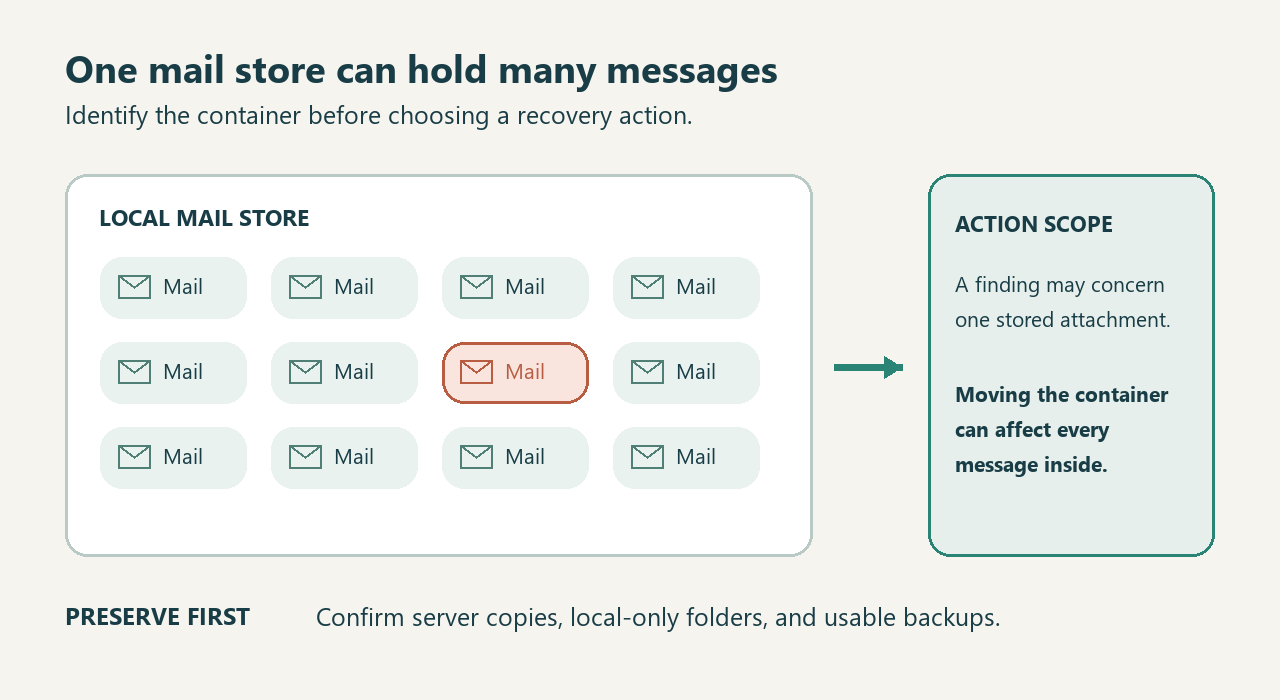
The detected object may be a shared container
An email program can store many messages inside one file. Antivirus action against that file may therefore affect messages unrelated to the suspicious attachment.
Start with the actual local security report, including its path and action. An email claiming your mailbox is quarantined is not equivalent evidence.
Stored content does not establish execution
A harmful attachment can remain stored without being intentionally opened. Finding it in an archive does not by itself prove that its code ran.
Conversely, a mail-store path cannot rule out a separate device incident. Your actions and additional protection findings determine whether cleanup is also needed.
Preserve the recovery options before changing anything
- Identify whether the affected data is server-backed mail, a local-only archive, or a mixture with messages stored in several places.
- Keep the detection report and existing quarantine intact while checking independent copies, backup dates, and what each copy actually includes.
- Choose supported mail-client or security-vendor assistance instead of deleting the entire archive, restoring unknown contents, or excluding your complete mail profile.
First, Confirm That This Is a Real File Detection
Open your installed security application independently. Locate the matching event there rather than following a message that claims you must release quarantined email.
A genuine local detection should give you evidence to discuss with the security vendor. Record its time, detection name, object path, and completed action.
A message asking for your mailbox password through an unfamiliar page is a different problem. Do not restore a local archive to answer that message.
Separate the provider’s server quarantine, your antivirus application’s quarantine, and a folder displayed inside your mail program. Different services control those different locations.
An administrator might control the first, your security product controls the second, and the mail application manages the third. Similar labels do not merge them.
If the report contains an archive name followed by an attachment name, preserve both. Support needs the container relationship, not only the final filename.
Do not forward the entire mailbox to demonstrate the problem. A redacted report can often establish the affected object without disclosing everybody’s correspondence.
Why One Suspicious Message Can Affect an Entire Folder
Mozilla explains Thunderbird’s default folder storage: a folder such as Inbox can correspond to one local file holding multiple messages.
Its incoming-message antivirus option temporarily separates new messages so a security product can act on an individual incoming file before folder storage.
That prevention setting is not a recovery switch for an Inbox already quarantined. Turning it on cannot retrieve messages or validate an existing attachment.
A physical container and a logical message are different units. The scanner might identify a problematic part while its available action affects the physical file.
That mismatch explains why the biggest button is not necessarily the safest next step.
Mail storage also varies by program and configuration. Do not assume every folder is an MBOX file or every account stores messages separately.
Mozilla’s Maildir documentation distinguishes per-message storage from MBOX and warns that Thunderbird’s alternative remains experimental. Do not convert storage during this incident.
Changing the storage format while the only copy is uncertain adds another failure point. Recover access safely first, then consider ordinary maintenance separately.
PST, OST, POP, and IMAP: Find the Copy That Matters
A local archive is not automatically on the server
A PST can hold archived mail, exported messages, and other Outlook items. Its contents may have been deliberately moved away from the online mailbox.
Microsoft distinguishes PST data from synchronized OST copies. That distinction helps frame the investigation, but your account and folder history still matter.
A person using a server-backed account can also maintain a local PST. The account type does not guarantee that every historical message remains online.
Likewise, POP settings and retention choices matter. Do not remove a local store because you remember that your provider once kept copies.
A synchronized cache needs a verified server counterpart
A genuine server-backed copy may provide a safer way to recover ordinary messages. First check the provider through its known website on a trusted device.
Look for the affected folders and representative older messages, not merely a successful sign-in or today’s Inbox. Check Sent items and custom folders too.
If important mail is missing online, stop treating the local file as disposable. Ask the account administrator or provider about retention and available recovery.
Do not delete an OST or rebuild a mail profile solely because an online account exists. Confirm the actual data and obtain supported instructions.
Outlook versions need different instructions
New Outlook and classic Outlook now have different PST capabilities and prerequisites. A blanket claim that new Outlook cannot access PST files is outdated.
Microsoft’s current PST access guidance describes new Outlook support and requirements. Use that version-specific guidance after the suspicious archive’s recovery plan is established.
Do not open the detected PST just to discover whether your Outlook supports it. Compatibility and safety are separate questions requiring separate answers.
Build a Small Recovery Inventory
Write this inventory before moving, deleting, importing, or restoring anything. An unknown answer is useful because it identifies exactly where assistance is needed.
| Question | Evidence to check | Why it changes the decision |
|---|---|---|
| Which physical object did the antivirus identify? | The complete private path and the security product’s action record | A whole-container action may affect many otherwise unrelated messages |
| Which messages exist independently on the server? | Known provider access and checks across relevant folders and dates | Current online mail may not include local archives or older folders |
| Is there an earlier, independently preserved backup? | The backup date, contents, accessibility, and circumstances of creation | A useful earlier copy may avoid restoring the detected container |
| Did anything run outside the mail store? | Your action history and separate device findings or installed programs | A device incident needs cleanup beyond recovering readable email messages |
Keep this recovery inventory within trusted channels. Folder names and message subjects can expose legal matters, health information, business relationships, or other people’s personal details.
A backup date alone is insufficient. A file labeled backup might be incomplete, contain the same attachment, or reflect changes made after the incident.
Record what you actually know about the copy instead of calling it clean. That wording prevents an untested assumption from becoming the recovery plan.
Three Examples That Lead to Different Recovery Choices
Example one: Online mail exists, but the local cache is affected
A reader’s security report names a local cache. On another trusted device, the provider’s website shows the relevant Inbox, Sent folder, and older messages.
That gives the reader a potential independent recovery source. It does not prove the local cache contains nothing unique or that every online message is safe.
The next conversation with support concerns supported cache recovery and identifying the offending message. It is not a request to restore everything quarantined.
If the same suspicious message still exists online, opening its attachment would recreate the exposure. Recovering mailbox access is not permission to open it.
Example two: A PST holds years of local-only history
Another reader has a PST created when an old account closed. Its messages no longer appear on any provider’s website, and no recent backup exists.
Here, permanent deletion could destroy irreplaceable correspondence. Leave quarantine intact and seek private, supported assistance with preserving and recovering the mail data.
Explain that the archive may be the only copy. Ask how support will protect the original, handle suspect attachments, and safeguard confidential information.
Do not restore and allow the entire PST because an invoice is urgently needed. Ask the original correspondent for that document through an established channel.
Example three: Thunderbird’s Inbox file contains many messages
A third reader sees the whole Inbox file named in quarantine. Some mail came through POP, while other folders were moved into local storage.
The account label cannot establish which messages remain on the server. The inventory must cover the relevant folders and their actual independent copies.
A helper should distinguish recovering the folder from removing a specific stored threat. Converting to Maildir or blindly compacting folders is not the starting point.
These examples show why one universal Delete or Restore instruction is inappropriate. The recovery source and the scope of the action decide the route.
What to Do When Antivirus Names an Email Archive
-
Stop opening the affected archive or attachment, and close the mail application if it remains open. Keep the security product and existing quarantine unchanged.
-
Save the detection details and describe what you already opened or launched. On a managed device, contact your security team before further changes.
-
Use the inventory above to identify server copies, local-only folders, and earlier backups. Do not assume a working online Inbox covers the whole archive.
-
Contact the mail-client or security vendor through its official support route. Explain whether the named container may hold the only remaining messages.
-
Do not permanently delete the quarantined container or restore it indiscriminately. Malwarebytes documents that deleting quarantined items prevents later restoration.
-
Keep private mail away from public sample scanners and open forums. Share redacted reports first, then use an approved confidential channel if support requires more.
-
Recover messages only through the agreed supported process, keeping suspicious attachments closed. Use the separate Windows procedure below if execution or additional findings warrant cleanup.
Protect the Mail Without Weakening the Antivirus
A broad exclusion for your mail folder can hide future threats along with the current finding. It does not solve the underlying recovery problem.
Similarly, restoring and allowing a complete container changes protection for the object without demonstrating that its contents are trustworthy. Preserve options instead of bypassing the warning.
Ask support what unit their proposed action affects: one attachment, one message, one folder file, or the entire account profile. Request a clear and specific answer.
If the proposed operation changes the only copy, ask for a preservation plan first. Do not create an uncontrolled copy onto another everyday computer.
For legally important or work-related archives, use the organization’s approved retention and incident process. Consumer recovery experiments can damage evidence or breach confidentiality requirements.
Give the helper a short written objective, such as recovering correspondence from a specified period without reopening the suspicious attachment. That keeps the recovery task focused.
Ask whether their process changes the preserved original or works through an appropriately protected recovery copy. Do not request instructions that bypass quarantine safeguards.
Clarify how recovered mail will be checked and where it will be stored. A folder appearing again is not evidence that every message survived.
If a proposed repair utility requires uploading the whole archive, stop and evaluate confidentiality before proceeding. The missing invoice does not authorize exposing unrelated messages.
After safe recovery, make an ordinary backup plan that includes local archives. Microsoft’s backup guidance explains the role of separate PST exports.
An export is not disinfection, and attachments travel with exported mail. Follow the current version-specific export instructions only after resolving the suspect store.
If an Attachment Ran or Windows Has Separate Active Findings
Recovering email does not remove a program that already ran. The following Windows workflow addresses that separate device exposure while the suspect mail store stays closed.
Step 1: Protect irreplaceable mail before scanning the device
Before any scan, tell support about local-only mail and the detected store. If scanning could quarantine an irreplaceable container, stop for qualified assistance.
Continue only after an appropriate preservation plan exists. Do not restore the archive, add an exclusion, or disable antivirus to make that plan work.
Keep backup drives disconnected and use another trusted device for urgent account protection. On a managed computer, let your security team direct the response.
Step 2: Download the legitimate Windows scanner
Use one of the download routes below. Keep the earlier suspicious file closed instead of returning to its download page for another installer.
Download the Malwarebytes Installer for Your Windows Computer
Open the Free Malwarebytes Scanner Download Page Instead
You can use manual scanning and quarantine without buying ongoing protection. A paid prevention plan is optional, not a requirement for this cleanup.
Compare Optional Malwarebytes Premium Protection for Windows Devices
MalwareTips may receive a commission through the affiliate links. You can still follow the free scanning procedure without purchasing the paid plan.
Open your Downloads folder and locate the MBSetup file obtained through the verified route. Do not select a similarly named file from an earlier download.

Step 3: Install the scanner and let it update
Open MBSetup and check the expected publisher before approving Windows’ permission prompt. Follow the setup screens to install the application on your personal computer.
Setup may offer additional products, a trial, or a subscription. Decline optional offers you do not want, using Skip where that choice appears.
Open Malwarebytes when installation finishes and allow available updates. If setup is blocked or fails, keep the error details and seek help.
Do not disable existing protection or obtain a replacement installer from an advertisement. On an organization-managed computer, let your security team choose the tools.
Step 4: Choose the free Custom Scan
On the Scanner tile, open the three-dot menu and choose Advanced Scan.
Expand the file finder and select your local Windows system drive, usually C:\. Include relevant local folders, but leave backup drives disconnected.
Set detections of PUPs and PUMs to be treated as malware. Choose Start Custom Scan and let the examination finish before reviewing its report.
Custom Scan is available without purchasing protection. If the dashboard offers a paid Threat Scan, return to the Custom Scan route instead of purchasing protection.
Use this menu path: Scanner tile menu > Advanced Scan > Custom Scan. This avoids the separate dashboard Scan button.
Step 5: Review the locations before taking action
Read each detection’s name and file location. Keep confirmed malicious files selected for Quarantine, then save the report so you can compare later results.
If a finding affects irreplaceable data or remains uncertain, seek qualified help before changing it. Never restore an untrusted item merely to make an application work.

Step 6: Complete a requested restart and check again
If Malwarebytes requests a restart, save open work and accept it. Reopen the application afterward and check whether any removal action still needs attention.
Run another updated scan and compare its findings with the saved report. New or recurring detections deserve investigation instead of repeated blind deletion.
A clean report cannot settle every account or recovery question. Continue the case-specific checks in this article, even when the original warning stops appearing.

Step 7: Keep device cleanup separate from recovering your messages
Leave the suspect mail container closed after scanning. A report without detections does not authorize restoring its unknown attachments or importing the entire archive.
For recurring findings or a scan that cannot finish, ask the MalwareTips malware-removal support forum for help, starting with redacted reports.
Return to the supported mail-recovery plan after the device issue is resolved. Do not sacrifice the only remaining correspondence to make another alert disappear.
Finish With a Mail Recovery Check, Not Just a Scan Result
After the agreed recovery process, check representative messages across the dates and folders that mattered. A repaired program opening successfully does not establish complete recovery.
Confirm whether contacts, calendar items, and local archives were included in the chosen method. Do not infer those results from recovering the Inbox alone.
Keep any suspect attachment excluded from ordinary use through the supported handling plan, not through a protection exclusion. Ask for a trustworthy replacement when needed.
If credentials were entered into a suspicious page, protect that account from another trusted device. Mail restoration and malware removal do not revoke stolen sessions.
Retain the original report and a short record of support’s actions. That history helps explain a later finding without repeatedly restoring the same container.
When the only archive remains inaccessible, stop before destructive changes. Preserving the remaining recovery option is more valuable than forcing the application to open immediately.
Frequently Asked Questions
Does an infected email archive mean the attachment ran?
No, stored content and executed code are different findings. Tell support what you opened, enabled, or installed, and preserve any separate device alerts.
Can I delete the PST or Inbox file?
Do not delete it before identifying its contents and independent copies. The file may hold many messages that are unavailable anywhere else.
Should I restore the entire archive from quarantine?
Not merely to regain access quickly. Keep it quarantined while the security vendor and mail support establish a preservation and recovery plan.
Will IMAP or Exchange automatically recover everything?
Only messages actually retained on the server provide that recovery source. Local folders, exported archives, and historical retention choices must be checked separately.
Should I upload my mailbox to a public scanner?
No, a mailbox can expose extensive private correspondence and attachments. Use redacted reports and an approved confidential support process instead of public submission.
Can converting Thunderbird storage fix this incident?
Do not make experimental storage conversion part of recovery. Preserve the existing data, identify independent copies, and obtain supported assistance before changing its structure.
The Bottom Line
When antivirus names an email archive, preserve the messages before choosing a container-wide action. Confirm the real report, independent copies, and actual exposure.
Keep unknown contents quarantined and seek supported recovery for local-only mail. If an attachment ran, handle device cleanup separately without treating a restored archive as safe.

Join the discussion
0 commentsShare your experience or ask a question about this article.
Community experiences
Did this happen to you?
Your experience could help someone recognize the same scam. Submit a private report for our team to review.
I experienced this tooReports are reviewed before publication. Sharing publicly is always your choice.
Discussion
Start the conversation
Have a question or something useful to share? Add the first comment.