


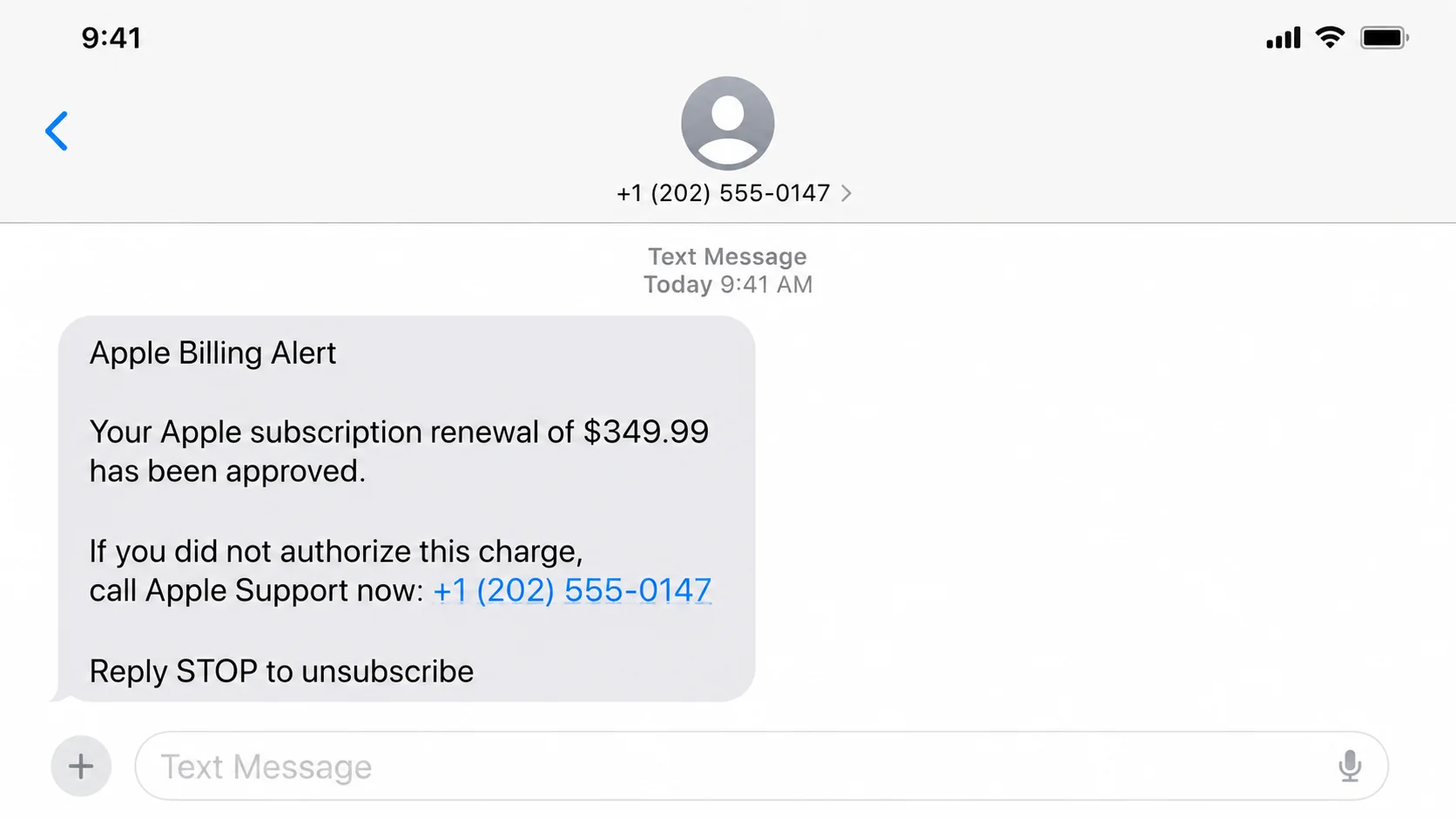
Your phone vibrates with an alarming Apple notice. A $349 subscription was supposedly approved, and the message offers one telephone number to stop it.
The amount is large enough to demand attention, yet believable enough to trigger doubt. Before calling, pause and inspect what the message actually proves.
Overview
The $349 charge is bait for an urgent telephone call
The text claims that Apple approved, renewed, or preauthorized a subscription costing approximately $349. It says immediate action is needed if you disagree.
A telephone number is presented as Apple Support, billing assistance, or a cancellation desk. That number belongs to the scam route, not the disputed charge.
The message is designed to make recipients call before checking purchase history. Fear of losing money supplies the urgency that an authentic receipt would not need.
The caller reaches an impostor, not Apple
The person answering may use a polished greeting, call-center noise, ticket number, and confident billing language. None of those details verify an Apple connection.
The supposed agent can ask for account details, a verification code, remote computer access, or bank information under the pretext of reversing the charge.
Once access is granted, the story often changes from subscription cancellation to refund processing, account compromise, or protection of endangered savings.
A fabricated refund problem creates the real loss
The scammer may display a false refund form, alter browser content, or move money between the victim’s own accounts to simulate an overpayment.
The victim is then ordered to return imaginary excess funds through gift cards, cash, cryptocurrency, wire transfer, or another difficult-to-reverse payment.
Typical warning signs include:
- An unsolicited text claims an unfamiliar Apple charge near $349.
- The message pressures you to call a number immediately.
- The sender uses awkward wording, spacing, or unexplained urgency.
- The transaction does not appear in Apple’s official purchase history.
- The agent requests remote access to cancel a subscription.
- You are told to open a banking website while sharing your screen.
- A refund allegedly exceeds the original charge.
- The caller demands gift cards, crypto, cash, or secrecy.
Why the Message Feels So Convincing
Apple is familiar, and many households have several active subscriptions. A recipient may not remember every renewal controlled by family members or shared devices.
The specific $349 figure sounds like a genuine annual plan rather than an unbelievable jackpot. Precision gives invented billing language a superficial sense of authority.
Scammers also know that people fear recurring charges. The word subscription suggests the amount might be collected repeatedly unless somebody acts now.
The telephone format lowers resistance. Calling support feels safer than clicking a website, although the number can route directly to a criminal call center.
Some texts include a reference number, date, device name, or partial account label. Generic identifiers can be generated without knowing anything about the recipient.
Spoofed sender names and crowded message threads can make a fake notice appear beside legitimate alerts. Placement inside a thread does not authenticate it.
Grammar is not a reliable test. Modern scam messages can be polished, localized, and tailored with leaked personal details or AI-assisted writing.
The decisive check happens outside the text. Open Apple settings, purchase history, subscriptions, and your card account through paths you already trust.
If no transaction exists there, the message has not established a debt. Do not let a telephone agent redefine that absence as a hidden security problem.
Even if a genuine unfamiliar Apple charge exists, the safe response is still official support. Never use contact details supplied by the suspicious alert.
How the Apple $349 Charge Text Scam Works
Step 1: A bulk text invents a costly subscription
Scammers send messages to large telephone lists and claim a $349 purchase, renewal, or preauthorization was processed through an Apple account.
They do not need to know whether each recipient owns an iPhone. Apple has enough customers that a portion of the list will find the story plausible.
The amount and wording vary. The stable ingredients are an unexpected charge, a narrow response window, and a number controlled by the sender.
Step 2: Urgency pushes the recipient off trusted channels
The message says call now to cancel, freeze, dispute, or prevent completion. It rarely encourages checking Apple’s official billing records first.
Pressure shortens the victim’s verification process. The fear is not only losing $349, but allowing repeated renewals or wider account theft.
A prominent telephone number becomes the easiest apparent solution. That convenience is deliberately placed beside the manufactured danger.
Step 3: A fake support agent confirms the invented crisis
The caller hears a professional script. The agent may ask which device they use, whether relatives share the account, and when they noticed the alert.
Those questions sound diagnostic but also collect information. The answers help the impostor tailor the next explanation and appear knowledgeable.
The agent may provide a case number and transfer the call to a senior technician. Multiple voices create theater, not independent verification.
Step 4: The agent requests access or sensitive details
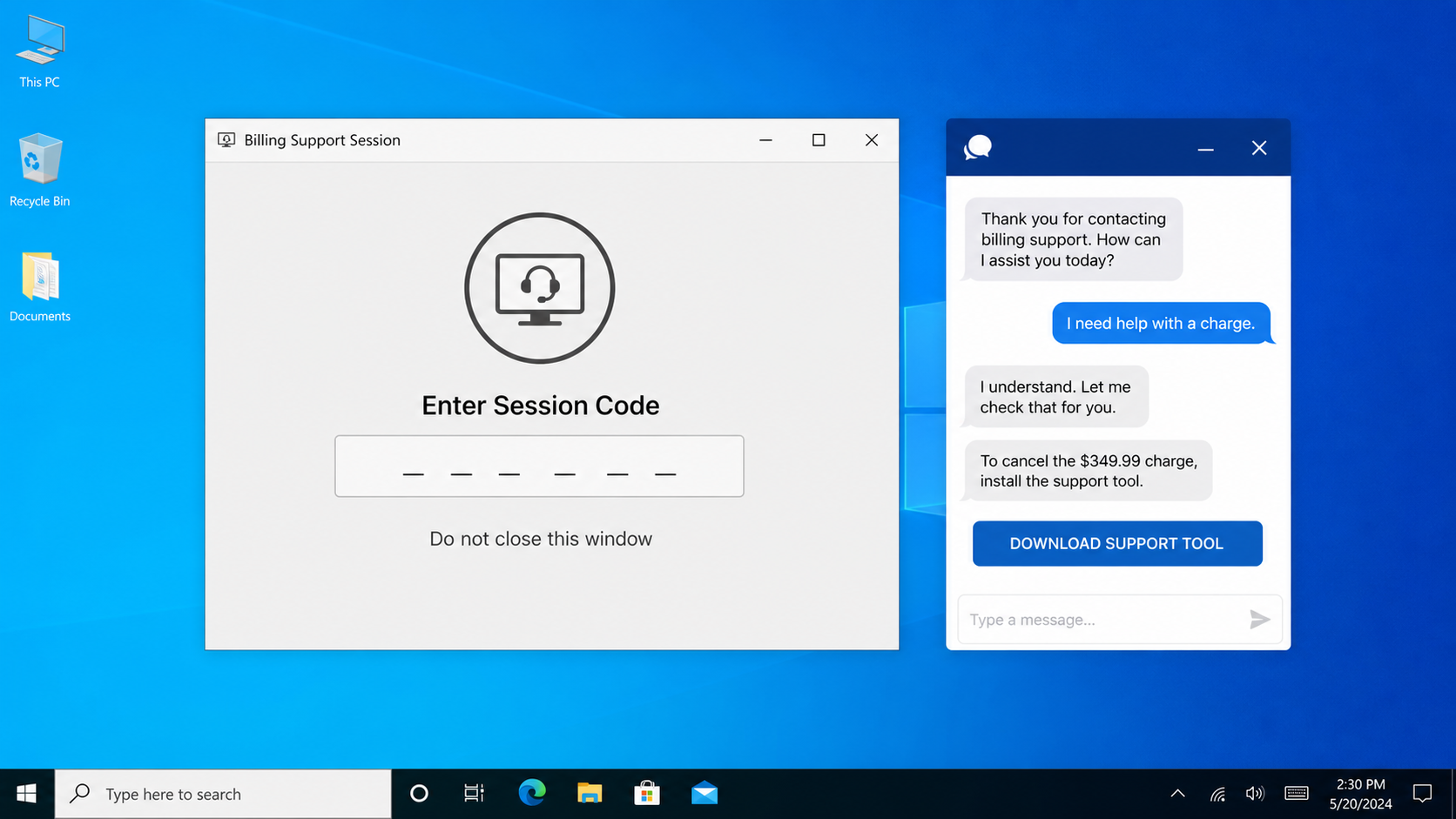
The victim may be directed to install AnyDesk, TeamViewer, Zoho Assist, or another legitimate remote-control program misused for unauthorized access.
Alternatively, the scammer requests an Apple verification code, card number, banking credentials, or identity details supposedly needed to confirm ownership.
A legitimate support conversation should not require handing an unsolicited caller complete control of a computer or revealing a one-time security code.
Step 5: A fake refund appears to go wrong
The scammer opens a form or banking page and claims the refund must be entered manually. The victim is instructed to type a small amount.
Screen manipulation makes it appear that $3,490 or $34,900 arrived instead of $349. The displayed balance may be edited HTML or transferred savings.
The agent blames the victim’s typing and pretends their job is at risk. Shame and sympathy now reinforce the original urgency.
Step 6: The victim is told to repay nonexistent money
The impostor demands gift cards, cryptocurrency, a bank wire, cash by courier, or deposits through a Bitcoin kiosk to correct the overpayment.
They may keep the call connected while the victim travels. Secrecy instructions prevent store employees, relatives, or bank staff from interrupting.
No legitimate company asks a customer to return a refund through retail gift cards or concealed cash. Those instructions expose the fraud completely.
Step 7: Follow-up callers attempt additional theft
If payment succeeds, another agent may invent taxes, account-security fees, or a blocked transfer. Each new problem requires another irreversible payment.
Unsuccessful targets can receive calls impersonating a bank, police agency, regulator, or Apple fraud department. The actors may share collected information.
Recovery scammers can appear later and promise reimbursement for an advance fee. Genuine reporting agencies do not guarantee recovery through surprise contact.
How to Check the Charge Without Calling the Text Number
Open Settings directly on your Apple device and select your account, then review Subscriptions and purchase history without following any message link.
You can also use Apple’s official support website by typing its address yourself. Sign in only after confirming the domain belongs to Apple.
Look at your card or bank activity through the institution’s known application. Distinguish pending authorizations from completed transactions and note the merchant descriptor.
Ask family members who share purchases whether they recognize the item. Family Sharing can make a real transaction unfamiliar to the primary payer.
Search email receipts, but inspect the sender and links carefully. Fake Apple receipts are another common route into credential-stealing pages.
If the transaction appears only inside the text, treat the claim as unverified. A message cannot debit an account merely by announcing a number.
If a real unauthorized Apple charge appears, contact Apple and the card issuer using official applications, cards, statements, or websites.
Do not call back simply to confront the sender. Your response confirms an active number and gives the operator another opportunity to persuade you.
Block the sender after preserving evidence. Carrier reporting tools can help identify abusive campaigns, although scammers frequently rotate numbers.
Share the warning with relatives who might answer household billing questions. A calm second opinion can break the urgency before remote access begins.
What Remote Access Lets the Scammer Do
Remote-support software is legitimate when deliberately used with a trusted technician. In this scam, it lets a stranger see and operate the victim’s screen.
The operator can watch passwords being typed, read email, inspect documents, change browser content, and guide the victim into financial accounts.
Some scammers darken the screen while claiming a secure connection is active. Behind the black display, they may move funds or create payment recipients.
They can transfer money from savings to checking and describe the increased checking balance as an accidental company refund.
The victim sees more money in one account but may not notice the matching reduction elsewhere. No external refund occurred.
Saved browser credentials, tax files, identity scans, cryptocurrency wallets, and password managers become potential targets during the session.
Ending the call does not always end access. Unattended-access settings, background services, or newly created accounts can preserve control.
Disconnect the device from the internet if the operator becomes suspicious. Use another trusted device to contact financial institutions and change critical credentials.
Uninstalling the visible program may not remove every change. A security scan and professional review are appropriate when financial access occurred.
Do not continue banking on a device whose integrity remains uncertain. Secure accounts first from hardware the scammer never controlled.
The Payment Methods Reveal the Impostor
Gift cards are attractive to scammers because codes can be photographed, transmitted instantly, and redeemed before a retailer receives a fraud report.
Cryptocurrency transfers can cross borders quickly and usually cannot be reversed by a bank. A wallet address provides no customer-protection process.
Cash hidden in a book, box, or envelope removes the electronic trail. Couriers may collect it without knowing the complete fraud story.
A wire transfer can appear formal, especially when the caller supplies banking instructions. Formal payment infrastructure does not legitimize an invented refund.
The agent may split demands into smaller payments to avoid store limits or bank scrutiny. Repetition does not make the transaction safer.
Scammers coach victims to describe purchases as gifts or personal investments. That lie prevents employees from recognizing the real purpose and intervening.
They may insist Apple cannot receive money directly because the case is confidential. Genuine billing corrections never require customers to disguise repayment.
Store clerks and bank employees ask questions because these patterns are common. Contacting the caller for permission only gives the scammer time to respond.
If anyone demands unusual payment, stop while the money remains yours. Hang up and discuss the situation with a trusted person independently.
After payment, speed matters. Give issuers and investigators exact card numbers, wallet addresses, receipts, transfer references, courier descriptions, and surveillance locations.
Do not pay a recovery service that promises certainty. Fraud proceeds may be traceable, but strangers cannot guarantee retrieval for an upfront charge.
Company, Address, and Fulfillment Checks
The displayed telephone number does not prove ownership
Caller ID and text sender information can be spoofed or routed through internet telephone services. A familiar area code adds no Apple verification.
Find support through Apple’s device settings or typed official website. Never ask the person answering the suspicious number whether the number is genuine.
Fake call centers imitate real support operations
Background voices, hold music, departments, employee identifiers, and scripted disclosures are inexpensive to reproduce. They show organization, not corporate authorization.
An operator may work from another country while displaying a local number. Location assumptions should never replace independent contact verification.
Addresses and emails can be copied from Apple
A scammer can quote Apple’s headquarters, policies, or public support pages accurately. Copied details do not connect the caller to those records.
Check where replies actually go and which domain hosts any form. Lookalike spellings and free mailboxes expose many impersonation attempts.
There is no legitimate fulfillment behind the refund story
Real billing disputes produce traceable records through Apple and the payment institution. They do not require secret cash shipments, gift cards, or crypto kiosks.
A courier collecting money is not a support employee. Contact police promptly if somebody is traveling to your home for cash.
What to Do if You Fell Victim to the Apple $349 Charge Scam
- End the call immediately. Stop screen sharing, disconnect the affected device from the internet, and refuse every additional payment or verification request.
- Contact financial institutions. Use numbers on cards or official applications, explain the remote-access scam, freeze transfers, and challenge unauthorized activity.
- Secure your Apple Account. Change its password from a trusted device, review devices, remove strangers, and never approve unexpected verification prompts.
- Protect your email. Replace exposed credentials, check forwarding rules and recovery settings, revoke unknown sessions, and enable strong multi-factor authentication.
- Remove remote software. Uninstall every program the caller requested, disable unattended access, and inspect newly created users or browser extensions.
- Run Malwarebytes. Perform a complete scan, quarantine detections, update the operating system, and seek professional help if access persists.
- Use AdGuard for follow-up protection. It can block some malicious domains and advertising redirects, but cannot reverse payments or restore stolen credentials.
- Preserve evidence. Save the text, telephone numbers, receipts, gift-card details, crypto addresses, remote-session records, and a timeline of actions.
- Report the fraud. Notify Apple, your mobile carrier, the FTC, IC3, local police when appropriate, and gift-card issuers without delay.
- Warn trusted contacts. Tell relatives and coworkers if the scammer accessed email, messages, address books, or accounts that could support impersonation.
Is Your Device Infected? Run a Free Malware Scan
Slow performance, constant pop-ups, or strange behavior? These are classic signs of a malware infection. A quick way to check is to scan your device with Malwarebytes Free, one of the most trusted malware removal tools available. If you only visited a scam page and didn’t download or install anything, this scan is optional.
The free version detects and removes the most common threats, including:
- Adware — the cause of those annoying pop-ups
- Browser hijackers — unwanted redirects and changed homepages
- Trojans and spyware — hidden programs stealing your data
- Potentially unwanted programs (PUPs) — software you never asked for
👉 Select your device below — Windows, Mac, or Android — then follow the simple steps to download Malwarebytes, scan your system, and remove any threats it finds. The scan usually takes 5 to 20 minutes.
Run a Malware Scan with Malwarebytes for Windows
Malwarebytes is one of the most popular and trusted anti-malware tools for Windows — and it’s completely free for removing infections. It catches threats that many antivirus programs miss, including adware, browser hijackers, and trojans. Follow the steps below to scan your PC and remove what Malwarebytes finds.
Download Malwarebytes
Click the button below to download the latest version of Malwarebytes for Windows from the official source. The free version is all you need — it will scan your computer and remove adware, browser hijackers, and other malicious software at no cost.
Download MalwarebytesOfficial installer for Windows 11 and 10. Your download starts right away.Want real-time protection? See Malwarebytes Premium Malwarebytes Free for WindowsScans and removes malware at no cost
-
Install Malwarebytes
When the download finishes, open your Downloads folder and double-click the MBSetup file. If Windows shows a User Account Control pop-up, click “Yes” to allow the installation.

Follow the On-Screen Prompts to Install Malwarebytes
The setup wizard will walk you through a few quick screens:
-
Choose where you’re installing the program — “Personal Computer” or “Work Computer” — then click Next.

-
Malwarebytes will now install on your device. This usually takes under a minute.

-
When installation is complete, the “Welcome to Malwarebytes” screen will open automatically.

-
On the final screen, click Open Malwarebytes to launch the program.

-
Optional: Check for rootkits with a Custom Scan
You don’t need to change any settings for a normal scan. The standard Threat Scan in the next step is enough for most problems, so you can go straight to it.
If you also want to check for rootkits, use a Custom Scan. In current versions of Malwarebytes, rootkit scanning is only available there:
- On the Scanner tile, click the three-dot menu and select Advanced Scan.
- Choose Custom Scan. In its options, check Scan for rootkits.
- Select your system drive (usually C:\) as the location to scan, then start the scan. It takes longer than a Threat Scan.
- When it finishes, review and quarantine the results as described in the steps below.
Rootkit scanning isn’t available on Windows devices with ARM processors.
Start the Scan
Click the blue Scan button. Malwarebytes will automatically update its virus database and start checking your computer for malware.

-
Wait for the Scan to Finish
The scan checks your entire system for browser hijackers and other malicious programs, so it can take 5 to 20 minutes depending on your computer. Feel free to do something else — just check back occasionally to see the progress.

-
Quarantine the Detected Threats
When the scan is done, you’ll see a list of everything Malwarebytes found — malware, adware, and potentially unwanted programs. Click the “Quarantine” button to remove all of them at once.

Malwarebytes will now remove the malicious files and registry entries and move them safely into quarantine.

-
Restart Your Computer
Some threats can only be fully removed after a reboot. If Malwarebytes asks you to restart, click Yes. Once you’re logged back in, Malwarebytes has finished removing the threats it found.

When the scan is done, check whether the problems you noticed have stopped. If they continue, see the options below.
If you are still having problems with your computer after completing these instructions, then please follow one of the steps:
- Run a computer scan with ESET Online Scanner
- Ask for help in our Windows Malware Removal Help & Support forum.
Run a Malware Scan with Malwarebytes for Mac
Malwarebytes for Mac is a free on-demand scanner that removes the malware other security software tends to miss — adware, browser hijackers, and unwanted programs included. Cleaning an infected Mac with Malwarebytes has always been completely free, and it’s our go-to recommendation. Follow the steps below to scan your Mac and remove what Malwarebytes finds.
-
Download Malwarebytes for Mac
Click the button below to download the latest version of Malwarebytes for Mac.
Download MalwarebytesOfficial installer for macOS. Your download starts right away.Want real-time protection? See Malwarebytes PremiumMalwarebytes Free for MacScans and removes malware at no cost -
Open the Malwarebytes setup file
When the download finishes, open your Downloads folder and double-click the setup file to begin the installation.

-
Follow the On-Screen Prompts to Install Malwarebytes
The Malwarebytes for Mac Installer will guide you through a few quick screens. Click “Continue” and keep following the prompts until the installation completes.



When the installation is complete, Malwarebytes opens to the Welcome to Malwarebytes screen. Click “Get started“.
Malwarebytes needs Full Disk Access to check your whole Mac. When it asks, open System Settings > Privacy & Security > Full Disk Access, turn on Malwarebytes (it may be listed as Malwarebytes Protection), and confirm with your password or Touch ID. Then return to Malwarebytes. On macOS Monterey and earlier, this setting is in System Preferences > Security & Privacy > Privacy.
-
Select “Personal Computer” or “Work Computer”
Malwarebytes will ask what type of computer you’re installing it on. Click either Personal Computer or Work Computer, whichever applies.

-
Start the Scan
Click the “Scan” button. Malwarebytes will automatically update its detection database and begin checking your Mac for malware.

-
Wait for the Scan to Finish
Malwarebytes will scan your Mac for adware, browser hijackers, and other malicious programs. This can take a few minutes, so feel free to do something else — just check back occasionally to see the progress.

-
Quarantine the Detected Threats
When the scan is done, you’ll see a list of everything Malwarebytes found. Click the “Quarantine” button to remove all the threats at once.

-
Restart Your Mac
Malwarebytes will now remove all the malicious files it found. Some threats can only be fully removed after a reboot — if Malwarebytes asks you to restart, allow it. Once you’re logged back in, check whether the problems you noticed have stopped. If they come back, save the scan report and ask for help in our forum.

If the problems you noticed continue after the scan, see the options below.
If you are still experiencing problems while trying to remove a malicious program from your computer, please ask for help in our Mac Malware Removal Help & Support forum.
Run a Malware Scan with Malwarebytes for Android
Malwarebytes for Android scans your phone or tablet for malware, adware, and potentially unwanted apps. The free version scans only when you start a scan. Real-time protection, which checks apps automatically, is part of the paid Premium version.
-
Download Malwarebytes for Android.
You can download Malwarebytes for Android by clicking the link below.
Get Malwarebytes for AndroidOpens Google Play in a new tab.Want real-time protection? See Malwarebytes Premium for AndroidMalwarebytes for AndroidScans your phone and removes malware at no cost -
Install Malwarebytes for Android on your phone.
In the Google Play Store, tap “Install” to install Malwarebytes for Android on your device.

When the installation process has finished, tap “Open” to begin using Malwarebytes for Android. You can also open Malwarebytes by tapping on its icon in your phone menu or home screen.

-
Follow the on-screen prompts to complete the setup process
When Malwarebytes opens, it walks you through a short setup. Tap Get started and follow the prompts. If you see an offer for a trial or a paid plan, read it before you accept. You can skip it and keep using the free scanner.
Malwarebytes will ask for permission to access the files on your phone so it can scan them. Tap Allow, or turn on the permission in the Android screen that opens, then return to Malwarebytes.
-
Run a scan with Malwarebytes for Android
On the main screen, tap Scan now. In some versions, you open the menu, tap Scanner, and then tap Run a scan.
-
Wait for the Malwarebytes scan to complete.
Malwarebytes will now start scanning your phone for adware and other malicious apps. This process can take a few minutes, so we suggest you do something else and periodically check on the status of the scan to see when it is finished.

-
Remove the detected apps.
When the scan has been completed, you will see a list of the threats that Malwarebytes for Android has detected. Next to each detected item, tap the menu icon (three dots), then choose to uninstall the app or delete the file. Android then asks you to confirm. Tap OK or Uninstall to remove the app.
-
Restart your phone.
When the detected apps are removed, restart your phone if Malwarebytes asks you to. Then check whether the problems you noticed have stopped.
If the problems you noticed continue after the scan, see the options below.
If you are still having problems with your phone after completing these instructions, then please follow one of the steps:
- Ask for help in our Mobile Malware Removal Help & Support forum.
- Only as a last resort, reset your phone to factory settings. Read the warning below first.
- Back up your photos, videos, files, and messages, for example to your Google account or a computer.
- Make sure you know your Google account email and password. The phone asks for them after the reset. If you changed the password recently, Google recommends waiting 24 hours before you reset.
- On a Samsung phone, also make sure you know your Samsung account password.
- If you use an authenticator app for two-step verification, move your accounts to another device or save your backup codes first.
Stay Protected: Block Ads and Malicious Sites
No scan can prove a device is completely clean, so it helps to block threats before they reach you. Most infections start with a malicious ad or a fake download button — so blocking them at the source is your best defense.
We recommend AdGuard, which blocks malicious ads, phishing pages, and dangerous redirects before they can reach you.
👉 Download AdGuard and browse safely
Frequently Asked Questions
Is the Apple $349 subscription text genuine?
Assume it is unverified until the transaction appears in official Apple purchase history or your financial account. Do not call the supplied number.
Can Apple cancel a charge through telephone support?
Apple provides legitimate support, but you must reach it through official channels. An unsolicited message cannot establish that its number belongs to Apple.
Why does the scammer want remote access?
Screen control lets the operator view credentials, manipulate displayed balances, enter banking accounts, and manufacture the illusion of an excessive refund.
What if I gave the caller an Apple verification code?
Change your Apple Account password immediately, review trusted devices and details, contact official Apple support, and inspect purchases and payment methods.
Can a bank recover gift-card or cryptocurrency payments?
Recovery is difficult, but report immediately. Contact the exchange, kiosk, gift-card issuer, bank, and police with every receipt and destination detail.
Does blocking the text solve the problem?
Blocking stops that sender from reaching you, but numbers rotate. Secure anything shared and expect follow-up impersonation using the collected information.
The Bottom Line
The supposed Apple $349 subscription is designed to create a phone call. The financial loss begins when an impostor gains trust, access, or payment.
Verify charges through Apple and your bank independently. Never grant remote control or return a refund using gift cards, cryptocurrency, wire transfers, or cash.

Join the discussion
0 commentsShare your experience or ask a question about this article.
Discussion
Start the conversation
Have a question or something useful to share? Add the first comment.