

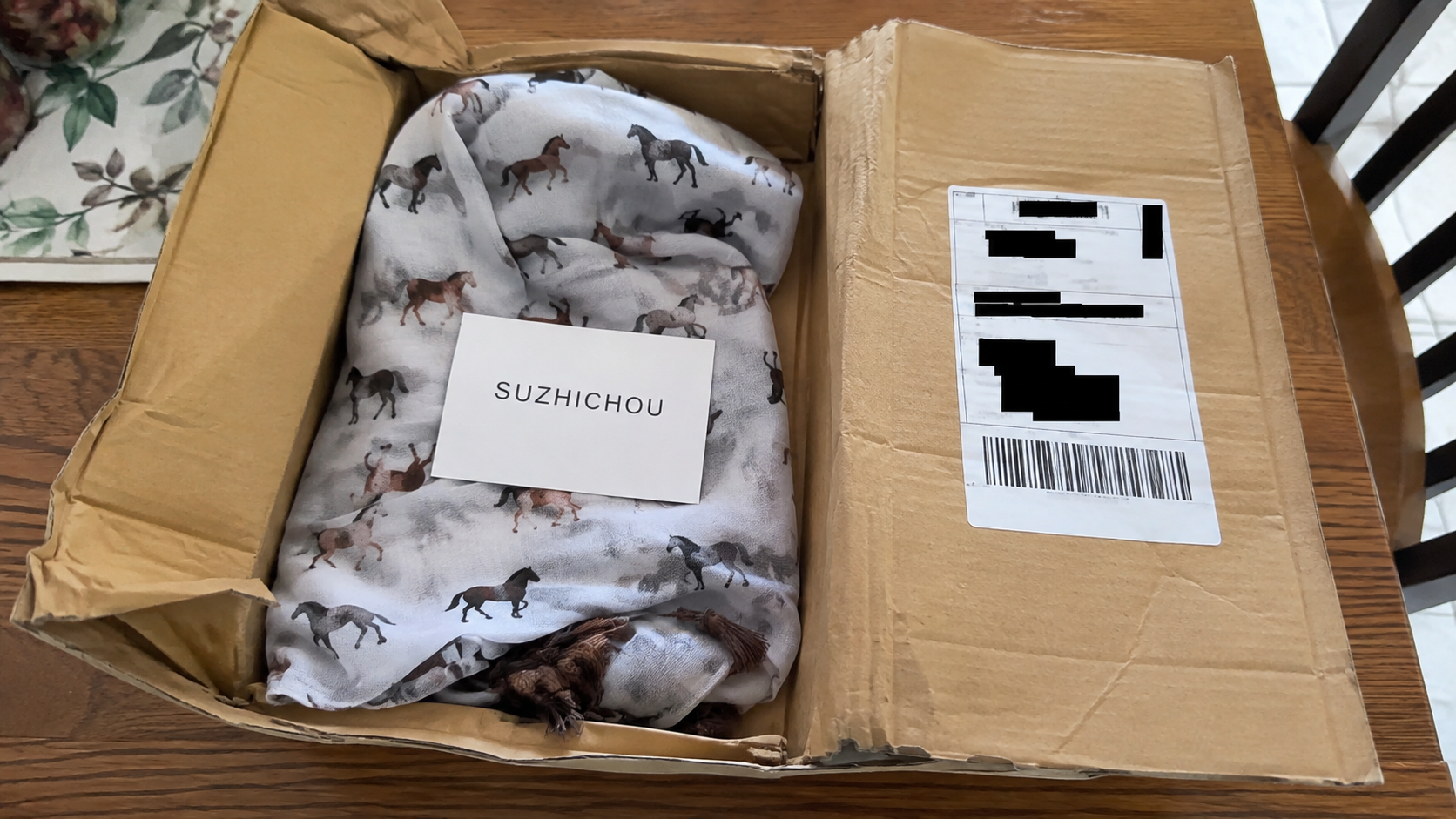
A small parcel arrives under your name, although you never ordered anything resembling its contents. Inside is a thin scarf printed with horses.
The sender appears as SUZHICHOU, which explains almost nothing. The package may be harmless clutter, or evidence that an online seller manipulated an order.
Overview
SUZHICHOU is a shipping label, not a familiar retailer
Recipients have reported unexpected scarves arriving in packages that identify the sender as SUZHICHOU, often without a recognizable store name or useful invoice.
The label can describe a dispatch source, warehouse, logistics account, or transliterated sender. It does not necessarily identify the merchant that initiated delivery.
That distinction matters because several different schemes can produce the same strange parcel. The scarf alone cannot reveal which route brought it to your door.
The package may be connected to brushing or a substituted order
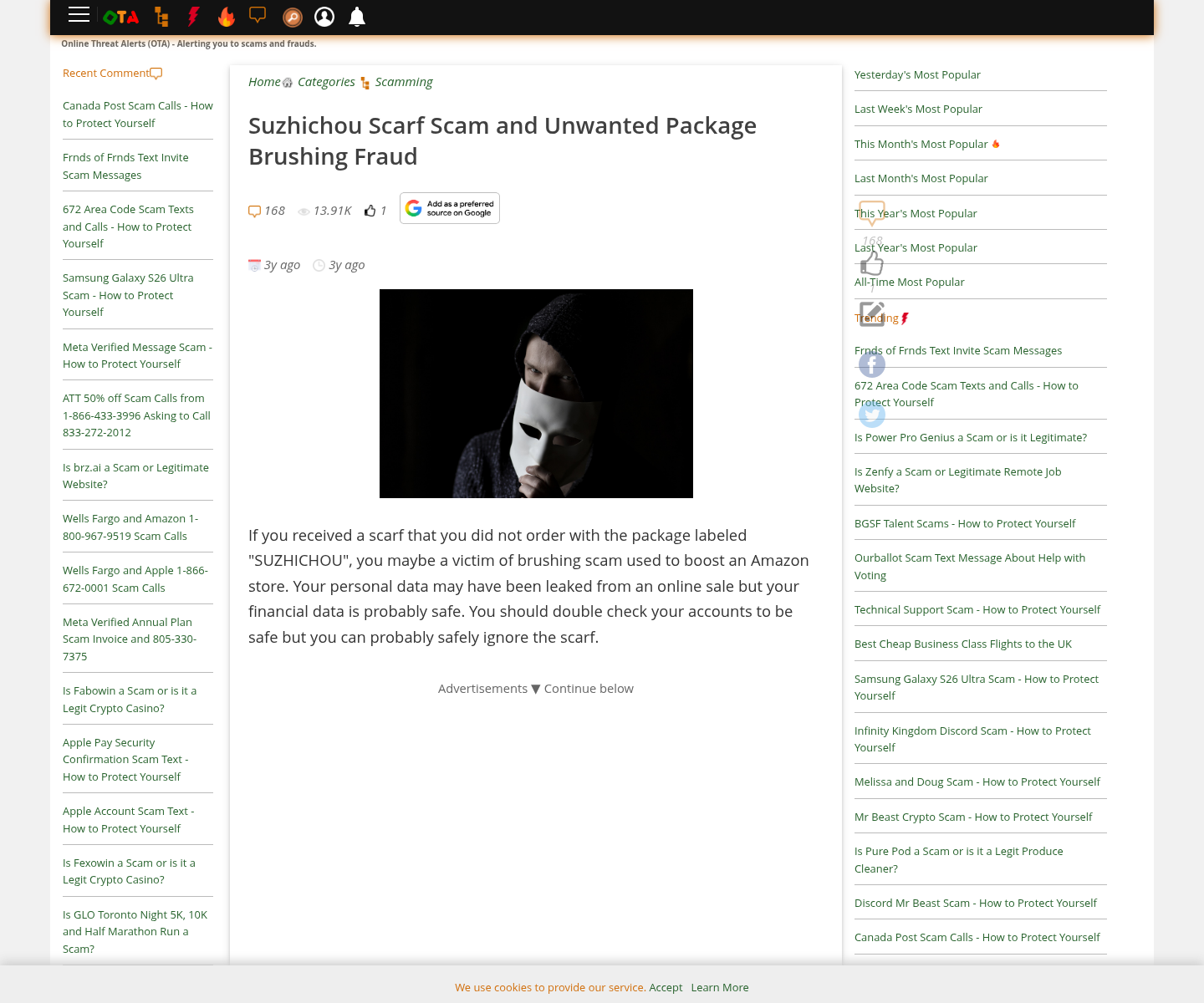
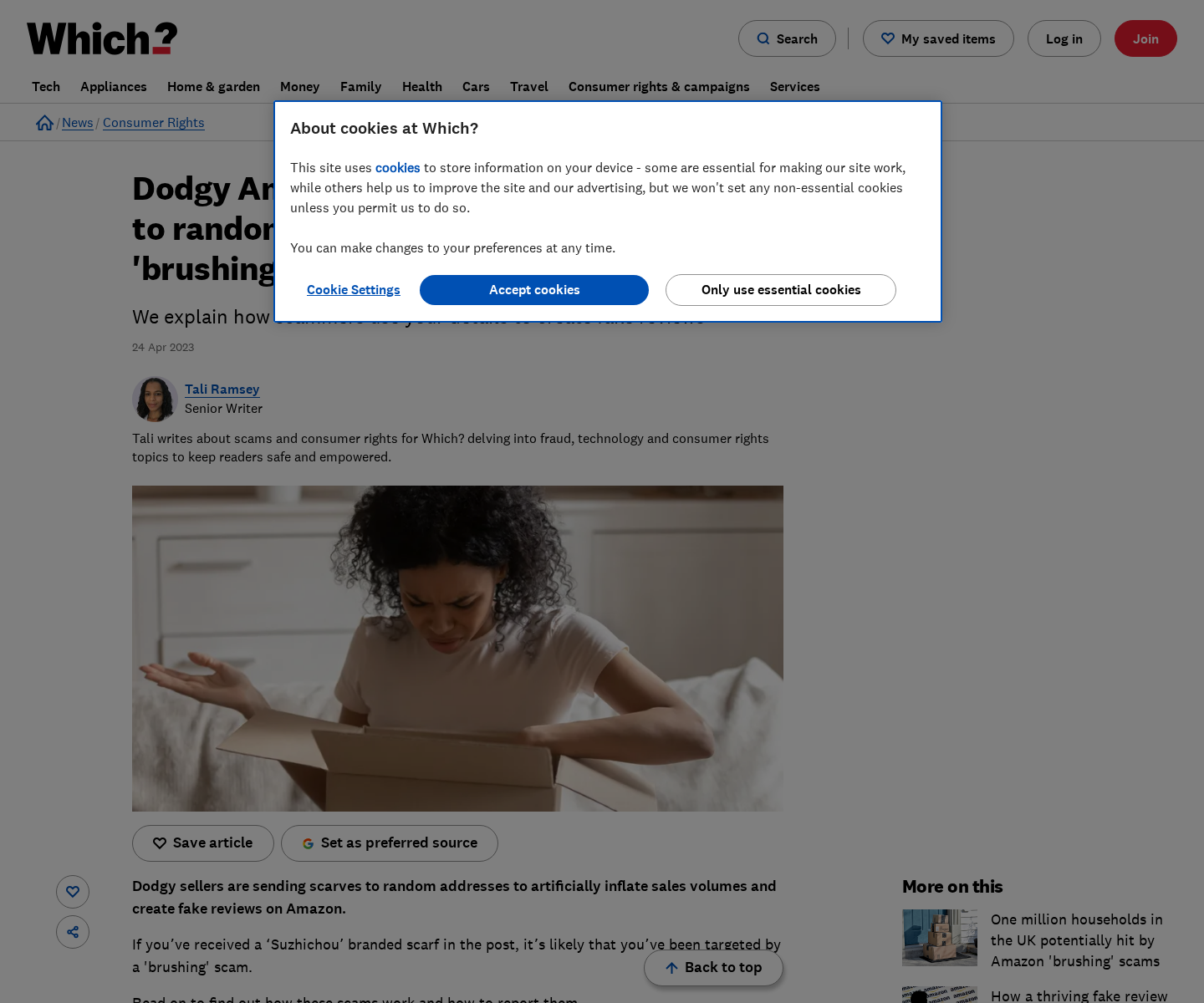
In a brushing scheme, a seller sends inexpensive merchandise to a real address so tracking shows a completed delivery tied to an online transaction.
That transaction can then support fabricated sales activity or a review labeled as verified. The recipient becomes an unwilling prop in marketplace manipulation.
Another possibility is bait and switch. Someone bought a more valuable product, but the seller shipped a cheap scarf to create usable tracking.
An unexpected parcel does not prove every account was hacked
Your name and address may have come from public records, an old purchase, a marketing list, a breached database, or information shared between sellers.
If no payment appears and no matching order exists, the event does not automatically mean thieves accessed your card, bank, or marketplace password.
Still, the delivery deserves a careful account check. A hidden order, altered tracking number, or card charge may connect it to a larger problem.
Important warning signs include:
- You received a SUZHICHOU horse scarf that nobody in the household ordered.
- The tracking number matches a missing purchase for a different product.
- A marketplace marks an expensive order delivered when only the scarf arrived.
- The parcel contains no receipt, merchant name, or working support details.
- A seller asks you to close a dispute because tracking shows delivery.
- A review appears under your account for something you never purchased.
- Your order history shows an unfamiliar address, payment, or archived transaction.
- Similar low-value parcels begin arriving from changing sender names.
Why Would Anyone Pay to Send a Cheap Scarf?
International postage, bulk textiles, and consolidated fulfillment can cost less than the commercial value created by a completed tracking record.
For a dishonest seller, delivery confirmation can make a store look busy. It can also complicate a buyer’s claim that nothing arrived.
Marketplaces often rank listings partly through sales history, engagement, ratings, and fulfillment performance. Fake activity can make an unknown item appear popular.
A verified-purchase badge carries more persuasive weight than an anonymous review. Brushing attempts to manufacture the transaction needed for that appearance.
The review itself may not be written through the recipient’s account. Operators can use controlled buyer profiles while borrowing an unrelated delivery address.
In substitution fraud, the tracking number has another purpose. It proves that some package reached the buyer’s postal area, despite containing the wrong item.
A weak dispute system may initially treat that scan as evidence favoring the seller. The victim must then prove the delivered scarf was not the purchase.
This is why packaging matters. Keep the label, weight, dimensions, customs description, and opening photographs until every related order has been reconciled.
The scarf’s low value is not accidental. It is inexpensive to ship, flat enough for simple packaging, and capable of generating a delivery scan.
Not every mystery scarf proves deliberate fraud. Fulfillment mistakes occur, labels cross, and gifts arrive without notices. Evidence from your accounts determines the response.
How the SUZHICHOU Scarf Package Scam Works
Step 1: A seller obtains a valid delivery address
The address may come from a previous customer list, a data broker, public information, a compromised marketplace profile, or a separate legitimate order.
Names and postal addresses circulate more widely than many people realize. Their exposure is concerning, but it is not equivalent to exposing payment credentials.
For substitution fraud, the seller already has the address because the victim placed an order. Only the merchandise changes.
Step 2: A very cheap product replaces genuine value
The operator selects a lightweight scarf or similarly inexpensive trinket. Shipping it costs far less than supplying the advertised electronics, furniture, or clothing.
In brushing, no promised product is required. The cheap object simply allows the package to satisfy postal rules and receive a tracking history.
In bait and switch, the parcel can carry the exact tracking number shown for the victim’s expensive purchase.
Step 3: Tracking records a completed delivery
The carrier scans the parcel through its route and marks it delivered. That event records movement, not the value or identity of the contents.
An online platform may see only the tracking status. It cannot know that a horse scarf arrived instead of the item shown at checkout.
The sender gains a piece of machine-readable evidence that can support a transaction, seller metric, or response to a dispute.
Step 4: The record supports a false commercial story
A brushing operator can associate the delivery with a controlled order and later publish enthusiastic feedback under a buyer profile.
A bait-and-switch seller can tell the payment platform that the customer’s merchandise arrived. The delivery scan makes the denial look plausible at first glance.
Either route converts your address into proof for an event that did not reflect a genuine purchase from you.
Step 5: Confusion delays the recipient’s response
Many people discard the scarf because it seems worthless. Without the label, they lose the easiest link between the parcel and a disputed order.
Others scan a printed QR code or contact an unknown number seeking answers. That reaction can expose more information or open another phishing route.
A seller may exploit the delay until a refund window closes. Quick documentation is more useful than arguing with an unidentified sender.
Step 6: The sender name changes while the method continues
SUZHICHOU is only one label reported on mystery parcels. Warehouses, forwarding agents, merchants, and account names can change between campaigns.
Blocking one sender does not stop misuse of an address. The durable warning is unsolicited low-value merchandise connected to unexplained tracking activity.
Future parcels might contain seeds, jewelry, cables, fabric, or plastic gadgets. The object changes because it is not the scheme’s valuable component.
Brushing and Bait-and-Switch Deliveries Are Different
A brushing parcel usually arrives without any charge or recognizable purchase. Its main purpose is to create transaction activity that benefits a seller.
The recipient might never find a corresponding order. Their address was used for delivery, while the controlled marketplace activity happened elsewhere.
A substituted-delivery case begins with a real payment. The buyer orders one product, receives a cheap scarf, and sees the original order marked delivered.
That difference changes the immediate priority. A substituted order requires a prompt merchandise dispute supported by photographs, packaging weight, and the original listing.
Pure brushing calls for account review, password hygiene, marketplace reporting, and monitoring. There may be no transaction to reverse.
A third possibility is a fulfillment error. Another customer’s label or item may have entered your shipment during warehouse processing.
Check whether a household member, relative, employer, or gift sender recognizes it. Do this without contacting numbers printed on suspicious inserts.
Compare every recent tracking number character by character. Sellers sometimes upload a number whose final delivery scan matches your area but not your order.
Carrier records may show the parcel’s accepted weight. A light scarf cannot reasonably satisfy an order for a heavy appliance or large tool set.
Ask the carrier for written confirmation where available. Some details may be limited for privacy, but delivery weight and address discrepancies can support a dispute.
What the Parcel Does and Does Not Reveal
The printed label confirms that somebody knew a deliverable name and address. It does not show how those details were obtained.
A data breach is one possibility, but ordinary origins are common. Previous merchants, warranty forms, contests, public records, and marketing databases all store addresses.
The parcel does not establish that the sender knows your Social Security number, bank balance, email password, or marketplace login.
Do not panic and replace every financial account solely because a scarf arrived. First look for evidence of access, charges, or altered settings.
Review marketplace orders, including archived and canceled items. Check payment wallets, credit cards, bank transactions, loyalty accounts, and saved shipping addresses.
Search email for the tracking number rather than only the sender name. A purchase confirmation may reveal which transaction used it.
Inspect account login history and forwarding rules. Unexpected sessions or rules justify password changes and a broader identity-security response.
If your account posted a review you did not write, capture it before removal. Report unauthorized activity directly through the marketplace’s official support path.
Do not scan a QR code included with the package. It might lead to a fake return portal, survey, app download, or payment request.
Never pay a surprise customs, redelivery, or return charge through a link sent after the parcel arrives. Confirm fees with the carrier independently.
Company, Address, and Fulfillment Checks
The sender line may hide the real merchant
SUZHICHOU does not provide enough information to identify a legal seller. Transliteration, warehouse accounts, and shipping intermediaries can separate the label from the storefront.
Search the full return address, tracking number, customs code, and every label layer. A label underneath may reveal another logistics partner or order reference.
A warehouse is not proof of a responsible company
Fulfillment centers dispatch packages for many unrelated sellers. Their address may appear on returns even when they did not advertise, sell, or charge for merchandise.
Do not accuse an address occupant without corroboration. Compare corporate records, marketplace seller information, receipts, and payment descriptors before assigning responsibility.
Contact details can become another collection point
A telephone number, email address, or QR code inside an unsolicited parcel may belong to the same operator. Contact can confirm your number is active.
Use the marketplace, carrier, or card issuer’s independently located support details. Do not provide identification merely to ask why a scarf arrived.
Cheap mass fulfillment creates safety and return problems
Unknown textiles may lack reliable fiber, dye, treatment, or manufacturer information. Keep the item away from children and sensitive skin if anything seems unusual.
Do not spend money returning unsolicited goods to an overseas address. Preserve evidence first, then follow instructions from the marketplace or payment provider.
How to Build a Strong Wrong-Item Dispute
Photograph the unopened parcel from several angles. Make the tracking barcode, sender, recipient, package condition, and customs description readable.
Record a continuous opening video if the connection to an expensive order is already suspected. Show the sealed edges before revealing the contents.
Place the scarf beside the packaging and shipping label. Capture any SKU, insert, size marking, or product code that identifies what actually arrived.
Save the original advertisement, product description, checkout page, receipt, promised specifications, delivery estimate, and seller messages before the listing disappears.
Compare the package’s recorded weight with the advertised item. A major mismatch can demonstrate that the shipped parcel could never contain the purchase.
Describe the dispute accurately as merchandise not as described or wrong item received. Saying only that nothing arrived conflicts with the carrier scan.
Provide a short timeline. Include purchase date, amount, promised item, tracking assignment, delivery date, actual contents, and your first contact attempt.
Keep communication inside the platform. A seller asking to move to private email can reduce marketplace visibility and weaken the record.
Reject token partial refunds if the seller intentionally substituted a worthless item. Request the remedy promised by platform rules and applicable consumer law.
If the marketplace refuses despite clear evidence, ask the card issuer about chargeback deadlines. Submit the same organized documentation without exaggeration.
What to Do if You Received a SUZHICHOU Scarf
- Keep every piece of packaging. Photograph the label, tracking number, customs declaration, parcel weight, scarf, inserts, and any hidden label underneath.
- Check household orders. Compare the tracking number with every recent purchase, gift, archived order, and expected delivery before assuming it is brushing.
- Review financial activity. Look for unfamiliar card, bank, wallet, or marketplace transactions and report any charge through official channels immediately.
- Secure affected accounts. Change unique passwords and enable multi-factor authentication if you find unknown logins, orders, reviews, addresses, or settings.
- Open the correct dispute. If the scarf replaced a purchase, report wrong merchandise and attach photographs, weight evidence, the listing, and receipt.
- Report possible brushing. Tell the marketplace and postal carrier that your identity or address may have supported an unauthorized transaction or review.
- Run Malwarebytes. Scan devices if you visited a package-tracking link, installed an application, opened a file, or entered credentials on an unfamiliar page.
- Use AdGuard cautiously. Blocking malicious redirects can reduce follow-up traps, but it cannot remove your postal information from a seller’s records.
- Ignore enclosed QR codes. Do not pay postage, customs, cancellation, or verification charges unless the genuine carrier confirms them independently.
- Monitor rather than panic. Watch accounts and mail for recurrence, but match stronger identity protections to actual evidence of sensitive-data misuse.
Is Your Device Infected? Run a Free Malware Scan
Slow performance, constant pop-ups, or strange behavior? These are classic signs of a malware infection. The fastest way to find out is to scan your device with Malwarebytes Free — one of the most trusted malware removal tools available.
The free version detects and removes the most common threats, including:
- Adware — the cause of those annoying pop-ups
- Browser hijackers — unwanted redirects and changed homepages
- Trojans and spyware — hidden programs stealing your data
- Potentially unwanted programs (PUPs) — software you never asked for
👉 Select your device below — Windows, Mac, or Android — then follow the simple steps to download Malwarebytes, scan your system, and remove any threats it finds. The scan usually takes 5 to 20 minutes.
Run a Malware Scan with Malwarebytes for Windows
Malwarebytes is one of the most popular and trusted anti-malware tools for Windows — and it’s completely free for removing infections. It catches threats that many antivirus programs miss, including adware, browser hijackers, and trojans. Follow the steps below to scan and clean your PC in just a few minutes.
Download Malwarebytes
Click the button below to download the latest version of Malwarebytes for Windows from the official source. The free version is all you need — it will scan your computer and remove adware, browser hijackers, and other malicious software at no cost.
Download MalwarebytesOfficial installer for Windows 11 and 10. Your download starts right away.Want real-time protection? See Malwarebytes Premium Malwarebytes Free for WindowsScans and removes malware at no cost
-
Install Malwarebytes
When the download finishes, open your Downloads folder and double-click the MBSetup file. If Windows shows a User Account Control pop-up, click “Yes” to allow the installation.

Follow the On-Screen Prompts to Install Malwarebytes
The setup wizard will walk you through a few quick screens:
-
Choose where you’re installing the program — “Personal Computer” or “Work Computer” — then click Next.

-
Malwarebytes will now install on your device. This usually takes under a minute.

-
When installation is complete, the “Welcome to Malwarebytes” screen will open automatically.

-
On the final screen, click Open Malwarebytes to launch the program.

-
Enable “Scan for Rootkits”
Before scanning, turn on rootkit detection so Malwarebytes can find even the most hidden threats. Click the Settings gear icon on the left side of the screen.

In the settings menu, find “Scan for rootkits” and click the toggle so it turns blue.

Done? Click “Dashboard” in the left pane to return to the main screen.
Start the Scan
Click the blue Scan button. Malwarebytes will automatically update its virus database and start checking your computer for malware.

-
Wait for the Scan to Finish
The scan checks your entire system for browser hijackers and other malicious programs, so it can take 5 to 20 minutes depending on your computer. Feel free to do something else — just check back occasionally to see the progress.

-
Quarantine the Detected Threats
When the scan is done, you’ll see a list of everything Malwarebytes found — malware, adware, and potentially unwanted programs. Click the “Quarantine” button to remove all of them at once.

Malwarebytes will now remove the malicious files and registry entries and move them safely into quarantine.

-
Restart Your Computer
Some threats can only be fully removed after a reboot. If Malwarebytes asks you to restart, click Yes. Once you’re logged back in, Malwarebytes has finished removing the threats it found.

That’s it — your Windows PC is now clean of trojans, adware, and other malware, and should be back to running smoothly.
If you are still having problems with your computer after completing these instructions, then please follow one of the steps:
- Run a computer scan with ESET Online Scanner
- Ask for help in our Windows Malware Removal Help & Support forum.
Run a Malware Scan with Malwarebytes for Mac
Malwarebytes for Mac is a free on-demand scanner that removes the malware other security software tends to miss — adware, browser hijackers, and unwanted programs included. Cleaning an infected Mac with Malwarebytes has always been completely free, and it’s our go-to recommendation. Follow the steps below to scan and clean your Mac in just a few minutes.
-
Download Malwarebytes for Mac
Click the button below to download the latest version of Malwarebytes for Mac.
Download MalwarebytesOfficial installer for macOS. Your download starts right away.Want real-time protection? See Malwarebytes PremiumMalwarebytes Free for MacScans and removes malware at no cost -
Open the Malwarebytes setup file
When the download finishes, open your Downloads folder and double-click the setup file to begin the installation.

-
Follow the On-Screen Prompts to Install Malwarebytes
The Malwarebytes for Mac Installer will guide you through a few quick screens. Click “Continue” and keep following the prompts until the installation completes.



When the installation is complete, Malwarebytes opens to the Welcome to Malwarebytes screen. Click “Get started“.
-
Select “Personal Computer” or “Work Computer”
Malwarebytes will ask what type of computer you’re installing it on. Click either Personal Computer or Work Computer, whichever applies.

-
Start the Scan
Click the “Scan” button. Malwarebytes will automatically update its detection database and begin checking your Mac for malware.

-
Wait for the Scan to Finish
Malwarebytes will scan your Mac for adware, browser hijackers, and other malicious programs. This can take a few minutes, so feel free to do something else — just check back occasionally to see the progress.

-
Quarantine the Detected Threats
When the scan is done, you’ll see a list of everything Malwarebytes found. Click the “Quarantine” button to remove all the threats at once.

-
Restart Your Mac
Malwarebytes will now remove all the malicious files it found. Some threats can only be fully removed after a reboot — if Malwarebytes asks you to restart, allow it. Once you’re logged back in, your Mac is clean.

That’s it — your Mac is now free of adware, rogue browser extensions, and other potentially harmful software.
If you are still experiencing problems while trying to remove a malicious program from your computer, please ask for help in our Mac Malware Removal Help & Support forum.
Run a Malware Scan with Malwarebytes for Android
Malwarebytes for Android automatically detects and removes dangerous threats like malware and ransomware so you don’t have to worry about your most-used device being compromised. Aggressive detection of adware and potentially unwanted programs keeps your Android phone or tablet running smooth.
-
Download Malwarebytes for Android.
You can download Malwarebytes for Android by clicking the link below.
Get Malwarebytes for AndroidOpens Google Play in a new tab.Want real-time protection? See Malwarebytes Premium for AndroidMalwarebytes for AndroidScans your phone and removes malware at no cost -
Install Malwarebytes for Android on your phone.
In the Google Play Store, tap “Install” to install Malwarebytes for Android on your device.

When the installation process has finished, tap “Open” to begin using Malwarebytes for Android. You can also open Malwarebytes by tapping on its icon in your phone menu or home screen.

-
Follow the on-screen prompts to complete the setup process
When Malwarebytes will open, you will see the Malwarebytes Setup Wizard which will guide you through a series of permissions and other setup options.
This is the first of two screens that explain the difference between the Premium and Free versions. Swipe this screen to continue.
Tap on “Got it” to proceed to the next step.
Malwarebytes for Android will now ask for a set of permissions that are required to scan your device and protect it from malware. Tap on “Give permission” to continue.
Tap on “Allow” to permit Malwarebytes to access the files on your phone.
-
Update database and run a scan with Malwarebytes for Android
You will now be prompted to update the Malwarebytes database and run a full system scan.

Click on “Update database” to update the Malwarebytes for Android definitions to the latest version, then click on “Run full scan” to perform a system scan.

-
Wait for the Malwarebytes scan to complete.
Malwarebytes will now start scanning your phone for adware and other malicious apps. This process can take a few minutes, so we suggest you do something else and periodically check on the status of the scan to see when it is finished.

-
Click on “Remove Selected”.
When the scan has been completed, you will be presented with a screen showing the malware infections that Malwarebytes for Android has detected. To remove the malicious apps that Malwarebytes has found, tap on the “Remove Selected” button.

-
Restart your phone.
Malwarebytes for Android will now remove all the malicious apps that it has found. To complete the malware removal process, Malwarebytes may ask you to restart your device.
That’s it — your Android phone is now clean — no more malicious apps, adware, or browser redirects.
If you are still having problems with your phone after completing these instructions, then please follow one of the steps:
- Restore your phone to factory settings by going to Settings > General management > Reset > Factory data reset.
- Ask for help in our Mobile Malware Removal Help & Support forum.
Stay Protected: Block Ads and Malicious Sites
Now that your device is clean, keep it that way. Most infections start with a malicious ad or a fake download button — so blocking them at the source is your best defense.
We recommend AdGuard, which blocks malicious ads, phishing pages, and dangerous redirects before they can reach you.
👉 Download AdGuard and browse safely
Frequently Asked Questions
What is the SUZHICHOU scarf package scam?
It describes unexpected horse scarves linked to possible brushing or substituted deliveries. SUZHICHOU appears on shipping information rather than as a clearly accountable retailer.
Why did I receive a scarf I never ordered?
A seller may want valid delivery tracking, may have replaced another purchase, or may have made a fulfillment error. Your account history helps distinguish them.
Does an unordered package mean my identity was stolen?
Not necessarily. It proves exposure of your name and address, but financial or account compromise requires separate evidence such as charges or unfamiliar logins.
Can I keep an unsolicited scarf?
Rules vary by location, but do not pay an unknown sender. Preserve the parcel until you confirm it is unrelated to a missing order.
Should I return the package to the listed address?
Do not pay for an international return blindly. Follow written guidance from the marketplace, carrier, card issuer, or appropriate consumer authority.
How can I prove the wrong item arrived?
Use label photographs, an opening video, parcel weight, scarf images, the original listing, receipt, and all seller messages in one organized timeline.
The Bottom Line
A SUZHICHOU horse scarf can be evidence of brushing, a substituted purchase, or a warehouse error. The sender label alone cannot prove which explanation applies.
Preserve the parcel, reconcile its tracking number, and inspect your accounts. If it replaced something valuable, dispute the wrong item with precise photographic evidence.

Join the discussion
0 commentsShare your experience or ask a question about this article.
Discussion
Start the conversation
Have a question or something useful to share? Add the first comment.