

Have you ever received an email from a stranger claiming that you are entitled to a large sum of money from a deceased relative or a foreign lottery? If so, you may have been targeted by a beneficiary/inheritance scam email. This is one of the most common types of email scams, and it can cost you a lot of money and trouble if you fall for it. In this blog post, we will explain what the beneficiary/inheritance scam email is, how it works, and what to do if you have fallen victim to it.
What is the Beneficiary/Inheritance Scam Email?
The beneficiary/inheritance scam email is a type of phishing scam that tries to lure you into believing that you have inherited or won a large amount of money from someone you don’t know. The email may claim that you are the beneficiary of a will, a life insurance policy, a lottery prize, or a business deal.
The email may use the name of a real or fake organization, such as a bank, a law firm, or a charity, to make it seem more credible. The email may also include fake documents, such as certificates, letters, or contracts, to support the claim.
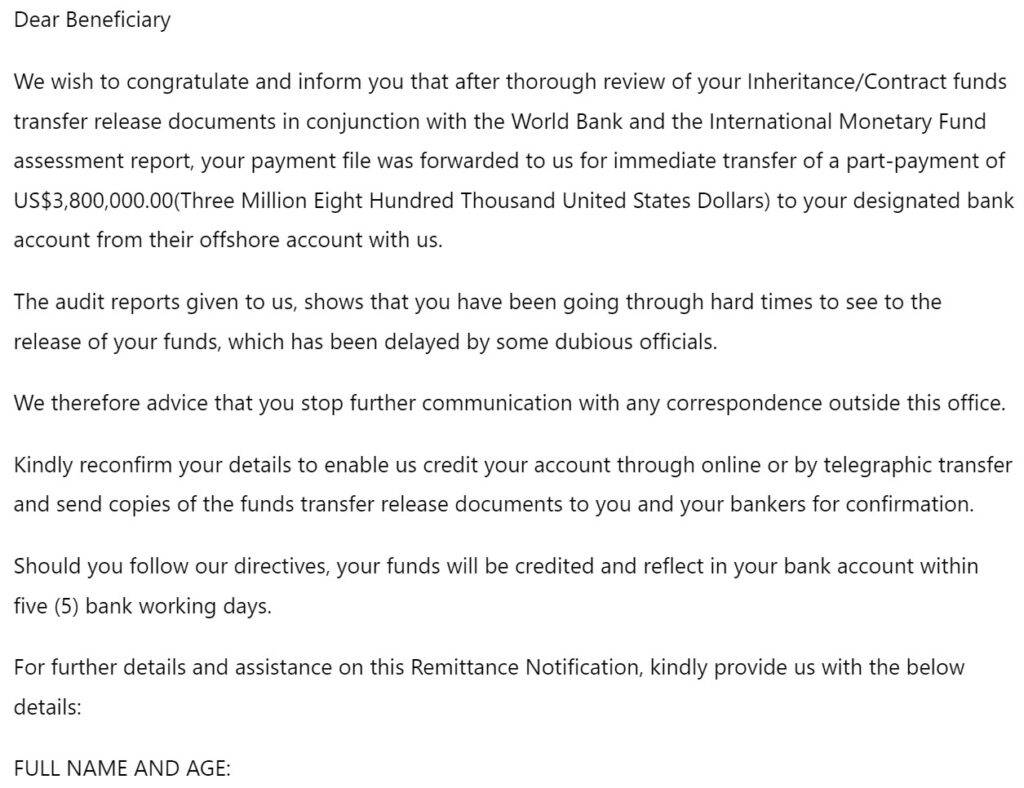
Here is how a typical Beneficiary/Inheritance Scam Email looks:
Dear Beneficiary
We wish to congratulate and inform you that after thorough review of your Inheritance/Contract funds transfer release documents in conjunction with the World Bank and the International Monetary Fund assessment report, your payment file was forwarded to us for immediate transfer of a part-payment of US$3,800,000.00(Three Million Eight Hundred Thousand United States Dollars) to your designated bank account from their offshore account with us.
The audit reports given to us, shows that you have been going through hard times to see to the release of your funds, which has been delayed by some dubious officials.
We therefore advice that you stop further communication with any correspondence outside this office.
Kindly reconfirm your details to enable us credit your account through online or by telegraphic transfer and send copies of the funds transfer release documents to you and your bankers for confirmation.
Should you follow our directives, your funds will be credited and reflect in your bank account within five (5) bank working days.
For further details and assistance on this Remittance Notification, kindly provide us with the below details:
FULL NAME AND AGE:
TELEPHONE AND MOBILE NUMBERS:
FULL CONTACT ADDRESSNagaraj Ramakrishnan
Chief Credit Officer,
Dubai Islamic Bank/EIB
Dubai, United Arab Emirates.
Attn: Beneficiary:
Congratulations!! Your payment has been approved and endorsed, with the instruction and approvals are given from the Authorities Due to the incessant scam activities going around the globe, the Authorities has instructed our Financial Institution to use high Performance in Banking System to set up a Personal Online Banking Account.
The sum of US$15,500,000.00 was deposited in our bank, The Management has resolved to open Personal On-line Banking Account for you with our bank and then give you the on-line access which will enable you to check and make electronics wire transfer out to any part of the world of your choice.
Kindly send the below information to enable us to set the account open for you.
Full Name:………………
Full Address:…………………….
Direct Cellphone Number:……….
PASSPORT AND ID CARDS:……………..
YOUR OCCUPATION………
POSITION………
DATE OF BIRTH…………..Looking forward to your next letter
Regards
Thanks for banking with us,
Mr.Charles Goodman.
A/C Online Payment Officer,
US Capital Bank Branch North Carolina,
United States of America
Dear Friend,
I am pleased to write you this letter for the following reasons:- One
of my clients who died as a result of COVID-19 VIRUS in January, in His Will, left
for someone who bears your surname his entire Cash deposit valued Twenty
One Million Three Hundred Thousand Dollars (US$21,300,000.00). The
truth is that, l do not know if you are the beneficiary or not. l have
tried severally to locate the name on the will without success since l
have contacted you,
Can you please get back to me urgently if you are capable of investing
this fund for any profitable business in your Country, get back to me
for further explanation if you are interested. Please reply to the email below.
Regards
Barr. Tyrone Reid
Private Email: tyronereid@protonmail.com
How does the Beneficiary/Inheritance Scam Email work?
The goal of the beneficiary/inheritance scam email is to trick you into sending money or personal information to the scammers. The email will ask you to contact the sender or another person, such as a lawyer, an agent, or a representative, to claim your money.
Once you do that, the scammers will ask you to provide various information, such as your name, address, phone number, bank account details, or identity documents. They may also ask you to pay a fee or a tax to process your claim. They may give you various reasons for the fee, such as legal fees, transfer charges, clearance fees, or security deposits. They may also tell you that the fee is refundable or that you will receive more money once you pay it. However, if you pay the fee, the scammers will either ask you for more money or stop contacting you altogether. You will never receive the money that was promised to you.
What to do if you have fallen victim to the Beneficiary/Inheritance Scam Email?
If you have fallen victim to the beneficiary/inheritance scam email, here are some steps that you can take:
- Stop all contact with the scammers and do not send them any more money or information.
- Report the scam to your local authorities and your bank or financial institution.
- Change your passwords and security questions for your online accounts and monitor them for any suspicious activity.
- Contact your credit bureau and place a fraud alert on your credit report.
- Seek professional advice from a lawyer or a financial counselor if needed.
Is Your Device Infected? Run a Free Malware Scan
Slow performance, constant pop-ups, or strange behavior? These are classic signs of a malware infection. The fastest way to find out is to scan your device with Malwarebytes Free — one of the most trusted malware removal tools available.
The free version detects and removes the most common threats, including:
- Adware — the cause of those annoying pop-ups
- Browser hijackers — unwanted redirects and changed homepages
- Trojans and spyware — hidden programs stealing your data
- Potentially unwanted programs (PUPs) — software you never asked for
👉 Select your device below — Windows, Mac, or Android — then follow the simple steps to download Malwarebytes, scan your system, and remove any threats it finds. The scan usually takes 5 to 20 minutes.
Run a Malware Scan with Malwarebytes for Windows
Malwarebytes is one of the most popular and trusted anti-malware tools for Windows — and it’s completely free for removing infections. It catches threats that many antivirus programs miss, including adware, browser hijackers, and trojans. Follow the steps below to scan and clean your PC in just a few minutes.
Download Malwarebytes
Click the button below to download the latest version of Malwarebytes for Windows from the official source. The free version is all you need — it will scan your computer and remove adware, browser hijackers, and other malicious software at no cost.
Download MalwarebytesOfficial installer for Windows 11 and 10. Your download starts right away.Want real-time protection? See Malwarebytes Premium Malwarebytes Free for WindowsScans and removes malware at no cost
-
Install Malwarebytes
When the download finishes, open your Downloads folder and double-click the MBSetup file. If Windows shows a User Account Control pop-up, click “Yes” to allow the installation.

Follow the On-Screen Prompts to Install Malwarebytes
The setup wizard will walk you through a few quick screens:
-
Choose where you’re installing the program — “Personal Computer” or “Work Computer” — then click Next.

-
Malwarebytes will now install on your device. This usually takes under a minute.

-
When installation is complete, the “Welcome to Malwarebytes” screen will open automatically.

-
On the final screen, click Open Malwarebytes to launch the program.

-
Enable “Scan for Rootkits”
Before scanning, turn on rootkit detection so Malwarebytes can find even the most hidden threats. Click the Settings gear icon on the left side of the screen.

In the settings menu, find “Scan for rootkits” and click the toggle so it turns blue.

Done? Click “Dashboard” in the left pane to return to the main screen.
Start the Scan
Click the blue Scan button. Malwarebytes will automatically update its virus database and start checking your computer for malware.

-
Wait for the Scan to Finish
The scan checks your entire system for browser hijackers and other malicious programs, so it can take 5 to 20 minutes depending on your computer. Feel free to do something else — just check back occasionally to see the progress.

-
Quarantine the Detected Threats
When the scan is done, you’ll see a list of everything Malwarebytes found — malware, adware, and potentially unwanted programs. Click the “Quarantine” button to remove all of them at once.

Malwarebytes will now remove the malicious files and registry entries and move them safely into quarantine.

-
Restart Your Computer
Some threats can only be fully removed after a reboot. If Malwarebytes asks you to restart, click Yes. Once you’re logged back in, Malwarebytes has finished removing the threats it found.

That’s it — your Windows PC is now clean of trojans, adware, and other malware, and should be back to running smoothly.
If you are still having problems with your computer after completing these instructions, then please follow one of the steps:
- Run a computer scan with ESET Online Scanner
- Ask for help in our Windows Malware Removal Help & Support forum.
Run a Malware Scan with Malwarebytes for Mac
Malwarebytes for Mac is a free on-demand scanner that removes the malware other security software tends to miss — adware, browser hijackers, and unwanted programs included. Cleaning an infected Mac with Malwarebytes has always been completely free, and it’s our go-to recommendation. Follow the steps below to scan and clean your Mac in just a few minutes.
-
Download Malwarebytes for Mac
Click the button below to download the latest version of Malwarebytes for Mac.
Download MalwarebytesOfficial installer for macOS. Your download starts right away.Want real-time protection? See Malwarebytes PremiumMalwarebytes Free for MacScans and removes malware at no cost -
Open the Malwarebytes setup file
When the download finishes, open your Downloads folder and double-click the setup file to begin the installation.

-
Follow the On-Screen Prompts to Install Malwarebytes
The Malwarebytes for Mac Installer will guide you through a few quick screens. Click “Continue” and keep following the prompts until the installation completes.



When the installation is complete, Malwarebytes opens to the Welcome to Malwarebytes screen. Click “Get started“.
-
Select “Personal Computer” or “Work Computer”
Malwarebytes will ask what type of computer you’re installing it on. Click either Personal Computer or Work Computer, whichever applies.

-
Start the Scan
Click the “Scan” button. Malwarebytes will automatically update its detection database and begin checking your Mac for malware.

-
Wait for the Scan to Finish
Malwarebytes will scan your Mac for adware, browser hijackers, and other malicious programs. This can take a few minutes, so feel free to do something else — just check back occasionally to see the progress.

-
Quarantine the Detected Threats
When the scan is done, you’ll see a list of everything Malwarebytes found. Click the “Quarantine” button to remove all the threats at once.

-
Restart Your Mac
Malwarebytes will now remove all the malicious files it found. Some threats can only be fully removed after a reboot — if Malwarebytes asks you to restart, allow it. Once you’re logged back in, your Mac is clean.

That’s it — your Mac is now free of adware, rogue browser extensions, and other potentially harmful software.
If you are still experiencing problems while trying to remove a malicious program from your computer, please ask for help in our Mac Malware Removal Help & Support forum.
Run a Malware Scan with Malwarebytes for Android
Malwarebytes for Android automatically detects and removes dangerous threats like malware and ransomware so you don’t have to worry about your most-used device being compromised. Aggressive detection of adware and potentially unwanted programs keeps your Android phone or tablet running smooth.
-
Download Malwarebytes for Android.
You can download Malwarebytes for Android by clicking the link below.
Get Malwarebytes for AndroidOpens Google Play in a new tab.Want real-time protection? See Malwarebytes Premium for AndroidMalwarebytes for AndroidScans your phone and removes malware at no cost -
Install Malwarebytes for Android on your phone.
In the Google Play Store, tap “Install” to install Malwarebytes for Android on your device.

When the installation process has finished, tap “Open” to begin using Malwarebytes for Android. You can also open Malwarebytes by tapping on its icon in your phone menu or home screen.

-
Follow the on-screen prompts to complete the setup process
When Malwarebytes will open, you will see the Malwarebytes Setup Wizard which will guide you through a series of permissions and other setup options.
This is the first of two screens that explain the difference between the Premium and Free versions. Swipe this screen to continue.
Tap on “Got it” to proceed to the next step.
Malwarebytes for Android will now ask for a set of permissions that are required to scan your device and protect it from malware. Tap on “Give permission” to continue.
Tap on “Allow” to permit Malwarebytes to access the files on your phone.
-
Update database and run a scan with Malwarebytes for Android
You will now be prompted to update the Malwarebytes database and run a full system scan.

Click on “Update database” to update the Malwarebytes for Android definitions to the latest version, then click on “Run full scan” to perform a system scan.

-
Wait for the Malwarebytes scan to complete.
Malwarebytes will now start scanning your phone for adware and other malicious apps. This process can take a few minutes, so we suggest you do something else and periodically check on the status of the scan to see when it is finished.

-
Click on “Remove Selected”.
When the scan has been completed, you will be presented with a screen showing the malware infections that Malwarebytes for Android has detected. To remove the malicious apps that Malwarebytes has found, tap on the “Remove Selected” button.

-
Restart your phone.
Malwarebytes for Android will now remove all the malicious apps that it has found. To complete the malware removal process, Malwarebytes may ask you to restart your device.
That’s it — your Android phone is now clean — no more malicious apps, adware, or browser redirects.
If you are still having problems with your phone after completing these instructions, then please follow one of the steps:
- Restore your phone to factory settings by going to Settings > General management > Reset > Factory data reset.
- Ask for help in our Mobile Malware Removal Help & Support forum.
Stay Protected: Block Ads and Malicious Sites
Now that your device is clean, keep it that way. Most infections start with a malicious ad or a fake download button — so blocking them at the source is your best defense.
We recommend AdGuard, which blocks malicious ads, phishing pages, and dangerous redirects before they can reach you.
👉 Download AdGuard and browse safely
Conclusion
The beneficiary/inheritance scam email is a common and dangerous type of email scam that can cost you a lot of money and trouble. To avoid falling for it, be wary of any unsolicited emails that offer you large sums of money from unknown sources. Do not reply to them or click on any links or attachments. Do not provide any personal or financial information or pay any fees to anyone who claims to be able to help you claim your money. If you are unsure about an email, do some research online or contact the organization that supposedly sent it to verify its authenticity. Remember, if something sounds too good to be true, it probably is.

Join the discussion
0 commentsShare your experience or ask a question about this article.
Discussion
Start the conversation
Have a question or something useful to share? Add the first comment.