

If you’ve stumbled upon Bigsoffers1.com promising you a free Xbox gift card worth $50, $100, or even $250, stop right there. It looks enticing. It sounds legitimate. But it’s anything but that.
This article unpacks the full scope of the Bigsoffers1.com scam, exposes how it works, and explains how to protect yourself and others from falling into similar traps. Let’s break it down so you can see exactly what’s happening behind the curtain.
Scam Overview: What Is Bigsoffers1.com Really
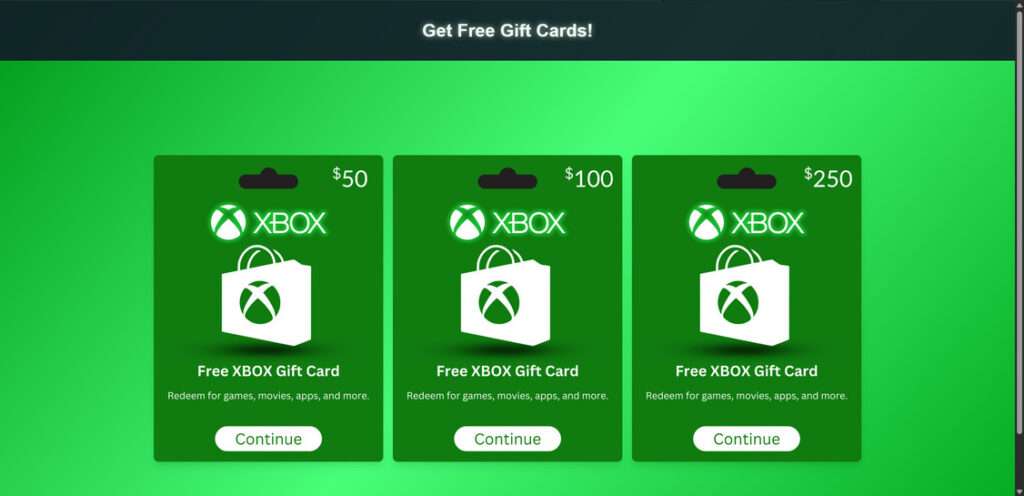
At first glance, Bigsoffers1.com appears to be offering an irresistible deal: free Xbox gift cards simply by using their online generator. The website boasts flashy buttons like:
- “xbox $50 Gift Card“
- “xbox $100 Gift Card“
- “xbox $250 Gift Card“
And to lure users deeper, it claims:
“Get free Xbox gift cards and redeem them for games, movies, apps, and more. Use our Xbox gift card generator to unlock premium features and enjoy exclusive content on Xbox.”
Sounds too good to be true? That’s because it is.
The Red Flags
There are numerous red flags present on the site that indicate fraudulent activity:
- No official affiliation with Microsoft or Xbox: There’s no license or mention of Microsoft authorizing the gift card distribution.
- Unrealistic promises: Offering $250 Xbox gift cards for free is not only implausible—it’s unsustainable.
- Verification loops: The website keeps redirecting users with prompts like “Please verify that you’re human,” leading to shady surveys and downloads.
Affiliate Scam Disguised as a Generator
Behind the curtain, Bigsoffers1.com is operating a classic affiliate marketing scam. These schemes profit by sending users through a maze of affiliate links under the guise of “verifying their identity.” These links lead to survey pages, scam offers, shady downloads, and potential malware infections.
Here’s what really happens:
- The user selects a gift card.
- The generator pretends to “load” a code.
- A screen appears asking for human verification.
- The user is redirected to multiple third-party websites with fake offers.
- Completing these offers fills the scammer’s wallet via affiliate commissions.
- The user never receives a real Xbox gift card.
The Psychological Bait
This scam is tailored to exploit human psychology. Xbox gift cards are a popular digital currency among gamers. Offering them for free attracts:
- Teenagers with limited funds.
- Gamers looking for an easy deal.
- Users unfamiliar with online scams.
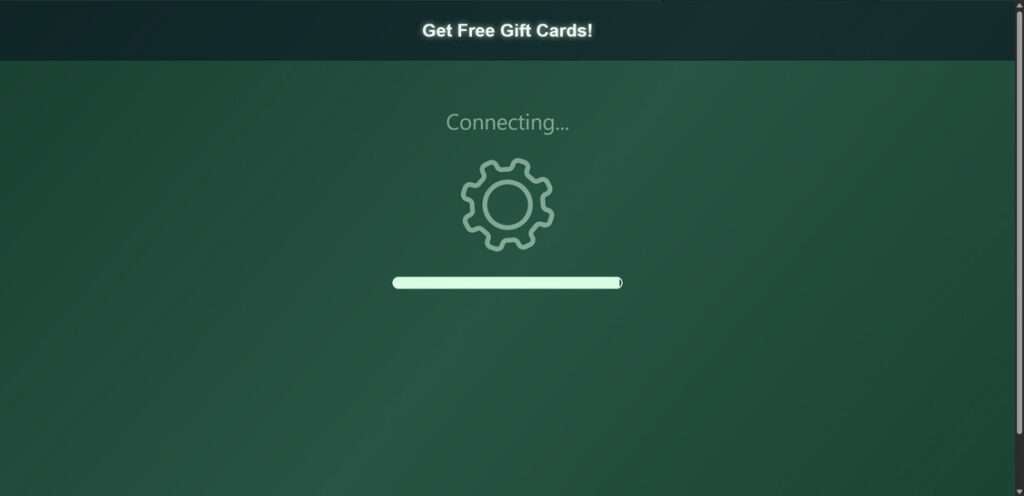
The visual layout is intentionally designed to look credible, with a loading spinner, gear animations, and phrases like:
- “Generating code for Xbox $250…”
- “Too many requests…Please verify.”
- “Waiting for verification.”
All of these create a false sense of progress, making the user feel like they’re just one step away from the prize. In reality, it’s a never-ending loop.
Data Collection and Invasive Tactics
In addition to redirecting you to affiliate sites, Bigsoffers1.com collects your email address. Users are prompted to enter their email supposedly to receive the gift card. That email is then sold to spammers or added to phishing databases.
Some users also report being subscribed to unwanted services with recurring charges or being tricked into downloading malware-laced files or fake PDF readers.
How the Scam Works
Understanding how the Bigsoffers1.com scam unfolds helps protect you and others. Here’s a detailed look at each step of the deceptive funnel:
Step 1: Enticing Clickbait Landing Page
The first thing users see is a page that looks modern and professional. It contains large buttons labeled with Xbox gift card denominations: $50, $100, and $250.
These visuals are paired with lines like:
“Generating code for Xbox $250…”
This creates an illusion of legitimacy and motion.
Step 2: Fake Code Generation Process
Once you select a gift card value, the site shows a fake loading animation. It might say:
- “Loading Gear…”
- “Processing request…”
- “Verifying availability…”
But in reality, no code is being generated. It’s all smoke and mirrors.
Step 3: Human Verification (The Trap)
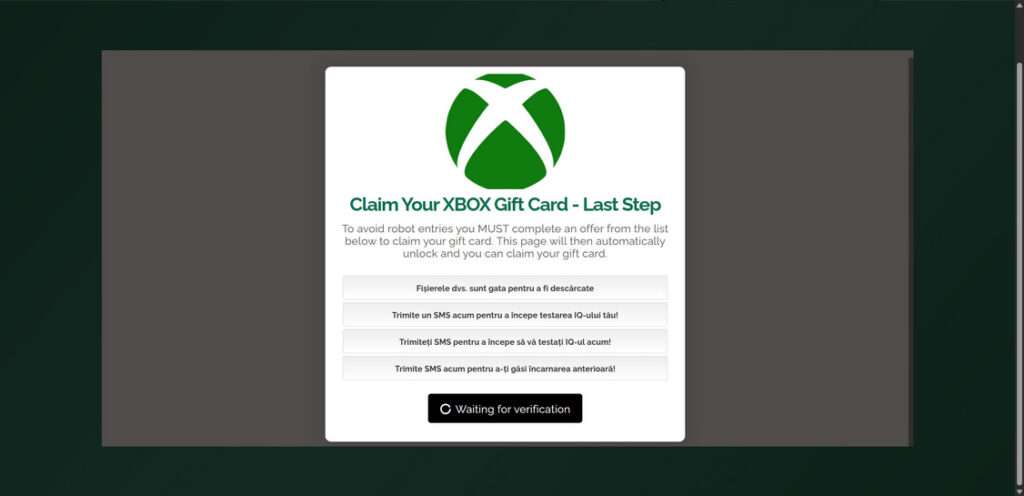
After the loading bar completes, the site claims there’s been too many requests and asks for human verification to prevent bots. Here’s the catch: to verify, users are told to complete one of several “offers.”
The message reads:
“To avoid robot entries, you MUST complete an offer from the list below to claim your gift card.”
Step 4: Redirection to Affiliate Sites
When you click on an offer, you’re redirected to a third-party site, often packed with deceptive ads. These may include:
- Survey completion sites that harvest personal data
- SMS scams prompting users to send messages to premium-rate numbers
- Shady download portals with fake software
- Sites that trick users into entering their credit card details
Each completed offer earns the scammer an affiliate commission. The more people they trick, the more they earn.
Step 5: No Gift Card, Just Trouble
No matter how many offers you complete, the Xbox code is never delivered. Users are stuck in a loop or redirected to unrelated ads.
Meanwhile:
- Your email has been harvested.
- You might have unknowingly subscribed to a paid service.
- Your device could be infected with malware or adware.
Some users report receiving fake files like:
- PDF readers with trojans
- Apps that hijack browser settings
- Installers that enable pop-up floods
What to Do If You Fell Victim to the Bigsoffers1.com Scam
If you’ve interacted with the site, entered your information, or downloaded anything, it’s important to act quickly. Here’s what to do:
1. Stop All Interactions Immediately
Close the site and do not click any further links or offers. Disconnect from the scam’s funnel.
2. Run a Full Security Scan
Use a trusted antivirus or anti-malware tool to check your device. Recommended tools include:
- Malwarebytes
- Windows Defender (for Windows 10+)
- Bitdefender
- Norton 360
3. Change Your Email Password
If you provided your email, change the password immediately. Use a strong combination of letters, numbers, and symbols.
4. Unsubscribe from Premium SMS Services
Check your mobile carrier bill. If you see unusual charges:
- Contact your carrier
- Request to block all premium SMS services
5. Remove Unwanted Programs
Go to your installed programs list and remove anything you don’t recognize. Look for recent installs or anything with vague names.
6. Report the Scam
Reporting helps authorities and prevents others from falling for it.
- FTC Complaint Assistant (USA)
- Internet Crime Complaint Center (IC3)
- eConsumer.gov (International)
- Microsoft Scam Reporting
7. Warn Others
Share your experience on:
- Reddit (r/scams)
- ScamAlert websites
- Social media
The more people know about Bigsoffers1.com, the fewer victims there will be.
Is Your Device Infected? Run a Free Malware Scan
Slow performance, constant pop-ups, or strange behavior? These are classic signs of a malware infection. The fastest way to find out is to scan your device with Malwarebytes Free — one of the most trusted malware removal tools available.
The free version detects and removes the most common threats, including:
- Adware — the cause of those annoying pop-ups
- Browser hijackers — unwanted redirects and changed homepages
- Trojans and spyware — hidden programs stealing your data
- Potentially unwanted programs (PUPs) — software you never asked for
👉 Select your device below — Windows, Mac, or Android — then follow the simple steps to download Malwarebytes, scan your system, and remove any threats it finds. The scan usually takes 5 to 20 minutes.
Run a Malware Scan with Malwarebytes for Windows
Malwarebytes is one of the most popular and trusted anti-malware tools for Windows — and it’s completely free for removing infections. It catches threats that many antivirus programs miss, including adware, browser hijackers, and trojans. Follow the steps below to scan and clean your PC in just a few minutes.
Download Malwarebytes
Click the button below to download the latest version of Malwarebytes for Windows from the official source. The free version is all you need — it will scan your computer and remove adware, browser hijackers, and other malicious software at no cost.
Download MalwarebytesOfficial installer for Windows 11 and 10. Your download starts right away.Want real-time protection? See Malwarebytes Premium Malwarebytes Free for WindowsScans and removes malware at no cost
-
Install Malwarebytes
When the download finishes, open your Downloads folder and double-click the MBSetup file. If Windows shows a User Account Control pop-up, click “Yes” to allow the installation.

Follow the On-Screen Prompts to Install Malwarebytes
The setup wizard will walk you through a few quick screens:
-
Choose where you’re installing the program — “Personal Computer” or “Work Computer” — then click Next.

-
Malwarebytes will now install on your device. This usually takes under a minute.

-
When installation is complete, the “Welcome to Malwarebytes” screen will open automatically.

-
On the final screen, click Open Malwarebytes to launch the program.

-
Enable “Scan for Rootkits”
Before scanning, turn on rootkit detection so Malwarebytes can find even the most hidden threats. Click the Settings gear icon on the left side of the screen.

In the settings menu, find “Scan for rootkits” and click the toggle so it turns blue.

Done? Click “Dashboard” in the left pane to return to the main screen.
Start the Scan
Click the blue Scan button. Malwarebytes will automatically update its virus database and start checking your computer for malware.

-
Wait for the Scan to Finish
The scan checks your entire system for browser hijackers and other malicious programs, so it can take 5 to 20 minutes depending on your computer. Feel free to do something else — just check back occasionally to see the progress.

-
Quarantine the Detected Threats
When the scan is done, you’ll see a list of everything Malwarebytes found — malware, adware, and potentially unwanted programs. Click the “Quarantine” button to remove all of them at once.

Malwarebytes will now remove the malicious files and registry entries and move them safely into quarantine.

-
Restart Your Computer
Some threats can only be fully removed after a reboot. If Malwarebytes asks you to restart, click Yes. Once you’re logged back in, Malwarebytes has finished removing the threats it found.

That’s it — your Windows PC is now clean of trojans, adware, and other malware, and should be back to running smoothly.
If you are still having problems with your computer after completing these instructions, then please follow one of the steps:
- Run a computer scan with ESET Online Scanner
- Ask for help in our Windows Malware Removal Help & Support forum.
Run a Malware Scan with Malwarebytes for Mac
Malwarebytes for Mac is a free on-demand scanner that removes the malware other security software tends to miss — adware, browser hijackers, and unwanted programs included. Cleaning an infected Mac with Malwarebytes has always been completely free, and it’s our go-to recommendation. Follow the steps below to scan and clean your Mac in just a few minutes.
-
Download Malwarebytes for Mac
Click the button below to download the latest version of Malwarebytes for Mac.
Download MalwarebytesOfficial installer for macOS. Your download starts right away.Want real-time protection? See Malwarebytes PremiumMalwarebytes Free for MacScans and removes malware at no cost -
Open the Malwarebytes setup file
When the download finishes, open your Downloads folder and double-click the setup file to begin the installation.

-
Follow the On-Screen Prompts to Install Malwarebytes
The Malwarebytes for Mac Installer will guide you through a few quick screens. Click “Continue” and keep following the prompts until the installation completes.



When the installation is complete, Malwarebytes opens to the Welcome to Malwarebytes screen. Click “Get started“.
-
Select “Personal Computer” or “Work Computer”
Malwarebytes will ask what type of computer you’re installing it on. Click either Personal Computer or Work Computer, whichever applies.

-
Start the Scan
Click the “Scan” button. Malwarebytes will automatically update its detection database and begin checking your Mac for malware.

-
Wait for the Scan to Finish
Malwarebytes will scan your Mac for adware, browser hijackers, and other malicious programs. This can take a few minutes, so feel free to do something else — just check back occasionally to see the progress.

-
Quarantine the Detected Threats
When the scan is done, you’ll see a list of everything Malwarebytes found. Click the “Quarantine” button to remove all the threats at once.

-
Restart Your Mac
Malwarebytes will now remove all the malicious files it found. Some threats can only be fully removed after a reboot — if Malwarebytes asks you to restart, allow it. Once you’re logged back in, your Mac is clean.

That’s it — your Mac is now free of adware, rogue browser extensions, and other potentially harmful software.
If you are still experiencing problems while trying to remove a malicious program from your computer, please ask for help in our Mac Malware Removal Help & Support forum.
Run a Malware Scan with Malwarebytes for Android
Malwarebytes for Android automatically detects and removes dangerous threats like malware and ransomware so you don’t have to worry about your most-used device being compromised. Aggressive detection of adware and potentially unwanted programs keeps your Android phone or tablet running smooth.
-
Download Malwarebytes for Android.
You can download Malwarebytes for Android by clicking the link below.
Get Malwarebytes for AndroidOpens Google Play in a new tab.Want real-time protection? See Malwarebytes Premium for AndroidMalwarebytes for AndroidScans your phone and removes malware at no cost -
Install Malwarebytes for Android on your phone.
In the Google Play Store, tap “Install” to install Malwarebytes for Android on your device.

When the installation process has finished, tap “Open” to begin using Malwarebytes for Android. You can also open Malwarebytes by tapping on its icon in your phone menu or home screen.

-
Follow the on-screen prompts to complete the setup process
When Malwarebytes will open, you will see the Malwarebytes Setup Wizard which will guide you through a series of permissions and other setup options.
This is the first of two screens that explain the difference between the Premium and Free versions. Swipe this screen to continue.
Tap on “Got it” to proceed to the next step.
Malwarebytes for Android will now ask for a set of permissions that are required to scan your device and protect it from malware. Tap on “Give permission” to continue.
Tap on “Allow” to permit Malwarebytes to access the files on your phone.
-
Update database and run a scan with Malwarebytes for Android
You will now be prompted to update the Malwarebytes database and run a full system scan.

Click on “Update database” to update the Malwarebytes for Android definitions to the latest version, then click on “Run full scan” to perform a system scan.

-
Wait for the Malwarebytes scan to complete.
Malwarebytes will now start scanning your phone for adware and other malicious apps. This process can take a few minutes, so we suggest you do something else and periodically check on the status of the scan to see when it is finished.

-
Click on “Remove Selected”.
When the scan has been completed, you will be presented with a screen showing the malware infections that Malwarebytes for Android has detected. To remove the malicious apps that Malwarebytes has found, tap on the “Remove Selected” button.

-
Restart your phone.
Malwarebytes for Android will now remove all the malicious apps that it has found. To complete the malware removal process, Malwarebytes may ask you to restart your device.
That’s it — your Android phone is now clean — no more malicious apps, adware, or browser redirects.
If you are still having problems with your phone after completing these instructions, then please follow one of the steps:
- Restore your phone to factory settings by going to Settings > General management > Reset > Factory data reset.
- Ask for help in our Mobile Malware Removal Help & Support forum.
Stay Protected: Block Ads and Malicious Sites
Now that your device is clean, keep it that way. Most infections start with a malicious ad or a fake download button — so blocking them at the source is your best defense.
We recommend AdGuard, which blocks malicious ads, phishing pages, and dangerous redirects before they can reach you.
👉 Download AdGuard and browse safely
Frequently Asked Questions (FAQ) About the Bigsoffers1.com Xbox Gift Card Scam
1. Is Bigsoffers1.com a legitimate website?
No, Bigsoffers1.com is not legitimate. Despite its claims of offering free Xbox gift cards, it is a scam that uses deceptive tactics to collect user data, redirect traffic through affiliate links, and potentially install harmful software on your device.
2. How does the Bigsoffers1.com scam work?
The site pretends to generate Xbox codes but instead leads users through a “human verification” process. This redirects victims to shady websites, surveys, or fake download pages. It earns revenue through affiliate links while providing nothing in return.
3. Why does Bigsoffers1.com ask me to complete offers or verify I’m human?
The “verification” step is just a way to funnel users into completing affiliate offers. These offers make money for the scam operators every time someone clicks or submits information. There is no actual verification or gift card at the end.
4. What happens if I enter my email on the site?
If you enter your email, you may:
- Start receiving spam or phishing emails
- Be added to marketing databases
- Be targeted for other scams
Always avoid sharing personal information on unverified sites.
5. Can I really get a free $250 Xbox gift card from this site?
No. The promise of free $250 Xbox gift cards is fake. Microsoft does not give away gift cards through random generator sites. Any platform claiming otherwise should be treated as a scam.
6. Will I get a virus from visiting Bigsoffers1.com?
Possibly. While visiting the site alone might not infect your device, downloading files or apps from the redirect pages can lead to malware, adware, or browser hijackers. Always run a full system scan if you interacted with the site.
7. What should I do if I already downloaded something from the site?
Immediately:
- Run a full antivirus and anti-malware scan
- Delete any suspicious programs or files
- Reset your browser settings
- Monitor your system for performance issues or pop-ups
8. Are there legal consequences for using a fake code generator?
Yes. Attempting to redeem codes obtained through fraudulent means—even unknowingly—can violate Microsoft’s terms of service. At best, your account could be suspended. At worst, you could face legal action if involved in distributing or promoting these scams.
9. Is this the only site doing this kind of scam?
No. There are dozens, if not hundreds, of similar scams online targeting gamers. Most use the same script or interface, just with different branding or game platforms (like PlayStation, Steam, or Roblox). Always verify the legitimacy of a site before engaging.
10. How can I safely get Xbox gift cards online?
Buy Xbox gift cards only from trusted sources such as:
- Microsoft’s official store
- Amazon
- Walmart
- Best Buy
- Target
Avoid third-party websites claiming to offer free codes.
The Bottom Line
Bigsoffers1.com is not a legitimate source of Xbox gift cards—it’s a dangerous scam. Behind the sleek interface lies a web of affiliate tricks, data harvesting, and potentially malicious downloads. No free Xbox code is ever delivered.
Stay safe, stay skeptical, and remember: if it sounds too good to be true, it usually is.
Have you encountered a similar scam? Share your experience and help others avoid the trap.

Reviews & discussion
2 commentsShare a firsthand experience, or ask a question.
Community reviews
bigsoffers1.com
Moderated reader experiences, not an editorial verdict.
free xbox gift cards codes pls
In reply to nursultan jakbento
There are no free Xbox gift card codes, and every site, video or generator offering them is a scam. They exist to take a payment, to harvest your Microsoft login, or to make you complete endless “offers” that earn the operator money and pay you nothing. A working code has real cash value, so nobody gives them away – if a generator could produce them, the person running it would use them rather than post the link.
A few things that are genuinely free, if it helps: Microsoft Rewards inside the Xbox app pays points for searches and quests that convert into store credit, slowly but really; Games with Gold and the monthly free games on Game Pass cost nothing extra; and there are always free-to-play titles like Fortnite and Rocket League.
And if you have already entered your Microsoft password on one of these sites, change it now and turn on two-step verification, because account theft is the main business those sites are actually in.