

An email says a hidden hardware defect may have weakened the secret protecting your cryptocurrency. The warning is technical, specific, and difficult to dismiss.
Its proposed safety check seems reassuring until the page asks for information that no genuine security test should ever need.
Overview
What is the BitBox entropy vulnerability email scam?
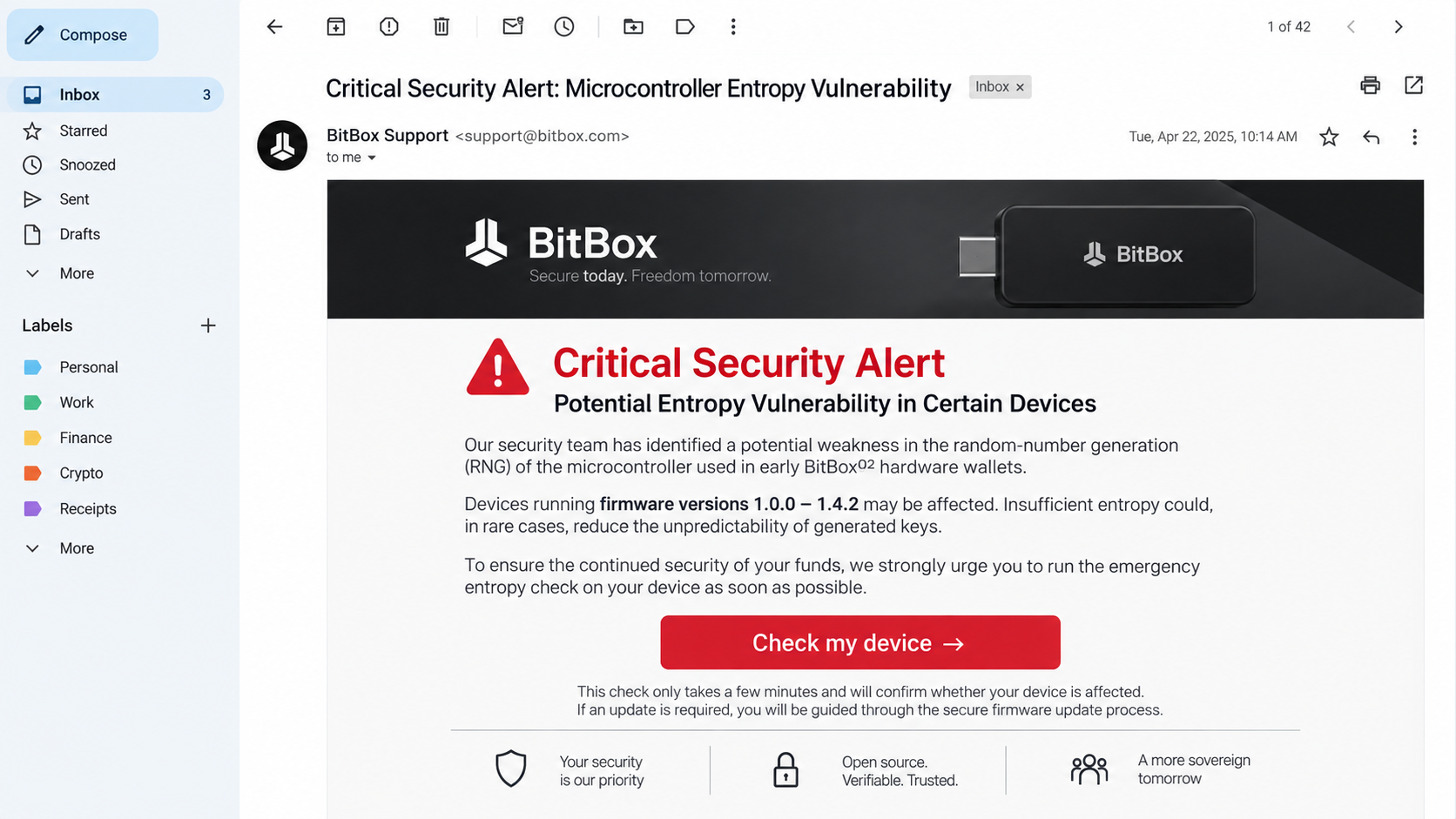
The BitBox entropy vulnerability email scam is a phishing campaign that invents a hardware-wallet flaw and directs recipients to a fake security check.
The message may use subjects such as “Critical Security Alert: Microcontroller Entropy Vulnerability” or “Microcontroller Entropy Bug Identified.”
Its destination asks for recovery words. Those words are the master secret controlling the wallet, not diagnostic information for testing a microcontroller.
Why the message can pass normal email checks
Reports indicate the campaign was distributed through legitimate newsletter infrastructure after a service provider was likely compromised.
That can allow a malicious message to pass SPF, DKIM, and DMARC checks. Those controls authenticate sending infrastructure, not the truth of every message.
BitBox’s official community update described the provider compromise as a likely explanation while the incident was being investigated. That distinction should remain clear.
What the attacker is trying to steal
The objective is the recovery phrase, sometimes called seed words or a wallet backup. Anyone holding it can recreate the wallet elsewhere.
A local device password, fingerprint, or hardware-wallet PIN cannot protect funds after the recovery phrase reaches an attacker.
- The email invents a microcontroller entropy or random-number defect.
- Specific firmware versions create a believable affected group.
- An emergency checker is offered through an email link.
- The landing page asks for 12, 18, or 24 recovery words.
- Urgency is tied to possible loss of cryptocurrency.
- A submitted phrase can lead to rapid wallet draining.
Entropy Sounds Technical Because It Is Technical
Entropy describes unpredictability used when generating cryptographic secrets. Poor randomness can produce keys that attackers might guess more easily than intended.
That is a real security concept. The scam borrows correct vocabulary so its invented diagnosis sounds like an expert disclosure rather than ordinary phishing.
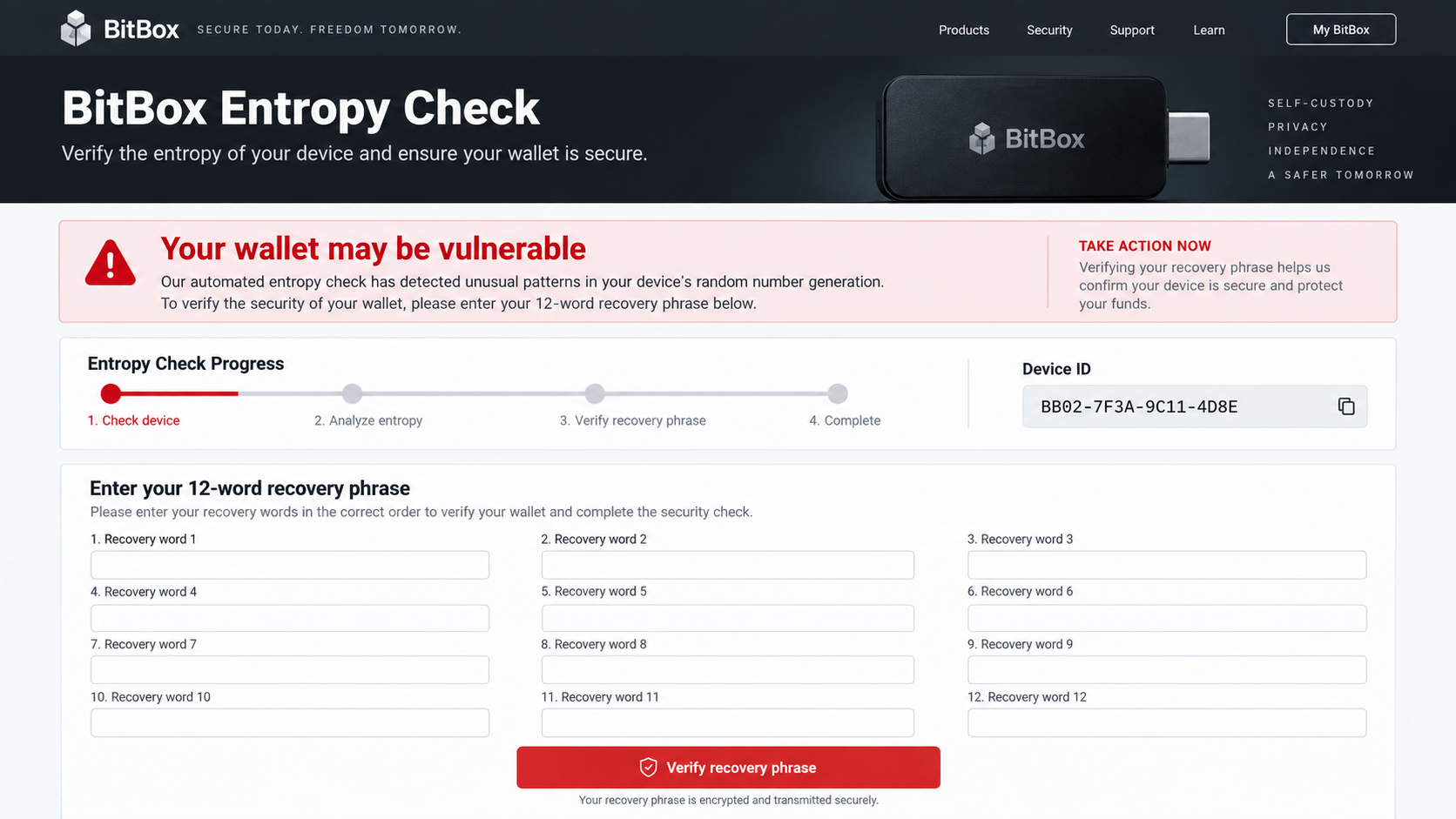
A user cannot prove wallet entropy by typing the recovery phrase into a website. Doing so reveals the very secret the wallet protects.
Legitimate wallet verification happens through trusted software, signed firmware, reproducible technical information, and device-controlled operations.
A vendor can publish an advisory, version guidance, or migration procedure without collecting recovery words through a browser form.
The important question is not whether an entropy flaw could exist in theory. It is whether the requested action follows safe wallet architecture.
How the BitBox Entropy Vulnerability Email Scam Works
Step 1: A trusted mailing channel delivers the warning
The email may arrive from infrastructure previously used for genuine newsletters. It can therefore look more credible than a message from a random mailbox.
Sender authentication may pass because the attacker abused an authorized system. A successful DMARC result cannot prove that the campaign was approved.
Recipients who know basic phishing advice may lower their guard after seeing a familiar sender and normal authentication results.
Step 2: A technical hardware story creates fear
The message claims a microcontroller generated insufficient randomness for certain devices or firmware releases, leaving private keys predictable.
Firmware numbers, device generations, cryptographic terms, and security language make the alert feel carefully researched.
The story targets a hardware-wallet owner’s deepest concern: that funds could be stolen despite keeping the device offline.
Step 3: The email offers an urgent entropy check
A button promises to determine whether the specific device is affected. The check is described as fast, private, encrypted, or automatic.
The destination may copy product photographs, typography, navigation, documentation links, and support language from the genuine brand.
A padlock in the browser only confirms an encrypted connection to that domain. It does not confirm who operates the page.
Step 4: The fake page produces a predetermined risk result
The site may show a progress bar, device identifier, test animation, or warning that suspicious entropy patterns were detected.
No meaningful analysis needs to occur. The interface can display the same vulnerable result to every visitor.
A countdown or escalating alert makes leaving the page feel dangerous. The attacker wants the victim to act before consulting official support.
Step 5: Recovery words are requested as verification
The page presents fields for each word and claims they are required to regenerate, secure, migrate, or inspect the wallet.
Any online recovery-phrase request is conclusive evidence of danger. The phrase should remain offline and under the owner’s exclusive control.
Statements about encryption, local processing, or immediate deletion cannot be trusted when the website itself is controlled by an unknown operator.
Step 6: The phrase is used to recreate the wallet
After submission, the attacker can import the recovery phrase into compatible wallet software without possessing the original hardware device.
Automated monitoring may detect balances across several networks. Funds can then move quickly to addresses controlled by the criminal.
The fake page may show success or redirect to a real BitBox resource, delaying recognition while transfers begin.
Step 7: Follow-up fraud targets the exposed owner
Victims may receive messages from fake support agents, investigators, wallet-recovery companies, or exchanges claiming the stolen assets can be recovered.
These contacts may already know the email address, wallet brand, incident story, and approximate loss, making their approach unusually convincing.
No recovery agent needs another seed phrase or advance cryptocurrency payment. A second request is another threat, not assistance.
Why SPF, DKIM, and DMARC Did Not Make the Email Safe
SPF identifies which servers may send mail for a domain. DKIM verifies a cryptographic signature added by authorized sending infrastructure.
DMARC defines how receiving systems handle alignment failures and reports. Together, these controls are valuable protection against many forms of address spoofing.
They cannot prevent an attacker from using an already authorized newsletter account, stolen platform credentials, or a compromised service provider.
In that situation, the malicious message can be technically authentic to the sending system while remaining unauthorized by the brand being impersonated.
This is why users must evaluate both origin and requested action. A trusted delivery path cannot make an unsafe recovery-phrase form legitimate.
Organizations should also treat third-party mailing systems as privileged assets. Strong authentication, limited access, logging, and rapid revocation are essential.
The Recovery Phrase Rule That Overrides Everything Else
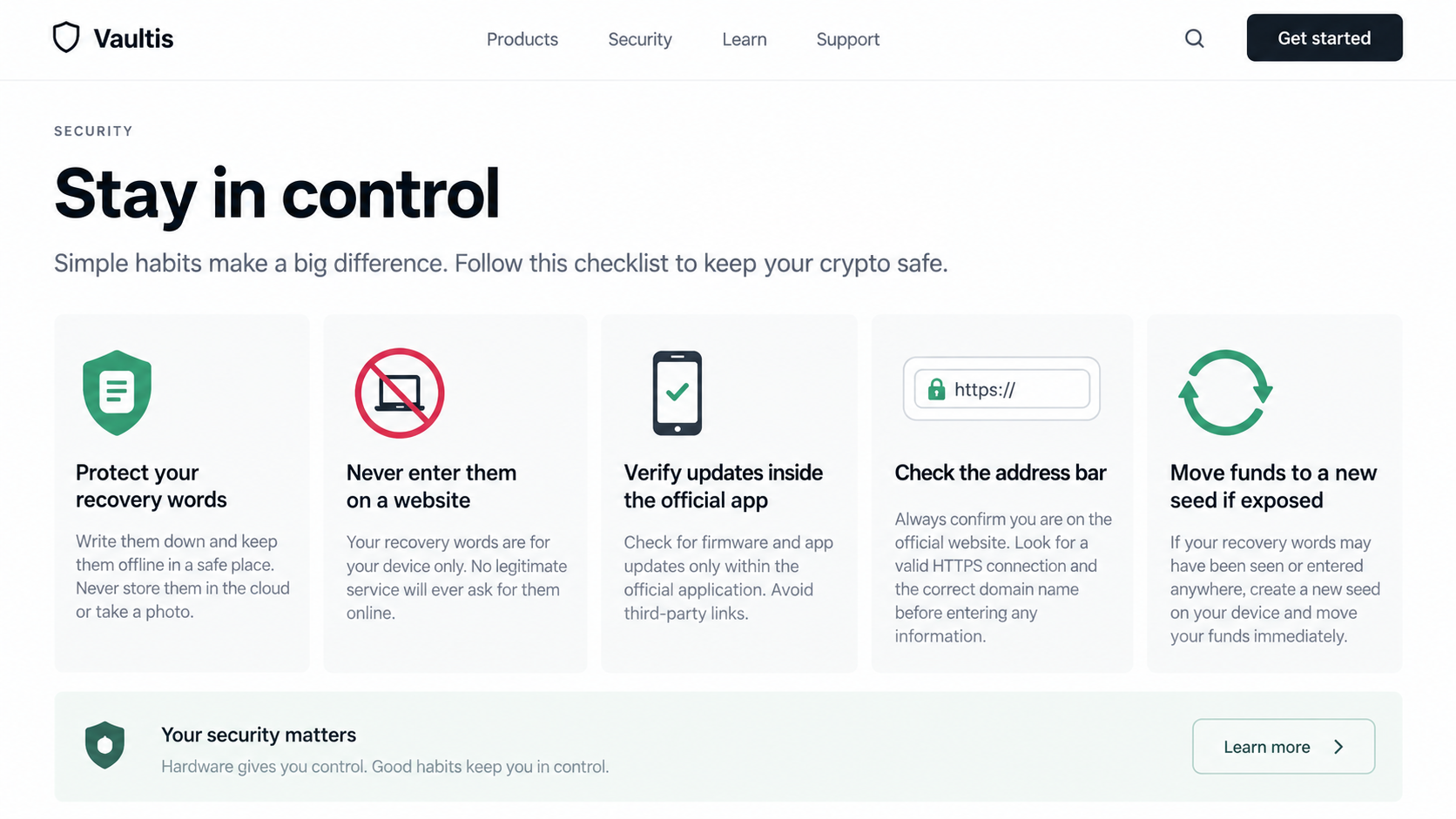
Never enter hardware-wallet recovery words into a website, support chat, email form, cloud document, survey, or browser-based security checker.
Do not photograph the phrase or store it in ordinary cloud notes. An image or synchronized document can escape the hardware wallet’s protection.
Legitimate restoration occurs only when the owner deliberately uses trusted wallet hardware or verified software according to official instructions.
A public wallet address can receive funds and can be shared when appropriate. The recovery phrase is different because it grants spending control.
No employee, investigator, exchange, support agent, giveaway, firmware update, or vulnerability response needs those words to protect your assets.
If the phrase was typed anywhere online, assume it was copied. Waiting for visible theft gives the attacker more time.
How to Verify a Genuine Hardware-Wallet Advisory
Begin inside the official wallet application or a bookmark established before the alert. Do not use the email button to reach verification.
Look for a dated advisory identifying affected products, versions, technical impact, and a remedy that respects the wallet’s security model.
Check whether verified support channels publish the same information. Major hardware issues rarely exist on only one linked webpage.
Review signed firmware releases and release notes. A genuine update arrives through the vendor’s recognized process, not a browser phrase form.
Security researchers may publish independent analysis. Their work should describe reproducible evidence, responsible disclosure, and technical boundaries rather than a payment opportunity.
Contact support with public information only. A device model, firmware version, order reference, and public address do not justify revealing recovery words.
Ask what the remedy would be if the phrase were unavailable. Any legitimate process must accommodate users who correctly keep backups offline.
Beware of search advertisements for support. Attackers purchase ads that appear above genuine results and route anxious owners to counterfeit services.
Use a second device to compare domains and announcements. Separating research from the potentially malicious page reduces accidental interaction.
If uncertainty remains, leave funds untouched while consulting trusted official guidance. Urgency inside the email cannot replace technical confirmation.
Never perform a migration while screen sharing with an unsolicited helper. Visible addresses, balances, codes, and recovery steps can all be exploited.
Company, Address, and Fulfillment Checks
BitBox is real, but the security page may not be
The genuine BitBox brand and hardware products are not the scam. Criminals are impersonating them to exploit existing customer trust.
Open the official app or type the known company address independently. Do not reach support through the warning email.
The domain must belong to the verified company
Inspect every hostname character. Lookalike words, added security terms, alternate endings, redirect services, and unrelated page builders expose counterfeit destinations.
Contact information displayed inside a fake page is not independent evidence. Use details from the official application, packaging, or established website.
The technical advisory must exist outside the message
A critical hardware flaw would normally produce signed releases, public documentation, support guidance, and discussion across established company channels.
If the alert exists only inside one email and its linked page, the recipient has no independent confirmation.
Fulfillment means a safe, vendor-documented remedy
A legitimate remedy may involve verified firmware, a device replacement, or moving funds through a procedure that never sends recovery words to a website.
A success screen after phrase submission is not security fulfillment. It merely confirms that the attacker’s form received valuable input.
Warning Signs in the Fake Alert
- An unexpected email announces a catastrophic wallet flaw.
- The subject uses technical language to demand immediate action.
- The link opens a website outside the known company domain.
- A browser tool claims it can inspect hardware randomness remotely.
- The page always reports that the device is vulnerable.
- The form asks for recovery words in their original order.
- Encryption claims are offered as permission to reveal the phrase.
- A timer threatens imminent loss if verification is delayed.
- Support refuses to communicate through the official application.
- The remedy does not appear in independent company guidance.
Do not continue merely because the sender address looks correct. Compromised infrastructure can produce messages that pass authentication and arrive in the normal inbox.
Do not connect the wallet to test the page. A malicious site may request signatures or approvals even when it never asks for words.
Moving Funds After a Seed Phrase Exposure
Prepare the new wallet on a clean device using verified software. Write the new recovery words offline and never photograph or synchronize them.
Confirm that the destination address belongs to the new wallet. Compare it on the trusted hardware display, not only inside a browser window.
Move the most valuable and transferable assets first. Account for network fees and avoid leaving tokens stranded because the old wallet lacks fee currency.
Non-fungible tokens, staked assets, and positions in decentralized protocols may require separate transfers or withdrawal procedures. Inventory every network carefully.
Revoke approvals associated with the old address when practical. An approval does not reveal the new seed, but it can expose assets left behind.
Do not announce the migration publicly. A scammer monitoring the old wallet may accelerate theft after seeing test transactions.
Consider a small verified transfer when network conditions allow, then move the remaining balance promptly after confirming receipt on the trusted device.
Keep transaction hashes and times for reporting. Blockchain records are public, but investigators still need context connecting addresses to the phishing incident.
The old phrase should never protect future deposits. Even if funds survive today, the attacker can continue monitoring that wallet indefinitely.
What to Do if You Have Fallen Victim to This Scam
- Disconnect from the phishing page. Do not submit another phrase, connect another wallet, sign a transaction, or contact support shown on that site.
- Treat the recovery phrase as permanently compromised. Create a fresh wallet with new recovery words using trusted hardware and verified official software.
- Move remaining assets promptly. Verify receiving addresses on the trusted device and prioritize valuable, liquid assets before the attacker transfers them.
- Revoke token approvals and connected applications where relevant. Use reputable network explorers and official wallet guidance from a clean device.
- Contact BitBox through its official support route. Share the email headers, destination domain, screenshots, and timeline without revealing any recovery phrase.
- Notify exchanges if stolen funds move through identifiable services. Provide transaction hashes, wallet addresses, network names, times, and a police report when available.
- Preserve evidence. Save the original email, headers, URLs, browser history, transactions, support messages, and any files downloaded during the incident.
- Change exposed email passwords and review sessions. A compromised mailing campaign may be followed by targeted account-reset attempts.
- Run a full Malwarebytes scan if the page delivered software, a browser extension, a mobile profile, or any file that was opened.
- Use AdGuard to block known phishing domains, malicious advertisements, and redirects. Never depend on filtering as permission to share recovery words.
- Report the phishing page to the hosting provider, browser safe-browsing service, mail provider, and appropriate cybercrime authority.
- Ignore recovery agents who promise blockchain reversal. Upfront fees, new seed requests, and remote-access demands are signs of another scam.
Is Your Device Infected? Run a Free Malware Scan
Slow performance, constant pop-ups, or strange behavior? These are classic signs of a malware infection. The fastest way to find out is to scan your device with Malwarebytes Free — one of the most trusted malware removal tools available.
The free version detects and removes the most common threats, including:
- Adware — the cause of those annoying pop-ups
- Browser hijackers — unwanted redirects and changed homepages
- Trojans and spyware — hidden programs stealing your data
- Potentially unwanted programs (PUPs) — software you never asked for
👉 Select your device below — Windows, Mac, or Android — then follow the simple steps to download Malwarebytes, scan your system, and remove any threats it finds. The scan usually takes 5 to 20 minutes.
Run a Malware Scan with Malwarebytes for Windows
Malwarebytes is one of the most popular and trusted anti-malware tools for Windows — and it’s completely free for removing infections. It catches threats that many antivirus programs miss, including adware, browser hijackers, and trojans. Follow the steps below to scan and clean your PC in just a few minutes.
Download Malwarebytes
Click the button below to download the latest version of Malwarebytes for Windows from the official source. The free version is all you need — it will scan your computer and remove adware, browser hijackers, and other malicious software at no cost.
Download MalwarebytesOfficial installer for Windows 11 and 10. Your download starts right away.Want real-time protection? See Malwarebytes Premium Malwarebytes Free for WindowsScans and removes malware at no cost
-
Install Malwarebytes
When the download finishes, open your Downloads folder and double-click the MBSetup file. If Windows shows a User Account Control pop-up, click “Yes” to allow the installation.

Follow the On-Screen Prompts to Install Malwarebytes
The setup wizard will walk you through a few quick screens:
-
Choose where you’re installing the program — “Personal Computer” or “Work Computer” — then click Next.

-
Malwarebytes will now install on your device. This usually takes under a minute.

-
When installation is complete, the “Welcome to Malwarebytes” screen will open automatically.

-
On the final screen, click Open Malwarebytes to launch the program.

-
Enable “Scan for Rootkits”
Before scanning, turn on rootkit detection so Malwarebytes can find even the most hidden threats. Click the Settings gear icon on the left side of the screen.

In the settings menu, find “Scan for rootkits” and click the toggle so it turns blue.

Done? Click “Dashboard” in the left pane to return to the main screen.
Start the Scan
Click the blue Scan button. Malwarebytes will automatically update its virus database and start checking your computer for malware.

-
Wait for the Scan to Finish
The scan checks your entire system for browser hijackers and other malicious programs, so it can take 5 to 20 minutes depending on your computer. Feel free to do something else — just check back occasionally to see the progress.

-
Quarantine the Detected Threats
When the scan is done, you’ll see a list of everything Malwarebytes found — malware, adware, and potentially unwanted programs. Click the “Quarantine” button to remove all of them at once.

Malwarebytes will now remove the malicious files and registry entries and move them safely into quarantine.

-
Restart Your Computer
Some threats can only be fully removed after a reboot. If Malwarebytes asks you to restart, click Yes. Once you’re logged back in, Malwarebytes has finished removing the threats it found.

That’s it — your Windows PC is now clean of trojans, adware, and other malware, and should be back to running smoothly.
If you are still having problems with your computer after completing these instructions, then please follow one of the steps:
- Run a computer scan with ESET Online Scanner
- Ask for help in our Windows Malware Removal Help & Support forum.
Run a Malware Scan with Malwarebytes for Mac
Malwarebytes for Mac is a free on-demand scanner that removes the malware other security software tends to miss — adware, browser hijackers, and unwanted programs included. Cleaning an infected Mac with Malwarebytes has always been completely free, and it’s our go-to recommendation. Follow the steps below to scan and clean your Mac in just a few minutes.
-
Download Malwarebytes for Mac
Click the button below to download the latest version of Malwarebytes for Mac.
Download MalwarebytesOfficial installer for macOS. Your download starts right away.Want real-time protection? See Malwarebytes PremiumMalwarebytes Free for MacScans and removes malware at no cost -
Open the Malwarebytes setup file
When the download finishes, open your Downloads folder and double-click the setup file to begin the installation.

-
Follow the On-Screen Prompts to Install Malwarebytes
The Malwarebytes for Mac Installer will guide you through a few quick screens. Click “Continue” and keep following the prompts until the installation completes.



When the installation is complete, Malwarebytes opens to the Welcome to Malwarebytes screen. Click “Get started“.
-
Select “Personal Computer” or “Work Computer”
Malwarebytes will ask what type of computer you’re installing it on. Click either Personal Computer or Work Computer, whichever applies.

-
Start the Scan
Click the “Scan” button. Malwarebytes will automatically update its detection database and begin checking your Mac for malware.

-
Wait for the Scan to Finish
Malwarebytes will scan your Mac for adware, browser hijackers, and other malicious programs. This can take a few minutes, so feel free to do something else — just check back occasionally to see the progress.

-
Quarantine the Detected Threats
When the scan is done, you’ll see a list of everything Malwarebytes found. Click the “Quarantine” button to remove all the threats at once.

-
Restart Your Mac
Malwarebytes will now remove all the malicious files it found. Some threats can only be fully removed after a reboot — if Malwarebytes asks you to restart, allow it. Once you’re logged back in, your Mac is clean.

That’s it — your Mac is now free of adware, rogue browser extensions, and other potentially harmful software.
If you are still experiencing problems while trying to remove a malicious program from your computer, please ask for help in our Mac Malware Removal Help & Support forum.
Run a Malware Scan with Malwarebytes for Android
Malwarebytes for Android automatically detects and removes dangerous threats like malware and ransomware so you don’t have to worry about your most-used device being compromised. Aggressive detection of adware and potentially unwanted programs keeps your Android phone or tablet running smooth.
-
Download Malwarebytes for Android.
You can download Malwarebytes for Android by clicking the link below.
Get Malwarebytes for AndroidOpens Google Play in a new tab.Want real-time protection? See Malwarebytes Premium for AndroidMalwarebytes for AndroidScans your phone and removes malware at no cost -
Install Malwarebytes for Android on your phone.
In the Google Play Store, tap “Install” to install Malwarebytes for Android on your device.

When the installation process has finished, tap “Open” to begin using Malwarebytes for Android. You can also open Malwarebytes by tapping on its icon in your phone menu or home screen.

-
Follow the on-screen prompts to complete the setup process
When Malwarebytes will open, you will see the Malwarebytes Setup Wizard which will guide you through a series of permissions and other setup options.
This is the first of two screens that explain the difference between the Premium and Free versions. Swipe this screen to continue.
Tap on “Got it” to proceed to the next step.
Malwarebytes for Android will now ask for a set of permissions that are required to scan your device and protect it from malware. Tap on “Give permission” to continue.
Tap on “Allow” to permit Malwarebytes to access the files on your phone.
-
Update database and run a scan with Malwarebytes for Android
You will now be prompted to update the Malwarebytes database and run a full system scan.

Click on “Update database” to update the Malwarebytes for Android definitions to the latest version, then click on “Run full scan” to perform a system scan.

-
Wait for the Malwarebytes scan to complete.
Malwarebytes will now start scanning your phone for adware and other malicious apps. This process can take a few minutes, so we suggest you do something else and periodically check on the status of the scan to see when it is finished.

-
Click on “Remove Selected”.
When the scan has been completed, you will be presented with a screen showing the malware infections that Malwarebytes for Android has detected. To remove the malicious apps that Malwarebytes has found, tap on the “Remove Selected” button.

-
Restart your phone.
Malwarebytes for Android will now remove all the malicious apps that it has found. To complete the malware removal process, Malwarebytes may ask you to restart your device.
That’s it — your Android phone is now clean — no more malicious apps, adware, or browser redirects.
If you are still having problems with your phone after completing these instructions, then please follow one of the steps:
- Restore your phone to factory settings by going to Settings > General management > Reset > Factory data reset.
- Ask for help in our Mobile Malware Removal Help & Support forum.
Stay Protected: Block Ads and Malicious Sites
Now that your device is clean, keep it that way. Most infections start with a malicious ad or a fake download button — so blocking them at the source is your best defense.
We recommend AdGuard, which blocks malicious ads, phishing pages, and dangerous redirects before they can reach you.
👉 Download AdGuard and browse safely
Frequently Asked Questions
Is BitBox itself a scam?
No. BitBox is a genuine hardware-wallet brand. This campaign impersonates the company and abuses trust in its communications.
What does entropy mean in a hardware wallet?
Entropy is unpredictability used when generating cryptographic secrets. It is a real concept, but recovery words are not submitted online to test it.
Can a phishing email pass DMARC?
Yes. If an attacker abuses authorized mailing infrastructure, the message can pass authentication while its content remains malicious and unauthorized.
Does BitBox support need my recovery words?
No. Genuine support should never request the recovery phrase. Anyone possessing those words can control the wallet without the original device.
What if I entered the phrase but no funds moved?
Create a new seed and move assets immediately. Absence of visible theft does not mean the phrase was ignored or deleted.
Can changing the hardware-wallet PIN secure an exposed phrase?
No. The PIN protects local device use. An attacker can import the exposed phrase elsewhere and bypass the original hardware completely.
The Bottom Line
The BitBox entropy vulnerability email scam turns sophisticated security language into a direct request for the keys to a cryptocurrency wallet.
Never type recovery words into a website. Verify alerts through official channels, and move funds to a new seed immediately after any exposure.

Join the discussion
0 commentsShare your experience or ask a question about this article.
Discussion
Start the conversation
Have a question or something useful to share? Add the first comment.