

A roofing dispute becomes frightening when a caller introduces himself as a police officer. Moments later, a supposed judge appears to support the payment demand.
The combination sounds powerful enough to silence questions. Understanding who benefits from that fear is the first step toward staying safe.
Overview
What is the Ottawa roofing police and judge scam?
The Ottawa roofing scam combines questionable home-improvement work with criminals falsely presenting themselves as an Ontario Provincial Police officer and a judge.
Ottawa police reported two Kanata incidents in which seniors were pressured to pay tens of thousands for misrepresented or undelivered roofing work.
The impersonators used law-enforcement and judicial authority to make an ordinary contractor demand feel like a legal obligation.
Why the authority story changes the conversation
A homeowner may challenge a contractor, request another estimate, or refuse payment. A supposed police officer creates fear that refusal could become a criminal matter.
A fake judge adds another layer. The victim may believe a court has already reviewed the dispute and authorized immediate enforcement.
Police and judges do not solicit payment for private roofing services. They also do not direct residents to pay a contractor through an unexpected call.
What victims can lose
The immediate loss can reach tens of thousands. Victims may pay deposits, inflated invoices, nonexistent repairs, inspection charges, or supposed court-related fees.
Criminals can also collect identity details, banking information, signatures, property records, and knowledge about savings that supports further targeting.
- The contractor arrives unexpectedly or exaggerates urgent roof damage.
- A large deposit is demanded before independent inspection.
- The work is incomplete, misrepresented, or never delivered.
- A caller claims police are enforcing the contractor’s payment.
- A supposed judge instructs the homeowner not to verify independently.
- Payment must be made immediately to avoid arrest or legal consequences.
Why Seniors and Homeowners Are Targeted
Roofs are difficult to inspect from the ground. A stranger can claim to see damage that the homeowner cannot safely confirm.
Weather creates plausible urgency. Wind, ice, heavy rain, or nearby construction can make a warning about leaks sound reasonable.
Older residents may own valuable homes, have savings, and prefer avoiding conflict. Criminals mistake those normal circumstances for an opportunity to apply pressure.
They may also assume a senior is less comfortable checking online registrations, identifying spoofed numbers, or challenging someone using official language.
That assumption is not the victim’s fault. The operation relies on coordinated deception, not a simple mistake or lack of intelligence.
The safest defence is a fixed process: no doorstep decision, no immediate transfer, and no payment until the contractor survives independent checks.
How the Ottawa Roofing Scam Works
Step 1: A contractor creates concern about the roof
The approach may begin at the door, by telephone, through a flyer, or after visible work occurs elsewhere in the neighbourhood.
The operator claims to have spotted loose shingles, structural weakness, moisture, mould, ice damage, or another issue requiring prompt attention.
A free inspection may be offered. Allowing an unknown person onto the roof gives that operator control over the evidence later presented.
Step 2: The problem becomes larger and more expensive
Photographs may show damage from another property, old defects, ordinary wear, or close-up images that do not identify the victim’s roof.
The estimate expands from a small repair to replacement, structural work, ventilation, insulation, or emergency waterproofing.
Technical language makes comparison difficult. The homeowner is told that delay will produce interior damage, invalidate insurance, or make the house unsafe.
Step 3: A large deposit is tied to immediate availability
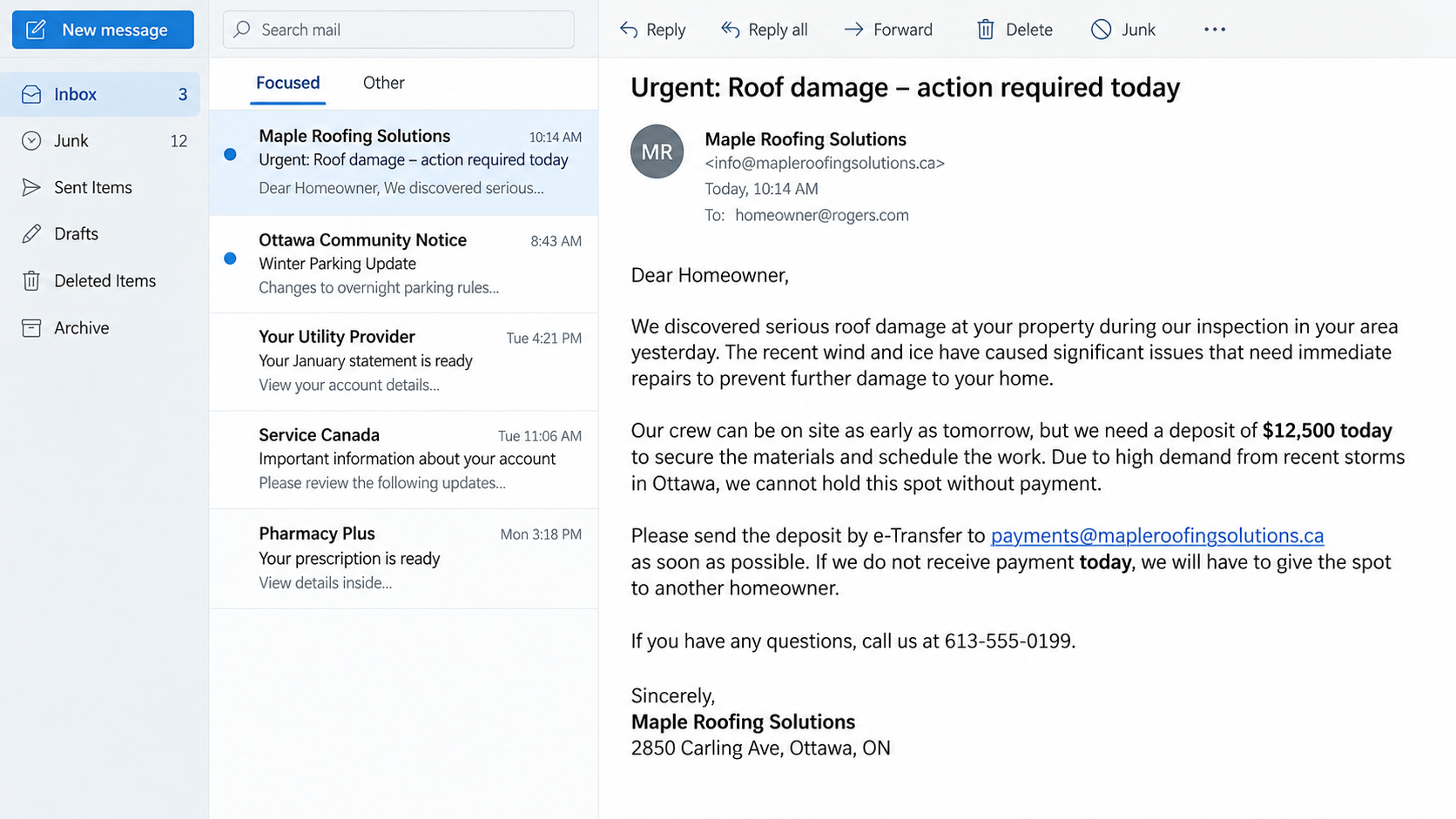
The contractor says materials or a crew can be secured only after a substantial payment. A same-day deadline prevents competing estimates.
Payment may be requested by e-Transfer, bank draft, cash, cheque, credit card, or transfer to an unfamiliar business name.
A deposit does not guarantee performance. When identity and address details are false, even a signed document may be difficult to enforce.
Step 4: Work is misrepresented, incomplete, or never performed
Some operators perform superficial activity that creates the appearance of progress. Others remove materials, cause damage, or stop after collecting money.
The homeowner may receive photographs, invoices, or explanations that cannot be matched to completed work. Problems become visible only after weather changes.
Requests for correction lead to delays, excuses, another materials payment, or accusations that the owner breached the agreement.
Step 5: A fake police officer enters the dispute
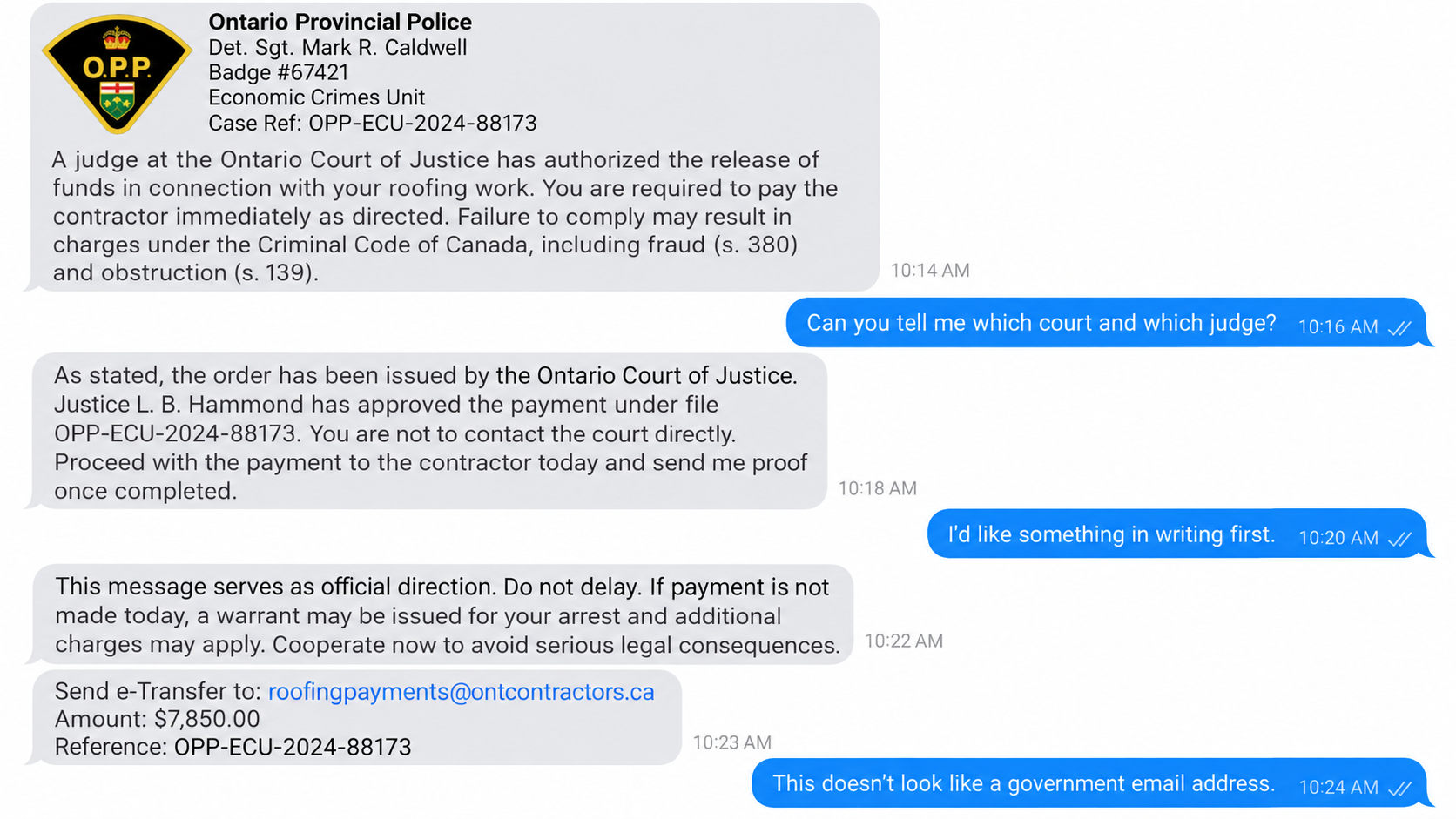
A caller claims to represent the Ontario Provincial Police or another unit. A badge number, case reference, and official-sounding vocabulary create authority.
The caller may say the contractor reported theft of services, fraud, obstruction, or refusal to follow a lawful payment arrangement.
Caller ID can be spoofed. A real police number appearing on the screen does not prove who initiated the call.
Step 6: A supposed judge confirms the pressure
Another participant may claim to be a judge or court official. The victim is told that payment has been approved or ordered.
The impersonator discourages contact with the court, family, bank, or local police. Independent verification would expose the fiction immediately.
Real judicial orders arrive through documented legal procedures. A judge does not join a contractor’s collection call to demand an instant transfer.
Step 7: Fear moves more money to the operation
The victim pays to avoid arrest, charges, a lien, court costs, or another threatened consequence. None of those outcomes was established by the call.
One payment may trigger more demands. The criminals now know the target is frightened, financially reachable, and concerned about appearing cooperative.
Contact can continue until the bank intervenes, a relative becomes involved, or the homeowner calls genuine police through an independent route.
Police Do Not Collect Private Roofing Bills
A payment disagreement with a contractor is not resolved by a police officer ordering a homeowner to send money during an unsolicited call.
Police can investigate alleged crimes. They do not decide a private invoice is valid, set roofing prices, or act as the contractor’s collection department.
A judge also does not telephone a resident to negotiate payment. Courts use identifiable files, formal service, hearings, written orders, and appeal procedures.
An officer or judge will not object to independent verification. Pressure to remain connected or avoid official switchboards is evidence against the caller.
End the contact before checking. A criminal who remains on the line can interfere, simulate a transfer, or direct the victim to an accomplice.
Use another telephone if possible. Call genuine Ottawa police or the claimed agency through a number found on its official government website.
How to Check the Roofing Work Itself
Begin with a separate inspection from an established contractor who has no connection to the first company. Ask for photographs that clearly identify your property.
Obtain multiple written estimates. Each should describe materials, quantities, labour, disposal, permits, warranties, start dates, completion dates, and payment stages.
Ask whether temporary repairs are sufficient. A legitimate roofer should explain alternatives rather than making full replacement the only immediate option.
Confirm whether permits are required and who obtains them. Call the municipality yourself instead of accepting a permit number shown only on contractor paperwork.
Contact the insurer independently when storm damage is claimed. Do not let the contractor dictate what the insurer supposedly approved.
A bank or card issuer may offer better dispute options than cash. Payment protection does not replace contractor verification, but it can reduce exposure.
How Families Can Interrupt the Pressure Safely
Agree beforehand that major home repairs require discussion with a trusted relative, neighbour, or adviser. The rule removes embarrassment from asking for help.
Keep official police, bank, insurer, and municipal numbers where they are easy to find. Verification is faster when nobody searches under pressure.
A family member should listen without blame. Shame can make a targeted homeowner hide the call, payment, or unfinished work until recovery becomes harder.
Ask simple factual questions: who arrived, what was observed, which company signed the estimate, and where did the payment go?
Do not telephone the suspected contractor while standing beside the victim. Preserve evidence first and let police advise on further contact.
If a crew is present, prioritize physical safety. Do not block vehicles, seize tools, or provoke people who may already be using threats.
Banks can add trusted-contact procedures or transaction alerts. Discuss available safeguards before an emergency rather than during an active demand.
Neighbours can discreetly share warnings about unsolicited crews. Repeated vehicle descriptions, company names, and scripts may reveal a wider local pattern.
Company, Address, and Fulfillment Checks
The legal business must exist beyond its invoice
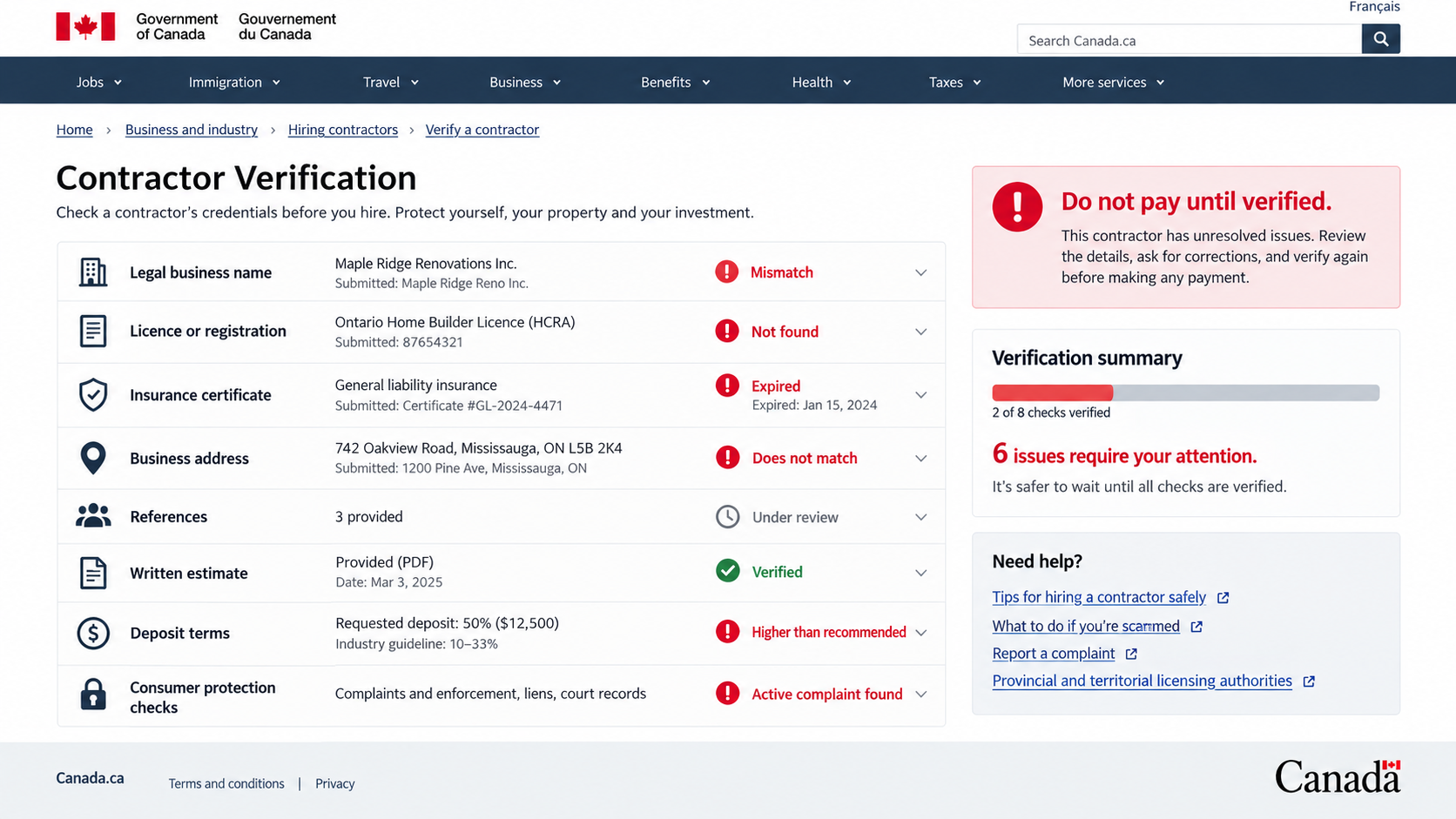
Search provincial and municipal records for the exact legal name. Compare directors, registration status, operating history, and permitted business activity.
A similar company name may belong to an unrelated legitimate contractor. Confirm that the person at your door actually represents the registered business.
The address, telephone, and insurance must align
Search the address independently. It may be a residence, mailbox, virtual office, empty unit, or another company that has never heard of the roofer.
Call the insurer using independently located details. A PDF certificate can be altered, expired, or issued to a different legal entity.
The police and court identities require separate verification
Do not verify an officer through a number supplied by that caller. Contact the agency’s public switchboard and ask whether the officer and case exist.
Search court information independently. A case reference, badge image, or copied judicial name can be invented or borrowed from public records.
Fulfillment must match the written scope
Photograph the roof before, during, and after work when it is safe. Record materials delivered and compare them with the estimate.
Do not release the final payment until an independent inspection confirms the agreed work. A busy crew and fresh invoice do not prove completion.
Warning Signs That Demand an Immediate Pause
- The company contacted you before you requested roofing help.
- The inspection cannot be verified with property-specific evidence.
- You are discouraged from obtaining another estimate.
- A large deposit must be paid the same day.
- The business name changes across documents and payment instructions.
- Insurance or registration cannot be confirmed independently.
- The crew begins work before clear written authorization.
- A police officer supposedly enforces a private invoice.
- A judge allegedly threatens arrest through a call or text.
- You are told not to speak with relatives, banks, or local police.
Any police or judge impersonation is enough to end contact. Do not continue negotiating with the contractor while frightened by a fabricated legal threat.
If workers are present and you feel unsafe, move to a secure place and contact genuine police. Do not confront several people alone.
Documenting the Property Without Creating More Risk
Take ground-level photographs only from safe positions. Do not climb onto a damaged roof to reproduce evidence requested by an insurer or investigator.
Photograph entrances, materials, waste, vehicles, signs, and visible work. Record dates so later reviewers can distinguish original damage from contractor activity.
Keep physical documents in a folder and scan copies. Notes should identify who said what, when, and through which telephone number.
Ask the independent inspector to separate urgent safety work from cosmetic or long-term recommendations. That distinction helps quantify actual harm.
Preserve doorbell and security-camera recordings before automatic deletion. Neighbouring cameras may show vehicles, crews, or repeat visits to nearby homes.
Do not publish personal documents publicly while seeking help. Contracts and cheques can expose signatures, addresses, accounts, and other exploitable information.
Give evidence directly to police, banks, insurers, and qualified advisers. Keep a log of every report number and person contacted.
Careful documentation supports recovery without requiring confrontation. It also helps investigators connect contractor conduct with the later police and judge impersonation.
What to Do if You Have Fallen Victim to This Scam
- End contact with the contractor and impersonators. Do not announce your recovery plan or agree to another meeting, inspection, payment, or refund visit.
- Contact your bank immediately. Identify every transfer, cheque, cash withdrawal, card payment, and recipient, then ask what can be stopped or recalled.
- Call Ottawa Police Service through its official number. Explain the roofing work, police impersonation, judge impersonation, threats, and total financial loss.
- Preserve evidence before blocking anyone. Save estimates, contracts, invoices, call logs, voicemails, messages, photographs, vehicle details, and payment records.
- Arrange an independent roof inspection. Document incomplete work, damage, missing materials, safety hazards, and the cost required to correct the property.
- Notify relevant consumer-protection and licensing bodies. Provide the exact legal names, claimed addresses, salespeople, insurance documents, and complaint numbers.
- Protect exposed identity records. Replace compromised documents where appropriate and monitor credit reports, banking activity, property records, and new accounts.
- Change passwords if the operation used an online portal or requested account access. Review email forwarding, active sessions, and recovery settings.
- Run a complete Malwarebytes scan if anyone installed software, requested remote access, or sent a file that was opened on your device.
- Use AdGuard to reduce malicious advertisements, fake contractor sites, and phishing redirects. Continue verifying every company through independent records.
- Tell trusted relatives or neighbours. Fraudsters may return, and nearby seniors may receive the same roofing approach or authority impersonation.
- Reject paid recovery promises. No private caller can guarantee the return of funds, cancellation of a fake case, or removal of invented charges.
Is Your Device Infected? Run a Free Malware Scan
Slow performance, constant pop-ups, or strange behavior? These are classic signs of a malware infection. The fastest way to find out is to scan your device with Malwarebytes Free — one of the most trusted malware removal tools available.
The free version detects and removes the most common threats, including:
- Adware — the cause of those annoying pop-ups
- Browser hijackers — unwanted redirects and changed homepages
- Trojans and spyware — hidden programs stealing your data
- Potentially unwanted programs (PUPs) — software you never asked for
👉 Select your device below — Windows, Mac, or Android — then follow the simple steps to download Malwarebytes, scan your system, and remove any threats it finds. The scan usually takes 5 to 20 minutes.
Run a Malware Scan with Malwarebytes for Windows
Malwarebytes is one of the most popular and trusted anti-malware tools for Windows — and it’s completely free for removing infections. It catches threats that many antivirus programs miss, including adware, browser hijackers, and trojans. Follow the steps below to scan and clean your PC in just a few minutes.
Download Malwarebytes
Click the button below to download the latest version of Malwarebytes for Windows from the official source. The free version is all you need — it will scan your computer and remove adware, browser hijackers, and other malicious software at no cost.
Download MalwarebytesOfficial installer for Windows 11 and 10. Your download starts right away.Want real-time protection? See Malwarebytes Premium Malwarebytes Free for WindowsScans and removes malware at no cost
-
Install Malwarebytes
When the download finishes, open your Downloads folder and double-click the MBSetup file. If Windows shows a User Account Control pop-up, click “Yes” to allow the installation.

Follow the On-Screen Prompts to Install Malwarebytes
The setup wizard will walk you through a few quick screens:
-
Choose where you’re installing the program — “Personal Computer” or “Work Computer” — then click Next.

-
Malwarebytes will now install on your device. This usually takes under a minute.

-
When installation is complete, the “Welcome to Malwarebytes” screen will open automatically.

-
On the final screen, click Open Malwarebytes to launch the program.

-
Enable “Scan for Rootkits”
Before scanning, turn on rootkit detection so Malwarebytes can find even the most hidden threats. Click the Settings gear icon on the left side of the screen.

In the settings menu, find “Scan for rootkits” and click the toggle so it turns blue.

Done? Click “Dashboard” in the left pane to return to the main screen.
Start the Scan
Click the blue Scan button. Malwarebytes will automatically update its virus database and start checking your computer for malware.

-
Wait for the Scan to Finish
The scan checks your entire system for browser hijackers and other malicious programs, so it can take 5 to 20 minutes depending on your computer. Feel free to do something else — just check back occasionally to see the progress.

-
Quarantine the Detected Threats
When the scan is done, you’ll see a list of everything Malwarebytes found — malware, adware, and potentially unwanted programs. Click the “Quarantine” button to remove all of them at once.

Malwarebytes will now remove the malicious files and registry entries and move them safely into quarantine.

-
Restart Your Computer
Some threats can only be fully removed after a reboot. If Malwarebytes asks you to restart, click Yes. Once you’re logged back in, Malwarebytes has finished removing the threats it found.

That’s it — your Windows PC is now clean of trojans, adware, and other malware, and should be back to running smoothly.
If you are still having problems with your computer after completing these instructions, then please follow one of the steps:
- Run a computer scan with ESET Online Scanner
- Ask for help in our Windows Malware Removal Help & Support forum.
Run a Malware Scan with Malwarebytes for Mac
Malwarebytes for Mac is a free on-demand scanner that removes the malware other security software tends to miss — adware, browser hijackers, and unwanted programs included. Cleaning an infected Mac with Malwarebytes has always been completely free, and it’s our go-to recommendation. Follow the steps below to scan and clean your Mac in just a few minutes.
-
Download Malwarebytes for Mac
Click the button below to download the latest version of Malwarebytes for Mac.
Download MalwarebytesOfficial installer for macOS. Your download starts right away.Want real-time protection? See Malwarebytes PremiumMalwarebytes Free for MacScans and removes malware at no cost -
Open the Malwarebytes setup file
When the download finishes, open your Downloads folder and double-click the setup file to begin the installation.

-
Follow the On-Screen Prompts to Install Malwarebytes
The Malwarebytes for Mac Installer will guide you through a few quick screens. Click “Continue” and keep following the prompts until the installation completes.



When the installation is complete, Malwarebytes opens to the Welcome to Malwarebytes screen. Click “Get started“.
-
Select “Personal Computer” or “Work Computer”
Malwarebytes will ask what type of computer you’re installing it on. Click either Personal Computer or Work Computer, whichever applies.

-
Start the Scan
Click the “Scan” button. Malwarebytes will automatically update its detection database and begin checking your Mac for malware.

-
Wait for the Scan to Finish
Malwarebytes will scan your Mac for adware, browser hijackers, and other malicious programs. This can take a few minutes, so feel free to do something else — just check back occasionally to see the progress.

-
Quarantine the Detected Threats
When the scan is done, you’ll see a list of everything Malwarebytes found. Click the “Quarantine” button to remove all the threats at once.

-
Restart Your Mac
Malwarebytes will now remove all the malicious files it found. Some threats can only be fully removed after a reboot — if Malwarebytes asks you to restart, allow it. Once you’re logged back in, your Mac is clean.

That’s it — your Mac is now free of adware, rogue browser extensions, and other potentially harmful software.
If you are still experiencing problems while trying to remove a malicious program from your computer, please ask for help in our Mac Malware Removal Help & Support forum.
Run a Malware Scan with Malwarebytes for Android
Malwarebytes for Android automatically detects and removes dangerous threats like malware and ransomware so you don’t have to worry about your most-used device being compromised. Aggressive detection of adware and potentially unwanted programs keeps your Android phone or tablet running smooth.
-
Download Malwarebytes for Android.
You can download Malwarebytes for Android by clicking the link below.
Get Malwarebytes for AndroidOpens Google Play in a new tab.Want real-time protection? See Malwarebytes Premium for AndroidMalwarebytes for AndroidScans your phone and removes malware at no cost -
Install Malwarebytes for Android on your phone.
In the Google Play Store, tap “Install” to install Malwarebytes for Android on your device.

When the installation process has finished, tap “Open” to begin using Malwarebytes for Android. You can also open Malwarebytes by tapping on its icon in your phone menu or home screen.

-
Follow the on-screen prompts to complete the setup process
When Malwarebytes will open, you will see the Malwarebytes Setup Wizard which will guide you through a series of permissions and other setup options.
This is the first of two screens that explain the difference between the Premium and Free versions. Swipe this screen to continue.
Tap on “Got it” to proceed to the next step.
Malwarebytes for Android will now ask for a set of permissions that are required to scan your device and protect it from malware. Tap on “Give permission” to continue.
Tap on “Allow” to permit Malwarebytes to access the files on your phone.
-
Update database and run a scan with Malwarebytes for Android
You will now be prompted to update the Malwarebytes database and run a full system scan.

Click on “Update database” to update the Malwarebytes for Android definitions to the latest version, then click on “Run full scan” to perform a system scan.

-
Wait for the Malwarebytes scan to complete.
Malwarebytes will now start scanning your phone for adware and other malicious apps. This process can take a few minutes, so we suggest you do something else and periodically check on the status of the scan to see when it is finished.

-
Click on “Remove Selected”.
When the scan has been completed, you will be presented with a screen showing the malware infections that Malwarebytes for Android has detected. To remove the malicious apps that Malwarebytes has found, tap on the “Remove Selected” button.

-
Restart your phone.
Malwarebytes for Android will now remove all the malicious apps that it has found. To complete the malware removal process, Malwarebytes may ask you to restart your device.
That’s it — your Android phone is now clean — no more malicious apps, adware, or browser redirects.
If you are still having problems with your phone after completing these instructions, then please follow one of the steps:
- Restore your phone to factory settings by going to Settings > General management > Reset > Factory data reset.
- Ask for help in our Mobile Malware Removal Help & Support forum.
Stay Protected: Block Ads and Malicious Sites
Now that your device is clean, keep it that way. Most infections start with a malicious ad or a fake download button — so blocking them at the source is your best defense.
We recommend AdGuard, which blocks malicious ads, phishing pages, and dangerous redirects before they can reach you.
👉 Download AdGuard and browse safely
Frequently Asked Questions
Is every unexpected roofing offer a scam?
No, but unsolicited work deserves careful verification. Never approve urgent repairs or a large deposit before obtaining independent evidence and competing estimates.
Can police order me to pay a roofing contractor?
Police do not act as private invoice collectors. End the call and contact the claimed agency through its official public number.
Would a judge call about a contractor payment?
No legitimate judge resolves a private roofing dispute through an unexpected pressure call. Real court action follows documented legal procedures.
What if caller ID shows a real police number?
Caller ID can be spoofed. Hang up, let the line clear, and make a fresh call using an independently obtained number.
Should I let the same contractor inspect the disputed work?
Not without safeguards. Obtain an independent inspection first and avoid unsupervised access if threats, identity mismatches, or payment fraud occurred.
Can a deposit be recovered?
Recovery depends on the method and timing. Contact the bank immediately, report the fraud, and preserve full recipient and transaction details.
The Bottom Line
The Ottawa roofing scam turns a home-repair dispute into a frightening performance involving fake police and judicial authority.
No roof payment becomes legitimate because a caller mentions arrest or a judge. Stop, verify every identity independently, and involve genuine police when intimidation begins.

Join the discussion
0 commentsShare your experience or ask a question about this article.
Discussion
Start the conversation
Have a question or something useful to share? Add the first comment.