

Files suddenly end in .blacknet, the desktop shows a 72-hour warning and a note demands 0.32 BTC. Those are signs of an active BLACKNET ransomware incident, not a damaged-file problem.
Disconnect the affected computer and accessible storage immediately. Removing the malware can stop further encryption, but it cannot automatically restore files that BLACKNET has already locked.
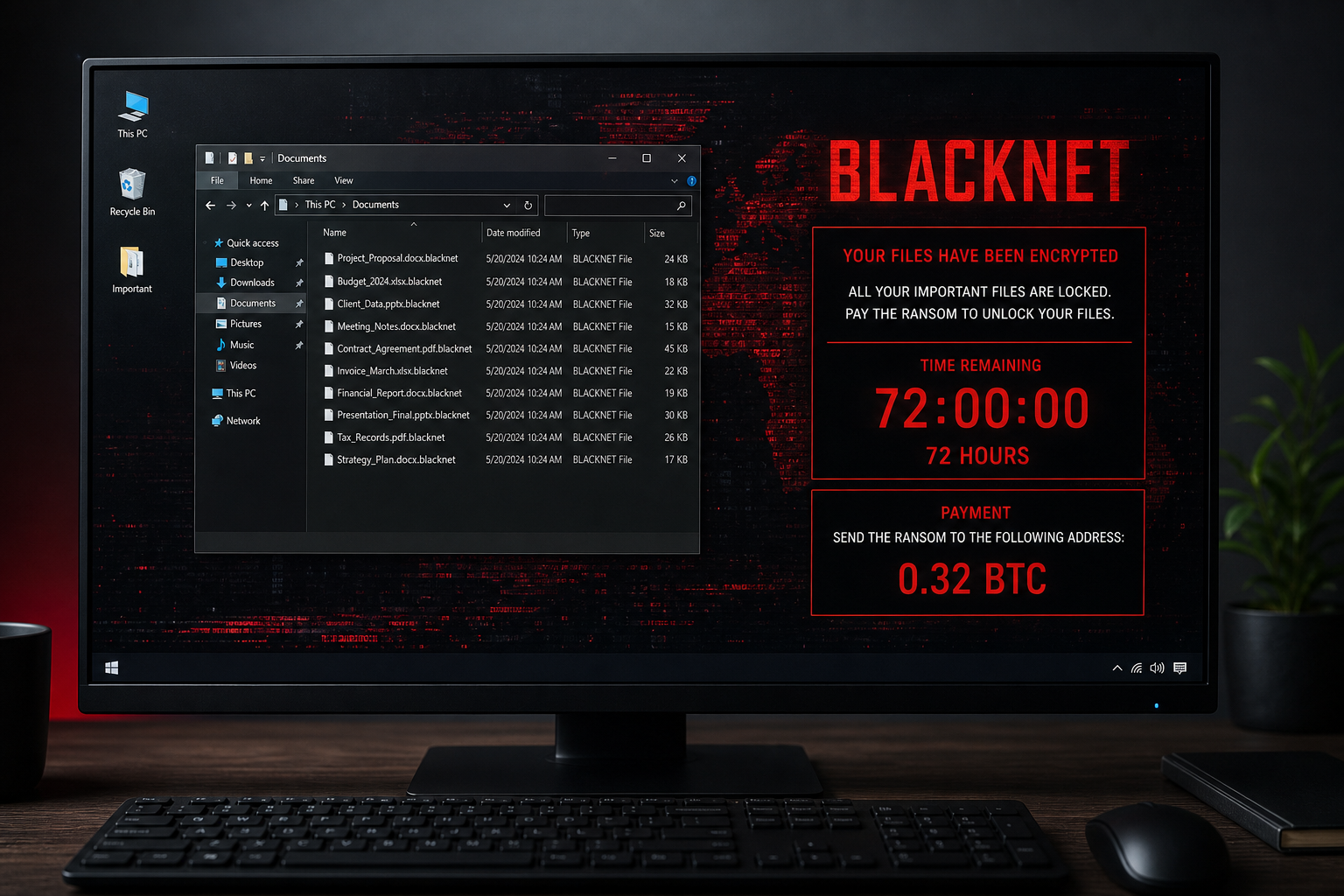
BLACKNET Ransomware Overview
BLACKNET is file-encrypting malware built to disrupt access to personal and business data and pressure the victim into paying. It searches the infected device and reachable storage for documents, photos, videos, databases, archives and other valuable files, encrypts their contents and appends .blacknet to the filenames. A file named budget.xlsx becomes budget.xlsx.blacknet; renaming it back does not repair the encrypted data.
The ransomware announces itself in three places: a text file called READ_ME_BLACKNET.txt, a pop-up window and a replacement desktop wallpaper. The repeated warnings are designed to ensure the victim sees the demand even if one component is blocked. They claim that files were encrypted with AES-256, backups were deleted and sensitive information was stolen before encryption.
The demand is 0.32 BTC, described as roughly $20,000, with instructions to contact blacknet00x@gmail.com after payment. A 72-hour deadline, promises of a response within six hours and threats to publish data if authorities are contacted create artificial pressure. The countdown does not establish that deletion will occur, and the criminals’ email address is not evidence that they possess a working decryptor.
BLACKNET also claims to have stolen documents, databases, cryptocurrency wallets, browser passwords and cookies. These statements may be exaggerated, but they cannot be dismissed. Ransomware operators increasingly copy data before encryption so they can threaten exposure even when the victim has backups. An affected organization should therefore investigate possible data theft and credential compromise separately from file recovery.
No public decryptor is available for the observed BLACKNET variant. Paying is risky because the attackers can take the Bitcoin and provide nothing, send a broken tool or demand more. Payment also cannot prove that copied data was deleted. Reliable recovery depends on clean offline backups, unaffected cloud versions, shadow copies that survived the attack or a future decryptor created if researchers later obtain keys or identify a flaw.
How the BLACKNET Ransomware Attack Works
Step 1: The ransomware reaches the Windows system
Initial access may come from a malicious attachment, fake software update, pirated program, downloader trojan, exposed remote service or stolen administrator credentials. Business networks can be explored for days before encryption begins.
The delivery method matters because the attacker may still have access after the visible ransomware is removed.
Step 2: Valuable files and reachable storage are discovered
BLACKNET identifies local drives and storage available through the compromised account. Connected external disks and network shares may also be exposed if they remain mounted and writable.
This is why the first response should be isolation rather than clicking through the ransom window or attaching a backup drive.
Step 3: Files are encrypted and renamed
The malware transforms file contents and adds the .blacknet suffix. The original filenames remain recognizable, but normal applications can no longer read the data.
Do not bulk-rename the files. Preserving encrypted originals gives future recovery tools the best chance to work and prevents accidental overwriting.
Step 4: Recovery options and backups may be targeted
The ransom message claims that backups were permanently deleted. Whether or not that statement is true, ransomware commonly attacks local backups, shadow copies and shared recovery folders before revealing itself.
Do not connect clean backup media until the environment has been rebuilt or verified clean.
Step 5: Three ransom messages create pressure
The text note, pop-up and wallpaper repeat the Bitcoin amount, contact email and 72-hour warning. Threats involving police, regulators, family and customers are psychological pressure, not technical recovery instructions.
Contacting the criminals can confirm that the victim is engaged and may lead to a higher demand or further targeting.
Step 6: The attackers pursue payment and possible data extortion
If the victim replies, the operators may offer to decrypt a few small files as proof. That test says nothing about whether all files can be restored or whether stolen data will be deleted.
Organizations must plan for both operational recovery and notification obligations if personal, customer or regulated information may have left the network.
Files and Messages Created by BLACKNET
- Encrypted files receive the .blacknet extension.
- The text ransom note is named READ_ME_BLACKNET.txt.
- A pop-up window displays payment and alleged data-theft claims.
- The desktop wallpaper is replaced with another BLACKNET warning.
- The demand requests 0.32 BTC and lists blacknet00x@gmail.com.
- The notes use a 72-hour deadline and threaten data exposure.
What to Do Immediately After Detecting BLACKNET
- Isolate the affected computer. Disconnect Ethernet, Wi-Fi, shared storage and VPN access without shutting down a business system unless incident responders advise it.
- Separate unaffected systems. Disable compromised accounts and block suspicious remote sessions so the attacker cannot continue moving through the network.
- Preserve evidence. Save the ransom notes, filenames, suspicious email, downloaded files and relevant logs. Record when encryption was first noticed.
- Do not attach backups. Confirm that backup repositories are isolated, intact and protected from the credentials used on the infected device.
- Report the incident. Contact organizational security, the cyber insurer if applicable and the appropriate national cybercrime or data-protection authority.
- Complete the ransomware-removal guide below. Eradicate the payload and any access tools before restoration begins.
- Reset exposed credentials from a clean device. Prioritize administrator, VPN, remote desktop, backup, email and browser-saved accounts.
- Restore only into a verified clean environment. Monitor restored systems for new encryption, unexpected processes and outbound connections.
Can .blacknet Files Be Decrypted?
There is no confirmed free decryptor for the observed BLACKNET sample. That does not mean every encrypted file is permanently lost, but it means no safe universal tool can currently reverse the encryption on demand. Websites that promise an instant BLACKNET decryptor in exchange for payment or a remote session should be treated with suspicion.
Make copies of the encrypted files before attempting recovery. Keep at least one untouched set on offline storage, together with the ransom notes and a copy of the malicious sample if an incident responder collected it safely. A future decryptor may depend on the exact variant and original metadata.
Recovery options to examine
- Offline or immutable backups created before the infection.
- Cloud storage version history and recycle bins not accessible to the attacker.
- Copies on disconnected devices, email attachments or collaboration platforms.
- Shadow copies or snapshots that the ransomware failed to remove.
- Application-level exports and database replicas stored under separate credentials.
- A verified decryptor released later for the exact BLACKNET variant.
Should You Pay the 0.32 BTC Ransom?
Payment offers no enforceable guarantee. The attacker can ignore the victim, demand an additional fee, provide a faulty decryptor or retain copied data for later extortion. Cryptocurrency transfers are difficult to reverse, and a successful payment can identify the victim as willing to pay.
Organizations facing severe disruption should involve experienced legal counsel, incident responders, insurers and law enforcement before communicating with the criminals. Those professionals can assess regulatory duties, sanctions risk, evidence preservation and realistic recovery options. The decision should never be made from the ransom screen under a 72-hour countdown.
How to Prevent Another Ransomware Incident
- Maintain offline or immutable backups and test restoration regularly.
- Require multi-factor authentication for VPN, remote access and administrator accounts.
- Patch internet-facing services and remove unused remote-management tools.
- Block executable attachments and train staff to verify unexpected documents.
- Use separate credentials and networks for production systems and backup infrastructure.
- Limit write access to shared folders and monitor mass file-renaming activity.
- Investigate security alerts promptly instead of waiting for encryption to appear.
Frequently Asked Questions
Will removing BLACKNET restore my files?
No. Removal stops the malicious program from encrypting more data but does not reverse encryption already applied. Restoration or a compatible decryptor is still required.
Can I remove the .blacknet extension to fix the files?
No. The suffix is only a visible marker. The file contents are encrypted, so renaming report.docx.blacknet to report.docx will not make the document readable.
The Bottom Line
BLACKNET is a confirmed ransomware threat that encrypts files, adds .blacknet and demands 0.32 BTC under a 72-hour deadline. Its notes also claim data theft, so the incident may involve both file loss and exposure of sensitive information.
Isolate the systems, preserve evidence, remove the infection and restore only from clean sources. Do not let the countdown push you into an irreversible Bitcoin payment without a full incident assessment.
- STEP 1: Use Rkill to terminate suspicious programs.
- STEP 2: Use Malwarebytes to remove Ransomware and Unwanted Programs
- STEP 3: Use HitmanPro to remove Trojans and other Malware
- STEP 4: Use AdwCleaner to remove Malicious Browser Extensions and Adware
- STEP 5: Perform a final check with ESET Online Scanner
- STEP 6: Restore the files encrypted by ransomware
STEP 1: Use Rkill to terminate suspicious programs.
In this first step, we will download and run Rkill to terminate suspicious programs that may be running on your computer.
RKill is a program that was developed at BleepingComputer.com that attempts to terminate known malware processes so that your normal security software can then run and clean your computer of infections. When RKill runs it will kill malware processes and then removes incorrect executable associations and fixes policies that stop us from using certain tools.
-
Download Rkill.
You can download RKill to your computer from the below link. When at the download page, click on the Download Now button labeled iExplore.exe. We are downloading a renamed version of Rkill (iExplore.exe) because some malware will not allow processes to run unless they have a certain filename.
Download RKillOpens the BleepingComputer download page in a new tab. RKillStops malware processes so other tools can run
 -
Run RKill.
After downloading, double-click the iExplore.exe icon to kill malicious processes. In most cases, downloaded files are saved to the Downloads folder.
The program may take some time to search for and end various malware programs.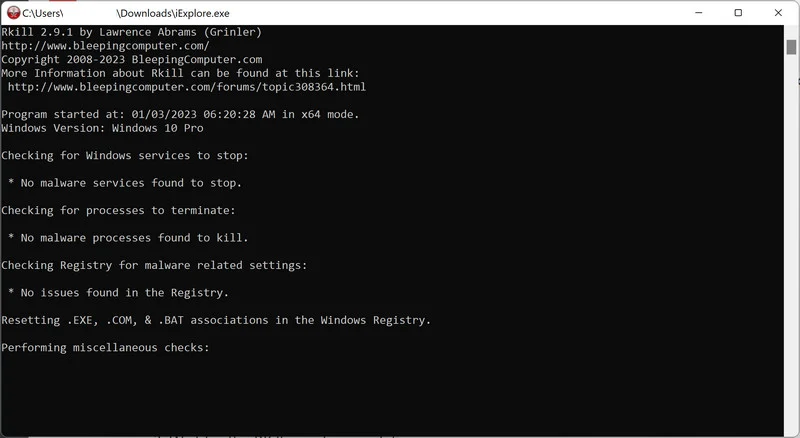
When it is finished, the black window will close automatically and a log file will open. Do not restart your computer. Proceed to the next step in this guide.
STEP 2: Use Malwarebytes to remove Ransomware and Unwanted Programs
In this second step, we will install Malwarebytes to scan and remove any infections, adware, or potentially unwanted programs that may be present on your computer.
Malwarebytes is one of the most popular and trusted anti-malware tools for Windows — and it’s completely free for removing infections. It catches threats that many antivirus programs miss, including adware, browser hijackers, and trojans. Follow the steps below to scan and clean your PC in just a few minutes.
Download Malwarebytes
Click the button below to download the latest version of Malwarebytes for Windows from the official source. The free version is all you need — it will scan your computer and remove adware, browser hijackers, and other malicious software at no cost.
Download MalwarebytesOfficial installer for Windows 11 and 10. Your download starts right away.Want real-time protection? See Malwarebytes Premium Malwarebytes Free for WindowsScans and removes malware at no cost
-
Install Malwarebytes
When the download finishes, open your Downloads folder and double-click the MBSetup file. If Windows shows a User Account Control pop-up, click “Yes” to allow the installation.

Follow the On-Screen Prompts to Install Malwarebytes
The setup wizard will walk you through a few quick screens:
-
Choose where you’re installing the program — “Personal Computer” or “Work Computer” — then click Next.

-
Malwarebytes will now install on your device. This usually takes under a minute.

-
When installation is complete, the “Welcome to Malwarebytes” screen will open automatically.

-
On the final screen, click Open Malwarebytes to launch the program.

-
Enable “Scan for Rootkits”
Before scanning, turn on rootkit detection so Malwarebytes can find even the most hidden threats. Click the Settings gear icon on the left side of the screen.

In the settings menu, find “Scan for rootkits” and click the toggle so it turns blue.

Done? Click “Dashboard” in the left pane to return to the main screen.
Start the Scan
Click the blue Scan button. Malwarebytes will automatically update its virus database and start checking your computer for malware.

-
Wait for the Scan to Finish
The scan checks your entire system for browser hijackers and other malicious programs, so it can take 5 to 20 minutes depending on your computer. Feel free to do something else — just check back occasionally to see the progress.

-
Quarantine the Detected Threats
When the scan is done, you’ll see a list of everything Malwarebytes found — malware, adware, and potentially unwanted programs. Click the “Quarantine” button to remove all of them at once.

Malwarebytes will now remove the malicious files and registry entries and move them safely into quarantine.

-
Restart Your Computer
Some threats can only be fully removed after a reboot. If Malwarebytes asks you to restart, click Yes. Once you’re logged back in, Malwarebytes has finished removing the threats it found.

STEP 3: Use HitmanPro to remove Rootkits and other Malware
In this third step, while the computer is in normal back, we will download and run a scan with HitmanPro to remove Trojans, rootkits, and other malicious programs.
HitmanPro is a second-opinion scanner — it’s designed to catch what your main antivirus might have missed. Instead of relying on a single detection engine, it checks the behavior of files in the locations where malware usually hides. Anything suspicious gets sent to the cloud, where it’s analyzed by two of the best antivirus engines available: Bitdefender and Kaspersky.
Good news: scanning is completely free, with no limits. You only need a license when it’s time to remove what was found — and even then, you can activate a free one-time 30-day trial to clean your PC at no cost. (A full license is $24.95 per year for 1 PC.)
-
Download HitmanPro
Click the button below to download HitmanPro. Remember — the scan is free, so you have nothing to lose by checking your PC.
Download HitmanProFree scan. Removing threats needs the free 30-day trial. Opens the official HitmanPro page in a new tab. HitmanProSecond-opinion malware scanner from Sophos
 -
Install HitmanPro
When the download finishes, open your Downloads folder and double-click the file: “hitmanpro.exe” on 32-bit Windows, or “hitmanpro_x64.exe” on 64-bit Windows.
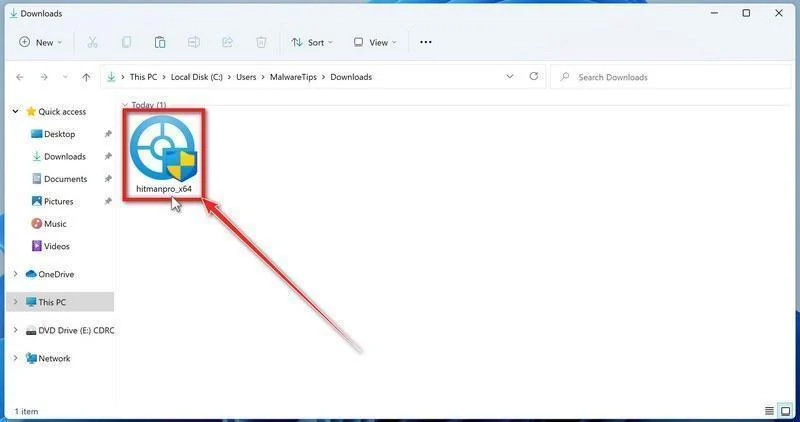
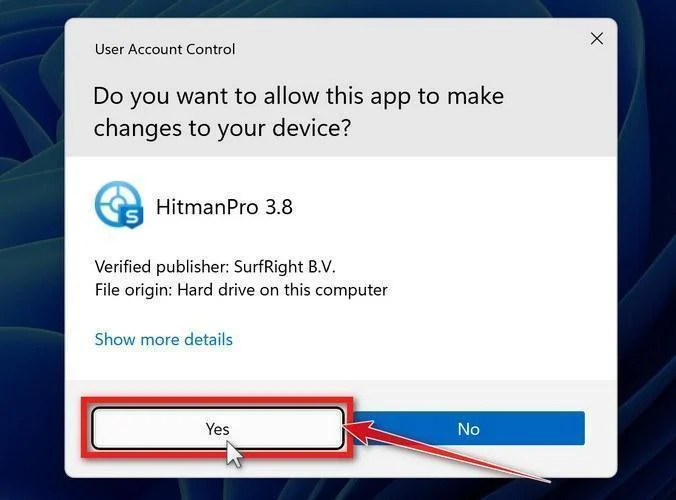
If a User Account Control pop-up asks whether HitmanPro can make changes to your device, click “Yes” to continue.
-
Follow the On-Screen Prompts
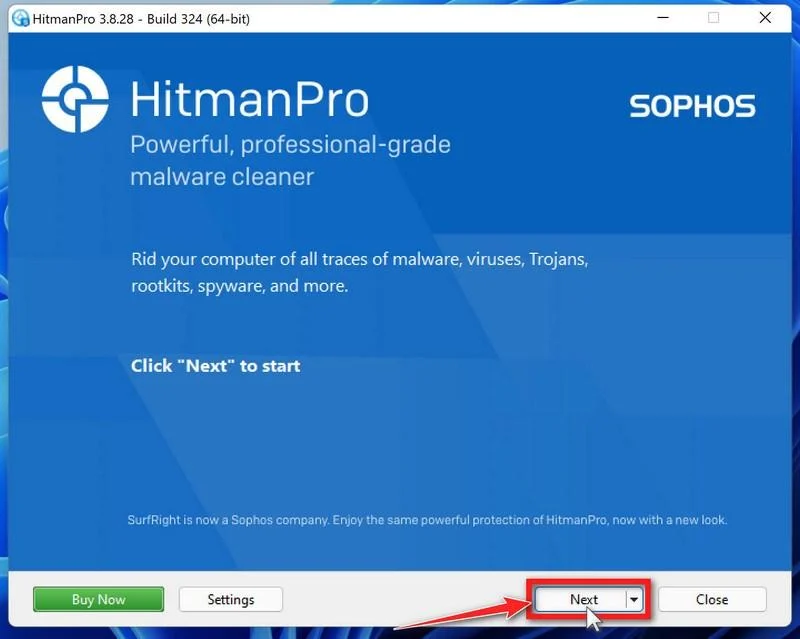
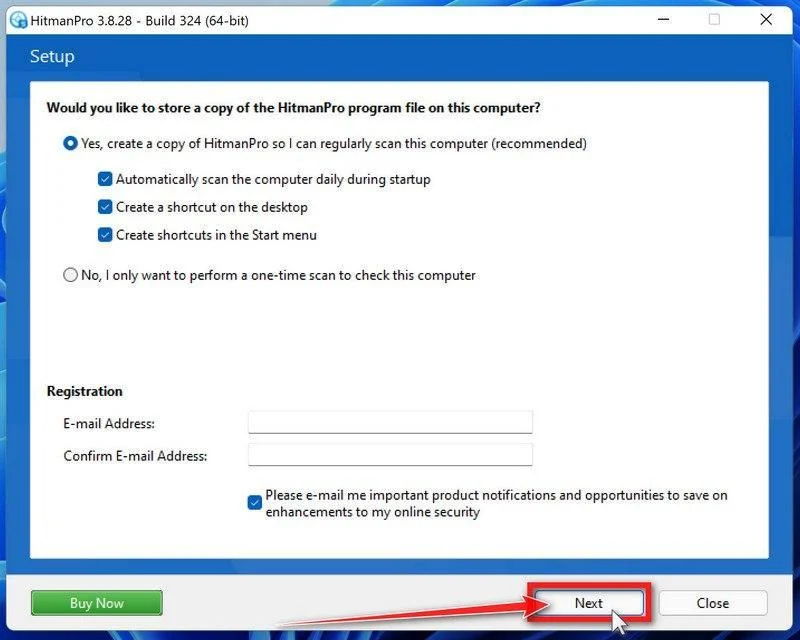
On the HitmanPro start screen, click “Next” to begin the system scan. No lengthy setup required — it goes straight to work.
-
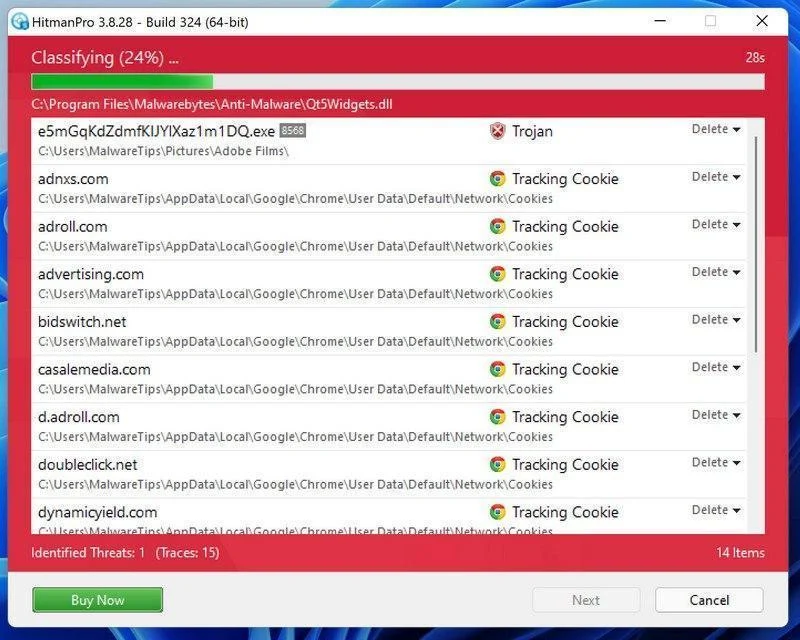
Wait for the Scan to Finish
HitmanPro will now check your computer for malicious programs. This usually takes just a few minutes thanks to its cloud-based scanning.
-
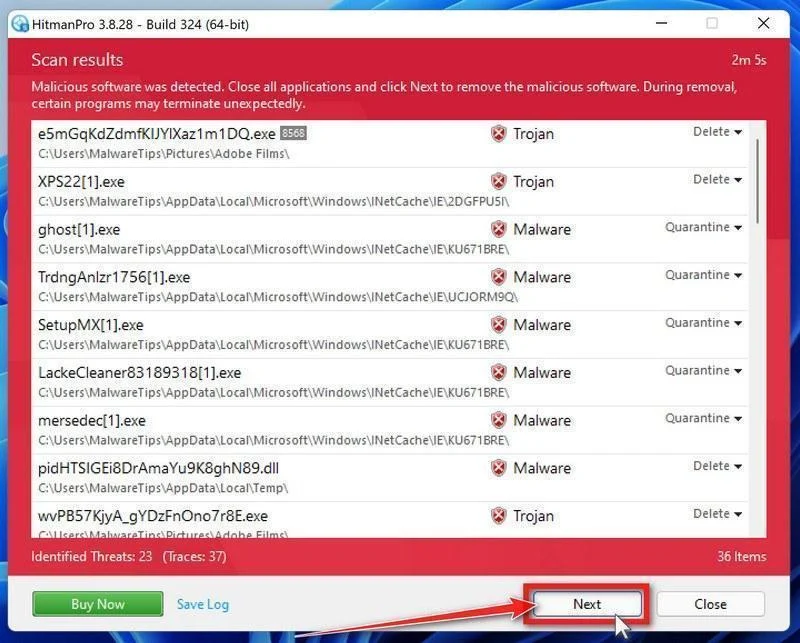
Review the Results and Click “Next”
When the scan is done, HitmanPro will show you everything it found. Click “Next” to remove the detected threats.
-
Click “Activate Free License”
To remove the malicious files, click the “Activate free license” button. This starts your free 30-day trial — no payment details needed — and unlocks the full cleanup.
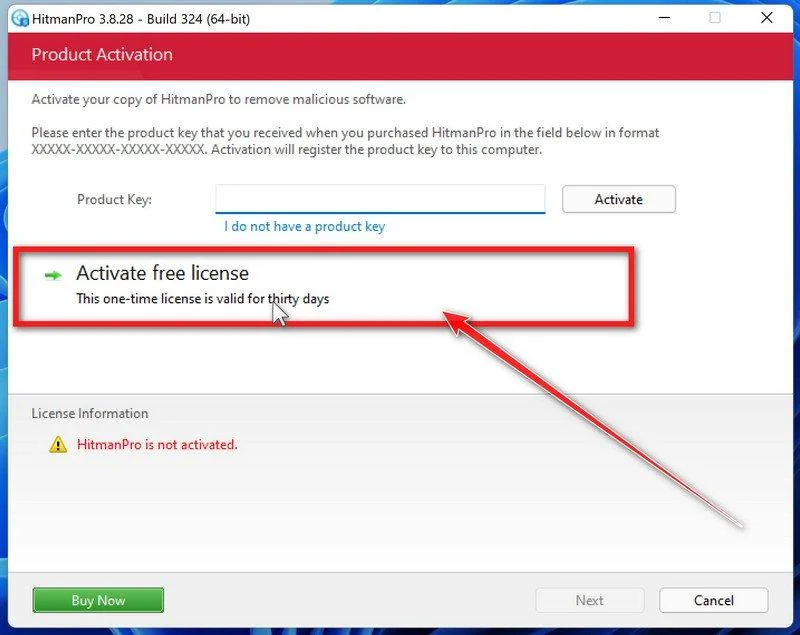
When the removal is complete, HitmanPro will show a summary of everything it cleaned. Click Next, then click Reboot if prompted. If there’s no reboot prompt, just click Close — your PC is clean.
STEP 4: Use AdwCleaner to remove Malicious Browser Extensions and Adware
In this next step, we will use AdwCleaner to remove malicious browser policies and unwanted browser extensions from your computer.
AdwCleaner is a free on-demand scanner that specializes in adware, browser hijackers, and unwanted toolbars — the exact threats that mainstream antivirus programs often miss. It also includes tools that repair the damage malware leaves behind, like hijacked browser settings and malicious policies. It’s a quick scan that’s well worth running.
-
Download AdwCleaner
Click the button below to download AdwCleaner — it’s free, portable, and requires no installation.
Download AdwCleanerOpens the official download page in a new tab. Malwarebytes AdwCleanerRemoves adware and unwanted programs at no cost
 -
Run AdwCleaner
Open your Downloads folder and double-click the file named “adwcleaner.exe“. There’s no installation — the program starts right away.
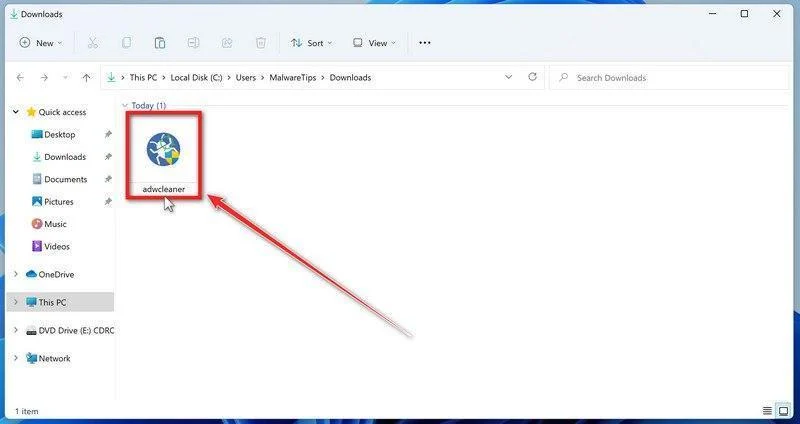
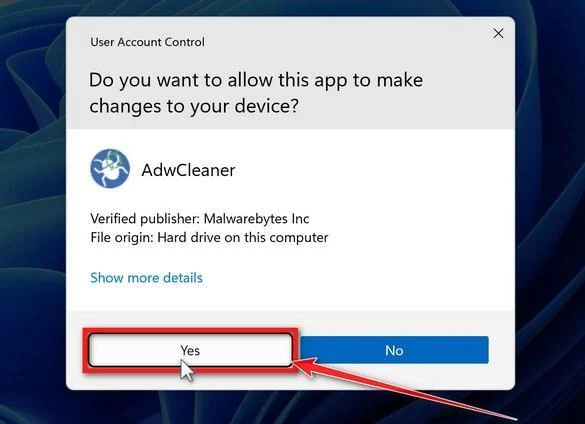
If Windows asks whether you want to allow AdwCleaner to run, click “Yes“. When the license agreement appears, click I agree to continue.
-
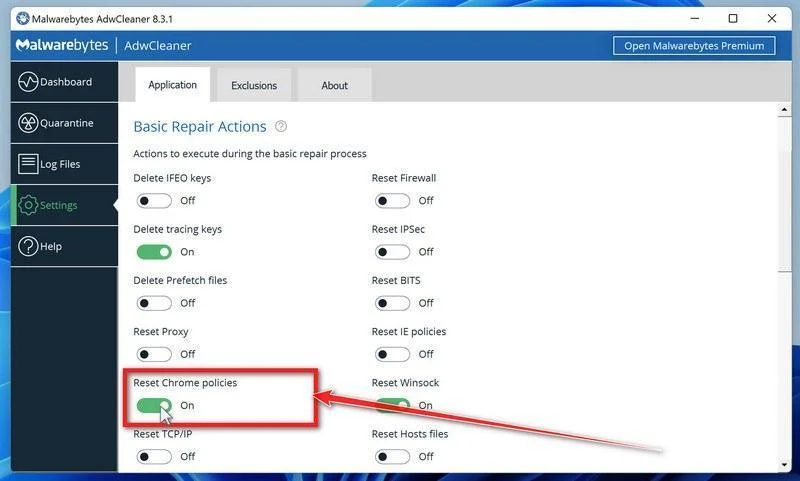
Enable “Reset Chrome policies”
This setting removes malicious browser policies — a trick malware uses to lock your browser settings so you can’t change them back. Click “Settings” on the left side of the window, then turn on “Reset Chrome policies“.
-
Start the Scan
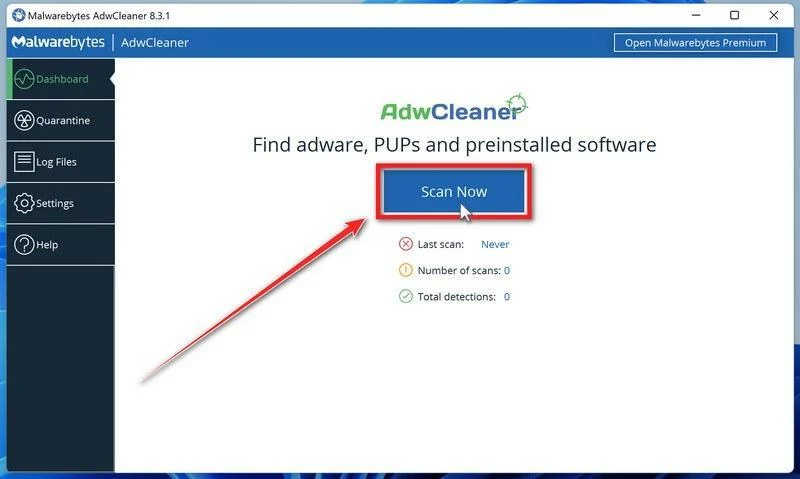
Click “Dashboard” on the left side of the window, then click the “Scan” button.
-
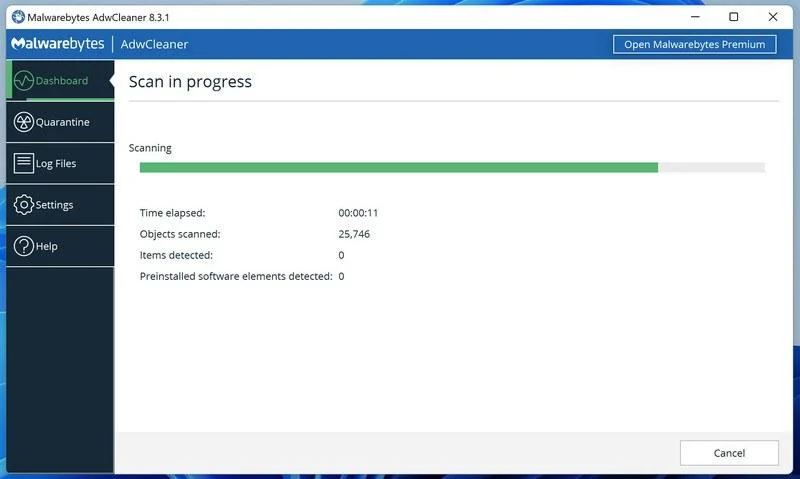
Wait for the Scan to Finish
AdwCleaner will now check your computer for adware and other malware. This usually takes only a few minutes — it’s one of the fastest scanners around.
-
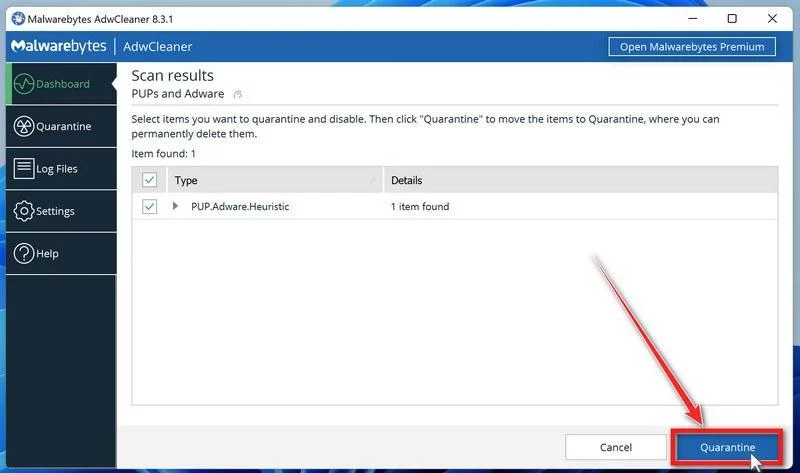
Quarantine the Detected Threats
When the scan finishes, AdwCleaner will list everything it found. Click the “Quarantine” button to remove all the malicious items at once.
-
Click “Continue” to Finish the Cleanup
Save any open work first — AdwCleaner needs to close your open programs before it can clean. When you’re ready, click the “Continue” button.
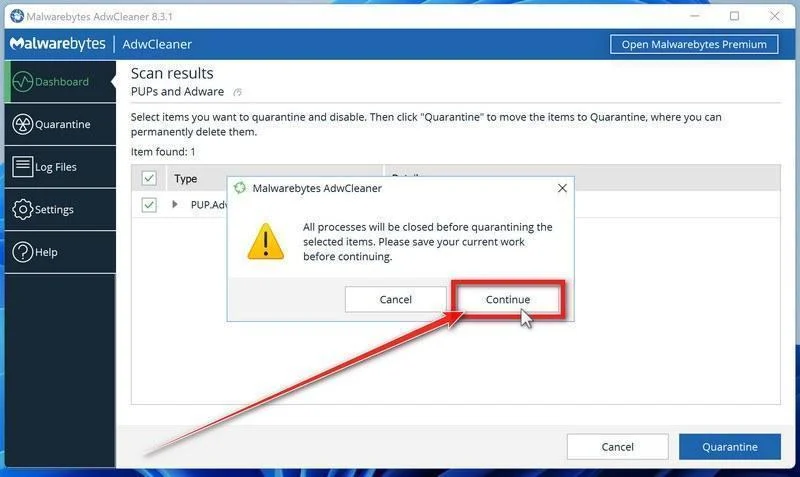
AdwCleaner will now delete all detected malware from your computer. If it asks you to restart your PC, allow it — your computer will be clean when you log back in.
STEP 5: Perform a final check with ESET Online Scanner
This final step involves installing and running a scan with ESET Online Scanner to check for any additional malicious programs that may be installed on the computer..
ESET Online Scanner is a free second-opinion scanner that performs a deep, full-system check for viruses, trojans, rootkits, and other malware. We use it as the final step because it’s thorough — if anything slipped past the previous scans, ESET will find it. A clean result here means your computer is malware-free.
-
Download ESET Online Scanner
Click the button below to download ESET Online Scanner.
Download ESET Online ScannerOpens the official download page in a new tab. ESET Online ScannerFree one-time malware scan from ESET
 -
Run the Installer
When the download finishes, open your Downloads folder and double-click “esetonlinescanner.exe“.
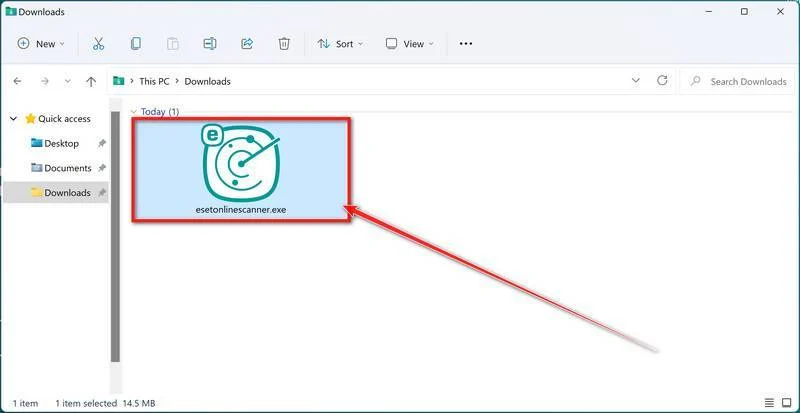
-
Install ESET Online Scanner
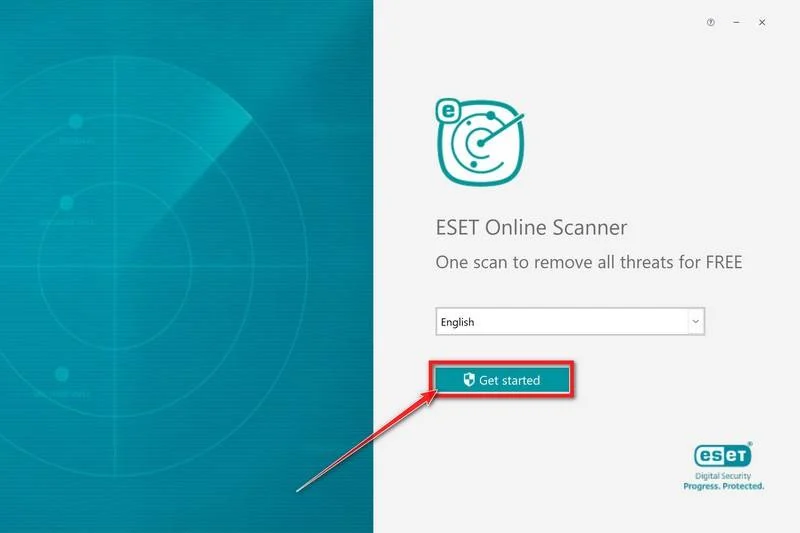
On the start screen, select your language from the drop-down menu and click Get started.
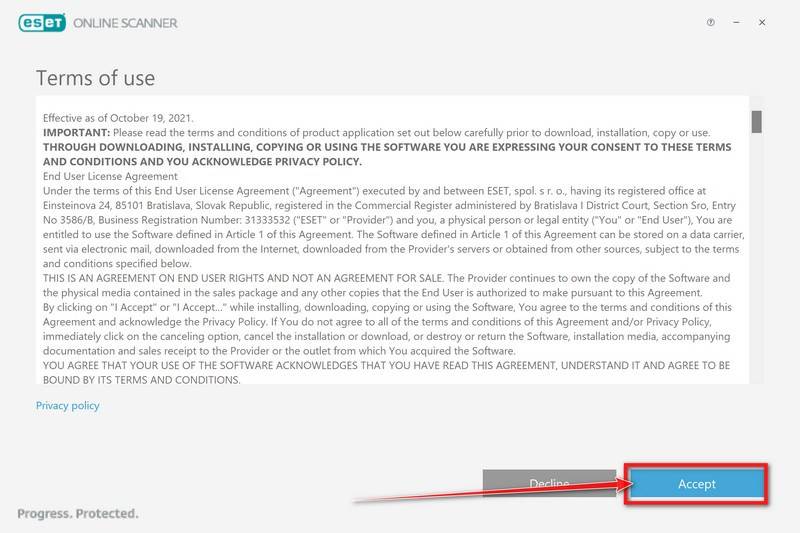
On the Terms of use screen, click Accept.
Choose your preferences for the Customer Experience Improvement Program and the Detection feedback system (either choice is fine), then click Continue.
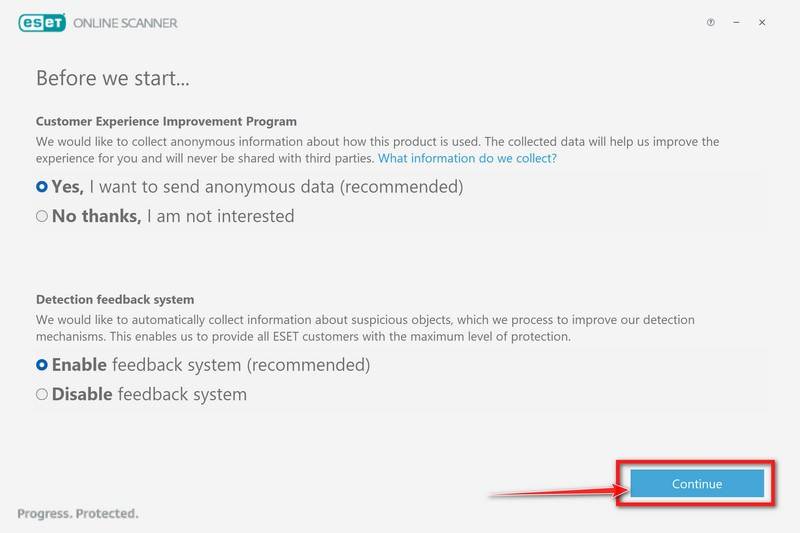
-
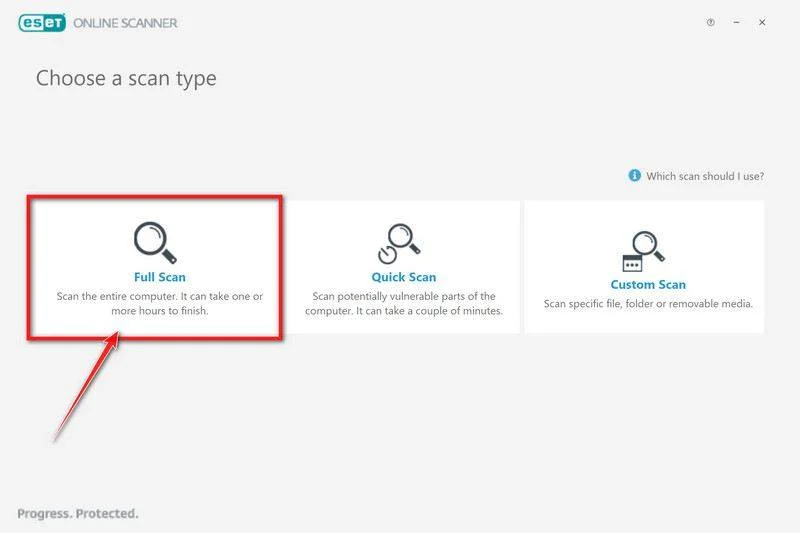
Start a Full Scan
Click Full Scan — this checks your entire computer, not just the common hiding spots.
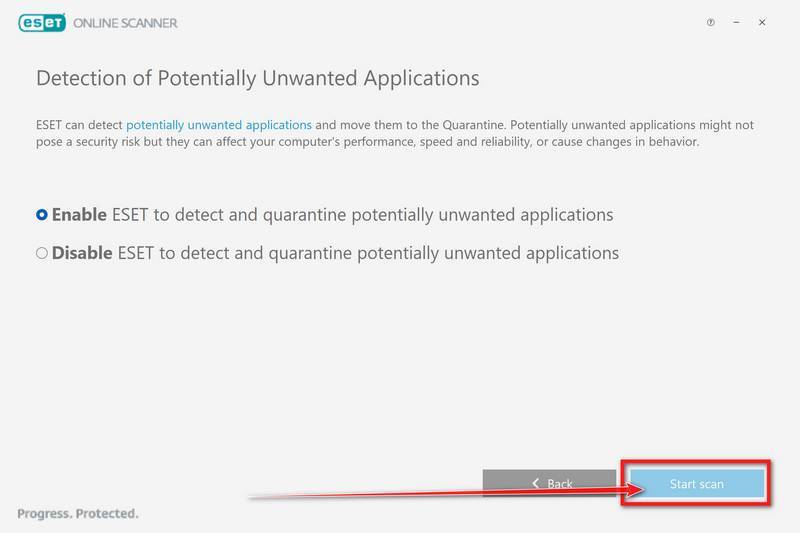
Select Enable for Detection of Potentially Unwanted Applications — this lets ESET catch adware and bundled junk programs, not just viruses. Then click Start scan.
-
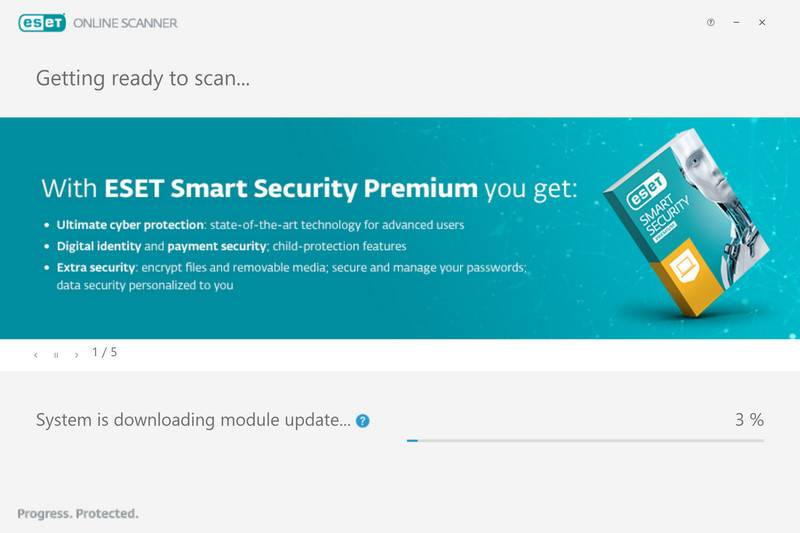
Wait for the Scan to Finish
ESET will now check every file on your computer. Because it’s a full scan, this can take a while — often an hour or more, depending on how much data you have. Leave it running in the background and check on it from time to time.
-
Review the Results
When the scan completes, the Found and resolved detections screen appears. Any threats found were automatically cleaned and quarantined — there’s nothing extra you need to do. Click View detailed results if you want to see exactly what was removed.
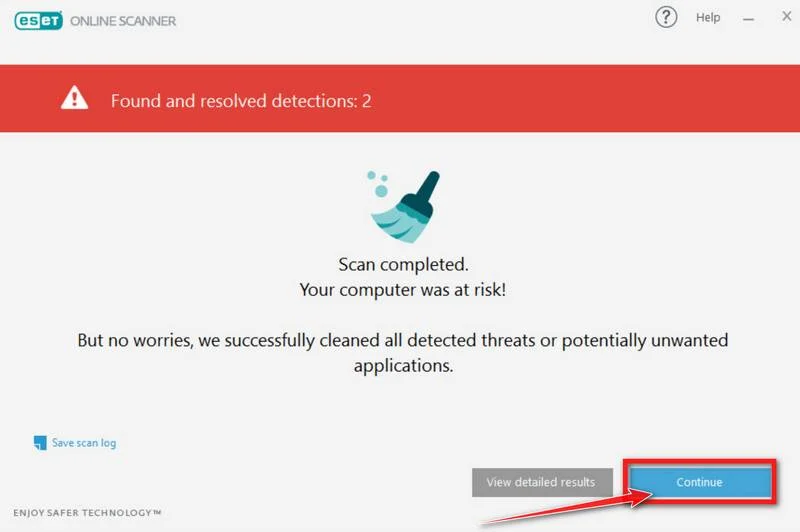
If ESET found nothing — congratulations, your computer has passed the final check and is malware-free.
STEP 6: Restore the files encrypted by ransomware
Unfortunately, in most cases, it’s not possible to recover the files encrypted by this ransomware virus because the private key which is needed to unlock the encrypted files is only available through the attackers. However, below we’ve listed three options you can use to try and recover your files.
Option 1: Search a decryption tool for this ransomware
The cybersecurity community is constantly working to create ransomware decryption tools, so you can try to search these sites for updates:
- https://id-ransomware.malwarehunterteam.com/
- https://decrypter.emsisoft.com/
- https://noransom.kaspersky.com/
- https://www.avast.com/ransomware-decryption-tools
Option 2: Use EaseUS Data Recovery Wizard Free to recover the encrypted files
EaseUS Data Recovery Wizard Free can restore files and repair corrupted files with simple clicks. Its powerful scanning algorithms can identify and retrieve huge file type library, including all of the popular video files, audio files, photos, and document formats.
While the free version only allows you to recover 2 GB of data, this can be helpful to see if the recovery is possible and restore back the most important files from your computer.
-
Download EaseUS Data Recovery Wizard Free.
You can download EaseUS Data Recovery Wizard Free by clicking the link below.
Download EaseUS Data Recovery WizardOpens the download page in a new tab. EaseUS Data Recovery WizardFile recovery tool with a free version
 -
Double-click on the EaseUS Data Recovery Wizard Free setup file.
When EaseUS Data Recovery Wizard Free has finished downloading, double-click on the setup file to install EaseUS Data Recovery Wizard on your computer. In most cases, downloaded files are saved to the Downloads folder.
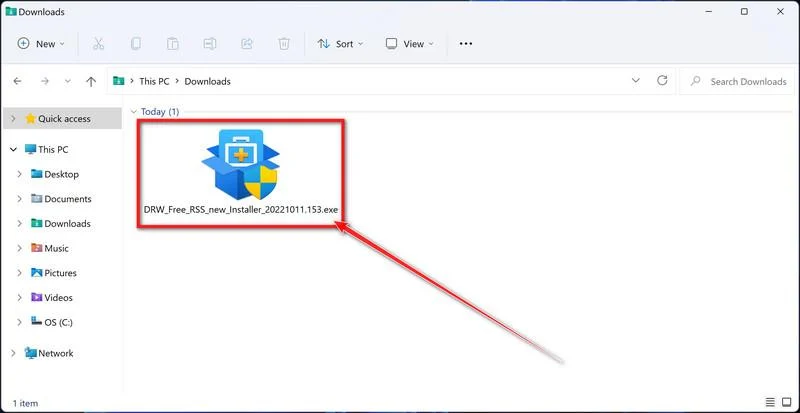
You may be presented with a User Account Control pop-up asking if you want to allow EaseUS to make changes to your device. If this happens, you should click “Yes” to continue with the EaseUS Data Recovery Wizard Free installation.
-
Follow the on-screen prompts to install EaseUS Data Recovery Wizard.
When the EaseUS Data Recovery Wizard installation begins, click on the “Install Now” as seen in the image below.
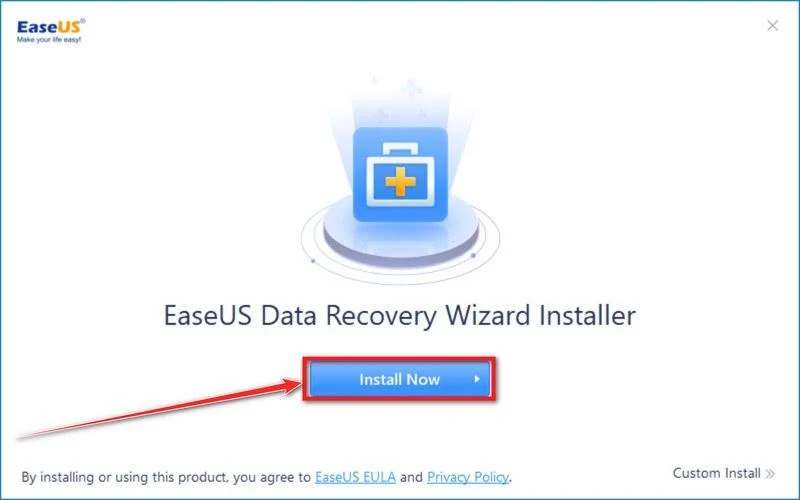
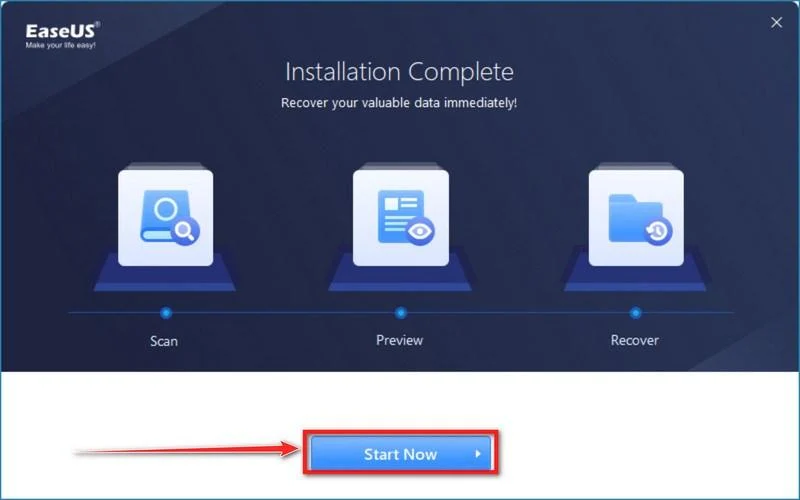
When your EaseUS Data Recovery Wizard installation completes, click the “Start Now” button to start the program.
-
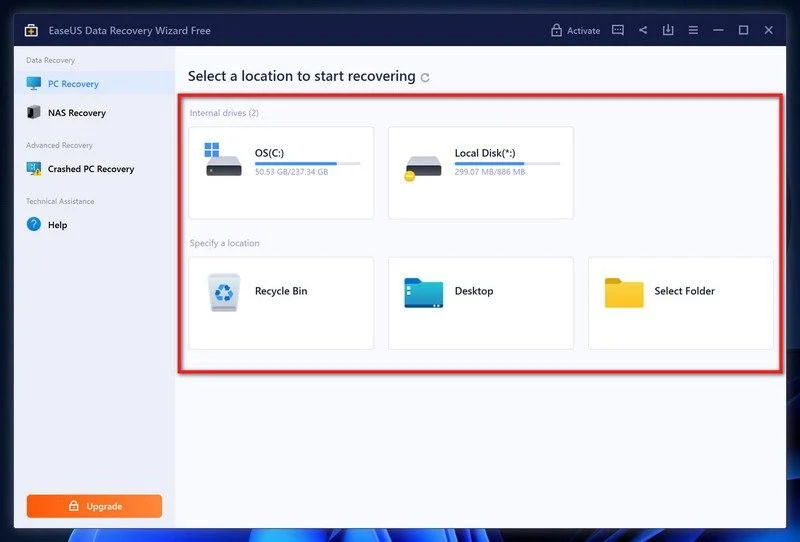
Select a location to start recovering the encrypted files.
Choose the drive or folder where you are the encrypted files that you want to recover and click “Scan“.
-
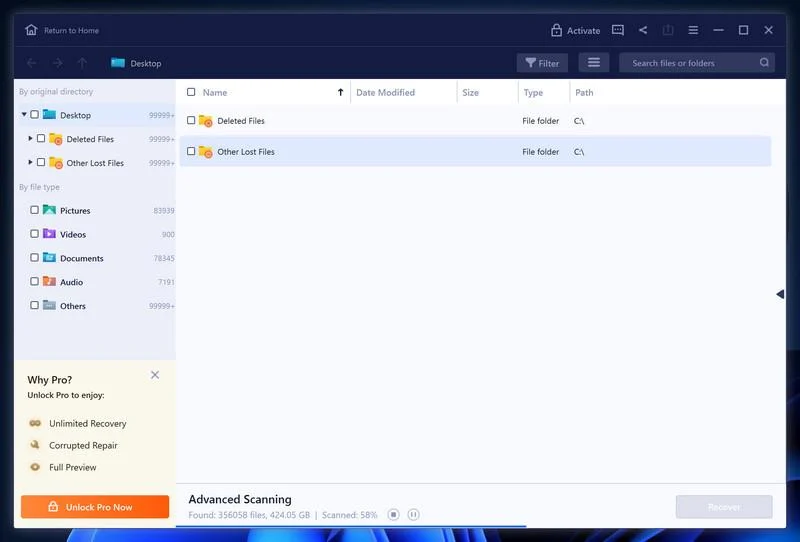
Wait for the EaseUS Data Recovery Wizard scan to complete.
EaseUS Data Recovery Wizard will now scan your computer files that can be restored. This process can take a few minutes, so we suggest you do something else and periodically check on the status of the scan to see when it is finished.
-
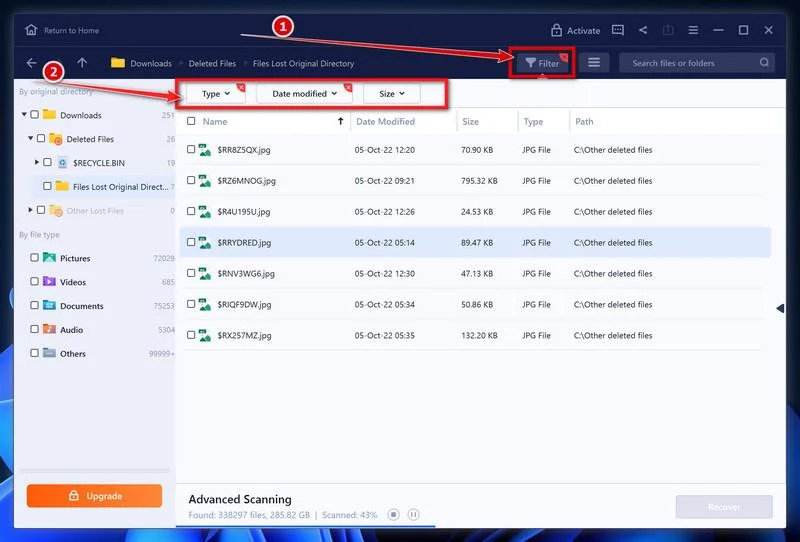
Find the files you want to recover.
When the EaseUS Data Recovery Wizard scan is finished scanning it will show a screen that displays the files that can be recovered. This tool can recover a lot of data, use the “Filter” button to quickly filter specific file types and find the files that you want to recover.
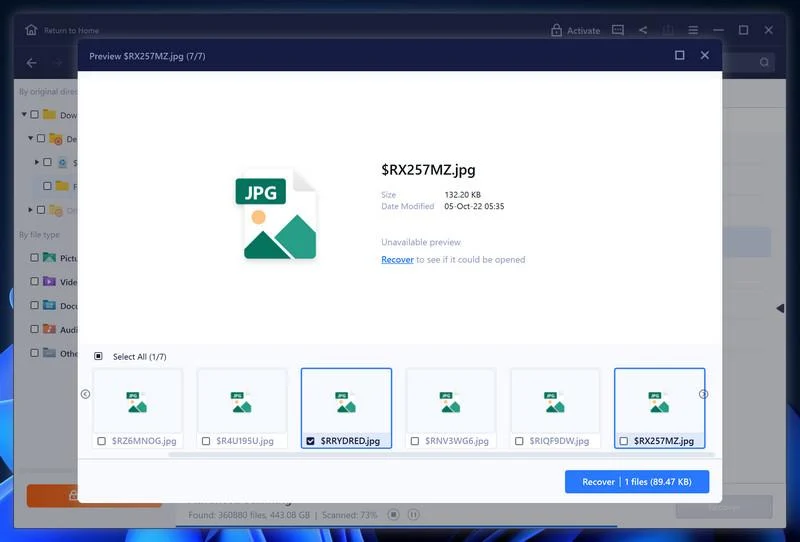
Click the “Preview” button or double-click on a file for a full preview.
-
Select your files and click “Recover”.
Finally, select the the files you want to recover and click “Recover“.
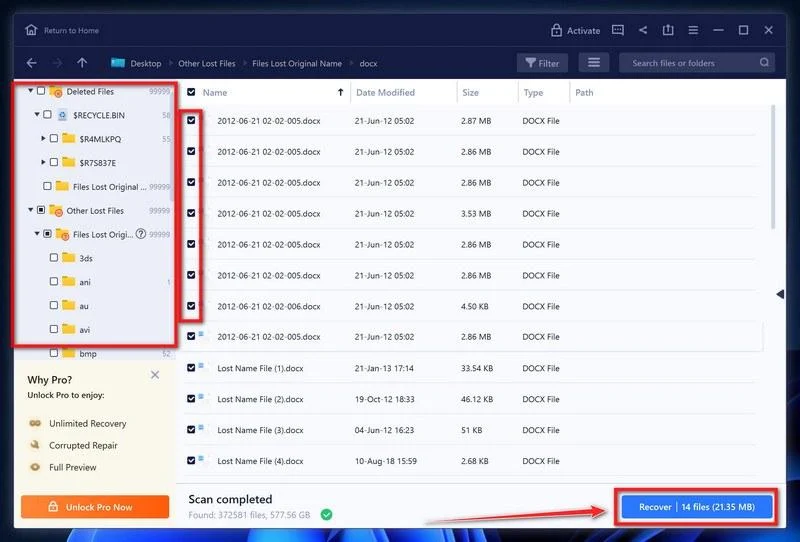
Choose a safe location to save all the files.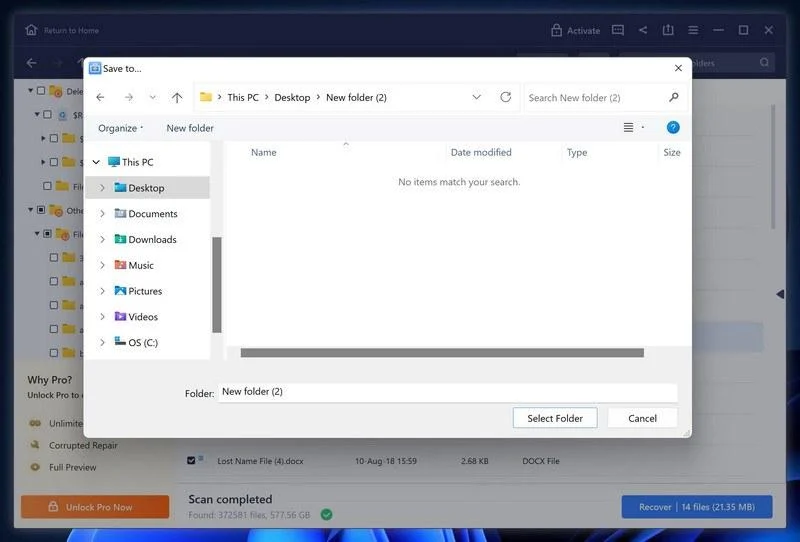
The free version only allow you to recover 2 GB of data, however, this will allow you to recover the most important files and see if EaseUS Data Recovery Wizard can correctly recover them.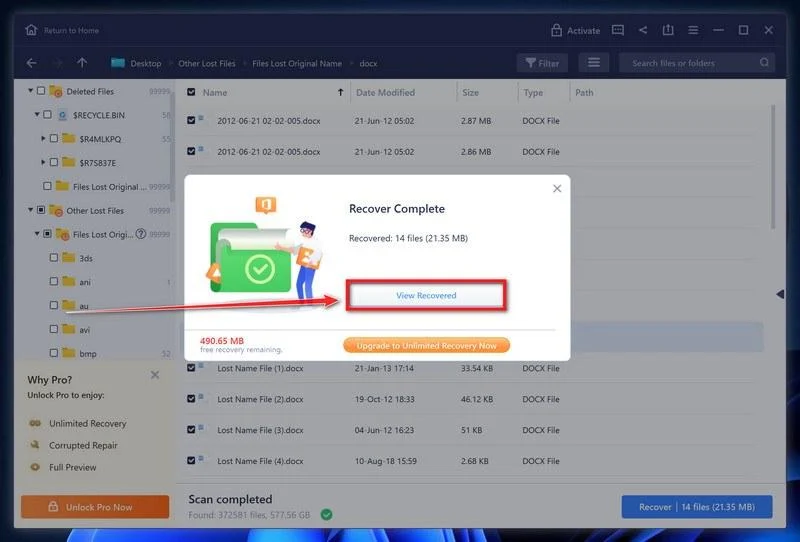
Option 3: Try to restore your files with ShadowExplorer
This ransomware will attempt to delete all shadow copies when you first start any executable on your computer after becoming infected. Thankfully, the infection is not always able to remove the shadow copies, so you should continue to try restoring your files using this method.
-
Download ShadowExplorer.
You can download ShadowExplorer from the below link.
Download ShadowExplorerOpens the official download page in a new tab.ShadowExplorerRestores files from Windows Shadow Volume Copies -
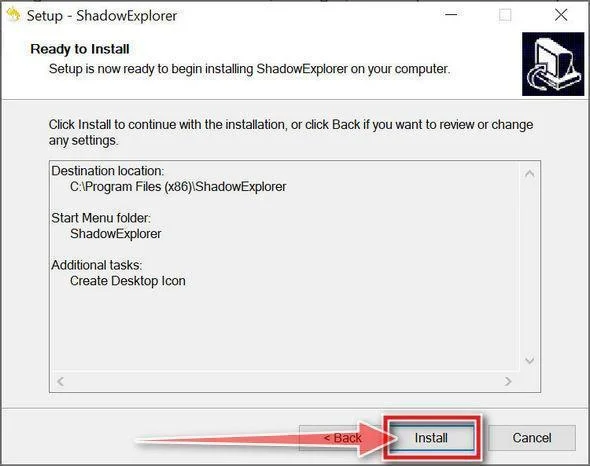
Install ShadowExplorer.
Double-click on the ShadowExplorer-x.x-setup file to start the installation process, then follow the on-screen promts to install this program.
-
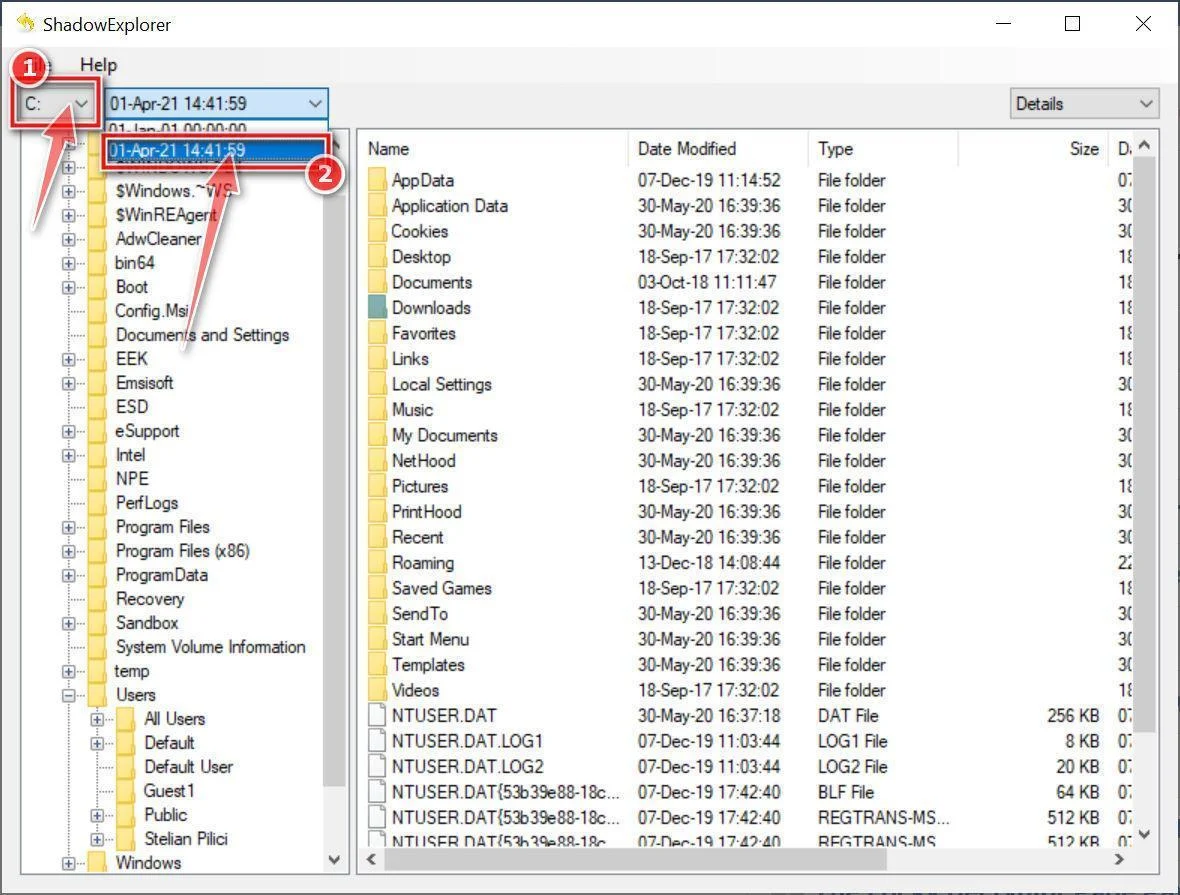
Select snapshot date.
Open ShadowExplorer and then from the top bar select the drive where the files that you want to save are located, then select from the snapshot available one previous to this infection.
-
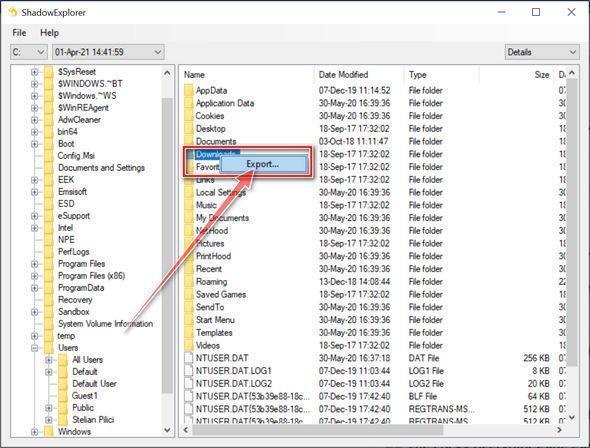
Export the files that you want to recover.
Once you have found a copy of the original file or folder, right-click on it and the select “Export”. A window will prompt you where you want to save the file or folder.

Join the discussion
0 commentsShare your experience or ask a question about this article.
Your progress
Did these steps help?
Let us know how the guide worked for you.
Describe what you see and the step you reached. Keep passwords and other private information out.
Discussion
Start the conversation
Have a question or something useful to share? Add the first comment.