

BLOXDRO is spreading inside Roblox the way scam campaigns usually spread: fast, loud, and everywhere at once. Players are seeing repeated chat messages in public servers claiming users are “winning tons of Robux” or getting “free rewards” from BloxDrop.com, often across completely unrelated games.
If that sounds tempting, that is the point. These messages are designed to hit younger players in the exact place they feel safest: inside Roblox itself. But the promotion pattern we’re seeing is not normal community chatter. It looks like automated bot spam, and the behavior closely matches past Robux scam waves that simply swap the domain name and run the same trap again.
Below is what we found, why it strongly points to a scam operation, and why you should avoid BLOXDRO entirely.

Overview
BLOXDRO presents itself as a “Robux reward” platform where you can earn or win Robux through games, cases, coins, offer tasks, and paid packs. On the surface, it looks like a polished gaming website with a fast-moving community vibe.
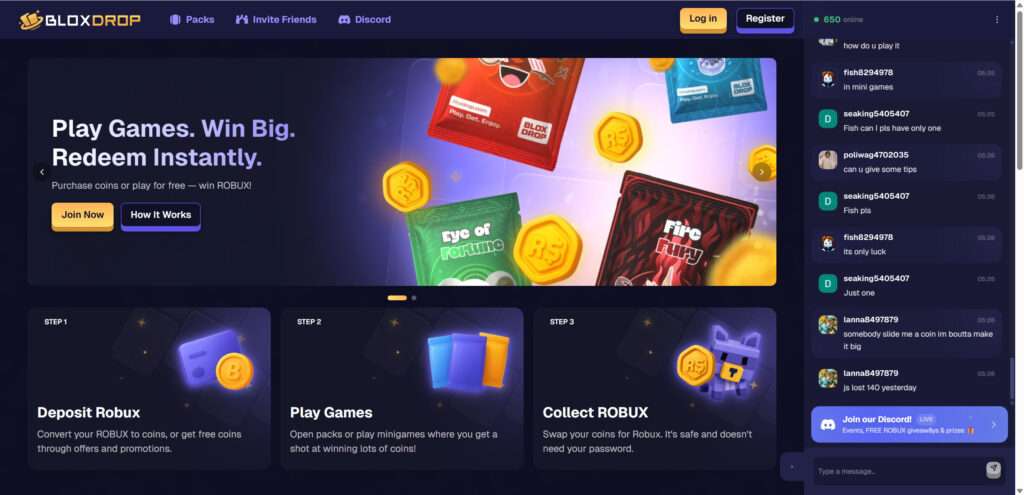
But the way it’s being promoted inside Roblox is the biggest giveaway. Multiple players report spam messages appearing across different games, repeating the same lines about BLOXDRO being “legit” and users “winning a ton of Robux.” In several reports, the accounts sending the messages were not even visible in the server’s player list.
That is not a normal Roblox situation. Messages coming from “users” who do not appear to exist in the server strongly suggests automated injection or bot tooling, not real people typing.
What We Found in Public Roblox Servers
Across multiple public servers, players described the same pattern repeating over and over:
- Spam messages appearing across multiple Roblox games
- Messages sent by accounts not visible in the player list
- Automated bot behavior, no real users typing
- Pattern matches previous Robux scam waves
- No official Roblox partnership or verification
Some players reported the messages continued for nearly half an hour, repeatedly, without the “senders” ever showing up as actual players. That is exactly what bot spam looks like when it is designed to overwhelm chat and force curiosity clicks.
Bot Spam Is Not “Marketing”, It’s a Scam Signal
Legitimate platforms do not need to invade Roblox chats with automated scripts. They do not need invisible accounts. They do not need the same copy-paste hype lines repeated across multiple games.
Scam operations do. Because they survive on volume, not trust. They know most users will leave, so they flood as many servers as possible and convert a small percentage into clicks, signups, deposits, or personal data.
“It Changed Names” Is Another Classic Pattern
Players also pointed out something important: this bot invasion style is not new. Previous waves promoted other “free Robux” sites in the same way, and then disappeared. Now BLOXDRO is showing up with the same behavior, the same chat disruption, and the same promise. Only the website name changes.
That is exactly how Roblox scam networks operate. When a domain gets reported too heavily, they rotate to a fresh name and restart the spam.
No Official Roblox Partnership or Verification
There is no official Roblox partnership behind BLOXDRO. No announcement. No verification. No trusted source confirming it. Roblox does not partner with random third-party websites to give out “free Robux.”
So when a site is pushed through bot spam and claims it can give you Robux faster than official methods, the safest conclusion is that it’s a scam funnel. The risk is not theoretical. It can lead to account compromise, unwanted subscriptions, data harvesting, or repeated deposit pressure.
How the Operation Works
This is the common step-by-step playbook used by BLOXDRO-style Robux scams. Even if details change, the structure stays the same.
Step 1: Flood Roblox Chats With “Winning” Messages
The campaign starts inside Roblox because that is where the target audience is. Bots spam messages like:
- “BLOXDRO is legit”
- “I just won a ton of Robux”
- “Use this code”
- “Free rewards”
The goal is not to convince everyone. It is to hook the curious player who clicks, signs up, or asks for the link.
Step 2: Pull Users Off Roblox to an External Site
Once you leave Roblox and enter an external site, you lose Roblox’s built-in safety layer. That is why scammers want you off-platform as fast as possible.
The site may look friendly and professional, but that is part of the conversion strategy. Modern scams often look better than legitimate sites.
Step 3: Introduce Coins, Cases, and “Free” Progress
Most of these sites use an internal currency (coins) and chance-based mechanics (cases, packs, spins). This does two things:
- It hides the real cost and makes spending feel smaller
- It creates gambling-style loops that keep users chasing wins
The odds are controlled by the site and are not independently verified. That means the outcome can be adjusted to maximize deposits and minimize real withdrawals.
Step 4: Push Offer Tasks, Links, or Deposits
Eventually, users hit the real purpose of the funnel. The site pushes you toward things that make money for the operators:
- Offerwalls and app installs
- Signups for trials or “verification” steps
- Deposits (Robux, money, or crypto)
- Loops where you are told to do “one more step”
This is where many victims lose time, money, or account safety. “Free Robux” sites do not exist in the way kids hope they do. Someone always pays, and it’s usually the user.
Step 5: Add Withdrawal Friction so Most People Never Cash Out
Scam-style reward sites often allow a tiny number of payouts for reputation, then block the majority through friction:
- Withdrawals stuck pending
- Minimum balance requirements
- Extra “verification” demands
- Support that delays or ignores complaints
If you have to fight to withdraw something that was promised as “instant,” that tells you everything you need to know.
What To Do If You Encounter Problems
If you interacted with BLOXDRO, clicked a link, entered details, completed tasks, or deposited anything, take these steps immediately.
1. Secure Your Roblox Account
- Change your Roblox password
- Enable two factor authentication
- Review logged-in devices and active sessions
- Check purchase history for anything unfamiliar
2. Stop Interacting With the Site
Do not keep trying to “unlock” a withdrawal. That is how these funnels drain more time and money.
3. If You Paid, Contact Your Payment Provider
If you used a card or payment app, dispute the charge as digital goods not delivered or misleading service. Save screenshots of the promises and your withdrawal status.
4. Warn Kids and Friends
Make it a clear rule: never click “free Robux” links in public chats, never enter Roblox logins on external sites, and never trust bot-promoted reward pages.
5. Report the Spam in Roblox
Report the messages and any visible accounts. Even if the sender is not in the player list, reporting helps Roblox detect the pattern and remove the spam tools faster.
6. Clean Up Your Browser
- Disable notifications for unknown sites
- Remove suspicious extensions
- Clear cookies and site data related to the link you clicked
Is Your Device Infected? Run a Free Malware Scan
Slow performance, constant pop-ups, or strange behavior? These are classic signs of a malware infection. The fastest way to find out is to scan your device with Malwarebytes Free — one of the most trusted malware removal tools available.
The free version detects and removes the most common threats, including:
- Adware — the cause of those annoying pop-ups
- Browser hijackers — unwanted redirects and changed homepages
- Trojans and spyware — hidden programs stealing your data
- Potentially unwanted programs (PUPs) — software you never asked for
👉 Select your device below — Windows, Mac, or Android — then follow the simple steps to download Malwarebytes, scan your system, and remove any threats it finds. The scan usually takes 5 to 20 minutes.
Run a Malware Scan with Malwarebytes for Windows
Malwarebytes is one of the most popular and trusted anti-malware tools for Windows — and it’s completely free for removing infections. It catches threats that many antivirus programs miss, including adware, browser hijackers, and trojans. Follow the steps below to scan and clean your PC in just a few minutes.
Download Malwarebytes
Click the button below to download the latest version of Malwarebytes for Windows from the official source. The free version is all you need — it will scan your computer and remove adware, browser hijackers, and other malicious software at no cost.
Download MalwarebytesOfficial installer for Windows 11 and 10. Your download starts right away.Want real-time protection? See Malwarebytes Premium Malwarebytes Free for WindowsScans and removes malware at no cost
-
Install Malwarebytes
When the download finishes, open your Downloads folder and double-click the MBSetup file. If Windows shows a User Account Control pop-up, click “Yes” to allow the installation.

Follow the On-Screen Prompts to Install Malwarebytes
The setup wizard will walk you through a few quick screens:
-
Choose where you’re installing the program — “Personal Computer” or “Work Computer” — then click Next.

-
Malwarebytes will now install on your device. This usually takes under a minute.

-
When installation is complete, the “Welcome to Malwarebytes” screen will open automatically.

-
On the final screen, click Open Malwarebytes to launch the program.

-
Enable “Scan for Rootkits”
Before scanning, turn on rootkit detection so Malwarebytes can find even the most hidden threats. Click the Settings gear icon on the left side of the screen.

In the settings menu, find “Scan for rootkits” and click the toggle so it turns blue.

Done? Click “Dashboard” in the left pane to return to the main screen.
Start the Scan
Click the blue Scan button. Malwarebytes will automatically update its virus database and start checking your computer for malware.

-
Wait for the Scan to Finish
The scan checks your entire system for browser hijackers and other malicious programs, so it can take 5 to 20 minutes depending on your computer. Feel free to do something else — just check back occasionally to see the progress.

-
Quarantine the Detected Threats
When the scan is done, you’ll see a list of everything Malwarebytes found — malware, adware, and potentially unwanted programs. Click the “Quarantine” button to remove all of them at once.

Malwarebytes will now remove the malicious files and registry entries and move them safely into quarantine.

-
Restart Your Computer
Some threats can only be fully removed after a reboot. If Malwarebytes asks you to restart, click Yes. Once you’re logged back in, Malwarebytes has finished removing the threats it found.

That’s it — your Windows PC is now clean of trojans, adware, and other malware, and should be back to running smoothly.
If you are still having problems with your computer after completing these instructions, then please follow one of the steps:
- Run a computer scan with ESET Online Scanner
- Ask for help in our Windows Malware Removal Help & Support forum.
Run a Malware Scan with Malwarebytes for Mac
Malwarebytes for Mac is a free on-demand scanner that removes the malware other security software tends to miss — adware, browser hijackers, and unwanted programs included. Cleaning an infected Mac with Malwarebytes has always been completely free, and it’s our go-to recommendation. Follow the steps below to scan and clean your Mac in just a few minutes.
-
Download Malwarebytes for Mac
Click the button below to download the latest version of Malwarebytes for Mac.
Download MalwarebytesOfficial installer for macOS. Your download starts right away.Want real-time protection? See Malwarebytes PremiumMalwarebytes Free for MacScans and removes malware at no cost -
Open the Malwarebytes setup file
When the download finishes, open your Downloads folder and double-click the setup file to begin the installation.

-
Follow the On-Screen Prompts to Install Malwarebytes
The Malwarebytes for Mac Installer will guide you through a few quick screens. Click “Continue” and keep following the prompts until the installation completes.



When the installation is complete, Malwarebytes opens to the Welcome to Malwarebytes screen. Click “Get started“.
-
Select “Personal Computer” or “Work Computer”
Malwarebytes will ask what type of computer you’re installing it on. Click either Personal Computer or Work Computer, whichever applies.

-
Start the Scan
Click the “Scan” button. Malwarebytes will automatically update its detection database and begin checking your Mac for malware.

-
Wait for the Scan to Finish
Malwarebytes will scan your Mac for adware, browser hijackers, and other malicious programs. This can take a few minutes, so feel free to do something else — just check back occasionally to see the progress.

-
Quarantine the Detected Threats
When the scan is done, you’ll see a list of everything Malwarebytes found. Click the “Quarantine” button to remove all the threats at once.

-
Restart Your Mac
Malwarebytes will now remove all the malicious files it found. Some threats can only be fully removed after a reboot — if Malwarebytes asks you to restart, allow it. Once you’re logged back in, your Mac is clean.

That’s it — your Mac is now free of adware, rogue browser extensions, and other potentially harmful software.
If you are still experiencing problems while trying to remove a malicious program from your computer, please ask for help in our Mac Malware Removal Help & Support forum.
Run a Malware Scan with Malwarebytes for Android
Malwarebytes for Android automatically detects and removes dangerous threats like malware and ransomware so you don’t have to worry about your most-used device being compromised. Aggressive detection of adware and potentially unwanted programs keeps your Android phone or tablet running smooth.
-
Download Malwarebytes for Android.
You can download Malwarebytes for Android by clicking the link below.
Get Malwarebytes for AndroidOpens Google Play in a new tab.Want real-time protection? See Malwarebytes Premium for AndroidMalwarebytes for AndroidScans your phone and removes malware at no cost -
Install Malwarebytes for Android on your phone.
In the Google Play Store, tap “Install” to install Malwarebytes for Android on your device.

When the installation process has finished, tap “Open” to begin using Malwarebytes for Android. You can also open Malwarebytes by tapping on its icon in your phone menu or home screen.

-
Follow the on-screen prompts to complete the setup process
When Malwarebytes will open, you will see the Malwarebytes Setup Wizard which will guide you through a series of permissions and other setup options.
This is the first of two screens that explain the difference between the Premium and Free versions. Swipe this screen to continue.
Tap on “Got it” to proceed to the next step.
Malwarebytes for Android will now ask for a set of permissions that are required to scan your device and protect it from malware. Tap on “Give permission” to continue.
Tap on “Allow” to permit Malwarebytes to access the files on your phone.
-
Update database and run a scan with Malwarebytes for Android
You will now be prompted to update the Malwarebytes database and run a full system scan.

Click on “Update database” to update the Malwarebytes for Android definitions to the latest version, then click on “Run full scan” to perform a system scan.

-
Wait for the Malwarebytes scan to complete.
Malwarebytes will now start scanning your phone for adware and other malicious apps. This process can take a few minutes, so we suggest you do something else and periodically check on the status of the scan to see when it is finished.

-
Click on “Remove Selected”.
When the scan has been completed, you will be presented with a screen showing the malware infections that Malwarebytes for Android has detected. To remove the malicious apps that Malwarebytes has found, tap on the “Remove Selected” button.

-
Restart your phone.
Malwarebytes for Android will now remove all the malicious apps that it has found. To complete the malware removal process, Malwarebytes may ask you to restart your device.
That’s it — your Android phone is now clean — no more malicious apps, adware, or browser redirects.
If you are still having problems with your phone after completing these instructions, then please follow one of the steps:
- Restore your phone to factory settings by going to Settings > General management > Reset > Factory data reset.
- Ask for help in our Mobile Malware Removal Help & Support forum.
Stay Protected: Block Ads and Malicious Sites
Now that your device is clean, keep it that way. Most infections start with a malicious ad or a fake download button — so blocking them at the source is your best defense.
We recommend AdGuard, which blocks malicious ads, phishing pages, and dangerous redirects before they can reach you.
👉 Download AdGuard and browse safely
The Bottom Line
BLOXDRO is being promoted inside public Roblox servers through repeated bot-like chat messages claiming users can get free Robux or rewards. Players report spam across multiple games, messages from accounts not visible in the player list, and automated behavior that repeats for long periods.
That pattern matches previous Robux scam campaigns almost perfectly: flood chats, rotate the domain name, push users off-platform, then funnel them into tasks, clicks, deposits, and risky “verification” steps. There is also no official Roblox partnership or verification behind BLOXDRO, which makes the “free Robux” claim even more suspicious.
The safest move is to avoid BLOXDRO completely. Do not click links promoted through Roblox chat spam, do not deposit Robux or money, and do not share personal details. If you want Robux, stick to official Roblox channels only.
FAQ
Is BLOXDRO legit or a scam?
Based on how it’s being promoted inside Roblox (repeated bot-like chat spam, messages from accounts not visible in the player list, and copy-paste hype across multiple games), it should be treated as a scam-style operation and avoided. Legitimate services do not rely on invisible spam accounts to recruit kids in public servers.
Why am I seeing BLOXDRO messages in so many Roblox games?
That spread pattern strongly suggests automated spam or a coordinated bot campaign. These messages are designed to hit large numbers of players fast, then convert a small percentage into clicks and signups.
How can messages be sent by accounts that aren’t in the player list?
Players reporting “ghost” senders is a major red flag. It can happen when bots join and leave quickly, when display names are spoofed, or when exploit-driven spam tools inject chat output in unusual ways. Regardless of the exact method, it is not normal behavior for legitimate user chat.
Does Roblox partner with BLOXDRO to give out free Robux?
No. Roblox does not verify random third-party “free Robux” sites promoted through public chat spam. If a website claims it can give you Robux outside official Roblox channels, you should assume it’s unsafe.
Can BLOXDRO steal my Roblox account?
Any off-platform Robux site increases risk. Some are built to collect usernames, emails, and behavioral data. Others push users toward login pages, “verification” steps, or shady extensions that can compromise accounts. Even if a site does not ask for your password at first, it can still lead you into risky steps later.
What happens if I click the BLOXDRO link but don’t enter any details?
If you only clicked and left, your risk is lower, but not zero. Close the page, do not allow notifications, and do not install anything. Clearing site data for that domain is a good extra step, especially if the site triggered popups or redirects.
Why do these sites show “people winning Robux” in chat or live feeds?
That is social proof pressure. Scam-style reward sites often use fake or automated chat activity, looping “big win” messages to make it feel like payouts are constant. The goal is to create FOMO and push users into deposits or offer tasks before they think critically.
I used BLOXDRO. What should I do right now?
Stop using the site immediately, then secure your Roblox account. Change your password, enable two factor authentication, review logged-in devices, and check purchase history. If you paid money, contact your payment provider to dispute the transaction and keep screenshots as evidence.
Can I get my money back if I deposited or paid?
Sometimes, yes. If you paid by card or a payment app, you may be able to dispute the transaction as digital goods not delivered or misleading service. Act quickly, provide screenshots, and ask your provider about chargeback options.
How do I stop seeing BLOXDRO spam in Roblox chat?
Report the messages and any visible accounts, then block users when possible. If the spam is coming from “ghost” accounts, reporting still helps Roblox detect patterns. You can also reduce exposure by switching servers or using private servers where applicable.
What is the safest way to get Robux?
Only use official Roblox channels, such as purchasing Robux directly through Roblox or using legitimate Roblox-supported methods. Any site promoted through bot spam promising “free Robux” introduces unnecessary risk and should be avoided.








