

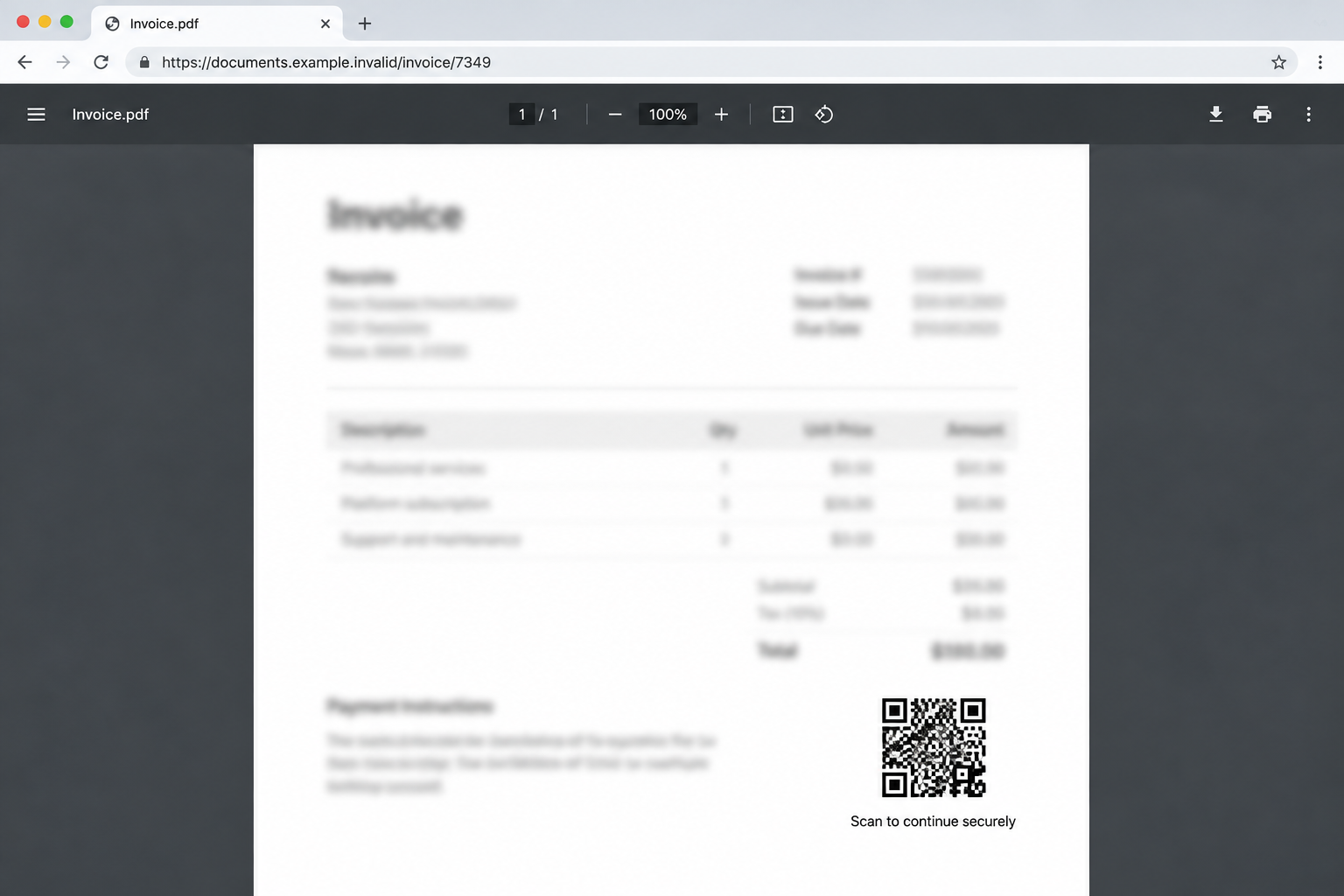
An invoice arrives as a PDF, but its contents are deliberately blurred. A QR code beside the document offers a quick way to read it.
Before reaching for your phone, ask a simpler question: who sent the invoice, and why would reading it require a second device?
Overview
The document creates a problem it claims to solve
HP’s September 2026 threat report described phishing PDFs that intentionally hid their content behind blur.
Recipients were told to scan a QR code with a phone to view the supposed invoice. The code led away from the PDF and toward a counterfeit login page.
The promised document was the pretext. The attack sought Microsoft account credentials, not payment of a legitimate invoice.
HP observed the campaign through its security telemetry. Its description supports this mechanism, but does not identify every sender or invoice recipient.
Why the phone matters
Many workplaces protect managed computers with browser filtering, security tools, and monitored sign-ins. A personal phone may not have the same defenses.
Scanning the code shifts the visit to that phone. A site blocked on a work PC may open normally through a mobile browser.
The transition also hides the destination until the camera resolves it. Readers who inspect ordinary links may scan a QR code without applying the same habit.
Security researchers call this technique quishing. The term matters less than the moment the trusted-looking PDF becomes an unknown web address.
What the available evidence actually shows
HP said the PDFs contained QR codes and led to convincing fake Microsoft sign-in pages. The objective was credential theft.
- The invoice or document text is made unreadable on purpose.
- The PDF presents scanning as the way to restore access.
- The browser moves from a computer to a phone.
- The destination imitates a Microsoft login experience.
- Entering a password gives it to the page operator.
The first image is a fictional reconstruction of the lure. It is not the PDF HP collected, and its displayed domain is intentionally unusable.
Why a Blurred Invoice Feels Urgent
An invoice asks for attention even when the sender is unfamiliar. It may appear to involve an overdue bill, a supplier, a reimbursement, or an accounting deadline.
Blurred content increases that pressure. The recipient cannot quickly decide whether the attachment is relevant, so the QR code looks like a route to certainty.
The document can also exploit workplace habits. Employees often process attachments in batches and may assume a strange preview is a file-format problem.
A security explanation makes the distortion sound deliberate and professional. “Blurred for security” reframes an obvious obstacle as a protective feature.
But a genuine sender can share a readable invoice through a trusted portal or send a corrected copy. There is no inherent reason for a PDF to demand phone authentication.
Some legitimate organizations use QR codes, so the shape alone does not prove fraud. Context decides whether the requested action makes sense.
Here the code is paired with obscured contents and a Microsoft sign-in page reached through an unsolicited attachment. That combination deserves skepticism.
How the Blurred PDF QR Code Scam Works
Step 1: A message presents an invoice or protected document
The victim receives an email carrying a PDF. Its subject and sender may suggest billing or document delivery, but HP did not publish one universal template.
That uncertainty matters. A guide that quotes one invented subject line as definitive would make other variants easier to miss.
Instead, look at the functional claim: an attached document cannot be read until the reader performs an extra verification step.
If the invoice appears to concern a real supplier, use a telephone number from existing records. Do not rely on contact details inside the same email.
Step 2: Blur conceals the information needed to verify it
The visible PDF looks like a document, but essential content is obscured. The reader cannot inspect the amount, goods, or billing relationship normally.
That prevents a quick reality check. A fake invoice can remain plausible because it withholds details until after the victim follows the attacker’s route.
Do not treat the blur as a technical fault you must fix. It is part of the message’s instruction design.
Ask the sender to resend the document through an established channel if the business relationship is genuine.
Step 3: The QR code moves the action to a phone
The PDF directs the recipient to scan a code. A phone then opens a URL embedded in the black-and-white pattern.
That URL can be difficult to judge in a small preview. A familiar title printed next to the code does not authenticate the hidden address.
HP’s analysis highlights the device switch. Protections on the desktop may not accompany the reader into a personal mobile browser.
Before opening any scan result, read its entire destination. A Microsoft account prompt should live on Microsoft’s real authentication domain, not an unrelated host.
Step 4: The destination asks for a Microsoft login
The landing page imitates a Microsoft sign-in screen. It may feel routine because the PDF framed authentication as necessary to reveal the invoice.
A convincing visual copy still cannot establish ownership. Phishing pages reproduce colors, form labels, and logos precisely enough to fool a hurried user.
HP reported credential harvesting as the objective. It did not say that merely scanning a code automatically compromised an account.
The critical disclosure occurs when the visitor submits login information, approval codes, or other requested account data to the false page.
Step 5: The stolen account can become a new starting point
A work email account may contain invoices, supplier contacts, calendars, and shared files. Access to it can support further fraud against colleagues.
An attacker might search for payment conversations or send messages from the compromised account. Those are plausible consequences, not confirmed actions in every HP-observed case.
After a credential is submitted, a phishing site may redirect to a harmless page or show an error. Neither outcome makes the first sign-in legitimate.
Investigate login records, mailbox rules, connected applications, and sent mail instead of waiting for a visible lockout.
The QR Code Is a Link, Not a Security Check
Many people think of QR codes as convenient shortcuts, not web links. A scam relies on that mental difference.
The code carries an address. It does not evaluate whether the address is trustworthy, and it cannot prove who created the PDF.
A shortened or redirected destination can make the final website harder to recognize. Open neither until the underlying business request is verified independently.
On some phones, a scan preview shows the domain before navigation. Pause there and inspect it rather than tapping automatically.
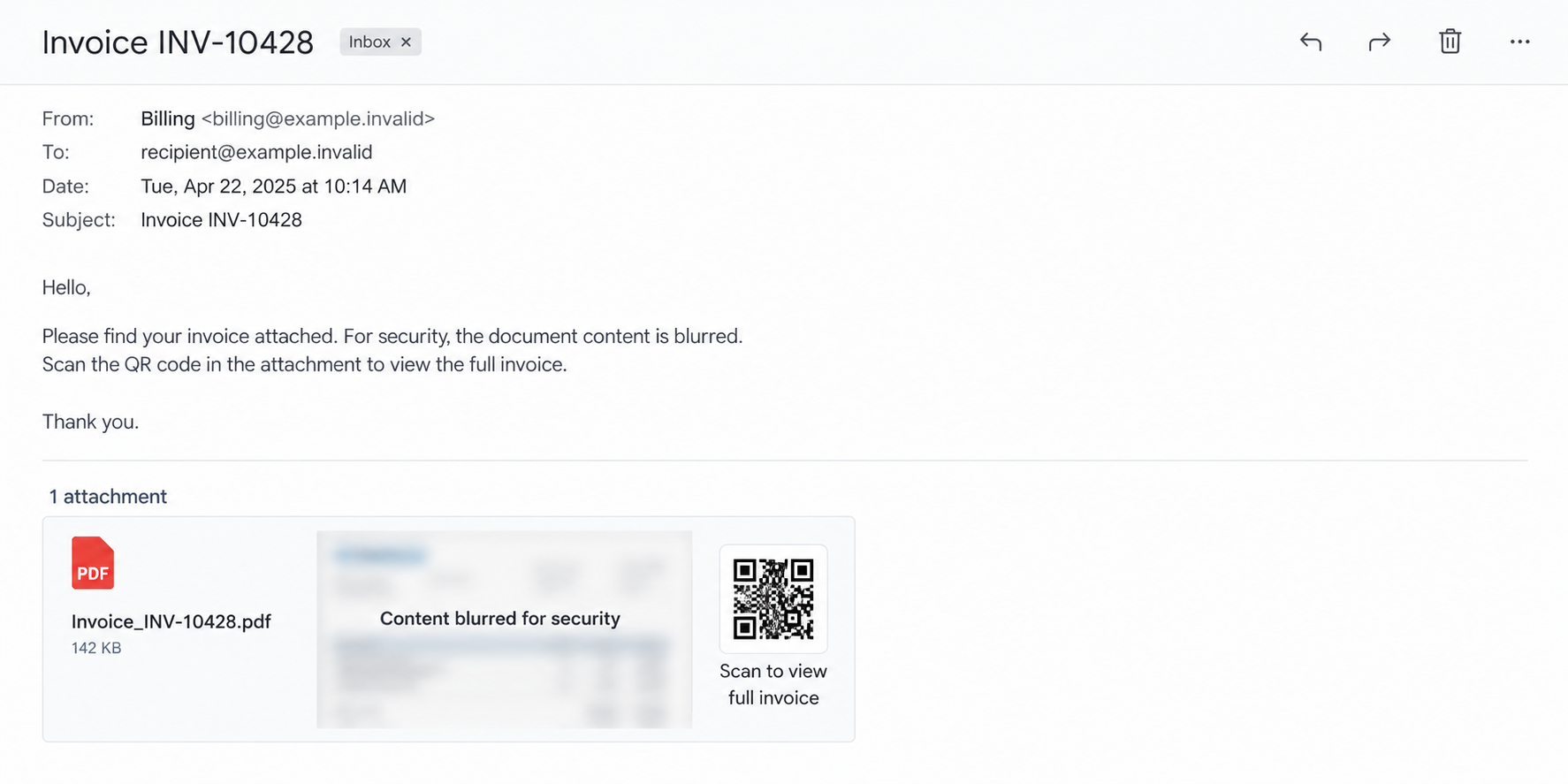
The second image illustrates an email and attachment with a QR prompt. It is original artwork, not a screenshot of a captured phishing email.
It shows how easily an invoice wrapper can make the code look like a document control rather than an external link.
Even a code printed by a familiar organization can be replaced in a forged document. Validate the request through records you already trust.
How to Verify a Questionable Invoice Safely
Compare the sender against previous correspondence. A near-identical domain or display name is not enough; inspect the full address and the message’s history.
Open your accounting system independently and search for the invoice number, vendor, and purchase order. The suspicious PDF should not be the only evidence.
Call the supplier through a known number from a contract or earlier invoice. Ask whether they sent this exact attachment and why it requires a QR scan.
If the message claims a Microsoft file-sharing requirement, sign in through your normal Microsoft 365 portal and inspect shared files there.
Do not paste a QR destination into a corporate browser to “test” it. Forward the original message to your security team using its approved reporting method.
A legitimate sender should be able to provide a readable document without requiring a novel sign-in flow on a personal phone.
What to Do If You Scanned or Signed In
There are different levels of exposure. A scan preview is not the same as entering a password, and a password entry is not the same as an approved sign-in prompt.
- If you only scanned the code, close the preview. Do not open the destination, then report the email through your organization’s phishing process.
- If the phishing page opened, note its address and your visit time. Close it, and check whether any file downloaded or permission request appeared.
- If you entered a password, change it immediately from the real Microsoft site on a trusted device. Replace reused passwords on other accounts.
- Revoke active sessions and inspect recent sign-ins. Your administrator can review locations, device details, authentication events, and suspicious application consent.
- Check mailbox forwarding, inbox rules, sent items, recovery settings, and delegated access. Remove unauthorized changes with administrator help.
- If you approved a multifactor prompt, tell the security team exactly when and how. A password change alone may not invalidate every session or token.
- Warn the billing or finance team if the mailbox contained invoices. They should verify bank-detail changes and recent payment requests by telephone.
- Use Malwarebytes if you downloaded or ran a file after scanning. A PDF view alone does not establish malware, but unexpected installers require a device check.
- Consider AdGuard to reduce access to known phishing domains and deceptive ads. It cannot undo a password already submitted to a counterfeit form.
- Preserve the original email, PDF, headers, URL, and any screenshots for investigation. Avoid repeatedly opening the malicious site to gather more evidence.
Why Mobile Browsers Need the Same Skepticism
A phone feels personal and familiar, yet its browser can display a forged account page just as convincingly as a desktop browser.
Some users are less likely to inspect the full URL on a narrow screen. Mobile address bars may hide path details while preserving a polished login design.
Do not assume biometric unlocking protects you after you type credentials into a website. Biometrics secure the device; they do not authenticate the site.
Managed work devices may have protection policies absent from a personal handset. HP identified precisely this difference as part of the campaign’s advantage.
Use the provider’s official app or a bookmarked site when a document truly needs an account. Do not let a QR code choose the login destination for you.
If your phone automatically opens scanned links, change its camera or scanner settings to display a preview first. That extra pause gives you room to inspect the host.
Remember that the visible page name can differ from the actual domain. Read the address itself, especially the part immediately before its top-level ending.
A corporate logo in a mobile browser does not prove corporate ownership. Anyone designing a phishing page can upload a copied image.
When you are unsure, close the tab and open the service independently. A real invoice will still exist in the legitimate account or supplier records.
What a Real Protected Document Should Offer
Real vendors can encrypt attachments, use a known customer portal, or share documents through authenticated enterprise platforms. Their procedures should be confirmable outside an unsolicited email.
A trusted process names the sender, identifies the specific document, and lets the recipient verify access through an established account.
It does not need to blur the invoice so completely that the reader cannot recognize the transaction before scanning an opaque code.
If a new process appears without warning, call the organization. A short independent conversation can prevent a long account-recovery effort.
For businesses, provide staff with a straightforward way to flag odd invoices. Complicated reporting channels encourage people to solve the problem alone.
The safest response is not to reject every QR code. It is to treat each one as a link whose destination and purpose must make sense.
Frequently Asked Questions
Can scanning a QR code alone steal my Microsoft password?
No. The reported campaign needed the victim to reach a phishing page and submit credentials. A scan can begin the exposure but does not prove theft.
Why was the PDF intentionally blurred?
The obscured content creates a reason to follow the QR instruction. It also prevents the reader from checking whether the invoice is genuine first.
Is the QR code itself malware?
A QR code is encoded data, usually a URL. The harm comes from the destination and any information or software the visitor supplies there.
Would a real invoice ever use a QR code?
Yes. Legitimate invoices can include payment or reference codes. Verify the sender and destination through known business records before acting.
Should I scan the code again to capture evidence?
No. Preserve the original PDF and email. Your security team can inspect the code in a controlled environment without exposing your account again.
What if I entered a password but saw a normal page afterward?
Secure the account anyway. A redirect after submission can be part of the deception and does not show where the password went.
The Bottom Line
A blurred invoice PDF is not a good reason to move your work login to a phone. HP documented QR codes that led readers to fake Microsoft sign-in pages.
Verify the sender and invoice through established channels. If you entered credentials, act quickly on account security and tell your workplace security team.

Join the discussion
0 commentsShare your experience or ask a question about this article.
Discussion
Start the conversation
Have a question or something useful to share? Add the first comment.