


When a PDF opens in a browser instead of your usual reader, change the default for .pdf rather than changing your browser settings.
Install the reader you want to use first. The steps below apply to PDF files you open from Windows, not necessarily to previews inside a website.
Hold the Windows logo key and press I to open Settings. You can also find Settings in the Start menu.
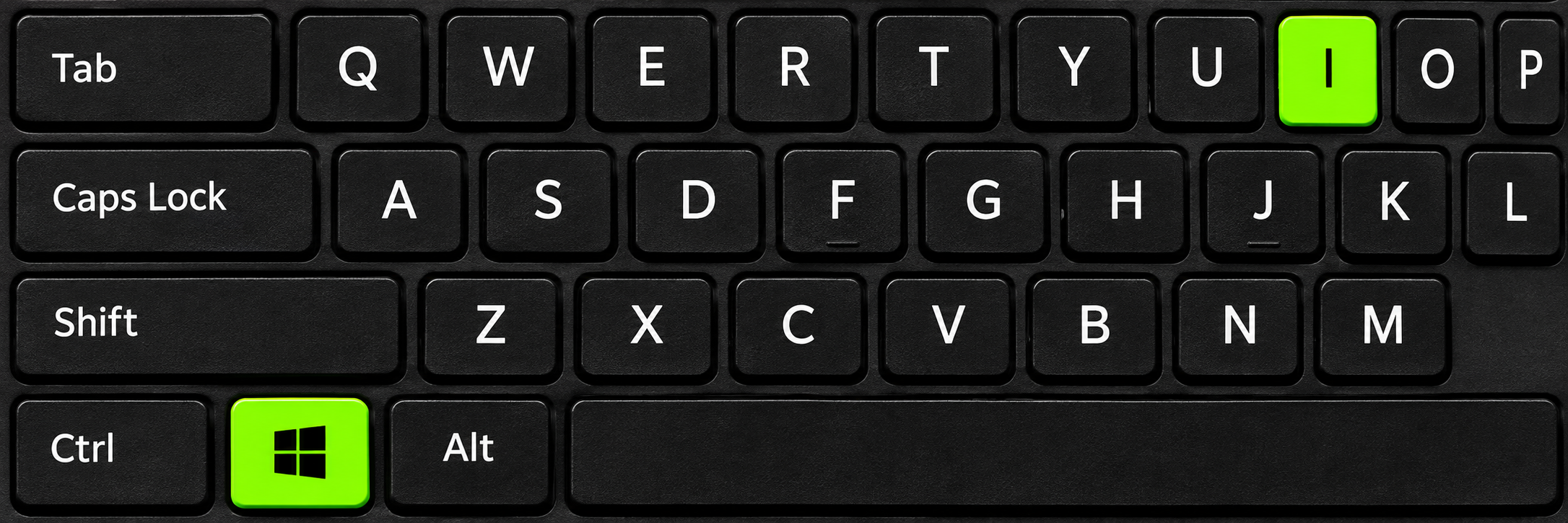
Choose the default app for PDF files
Step 1: Select Apps in Settings
In the sidebar, select Apps. Windows uses this section to manage which programs open different kinds of files.
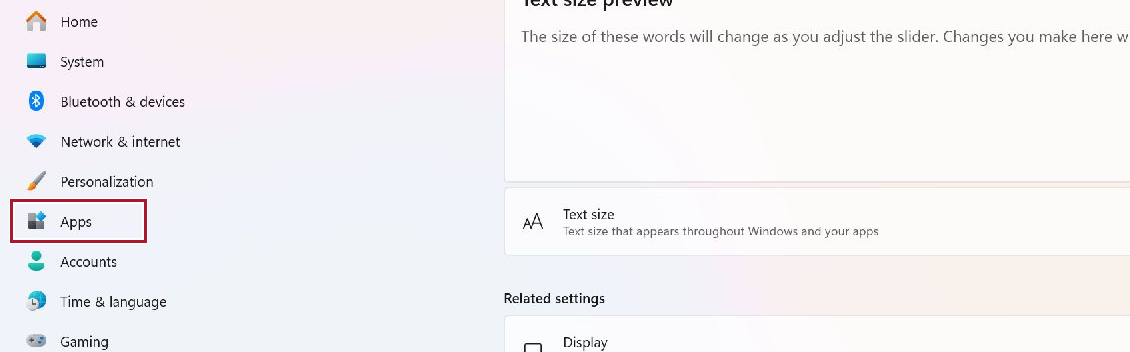
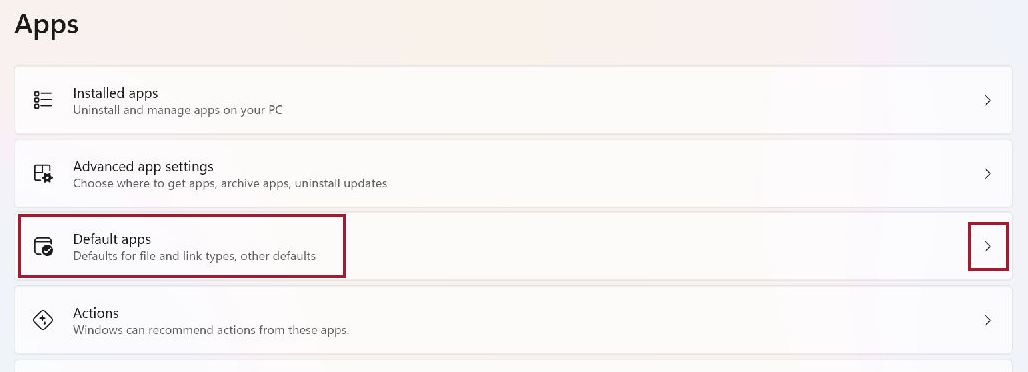
Step 2: Open Default apps
Select Default apps on the Apps page. Use the file-type search field rather than the separate field for finding an installed app.
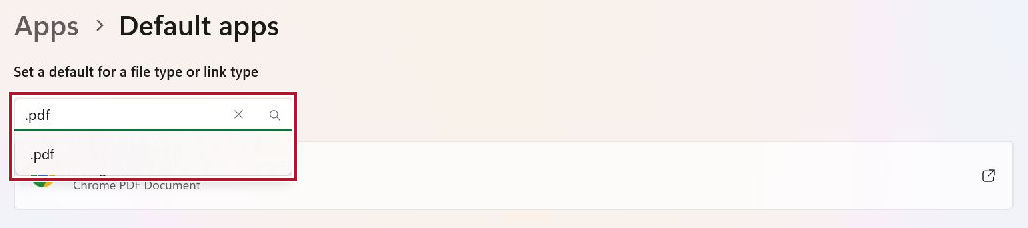
Step 3: Search for the .pdf extension
Type .pdf, including the dot, in the file-type field. Select the matching .pdf result if a suggestion appears below the field.
Step 4: Open the app picker for .pdf
Click the row showing the current app or Choose a default if nothing is assigned. The picker should say that it applies to PDF files.
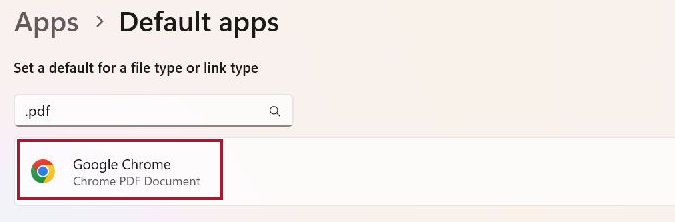
Step 5: Pick a reader and set it as the default
Choose your installed PDF reader, then select Set default. If the reader is missing, cancel the picker and check that the application is installed.
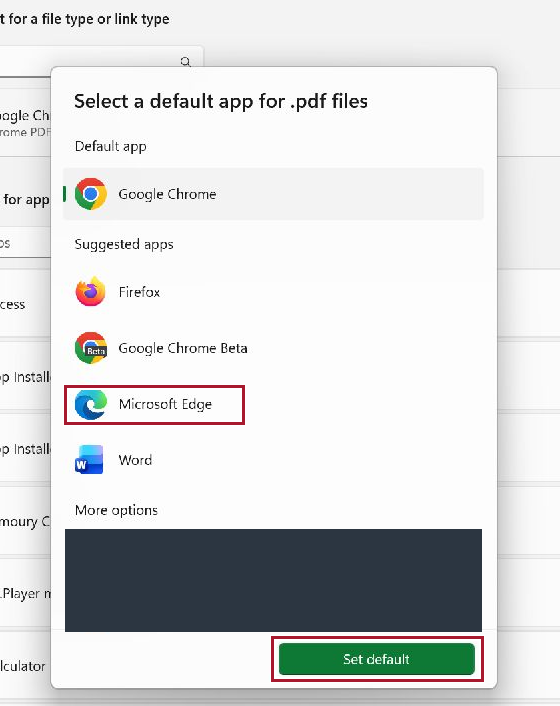
Verify the change with a PDF you trust
Double-click a known PDF in File Explorer. If it opens in your chosen app, the association worked. Return to the same setting to switch back.
Changing the default does not convert existing documents or change what happens when a website displays its own embedded PDF viewer.
Microsoft’s default app instructions also explain how file-type associations differ from link-type associations.

Join the discussion
0 commentsShare your experience or ask a question about this article.
Discussion
Start the conversation
Have a question or something useful to share? Add the first comment.