


If a familiar app opens every time you sign in, you can usually stop it without uninstalling it. Windows keeps these switches together in Settings.
Start with one app you recognize and can open manually. Leave security, backup, accessibility, and work-managed software alone if you rely on it.
To open Settings, hold the Windows logo key and press I, or select Start > Settings.

Stop a known app from opening at sign-in
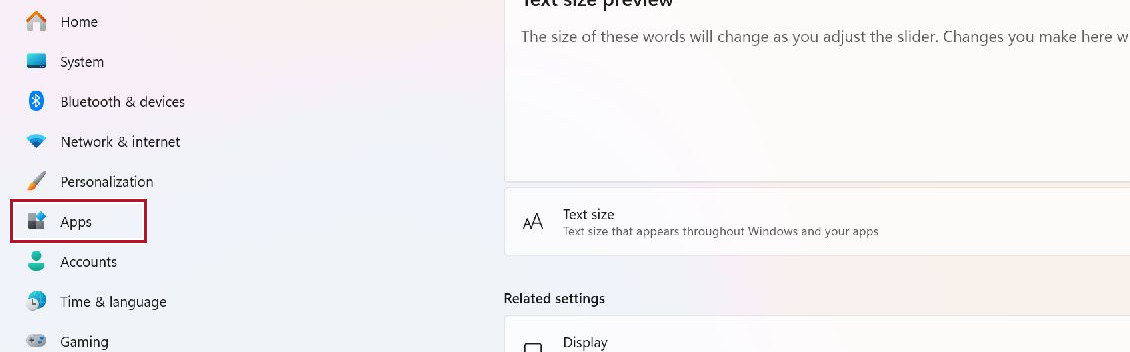
Step 1: Open Apps in Settings
Select Apps in the left sidebar. This takes you to the page that groups installed apps, defaults, and startup controls.
Step 2: Find the Startup page
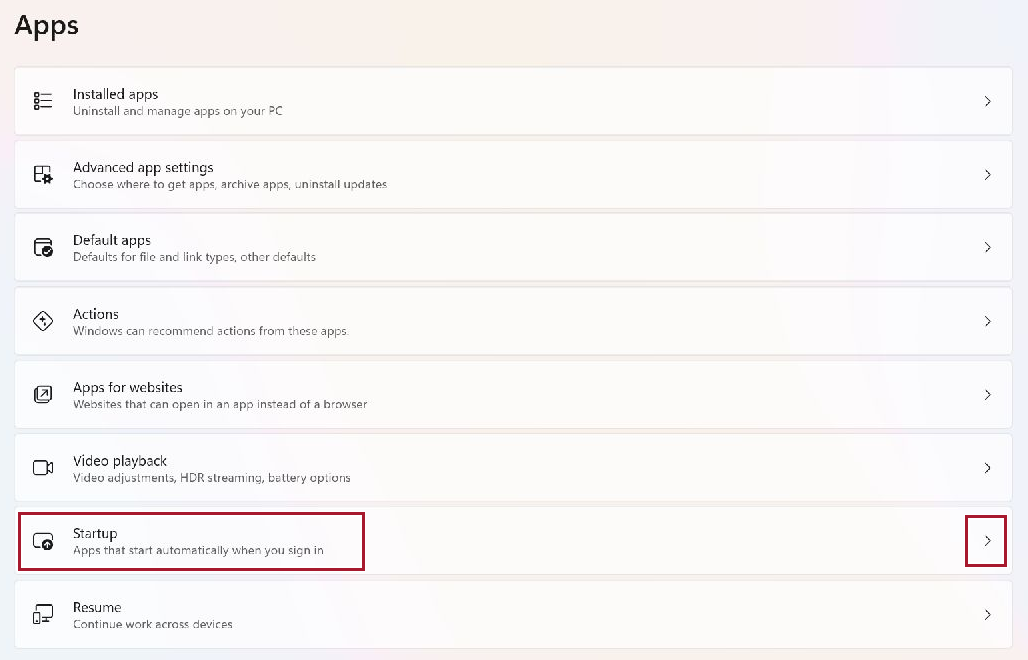
Scroll down the Apps page and select Startup. This list is for sign-in behavior, not for removing installed programs.
Step 3: Locate the app’s switch
Find the app by name and turn its switch Off if you do not want it to open at sign-in. An app already off needs no change.

Check the next time you sign in
Save your work before signing out. After signing back in, check that the app no longer appears automatically and that you can still open it from Start.
To undo the change, return to the same Startup page and turn the app back on. This does not uninstall the app or remove its files.
If the app is not listed or keeps opening, check its own preferences for a sign-in option before disabling anything else.
Microsoft’s startup app guide explains which apps appear on this page and how the switches work.

Join the discussion
0 commentsShare your experience or ask a question about this article.
Your progress
Did these steps help?
Let us know how the guide worked for you.
Describe what you see and the step you reached. Keep passwords and other private information out.
Discussion
Start the conversation
Have a question or something useful to share? Add the first comment.