


Windows can display a file as Example-Notes even when its full name is Example-Notes.txt. Turning on extensions makes it easier to see the real file type.
Hidden items are controlled by a different setting. Enable that only when you need to locate a file or folder that Explorer normally keeps out of sight.
Show file extensions and hidden items
Step 1: Open File Explorer with Windows + E
Hold down the Windows logo key and press E, then release both keys. You can also select the File Explorer folder icon on the taskbar.

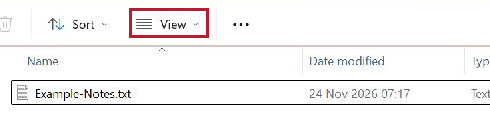
Step 2: Find the View menu
In File Explorer, open a folder with a file you recognize. Select View on the command bar above the list of files.
Step 3: Open the Show submenu
Near the bottom of the View menu, select Show. This opens a second menu for items that Explorer can display or hide.
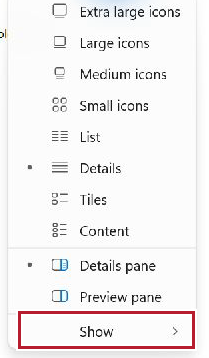
Step 4: Turn on the option you actually need
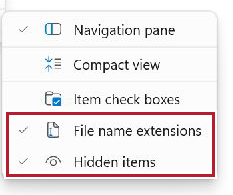
Select File name extensions if it is unchecked. Reopen View > Show and select Hidden items separately if you also need hidden files.
A check mark means the option is already on. Extensions should now appear at the end of known file names, and ordinary hidden files look faded.
Check the last extension before opening a download
If a file ends in .pdf.exe, the final extension is .exe. Treat it as a program, not a PDF, and do not run an unexpected attachment.
Changing a filename extension does not convert the file. If you only needed hidden items temporarily, reopen the same submenu and clear Hidden items afterward.
Leave protected operating system files hidden for routine work. Showing ordinary hidden items is not a reason to edit or remove files from Windows folders.
Microsoft’s Windows instructions cover the controls and supported options.

Join the discussion
0 commentsShare your experience or ask a question about this article.
Discussion
Start the conversation
Have a question or something useful to share? Add the first comment.