


If menu labels are hard to read but your apps already fit on the screen, try the Windows 11 Text size slider before changing display scale.
This setting applies to much of the text Windows draws. It does not change your monitor resolution or enlarge every icon and image.
Make Windows text easier to read
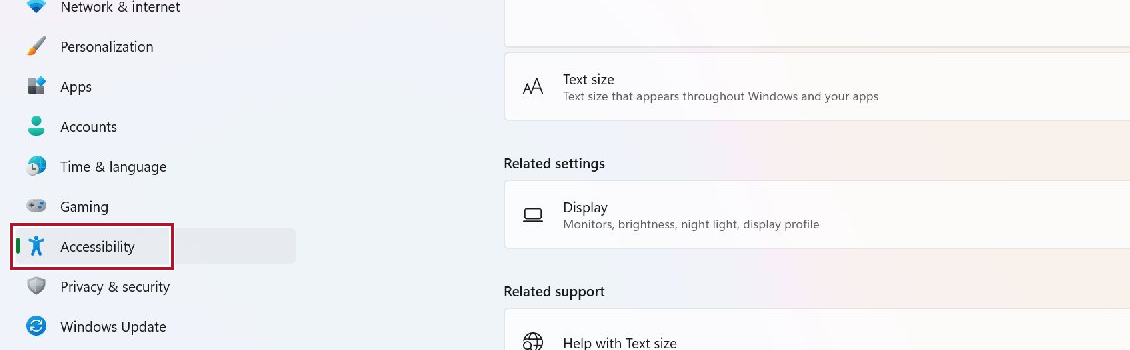
Step 1: Open Accessibility in Settings
Press Windows + I to open Settings, then choose Accessibility in the sidebar. Windows + U opens the same page directly.
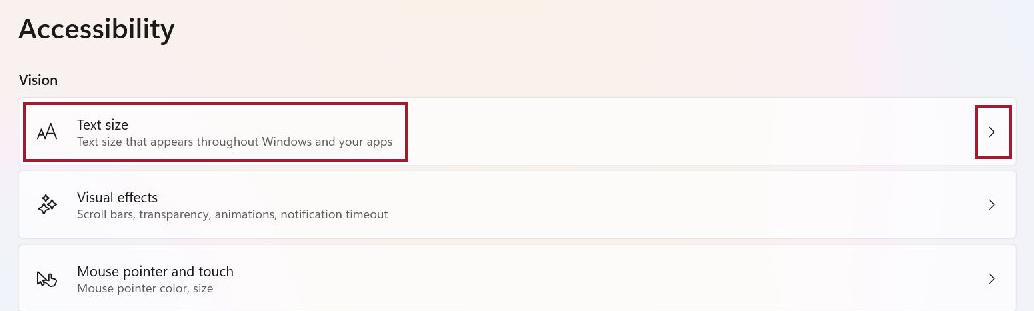
Step 2: Select Text size under Vision
In the Vision section, select Text size. The next screen shows sample text and a slider so you can judge the result before applying it.
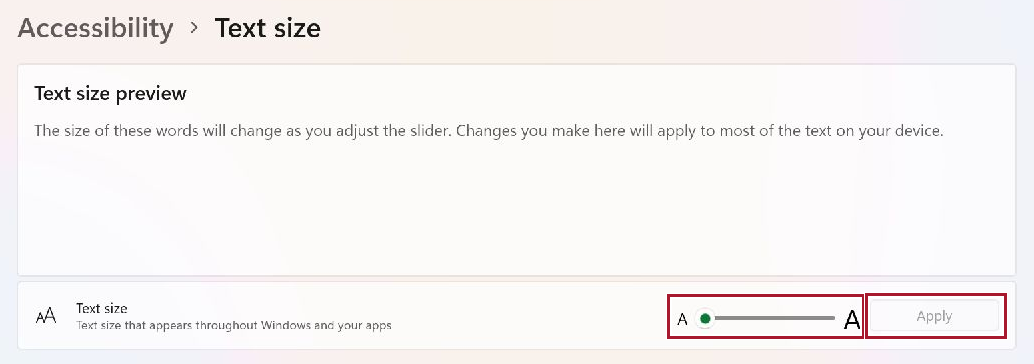
Step 3: Adjust the slider and apply your choice
Drag the Text size slider to the right and watch the sample above it. When it looks right, select Apply, then check a menu you use often.
Some apps draw their own text, so a particular website or app may still need its own zoom setting.
If text is still too small in one app
For a website, try Ctrl + Plus in the browser. If you want icons and windows larger as well, use Settings > System > Display > Scale instead.
To undo the text-only change, return to the same slider, move it back to your previous position, and select Apply again.
Microsoft’s Windows instructions cover the controls and supported options.

Join the discussion
0 commentsShare your experience or ask a question about this article.
Discussion
Start the conversation
Have a question or something useful to share? Add the first comment.