


If you need to know what Windows installed and when, open Update history. It lists update names and installation dates without starting another update.
A KB number is useful when a support agent asks about a specific update. Match the full number rather than relying on a similar date.
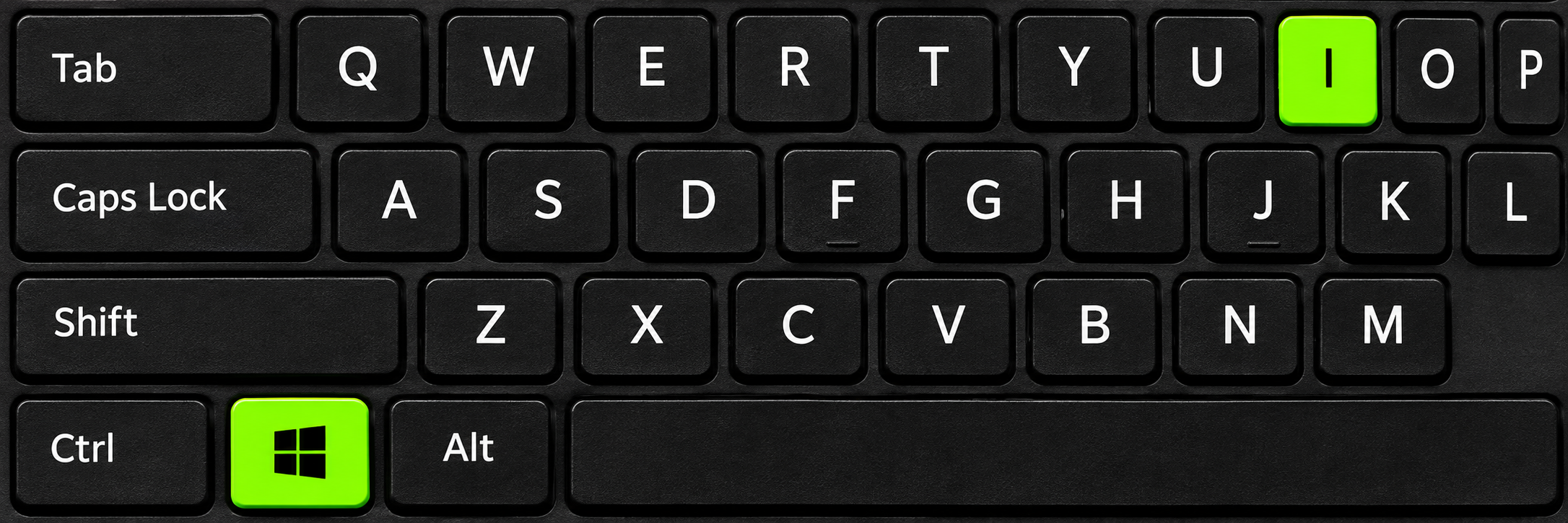
Hold the Windows logo key and press I to open Settings, or choose Settings in the Start menu.
Find an installed update and its KB number
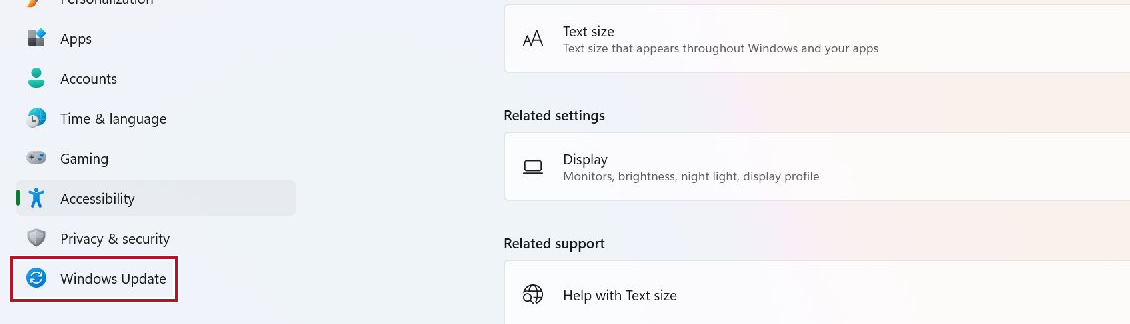
Step 1: Select Windows Update in Settings
Choose Windows Update near the bottom of the Settings sidebar. You do not need to click Check for updates to see what is already installed.
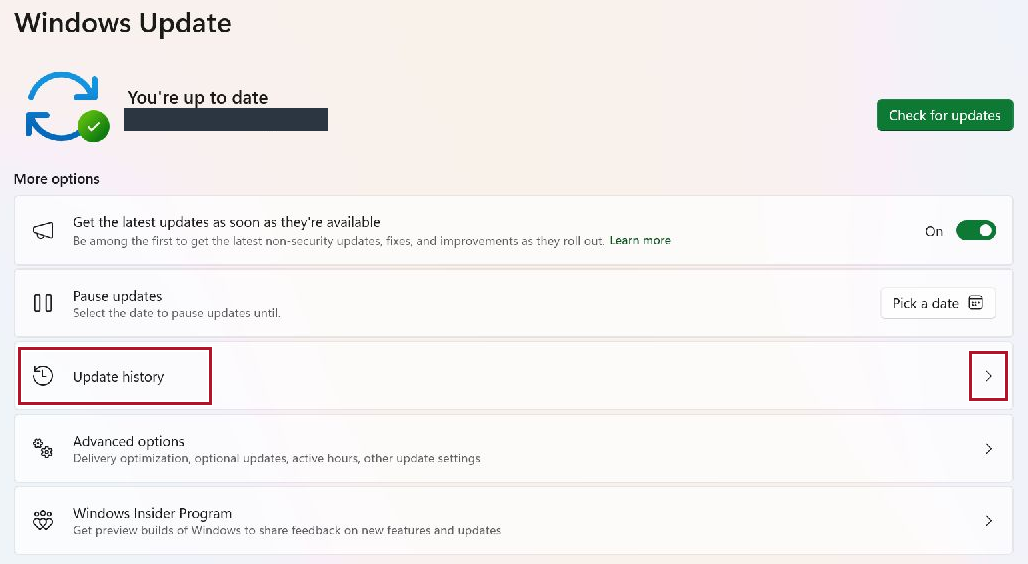
Step 2: Open Update history
Select Update history on the Windows Update page. This opens the installed-update record rather than the controls for optional downloads or restart scheduling.
Step 3: Open the category and read the entry
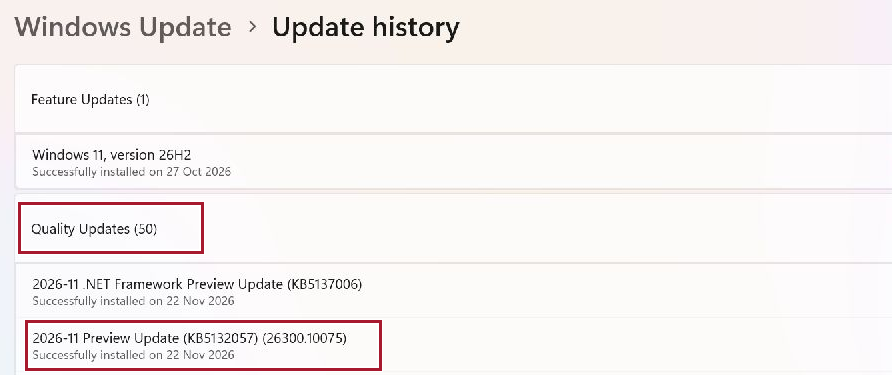
Expand Quality Updates for regular Windows fixes, or check Driver Updates for a driver. An entry may show a KB number, date, and installation result.
Read the result before drawing conclusions
Write down the complete title and any KB number next to the entry. If it shows a failed installation, do not treat it as evidence the update succeeded.
A problem starting after an update is worth noting, but the timing alone does not show what caused it. Keep the record before changing anything.
Microsoft’s Windows Update FAQ explains where to find history and how feature and quality updates differ.

Join the discussion
0 commentsShare your experience or ask a question about this article.
Discussion
Start the conversation
Have a question or something useful to share? Add the first comment.