

Conduit Search is a browser hijacker that it will change the homepage and search engine for your web browser to http://search.conduit.com.
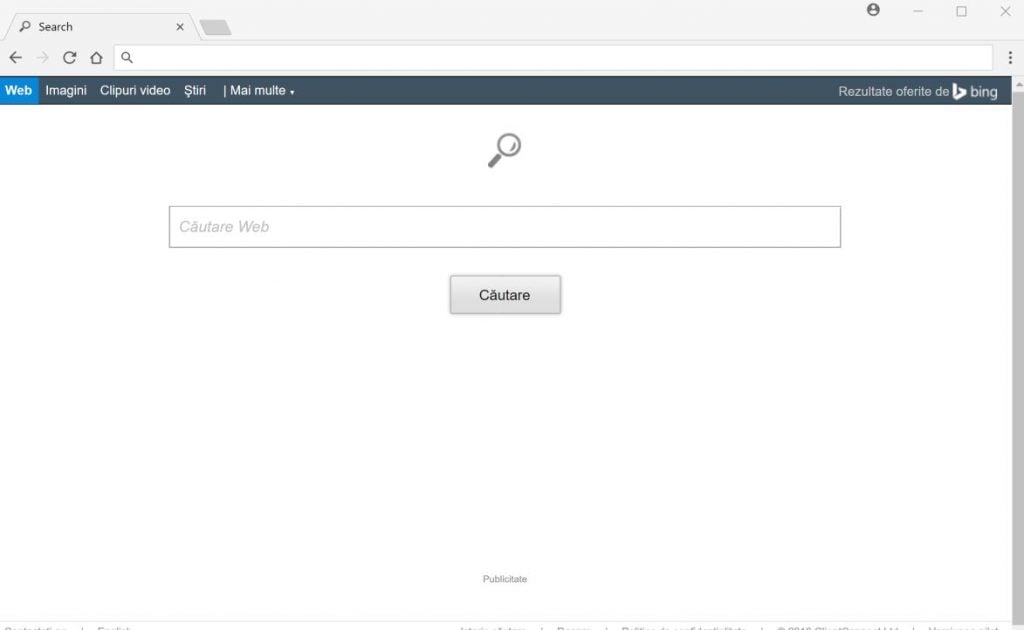
The Conduit Search redirect is caused by a browser hijacker which is installed by the users, whether that is knowingly or not. Often, this type of program is offered through advertisements or bundled with other software, leaving the user puzzled where this software came from.
When the Conduit Search browser hijacker is installed on a PC, common symptoms include:
- Changing the web browser’s default homepage to search.conduit.com
- Changing the browser’s search provider, built-in search box to http://www.Conduit Search
- Ability to modify the ‘new tab’ functionality to launch the modified search portal page
- Loads into the web browser via an extension or add-on
Always opt for the custom installation and deselect anything that is not familiar, especially optional software that you never wanted to download and install in the first place. It goes without saying that you should not install software that you don’t trust.
How to remove Conduit Search search redirect (Removal Guide)
Please perform all the steps in the correct order. If you have any questions or doubt at any point, STOP and ask for our assistance.
- STEP 1: Uninstall the malicious programs from Windows
- STEP 2: Use Malwarebytes to remove Conduit Search redirect
- STEP 3: Use Zemana AntiMalware Free to scan for malware and unwanted programs
- STEP 4: Double-check for malicious programs with HitmanPro
- (OPTIONAL) STEP 5: Reset your browser settings to default
STEP 1: Uninstall the malicious programs from Windows
In this first step, we will try to identify and remove any malicious program that might be installed on your PC.
- Go to the uninstall menu.
Windows 10 or Windows 8.1
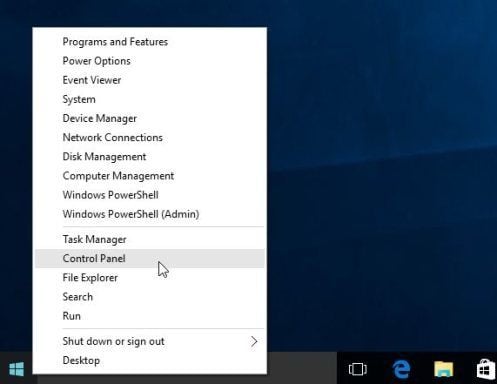
- To uninstall a program on Windows 10 or Windows 8, right-click on the Windows Start button and choose “Control Panel” from the pop-up menu.
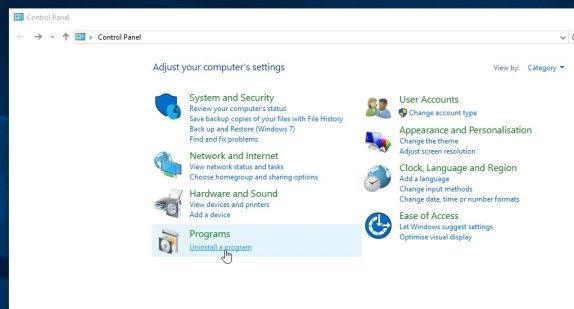
- When the “Control Panel” window opens click on the “Uninstall a program” option under “Programs” category.
Windows 7
- If you are using Windows XP, Windows Vista or Windows 7, click the “Start” button, then click on the “Control Panel” menu option.
![[Image: Control Panel in Windows Start Menu]](https://malwaretips.com/blogs/wp-content/uploads/2014/08/windows-start-menu-control-panel.jpg "Control Panel in Windows Start Menu")
- When the “Control Panel” window opens click on the “Uninstall a program” option under “Programs” category.
![[Image: Uninstall a program]](https://malwaretips.com/blogs/wp-content/uploads/2013/03/uninstall-a-program-windows.jpg "Click on Uninstall a program")
- To uninstall a program on Windows 10 or Windows 8, right-click on the Windows Start button and choose “Control Panel” from the pop-up menu.
- When the “Programs and Features” screen is displayed, scroll through the list of currently installed programs and uninstall any unwanted programs.
Known malicious programs: Search Protect, Client-Connect_uninstaller, TakeSave, DNS Unlocker, Cinema Plus, Price Minus, SalesPlus, New Player, MediaVideosPlayers, Browsers_Apps_Pro, PriceLEess, Pic Enhance, Sm23mS, Salus, Network System Driver, SS8, Save Daily Deals, Word Proser, Desktop Temperature Monitor, CloudScout Parental Control, Savefier, Savepass, HostSecurePlugin, CheckMeUp or HD-V2.2.The malicious program may have a different name on your computer. To view the most recently installed programs, you can click on the “Installed On” column to sort your program by the installation date. Scroll through the list, and uninstall any unwanted or unknown programs.
If you cannot find any unwanted programs on your computer, you can proceed with the next step.
If you are having issues while trying to uninstall a program, you can use Revo Uninstaller to completely remove this unwanted program from Windows.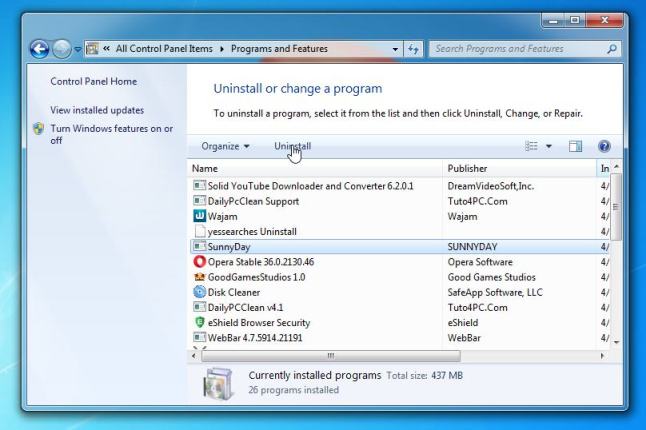
STEP 2: Use Malwarebytes to remove Conduit Search search redirect
Malwarebytes is a powerful on-demand scanner which will remove the Conduit Search search redirect from your PC. It is important to note that Malwarebytes will run alongside antivirus software without conflicts.
- You can download download Malwarebytes from the below link.
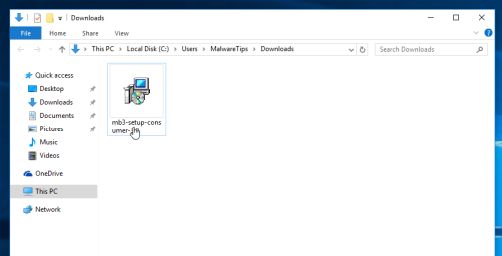
Download MalwarebytesFree official installer. Your download starts right away. - When Malwarebytes has finished downloading, double-click on the “mb3-setup-consumer” file to install Malwarebytes on your computer.
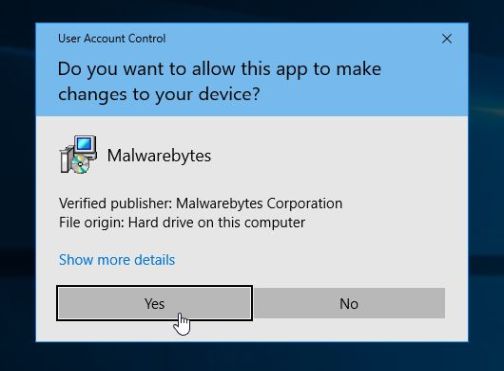
You may be presented with an User Account Control pop-up asking if you want to allow Malwarebytes to make changes to your device. If this happens, you should click “Yes” to continue with the installation.
- When the Malwarebytes installation begins, you will see the Malwarebytes Setup Wizard which will guide you through the installation process.
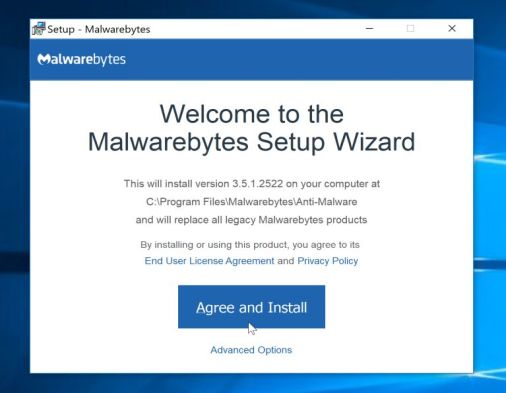
To install Malwarebytes on your machine, keep following the prompts by clicking the “Next” button.
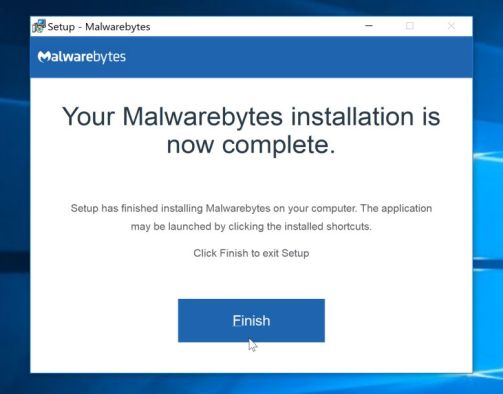
- Once installed, Malwarebytes will automatically start and update the antivirus database. To start a system scan you can click on the “Scan Now” button.
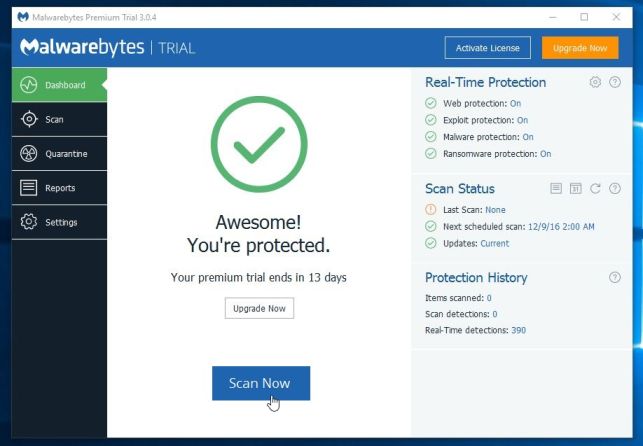
- Malwarebytes will now start scanning your computer for malicious programs.
This process can take a few minutes, so we suggest you do something else and periodically check on the status of the scan to see when it is finished.
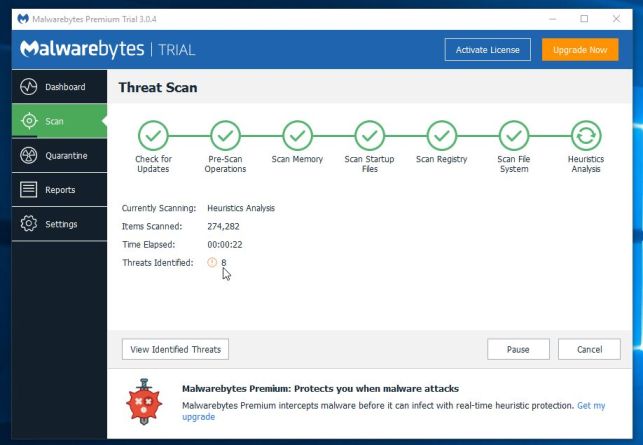
- When the scan has completed, you will be presented with a screen showing the malware infections that Malwarebytes has detected.
To remove the malicious programs that Malwarebytes has found, click on the “Quarantine Selected” button.
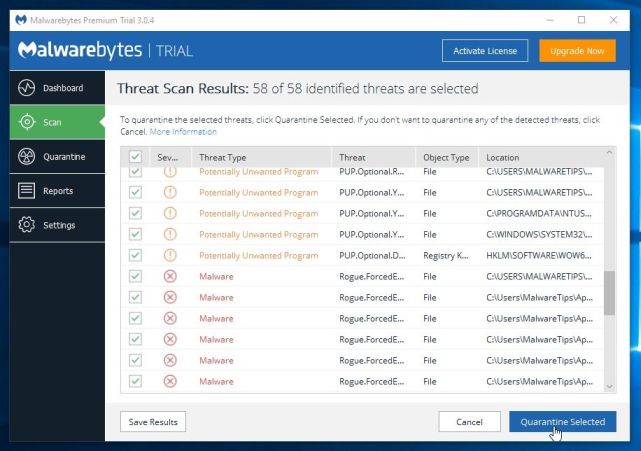
- Malwarebytes will now quarantine all the malicious files and registry keys that it has found.
To complete the malware removal process, Malwarebytes may ask you to restart your computer.
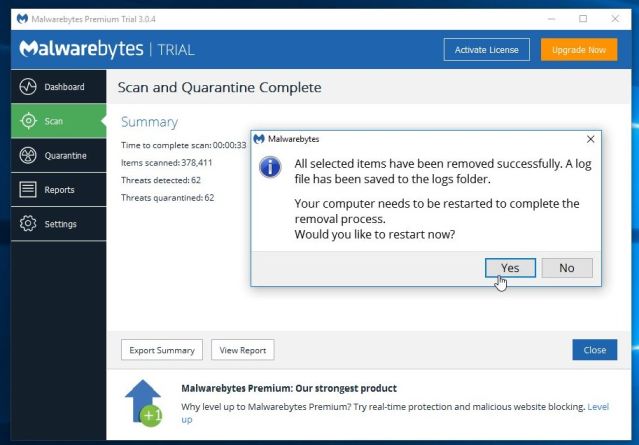
When the malware removal process is complete, you can close Malwarebytes and continue with the rest of the instructions.
STEP 3: Use Zemana AntiMalware Free to scan for Malware and Unwanted Programs
Zemana AntiMalware is a free malware scanner which can detect malicious programs that your antivirus has failed to find.
- You can download Zemana AntiMalware Free from the below link:
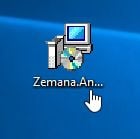
Download Zemana AntiMalwareOpens the download page in a new tab. - Double-click on the file named “Zemana.AntiMalware.Setup.exe” to start the installation of Zemana AntiMalware.
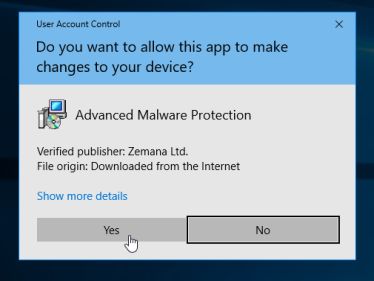
You may be presented with a User Account Control dialog asking you if you want to run this file. If this happens, you should click “Yes” to continue with the installation.
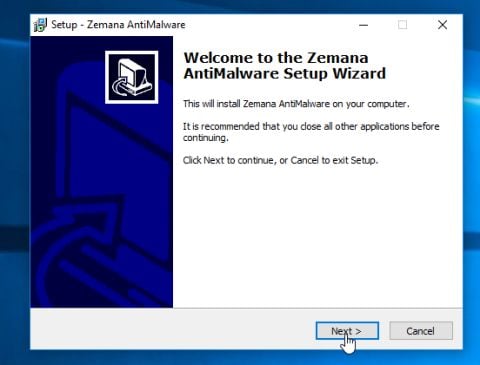
- Click on the “Next” button, to install Zemana AntiMalware on your computer.
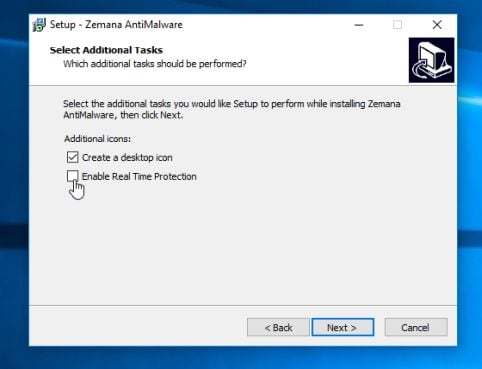
When you reach the “Select Additional Tasks” screen, you can opt-out the “Enable Real Time Protection” option, then click on the “Next” button.
- When Zemana AntiMalware will start, click on the “Scan” button.
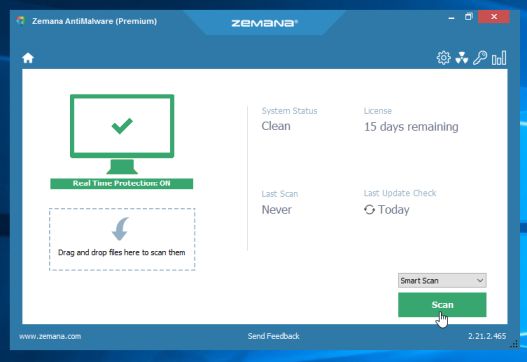
- Zemana AntiMalware will now scan computer for malicious files. This process can take up to 10 minutes.
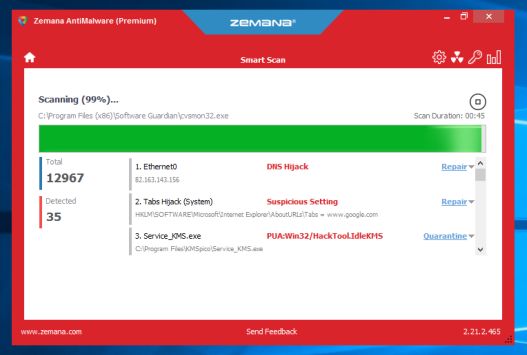
- When Zemana AntiMalware has finished it will display a list of all the malware that the program found. Click on the “Next” button, to remove the malicious files from your computer.
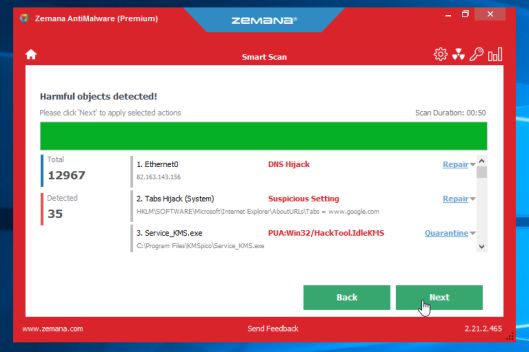
Zemana AntiMalware will now start to remove all the malicious programs from your computer. When the process is complete, you may need to restart your computer.
STEP 4: Double-check for malicious programs with HitmanPro
HitmanPro finds and removes malware, adware, bots, and other threats that even the best antivirus suite can oftentimes miss. It’s designed to run alongside your antivirus suite, firewall, and other security tools.
- You can download HitmanPro from the below link:
Download HitmanProOfficial Sophos download. Free scan, free 30-day trial to remove threats. - When HitmanPro has finished downloading, double-click on the “hitmanpro” file to install this program on your computer.
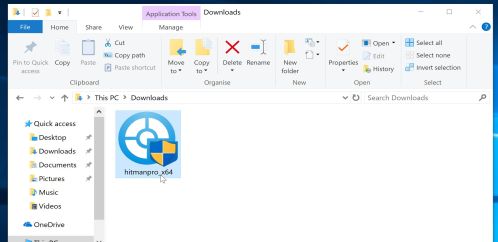
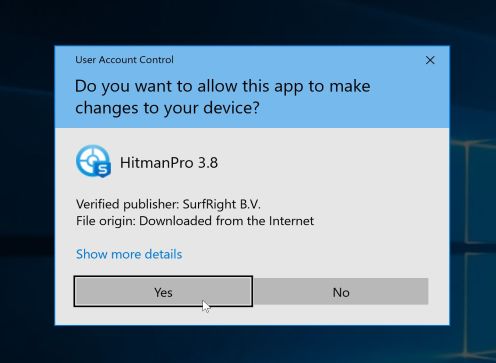
You may be presented with an User Account Control pop-up asking if you want to allow HitmanPro to make changes to your device. If this happens, you should click “Yes” to continue with the installation.
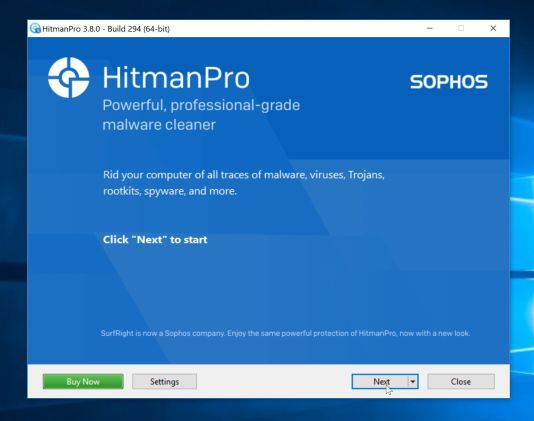
- When the program starts you will be presented with the start screen as shown below. Now click on the Next button to continue with the scan process.
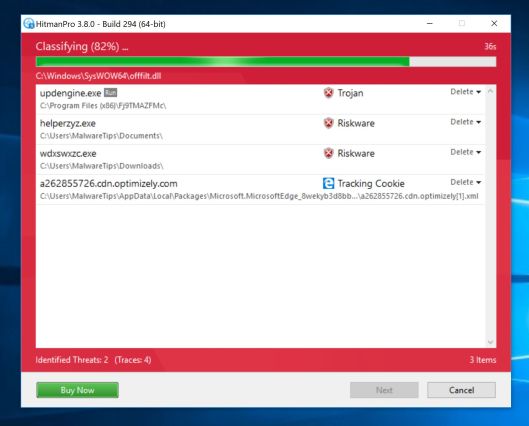
- HitmanPro will now begin to scan your computer for malware.
- When it has finished it will display a list of all the malware that the program found as shown in the image below. Click on the “Next” button, to remove malware.
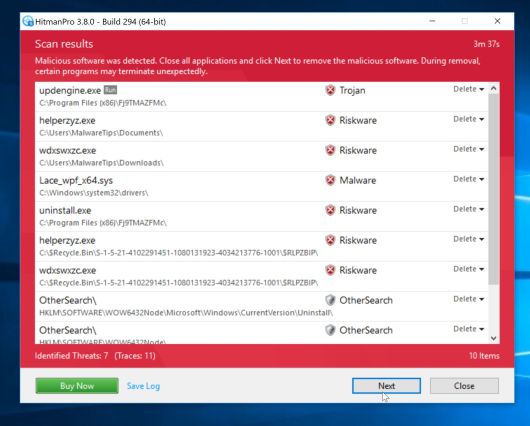
- Click on the “Activate free license” button to begin the free 30 days trial, and remove all the malicious files from your computer.
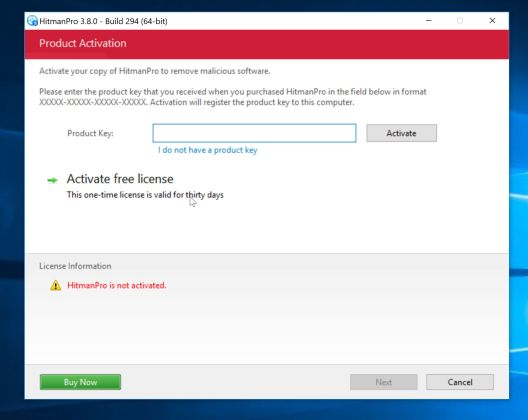
When the process is complete, you can close HitmanPro and continue with the rest of the instructions.
(Optional) STEP 5: Reset your browser to the default settings
This step needs to be performed only if your issues have not been solved by the previous steps.
Google Chrome
- Click on Chrome’s main menu button, represented by three horizontal lines. When the drop-down menu appears, select the option labeled Settings.
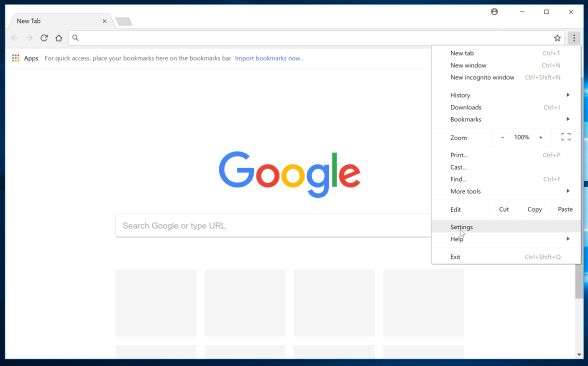
- Chrome’s Settings should now be displayed in a new tab or window, depending on your configuration. Next, scroll to the bottom of the page and click on the Advanced link (as seen in the below example).
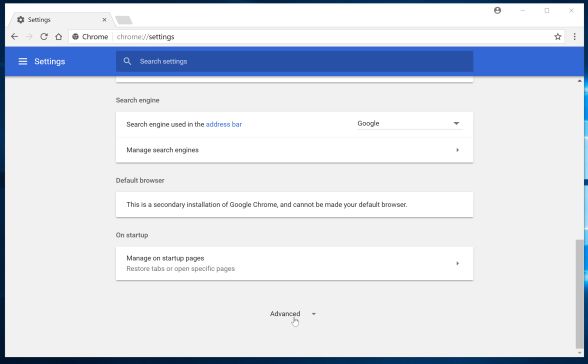
- Chrome’s advanced Settings should now be displayed. Scroll down until the Reset browser settings section is visible, as shown in the example below. Next, click on the Reset settings button.
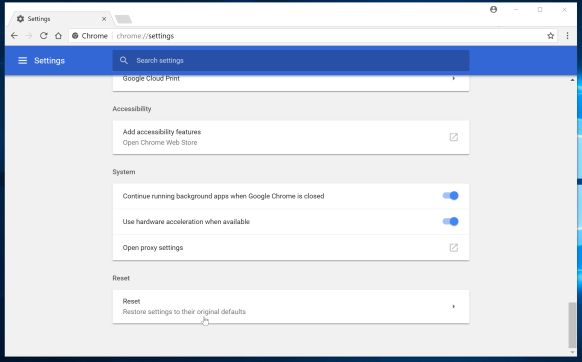
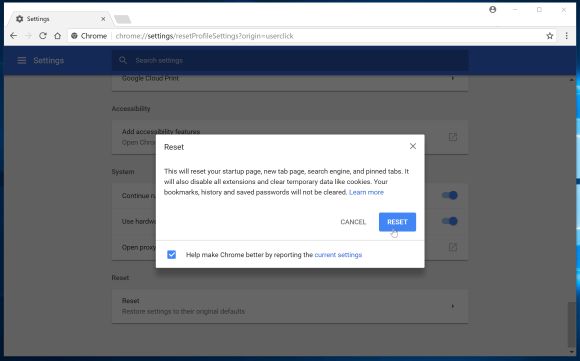
- A confirmation dialog should now be displayed, detailing the components that will be restored to their default state should you continue on with the reset process. To complete the restoration process, click on the Reset button.
Internet Explorer
- Open Internet Explorer, click on the “gear icon”
 in the upper right part of your browser, then click again on Internet Options.
![[Image: Internet Options in Internet Explorer]](https://malwaretips.com/blogs/wp-content/uploads/2014/03/Internet-Options-Internet-Explorer.jpg "Click on the Gear Icon then on Internet Options")
- In the “Internet Options” dialog box, click on the “Advanced” tab, then click on the “Reset” button.
![[Image: Reset Internet Explorer]](https://malwaretips.com/blogs/wp-content/uploads/2014/03/Reset-Internet-Explorer.jpg "In the Advanced tab click on the Reset button")
- In the “Reset Internet Explorer settings” section, select the “Delete personal settings” check box, then click on “Reset” button.
![[Image: Reset Internet Explorer to its default settings]](https://malwaretips.com/blogs/wp-content/uploads/2014/03/reset-button-Internet-Explorer.jpg "Click on the Reset button to revert IE to its default settings")
- When Internet Explorer has completed its task, click on the “Close” button in the confirmation dialogue box. You will now need to close your browser, and then you can open Internet Explorer again.
![[Image Reset Internet Explorer settings]](https://malwaretips.com/blogs/wp-content/uploads/2014/03/Close-button-Reset.jpg "Click on the Close button")
Mozilla Firefox
- In the upper-right corner of the Firefox window, click the Firefox menu button (
![[Image: Firefox Menu button]](https://malwaretips.com/blogs/wp-content/uploads/2014/04/Firefox-menu-button.png "Firefox Menu button") ), then click on the “Help” (
), then click on the “Help” (![[Image: Firefox Help button]](https://malwaretips.com/blogs/wp-content/uploads/2014/04/Firefox-Help.png "Firefox Help button") ) button.
) button.
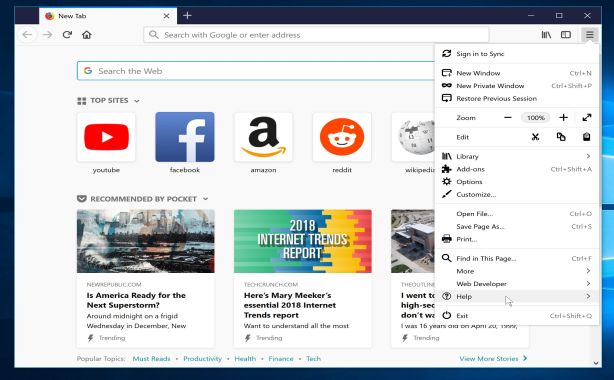
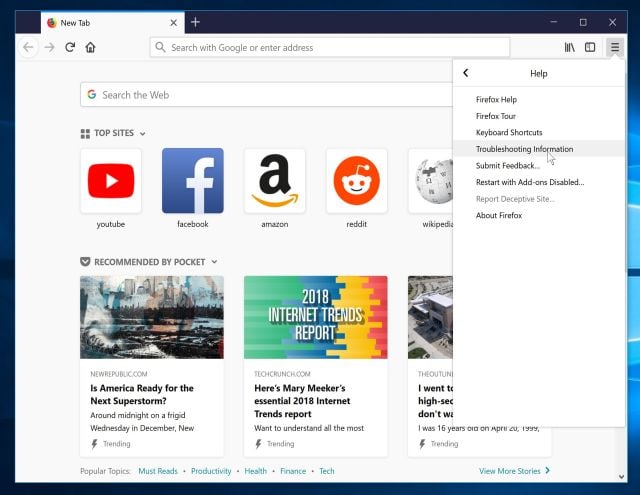
- From the Help menu, choose Troubleshooting Information.
If you’re unable to access the Help menu, type about:support in your address bar to bring up the Troubleshooting information page.
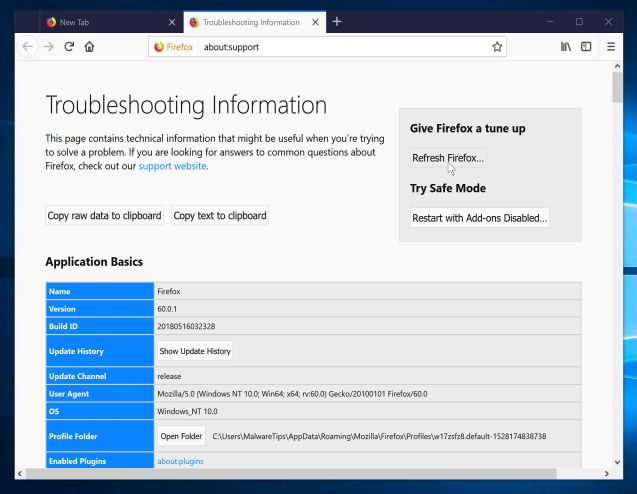
- Click the “Refresh Firefox” button in the upper-right corner of the “Troubleshooting Information” page.
- To continue, click on the “Refresh Firefox” button in the new confirmation window that opens.
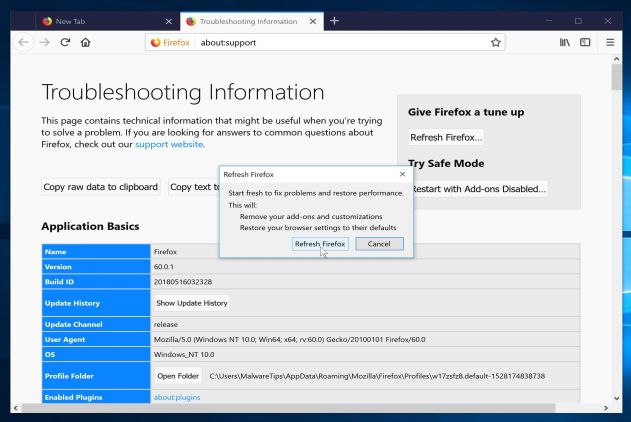
- Firefox will close itself and will revert to its default settings. When it’s done, a window will list the information that was imported. Click on the “Finish“.
If you are still experiencing problems while trying to remove Conduit Search search redirect from your PC, please do one of the following:
- Run a system scan with Emsisoft Emergency Kit
- Ask for help in our Malware Removal Assistance for Windows forum.









Thanks so much for your help
Many thanks for the help, didn’t know how much my PC was infected. That scared me big time!
Thank You!!! It worked
I didn’t follow any of these steps, instead I spent 5 hours of running through all the registry keys, looking for any random things that might’ve popped up. I noticed that the conduit files were no longer showing up when I did a general file sweep using the Windows 8 file search engine so i went ahead and uninstalled anything that looked conduit associated, even used the uninstaller that was in the file with the conduit stuff and poof, everything conduit associated is gone. Except 2 months later, i find another file that had conduit written all over it that I had not noticed. I ran the uninstaller on this one too, and it’s gone, and then i go through all the registry keys again just to make sure the fix was permanent. So my nerves are shot and im nervous as hell. Damn you conduit.
Thank you.
thank you soo much! it actually works!!
THANK YOU!! it came with Doubletwist update for my phone. THey will get a piece of my mind.
In my case it was hidden under the program “uTorrentControl2”. You just have to uninstall it.
For my computer the program associated with Conduit was something called Babylon. Still managed to remove it so thanks for your instructions but just and FYI for others that it might not be the “brother” program you mentioned so just get rid of anything you don’t recognize
Re : search . Conduit . Will it do to fully uninstall the browser and re-install ?
Hello Peter,
Did you uninstall “Search protect by conduit” ? What browser are you using?
Thanks for taking the time to leave us these clear step by step instructions.
thank you so much for your help. I am not very computer literate but following all your advice I found that I was able to delete the conduit for good (hopefully). i still have no idea how it came up in the first place, but my internet is working so much quicker now. Once again many thanks.
I got mine because accidentily because I was searching for outdated magzine article download and there was a “click here to download this issue for free” I should have known better. Lesson Learned.
I have conduit and cannot stand it but cannot see anywhere in my programs – cannot recognise any unwanted programs – I have windows 7
Hello Malcom,
Please uninstall Search protect by conduit, then follow the other steps from the guide….If you can’t find Search protect by conduit, go ahead and proceed with STEP 2, 3 and 4.
Thank you for saving my computer. I will have to pay more attention to downloads
Thanks guys, conduit has been a huge pain but this really helped, my startup time has now been quatered, so thanks a lot.
after 2 days of running every removal tool i could find , and finally i got it removed from the deepest parts of my computer. thank you from the bottom of my grateful heart.
A thousand hugs – you saved me from completely removing my hard drive! I thought I could NEVER get rid of conduit virus!
You are star. Thanks very much. I have interview coming and you know at last moment when I was downloading an ebook and it went all wrong , this malware or CONDUIT has installed. I struggled to get rid of this for 3hrs and finally I found your article and that worked FANTASTICALLY.
Thanks and keep posted.
Thank you for this info! I am usually really good about not doing anything that would risk my computer for viruses, but I did and conduit took over. I thought I did everything to take it off but it was still showing up as a new tab whenever I opened up Chrome. Your instructions fixed all that for me and ADwCleaner took care of the rest.
Thank you for taking the time to show us how to do this.
I had already deleted conduit from my chrome settings but it still lingered, thank you for helping me get rid of it.